
Check memory usage in Linux: find the top memory and CPU users
-
Phase 0: Before you start
-
Phase 1: The origins and OS architecture
-
Phase 2: Day-to-day administration and the command builder
-
Phase 3: Enterprise infrastructure and storage
-
Phase 4: Troubleshooting step by step
-
Phase 5: Final project and career
When someone says “the server is slow”, the first thing you need to do is check memory usage in Linux and find which processes are eating memory and CPU. Two minutes with free, ps and top tells you whether the box is short of RAM, short of CPU, or fine and the problem is somewhere else.
Here we go deep into the process hunting builder from Lesson 21. You’ll read each column the memory report gives you and the lines behind it in /proc/meminfo, rank processes with ps and custom columns, take top snapshots in batch mode for a ticket, and learn why VSZ scares people for no reason while RSS tells the truth.
Where this lesson fits
Lesson 22 of 82 in Linux Administration · Phase 2: Day-to-day administration and the command builder · Before this: Lesson 21, how to build a Linux command · Next: Lesson 23, who is listening on which port
| Time | You need | By the end you can |
|---|---|---|
| About 60 minutes | rocky01 (2 GB RAM, 2 GB swap from the installer) and an SSH session as student; ubu01 works the same | Say in one sentence whether a server is short of memory, name the top ten memory and CPU users, and save the evidence for a ticket |
What it is, in one line
Checking memory means reading how much RAM programs can still get (the “available” number), whether swap is being used, and which processes hold the most real memory (RSS) right now.
In Simple Words
The office cupboard and the tea table
Picture a small office with one big cupboard. Each team has its own shelves with files they’re working on, and those shelves are taken. The rest of the cupboard holds old newspapers and yesterday’s printouts, kept there only because someone might ask for them again.
When a new team joins and needs shelves, the office boy throws out the newspapers and the space is theirs in a minute. Nobody would call the cupboard “full” only because the newspapers are there. It’s full only when the teams’ own files fill it and the office boy starts carrying files to the store room downstairs, which makes everyone wait.
In Linux, the teams’ shelves are process memory, the newspapers are the page cache, and the store room downstairs is swap.
Engineer's View
What free and /proc/meminfo really count
The kernel keeps its memory numbers in /proc/meminfo, and free reads that file and does a little arithmetic. On the procps-ng that Rocky 10 and Ubuntu 26.04 ship, the columns mean this:
| free column | From /proc/meminfo | What it tells you |
|---|---|---|
| total | MemTotal | RAM the kernel can use (a bit less than the VM setting, because the kernel keeps some for itself) |
| used | MemTotal minus MemAvailable | Memory that can’t be handed out quickly: program data, kernel memory that can’t be freed |
| free | MemFree | Memory doing nothing at all. On a healthy server this is often small, and that’s fine |
| shared | Shmem | Mostly tmpfs files (/run, /dev/shm) and shared memory between processes |
| buff/cache | Buffers + Cached + SReclaimable | File data and kernel caches the kernel can drop when programs need room |
| available | MemAvailable | The kernel’s estimate of what new programs can get without swapping. This is the number to watch |
For processes, two sizes matter. VSZ (VIRT in top) is all the address space a process has reserved, including libraries, files it mapped and memory it asked for but never touched. RSS (RES in top) is the part that is in RAM right now.
Shared libraries are counted in the RSS of every process that uses them, so adding up RSS across processes gives a number bigger than the real total; smem (PSS) splits shared pages fairly if you ever need exact sums.
| Tool | Best for |
|---|---|
free -h | One-line answer: is RAM or swap tight? |
ps -eo ... --sort=-rss | Ranked list of processes, in a format you choose, for scripts and tickets |
top -b -n 1 -o %MEM | A snapshot with the summary lines (load, tasks, memory) plus the ranked list |
pmap -x PID | Where one process’s memory goes (heap, libraries, mapped files) |
vmstat 5 | Whether the box is swapping right now (si and so columns) |
How it works, step by step
Here is the path memory takes from a program asking for it to the kernel taking it back.
1A program asks for memory and gets a promise
When an app calls malloc or maps a file, the kernel only reserves address space. VSZ goes up straight away, but no RAM is used yet. Linux allows this overcommit on purpose, because many programs reserve far more than they ever touch.
2Touching a page makes it real
The first time the program writes to a page (4 KiB on x86-64), the kernel finds a free page of RAM and maps it in. Now RSS grows, and that page counts as anonymous memory (AnonPages in /proc/meminfo). The diagram below shows the full path.
3Spare RAM fills with page cache
Every file a server reads or writes passes through the page cache, so the next read comes from RAM instead of disk. That’s why buff/cache grows on any busy server and free shrinks. It isn’t a leak; it’s the kernel making good use of RAM nobody else wants yet.
4Under pressure, the kernel takes memory back
When programs need more, the kernel first drops clean page cache (cheap, the data is still on disk). If that isn’t enough, it writes rarely used anonymous pages out to swap. A little swap used on a long-running server is normal; swap being read and written all the time (vmstat si and so above zero, minute after minute) means the server is short of RAM.
5If nothing is left, the OOM killer picks a victim
When neither cache nor swap can cover a request, the kernel’s out-of-memory killer ends the process with the highest badness score, usually the biggest one. You’ll see “Out of memory: Killed process” in the kernel log, and Lesson 74 covers that case in full. The picture below compares how the four main tools see the same memory.
6Read the tools in the right order
Start with free -h to know if memory is tight at all. If available is healthy, the slowness is somewhere else (CPU, disk, network), so you move on. If it’s low, rank processes by RSS with ps, and check with vmstat 5 whether swapping is happening now.
Then look inside the top process with pmap or its own metrics before you restart anything.
CPU works the same way with different columns. %CPU in ps is the average since the process started, which hides a sudden spike. top measures between two refreshes, so its first snapshot in batch mode can also be misleading; take two with -n 2 and read the second.
Hands-on lab: hunt memory and CPU hogs on rocky01
Before you run any command, double-check it
Read every command twice before you press Enter. Check the target: the server name, the user, the disk or device name, the path and the sizes. These commands are for learning and were tested in our lab, not on your system. At work, run the read-only commands first, follow your change process, make sure a backup exists, and ask a second person to check anything that changes or deletes data. You run them at your own risk.
You’ll create two small Python programs that use memory in different ways, plus one CPU burner, and read them with every tool from this lesson. All of it runs as student in ~/lab22 on rocky01, and you’ll stop everything at the end. Start with mkdir -p ~/lab22 && cd ~/lab22.
1Read free -h the right way
Run this:
free -hYou should see something like this:
total used free shared buff/cache available
Mem: 1.7Gi 456Mi 1.0Gi 8.8Mi 415Mi 1.3Gi
Swap: 2.0Gi 0B 2.0Girocky01 has 2 GB in VirtualBox, and the kernel shows 1.7Gi total after keeping some for itself. Look at available first: 1.3Gi can go to new programs without swapping. Swap shows 2.0Gi total and nothing used, which is what you want to see.
The -h means “human” units in powers of 1024 (Gi, Mi); add -m for plain MiB numbers in scripts.
✅ Checkpoint: You can say how much memory is available on rocky01 and whether any swap is used.
2Look behind free in /proc/meminfo
Run this:
grep -E '^(MemTotal|MemFree|MemAvailable|Buffers|Cached|SwapCached|SwapTotal|SwapFree|AnonPages|Shmem|SReclaimable):' /proc/meminfoYou should see something like this:
MemTotal: 1784013 kB
MemFree: 1034060 kB
MemAvailable: 1316722 kB
Buffers: 4908 kB
Cached: 371820 kB
SwapCached: 0 kB
SwapTotal: 2097148 kB
SwapFree: 2097148 kB
AnonPages: 318400 kB
Shmem: 9032 kB
SReclaimable: 48356 kBAll values are in kB (kibibytes). Check the arithmetic yourself: buff/cache is Buffers + Cached + SReclaimable = 4908 + 371820 + 48356 = 425084 kB, which free shows as 415Mi. used is MemTotal minus MemAvailable = 467291 kB, about 456Mi. AnonPages is memory programs have written to, the part that can only go to swap, never be dropped.
✅ Checkpoint: Your buff/cache and used numbers match the sums from your own meminfo.
3Start a memory hog and a lazy reserver
Create both programs (paste this whole block):
cat > ~/lab22/hog.py <<'EOF'
#!/usr/bin/env python3
# hog.py: fills N MiB of RAM and holds it until you stop it
import os, sys, time
mib = int(sys.argv[1]) if len(sys.argv) > 1 else 200
data = b"x" * (mib * 1024 * 1024)
print(f"hog: PID {os.getpid()} is holding {mib} MiB", flush=True)
time.sleep(3600)
EOF
cat > ~/lab22/lazy.py <<'EOF'
#!/usr/bin/env python3
# lazy.py: reserves 1 GiB of address space but never touches it
import mmap, os, time
area = mmap.mmap(-1, 1024 * 1024 * 1024)
print(f"lazy: PID {os.getpid()} reserved 1 GiB", flush=True)
time.sleep(3600)
EOF
python3 -m py_compile ~/lab22/hog.py ~/lab22/lazy.py && echo syntax okStart them in the background:
cd ~/lab22
python3 hog.py 290 &
python3 lazy.py &
sleep 2; free -hYou should see something like this:
[1] 2480
[2] 2481
hog: PID 2480 is holding 290 MiB
lazy: PID 2481 reserved 1 GiB
total used free shared buff/cache available
Mem: 1.7Gi 751Mi 714Mi 8.8Mi 415Mi 991Mi
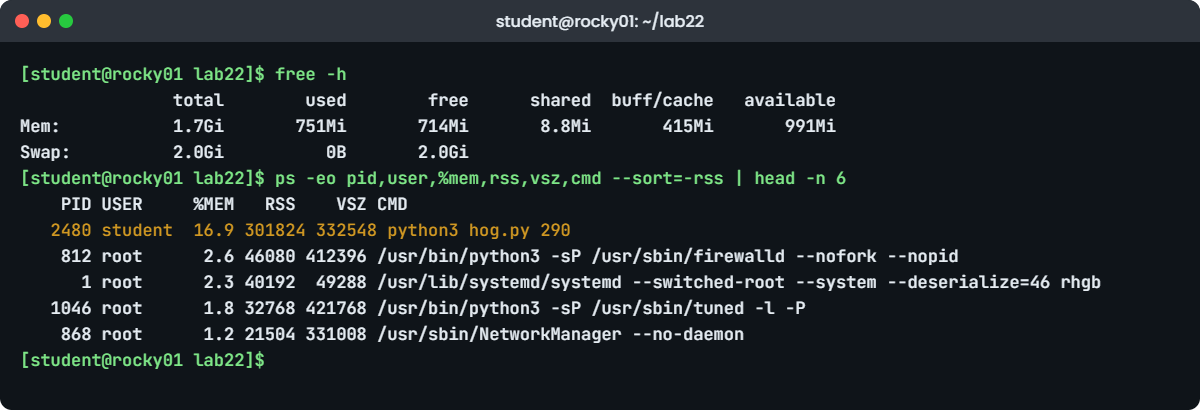
Swap: 2.0Gi 0B 2.0Giavailable dropped by about 300 MiB, from 1.3Gi to 991Mi, and used went up by the same amount. lazy.py reserved a whole gigabyte, yet free barely noticed it, because it never wrote to that memory.
✅ Checkpoint: Both programs printed their PID and available dropped by roughly 290 MiB.
4Rank processes by memory, ten of them
Run this:
ps aux --sort=-%mem | head -n 11You should see something like this:
USER PID %CPU %MEM VSZ RSS TTY STAT START TIME COMMAND
student 2480 0.3 16.9 332548 301824 pts/0 S 11:05 0:00 python3 hog.py 290
root 812 0.1 2.6 412396 46080 ? Ssl 09:01 0:01 /usr/bin/python3 -sP /usr/sbin/firewalld --nofork --nopid
root 1 0.0 2.3 49288 40192 ? Ss 09:01 0:02 /usr/lib/systemd/systemd --switched-root --system --deserialize=46 rhgb
root 1046 0.0 1.8 421768 32768 ? Ssl 09:01 0:00 /usr/bin/python3 -sP /usr/sbin/tuned -l -P
root 868 0.0 1.2 331008 21504 ? Ssl 09:01 0:00 /usr/sbin/NetworkManager --no-daemon
polkitd 790 0.0 1.1 385412 19968 ? Ssl 09:01 0:00 /usr/lib/polkit-1/polkitd --no-debug --log-level=notice
root 612 0.0 1.0 48864 17408 ? Ss 09:01 0:00 /usr/lib/systemd/systemd-journald
student 1838 0.0 0.8 22688 14592 ? Ss 10:15 0:00 /usr/lib/systemd/systemd --user
root 655 0.0 0.7 35720 13312 ? Ss 09:01 0:00 /usr/lib/systemd/systemd-udevd
root 805 0.0 0.6 19980 11520 ? Ss 09:01 0:00 /usr/lib/systemd/systemd-logindhog.py is at the top with an RSS of 301824 kB (about 295 MiB) and 16.9 %MEM. The head -n 11 gives you the header plus ten processes. For a ticket or a script, choose your own columns and let ps sort by RSS directly:
ps -eo pid,user,%mem,rss,vsz,cmd --sort=-rss | head -n 6You should see something like this:
PID USER %MEM RSS VSZ CMD
2480 student 16.9 301824 332548 python3 hog.py 290
812 root 2.6 46080 412396 /usr/bin/python3 -sP /usr/sbin/firewalld --nofork --nopid
1 root 2.3 40192 49288 /usr/lib/systemd/systemd --switched-root --system --deserialize=46 rhgb
1046 root 1.8 32768 421768 /usr/bin/python3 -sP /usr/sbin/tuned -l -P
868 root 1.2 21504 331008 /usr/sbin/NetworkManager --no-daemon-eo lists every process with the columns you name, and --sort=-rss sorts on the real number (in kB) instead of the rounded percentage. Add --no-headers when another tool will read the output.
Try it yourself: build the top-memory command, with or without the header, in the Command Builder.
✅ Checkpoint: hog.py is the first process in both lists.
5See why VSZ lies and RSS tells the truth
Sort by VSZ instead:
ps -eo pid,user,%mem,rss,vsz,cmd --sort=-vsz | head -n 4You should see something like this:
PID USER %MEM RSS VSZ CMD
2481 student 0.6 11100 1084160 python3 lazy.py
1046 root 1.8 32768 421768 /usr/bin/python3 -sP /usr/sbin/tuned -l -P
812 root 2.6 46080 412396 /usr/bin/python3 -sP /usr/sbin/firewalld --nofork --nopidlazy.py now looks like the biggest process on the box with over 1 GB of VSZ, but its RSS is 11100 kB, about 11 MiB. Java, databases and browsers often show huge VSZ for the same reason. Look inside hog.py with its status file and pmap (use your own PID):
grep -E '^(VmSize|VmRSS|RssAnon|RssFile|VmSwap)' /proc/2480/status
pmap -x 2480 | tail -n 1You should see something like this:
VmSize: 332548 kB
VmRSS: 301824 kB
RssAnon: 294400 kB
RssFile: 7424 kB
VmSwap: 0 kB
---------------- ------- ------- -------
total kB 332552 301824 294660VmSize is VSZ, VmRSS is RSS, and RSS splits into RssAnon (its own data, the 290 MiB) and RssFile (the Python program and libraries mapped from disk). VmSwap shows how much of it has been pushed to swap. The pmap total line gives the same sizes; drop the | tail to see every mapping.
✅ Checkpoint: You can explain why lazy.py has a big VSZ and a tiny RSS.
6Take a top snapshot for the ticket
Run this:
top -b -n 1 -o %MEM | head -n 12You should see something like this:
top - 11:08:41 up 2:07, 1 user, load average: 0.02, 0.05, 0.01
Tasks: 137 total, 1 running, 136 sleeping, 0 stopped, 0 zombie
%Cpu(s): 0.0 us, 3.0 sy, 0.0 ni, 97.0 id, 0.0 wa, 0.0 hi, 0.0 si, 0.0 st
MiB Mem : 1742.2 total, 714.8 free, 751.2 used, 415.1 buff/cache
MiB Swap: 2048.0 total, 2048.0 free, 0.0 used. 991.0 avail Mem
PID USER PR NI VIRT RES SHR S %CPU %MEM TIME+ COMMAND
2480 student 20 0 332548 301824 7424 S 0.0 16.9 0:00.21 python3
812 root 20 0 412396 46080 13952 S 0.0 2.6 0:01.12 firewalld
1 root 20 0 49288 40192 10624 S 0.0 2.3 0:02.11 systemd
1046 root 20 0 421768 32768 12288 S 0.0 1.8 0:00.64 tuned
868 root 20 0 331008 21504 17920 S 0.0 1.2 0:00.41 NetworkManager-b is batch mode (plain text, no screen control), -n 1 takes one snapshot and -o %MEM sorts by memory. The field name must be written the way top prints it, %MEM or %CPU. Here the header is seven lines, so head -n 12 gives five processes.
The “MiB Mem” and “MiB Swap” lines tell the same story as free, with avail Mem on the swap line.
top -b -n 1 -o %MEM > ~/lab22/top-$(hostname -s)-$(date +%F-%H%M).txt
ls ~/lab22/top-*✅ Checkpoint: A file named like top-rocky01-2026-10-27-1108.txt exists in ~/lab22.
7Find the CPU hog
Start a CPU burner and wait about 30 seconds:
sha256sum /dev/zero &
sleep 30
ps -eo pid,user,%cpu,time,etime,cmd --sort=-%cpu | head -n 4You should see something like this:
PID USER %CPU TIME ELAPSED CMD
2502 student 98.7 00:00:29 00:30 sha256sum /dev/zero
2480 student 0.0 00:00:00 03:12 python3 hog.py 290
812 root 0.1 00:00:01 02:07:40 /usr/bin/python3 -sP /usr/sbin/firewalld --nofork --nopidsha256sum reads zeros forever and keeps one CPU at almost 100 percent. In ps, %CPU is CPU time divided by run time, so TIME 29 seconds over ELAPSED 30 seconds is 98.7 percent. A process that was idle for a day and then spiked would still show a low %CPU here, so check top too, with two snapshots one second apart:
top -b -n 2 -d 1 -o %CPU | grep -A 2 '^ *PID' | tail -n 3You should see something like this:
PID USER PR NI VIRT RES SHR S %CPU %MEM TIME+ COMMAND
2502 student 20 0 7932 3268 2724 R 99.7 0.2 0:33.18 sha256sum
2001 student 20 0 231460 5632 3456 R 0.3 0.3 0:00.04 topThe second snapshot measures the last second only, which is what “busy right now” means. Stop the burner with kill %3 (or its PID).
Try it yourself: build the top-CPU command in the Command Builder.
✅ Checkpoint: sha256sum topped both lists, and after kill it no longer appears in ps.
8Watch page cache grow and come back
Write a 400 MiB file, then look at free:
dd if=/dev/zero of=~/lab22/big.bin bs=1M count=400
free -hYou should see something like this:
400+0 records in
400+0 records out
419430400 bytes (419 MB, 400 MiB) copied, 0.912214 s, 460 MB/s
total used free shared buff/cache available
Mem: 1.7Gi 757Mi 314Mi 8.8Mi 815Mi 985Mi
Swap: 2.0Gi 0B 2.0GiCompared with step 3, buff/cache grew by 400 MiB and free dropped by the same amount, but available moved only from 991Mi to 985Mi, because the kernel can drop that cache the moment hog.py or anything else needs it. Delete the file and stop the test programs:
rm ~/lab22/big.bin
kill %1 %2
free -h✅ Checkpoint: After cleanup, available on rocky01 is back near the 1.3Gi you saw in step 1.
Break It, Then Fix It
Take a snapshot of rocky01 first (VBoxManage snapshot rocky01 take before-l22 on the laptop). The first two traps give wrong answers with no error, the third gives an error people misread, and the fourth pushes the VM into swap on purpose.
1Trust head -n 10 for a “top 10”
Start hog.py again and count what you get:
cd ~/lab22
python3 hog.py 290 &
sleep 2
ps aux --sort=-%mem | head -n 10 | tail -n +2 | wc -lYou’ll get:
9The header line takes one of the ten lines, so your “top 10” in the incident report has nine processes. It’s small, but when a script loops over those lines or someone compares two reports, it causes confusion.
Fix: ask for 11 lines, or drop the header and ask for 10.
ps aux --sort=-%mem | head -n 11 | tail -n +2 | wc -l
ps -eo pid,user,%mem,rss,cmd --sort=-%mem --no-headers | head -n 10 | wc -l10
10✅ Checkpoint: Both commands print 10.
2Sort the wrong way, on the wrong field
A common copy-paste: pipe ps into sort on the RSS column:
ps aux | sort -k6 -r | head -n 6You should see something like this:
USER PID %CPU %MEM VSZ RSS TTY STAT START TIME COMMAND
root 812 0.1 2.6 412396 46080 ? Ssl 09:01 0:01 /usr/bin/python3 -sP /usr/sbin/firewalld --nofork --nopid
root 1 0.0 2.3 49288 40192 ? Ss 09:01 0:02 /usr/lib/systemd/systemd --switched-root --system --deserialize=46 rhgb
root 1046 0.0 1.8 421768 32768 ? Ssl 09:01 0:00 /usr/bin/python3 -sP /usr/sbin/tuned -l -P
student 2480 0.0 16.9 332548 301824 pts/0 S 11:05 0:00 python3 hog.py 290
root 868 0.0 1.2 331008 21504 ? Ssl 09:01 0:00 /usr/sbin/NetworkManager --no-daemonhog.py, the biggest process by far, came fourth, and the header line landed somewhere in the list (where exactly depends on your locale, en_US.UTF-8 on rocky01). Without -n, sort compares text, so “46080” beats “301824” because 4 is bigger than 3, the same way a dictionary puts “zebra” after “apple”.
-k6 also means “from field 6 to the end of the line”, not field 6 alone. A second version of this trap is sorting by VSZ and blaming the process with the biggest reservation, like lazy.py in step 5 of the lab.
Fix: let ps sort by the real number (it keeps the header on top), or drop the header and sort numerically on one field.
ps aux --sort=-rss | head -n 4
ps aux | tail -n +2 | sort -k6,6nr | head -n 3✅ Checkpoint: hog.py is first in both corrected commands.
3Spell the sort key wrong
Run this:
ps aux --sort=-mem | head -n 3You’ll get this error (plus the usage text):
error: unknown sort specifier
Usage:
ps [options]ps sort keys are its own format names: %mem (or pmem), rss, vsz, %cpu (or pcpu), etime. “mem” isn’t one of them, and they’re lowercase. top is the opposite: top -b -n 1 -o %mem fails with “top: unrecognized field name ‘%mem'” because top wants the upper-case name it prints in its header.
Fix: use the documented names. ps L lists every format key ps knows.
ps aux --sort=-%mem | head -n 3
top -b -n 1 -o %MEM | head -n 8✅ Checkpoint: Both commands run without an error.
4Push rocky01 into swap
Stop the first hog, then ask for more memory than the VM can give:
kill %1
python3 hog.py 1500 &
sleep 15
free -h
vmstat 1 3You should see something like this:
hog: PID 2533 is holding 1500 MiB
total used free shared buff/cache available
Mem: 1.7Gi 1.6Gi 59Mi 8.8Mi 80Mi 86Mi
Swap: 2.0Gi 500Mi 1.5Gi
procs -----------memory---------- ---swap-- -----io---- -system-- -------cpu-------
r b swpd free buff cache si so bi bo in cs us sy id wa st gu
0 1 512340 61200 812 80316 412 96 1840 120 410 520 1 4 70 25 0 0
0 0 512340 60904 812 80420 180 0 720 0 290 410 0 2 92 6 0 0
0 0 512340 61012 812 80420 0 0 0 0 110 190 0 0 100 0 0 0available fell to 86Mi, page cache shrank to 80Mi (the kernel dropped it first), and 500Mi of memory went to swap. The si and so columns in vmstat are swap-in and swap-out per second, and wa (I/O wait) jumped while it happened. On a real server, this is the moment SSH feels sticky and the app slows down.
Without the 2 GB swap, the kernel’s OOM killer would have ended hog.py instead, which you can confirm on a real incident with sudo journalctl -k | grep -i "out of memory".
Fix: find and stop the process that grew, then check swap drains back.
ps -eo pid,user,rss,cmd --sort=-rss | head -n 3
pkill -f 'hog.py 1500'
free -hSwap usage may not drop to zero straight away, because the kernel only reads pages back when something needs them. That’s normal. What matters is that available is healthy again and si and so stay at zero.
✅ Checkpoint: free shows available back above 1Gi and vmstat 1 3 shows si and so at 0.
This happened at work
The 2 a.m. “memory leak” that was a VSZ number
A colleague of mine was the on-call engineer for a national news website in Nairobi during an election night. Around 2 a.m., with traffic at its peak, the monitoring dashboard turned red on two web servers with “memory 96% used”, and the editor-in-chief was already asking in the chat whether the site would hold.
The first instinct in the room was to restart the PHP-FPM pool on both servers, one after the other. Before anyone did, my colleague ran free -h on the first server. available showed 5.1 GiB out of 16, swap had 0B used, and buff/cache was 9 GiB, because the servers were reading thousands of image files a minute. The “96% used” alert was computing used as total minus free, an old formula that counts cache as used.
Someone then pointed at a Java search indexer showing 11 GB in the VIRT column of top. She sorted by RSS with ps -eo pid,rss,vsz,cmd --sort=-rss | head -n 11: the indexer’s RSS was 1.4 GB, steady for weeks. Nothing was leaking, and the site was fine; what was slow that night turned out to be a third-party results feed, which the developers cached for 30 seconds to fix.
The next week the team changed the memory alert to use MemAvailable below 10 percent plus swap-in activity, and added the RSS ranking command to the runbook, so a red VIRT number would never again be a reason to restart a web pool during peak traffic.
Common mistakes and troubleshooting
| Mistake | What happens | What to do instead |
|---|---|---|
| Reading the free column as “memory left” | You think a healthy server with a big cache is out of memory | Read available, and check swap with vmstat si/so |
| Blaming the process with the biggest VSZ/VIRT | You restart something that isn’t using much RAM at all | Rank by RSS: ps -eo pid,rss,cmd --sort=-rss |
head -n 10 after ps | Nine processes, because of the header | Use head -n 11 or --no-headers |
| Piping ps into sort without -n | Text sort puts 46080 above 301824 | Use --sort=-rss in ps, or sort -k6,6nr |
| Trusting ps %CPU for a spike | It’s an average since the process started | Use top -b -n 2 -d 1 -o %CPU and read the second snapshot |
| Adding up RSS to get total memory use | Shared libraries are counted many times, the total is too big | Use free for totals, or smem (PSS) per process |
Dropping caches with echo 3 > /proc/sys/vm/drop_caches to get memory back | Disk reads get slow until the cache warms up again, nothing is fixed | Leave the cache alone; it’s given back when programs need it |
Interview questions
Click a question to open it. Each one is written the way an interviewer would ask it. Under it you will see why they ask it and one way you could answer, in your own words.
Fresher level
1. free -h shows 120Mi in the free column on a 16 GB server. Is the server out of memory?
Why they ask this: They want to see if you know the difference between free and available, which is the first thing people get wrong about Linux memory.
How you might answer: Not necessarily. Linux uses spare RAM as page cache, so free is small on most busy servers. I’d look at the available column, which is the kernel’s estimate of what programs can still get, and at swap.
If available is several GB and swap isn’t being used, the server is fine. If available is low and vmstat shows si and so above zero, then it’s short of memory and I’d rank processes by RSS.
2. How would you list the ten processes using the most memory?
Why they ask this: A basic command question, but the interviewer listens for the header detail and whether you can choose your own columns.
How you might answer: I’d run ps aux --sort=-%mem | head -n 11, with 11 because the first line is the header. For a script I prefer ps -eo pid,user,rss,cmd --sort=-rss --no-headers | head -n 10, which sorts on the exact RSS in kB.
For a live view I’d use top and press M, or top -b -n 1 -o %MEM when I want a snapshot to paste into the ticket.
2–5 years experience
3. What’s the difference between VSZ and RSS, and which would you put in an alert?
Why they ask this: They want to know that you understand virtual memory and won’t raise false alarms.
How you might answer: VSZ is all the address space the process has reserved, including memory it never touched and files it mapped. RSS is what’s in RAM right now. A Java process can have 10 GB of VSZ and 2 GB of RSS.
I’d alert on RSS growth over time, or better on MemAvailable and swap activity for the whole host. RSS still double-counts shared libraries, so for exact per-process numbers I’d use PSS from smem or /proc/PID/smaps_rollup.
4. A server is slow and you see 1.2 GB of swap used. How do you decide if swap is the cause?
Why they ask this: They’re checking whether you know that used swap and active swapping are different things.
How you might answer: Swap used only tells me something was pushed out at some point. I’d run vmstat 5 and watch si and so. If they’re at zero, those pages are cold and swap isn’t slowing anything now.
If si and so are non-zero minute after minute and wa is high, the server is short of RAM. Then I rank processes by RSS, check VmSwap in /proc/PID/status to see who was swapped, and fix the cause: a leak, a wrong heap size, or too little RAM for the workload.
Senior level
5. How would you design memory monitoring for 300 Linux servers so it pages for real problems only?
Why they ask this: Seniors are expected to know what each metric means and how to avoid alert fatigue.
How you might answer: I’d alert on MemAvailable as a percentage of MemTotal, for example below 10 percent for 10 minutes, combined with swap-in rate, and treat OOM kill messages in the kernel log as a separate, immediate alert. I wouldn’t alert on “used” computed as total minus free, because that counts page cache.
Per-process RSS would be collected for trends and capacity planning, not paging. For Java and databases I’d also watch their own heap or buffer pool metrics, since the OS only sees the reservation.
6. An app’s RSS grows by about 200 MB a day until the OOM killer ends it every week. Walk me through your investigation.
Why they ask this: They want a structured approach: confirm, measure, isolate, then fix, without random restarts.
How you might answer: First I’d confirm it’s the process’s own memory: RssAnon in /proc/PID/status growing, not RssFile, and pmap showing the heap or anonymous mappings getting bigger. I’d log RSS every hour with ps so we have a clear growth line and can match it to traffic or jobs.
Then I’d involve the developers with that data: heap dumps for Java, the allocator stats for C, or a memory profiler. As a safety net until the fix ships, I’d set a systemd MemoryMax with a planned restart window, so it fails in a controlled way instead of the OOM killer picking at random.
Quick quiz
Q1. Which column of free -h best shows how much memory new programs can still get?
- free
- used
- buff/cache
- available
Show answer
D — available comes from MemAvailable, the kernel’s estimate that includes cache it can drop.
Q2. A process has VSZ 1084160 and RSS 11100. What does that mean?
- It uses about 1 GB of RAM
- It reserved about 1 GB but only about 11 MB is in RAM
- It is swapping heavily
- It is a zombie
Show answer
B — VSZ is reserved address space; RSS is what is in RAM right now.
Q3. Why does ps aux | sort -k6 -r put a 46080 kB process above a 301824 kB one?
- ps rounds RSS
- sort compares the text, not the number
- -r sorts smallest first
- RSS is in pages
Show answer
B — Without -n, sort compares characters, and 4 sorts after 3. Use --sort=-rss or sort -k6,6nr.
Q4. Which top command saves a one-time snapshot sorted by memory?
top -o memtop -b -n 1 -o %MEMtop -s %memtop -m 1
Show answer
B — -b is batch mode, -n 1 one iteration, -o %MEM sorts by the field as top names it.
Q5. vmstat shows si and so at 0 while 800 MB of swap is used. What does that tell you?
- The server is swapping hard
- Swap is broken
- Old pages sit in swap but nothing is being swapped right now
- Memory is leaking
Show answer
C — Used swap can be cold pages from the past. Active si/so is what slows a server down.
Quick recap
- Read free -h by the available column and the swap line; a small free number on a busy server is normal.
- free reads /proc/meminfo: used = MemTotal minus MemAvailable, buff/cache = Buffers + Cached + SReclaimable.
- Rank by real memory:
ps aux --sort=-%mem | head -n 11orps -eo pid,user,rss,cmd --sort=-rss. - RSS is what’s in RAM; VSZ is only reserved address space.
- For a ticket, use
top -b -n 1 -o %MEM; for a CPU spike, take two snapshots and read the second. - Swap used is history; vmstat si and so above zero is a problem happening now.
Next lesson
Lesson 23: Who is listening on which port → You’ll use ss, lsof, nc and curl to find which process owns a port, test a remote port and work through the MySQL 3306 example end to end.
Further reading: check memory usage in Linux
Want to go deeper into check memory usage in Linux? Read the man7.org pages for free, top and proc_meminfo(5), and the kernel’s memory management concepts page. You can also see the full plan for this course on the Linux Administration course page.
