SSH keys, config file, hardening, scp and jump hosts

Almost all of your work on Linux servers happens over SSH, and SSH key authentication is how professionals log in: a key pair instead of a password, so nothing guessable travels over the network and you can turn password logins off for good. Get it wrong and you either leave a server open to password guessing or lock yourself out of it.

In this lesson you’ll create the ed25519 key that the rest of the course uses, install it from ubu01 on rocky01, write an SSH config file, copy files with scp and rsync, reach rocky01 from your laptop through ubu01 as a jump host, and then switch off password and root logins with a drop-in file, without losing access.

Where this lesson fits

Lesson 33 of 82 in Linux Administration · Phase 2: Day-to-day administration and the command builder · Before this: Lesson 32, static IP with netplan · Next: Lesson 34, firewalld and ufw

TimeYou needBy the end you can
About 70 minutesrocky01 and ubu01 running, SSH from your laptop to both (ports 2211 and 2221 from Lesson 2), and both VirtualBox console windows ready as a fallbackLog in with keys and ssh-agent, use a ~/.ssh/config file and ProxyJump, copy files over SSH, and harden sshd safely with sshd -t and a second session

What it is, in one line

SSH key authentication proves who you are with a private key that never leaves your machine, checked against a public key the server keeps in ~/.ssh/authorized_keys.

In Simple Words

The society gate and the visitor slip

In a big housing society, a delivery boy has to tell the guard a flat number, the guard calls the flat, and someone says “send him up”. That works, but anyone who knows the flat number can try their luck, and the guard is on the phone all day.

Residents have an RFID tag instead. The society office registered each tag once, and now the gate opens when the tag is shown, with no phone call and nothing anyone can overhear. If a tag is lost, the office removes that one tag and every other resident carries on.

Your private key is the tag in your pocket, and authorized_keys on the server is the society office’s list of registered tags.

Engineer's View

What happens in key login, and the files involved

A key pair is two linked files. The private key (for example ~/.ssh/id_ed25519) stays on the client, ideally protected by a passphrase. The public key (id_ed25519.pub, one line of text) can go anywhere.

At login the server sends a challenge tied to this session, the client signs it with the private key, and the server checks the signature with the public key from ~/.ssh/authorized_keys. The private key itself is never sent.

FileWhereModeWhat it does
~/.ssh/client and server700Folder for everything below; sshd refuses keys if it is group or world writable
~/.ssh/id_ed25519client600Your private key; ssh ignores it if others can read it
~/.ssh/id_ed25519.pubclient644Public key, safe to share
~/.ssh/authorized_keysserver600One public key per line; who may log in as this user
~/.ssh/known_hostsclient600 (644 is fine)Fingerprints of servers you trust, checked on every connection
~/.ssh/configclient600Short names, users, ports, keys and jump hosts per server
/etc/ssh/sshd_config.d/*.confserver644Drop-in files for the SSH server, read before the rest of sshd_config

Use ed25519 for new keys: short, fast and supported everywhere you’ll work today (OpenSSH 6.5 and later). Since OpenSSH 9.5 it’s the default type of ssh-keygen anyway. You’ll still meet RSA keys on old systems; 3072 bits or more is fine, and anything with DSA should be replaced.

Versions in this course: Ubuntu 26.04 ships OpenSSH 10.2, Rocky Linux 10 ships OpenSSH 9.9. The server unit is sshd on Rocky and ssh on Ubuntu, and on Ubuntu a ssh.socket unit listens on port 22 and starts the service when the first connection arrives. For sshd settings, the first value read wins: the Include line for sshd_config.d sits at the top of sshd_config, and drop-ins are read in name order, so 00-x.conf beats 50-y.conf, and both beat anything lower down in sshd_config.

How it works, step by step

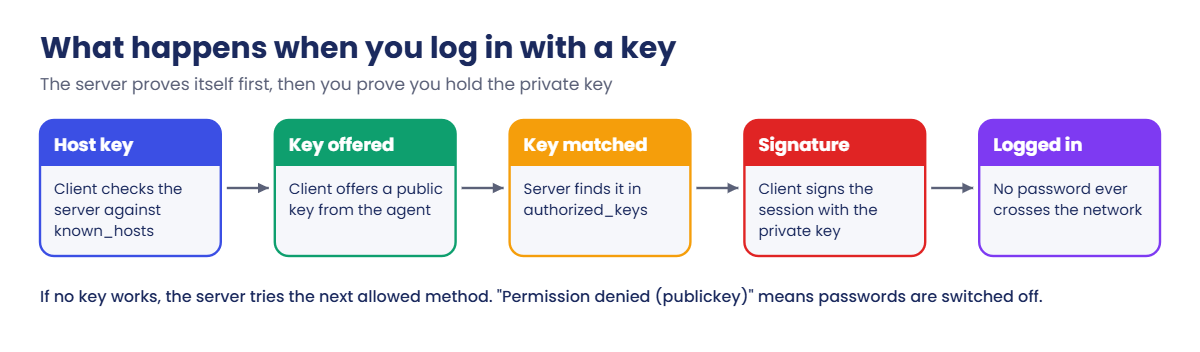
Here is what happens, in order, when you type ssh rocky01 with a key installed. The diagram below shows the same steps.

1The client checks the server first

Before any login, the server proves its own identity with its host key. The client compares the fingerprint with ~/.ssh/known_hosts. The very first time, it asks you to confirm; after that a changed host key gives a loud warning, because it can mean someone is in the middle.

2The client offers a public key

ssh offers the keys it has (from ssh-agent, then from ~/.ssh/id_* or the IdentityFile in your config). The server looks for an exact match in the user’s authorized_keys, after checking that the home folder, ~/.ssh and authorized_keys aren’t writable by others (StrictModes).

SSH key authentication steps: host key check, key offer, signature and password fallback

3The client proves it holds the private key

If the server accepts the offered key, the client signs the session data with the private key. That’s the moment your passphrase is needed, unless ssh-agent already holds the decrypted key in memory. The server verifies the signature and lets you in.

4Other methods come after

If no key works, the server tries the next allowed methods, usually password. The error “Permission denied (publickey,password)” lists the methods the server allowed for this login. When you switch password logins off, that list shrinks, which is the quickest way to confirm hardening worked.

5Jump hosts carry the connection, not your key

With ssh -J ubu01 student@10.10.10.11 (or ProxyJump in the config file), your laptop logs in to ubu01 first and asks it to open a plain TCP connection to rocky01 port 22. The second SSH session runs from your laptop through that tunnel, end to end, so rocky01 checks your laptop’s key and ubu01 never sees it. The picture below shows the path in our lab.

SSH key authentication through a jump host: laptop to ubu01 to rocky01 with ProxyJump

6Harden the server in the right order

Install and test your key first, then write a drop-in with PasswordAuthentication no and PermitRootLogin no, check the syntax with sshd -t, check the effective values with sshd -T, and restart while a second session stays open. Existing sessions survive a restart, so the open one is your way back if the new settings lock you out.

Over the console you can always get in, because the console doesn’t use SSH at all. On real servers the console is iLO, iDRAC, a hypervisor console or a cloud serial console; find out how to reach it before you touch sshd on a server you can’t walk up to.

Hands-on lab: key login from ubu01 to rocky01, a jump host and safe hardening

Before you run any command, double-check it

Read every command twice before you press Enter. Check the target: the server name, the user, the disk or device name, the path and the sizes. These commands are for learning and were tested in our lab, not on your system. At work, run the read-only commands first, follow your change process, make sure a backup exists, and ask a second person to check anything that changes or deletes data. You run them at your own risk.

Most steps run on ubu01 as student, with rocky01 as the target; step 7 runs on your laptop. Take a snapshot of both VMs before you start (VBoxManage snapshot rocky01 take before-l33 and the same for ubu01). The key you create here, ~/.ssh/id_ed25519 for student on ubu01, is used by later lessons, so keep it.

1Look at the SSH servers you already have

On ubu01, run this:

systemctl is-active ssh.socket ssh.service
ssh -V

You should see something like this:

active
active
OpenSSH_10.2p1 Ubuntu-2ubuntu3, OpenSSL 3.5.5 27 Jan 2026

On rocky01 (log in with your password from the laptop), run this:

systemctl is-active sshd
sudo sshd -T | grep -E '^(permitrootlogin|pubkeyauthentication|passwordauthentication) '
ls /etc/ssh/sshd_config.d/

You should see something like this:

active
permitrootlogin without-password
pubkeyauthentication yes
passwordauthentication yes
50-redhat.conf

Both servers are running, with different unit names: ssh (plus ssh.socket) on Ubuntu, sshd on Rocky. sshd -T prints the settings sshd will use after reading every file; “without-password” is how it shows the default prohibit-password (root may log in with a key, not a password). If you ticked “Allow root SSH login with password” in the Rocky installer, you’ll also see a file like 01-permitrootlogin.conf and permitrootlogin yes; step 8 overrides it.

✅ Checkpoint: Both SSH servers are active and you know rocky01 still accepts passwords.

2Create your ed25519 key on ubu01

On ubu01, run this and choose a passphrase you’ll remember:

ssh-keygen -t ed25519 -C "student@ubu01"

Press Enter to accept the file name. You should see something like this:

Generating public/private ed25519 key pair.
Enter file in which to save the key (/home/student/.ssh/id_ed25519):
Enter passphrase for "/home/student/.ssh/id_ed25519" (empty for no passphrase):
Enter same passphrase again:
Your identification has been saved in /home/student/.ssh/id_ed25519
Your public key has been saved in /home/student/.ssh/id_ed25519.pub
The key fingerprint is:
SHA256:wRxHH/xEhT5QGNr7W2TW2Ljua2Qgpg31kVxviDxCfsE student@ubu01
The key's randomart image is:
+--[ED25519 256]--+
|        ..+++B+o.|
|       o =.=E+oo |
|        +.+.B*. o|
|        ..oooo+=.|
|        S= ...o.*|
|        . .  .o= |
|             oo .|
|             ..o |
|             o=. |
+----[SHA256]-----+

-t ed25519 picks the key type and -C adds a comment, which ends up at the end of the public key so you can tell keys apart in authorized_keys later. The passphrase encrypts the private key on disk: if someone copies the file, it’s useless without it. Your fingerprint and picture will be different.

ls -ld ~/.ssh; ls -l ~/.ssh
cat ~/.ssh/id_ed25519.pub
drwx------ 2 student student 4096 Oct 27 11:40 /home/student/.ssh
total 8
-rw------- 1 student student 444 Oct 27 11:40 id_ed25519
-rw-r--r-- 1 student student  95 Oct 27 11:40 id_ed25519.pub
ssh-ed25519 AAAAC3NzaC1lZDI1NTE5AAAAIDxGcLW9C9Ms6VlsrVcRRwGsBEvi2hpzq3q9+mrfJ0ZH student@ubu01

✅ Checkpoint: ~/.ssh is 700, id_ed25519 is 600, and the .pub file is one line starting with ssh-ed25519.

3Install the public key on rocky01

On ubu01, run this:

ssh-copy-id student@10.10.10.11

Type yes, then student’s password on rocky01. You should see something like this:

/usr/bin/ssh-copy-id: INFO: Source of key(s) to be installed: "/home/student/.ssh/id_ed25519.pub"
/usr/bin/ssh-copy-id: INFO: attempting to log in with the new key(s), to filter out any that are already installed
The authenticity of host '10.10.10.11 (10.10.10.11)' can't be established.
ED25519 key fingerprint is SHA256:Q8m2kTnV0yJcR5aP1sXw4LhE9uDfG7bZ3oNqY6iKtUc.
This key is not known by any other names.
Are you sure you want to continue connecting (yes/no/[fingerprint])? yes
Warning: Permanently added '10.10.10.11' (ED25519) to the list of known hosts.
/usr/bin/ssh-copy-id: INFO: 1 key(s) remain to be installed -- if you are prompted now it is to install the new keys
student@10.10.10.11's password:

Number of key(s) added: 1

Now try logging into the machine, with:   "ssh 'student@10.10.10.11'"
and check to make sure that only the key(s) you wanted were added.

The first question is step 1 from the explanation above: ubu01 has never seen rocky01, so it shows the host key fingerprint. To check it properly, run ssh-keygen -lf /etc/ssh/ssh_host_ed25519_key.pub on rocky01’s console and compare. ssh-copy-id then logged in with your password once, appended your public key to ~/.ssh/authorized_keys on rocky01, and set the permissions (and the SELinux label) for you.

✅ Checkpoint: ssh-copy-id reports “Number of key(s) added: 1”.

SSH key authentication lab: ssh-agent and key login from ubu01 to rocky01
Example output on ubu01: key login to rocky01 and ssh-agent holding the ed25519 key.

4Log in with the key and ssh-agent

On ubu01, run this:

ssh student@10.10.10.11 'hostname; ls -ld ~/.ssh ~/.ssh/authorized_keys; ls -Z ~/.ssh/authorized_keys'

Type your key’s passphrase (not the password). You should see something like this:

Enter passphrase for key '/home/student/.ssh/id_ed25519':
rocky01
drwx------. 2 student student 29 Oct 27 11:43 /home/student/.ssh
-rw-------. 1 student student 95 Oct 27 11:43 /home/student/.ssh/authorized_keys
unconfined_u:object_r:ssh_home_t:s0 /home/student/.ssh/authorized_keys

rocky01 asked for nothing: the passphrase prompt came from ubu01, to decrypt your own key. On rocky01 the folder is 700 and the file 600, and SELinux labels them ssh_home_t; if you ever create authorized_keys by hand on Rocky, run restorecon -Rv ~/.ssh so sshd may read it. Now load the key into ssh-agent so you type the passphrase once per session:

eval "$(ssh-agent -s)"
ssh-add
ssh-add -l
ssh student@10.10.10.11 hostname
Agent pid 2973
Enter passphrase for /home/student/.ssh/id_ed25519:
Identity added: /home/student/.ssh/id_ed25519 (student@ubu01)
256 SHA256:wRxHH/xEhT5QGNr7W2TW2Ljua2Qgpg31kVxviDxCfsE student@ubu01 (ED25519)
rocky01

The agent keeps the decrypted key in memory for this login session only. ssh-add -l lists what it holds, and ssh-agent -k (or logging out) ends it.

✅ Checkpoint: ssh to rocky01 prints rocky01 with no prompt at all while the agent runs.

5Write an SSH config file

On ubu01, paste this whole block:

cat > ~/.ssh/config <<'EOF'
Host rocky01
    HostName 10.10.10.11
    User student
    IdentityFile ~/.ssh/id_ed25519

Host *
    ServerAliveInterval 60
EOF
chmod 600 ~/.ssh/config
ssh -G rocky01 | grep -E '^(user|hostname|port|identityfile) '
ssh rocky01 uptime

You should see something like this:

user student
hostname 10.10.10.11
port 22
identityfile ~/.ssh/id_ed25519
 11:47:02 up  2:41,  2 users,  load average: 0.00, 0.01, 0.00

Now ssh rocky01 means “student at 10.10.10.11 with this key”. ssh reads the file top to bottom and keeps the first value it finds for each option, so specific Host blocks go first and Host * defaults go last. ssh -G prints the settings ssh would use for a name without connecting, which is how you debug a config file. ServerAliveInterval sends a small keep-alive every 60 seconds so idle sessions aren’t dropped by firewalls.

✅ Checkpoint: ssh rocky01 uptime works with no user name, IP or key on the command line.

6Copy files with scp and rsync

On ubu01, run this:

echo "disk report from ubu01" > ~/report.txt
scp ~/report.txt rocky01:/tmp/
ssh rocky01 cat /tmp/report.txt
mkdir -p ~/lab33/configs && echo a > ~/lab33/configs/app.conf && echo b > ~/lab33/configs/db.conf
rsync -av ~/lab33/configs/ rocky01:/tmp/configs-copy/

You should see something like this:

report.txt                                    100%   24    21.3KB/s   00:00
disk report from ubu01
sending incremental file list
created directory /tmp/configs-copy
./
app.conf
db.conf

sent 199 bytes  received 97 bytes  197.33 bytes/sec
total size is 4  speedup is 0.01
sending incremental file list

sent 102 bytes  received 12 bytes  228.00 bytes/sec
total size is 4  speedup is 0.04

Both tools use your config file and key, so rocky01: is enough. scp copies everything every time. rsync compares first, which is why the second run sent no files at all; that’s the one to use for folders and anything big (Lesson 37 goes deeper). The trailing slash on the source means “the contents of configs”, without it you’d get /tmp/configs-copy/configs/. If rsync says “rsync: command not found” on the far side, install it there with sudo dnf install -y rsync.

✅ Checkpoint: report.txt and both .conf files are on rocky01, and the second rsync listed no files.

7Jump from the laptop through ubu01

On your laptop (PowerShell on Windows, Terminal on macOS or Linux), create a key and install it on ubu01:

ssh-keygen -t ed25519 -C "student@laptop"
# macOS / Linux:
ssh-copy-id -p 2221 student@127.0.0.1
# Windows PowerShell (no ssh-copy-id there):
type $env:USERPROFILE\.ssh\id_ed25519.pub | ssh -p 2221 student@127.0.0.1 "cat >> ~/.ssh/authorized_keys"

Then create the laptop’s config file (~/.ssh/config, on Windows C:\Users\you\.ssh\config) with this content:

Host ubu01
    HostName 127.0.0.1
    Port 2221
    User student

Host rocky01
    HostName 127.0.0.1
    Port 2211
    User student

Host rocky01-via-ubu01
    HostName 10.10.10.11
    User student
    ProxyJump ubu01

Install the laptop key on rocky01 through the jump host, then test:

# macOS / Linux:
ssh-copy-id rocky01-via-ubu01
# Windows PowerShell:
type $env:USERPROFILE\.ssh\id_ed25519.pub | ssh rocky01-via-ubu01 "cat >> ~/.ssh/authorized_keys"
ssh rocky01-via-ubu01 hostname
ssh -J ubu01 student@10.10.10.11 hostname

The last two commands should print:

rocky01
rocky01

The laptop can’t reach 10.10.10.11 directly; only ubu01 can. ProxyJump makes ssh log in to ubu01 (by its short name from the same config file) and ask it to forward a TCP connection to rocky01 port 22, and your laptop then talks SSH to rocky01 through it. ubu01 never sees the laptop’s private key. In a company this is the bastion host pattern: one hardened machine faces you, the servers behind it don’t.

✅ Checkpoint: ssh ubu01, ssh rocky01 and ssh rocky01-via-ubu01 all log in from the laptop with your key, without a password.

8Switch off password and root logins

Keep one SSH session to rocky01 open and logged in for this whole step, and don’t close it until the test at the end works. If something goes wrong, that session (or the VirtualBox console) is how you fix it.

On rocky01, run this:

sudo tee /etc/ssh/sshd_config.d/00-saat-hardening.conf >/dev/null <<'EOF'
# SaatVedha lab hardening (Lesson 33)
PasswordAuthentication no
PermitRootLogin no
EOF
sudo sshd -t && echo "syntax OK"
sudo sshd -T | grep -E '^(permitrootlogin|passwordauthentication) '
sudo systemctl restart sshd

You should see something like this:

syntax OK
permitrootlogin no
passwordauthentication no

From ubu01, prove that passwords are refused and keys still work:

ssh -o PubkeyAuthentication=no rocky01 true
ssh -o PubkeyAuthentication=no root@10.10.10.11 true
ssh rocky01 hostname
student@10.10.10.11: Permission denied (publickey,gssapi-keyex,gssapi-with-mic).
root@10.10.10.11: Permission denied (publickey,gssapi-keyex,gssapi-with-mic).
rocky01

The file name starts with 00 so it’s read before 50-redhat.conf and any 01- file the installer wrote; for sshd the first value wins. “password” has gone from the list of allowed methods (the gssapi ones come from Rocky’s 50-redhat.conf, for Kerberos logins). Your key login still works.

Now do the same on ubu01, where the restart command is different:

ls /etc/ssh/sshd_config.d/
sudo tee /etc/ssh/sshd_config.d/00-saat-hardening.conf >/dev/null <<'EOF'
# SaatVedha lab hardening (Lesson 33)
PasswordAuthentication no
PermitRootLogin no
EOF
sudo sshd -t && sudo systemctl restart ssh
sudo sshd -T | grep -E '^(permitrootlogin|passwordauthentication) '
50-cloud-init.conf
permitrootlogin no
passwordauthentication no

On ubu01 the installer often leaves 50-cloud-init.conf with PasswordAuthentication yes. Your 00- file is read first, so it wins, and sshd -T confirms it. From the laptop, ssh -o PubkeyAuthentication=no ubu01 true should now end with “Permission denied (publickey).”

✅ Checkpoint: On both VMs sshd -T shows passwordauthentication no and permitrootlogin no, and key logins from ubu01 and the laptop still work.

Break It, Then Fix It

Each of these is a real way people lose SSH access. Keep a logged-in session to rocky01 open the whole time, and take a snapshot first (VBoxManage snapshot rocky01 take before-l33-break). If you do get locked out, open the rocky01 window in VirtualBox, log in as student on the console, fix the file, and restart sshd from there.

1Make ~/.ssh group-writable on the server

In your open rocky01 session, run this:

chmod 775 ~/.ssh

Then from ubu01, try to log in:

ssh rocky01 hostname

You’ll get this error:

student@10.10.10.11: Permission denied (publickey,gssapi-keyex,gssapi-with-mic).

The key is still in authorized_keys and the agent still offers it, but sshd refuses to trust a key file that other users could have changed. The client never says why, so look at the server log from your open session:

sudo journalctl -u sshd -n 3 --no-pager
Oct 27 12:10:41 rocky01 sshd-session[2741]: Authentication refused: bad ownership or modes for directory /home/student/.ssh
Oct 27 12:10:41 rocky01 sshd-session[2741]: Connection closed by authenticating user student 10.10.10.21 port 49242 [preauth]

The same check covers the home folder (“bad ownership or modes for directory /home/student”) and authorized_keys itself. With passwords switched off, this one mistake means nobody can log in as student over SSH.

Fix (in the session you kept open, or on the console):

chmod 700 ~/.ssh
chmod 600 ~/.ssh/authorized_keys
chmod go-w ~

✅ Checkpoint: ssh rocky01 hostname from ubu01 prints rocky01 again.

2Leave your private key readable by others

On ubu01, run this:

chmod 644 ~/.ssh/id_ed25519
ssh -o IdentityAgent=none rocky01 true

You’ll get this error:

@@@@@@@@@@@@@@@@@@@@@@@@@@@@@@@@@@@@@@@@@@@@@@@@@@@@@@@@@@@
@         WARNING: UNPROTECTED PRIVATE KEY FILE!          @
@@@@@@@@@@@@@@@@@@@@@@@@@@@@@@@@@@@@@@@@@@@@@@@@@@@@@@@@@@@
Permissions 0644 for '/home/student/.ssh/id_ed25519' are too open.
It is required that your private key files are NOT accessible by others.
This private key will be ignored.
Load key "/home/student/.ssh/id_ed25519": bad permissions
student@10.10.10.11: Permission denied (publickey,gssapi-keyex,gssapi-with-mic).

This time the client refuses, before the server is even asked. IdentityAgent=none stops ssh from using the copy in ssh-agent, which would otherwise hide the problem until the next login. It happens most often after copying keys between machines with a tool that doesn’t keep permissions, or unzipping a backup.

Fix:

chmod 600 ~/.ssh/id_ed25519
ssh -o IdentityAgent=none rocky01 true && echo "key OK"
Enter passphrase for key '/home/student/.ssh/id_ed25519':
key OK

✅ Checkpoint: The warning is gone and the login works with the key file directly.

3Restart sshd with a typo in the config

In your open rocky01 session, break the drop-in and restart without testing:

sudo sed -i 's/^PasswordAuthentication no/PasswordAuthentcation no/' /etc/ssh/sshd_config.d/00-saat-hardening.conf
sudo systemctl restart sshd

You’ll get this error:

Job for sshd.service failed because the control process exited with error code.
See "systemctl status sshd.service" and "journalctl -xeu sshd.service" for details.

From ubu01, a new login now fails:

ssh rocky01 hostname
ssh: connect to host 10.10.10.11 port 22: Connection refused

sshd refused to start because of one unknown keyword, so nothing listens on port 22 any more. Your open session still works, because each logged-in session runs in its own sshd-session process that a restart doesn’t kill. If you had closed it, only the console would get you back in. sshd -t shows the cause in one line:

sudo sshd -t
/etc/ssh/sshd_config.d/00-saat-hardening.conf: line 2: Bad configuration option: PasswordAuthentcation
/etc/ssh/sshd_config.d/00-saat-hardening.conf: terminating, 1 bad configuration options

Fix: correct the keyword, test, then restart.

sudo sed -i 's/^PasswordAuthentcation no/PasswordAuthentication no/' /etc/ssh/sshd_config.d/00-saat-hardening.conf
sudo sshd -t && sudo systemctl restart sshd
systemctl is-active sshd
active

✅ Checkpoint: sshd is active and ssh rocky01 hostname works from ubu01. From now on, sshd -t runs before every sshd restart.

This happened at work

The audit that found passwords still switched on

I was working at a managed service provider in Nagpur when a banking client’s security audit came back with a finding: password logins were enabled on 23 of their 40 Linux servers. We were surprised, because our hardening script had set PasswordAuthentication no on all 40 a month earlier, and grep showed the line in every sshd_config.

The first theory was that someone had reverted it by hand. We checked the file timestamps and the change records, and nobody had touched them. Then a colleague ran sshd -T | grep passwordauthentication on one of the 23, and it said yes.

Those 23 servers were Ubuntu machines built from a cloud image, and each had /etc/ssh/sshd_config.d/50-cloud-init.conf with PasswordAuthentication yes. The Include line at the top of sshd_config pulled that file in first, and for sshd the first value wins, so the line our script appended at the bottom was ignored. The other 17 were Rocky servers without that file.

We changed the script to write /etc/ssh/sshd_config.d/00-hardening.conf, run sshd -t before the restart, and check the result with sshd -T instead of grep. The monthly compliance report now records sshd -T output, which shows what sshd is doing, not what a file says.

Common mistakes and troubleshooting

MistakeWhat happensWhat to do instead
Group or world-writable home, ~/.ssh or authorized_keyssshd silently refuses the key (“bad ownership or modes” in the server log)chmod go-w ~, chmod 700 ~/.ssh, chmod 600 ~/.ssh/authorized_keys
Private key readable by others“UNPROTECTED PRIVATE KEY FILE”, the key is ignoredchmod 600 ~/.ssh/id_ed25519
Appending hardening lines at the bottom of sshd_configA drop-in read earlier (like 50-cloud-init.conf) winsWrite a 00- drop-in and confirm with sshd -T
Restarting sshd without sshd -tOne typo and nothing listens on port 22Always sudo sshd -t && sudo systemctl restart sshd
Switching passwords off before testing the keyYou lock yourself out of every new sessionTest key login from a second session first, keep one session open
Answering yes to a changed host key warning without checkingYou may be sending your login to a different machineCheck the fingerprint on the console, then fix known_hosts with ssh-keygen -R host
Copying the private key to the jump hostAnyone with root on that host can use your keyUse ProxyJump; the key stays on your own machine

Interview questions

Click a question to open it. Each one is written the way an interviewer would ask it. Under it you will see why they ask it and one way you could answer, in your own words.

Fresher level

1. How do you set up key-based SSH login from one server to another?

Why they ask this: A basic task every admin does weekly; they want the commands and whether you mention permissions and the passphrase.

How you might answer: On the client I run ssh-keygen -t ed25519 with a passphrase, then ssh-copy-id user@server, which appends the public key to ~/.ssh/authorized_keys on the server and fixes permissions.

Then I log in to test it, and load the key into ssh-agent with ssh-add so I type the passphrase once per session. If key login fails I check that ~/.ssh is 700 and authorized_keys is 600 on the server.

2. What is the difference between the public key and the private key, and which one goes where?

Why they ask this: They want to be sure you’d never copy a private key to a server.

How you might answer: The private key stays on my machine, mode 600, protected by a passphrase. The public key is one line I can share; it goes into authorized_keys on every server I need to reach.

At login the server sends a challenge, my client signs it with the private key, and the server checks the signature with the public key. The private key never leaves my machine.

2–5 years experience

3. Key login works for one user but not another on the same server. How do you troubleshoot it?

Why they ask this: They’re checking whether you look at the server side and know where sshd explains refusals.

How you might answer: I’d run ssh -v from the client to see whether the key is offered and rejected. Then on the server I’d read the log with journalctl -u sshd (or -u ssh on Ubuntu), which usually names the cause, like “bad ownership or modes for directory”.

The usual causes are permissions on the home folder or ~/.ssh, a wrong owner after someone copied files as root, a broken line in authorized_keys, and on RHEL a wrong SELinux label, which restorecon -Rv ~/.ssh fixes. I’d also check AllowUsers or AllowGroups in the sshd config.

4. How would you disable password logins on a server without locking yourself out?

Why they ask this: This tests change discipline: rollback path, testing, and knowing that the first value wins in sshd.

How you might answer: I confirm key login works from a second session first and keep one session open. Then I write a drop-in like /etc/ssh/sshd_config.d/00-hardening.conf with PasswordAuthentication no and PermitRootLogin no, run sshd -t, and check sshd -T to make sure no earlier file overrides it.

Then I restart sshd and test a new key login and a password attempt, which should fail. If anything is wrong, the open session or the console is how I fix it.

Senior level

5. How would you design SSH access for 500 servers and 40 admins?

Why they ask this: Seniors are expected to think about key lifecycle, central control and auditing, not only ssh-keygen.

How you might answer: I’d put all servers behind one or two hardened bastion hosts and have admins use ProxyJump, with password and root logins off everywhere. Keys would be managed centrally, through Ansible or an identity system, so removing a leaver is one change, not 500.

For larger estates I’d move to SSH certificates signed by a CA with short lifetimes, so servers trust the CA instead of individual keys. I’d log sessions on the bastion and send sshd logs to central logging.

6. A colleague wants to copy his private key onto the jump host so he can reach the servers behind it. What do you tell him?

Why they ask this: They want to hear that you understand where keys should live and the risk of agent forwarding.

How you might answer: I’d tell him not to, because anyone with root on the jump host could take that key. ProxyJump does the job: the connection is tunnelled through the jump host, but authentication to the inner server happens from his laptop with the key that never leaves it.

I’d also steer him away from agent forwarding (ssh -A) for the same reason, since root on the jump host can use a forwarded agent while he’s connected. ProxyJump in ~/.ssh/config makes it a one-word command, so there’s no convenience reason left.

Quick quiz

Q1. Which file on the server lists the public keys allowed to log in as a user?

  1. ~/.ssh/known_hosts
  2. ~/.ssh/authorized_keys
  3. /etc/ssh/ssh_host_ed25519_key
  4. ~/.ssh/id_ed25519
Show answer

B — authorized_keys holds one public key per line for that user.

Q2. Key login fails and the server log says “bad ownership or modes for directory /home/student/.ssh”. What is the fix?

  1. Regenerate the key
  2. Run chmod 700 ~/.ssh on the server
  3. Turn PasswordAuthentication on
  4. Delete known_hosts
Show answer

B — sshd refuses keys when ~/.ssh is writable by group or others (StrictModes).

Q3. You put PasswordAuthentication no at the end of sshd_config, but sshd -T still says yes. Why?

  1. sshd needs a reboot
  2. A drop-in read earlier sets it to yes, and the first value wins
  3. The keyword is case sensitive
  4. sshd -T shows defaults only
Show answer

B — Drop-ins in sshd_config.d are included at the top, and sshd keeps the first value it reads.

Q4. What does ssh -J ubu01 student@10.10.10.11 do?

  1. Copies your key to ubu01
  2. Logs in to ubu01, then runs ssh from ubu01 with ubu01’s keys
  3. Tunnels through ubu01 so your laptop logs in to 10.10.10.11 with its own key
  4. Opens a web proxy on ubu01
Show answer

C — ProxyJump forwards the TCP connection; authentication to the target happens from your laptop.

Q5. Which command should you run before every sshd restart?

  1. sshd -t
  2. ssh -G
  3. ssh-add -l
  4. ssh-keyscan
Show answer

A — sshd -t checks the config and names the file and line of any error, so a typo can’t stop sshd.

Quick recap

  • Create keys with ssh-keygen -t ed25519 and a passphrase; install them with ssh-copy-id.
  • Permissions matter on both sides: ~/.ssh 700, private key and authorized_keys 600, home not writable by others.
  • ssh-agent and ssh-add open the key once per session; ~/.ssh/config gives servers short names.
  • scp copies, rsync -av copies only what changed; both use your SSH config.
  • ProxyJump (-J) reaches servers behind a bastion without putting your key on it.
  • Harden with a 00- drop-in, sshd -t, sshd -T and a second open session; the unit is sshd on Rocky and ssh on Ubuntu.

Next lesson

Lesson 34: Firewalls with firewalld and ufw → You’ll open and close ports on rocky01 with firewalld zones, services and rich rules, switch on ufw on ubu01 without locking out SSH, and look at the nftables rules both tools write underneath.

Further reading: SSH key authentication

Want to go deeper into SSH key authentication? Read the OpenSSH man pages for ssh-keygen, ssh_config and sshd_config, Red Hat’s OpenSSH chapter for RHEL 10 and the Ubuntu Server OpenSSH guide. You can also see the full plan for this course on the Linux Administration course page.

Scroll to Top

This website uses cookies

We use a few cookies to keep this site working. If you allow it, we also use Google Analytics to count visits so we can improve our lessons. You can accept all, deny the optional ones, or choose what to allow.