Bash scripting basics: your first real scripts

Bash scripting basics are what turn the commands you already type every day into a file that runs the same way every time: a first line that says which program reads the file, variables, arguments, tests, loops and an exit code at the end. Once a job is in a script, you can hand it to a colleague, a cron job or a monitoring tool, and it does the same thing it did for you.

You’ve been writing one-line pipelines since Lesson 13 and text tools since Lesson 14. Here you put them into small scripts on rocky01: one that greets you, one that checks users from Lesson 15, one that compares disk use with a limit, one that asks you a question and one that pings the lab machines. Every script in this lesson was run for real and passes shellcheck, so you can trust what you copy.

Where this lesson fits

Lesson 38 of 82 in Linux Administration · Phase 2: Day-to-day administration and the command builder · Before this: Lesson 37, tar, gzip, xz and rsync · Next: Lesson 39, bash scripting for admins

TimeYou needBy the end you can
About 70 minutesrocky01 from Lesson 2 and an SSH session as student (ubu01 works the same; the users priya, arjun and appsvc come from Lesson 15)Write, run and fix small bash scripts that take arguments, make decisions with tests, loop over lists and return exit codes that other tools can trust

What it is, in one line

A bash script is a text file of commands that bash runs from top to bottom, with variables, tests and loops to make choices, and an exit code that tells whoever started it whether it worked.

In Simple Words

The recipe card at a tea stall

A busy tea stall owner can’t stand at the stove all day, so he writes a card for the new helper. Boil one glass of water per cup, add tea and sugar, and if the milk packet is finished, open the powder tin. For every cup on the tray, pour and pass it on.

When the tray is done, shout “ready” or tell him what went wrong.

The helper doesn’t need to be clever. He follows the card line by line, makes the one choice it allows, repeats the pouring for each cup and reports at the end. A script is that card: the lines run in order, an if makes the choice, a loop repeats, and the exit code is the shout at the end.

Engineer's View

The parts of a bash script

A script is a plain text file. The kernel only runs it directly if it has execute permission and starts with a shebang line such as #!/bin/bash, which names the interpreter. Rocky Linux 10 ships bash 5.2 and Ubuntu 26.04 ships bash 5.3, and everything in this lesson works the same on both.

PartWhat it looks likeWhat it does
Shebang#!/bin/bashFirst line. Tells the kernel which program reads the file
Execute bitchmod +x hello.shLets you run it as ./hello.sh (Lesson 17)
Variablelimit=80, then "$limit"Stores text. No spaces around =. Put “double quotes” around every use
Command substitutionused=$(df ...)Runs a command and keeps its output in a variable (Lesson 13)
Arguments$1 $2, $#, "$@"What was typed after the script name, how many, and all of them
Test[ "$n" -ge 80 ], [[ $h == rocky* ]]A command that succeeds or fails, used by if and while
ifif ...; then ...; elif ...; else ...; fiRuns a block only when a command succeeds
Loopsfor x in ...; do ...; done, while read -r lineRepeat a block for each item or while a test is true
readread -r -p "Question? " answerReads one line from the keyboard or from a pipe
Functionname() { ...; }A small named block you can call like a command
Exit codeexit 1, $?0 means success, 1 to 255 mean some kind of failure

Two details catch people moving between the two families. On Rocky, /bin/sh is bash, but on Ubuntu it’s dash, a smaller shell that doesn’t understand [[ ]], arrays or read -p. So a script that starts with #!/bin/sh and uses bash features works on Rocky and breaks on Ubuntu, which is why every script here says #!/bin/bash.

The second is quoting. bash splits an unquoted $var into words at spaces and expands any * in it as a file pattern, so an empty or spaced value changes the command. Quote variables with double quotes unless you have a reason not to.

How it works, step by step

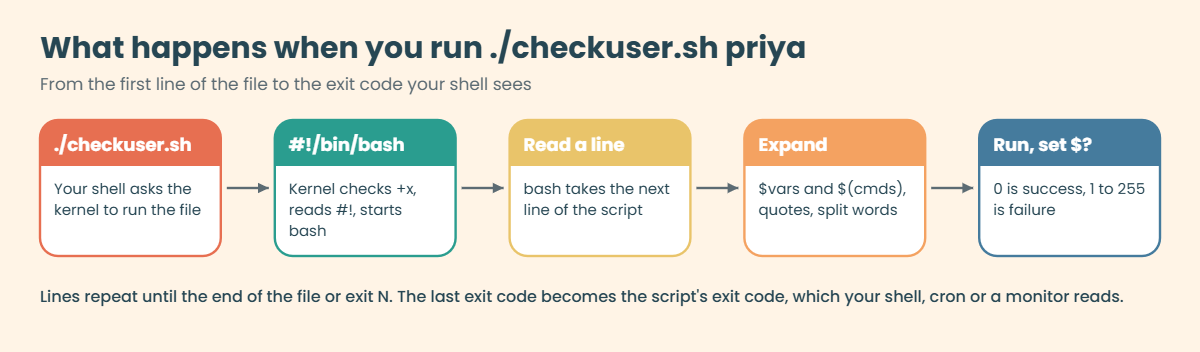
When you type ./checkuser.sh priya, several things happen before your first line of code runs. The diagram after these steps shows the whole trip.

1The kernel reads the first two bytes

Your shell asks the kernel to run the file. The kernel checks the execute bit, sees the file starts with #!, and starts the program named on that line, /bin/bash, passing it the script’s path and your arguments. Without the execute bit you get “Permission denied”; with a wrong or broken shebang you get “required file not found”.

2bash reads one line, expands it, then runs it

For each line, bash first replaces variables and $(...) with their values, removes the quotes, splits the result into words, and only then runs the command. That order explains most beginner bugs: by the time the command runs, it sees the words after expansion, not what you typed.

Bash scripting basics: how a script runs, from the shebang to the exit code

3Every command leaves an exit code

When a command finishes, bash stores its exit code in $?. 0 means success, anything from 1 to 255 means failure, and many tools document what each number means (grep uses 1 for “no match” and 2 for “error”). $? changes after every command, so read it straight away or save it in a variable.

4if and while look at exit codes, not at text

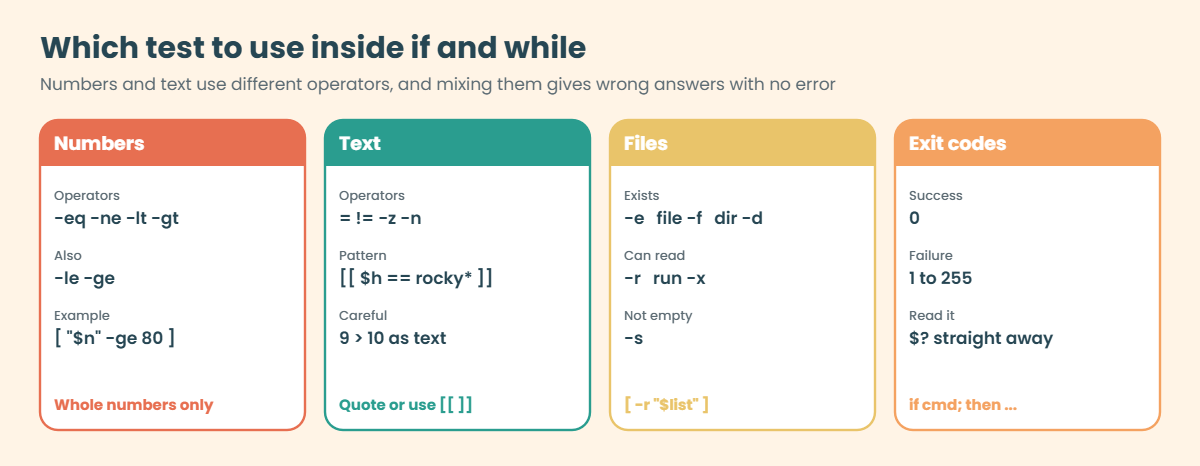
if cmd; then runs the block when cmd exits with 0. The [ in [ "$n" -ge 80 ] is itself a command (also called test), so the spaces around it are required. [[ ]] is bash’s own keyword with friendlier rules: no word splitting inside it, and pattern matching with ==.

5Loops repeat a block

A for loop walks through a list of words, such as "$@" (all arguments) or *.sh (matching files). A while read -r line loop reads a file one line at a time, which is how you process a list of hosts or users. Inside either, continue skips to the next item and break leaves the loop.

The tests you’ll use inside if and while fall into four groups, shown below. Numbers and text use different operators, and mixing them up gives wrong answers without any error.

Bash scripting basics: test operators for numbers, text, files and exit codes

6The script’s exit code goes back to whoever started it

When the script ends, its exit code is the one from exit N, or the last command’s code if there’s no exit. Your shell shows it in $?, cron and systemd record it, and monitoring tools turn it into green or red. A script that always ends with 0 tells everyone “all good” even when it failed, so decide your codes on purpose: 0 for success, 1 for “checked and found a problem”, 2 for “used wrongly” is a common choice.

Keep your own scripts in ~/scripts or ~/bin while you write them, and copy finished ones that everyone needs to /usr/local/bin. Before you run a new script, bash -n script.sh checks the syntax without running anything, and Lesson 39 adds shellcheck and the safety options admins put at the top of every script.

Hands-on lab: write nine small scripts on rocky01

Before you run any command, double-check it

Read every command twice before you press Enter. Check the target: the server name, the user, the disk or device name, the path and the sizes. These commands are for learning and were tested in our lab, not on your system. At work, run the read-only commands first, follow your change process, make sure a backup exists, and ask a second person to check anything that changes or deletes data. You run them at your own risk.

Everything here runs as student in a new folder, ~/scripts, on rocky01, and none of the scripts changes the system. Each step gives you one whole block to paste: it creates the script with a here-document (the <<'EOF' you met in Lesson 14), then runs it. The outputs come from running these exact scripts; your times, UIDs and percentages can differ a little.

1Write your first script and make it run

Paste this whole block:

mkdir -p ~/scripts && cd ~/scripts
cat > hello.sh <<'EOF'
#!/bin/bash
# hello.sh: my first script
echo "Hello from $(hostname -s)"
echo "Today is $(date +%A), and you are logged in as $USER"
EOF
bash hello.sh
./hello.sh

You should see something like this:

Hello from rocky01
Today is Tuesday, and you are logged in as student
-bash: ./hello.sh: Permission denied

bash hello.sh works because you asked bash to read the file. ./hello.sh asks the kernel to run it, and the kernel refuses because the file has no execute bit. Give it one and try again:

chmod +x hello.sh
ls -l hello.sh
./hello.sh

You should see something like this:

-rwxr-xr-x. 1 student student 133 Oct 27 11:05 hello.sh
Hello from rocky01
Today is Tuesday, and you are logged in as student

The ./ matters: bash only looks for commands in the folders listed in $PATH, and the current folder isn’t one of them. $(hostname -s) and $(date +%A) were replaced by their output before echo ran, and $USER is a variable bash sets for you.

✅ Checkpoint: ./hello.sh prints two lines and ls shows rwx for the owner.

2Store values in variables and quote them

Paste this whole block:

cat > vars.sh <<'EOF'
#!/bin/bash
# vars.sh: variables, quoting and command substitution
server="rocky01"
os_name="Rocky Linux"
kernel=$(uname -r)
root_used=$(df --output=pcent / | tail -n 1 | tr -d ' %')

echo "Server:   $server"
echo "OS:       $os_name"
echo "Kernel:   $kernel"
echo "Root use: ${root_used}%"
EOF
chmod +x vars.sh
./vars.sh

You should see something like this:

Server:   rocky01
OS:       Rocky Linux
Kernel:   6.12.0-211.16.1.el10_2.0.1.x86_64
Root use: 12%

A variable is set with name=value and no spaces, and read with $name. The value with a space, Rocky Linux, needs quotes when you set it. root_used holds the output of a small pipeline from Lesson 14, and the braces in ${root_used}% tell bash where the name ends. Now try the three kinds of quoting at the prompt:

server="rocky01"
echo 'Single quotes print $server as it is'
echo "Double quotes print $server"
echo "${server}_old and $server_old"

You should see this:

Single quotes print $server as it is
Double quotes print rocky01
rocky01_old and 

Single quotes keep everything as typed. Double quotes still expand variables but stop word splitting, which is what you want almost always. In the last line bash looked for a variable called server_old, found nothing and printed an empty string, without any error.

Braces fix that.

✅ Checkpoint: vars.sh shows your kernel and root use, and you can explain why the last line ends empty.

3Read the command line: $0, $1, $# and “$@”

Paste this whole block:

cat > args.sh <<'EOF'
#!/bin/bash
# args.sh: show what a script receives on its command line
echo "Script name: $0"
echo "First:       $1"
echo "Second:      $2"
echo "Count:       $#"
echo "All:         $*"
for arg in "$@"; do
    echo "  -> [$arg]"
done
EOF
chmod +x args.sh
./args.sh priya "web team" arjun

You should see this:

Script name: ./args.sh
First:       priya
Second:      web team
Count:       3
All:         priya web team arjun
  -> [priya]
  -> [web team]
  -> [arjun]

$0 is the script’s name as you typed it, $1 and $2 are the first two arguments and $# is how many there are. “web team” arrived as one argument because you quoted it. "$@" in the for loop keeps each argument as it was typed, while $* glues them into one string, which is fine for printing and wrong for looping.

✅ Checkpoint: The loop prints three items, and “web team” stays together.
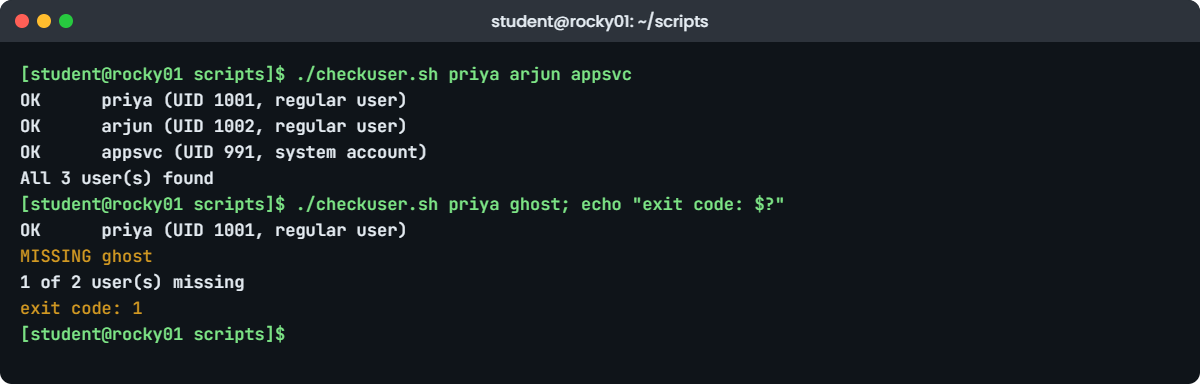
Bash scripting basics lab: checkuser.sh output and exit codes on rocky01
Example output on rocky01: checkuser.sh with three users, then with a missing one.

4Make decisions with if and test

Paste this whole block:

cat > checkuser.sh <<'EOF'
#!/bin/bash
# checkuser.sh: report whether each user named on the command line exists
# Exit codes: 0 all found, 1 at least one missing, 2 used wrongly

if [ $# -eq 0 ]; then
    echo "Usage: $0 USER [USER...]" >&2
    exit 2
fi

missing=0
for user in "$@"; do
    if id "$user" >/dev/null 2>&1; then
        uid=$(id -u "$user")
        if [ "$uid" -ge 1000 ]; then
            kind="regular user"
        else
            kind="system account"
        fi
        echo "OK      $user (UID $uid, $kind)"
    else
        echo "MISSING $user"
        missing=$((missing + 1))
    fi
done

if [ "$missing" -gt 0 ]; then
    echo "$missing of $# user(s) missing"
    exit 1
fi
echo "All $# user(s) found"
EOF
chmod +x checkuser.sh
./checkuser.sh priya arjun appsvc

You should see something like this:

OK      priya (UID 1001, regular user)
OK      arjun (UID 1002, regular user)
OK      appsvc (UID 991, system account)
All 3 user(s) found

The first if tests $# with -eq (numbers) and prints a usage line to standard error with >&2 when there are no arguments. Inside the loop, if id "$user" uses the exit code of id directly, with its output thrown away into /dev/null. The inner if compares the UID with 1000, the line between system accounts and people that you saw in Lesson 15.

✅ Checkpoint: All three users show OK, and appsvc is reported as a system account.

5Use exit codes, $? and the && and || shortcuts

Run this:

./checkuser.sh priya ghost; echo "exit code: $?"
./checkuser.sh; echo "exit code: $?"
./checkuser.sh arjun >/dev/null && echo "arjun is there" || echo "arjun is missing"
./checkuser.sh ghost >/dev/null && echo "ghost is there" || echo "ghost is missing"
grep -q '^webteam:' /etc/group && echo "group webteam exists"

You should see this:

OK      priya (UID 1001, regular user)
MISSING ghost
1 of 2 user(s) missing
exit code: 1
Usage: ./checkuser.sh USER [USER...]
exit code: 2
arjun is there
ghost is missing
group webteam exists

The script returns 1 when it found a problem and 2 when you used it wrongly, so a caller can tell the two apart. a && b runs b only if a succeeded, and a || b runs b only if a failed. grep -q prints nothing and only sets the exit code, which makes it perfect for tests like the last line.

Be careful with a && b || c. It isn’t a real if/else: c also runs when a succeeds but b fails. It’s fine when b is an echo, as above; for anything that can fail, write a proper if.

✅ Checkpoint: You see exit code 1 for the missing user and 2 for the missing argument.

6Compare numbers and text the right way

Run this at the prompt first:

[ 9 -lt 10 ] && echo "9 is smaller than 10 as numbers"
[[ 9 < 10 ]] || echo "but as text, 9 comes after 10"
[[ $(hostname -s) == rocky* ]] && echo "the name starts with rocky"

You should see this:

9 is smaller than 10 as numbers
but as text, 9 comes after 10
the name starts with rocky

-lt compares numbers. < inside [[ ]] compares text in dictionary order, where “9” sorts after “1”, so it says 9 is not less than 10. Use the letter operators for numbers and = != == < > for text. Now a script that uses a number test with a default limit:

Paste this whole block:

cat > rootuse.sh <<'EOF'
#!/bin/bash
# rootuse.sh: compare how full / is with a limit (default 80)
limit=${1:-80}
used=$(df --output=pcent / | tail -n 1 | tr -d ' %')

if [ "$used" -ge "$limit" ]; then
    echo "WARNING: / is ${used}% full (limit ${limit}%)"
    exit 1
elif [ "$used" -ge $((limit - 10)) ]; then
    echo "NOTICE: / is ${used}% full, close to the ${limit}% limit"
else
    echo "OK: / is ${used}% full (limit ${limit}%)"
fi
EOF
chmod +x rootuse.sh
./rootuse.sh; echo "exit $?"
./rootuse.sh 20; echo "exit $?"
./rootuse.sh 10; echo "exit $?"

You should see something like this:

OK: / is 12% full (limit 80%)
exit 0
NOTICE: / is 12% full, close to the 20% limit
exit 0
WARNING: / is 12% full (limit 10%)
exit 1

${1:-80} means “the first argument, or 80 if there isn’t one”. elif adds a second test, and $((limit - 10)) does whole-number arithmetic. Only the WARNING branch exits with 1, so a cron job or monitor can act on it.

✅ Checkpoint: rootuse.sh gives OK, NOTICE and WARNING for the limits 80, 20 and 10.

7Ask a question with read

Paste this whole block:

cat > svcask.sh <<'EOF'
#!/bin/bash
# svcask.sh: ask for a service name and say whether it is running
read -r -p "Which service should I check? " svc

if [[ -z $svc ]]; then
    echo "No service name given" >&2
    exit 2
fi

if systemctl is-active --quiet "$svc"; then
    echo "$svc is running"
else
    echo "$svc is NOT running (state: $(systemctl is-active "$svc"))"
    exit 1
fi
EOF
chmod +x svcask.sh
./svcask.sh

Type sshd and press Enter. You should see this:

Which service should I check? sshd
sshd is running

Now feed the answer through a pipe instead of typing it:

echo nginx | ./svcask.sh; echo "exit $?"
echo chronyd | ./svcask.sh; echo "exit $?"

You should see this:

nginx is NOT running (state: inactive)
exit 1
chronyd is running
exit 0

read -r -p shows the question and stores the line you type in svc; -r keeps backslashes as typed. When the answer comes from a pipe, bash hides the question because nobody is there to read it. nginx isn’t installed yet (Lesson 56 does that), so systemctl reports inactive, and chronyd is the time service you’ll configure in Lesson 40.

✅ Checkpoint: svcask.sh says sshd and chronyd are running and exits with 1 for nginx.

8Loop over a file with while, and over files with for

Paste this whole block:

cat > hosts.txt <<'EOF'
rocky01.saatlab.test
ubu01.saatlab.test
kafka01.saatlab.test
EOF
cat > pinghosts.sh <<'EOF'
#!/bin/bash
# pinghosts.sh: ping every host listed in a file, one name per line
list=${1:-hosts.txt}

if [ ! -r "$list" ]; then
    echo "Cannot read $list" >&2
    exit 2
fi

up=0
down=0
while read -r host; do
    [ -z "$host" ] && continue
    if ping -c 1 -W 1 "$host" >/dev/null 2>&1; then
        echo "UP    $host"
        up=$((up + 1))
    else
        echo "DOWN  $host"
        down=$((down + 1))
    fi
done < "$list"

echo "$up up, $down down"
[ "$down" -eq 0 ]
EOF
chmod +x pinghosts.sh
./pinghosts.sh; echo "exit $?"

You should see something like this:

UP    rocky01.saatlab.test
UP    ubu01.saatlab.test
DOWN  kafka01.saatlab.test
2 up, 1 down
exit 1

while read -r host reads hosts.txt one line at a time, because of the < "$list" after done. ping -c 1 -W 1 sends one packet and waits one second. kafka01 is in /etc/hosts but the VM only appears in Lesson 58, so it’s down for now (or ubu01 is down too, if it isn’t running). The last line, [ "$down" -eq 0 ], has no if around it: its exit code becomes the script’s exit code.

A for loop over files is handy for checking all your scripts at once:

for f in *.sh; do bash -n "$f" && echo "$f: syntax ok"; done

You should see this:

args.sh: syntax ok
checkuser.sh: syntax ok
hello.sh: syntax ok
pinghosts.sh: syntax ok
rootuse.sh: syntax ok
svcask.sh: syntax ok
vars.sh: syntax ok

✅ Checkpoint: pinghosts.sh reports kafka01 as DOWN and exits with 1, and all your scripts pass bash -n.

9Put repeated work into functions

Paste this whole block:

cat > sysinfo.sh <<'EOF'
#!/bin/bash
# sysinfo.sh: a short report built from two small functions

# line LABEL VALUE: print one aligned line
line() {
    printf '%-9s %s\n' "$1:" "$2"
}

# reachable HOST: exit code 0 if HOST answers one ping
reachable() {
    ping -c 1 -W 1 "$1" >/dev/null 2>&1
}

line "Host" "$(hostname -s)"
line "Kernel" "$(uname -r)"
line "Uptime" "$(uptime -p)"
for h in ubu01 kafka01; do
    if reachable "$h"; then
        line "$h" "answers ping"
    else
        line "$h" "no reply"
    fi
done
EOF
chmod +x sysinfo.sh
./sysinfo.sh

You should see something like this:

Host:     rocky01
Kernel:   6.12.0-211.16.1.el10_2.0.1.x86_64
Uptime:   up 2 hours, 7 minutes
ubu01:    answers ping
kafka01:  no reply

A function is defined once with name() { ... } and called like any command. Inside it, $1 and $2 are the function’s own arguments, not the script’s. reachable has no echo at all: its exit code is the exit code of its last command, ping, so it slots straight into an if. Lesson 39 builds on this with local variables and a full health-check script.

✅ Checkpoint: sysinfo.sh prints five aligned lines, and you can point at the two functions it uses.

Break It, Then Fix It

These four mistakes are the ones every new script writer makes, and two of them give a wrong answer with only a small message that is easy to miss. Work in ~/scripts and keep the originals: each fix puts the file back the way it was.

1Put spaces around the equals sign

Break rootuse.sh, run it, and look closely at the result:

sed -i 's/^limit=/limit = /' rootuse.sh
sed -n 3p rootuse.sh
./rootuse.sh; echo "exit $?"

You’ll get this:

limit = ${1:-80}
./rootuse.sh: line 3: limit: command not found
./rootuse.sh: line 6: [: : integer expression expected
NOTICE: / is 12% full, close to the % limit
exit 0

With spaces, bash reads limit as a command name and = and the value as its arguments. There’s no such command, limit is never set, the number test fails, and the elif sees $((limit - 10)) as -10, so the script prints a nonsense NOTICE and exits 0. A monitor reading that exit code would see success.

Fix: no spaces around = in an assignment.

sed -i 's/^limit = /limit=/' rootuse.sh
./rootuse.sh
OK: / is 12% full (limit 80%)

✅ Checkpoint: rootuse.sh prints OK with the 80% limit again.

2Leave out the spaces inside [ ]

Break the usage check in checkuser.sh:

sed -i 's/if \[ \$# -eq 0 \]; then/if [$# -eq 0]; then/' checkuser.sh
sed -n 5p checkuser.sh
./checkuser.sh; echo "exit $?"

You’ll get this:

if [$# -eq 0]; then
./checkuser.sh: line 5: [0: command not found
All 0 user(s) found
exit 0

[ is a command, so it needs a space after it like any other command. Without the space bash expands [$# to [0, looks for a program called “[0”, fails, and the if quietly takes the else path. The script then claims success for zero users.

Fix: spaces on both sides of the brackets.

sed -i 's/if \[\$# -eq 0\]; then/if [ $# -eq 0 ]; then/' checkuser.sh
./checkuser.sh; echo "exit $?"
Usage: ./checkuser.sh USER [USER...]
exit 2

✅ Checkpoint: checkuser.sh with no arguments prints the usage line and exits with 2.

3Test an unquoted, empty variable

Create a small guard script that forgets the quotes, and press Enter without typing a name:

cat > guard.sh <<'EOF'
#!/bin/bash
# guard.sh: refuse to restart sshd by accident
read -r -p "Restart which service? " svc
if [ $svc = sshd ]; then
    echo "Refusing to restart sshd over SSH"
    exit 1
fi
echo "Would restart: $svc"
EOF
chmod +x guard.sh
./guard.sh

You’ll get this:

Restart which service?
./guard.sh: line 3: [: =: unary operator expected
Would restart: 

With an empty $svc and no quotes, the test becomes [ = sshd ], which isn’t a valid test, so [ prints an error and fails, and the script carries on to the “restart” line. If the answer had been “ssh d” with a space, you’d get “too many arguments” instead. The guard you wrote to protect sshd guards nothing.

Fix: quote the variable, and refuse an empty answer before you test it. Paste this whole block:

cat > guard.sh <<'EOF'
#!/bin/bash
# guard.sh: refuse to restart sshd by accident
read -r -p "Restart which service? " svc
if [[ -z $svc ]]; then
    echo "No service name given" >&2
    exit 2
fi
if [ "$svc" = sshd ]; then
    echo "Refusing to restart sshd over SSH"
    exit 1
fi
echo "Would restart: $svc"
EOF
printf '\n' | ./guard.sh; echo "exit $?"
echo sshd | ./guard.sh; echo "exit $?"

You should see this:

No service name given
exit 2
Refusing to restart sshd over SSH
exit 1

✅ Checkpoint: An empty answer now stops the script with exit 2, and sshd is refused.

4Run a script saved with Windows line endings

Make a copy of hello.sh with Windows line endings (what happens when someone edits a script in Notepad and copies it over):

printf '#!/bin/bash\r\necho "Hello from $(hostname -s)"\r\n' > winhello.sh
chmod +x winhello.sh
./winhello.sh

You’ll get this error:

-bash: ./winhello.sh: cannot execute: required file not found

Windows ends each line with a carriage return and a line feed, and Linux expects only the line feed. The kernel reads the shebang as /bin/bash\r, a program that doesn’t exist. Older bash versions (RHEL 8 and 9) word the same problem as “/bin/bash^M: bad interpreter: No such file or directory”.

Find the hidden characters first:

file winhello.sh
cat -A winhello.sh

You should see this:

winhello.sh: Bourne-Again shell script, ASCII text executable, with CRLF line terminators
#!/bin/bash^M$
echo "Hello from $(hostname -s)"^M$

Fix: strip the carriage returns (dos2unix does the same if it’s installed), then run it again.

sed -i 's/\r$//' winhello.sh
file winhello.sh
./winhello.sh
winhello.sh: Bourne-Again shell script, ASCII text executable
Hello from rocky01

✅ Checkpoint: file no longer mentions CRLF and winhello.sh runs. Keep ~/scripts; Lesson 39 works next to it.

This happened at work

The upload that always said “complete”

My team lead at a lending app in Chandigarh still tells this one to every new joiner. Each night at 11:30 a cron job ran a small bash script that sent the day’s approved loans to the partner bank over SFTP, and the job monitor showed a green tick every morning. One Monday at 10 a.m. the support desk was flooded with borrowers asking where their money was.

The first guess was the bank, and the operations team spent an hour on calls with them. The bank said, politely, that it had received nothing since Friday. When my lead opened the script, the problem was the last two lines: the sftp command, and after it echo "Upload complete".

On Saturday the bank had rotated its SSH host key, sftp refused to connect and exited with an error, and then echo ran and exited with 0, which became the script’s exit code.

So for two nights the monitor saw success. About 180 approved loans sat in the outbox, and the error message itself had gone to a cron mail nobody read. Once the host key was checked with the bank and accepted, the files went out in ten minutes, but the customers had already waited a weekend.

The script was rewritten that afternoon: if ! sftp -b batch.txt ...; then with a clear message and exit 1, the “complete” line moved inside the success path, and the job monitor changed to alert on any non-zero exit code. The team also added a second check the next morning that compares the number of loans approved with the number the bank confirmed.

Common mistakes and troubleshooting

MistakeWhat happensWhat to do instead
Spaces around = in limit = 80“command not found”, and the variable stays emptyWrite limit=80 with no spaces
No spaces inside the brackets, [$x -eq 1]“[1: command not found”, and the if takes the wrong branchAlways [ "$x" -eq 1 ] with a space after [ and before ]
Unquoted variables in tests and commands“unary operator expected” or “too many arguments”, or a command acting on the wrong filesQuote every "$var" and "$@", or use [[ ]]
Comparing numbers with < or ==Text order: 9 is “bigger” than 10Use -lt -le -eq -ne -ge -gt for numbers
Ending a script with an echo after the real workThe script exits 0 even when the work failedCheck each important command with if and exit 1 on failure
Using #!/bin/sh with bash featuresWorks on Rocky, fails on Ubuntu where sh is dashUse #!/bin/bash when you use [[ ]], arrays or read -p
Copying scripts from Windows without converting“cannot execute: required file not found” or odd $'\r' errorsCheck with file and strip CR with sed -i 's/\r$//' or dos2unix

Interview questions

Click a question to open it. Each one is written the way an interviewer would ask it. Under it you will see why they ask it and one way you could answer, in your own words.

Fresher level

1. What does the first line of a script, #!/bin/bash, do? What happens if you leave it out?

Why they ask this: They want to know you understand how a script gets started, not just that “every script has it”. It also shows whether you know about sh versus bash.

How you might answer: The shebang tells the kernel which interpreter to start when the file is run as a program, so ./script.sh runs as /bin/bash ./script.sh. It only matters when you run the file directly; bash script.sh ignores it.

Without it, the calling shell decides how to run the file, which usually works from bash but not from cron or other programs. I always write #!/bin/bash rather than #!/bin/sh when I use bash features, because on Ubuntu sh is dash.

2. How does a script read its arguments? What’s the difference between $* and “$@”?

Why they ask this: A basic but revealing question. Candidates who know “$@” have usually written real loops over arguments.

How you might answer: Each argument is in $1, $2 and so on, $# is the count and $0 is the script name. For a default I use ${1:-80}.

“$@” expands to every argument as a separate word, as typed, so “web team” stays one item in a for loop. $* joins them into one string, which I only use for printing a message.

2–5 years experience

3. You run a script and see “[: =: unary operator expected”. What’s going on and how do you fix it?

Why they ask this: They want to see you can read a bash error and connect it to quoting and empty variables. It’s one of the most common script bugs in real tickets.

How you might answer: It means a test like [ $svc = sshd ] ran with an empty, unquoted variable, so [ saw [ = sshd ]. The test fails with an error and the if takes the wrong branch, which can be dangerous if the branch does something.

The fix is to quote it, [ "$svc" = sshd ], or use [[ ]], and to check for an empty value first with [[ -z $svc ]]. I’d also run shellcheck on the script, which flags every unquoted variable.

4. How do you design the exit codes of a script that cron and monitoring will run?

Why they ask this: This checks whether you think about the people and tools that consume your script, which is the difference between a script and a reliable job.

How you might answer: I return 0 only when the job succeeded, and I check each important command with if instead of letting a final echo decide. I keep 1 for “ran fine but found a problem” and 2 for “used wrongly”, and I document that in a comment at the top.

Error messages go to standard error with >&2 so they reach the journal or cron mail, and the monitor alerts on any non-zero code. For a check script I follow the Nagios convention of 0, 1, 2 and 3, which Lesson 39 uses.

Senior level

5. A script works on Rocky but fails on Ubuntu with “[[: not found”. What would you check?

Why they ask this: Seniors are expected to know the portability traps between distributions and to fix the cause rather than the symptom.

How you might answer: That message comes from dash, so I’d look at the shebang first. If it says #!/bin/sh, Rocky runs it with bash because sh is a link to bash there, while Ubuntu runs it with dash, which has no [[ ]]. Someone may also be running it with sh script.sh.

The fix is #!/bin/bash and running it as ./script.sh, or rewriting it in plain POSIX sh if it must run everywhere. I’d add a shellcheck run to the repo so the mismatch is caught before it ships.

6. When would you tell a team to stop adding to a bash script and use something else?

Why they ask this: They want judgement: knowing where bash is the right tool and where it becomes a risk.

How you might answer: Bash is great for gluing commands together on one host: checks, small reports, wrappers around tools. I’d move away when the script needs real data structures, JSON or API calls, careful error handling across many steps, or when it has grown past a few hundred lines that only one person understands.

For configuration across many servers I’d use Ansible (Lesson 64), and for logic-heavy tools Python with tests. Whatever stays in bash gets shellcheck, a usage message and clear exit codes.

Quick quiz

Q1. You run ./backup.sh and get “Permission denied”, but bash backup.sh works. What is missing?

  1. A shebang line
  2. The execute bit, added with chmod +x
  3. A .sh extension
  4. sudo
Show answer

B — The kernel needs execute permission to run the file directly. bash backup.sh only needs read permission.

Q2. What does limit=${1:-80} set limit to when the script is run with no arguments?

  1. An empty string
  2. 1
  3. 80
  4. An error
Show answer

C — ${1:-80} uses the first argument if there is one, and 80 otherwise.

Q3. Which test is right for “used is at least 80” when used holds a number?

  1. [ "$used" >= 80 ]
  2. [ "$used" -ge 80 ]
  3. [ $used == 80 ]
  4. [[ $used > 80 ]]
Show answer

B — -ge compares numbers. The others compare text, or redirect output to a file called “=”.

Q4. A script ends with cp report.txt /srv/share/; echo "done". The copy fails. What exit code does the script return?

  1. 1
  2. The copy’s error code
  3. 0
  4. 2
Show answer

C — The last command, echo, succeeded, so the script exits 0. Check the cp with if and exit 1 on failure.

Q5. On Ubuntu 26.04, which shebang makes [[ $x == a* ]] fail with “not found”?

  1. #!/bin/bash
  2. #!/usr/bin/env bash
  3. #!/bin/sh
  4. None of them
Show answer

C — On Ubuntu /bin/sh is dash, which has no [[ ]]. On Rocky /bin/sh is bash, so the same script works there.

Quick recap

  • Bash scripting basics: a shebang, the execute bit, then lines that bash expands and runs from top to bottom.
  • Set variables with name=value (no spaces), use them as "$name", and use ${1:-default} for optional arguments.
  • $1 $2, $# and "$@" give you the arguments; read -r -p asks a question.
  • if and while act on exit codes. [ ] needs spaces, numbers use -eq -lt -ge, text uses = != ==.
  • Every script returns an exit code: decide it on purpose with exit, and check it with $?, && and ||.
  • Check syntax with bash -n, and watch for unquoted variables, [ spacing and Windows line endings.

Next lesson

Lesson 39: Bash scripting for admins → You’ll add set -euo pipefail, local variables, logging with logger, trap cleanup and getopts options, and build /usr/local/bin/saat-health.sh, the Lesson 1 health check as a script with real exit codes.

Further reading: bash scripting basics

Want to go deeper into bash scripting basics? Read the GNU Bash reference manual (the sections on shell parameters, conditional constructs and looping), the man7.org pages for bash(1) and test(1), and the ShellCheck wiki, which explains every warning with an example. You can also see the full plan for this course on the Linux Administration course page.

Scroll to Top

This website uses cookies

We use a few cookies to keep this site working. If you allow it, we also use Google Analytics to count visits so we can improve our lessons. You can accept all, deny the optional ones, or choose what to allow.