The terminal, the shell prompt and getting help

Linux terminal basics are the handful of habits that decide how fast and how safely you work on a server: reading the prompt before you type, finding help without leaving the terminal, reusing commands from history and knowing whether the last command worked. Nobody remembers every option of every command, and experienced admins don’t try to. They know where the answer is.

In this lesson you’ll take the prompt apart, use --help, man, whatis, apropos and /usr/share/doc, move around the command line with Tab and Ctrl keys, and read exit codes. Everything runs on rocky01 and ubu01 from Lesson 2.

Where this lesson fits

Lesson 3 of 82 in Linux Administration · Phase 0: Before you start · Before this: Lesson 2, build your Linux lab in VirtualBox · Next: Lesson 4, Unix roots at Bell Labs

TimeYou needBy the end you can
About 50 minutesrocky01 and ubu01 from Lesson 2, reached over SSH from your laptopRead any prompt, find the right option for a command in under a minute, and tell from the exit code whether a command worked

What it is, in one line

The terminal is the window, the shell (bash) is the program that reads what you type, and the prompt is the shell telling you who you are, where you are and that it is ready.

In Simple Words

The counter at a government office

Think of the counter at a passport office. The clerk sits behind a window with a name board that says who he is and which counter this is, and you hand in one form at a time. He checks it, does the work and hands back a slip: approved, or rejected with a reason code.

When you don’t know which form to fill, you don’t guess. There’s a help desk with a thick rule book, a short sheet pinned on the wall for the common forms, and an index at the front of the book so you can find the right page.

On Linux the window is the terminal, the clerk is bash, the name board is the prompt, the slip is the exit code, and man, --help and apropos are the rule book, the wall sheet and the index.

Engineer's View

Terminal, shell and the help system

When you SSH to rocky01, sshd starts a login shell for you on a pseudo-terminal such as /dev/pts/0. Your login shell is set in the last field of your line in /etc/passwd, and on both lab VMs that is /bin/bash. The terminal program on your laptop only draws characters and sends keys, and every decision about what the keys mean is made by bash and the terminal driver on the server.

Prompt partrocky01 showsubu01 showsWhat it means
UserstudentstudentWho you are logged in as (bash code \u)
Hostrocky01ubu01The short host name (\h). Check it before every change
Directory~ (last folder only, \W)~ (full path, \w)~ means your home directory, /home/student
Last character$$$ for a normal user, # for root
Full default[student@rocky01 ~]$student@ubu01:~$Set by the PS1 variable in /etc/bashrc (Rocky) or ~/.bashrc (Ubuntu)

The manual is split into numbered sections, and the same name can live in more than one. passwd(1) is the command and passwd(5) is the file format of /etc/passwd, so man 5 passwd asks for the second one.

SectionContainsExample
1User commandsls(1), ssh(1)
2System calls (kernel functions)open(2), fork(2)
3C library functionsprintf(3)
4Special files, mostly in /devnull(4)
5File formats and config filespasswd(5), crontab(5), fstab(5)
6Games(rarely installed on servers)
7Overviews and conventionssignal(7), standards(7)
8System administration commands, usually for rootfdisk(8), mount(8), useradd(8)

One more thing to know on Ubuntu 26.04: the basic file commands such as ls and cat come from uutils, a Rust rewrite of GNU coreutils, while Rocky Linux 10 uses GNU coreutils. The options you’ll use daily are the same, but --help text and a few rare options differ, so always read the help on the machine you’re on.

How it works, step by step

Every time you press Enter, bash goes through the same short routine. Knowing it explains why some commands have no man page, why an alias can surprise you and where the exit code comes from. The diagram below shows the routine.

1Bash reads the line

While you type, a library called readline handles the keys: arrows, Tab completion, Ctrl+R search and the rest. Nothing runs until you press Enter, and then the whole line is saved in your history list.

2It expands the line, then finds the command

Variables like $HOME, wildcards like *.log and ~ are replaced first. Then bash looks for the first word in a fixed order: alias, shell function, builtin (cd, history, echo and others live inside bash itself), and finally a program file in one of the folders listed in $PATH.

Linux terminal basics: what bash does after you press Enter, from readline to the exit code

3The command runs and returns a number

A program file runs as a new process, while a builtin runs inside bash. Either way it finishes with an exit code between 0 and 255, and bash keeps it in the special variable $? until the next command replaces it.

Exit codeUsually means
0Success
1General failure, or “no” (grep found nothing)
2Wrong usage, or a serious error such as a missing file for ls and grep
126Found the file but it isn’t executable (permission)
127Command not found
128 + NKilled by signal N, so 130 is Ctrl+C (SIGINT, 2) and 143 is SIGTERM (15)

4The prompt comes back

Bash prints PS1 again and waits. If you see no prompt, the command is still running (or your terminal is frozen, which the Break-It lab shows you).

5Finding help: go from short to long

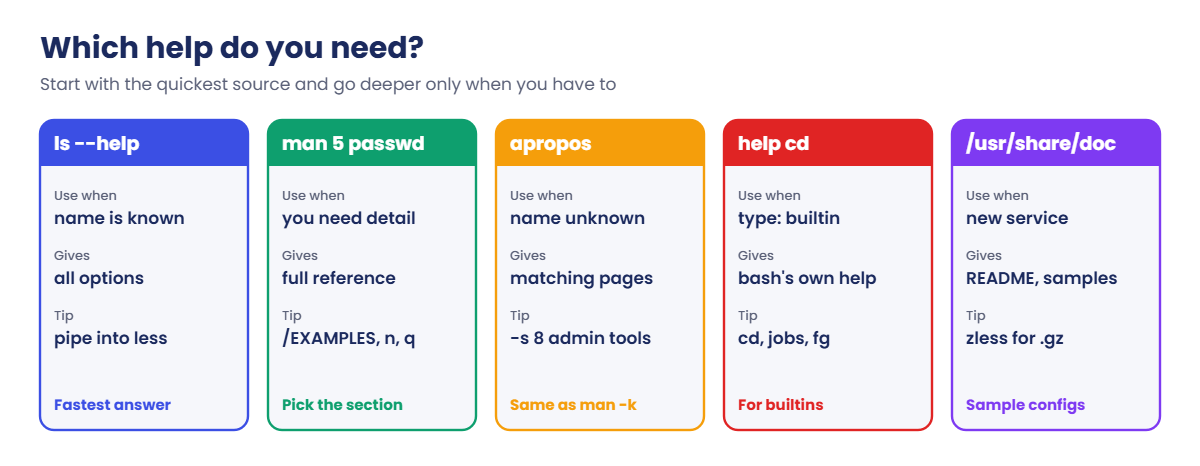
When you need an option, start with the quickest source and go deeper only when you have to. --help fits on a screen or two and answers most “what was that option” questions. The man page is the full reference. apropos and whatis search the one-line descriptions of every man page when you don’t know the command name at all.

The cards underneath show which source to use for which question. Builtins like cd and history have no man page of their own on Ubuntu, so for those you ask bash itself with help.

Linux terminal basics: which help source to use, from --help to man, apropos, help and /usr/share/doc

6Keys that save you hours

These work in bash on both distributions and in most other programs that use readline.

KeysWhat they do
Tab, Tab TabComplete a command, file name or option. Twice shows all the choices
Ctrl+CStop the running command (sends SIGINT)
Ctrl+ZPause the running command and put it in the background as a stopped job
Ctrl+DEnd of input. On an empty prompt it logs you out
Ctrl+RSearch back through history as you type. Ctrl+R again for older matches
Ctrl+A, Ctrl+EJump to the start or end of the line
Ctrl+U, Ctrl+K, Ctrl+WCut from the cursor to the start, to the end, or one word back
Ctrl+YPaste what you last cut with the keys above
Ctrl+LClear the screen (the same as the clear command)
Ctrl+S, Ctrl+QFreeze and unfreeze terminal output. Ctrl+S is the one people press by accident

On many terminal programs on Windows, Ctrl+C and Ctrl+V copy and paste only when text is selected, and inside the Linux shell Ctrl+C always means “stop”. If you’re unsure, use right-click or Ctrl+Shift+C and Ctrl+Shift+V.

Hands-on lab: the prompt, man pages, history and exit codes

Before you run any command, double-check it

Read every command twice before you press Enter. Check the target: the server name, the user, the disk or device name, the path and the sizes. These commands are for learning and were tested in our lab, not on your system. At work, run the read-only commands first, follow your change process, make sure a backup exists, and ask a second person to check anything that changes or deletes data. You run them at your own risk.

Log in to rocky01 with ssh -p 2211 student@127.0.0.1 and keep a second window open on ubu01 (ssh -p 2221 student@127.0.0.1). Nothing in this lab changes the system except one line you add to your own ~/.bashrc in step 7.

1Read your prompt

Run this on rocky01:

whoami
hostname
pwd
echo "$PS1"

You should see something like this:

student
rocky01
/home/student
[\u@\h \W]\$

Each part of the prompt has a command that tells you the same thing. The last line is the recipe for the prompt itself: \u user, \h host, \W the last part of the current folder and \$, which shows $ for normal users and # for root. On ubu01 the recipe is longer because it adds colours, but it ends in \u@\h:\w\$.

Now become root for a moment, and come back:

sudo -i
whoami
exit

You should see something like this:

[root@rocky01 ~]# whoami
root
[root@rocky01 ~]# exit
logout
[student@rocky01 ~]$

The $ turned into # and the user changed to root. That one character is your warning sign: as root, nothing stops you from deleting the wrong thing. Leave root as soon as the task is done.

✅ Checkpoint: You can point to the user, host, folder and $ or # in your prompt on both VMs.

2Find out what kind of command it is

Run this on rocky01:

type ls cd ll history ssh

You should see something like this:

ls is aliased to `ls --color=auto'
cd is a shell builtin
ll is aliased to `ls -l --color=auto'
history is a shell builtin
ssh is /usr/bin/ssh

Rocky sets the ls and ll aliases in /etc/profile.d, so when you type ls you get colours you didn’t ask for. cd and history are builtins inside bash, and ssh is an ordinary program file. On ubu01 the aliases come from ~/.bashrc instead, and ll means ls -alF.

✅ Checkpoint: You know which of the five names are aliases, builtins and program files on rocky01.

3Get quick help from the command itself

Run this on rocky01:

ls --help | head -n 4
help cd | head -n 2

You should see something like this:

Usage: ls [OPTION]... [FILE]...
List information about the FILEs (the current directory by default).
Sort entries alphabetically if none of -cftuvSUX nor --sort is specified.

Mandatory arguments to long options are mandatory for short options too.
cd: cd [-L|[-P [-e]] [-@]] [dir]
    Change the shell working directory.

Nearly every program accepts --help and prints a summary of its options. Piping it into head or less keeps it from scrolling away. For builtins, help is the built-in manual.

Now try the man page for cd on ubu01:

Run this on ubu01:

man cd

You’ll get this:

No manual entry for cd

cd is part of bash, so Ubuntu has no separate page for it (on rocky01 the same command opens the long page that covers all bash builtins). When man says “No manual entry”, run type first: if it says builtin, use help.

✅ Checkpoint: ls --help and help cd both print a usage line, and you know why man cd fails on ubu01.

4Read a man page and pick a section

Run this on ubu01:

whatis passwd crontab
man 5 passwd

You should see something like this (whatis part):

passwd (1)           - change user password
passwd (5)           - the password file
crontab (1)          - maintain crontab files for individual users (Vixie Cron)
crontab (5)          - tables for driving cron

whatis prints the one-line description of every page with that exact name, so you can see that passwd and crontab each have a command page (1) and a file format page (5). man 5 passwd opens the second one in a pager. Inside it, use these keys:

KeyDoes
Space, bPage down, page up
/word then EnterSearch forward for “word”. n jumps to the next match, N to the previous
g, GGo to the top, go to the end
hShow all pager keys
qQuit

Every man page has the same layout: NAME, SYNOPSIS, DESCRIPTION, OPTIONS, then often FILES, EXAMPLES and SEE ALSO. When you’re in a hurry, search for EXAMPLES first, because many pages put ready-made commands there.

✅ Checkpoint: You found the seven fields of /etc/passwd in man 5 passwd and quit with q.

5Search when you don’t know the command

Say you need to work with disk partitions but can’t remember any tool names. apropos searches the NAME line of every man page, and -s 8 keeps only admin commands.

Run this on ubu01:

apropos -s 8 partition

You should see something like this:

addpart (8)          - tell the kernel about the existence of a partition
cfdisk (8)           - display or manipulate a disk partition table
delpart (8)          - tell the kernel to forget about a partition
fdisk (8)            - manipulate disk partition table
gdisk (8)            - Interactive GUID partition table (GPT) manipulator
parted (8)           - a partition manipulation program
partprobe (8)        - inform the OS of partition table changes
partx (8)            - tell the kernel about the presence and numbering of on...
resizepart (8)       - tell the kernel about the new size of a partition
sfdisk (8)           - display or manipulate a disk partition table

man -k partition does the same search. apropos reads a small database that the man-db package keeps up to date when packages are installed. If it ever says “nothing appropriate” for a word that should clearly match, rebuild that database with sudo mandb. Try the same search on rocky01 too: the list is shorter because a minimal Rocky install has fewer disk tools.

✅ Checkpoint: apropos gives you at least five partition tools on ubu01.

6Look in /usr/share/doc

Run this on ubu01:

ls /usr/share/doc | wc -l
ls /usr/share/doc/bash

You should see something like this (second command):

COMPAT.gz  INTRO.gz  NEWS.gz  POSIX.gz  RBASH  README.Debian.gz  README.gz  changelog.Debian.gz  copyright  inputrc.arrows

Most packages drop extra files here: README notes, changelogs, licences and, for many servers, sample config files. On Ubuntu many are gzip-compressed, so read them with zless /usr/share/doc/bash/README.gz. On rocky01 the files are usually plain text, for example ls /usr/share/doc/openssh.

When you set up a service you’ve never used, the sample config here is often the best place to start.

✅ Checkpoint: You opened one README from /usr/share/doc with less or zless and quit with q.

7Reuse commands with history

Run this on rocky01:

history | tail -n 5

You should see something like this:

  118  cat /etc/os-release
  119  df -h
  120  sudo dnf -y makecache
  121  systemctl status sshd
  122  history | tail -n 5

Each line has a number you can rerun: !120 runs line 120 again and !! repeats the last command. The famous one is sudo !!, which reruns the last command with sudo after you forgot it. Even faster is Ctrl+R: press it, type makec and bash shows the last matching command, then Enter runs it or the right arrow lets you edit it first.

By default, history doesn’t record when you ran each command. Add a time format to your own ~/.bashrc so it does:

Paste this whole block:

echo "export HISTTIMEFORMAT='%F %T '" >> ~/.bashrc
source ~/.bashrc
hostname
history | tail -n 2

You should see something like this (last lines):

  123  2026-10-27 11:42:18 hostname
  124  2026-10-27 11:42:25 history | tail -n 2

Rocky keeps 1000 commands in memory (HISTSIZE in /etc/profile) and Ubuntu sets 1000 in memory and 2000 in the file in ~/.bashrc. The list is saved to ~/.bash_history when the shell exits.

✅ Checkpoint: history shows a date and time next to your newest commands, and sudo !! or Ctrl+R has worked for you once.

8Let Tab do the typing

On rocky01, type this and press Tab twice (don’t press Enter):

systemctl st

You should see something like this:

start   status  stop

Completion knows the subcommands of systemctl because of the bash-completion package (installed on both VMs). Now type systemctl status ss and press Tab twice: sshd.service is among the matches on rocky01 (ssh.service on ubu01), and typing a few more letters plus Tab finishes the name. Tab also completes file names, so cat /etc/os-r plus Tab gives you /etc/os-release without a typo.

Practise the editing keys on a long line: type echo one two three four, press Ctrl+A (cursor to the start), Ctrl+E (to the end), Ctrl+W twice (deletes four and three), Ctrl+Y (pastes them back), then Ctrl+U to clear the line.

✅ Checkpoint: Tab shows you the sshd service name, and you used Ctrl+A, Ctrl+E, Ctrl+W and Ctrl+U at least once.

Linux terminal basics lab output on rocky01: exit codes 0, 2, 1 and 127
Example output from rocky01: the exit code of each command, read straight after it ran

9Read exit codes

Paste this whole block on rocky01:

ls /etc/hostname; echo "exit=$?"
ls /nothere; echo "exit=$?"
grep -q priya /etc/passwd; echo "exit=$?"
nosuchcmd; echo "exit=$?"

You should see this:

/etc/hostname
exit=0
ls: cannot access '/nothere': No such file or directory
exit=2
exit=1
bash: nosuchcmd: command not found
exit=127

Zero means success and anything else means something went wrong, with the number saying roughly what. grep returned 1 because user priya doesn’t exist yet (you’ll create her in Lesson 15), which for grep means “not found” and is not an error. Now run sleep 60, press Ctrl+C and run echo $?: you’ll get 130, which is 128 plus signal 2.

✅ Checkpoint: You got 0, 2, 1, 127 and 130 and can say what each one means.

Break It, Then Fix It

All three of these happen to real people on real servers in their first month. None of them changes anything outside your own session, so no snapshot is needed.

1Freeze your terminal with Ctrl+S

On rocky01, run this, and while the numbers scroll, press Ctrl+S:

for i in $(seq 1 300); do echo "line $i"; sleep 0.2; done

You’ll see this:

line 41
line 42
line 43

The output stops and the terminal ignores everything you type. Nothing is wrong with the server. Ctrl+S is the old XOFF flow-control key, which tells the terminal driver to stop sending output, and the program writing to the screen is now paused too, because its writes are blocked.

Many people press it out of habit from “save” in Windows editors.

Fix: press Ctrl+Q.

The numbers start again from where they paused, and anything you typed in the meantime appears. Press Ctrl+C to end the loop. If you never want this feature, add stty -ixon to your ~/.bashrc, which turns XON/XOFF off for your terminals.

✅ Checkpoint: You froze and unfroze the loop, and Ctrl+C then gave you the prompt back.

2Press Ctrl+Z when you meant Ctrl+C

Run this, press Ctrl+Z, then try to log out:

sleep 100
exit

You’ll get this:

^Z
[1]+  Stopped                 sleep 100
[student@rocky01 ~]$ exit
logout
There are stopped jobs.

Ctrl+Z doesn’t stop a program for good, it pauses it and keeps it as job 1. Bash refuses the first exit to remind you the job is still there. On a real server that job might be an editor holding a lock on a config file or a half-finished copy, and people find it days later.

Fix: list the jobs, bring the job back and end it properly.

jobs
fg %1

Now press Ctrl+C. jobs should print nothing.

✅ Checkpoint: jobs is empty and exit logs you out at the first try.

3Read $? one command too late

Run this on rocky01:

ls /nothere
echo "Checking the result"
echo $?

You’ll get this:

ls: cannot access '/nothere': No such file or directory
Checking the result
0

The 0 belongs to the first echo, which worked. $? only ever holds the exit code of the command that ran last, so anything in between, even an echo or a comment-printing line in a script, replaces it. Scripts that check $? this way report success for failed backups.

Fix: read it straight away, or save it in a variable first.

ls /nothere
rc=$?
echo "Checking the result"
echo "ls returned $rc"

You should see this:

ls: cannot access '/nothere': No such file or directory
Checking the result
ls returned 2

✅ Checkpoint: You get “ls returned 2” from the fixed version.

This happened at work

The month-end batch that waited for a key press

Our on-call engineer at a general insurer in Nagpur, Swapnil, had to run a claims reconciliation script by hand on the last night of the quarter. Around 11:30 p.m. the script’s progress lines stopped, the database team saw a session sitting idle, and the finance team were told the run “had hung on the database”.

The DBA checked locks and found none. Someone suggested killing the script and starting again, which would have meant another three hours and a missed reporting deadline. Before anyone did that, Swapnil’s lead asked him to share his screen.

The script was running in the foreground of his SSH window, and while copying a number into his notes he had pressed Ctrl+S out of habit. The terminal had stopped accepting output, the script’s next write to the screen had blocked, and the script had waited politely for forty minutes. His lead pressed Ctrl+Q, the lines started scrolling again and the run finished at 2:10 a.m.

The team changed two things the next week. Long jobs now always run inside tmux or with nohup and their output goes to a log file, so nothing depends on one person’s terminal. And stty -ixon went into the standard ~/.bashrc on the batch servers.

Common mistakes and troubleshooting

MistakeWhat happensWhat to do instead
Not reading the host name in the promptYou restart a service or delete files on production when you meant the test serverLook at the prompt before every change, and set a different PS1 colour for production if your team allows it
Staying logged in as rootEvery typo runs with full power, and nothing tells you who did whatWork as yourself and use sudo for single commands, leave sudo -i shells with exit
Guessing options instead of checkingA wrong flag deletes, overwrites or reformats somethingCheck --help or the man page first, especially for rm, dd, mkfs and parted
Running man for a builtin like cd“No manual entry” and the idea that the command has no documentationUse type to see what it is, then help cd
Checking $? after another commandA failure is reported as successRead $? straight after the command, or save it with rc=$?
Pressing Ctrl+Z to quit a programThe program sits stopped in the background, often holding files openUse Ctrl+C or the program’s own quit key (q in less and man), and check jobs
Thinking a frozen terminal means a hung serverPeople restart services or the server for no reasonTry Ctrl+Q first, then open a second SSH session and look

Interview questions

Click a question to open it. Each one is written the way an interviewer would ask it. Under it you will see why they ask it and one way you could answer, in your own words.

Fresher level

1. You need an option for a command you rarely use and there’s no internet on the server. How do you find it?

Why they ask this: They want to see that you can help yourself on a locked-down server, which is most production servers in banks and insurers.

How you might answer: I start with --help piped into less, which is usually enough. If I need more detail I open the man page and search inside it with a slash, often for EXAMPLES.

If I don’t know the command name at all, I use apropos or man -k with a keyword, and I also look in /usr/share/doc for sample config files.

2. What does the prompt [root@db02 log]# tell you, and why should it make you careful?

Why they ask this: A simple check that you read the prompt and know what # means before you type.

How you might answer: I’m logged in as root on the host db02, and I’m in a folder called log, probably /var/log. The # confirms root.

So any command runs with full rights on what sounds like a database server. I’d double-check the host, the path and the command before pressing Enter, and leave the root shell once the task is done.

2–5 years experience

3. A cron script reports success but the backup it runs is clearly failing. What would you check in the script?

Why they ask this: This tests whether you understand exit codes, which is where most silent script failures come from.

How you might answer: I’d look at how it checks the result. A common bug is reading $? after an echo or a logging line, so it always sees 0, or checking only the last command of a pipeline.

I’d save the exit code straight after the backup command with rc=$?, test that, and for pipelines use set -o pipefail. Then I’d make the script exit with a non-zero code so cron and monitoring can see the failure.

4. man passwd shows the command, but you wanted the format of /etc/passwd. How do you get there, and what are man sections?

Why they ask this: They want to know you can move around the manual quickly, which shows real day-to-day use.

How you might answer: I’d run whatis passwd to see which sections have a page, then man 5 passwd. Section 1 is user commands, 5 is file formats, 8 is admin commands and 2 and 3 are for programmers.

The same trick works for crontab, where section 5 explains the five time fields.

Senior level

5. After an incident, the auditors ask who ran a particular command on a server last month. Can bash history answer that? What would you put in place?

Why they ask this: This checks whether you know the limits of history as evidence and how to build proper accountability.

How you might answer: Not reliably. History is per user, can be edited or switched off by that user, has no timestamps unless HISTTIMEFORMAT is set and can be overwritten when several sessions exit. With shared or root logins it can’t tell people apart.

I’d make everyone use named accounts with sudo, since sudo logs every command with the user, and add auditd rules for sensitive files and commands, with logs shipped to a central server. HISTTIMEFORMAT is nice for people, but the audit trail must come from the system.

6. How would you make terminals on production servers harder to make mistakes in, without slowing the team down?

Why they ask this: They want practical, low-cost guard rails and an understanding of human error.

How you might answer: I’d set a clear prompt standard, for example the environment name and a red colour on production, through a file in /etc/profile.d managed by Ansible. I’d add HISTTIMEFORMAT and stty -ixon there too.

Long jobs would run in tmux or under systemd so a lost or frozen terminal doesn’t matter, and risky commands would have runbooks with the exact checks to run first.

Quick quiz

Q1. What does the last character # in a prompt mean?

  1. You are in the root directory
  2. You are logged in as root
  3. The last command failed
  4. You are in a comment
Show answer

B — $ means a normal user and # means root.

Q2. Which command shows the file format of /etc/passwd?

  1. man passwd
  2. man 5 passwd
  3. passwd --help
  4. help passwd
Show answer

B — Section 5 is file formats. Section 1, the default here, is the passwd command.

Q3. man cd says “No manual entry for cd” on Ubuntu. What should you use?

  1. apropos cd
  2. help cd
  3. cd --man
  4. info bash only
Show answer

B — cd is a bash builtin, so bash’s own help command documents it.

Q4. You ran sleep 60 and pressed Ctrl+C. What does echo $? print?

  1. 0
  2. 1
  3. 127
  4. 130
Show answer

D — 128 plus the signal number, and Ctrl+C sends SIGINT, which is 2.

Q5. Your SSH window suddenly ignores every key and output has stopped. What do you try first?

  1. Reboot the server
  2. Press Ctrl+Q
  3. Press Ctrl+Z
  4. Close the window and restart sshd
Show answer

B — Ctrl+S freezes terminal output and Ctrl+Q releases it.

Quick recap

  • The prompt tells you user, host, folder and $ or #. Read it before every change.
  • type tells you if a name is an alias, a builtin or a program. Builtins get help, programs get --help and man.
  • Man sections: 1 commands, 5 file formats, 8 admin commands. whatis lists them, apropos and man -k search by keyword, and /usr/share/doc holds READMEs and samples.
  • History, !!, sudo !!, Ctrl+R and Tab save typing, and HISTTIMEFORMAT adds timestamps.
  • Exit codes: 0 success, 1 and 2 failures, 126 not executable, 127 not found, 130 Ctrl+C. Read $? straight away.

Next lesson

Lesson 4: Unix roots: Bell Labs, 1969 → You’ll see where all of this came from: Thompson and Ritchie, the PDP-7, C, BSD and System V, POSIX and the small-tools idea you’ll use every day.

Further reading: Linux terminal basics

Want to go deeper into Linux terminal basics? Read the GNU Bash manual (the sections on Readline and Bash History), man(1) and man-pages(7) on man7.org, and the Ubuntu Server documentation. You can also see the full plan for this course on the Linux Administration course page.

Scroll to Top

This website uses cookies

We use a few cookies to keep this site working. If you allow it, we also use Google Analytics to count visits so we can improve our lessons. You can accept all, deny the optional ones, or choose what to allow.