LVM in Linux: PV, VG and LV from start to finish

LVM in Linux (the Logical Volume Manager) puts a flexible layer between your disks and your file systems. Instead of making a partition and living with its size forever, you hand whole disks to LVM, pool them into a volume group and cut logical volumes out of that pool, which you can grow later while the server keeps running.

Your rocky01 already uses LVM: the installer put the root and swap volumes in a volume group called rl. In this lesson you build your own, vg_data on the 5 GB disk sdb from Lesson 42, with two volumes the rest of the course depends on: lv_app (XFS on /srv/app) and lv_logs (ext4 on /srv/logs), both mounted by UUID. Then you run the full create and remove cycle once on sdc3, the spare swap partition from Lesson 43, so you know how to take LVM apart safely too.

Where this lesson fits

Lesson 44 of 82 in Linux Administration · Phase 3: Enterprise infrastructure and storage · Before this: Lesson 43, file systems, fstab and swap · Next: Lesson 45, grow storage live

TimeYou needBy the end you can
About 60 minutesrocky01 with the blank 5 GB disk sdb from Lesson 42, sdc as Lesson 43 left it, the fstab skills from Lesson 43, and a VirtualBox snapshot before the Break-It partCreate physical volumes, a volume group and logical volumes, put XFS and ext4 on them, mount them by UUID so they survive a reboot, and remove an LVM stack in the right order

What it is, in one line

LVM turns disks into physical volumes, pools them into a volume group cut into small equal extents, and hands out logical volumes made of those extents, which behave like disks you can resize.

In Simple Words

The rice drum in a wedding kitchen

Picture the kitchen at a big wedding. Rice arrives in sacks of different sizes from two or three shops, and the head cook doesn’t serve from the sacks. He empties all of them into one huge drum, and from then on nobody cares which shop a grain came from.

Each counter (biryani, curd rice, kheer) gets rice from the drum measured in the same steel katori. If the biryani counter runs low, the cook sends it more katoris, and if the drum itself gets low, someone opens another sack and pours it in. Nobody stops the wedding to do this.

The sacks are your disks, the drum is the volume group, the katori is an extent and each counter is a logical volume.

Engineer's View

The four words and the commands behind them

LVM is made of a small set of objects. The kernel part is device-mapper: every logical volume becomes a /dev/dm-N device whose table says “these sectors live on that disk, at this offset”. The LVM tools (package lvm2 on both Rocky and Ubuntu) write and read the metadata that describes those tables.

ObjectWhat it isCreate / list / remove
PV (physical volume)A whole disk or a partition with an LVM label (sector 1) and a metadata area at the start. Data starts after the first 1 MiBpvcreate / pvs, pvdisplay / pvremove
VG (volume group)A pool of one or more PVs, cut into physical extents (PE) of one fixed size, 4 MiB by default. Every PV in the VG holds a copy of the VG metadatavgcreate / vgs, vgdisplay / vgremove
LV (logical volume)A block device made of extents from the VG. You put a file system (or swap) on it and mount itlvcreate / lvs, lvdisplay / lvremove
Extent (PE / LE)The unit LVM counts in. A 2 GiB LV with 4 MiB extents is 512 logical extents (LE), each mapped to one physical extent (PE) on some PVlvcreate -l 512, -l 100%FREE

One LV has three names that all point at the same device: /dev/vg_data/lv_app and /dev/mapper/vg_data-lv_app are symlinks made by udev, and /dev/dm-2 is the real device node. The dm number can change between boots, so never put it in a config file.

DetailRocky Linux 10Ubuntu 26.04
OS volume group from the installerrl with rl-root and rl-swap (rocky01)ubuntu-vg with ubuntu-lv (ubu01, about half the VG used)
LVM devices fileOn by default: LVM only looks at disks listed in /etc/lvm/devices/system.devices. pvcreate, vgcreate and vgextend add new disks for you; lvmdevices lists the fileOff by default (use_devicesfile = 0), so LVM scans every disk it can see
Metadata backupsText copies in /etc/lvm/backup and older versions in /etc/lvm/archive after every changeSame

How it works, step by step

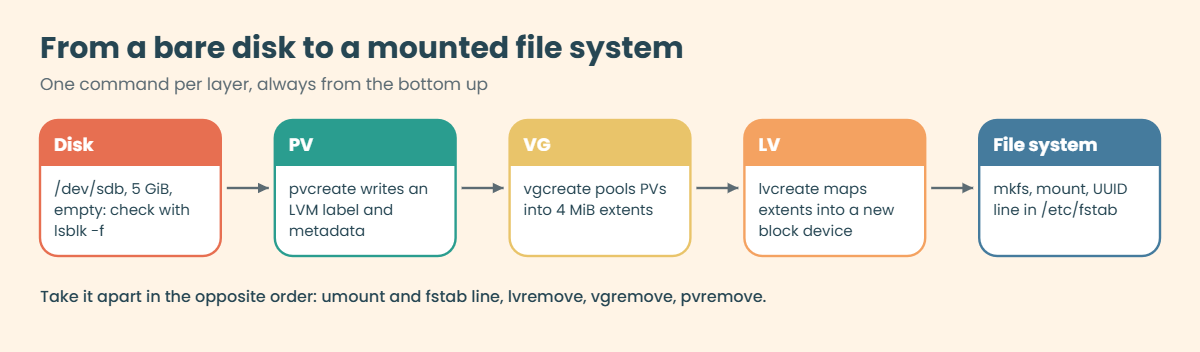
Building storage with LVM always goes from the bottom up, one layer per command. The diagram below follows sdb from a bare disk to a mounted file system.

1A disk becomes a physical volume

pvcreate /dev/sdb writes an LVM label in the second 512-byte sector and reserves room for metadata at the start of the disk. Nothing else on the disk is touched yet. You can use a whole disk or a partition; for data disks most teams use the whole disk, because growing it later (Lesson 45) is one step shorter without a partition table in the way.

2Physical volumes join a volume group

vgcreate vg_data /dev/sdb creates the pool and slices the usable space into 4 MiB physical extents. A 5 GiB disk gives 1279 extents, a little under 5 GiB, because the first 1 MiB holds the label and metadata. The extent size is fixed for the life of the VG, so pick it at creation if you have a reason (4 MiB is fine for almost everything).

LVM in Linux: from a bare disk to a physical volume, volume group, logical volume and mounted file system

3A logical volume is a list of extents

lvcreate -n lv_app -L 2G vg_data takes 512 free extents and asks device-mapper to build a “linear” table that maps them in order. The extents don’t have to sit next to each other or even on the same disk, which is how an LV can grow onto a new disk later. -L takes a size (2G, 500M), while -l takes extents or a percentage such as -l 100%FREE.

4A file system goes on top, then a mount

To the file system an LV looks like any disk, so mkfs.xfs and mkfs.ext4 work as they did in Lesson 43. You mount it, and you add it to /etc/fstab by UUID so it comes back after a reboot.

5LVM keeps a map of every extent

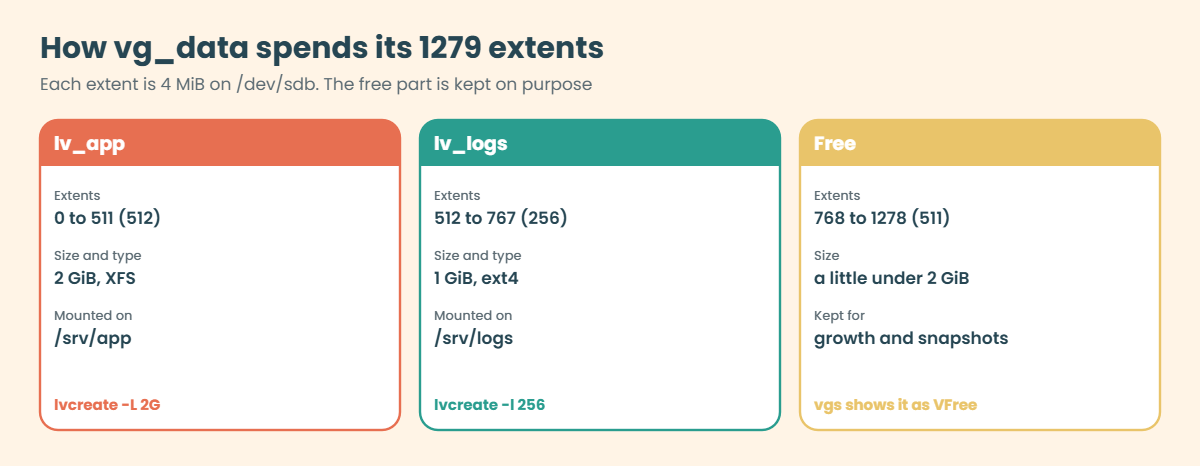
The VG metadata records which extents belong to which LV, and every PV carries its own copy of it, so the VG can be rebuilt even if one copy is damaged. lvs -o +seg_le_ranges shows that map. The picture below shows how vg_data spends its 1279 extents after this lesson, including the part you deliberately leave free.

LVM in Linux: how the 1279 extents of vg_data are split between lv_app, lv_logs and free space

6Taking it apart goes from the top down

Removing is the same ladder in reverse: unmount the file system, delete its fstab line, then lvremove, vgremove and finally pvremove. Each tool refuses to skip a step: lvremove won’t remove a mounted LV and pvremove won’t wipe a PV that a VG still uses. Those refusals are your safety net, so read them instead of reaching for force options.

Leave free space in every VG you build. Growing an LV, taking a snapshot before an upgrade and adding lv_db for MariaDB later in the course all need unused extents in the VG. A VG created with one LV of -l 100%FREE looks tidy on day one and leaves you nothing to work with on day ninety.

Hands-on lab: build vg_data with lv_app and lv_logs on rocky01

Before you run any command, double-check it

Read every command twice before you press Enter. Check the target: the server name, the user, the disk or device name, the path and the sizes. These commands are for learning and were tested in our lab, not on your system. At work, run the read-only commands first, follow your change process, make sure a backup exists, and ask a second person to check anything that changes or deletes data. You run them at your own risk.

Everything here runs on rocky01 as student with sudo. You’ll build the real lab storage on sdb, which later lessons use, and a throwaway stack on sdc3 that you remove again at the end. Leave sdc1 and sdc2 alone: they hold /srv/data1 and /srv/data2 from Lesson 43.

Before you start, run lsblk and make sure you know which disk is which: the 20 GB disk with partitions is the OS, and you never touch it in this lesson.

1Look at the LVM the installer already built

Run this:

lsblk
sudo pvs
sudo vgs
sudo lvs

You should see something like this:

NAME        MAJ:MIN RM  SIZE RO TYPE MOUNTPOINTS
sda           8:0    0   20G  0 disk
├─sda1        8:1    0  600M  0 part /boot/efi
├─sda2        8:2    0    1G  0 part /boot
└─sda3        8:3    0 18.4G  0 part
  ├─rl-root 253:0    0 16.4G  0 lvm  /
  └─rl-swap 253:1    0    2G  0 lvm  [SWAP]
sdb           8:16   0    5G  0 disk
sdc           8:32   0    5G  0 disk
├─sdc1        8:33   0    2G  0 part /srv/data1
├─sdc2        8:34   0    2G  0 part /srv/data2
└─sdc3        8:35   0 1023M  0 part
sr0          11:0    1 1024M  0 rom  
  PV         VG Fmt  Attr PSize  PFree
  /dev/sda3  rl lvm2 a--  18.41g    0
  VG #PV #LV #SN Attr   VSize  VFree
  rl   1   2   0 wz--n- 18.41g    0
  LV   VG Attr       LSize  Pool Origin Data%  Meta%  Move Log Cpy%Sync Convert
  root rl -wi-ao---- 16.41g
  swap rl -wi-ao----  2.00g

The installer made sda3 a PV, put it in the VG rl and cut two LVs from it, root (16.41g) and swap (2.00g), with no free space left (VFree 0). In lsblk you see them as rl-root and rl-swap under sda3, with major number 253, which is device-mapper. sdb is the empty 5 GB disk from Lesson 42, and sdc carries the three partitions from Lessons 42 and 43: two mounted file systems and sdc3, which is no longer used as swap.

The Attr column is a row of flags. For an LV, -wi-ao---- means: normal volume (first dash), writable, inherit allocation, active (a) and open (o), which here means mounted or in use as swap.

✅ Checkpoint: You can name the OS volume group (rl), its two LVs, the empty disk sdb and the partitions on sdc.

2Make sure sdb is empty

Run this:

lsblk -f /dev/sdb
sudo wipefs /dev/sdb

You should see something like this:

NAME FSTYPE FSVER LABEL UUID FSAVAIL FSUSE% MOUNTPOINTS
sdb                                                    

No FSTYPE, no UUID, and wipefs printed nothing, which means it found no file system, RAID or LVM signature on sdb. wipefs without options only reads; it changes the disk only when you add -a.

If sdb shows a signature, you used it for practice earlier. Clear it with sudo wipefs -a /dev/sdb only after checking with lsblk -f and findmnt that nothing on it is mounted. Check the device name twice before you press Enter.

✅ Checkpoint: lsblk -f shows no FSTYPE on sdb, and wipefs prints nothing.

3Turn sdb into a physical volume

Run this:

sudo pvcreate /dev/sdb
sudo pvs

You should see something like this:

  Physical volume "/dev/sdb" successfully created.
  PV         VG Fmt  Attr PSize  PFree
  /dev/sda3  rl lvm2 a--  18.41g    0
  /dev/sdb      lvm2 ---   5.00g 5.00g

sdb is now a PV with no VG yet, so the VG column is empty and Attr shows --- (not allocatable until it joins a VG). On Rocky 10, pvcreate also added sdb to the LVM devices file. Check it:

sudo lvmdevices | grep -o 'DEVNAME=[^ ]*'

You should see something like this:

DEVNAME=/dev/sda3
DEVNAME=/dev/sdb

On Ubuntu the devices file is off by default, so this step is skipped there; sudo lvmconfig --typeconfig full devices/use_devicesfile tells you which mode a server uses.

✅ Checkpoint: pvs lists /dev/sdb with Fmt lvm2 and PSize 5.00g.

4Create the volume group vg_data

Run this:

sudo vgcreate vg_data /dev/sdb
sudo vgs
sudo vgdisplay vg_data | grep -E 'PE Size|Total PE|Free  PE'

You should see something like this:

  Volume group "vg_data" successfully created
  VG      #PV #LV #SN Attr   VSize  VFree
  rl        1   2   0 wz--n- 18.41g     0
  vg_data   1   0   0 wz--n- <5.00g <5.00g
  PE Size               4.00 MiB
  Total PE              1279
  Free  PE / Size       1279 / <5.00 GiB

vg_data has one PV and no LVs yet. The size shows as <5.00g because 1279 extents of 4 MiB is 5116 MiB: the first MiB of the disk holds the label and metadata, and the last 3 MiB don't make a whole extent. VG Attr wz–n- means writable, resizable, normal allocation.

✅ Checkpoint: vgs shows vg_data with #PV 1 and VFree <5.00g, and PE Size is 4.00 MiB.

5Cut out lv_app and lv_logs

Run this:

sudo lvcreate -n lv_app -L 2G vg_data
sudo lvcreate -n lv_logs -l 256 vg_data
sudo lvs vg_data
sudo vgs vg_data

You should see something like this:

  Logical volume "lv_app" created.
  Logical volume "lv_logs" created.
  LV      VG      Attr       LSize Pool Origin Data%  Meta%  Move Log Cpy%Sync Convert
  lv_app  vg_data -wi-a----- 2.00g
  lv_logs vg_data -wi-a----- 1.00g
  VG      #PV #LV #SN Attr   VSize  VFree
  vg_data   1   2   0 wz--n- <5.00g <2.00g

lv_app was sized in gigabytes with -L 2G, and lv_logs in extents with -l 256 (256 x 4 MiB = 1 GiB). Both are active (a) but not open yet, because nothing is mounted. Almost 2 GiB stays free in the VG, on purpose.

Now look at the device names and the extent map:

ls -l /dev/vg_data/lv_app /dev/vg_data/lv_logs
sudo lvs -o lv_name,lv_size,seg_le_ranges vg_data

You should see something like this:

lrwxrwxrwx. 1 root root 7 Oct 27 11:20 /dev/vg_data/lv_app -> ../dm-2
lrwxrwxrwx. 1 root root 7 Oct 27 11:20 /dev/vg_data/lv_logs -> ../dm-3
  LV      LSize LE Ranges
  lv_app  2.00g /dev/sdb:0-511
  lv_logs 1.00g /dev/sdb:512-767

The friendly names are symlinks to dm-2 and dm-3, and the map shows lv_app on extents 0 to 511 of sdb and lv_logs on 512 to 767.

✅ Checkpoint: lvs shows lv_app 2.00g and lv_logs 1.00g in vg_data, and vgs shows VFree <2.00g.

6Put XFS and ext4 on the volumes

Run this:

sudo mkfs.xfs /dev/vg_data/lv_app
sudo mkfs.ext4 /dev/vg_data/lv_logs

You should see something like this (mkfs.xfs output shortened):

meta-data=/dev/vg_data/lv_app    isize=512    agcount=4, agsize=131072 blks
         =                       sectsz=512   attr=2, projid32bit=1
...
data     =                       bsize=4096   blocks=524288, imaxpct=25
...
log      =internal log           bsize=4096   blocks=16384, version=2
mke2fs 1.47.1 (20-May-2024)
Creating filesystem with 262144 4k blocks and 65536 inodes
Filesystem UUID: c2d84a17-5e3b-4f0a-9b6e-71a3d8f0e245
Superblock backups stored on blocks:
	32768, 98304, 163840, 229376

Allocating group tables: done
Writing inode tables: done
Creating journal (8192 blocks): done
Writing superblocks and filesystem accounting information: done

XFS split the 2 GiB volume into 4 allocation groups of 131072 blocks (4 KiB each), and ext4 made 262144 blocks with a journal. XFS is Rocky’s default and grows online but can never shrink; ext4 grows online and can shrink offline. You’ll use both facts in Lesson 45.

✅ Checkpoint: Both commands finish without an error, and ext4 prints its Filesystem UUID.

LVM in Linux lab: lvs and df on rocky01 showing lv_app and lv_logs mounted
Example output: lv_app and lv_logs mounted from fstab on rocky01. Your UUIDs will differ.

7Mount both volumes by UUID

Run this:

sudo mkdir -p /srv/app /srv/logs
sudo blkid /dev/vg_data/lv_app /dev/vg_data/lv_logs

You should see something like this:

/dev/mapper/vg_data-lv_app: UUID="6b1f3c2e-9a4d-4e57-8c1b-2f7d0a9e5c31" BLOCK_SIZE="512" TYPE="xfs"
/dev/mapper/vg_data-lv_logs: UUID="c2d84a17-5e3b-4f0a-9b6e-71a3d8f0e245" BLOCK_SIZE="4096" TYPE="ext4"

Paste this whole block (it adds two lines to fstab, reloads systemd and mounts everything):

echo "UUID=$(sudo blkid -s UUID -o value /dev/vg_data/lv_app) /srv/app xfs defaults 0 0" | sudo tee -a /etc/fstab
echo "UUID=$(sudo blkid -s UUID -o value /dev/vg_data/lv_logs) /srv/logs ext4 defaults 0 2" | sudo tee -a /etc/fstab
sudo systemctl daemon-reload
sudo mount -a
findmnt -o TARGET,SOURCE,FSTYPE /srv/app
findmnt -n -o TARGET,SOURCE,FSTYPE /srv/logs
df -h /srv/app /srv/logs

You should see something like this:

UUID=6b1f3c2e-9a4d-4e57-8c1b-2f7d0a9e5c31 /srv/app xfs defaults 0 0
UUID=c2d84a17-5e3b-4f0a-9b6e-71a3d8f0e245 /srv/logs ext4 defaults 0 2
TARGET    SOURCE                      FSTYPE
/srv/app  /dev/mapper/vg_data-lv_app  xfs
/srv/logs /dev/mapper/vg_data-lv_logs ext4
Filesystem                   Size  Used Avail Use% Mounted on
/dev/mapper/vg_data-lv_app   2.0G   71M  1.9G   4% /srv/app
/dev/mapper/vg_data-lv_logs  974M   24K  907M   1% /srv/logs

tee echoes the two lines it appended, and findmnt and df confirm both mounts. The last field is the fsck pass: 0 for XFS (it has its own repair tool and doesn’t use boot-time fsck) and 2 for ext4. The ext4 size shows as 974M because some space goes to inode tables and the journal, and Avail is lower again because 5 percent is reserved for root.

You could also write /dev/mapper/vg_data-lv_app in fstab, because LVM names don’t change between boots the way sdb and sdc can. Most teams use UUID anyway so every line in the file follows one rule.

✅ Checkpoint: df shows /srv/app at 2.0G (XFS) and /srv/logs at 974M (ext4).

8Reboot and prove the mounts come back

Check fstab, then reboot:

sudo findmnt --verify
sudo systemctl reboot

Log in again and run:

sudo lvs
df -h /srv/app /srv/logs

You should see something like this:

Success, no errors or warnings detected
  LV      VG      Attr       LSize  Pool Origin Data%  Meta%  Move Log Cpy%Sync Convert
  lv_app  vg_data -wi-ao----  2.00g
  lv_logs vg_data -wi-ao----  1.00g
  root    rl      -wi-ao---- 16.41g
  swap    rl      -wi-ao----  2.00g
Filesystem                   Size  Used Avail Use% Mounted on
/dev/mapper/vg_data-lv_app   2.0G   71M  1.9G   4% /srv/app
/dev/mapper/vg_data-lv_logs  974M   24K  907M   1% /srv/logs

findmnt checked every fstab line before you rebooted (Lesson 43). After the boot, LVM activated vg_data on its own and systemd mounted both file systems from fstab, so the two LVs show -wi-ao---- like the OS volumes. lvs sorts by VG name, which is why rl’s volumes come after vg_data’s here.

✅ Checkpoint: After the reboot, both /srv/app and /srv/logs are mounted without you doing anything.

9Practise the whole lifecycle on sdc3

Check sdc3 isn’t in use as swap (the command prints nothing for it), then clear its old swap signature and build a throwaway stack (paste this whole block):

swapon --show | grep sdc3
sudo wipefs -a /dev/sdc3
sudo pvcreate /dev/sdc3
sudo vgcreate vg_test /dev/sdc3
sudo lvcreate -n lv_tmp -l 100%FREE vg_test
sudo mkfs.xfs -q /dev/vg_test/lv_tmp
sudo mkdir -p /mnt/tmp
sudo mount /dev/vg_test/lv_tmp /mnt/tmp
echo "hello from vg_test" | sudo tee /mnt/tmp/note.txt
sudo lvs vg_test

You should see something like this:

/dev/sdc3: 10 bytes were erased at offset 0x00000ff6 (swap): 53 57 41 50 53 50 41 43 45 32
  Physical volume "/dev/sdc3" successfully created.
  Volume group "vg_test" successfully created
  Logical volume "lv_tmp" created.
  LV     VG      Attr       LSize  Pool Origin Data%  Meta%  Move Log Cpy%Sync Convert
  lv_tmp vg_test -wi-ao---- 1020.00m
hello from vg_test

This time the LV took every free extent with -l 100%FREE, which is fine for a test you’re about to delete. It isn’t in fstab, because it’s temporary. Now take it apart from the top down:

sudo umount /mnt/tmp
sudo lvremove vg_test/lv_tmp
sudo vgremove vg_test
sudo pvremove /dev/sdc3
sudo pvs
sudo wipefs /dev/sdc3

You should see something like this (answer y at the prompt):

Do you really want to remove active logical volume vg_test/lv_tmp? [y/n]: y
  Logical volume "lv_tmp" successfully removed.
  Volume group "vg_test" successfully removed
  Labels on physical volume "/dev/sdc3" successfully wiped.
  PV         VG      Fmt  Attr PSize  PFree
  /dev/sda3  rl      lvm2 a--  18.41g     0
  /dev/sdb   vg_data lvm2 a--  <5.00g <2.00g

lvremove asks before it removes an active LV, and deleting it destroys the file system and the note on it. vgremove and pvremove then work without a question because nothing depends on them any more, and wipefs shows sdc3 is back to an empty partition. Remove the mount point with sudo rmdir /mnt/tmp.

✅ Checkpoint: pvs no longer lists /dev/sdc3, wipefs prints nothing for it, and vg_data with its two LVs is untouched.

Break It, Then Fix It

Take a snapshot of rocky01 first (on the laptop: VBoxManage snapshot rocky01 take before-l44-break). None of these breaks anything for long, because LVM refuses the unsafe step, and that refusal is what you’re here to learn to read. You’ll need the free space in vg_data in the next two lessons, so don’t “fix” the first one by using it all up.

1Ask for more space than the VG has

Run this:

sudo lvcreate -n lv_big -L 3G vg_data

You’ll get this error:

  Volume group "vg_data" has insufficient free space (511 extents): 768 required.

3 GiB is 768 extents of 4 MiB, and vg_data has only 511 left after lv_app and lv_logs. LVM says it in extents, not gigabytes, so learn to multiply by the PE size: 511 x 4 MiB is about 2 GiB. Nothing was created.

Fix: check what is free first, and use a dry run when you’re unsure. Here you only test, because the space is kept for later lessons.

sudo vgs -o vg_name,vg_free,vg_free_count vg_data
sudo lvcreate --test -n lv_big -l 100%FREE vg_data

You should see something like this:

  VG      VFree  Free
  vg_data <2.00g  511
  TEST MODE: Metadata will NOT be updated and volumes will not be (de)activated.
  Logical volume "lv_big" created.

--test runs every check and prints what would happen without writing any metadata. When an LV has to be bigger than the free space, the fix is a new disk in the VG, which is the next lesson.

✅ Checkpoint: sudo lvs vg_data still shows only lv_app and lv_logs.

2Remove a logical volume that is still mounted

Create a small scratch volume and mount it (paste this whole block):

sudo lvcreate -n lv_scratch -L 100M vg_data
sudo mkfs.ext4 -q /dev/vg_data/lv_scratch
sudo mkdir -p /mnt/scratch
sudo mount /dev/vg_data/lv_scratch /mnt/scratch
cd /mnt/scratch
sudo lvremove vg_data/lv_scratch

You’ll get this error:

  Logical volume vg_data/lv_scratch contains a filesystem in use.

lvremove checked with device-mapper, saw a mounted file system and stopped before it even asked you. Try to unmount it while your shell is still inside the folder:

sudo umount /mnt/scratch

You’ll get this error:

umount: /mnt/scratch: target is busy.

Your own shell has its current directory on that file system, so the kernel won’t let it go. On a real server it’s often a backup agent, a log tailer or someone’s forgotten SSH session; sudo fuser -vm /mnt/scratch (from the psmisc package) lists who is holding it.

Fix: leave the folder, unmount, then remove (answer y).

cd ~
sudo umount /mnt/scratch
sudo lvremove vg_data/lv_scratch
sudo rmdir /mnt/scratch

You should see something like this:

Do you really want to remove active logical volume vg_data/lv_scratch? [y/n]: y
  Logical volume "lv_scratch" successfully removed.

✅ Checkpoint: sudo lvs vg_data shows lv_app and lv_logs only, and VFree is back to <2.00g.

3Wipe a disk that a volume group still uses

Run this:

sudo pvremove /dev/sdb

You’ll get this error:

  PV /dev/sdb is used by VG vg_data so please use vgreduce first.
  (If you are certain you need pvremove, then confirm by using --force twice.)
  /dev/sdb: physical volume label not removed.

pvremove found vg_data on sdb and refused. The second line is the dangerous one: pvremove -ff would wipe the label anyway and leave vg_data, lv_app and lv_logs with no disk underneath them. On a server where disk names moved after a reboot, that “sdb” might not even be the disk you think it is.

Fix: follow the order. To retire a disk, empty it and take it out of its VG first (Lesson 45 shows pvmove and vgreduce), or remove the LVs and the VG if the whole stack is going.

sudo pvs -o pv_name,vg_name,pv_size,pv_uuid
lsblk -f /dev/sdb

✅ Checkpoint: sudo pvs still shows /dev/sdb in vg_data, and /srv/app is still mounted. If anything went wrong, restore the before-l44-break snapshot.

This happened at work

The pvremove that the error message nearly talked us into

My team lead told me this one from her time at a telemedicine startup in Mumbai. It was a Saturday night, around 11, after a migration had moved consultation recordings from an old temporary volume group to a new one called vg_records. The ticket said “remove vg_temp, then pvremove /dev/sdc”, written on Thursday by the engineer who had done the migration.

The junior admin on shift removed the old LV and VG, then ran pvremove /dev/sdc. LVM refused with “PV /dev/sdc is used by VG vg_records so please use vgreduce first”, and the next line helpfully said he could confirm with force twice. He thought the metadata was stale and had the -ff command typed when he pasted the output into the team chat to ask if that was normal.

She asked him to run pvs -o pv_name,vg_name,pv_uuid and lsblk -f before anything else. A second disk had been added on Friday and the VM rebooted, and the kernel had named the disks in a different order: the old temporary disk was now sdd, and sdc held a third of the recordings. LVM tracks PVs by UUID, so it knew which disk it was protecting; only the human was using the old name.

They removed the label from the right disk (sdd), checked it with wipefs, and the next week changed the runbook: removal tickets name the VG and the PV UUID, never only a /dev/sdX name, every removal starts with pvs and lsblk -f, and nobody uses force options on LVM without a second person on the call.

Common mistakes and troubleshooting

MistakeWhat happensWhat to do instead
Creating the only LV with -l 100%FREENo free extents left for growth, snapshots or a new LVSize LVs for what you need now and keep free space in the VG
Writing /dev/dm-2 or /dev/sdb in fstabThe number or name can change after a reboot and the wrong thing mounts, or nothing doesUse UUID= (or /dev/mapper/vg-lv)
Running pvcreate on the wrong diskIts partition table or file system signature is overwrittenCheck lsblk -f and wipefs first; pvcreate also warns when it finds a signature, so read the prompt
Using pvremove -ff because the error suggested itThe VG loses a disk and its LVs breakFollow the order: umount, lvremove, vgremove (or vgreduce), then pvremove
Reading lvcreate errors in GiB“511 extents” looks like a lot of spaceMultiply extents by the PE size from vgdisplay
Forgetting the fsck pass number for ext4Boot-time checks never run on that file systemUse 2 for ext4 data volumes, 0 for XFS
Adding a disk on Rocky 10 by editing lvm.conf filtersThe devices file still hides the disk from LVMLet pvcreate or vgextend add it, or use lvmdevices --adddev

Interview questions

Click a question to open it. Each one is written the way an interviewer would ask it. Under it you will see why they ask it and one way you could answer, in your own words.

Fresher level

1. What are a PV, a VG and an LV, and in which order do you create them?

Why they ask this: A basic check that you understand LVM’s layers and won’t mix up the commands under pressure.

How you might answer: A PV is a disk or partition with an LVM label, made with pvcreate. A VG pools one or more PVs and cuts them into extents, 4 MiB by default, and an LV is a block device built from those extents that I format and mount.

I create them bottom up: pvcreate /dev/sdb, vgcreate vg_data /dev/sdb, lvcreate -n lv_app -L 2G vg_data, then mkfs, a mount point and a UUID line in fstab. Removing goes the other way, top down.

2. You’re given a new 5 GB disk and asked for a 2 GB XFS volume on /srv/app that survives reboots. Walk me through it.

Why they ask this: They want to see the full sequence with the checks, not only the create commands.

How you might answer: First I’d confirm the disk with lsblk -f and wipefs so I know it’s empty and it’s the right one. Then pvcreate, vgcreate vg_data, lvcreate -n lv_app -L 2G vg_data and mkfs.xfs /dev/vg_data/lv_app.

I’d create /srv/app, append a line with UUID= from blkid and fsck pass 0, run systemctl daemon-reload and mount -a, and check with findmnt and df. If I can, I reboot once to prove it.

2–5 years experience

3. lvcreate fails with “insufficient free space (511 extents): 768 required”. What do you check and what are your options?

Why they ask this: They’re checking that you can read LVM’s extent-based messages and know the safe ways to get space.

How you might answer: 511 extents at 4 MiB is about 2 GiB free and 768 extents is 3 GiB, so the request is 1 GiB too big. I’d confirm with vgs -o vg_name,vg_free,vg_free_count and look at what the existing LVs use.

The options are a smaller LV, or adding a disk to the VG with pvcreate and vgextend. I wouldn’t shrink another LV to make room unless it’s ext4 and the owner agrees, and never an XFS one, because XFS can’t shrink.

4. On RHEL 9 or 10 you attach a disk, pvs doesn’t show your new PV after a colleague made it on another node. Why might that be?

Why they ask this: This tests whether you know about the LVM devices file, which changed how LVM finds disks on newer RHEL.

How you might answer: Since RHEL 9, LVM uses /etc/lvm/devices/system.devices by default and only looks at disks listed there. pvcreate and vgcreate add disks on the node where you run them, but a disk prepared somewhere else, or a cloned VM, may not be in the file.

I’d check with lvmdevices, then add the disk with lvmdevices --adddev /dev/sdX or import a whole VG with vgimportdevices. On Ubuntu this doesn’t happen by default because the devices file is off.

Senior level

5. How do you decide between whole-disk PVs and partitions, and what extent size and naming would you standardise for a fleet?

Why they ask this: Seniors are expected to set standards that make later work (growth, automation, recovery) easier.

How you might answer: For data disks I’d standardise on whole-disk PVs, because growing a LUN is then rescan, pvresize, lvextend, with no partition to resize. The exception is a boot disk, or tools that expect a partition table. I’d keep the default 4 MiB extents; a larger PE size doesn’t make I/O faster.

For names I’d use one VG per purpose (vg_data, vg_db), LV names that say what’s on them, UUID or /dev/mapper paths in fstab, and a rule that every VG keeps at least 10 to 20 percent free for snapshots and growth. All of that goes into the Ansible role that builds servers, so people don’t do it by hand.

6. A colleague ran pvremove -ff on the wrong disk and a VG is now missing a PV. What do you do?

Why they ask this: They want calm, ordered recovery that uses LVM’s own metadata backups instead of guesswork.

How you might answer: First I stop any more changes and check what’s left with pvs, vgs and the latest file in /etc/lvm/backup, which has the old PV UUID. If the disk itself wasn’t overwritten, only its label is gone, so I can recreate it with pvcreate --uuid <old-uuid> --restorefile /etc/lvm/archive/<file> /dev/sdX and then vgcfgrestore vg_name.

Then I activate the VG, run a read-only file system check (xfs_repair -n or e2fsck -n) before mounting, and compare with the application owner. Afterwards I’d write up why the name was wrong and change the process so removals use the PV UUID.

Quick quiz

Q1. What is the default physical extent size when you run vgcreate?

  1. 512 bytes
  2. 1 MiB
  3. 4 MiB
  4. 64 MiB
Show answer

C — vgdisplay shows PE Size 4.00 MiB unless you pick another with -s at creation.

Q2. Which command creates a logical volume of 256 extents?

  1. lvcreate -L 256 -n lv_logs vg_data
  2. lvcreate -l 256 -n lv_logs vg_data
  3. lvcreate -s 256 -n lv_logs vg_data
  4. vgcreate -l 256 lv_logs
Show answer

B — Lower-case -l counts extents (or percentages); upper-case -L takes a size.

Q3. Why does a 5 GiB disk show as <5.00g in vgs?

  1. LVM rounds down to 1 GiB
  2. The label and metadata area at the start take space, and only whole extents count
  3. XFS reserves space
  4. The disk is faulty
Show answer

B — The first 1 MiB holds LVM’s label and metadata, and 1279 whole extents of 4 MiB come to 5116 MiB.

Q4. What is the right order to remove an LVM stack?

  1. pvremove, vgremove, lvremove, umount
  2. umount, lvremove, vgremove, pvremove
  3. vgremove, lvremove, umount, pvremove
  4. lvremove, umount, pvremove, vgremove
Show answer

B — Top down: unmount (and delete the fstab line), then the LV, then the VG, then the PV label.

Q5. lvremove says “contains a filesystem in use”. What should you do?

  1. Use lvremove -ff
  2. Reboot the server
  3. Unmount the file system, check nothing holds it, then remove
  4. Run pvremove first
Show answer

C — LVM won’t remove a mounted LV. Unmount it (cd out of it, check with fuser), remove its fstab line, then run lvremove.

Quick recap

  • LVM in Linux stacks three layers: PV (pvcreate), VG (vgcreate) and LV (lvcreate), then a file system and a mount.
  • Extents are the unit: 4 MiB by default, -L for sizes, -l for extents or percentages.
  • vg_data on sdb now holds lv_app (2 GiB XFS on /srv/app) and lv_logs (1 GiB ext4 on /srv/logs), mounted by UUID from fstab.
  • Every LV has three names: /dev/vg/lv, /dev/mapper/vg-lv and /dev/dm-N. Only the first two belong in configs.
  • Remove top down (umount, lvremove, vgremove, pvremove) and treat LVM’s refusals as a warning, not an obstacle.
  • On Rocky 10 the devices file decides which disks LVM sees; on Ubuntu it is off by default.

Next lesson

Lesson 45: Grow storage live → You’ll hot-add a third disk to the running rocky01, rescan the SCSI bus, add it to vg_data and grow lv_app and lv_logs while an app keeps writing to them.

Further reading: LVM in Linux

Want to go deeper into LVM in Linux? Read Red Hat’s Configuring and managing logical volumes for RHEL 10 (including the chapter on the LVM devices file), the lvm(7) and lvcreate(8) man pages, and the Ubuntu Server documentation for the ubuntu-vg layout. You can also see the full plan for this course on the Linux Administration course page.

Scroll to Top

This website uses cookies

We use a few cookies to keep this site working. If you allow it, we also use Google Analytics to count visits so we can improve our lessons. You can accept all, deny the optional ones, or choose what to allow.