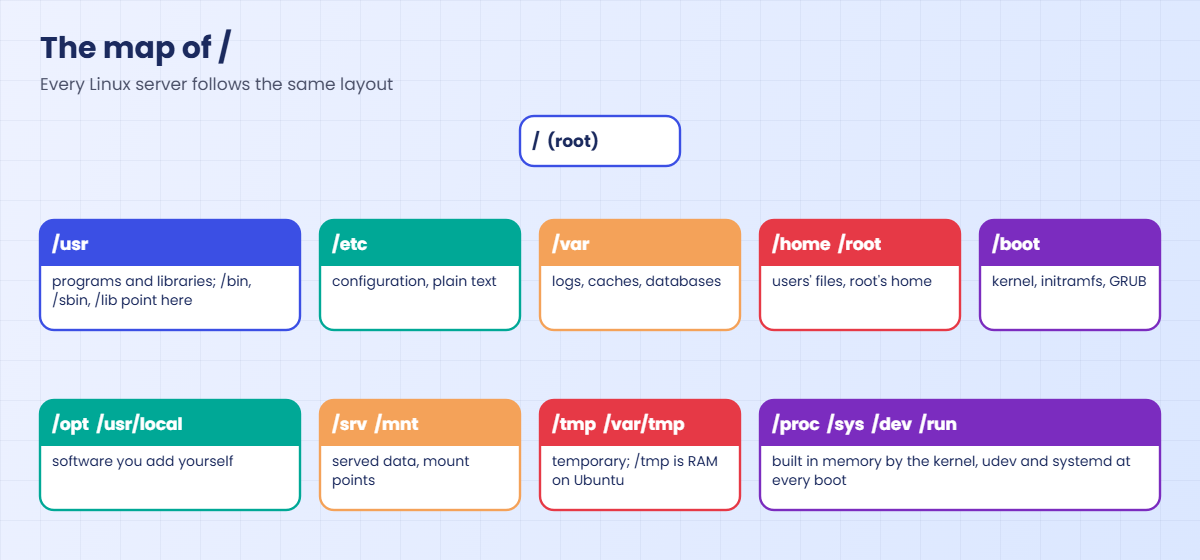
The Linux file system hierarchy: everything is a file
-
Phase 0: Before you start
-
Phase 1: The origins and OS architecture
-
Phase 2: Day-to-day administration and the command builder
-
Phase 3: Enterprise infrastructure and storage
-
Phase 4: Troubleshooting step by step
-
Phase 5: Final project and career
The Linux file system hierarchy is the fixed map of folders under / that every Linux server follows: settings in /etc, logs and changing data in /var, programs in /usr, devices in /dev, and live kernel information in /proc and /sys. Once you know the map, you can walk onto any server and find a config file, a log or a disk in seconds, even on a distribution you’ve never used.
In this lesson you’ll tour / on rocky01 and ubu01, see why “everything is a file” (disks, terminals and even running processes), learn why /bin is now only a link into /usr, and find out why /tmp lives on disk on Rocky but in RAM on Ubuntu. Nothing in the main lab changes your system.
Where this lesson fits
Lesson 10 of 82 in Linux Administration · Phase 1: The origins and OS architecture · Before this: Lesson 9, the Linux boot process · Next: Lesson 11, work with files and folders
| Time | You need | By the end you can |
|---|---|---|
| About 60 minutes | rocky01 and ubu01 from Lesson 2, logged in as student over SSH | Say what belongs in each top-level folder, tell real files from kernel views, and pick the right place for configs, logs, data and your own software |
What it is, in one line
Linux arranges everything under one tree that starts at /, each top-level folder has a fixed job, and disks, devices and kernel information all appear in that tree as files.
In Simple Words
A well-run hospital
Walk into any big hospital and you can find your way without asking much. Registration is near the entrance, the pharmacy has its own counter, medical records sit in one locked room, the operation theatres are on one floor, and the notice board in the lobby shows which doctors are in today.
Every hospital is a bit different, but the departments are the same, so a doctor who moves from Chennai to Pune finds the blood bank on day one. Some things on that notice board aren’t stored anywhere: someone updates them live, and they’re gone tomorrow.
Linux folders work like those departments, and /proc and /sys are the live notice board that the kernel writes as you read it.
Engineer's View
What each top-level folder is for
The layout comes from the Filesystem Hierarchy Standard (FHS 3.0, maintained by the Linux Foundation), plus systemd’s own description in man file-hierarchy. Red Hat and Ubuntu follow both closely, with the small differences shown in the table.
| Folder | What lives there | Where you’ll meet it in this course |
|---|---|---|
/etc | System-wide configuration, almost all plain text | /etc/fstab, /etc/ssh/sshd_config, /etc/sudoers.d (Lesson 16), /etc/sysctl.d |
/var | Data that changes while the system runs: logs, caches, spools, databases | /var/log/messages (Rocky), /var/log/syslog (Ubuntu), /var/lib/mysql (Lesson 56) |
/usr | Installed programs, libraries, man pages. Read-mostly, owned by the package manager | /usr/bin, /usr/sbin, /usr/lib/systemd/system for unit files |
/bin, /sbin, /lib, /lib64 | Only symbolic links into /usr now (the “/usr merge”) | /bin/bash is really /usr/bin/bash |
/usr/local, /opt | Software you add outside the package manager: your scripts, vendor apps | /usr/local/bin/disk-report.sh (Lesson 27), /opt/kafka (Lesson 58) |
/srv | Data this server serves to others | /srv/projects (Lesson 17), /srv/nfs/share (Lesson 47) |
/home, /root | Users’ home folders, and root’s own home outside /home | /home/student |
/boot | Kernel, initramfs, GRUB files, and the EFI partition at /boot/efi | vmlinuz and initramfs from Lesson 9 |
/tmp, /var/tmp | Temporary files. /tmp is cleaned after 10 days and /var/tmp after 30; on Ubuntu /tmp is also wiped at every reboot | Break-It step 1 |
/dev | Device files the kernel and udev create: disks, terminals, /dev/null | /dev/sda, /dev/mapper/rl-root |
/proc, /sys | Views into the running kernel, built in memory each time you read them | /proc/cmdline, /sys/class/net/enp0s3 |
/run | Runtime state since this boot (PID files, sockets), in RAM | /run/log/journal on Rocky |
/mnt, /media | Mount points for temporary (mnt) and removable (media) file systems | /mnt/share (Lesson 47) |
“Everything is a file” means the same small set of system calls (open, read, write, close) works on all of these. A regular file, a folder, a disk, a terminal, a pipe and a network socket each show up with a type letter in the first column of ls -l: - regular file, d directory, l symbolic link, b block device, c character device, p named pipe and s socket.
The /usr merge came to RHEL with version 7, and new Ubuntu installs have had it for several releases. Fedora has since gone one step further and merged /usr/sbin into /usr/bin, but RHEL 10 and Rocky 10 deliberately keep /usr/sbin as its own folder, and so does Ubuntu 26.04.
How it works, step by step
This is how one path, /var/log/messages on rocky01, turns into data, and what the tree under / looks like. The diagram after these steps is the map.
1One tree, one root
Linux has no C: or D: drives. There’s one tree starting at /, and every disk, partition or network share is attached to a folder in that tree (its mount point). On rocky01, /dev/mapper/rl-root is mounted on / and /dev/sda2 on /boot.
2The kernel walks the path
When a program opens /var/log/messages, the kernel starts at /, finds “var” in the root folder, then “log” inside var, then “messages”. At each step it checks whether another file system is mounted on that folder and, if so, carries on inside that one. You never see the hand-off, which is why moving /var to its own disk later doesn’t change any path.
3Not every folder is on a disk
Some mount points hold file systems that exist only in memory. /proc (type proc) and /sys (type sysfs) are generated by the kernel each time you read them, /dev is a devtmpfs that the kernel and udev fill with device files, and /run is a tmpfs that starts empty at every boot.
4Device files are doors, not data
/dev/sda takes up no space. It holds two numbers, major 8 and minor 0, which tell the kernel “send this to the SCSI disk driver, first disk”. Reading it reads the raw disk, which is why a careless dd or mkfs on the wrong /dev name destroys data.
5Old paths still work through links
Scripts from the 1990s say #!/bin/bash or call /sbin/ip. Those still work because /bin and /sbin are now symbolic links into /usr, so the whole operating system lives under one folder that can be mounted, snapshotted or updated as one unit.
Rocky and Ubuntu agree on most of the map but differ in a few places that bite at work, mainly /tmp. The comparison below shows them side by side.
Knowing where things belong also tells you what to back up and what to monitor. /etc, /home, /srv, /var/lib and /opt hold the things you can’t reinstall from a package, so they go into backups. /var/log and /tmp are where disks fill up first, so they get space alerts (and on bigger servers their own volumes). /usr, /boot and the virtual folders are rebuilt by the package manager or the kernel and rarely need backing up.
When you install your own tool, keep to the rules: a script you wrote goes in /usr/local/bin, a vendor product in /opt/vendorname, its settings in /etc (or /etc/opt) and its logs in /var/log. Never put your own files in /usr/bin, because the next package update may overwrite them without asking.
Hands-on lab: a guided walk around /
Before you run any command, double-check it
Read every command twice before you press Enter. Check the target: the server name, the user, the disk or device name, the path and the sizes. These commands are for learning and were tested in our lab, not on your system. At work, run the read-only commands first, follow your change process, make sure a backup exists, and ask a second person to check anything that changes or deletes data. You run them at your own risk.
Every command in the lab only reads. Work on rocky01 unless a step says otherwise, and compare with ubu01 where it’s shown.
1Look at the top of the tree
Run this on rocky01:
ls -l /You should see something like this:
total 24
dr-xr-xr-x. 2 root root 6 Oct 20 18:19 afs
lrwxrwxrwx. 1 root root 7 Oct 20 18:19 bin -> usr/bin
dr-xr-xr-x. 5 root root 4096 Oct 27 09:58 boot
drwxr-xr-x. 20 root root 3220 Oct 27 10:01 dev
drwxr-xr-x. 80 root root 8192 Oct 27 10:01 etc
drwxr-xr-x. 3 root root 21 Oct 20 18:40 home
lrwxrwxrwx. 1 root root 7 Oct 20 18:19 lib -> usr/lib
lrwxrwxrwx. 1 root root 9 Oct 20 18:19 lib64 -> usr/lib64
drwxr-xr-x. 2 root root 6 Oct 20 18:19 media
drwxr-xr-x. 2 root root 6 Oct 20 18:19 mnt
drwxr-xr-x. 2 root root 6 Oct 20 18:19 opt
dr-xr-xr-x. 172 root root 0 Oct 27 10:01 proc
dr-xr-x---. 3 root root 163 Oct 20 18:40 root
drwxr-xr-x. 27 root root 780 Oct 27 10:01 run
lrwxrwxrwx. 1 root root 8 Oct 20 18:19 sbin -> usr/sbin
drwxr-xr-x. 2 root root 6 Oct 20 18:19 srv
dr-xr-xr-x. 13 root root 0 Oct 27 10:01 sys
drwxrwxrwt. 9 root root 4096 Oct 27 10:31 tmp
drwxr-xr-x. 12 root root 144 Oct 20 18:19 usr
drwxr-xr-x. 19 root root 4096 Oct 20 18:22 varThe first letter tells you the type: d for folders, l for the four links into /usr. proc and sys show size 0 because nothing in them is stored on disk, and tmp has a t at the end of its permissions (the sticky bit, Lesson 18), so users can’t delete each other’s files there. The empty afs folder is a mount point Rocky creates for the AFS network file system, and you can ignore it.
Now on ubu01:
ls /You should see something like this:
bin dev home lib64 media opt root sbin srv sys usr
boot etc lib lost+found mnt proc run snap swap.img tmp varUbuntu adds a few things: lost+found because / is ext4, swap.img (the installer uses a swap file instead of a swap volume) and snap for snap packages. If you also see folders like bin.usr-is-merged or cdrom, they’re empty leftovers from the installer and the /usr merge.
✅ Checkpoint: You can point at the four symbolic links on rocky01 and the extra entries on ubu01.
2Follow the /usr merge
Run this on rocky01:
readlink -f /bin/bash /sbin/ip /lib64/libc.so.6You should see this:
/usr/bin/bash
/usr/sbin/ip
/usr/lib64/libc.so.6readlink -f follows every link to the real file. All three old-style paths land in /usr. Note that /sbin/ip ends in /usr/sbin, not /usr/bin: Rocky 10 and Ubuntu 26.04 still keep the two folders apart, even though Fedora has merged them.
✅ Checkpoint: All three paths resolve to something under /usr.
3Everything is a file, even a disk
Paste this whole block:
file /etc/hostname /dev/sda /dev/null /proc/cpuinfo /bin
ls -l /dev/sda /dev/nullYou should see something like this:
/etc/hostname: ASCII text
/dev/sda: block special (8/0)
/dev/null: character special (1/3)
/proc/cpuinfo: empty
/bin: symbolic link to usr/bin
brw-rw----. 1 root disk 8, 0 Oct 27 10:01 /dev/sda
crw-rw-rw-. 1 root root 1, 3 Oct 27 10:01 /dev/nullfile reads each path and names its type. /dev/sda is a block device (b) with major 8, minor 0, owned by the disk group, and /dev/null is a character device (c) that anyone can write to and that throws everything away. /proc/cpuinfo reports “empty” because its size is 0 until you read it, and then it’s full of text.
✅ Checkpoint: You can name the type letter for a regular file, a folder, a link, a block device and a character device.
4Read configuration in /etc
Paste this whole block:
grep '^student:' /etc/passwd
head -n 2 /etc/os-releaseYou should see something like this:
student:x:1000:1000:student:/home/student:/bin/bash
NAME="Rocky Linux"
VERSION="10.2 (Red Quartz)"Your user account, the OS name and almost every setting on the server are plain text under /etc. That’s why admins back up /etc before any change and compare it afterwards, and why ls -l /etc/os-release shows it’s a link to /usr/lib/os-release: the package owns the file and /etc only points at it.
✅ Checkpoint: You found your own line in /etc/passwd.
5See what grows in /var
Paste this whole block:
sudo du -sh /var/log /var/cache /var/lib
ls /var/log/messages /var/log/secureYou should see something like this:
5.4M /var/log
96M /var/cache
212M /var/lib
/var/log/messages /var/log/secure/var/lib holds package databases and, later, application data such as MariaDB’s; /var/cache holds downloaded packages that can be deleted safely; /var/log holds logs. On ubu01 the main logs are /var/log/syslog and /var/log/auth.log instead, which Lesson 24 uses.
✅ Checkpoint: You know which of the three /var folders is biggest on your VM.
6Find your own shell in /proc
Paste this whole block:
echo $$
ls -l /proc/$$/exe
grep -E '^(Name|PPid|VmRSS)' /proc/$$/statusYou should see something like this:
2214
lrwxrwxrwx. 1 student student 0 Oct 27 10:33 /proc/2214/exe -> /usr/bin/bash
Name: bash
PPid: 2213
VmRSS: 5632 kB$$ is the process ID of your current bash. Every running process has a folder named after its PID in /proc, and inside it the kernel shows the program file, the parent PID (the sshd session that started bash), the memory in use and much more. Lesson 20 uses these folders to look at processes.
✅ Checkpoint: You found your shell’s PID folder and its parent PID.
7Ask /sys about hardware
Paste this whole block:
cat /sys/block/sda/size
cat /sys/block/sda/queue/rotational
cat /sys/class/net/enp0s3/speedYou should see this on rocky01:
41943040
1
1000The disk has 41943040 sectors of 512 bytes, which is 20 GiB. rotational 1 means the kernel treats it as a spinning disk (VirtualBox does this unless you tick “Solid-state Drive”), and the NIC reports 1000 Mb/s. /sys is organised by device and driver, and some files in it can be written to change kernel settings, which is how the SCSI rescan in Lesson 45 works.
✅ Checkpoint: Your disk size in sectors divided by 2097152 gives the disk size in GiB.

8Which folders live in RAM?
Run this on both VMs:
df -h /tmp /run /dev/shmYou should see something like this on rocky01:
Filesystem Size Used Avail Use% Mounted on
/dev/mapper/rl-root 17G 1.9G 16G 11% /
tmpfs 393M 8.6M 385M 3% /run
tmpfs 982M 0 982M 0% /dev/shmAnd on ubu01:
Filesystem Size Used Avail Use% Mounted on
tmpfs 984M 4.0K 984M 1% /tmp
tmpfs 197M 1.1M 196M 1% /run
tmpfs 984M 0 984M 0% /dev/shmOn rocky01, /tmp is part of the root file system on disk, because RHEL 10 turns off systemd’s tmpfs /tmp. On ubu01 (Ubuntu since 24.10) /tmp is a tmpfs limited to half the RAM, so it’s fast, it vanishes at every reboot and big files can fill it. /run and /dev/shm are tmpfs on both.
✅ Checkpoint: You can say where /tmp lives on each VM and how big it can get on ubu01.
9Check the folders that belong to people
Run this on rocky01:
ls -ld /home/student /root /opt /srv /usr/local/binYou should see something like this:
drwx------. 2 student student 83 Oct 27 10:31 /home/student
drwxr-xr-x. 2 root root 6 Oct 20 18:19 /opt
dr-xr-x---. 3 root root 163 Oct 20 18:40 /root
drwxr-xr-x. 2 root root 6 Oct 20 18:19 /srv
drwxr-xr-x. 2 root root 6 Oct 20 18:19 /usr/local/binYour home folder is private (700 on Rocky; Ubuntu uses 750). /root is root’s home and sits outside /home on purpose, so root can still log in when /home is on a separate disk that failed to mount. /opt, /srv and /usr/local/bin are empty now, and the course fills them in later lessons.
✅ Checkpoint: You know which of these folders you can write to as student (only your home).
10See where one package puts its files
Run this on rocky01:
rpm -ql openssh-server | grep -E '^/(etc|usr/sbin|usr/lib/systemd)'You should see something like this:
/etc/pam.d/sshd
/etc/ssh/sshd_config
/etc/ssh/sshd_config.d
/etc/sysconfig/sshd
/usr/lib/systemd/system/sshd-keygen.target
/usr/lib/systemd/system/sshd-keygen@.service
/usr/lib/systemd/system/sshd.service
/usr/lib/systemd/system/sshd.socket
/usr/lib/systemd/system/sshd@.service
/usr/sbin/sshdOn ubu01 the same idea is:
dpkg -L openssh-server | grep -E '^/(etc|usr/sbin|usr/lib/systemd)'One package spreads across the tree by the rules: the program in /usr/sbin, its config in /etc/ssh, its systemd units in /usr/lib/systemd/system. Your own changes to those units go in /etc/systemd/system instead (Lesson 26), so a package update never overwrites them.
✅ Checkpoint: You found the sshd program, its config file and its unit file in the list.
Break It, Then Fix It
Two real surprises from the map. Both are safe on lab VMs, and the second one is undone at the end.
1Fill /tmp on ubu01
Run this on ubu01:
fallocate -l 2G /tmp/big.imgYou’ll get this error:
fallocate: fallocate failed: No space left on deviceubu01 has 2 GB of RAM, so its tmpfs /tmp is capped at about 984 MB, and a 2 GB file doesn’t fit even though df -h / shows gigabytes free. The same command on rocky01 works, because there /tmp is on the disk. People hit this when a backup or export job writes a big temporary file on a new Ubuntu server.
Fix: remove the empty file it left, and put big temporary files on disk, in /var/tmp or a folder the job owns:
rm -f /tmp/big.img
fallocate -l 2G /var/tmp/big.img && ls -lh /var/tmp/big.img
rm -f /var/tmp/big.imgAlso remember that anything in /tmp on ubu01 is gone after a reboot. You can see it for yourself:
echo test > /tmp/note.txt
sudo reboot
# after logging in again:
test -f /tmp/note.txt && echo kept || echo gonegone✅ Checkpoint: The 2 GB file worked in /var/tmp, and you’ve removed it again.
2Change a kernel setting through /proc without root
Run this on rocky01:
echo 1 > /proc/sys/net/ipv4/ip_forwardYou’ll get this error:
-bash: /proc/sys/net/ipv4/ip_forward: Permission deniedFiles under /proc/sys are live kernel settings, and only root may write them. Most people then try sudo in front of echo:
sudo echo 1 > /proc/sys/net/ipv4/ip_forward-bash: /proc/sys/net/ipv4/ip_forward: Permission deniedSame error, because the > redirect is done by your own bash, as student, before sudo even starts. sudo only runs echo as root.
Fix: let a root process open the file, with tee, then check and put it back:
echo 1 | sudo tee /proc/sys/net/ipv4/ip_forward
sysctl net.ipv4.ip_forward
echo 0 | sudo tee /proc/sys/net/ipv4/ip_forwardYou should see:
1
net.ipv4.ip_forward = 1
0A value written into /proc is lost at the next reboot, because /proc lives in memory. To make a setting permanent you put it in a drop-in file such as /etc/sysctl.d/90-lab.conf and load it with sudo sysctl --system, which comes up again in the performance and Kafka lessons.
✅ Checkpoint: ip_forward is back to 0 and you can explain why sudo echo failed.
This happened at work
The settlement files that vanished overnight
Srinivas, the L2 lead at a payments gateway in Hyderabad where I worked, still uses this as his favourite example of why the map matters. The team had moved the nightly reconciliation job to new Ubuntu 26.04 servers, and the job wrote the day’s settlement extracts to /tmp at 11 p.m. for an upload script that ran at 6 a.m.
Two weeks after the move, the 6 a.m. upload failed with “file not found”, and the bank partner called by 9. The first guess was the job itself, so a developer re-ran it by hand, it worked, and everyone assumed a glitch. A week later it happened again, on the same morning as the monthly patch reboot at 2 a.m.
Srinivas ran findmnt /tmp and the answer was one line: tmpfs. On the old servers /tmp had been an ordinary folder on disk, but Ubuntu now mounts /tmp in RAM and empties it at every boot, so the reboot had wiped the extracts. On a busy month-end the files had also once filled the tmpfs, which explained an older “No space left on device” nobody had understood.
The job now writes to /var/lib/recon, owned by its service account, and old files are cleaned by a timer. The team’s new-server checklist has a line for findmnt /tmp, and code reviews reject any path under /tmp for anything that must survive the night.
Common mistakes and troubleshooting
| Mistake | What happens | What to do instead |
|---|---|---|
| Keeping important files in /tmp | They disappear at reboot on Ubuntu, or after 10 days on both distributions | Use /var/lib/APP, /srv or a folder the service owns |
| Putting your own scripts in /usr/bin | A package update overwrites or removes them | Use /usr/local/bin for your scripts and /opt for vendor software |
| Editing unit files under /usr/lib/systemd/system | Your change is lost at the next package update | Use systemctl edit or files in /etc/systemd/system |
| Running dd, mkfs or wipefs on a /dev name you didn’t double-check | You destroy the wrong disk | Confirm with lsblk and the size before touching any /dev path |
Using sudo echo VALUE > /proc/... | Permission denied, because the redirect runs as you | Use echo VALUE | sudo tee FILE or sudo sysctl -w |
| Backing up the whole of / including /proc and /sys | The backup hangs or fills with junk from virtual files | Back up /etc, /home, /root, /srv, /opt and /var/lib, and exclude /proc, /sys, /dev, /run and /tmp |
Interview questions
Click a question to open it. Each one is written the way an interviewer would ask it. Under it you will see why they ask it and one way you could answer, in your own words.
Fresher level
1. What’s the difference between /etc, /var and /usr? Give me an example file from each.
Why they ask this: A basic map question. They want to hear you know configuration, changing data and installed programs apart.
How you might answer: /etc holds configuration, for example /etc/ssh/sshd_config or /etc/fstab. /var holds data that changes while the system runs, like /var/log/messages or a database in /var/lib/mysql.
/usr holds the installed programs and libraries, for example /usr/bin/bash and /usr/sbin/sshd, and it’s managed by the package manager, so I don’t put my own files there.
2. What does “everything is a file” mean in Linux?
Why they ask this: They’re checking whether you understand device files and virtual file systems, not just the slogan.
How you might answer: It means disks, terminals, pipes, sockets and even kernel information all appear in the file tree and can be opened and read with the same system calls as a normal file. /dev/sda is a block device, /dev/null is a character device, and /proc/cpuinfo is text the kernel builds when I read it.
You can see the type in the first letter of ls -l: b, c, l, p, s or d.
2–5 years experience
3. A job that worked for years starts losing its files after a move to new Ubuntu servers. Where would you look?
Why they ask this: A situational question that tests whether you know /tmp behaves differently on newer distributions.
How you might answer: First I’d check where the job writes. If it’s /tmp, I run findmnt /tmp: on Ubuntu 24.10 and later it’s a tmpfs in RAM, emptied at every reboot and limited to half the memory, while older servers had it on disk.
I’d also check systemd-tmpfiles, which cleans /tmp after 10 days on both Rocky and Ubuntu. The fix is to move the job to /var/lib/JOB or /srv and clean it with a timer of our own.
4. You need to change a kernel setting right now and make it survive a reboot. How?
Why they ask this: They want both the runtime method and the persistent method, and the sysctl.d convention.
How you might answer: For right now I use sudo sysctl -w net.ipv4.ip_forward=1, which writes /proc/sys/net/ipv4/ip_forward. That’s lost at reboot because /proc lives in memory.
To make it permanent I put the line in a drop-in such as /etc/sysctl.d/90-app.conf and run sudo sysctl --system. Drop-ins survive package updates and make it clear who set what.
Senior level
5. How would you lay out file systems for a production database server, and why?
Why they ask this: A senior should link the hierarchy to resilience: which folders fill up, which need backups and which should be separate volumes.
How you might answer: I keep / small, and put /var/log, /var/lib/mysql (or the data folder), /tmp and often /home on their own LVM volumes, so a runaway log or a big query can’t fill the root file system and stop the OS. /var/lib/mysql gets the fastest storage and its own snapshot policy.
Backups cover /etc, /home, /root, /srv, /opt and the database through its own dump or snapshot method, and exclude /proc, /sys, /dev, /run and /tmp. Monitoring alerts on /var/log and the data volume at 80 percent.
6. Your team wants to standardise where in-house tools are installed across Rocky and Ubuntu. What do you propose?
Why they ask this: They’re looking for FHS awareness, package ownership and avoiding conflicts with the OS.
How you might answer: Scripts go in /usr/local/bin, larger in-house or vendor apps in /opt/NAME with their config in /etc/opt/NAME or /etc/NAME, data in /var/lib/NAME and logs in /var/log/NAME. Nothing goes into /usr/bin or /usr/lib, because those belong to the package manager.
Ideally we package the tools as RPM and deb so they’re tracked and removable, and our Ansible roles create the folders with the right owners. That way both distributions look the same to the on-call engineer.
Quick quiz
Q1. Where does Linux keep system-wide configuration files?
- /usr
- /etc
- /var
- /opt
Show answer
B — /etc holds configuration, mostly plain text such as /etc/fstab and /etc/ssh/sshd_config.
Q2. On Rocky 10, what is /bin?
- A folder with basic commands
- A symbolic link to usr/bin
- A tmpfs in memory
- A device file
Show answer
B — Since the /usr merge, /bin, /sbin, /lib and /lib64 are links into /usr.
Q3. What does the b at the start of brw-rw----. 1 root disk 8, 0 /dev/sda mean?
- Binary file
- Block device
- Backup file
- Broken link
Show answer
B — b is a block device, like a disk. c is a character device, like /dev/null or a terminal.
Q4. Why might a 2 GB file fail to fit in /tmp on ubu01 when the root disk has space?
- /tmp is read-only
- /tmp is a tmpfs limited to half the RAM
- Ubuntu blocks files over 1 GB
- The sticky bit blocks it
Show answer
B — Ubuntu mounts /tmp as tmpfs, sized at 50 percent of memory, so a 2 GB VM has about 1 GB of /tmp.
Q5. Which folder holds live information generated by the kernel about each running process?
- /run
- /var/run
- /proc
- /srv
Show answer
C — /proc has a folder per PID, built by the kernel in memory each time you read it.
Quick recap
- The Linux file system hierarchy is one tree under /, with fixed jobs: /etc for configuration, /var for changing data and logs, /usr for programs, /home for users, /boot for the kernel.
- /bin, /sbin, /lib and /lib64 are links into /usr on both Rocky 10 and Ubuntu 26.04, and /usr/sbin is still its own folder on both.
- Everything is a file: disks and terminals are device files in /dev, and /proc and /sys are live views of the kernel built in memory.
- /tmp is on disk on Rocky 10 but a tmpfs in RAM on Ubuntu 26.04, emptied at every reboot, so nothing important belongs there.
- Your own scripts go in /usr/local/bin, vendor software in /opt, served data in /srv, and never in /usr/bin.
Next lesson
Lesson 11: Work with files and folders → You’ll copy, move, rename, delete and link files with confidence, read ls -l and stat output, and see what an inode really is.
Further reading: Linux file system hierarchy
Want to go deeper into Linux file system hierarchy? Read the Filesystem Hierarchy Standard 3.0, systemd’s file-hierarchy(7), the hier(7) man page and the kernel’s documentation of /proc. You can also see the full plan for this course on the Linux Administration course page.
