Firewalls with firewalld and ufw

A Linux firewall decides which network connections may reach your server, and on almost every ticket that says “the app is up but nobody can connect”, it’s one of the first things you check. On Rocky Linux and RHEL you manage it with firewalld and firewall-cmd; on Ubuntu with ufw; underneath both, the kernel’s nftables does the filtering.

In this lesson you’ll start a small web server on rocky01, watch the firewall block it, open the port the right way (permanent, not only for now), allow it from one host only with a rich rule, and read the nftables rules firewalld writes. Then you’ll switch on ufw on ubu01 without cutting off your own SSH session.

Where this lesson fits

Lesson 34 of 82 in Linux Administration · Phase 2: Day-to-day administration and the command builder · Before this: Lesson 33, SSH keys and hardening · Next: Lesson 35, packages with dnf

TimeYou needBy the end you can
About 60 minutesrocky01 and ubu01 running, SSH to both with your keys from Lesson 33, and both VirtualBox console windows readyOpen, restrict and remove ports with firewall-cmd and ufw, explain runtime versus permanent, and read the nftables rules underneath

What it is, in one line

A Linux firewall is a list of rules the kernel checks for every incoming packet, and firewalld or ufw are the friendly tools that write those rules for you.

In Simple Words

The security desk at an office tower

An office tower in Bengaluru has one security desk in the lobby. The desk has a list: delivery people may go to the mailroom, visitors with a pass may go to floor 7, staff may go anywhere, and everyone else is turned away politely.

Different entrances get different lists. The main lobby is strict, the staff entrance from the parking is relaxed, and the loading bay only lets in trucks. If a new tenant on floor 9 expects visitors, someone has to add floor 9 to the list, or the guard keeps sending people back however open the office upstairs is.

The guard is nftables in the kernel, each entrance’s list is a firewalld zone, and the office upstairs is your app listening on its port.

Engineer's View

firewalld, ufw and nftables: who does what

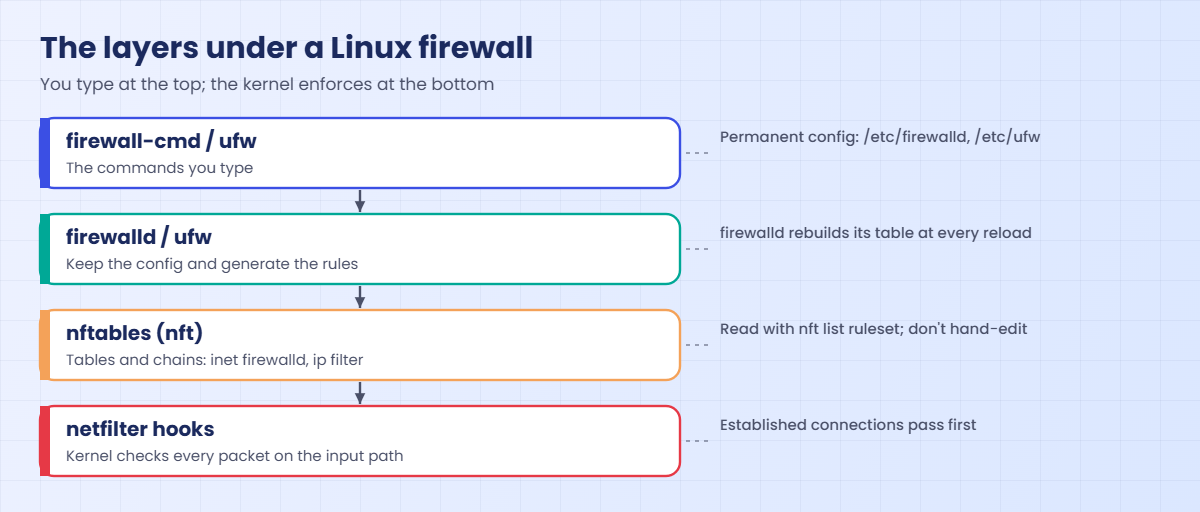
The filtering itself happens in the kernel (netfilter). nftables is the modern rule language and the nft command reads and writes those rules. firewalld and ufw are managers on top: you give them simple commands and they generate the nftables rules.

firewalld (Rocky, RHEL)ufw (Ubuntu)
Commandfirewall-cmdufw
Default stateRunning, zone public, allows ssh, cockpit and dhcpv6-clientInstalled but inactive
Main ideaZones: each interface or source network belongs to one zone, and each zone has its own services, ports and rulesOne list of allow and deny rules, with default policies (deny incoming, allow outgoing)
Make a change last--permanent then --reload; without it the rule is runtime only and gone at reload or rebootRules are saved immediately
Restrict by sourceRich rules or a zone with --add-sourceufw allow from IP to any port N
Underneathnftables table inet firewalldiptables-nft, so you see table ip filter with ufw-* chains in nft

firewalld keeps two copies of its config. Runtime is what the kernel is enforcing now. Permanent is the XML under /etc/firewalld/ that is loaded at boot and at every --reload.

A command without --permanent changes only runtime; a command with it changes only permanent. That split is the cause of most “the port was open yesterday” tickets.

firewalld rejects unwanted packets instead of dropping them: the client gets an ICMP “administratively prohibited” message straight away, which tools print as “No route to host”. It sounds like a routing problem, but on a RHEL-family server it usually means the firewall said no. ufw’s default is to drop, so clients wait and time out instead.

How it works, step by step

Here is the path one incoming connection takes through firewalld on rocky01. The diagram below shows the same path.

1Connections already allowed skip the checks

The first rule in firewalld’s input chain accepts packets that belong to a connection the kernel already knows (state established or related). That’s why closing a port doesn’t kill sessions that are already open, and why your SSH session survives most firewall mistakes.

2A new connection is matched to a zone

firewalld picks the zone by source address first (if a zone has --add-source for that network), then by the interface the packet came in on. On rocky01, enp0s3 is in public, so anything arriving on enp0s3 is judged by the public zone.

Linux firewall packet path in firewalld: established traffic, zone, rules and final reject

3The zone’s rules are checked in a fixed order

Inside the zone, firewalld checks deny rules, then allow rules: rich rules, services (named groups of ports such as ssh = 22/tcp), ports and ICMP. The first match decides.

4Nothing matched: the zone target decides

With the default target, the packet falls through to the last rule of the input chain, reject with icmpx admin-prohibited. Zones with target DROP throw it away silently, and the trusted zone (target ACCEPT) lets everything in.

5Runtime and permanent are two separate copies

Every rule you add lives in runtime, permanent or both. --reload throws runtime away and rebuilds it from permanent, and a reboot does the same. So the safe habit is: add with --permanent, then --reload, then check both copies. The picture below shows the layers from the command you type down to the kernel.

Linux firewall layers: firewall-cmd and ufw on top of nftables and netfilter

6Plan for lock-outs before you change SSH rules

Never remove ssh from a zone, enable ufw or change a default policy from a remote session without a way back. In the lab that’s the VirtualBox console; at work it’s the server’s remote console. firewalld also has a safety option: --timeout=5m on a runtime rule removes it by itself after five minutes, which is handy for testing a rule you aren’t sure about.

On Ubuntu, ufw allow OpenSSH always comes before ufw enable. ufw even warns you when you enable it from an SSH session, and that warning is worth reading every time.

Hands-on lab: open, restrict and inspect ports with firewalld and ufw

Before you run any command, double-check it

Read every command twice before you press Enter. Check the target: the server name, the user, the disk or device name, the path and the sizes. These commands are for learning and were tested in our lab, not on your system. At work, run the read-only commands first, follow your change process, make sure a backup exists, and ask a second person to check anything that changes or deletes data. You run them at your own risk.

Part A runs on rocky01 (firewalld), with ubu01 as the client that tests each rule. Part B runs on ubu01 (ufw), with rocky01 as the client. Take snapshots of both first (VBoxManage snapshot rocky01 take before-l34 and the same for ubu01).

The test web server is Python’s built-in one on port 8080, so you don’t need to install anything.

1See what firewalld is doing on rocky01

On rocky01, run this:

sudo firewall-cmd --state
sudo firewall-cmd --get-default-zone
sudo firewall-cmd --get-active-zones

You should see something like this:

running
public
public (default)
  interfaces: enp0s3

firewalld is running, public is the default zone, and enp0s3 (your only network card) is in it. Any zone with no interface or source is inactive and doesn’t affect traffic at all. --get-zones lists all of them: block, dmz, drop, external, home, internal, nm-shared, public, trusted and work.

✅ Checkpoint: firewalld is running and enp0s3 is in the public zone.

2Read the public zone

Run this:

sudo firewall-cmd --list-all

You should see something like this:

public (default, active)
  target: default
  ingress-priority: 0
  egress-priority: 0
  icmp-block-inversion: no
  interfaces: enp0s3
  sources:
  services: cockpit dhcpv6-client ssh
  ports:
  protocols:
  forward: yes
  masquerade: no
  forward-ports:
  source-ports:
  icmp-blocks:
  rich rules:

Only three services are allowed in: ssh (22/tcp), cockpit (9090/tcp, Rocky’s web console) and dhcpv6-client. ports and rich rules are empty. Everything else that starts a new connection is rejected. To see what a service name means, ask firewalld:

sudo firewall-cmd --info-service=ssh
ssh
  ports: 22/tcp
  protocols:
  source-ports:
  modules:
  destination:
  includes:
  helpers:

✅ Checkpoint: You can name the three allowed services and the port behind ssh.

3Start a web server and watch the firewall block it

On rocky01, start the test server:

python3 -m http.server 8080 --directory /tmp >/tmp/http8080.log 2>&1 &
curl -s -o /dev/null -w '%{http_code}\n' http://127.0.0.1:8080/
200

Now, on ubu01, try the same from outside:

curl -sS -m 5 -o /dev/null -w '%{http_code}\n' http://10.10.10.11:8080/
nc -zv -w 3 10.10.10.11 8080

You should see something like this:

curl: (7) Failed to connect to 10.10.10.11 port 8080 after 1 ms: Couldn't connect to server
000
nc: connect to 10.10.10.11 port 8080 (tcp) failed: No route to host

The server works locally (200) and the network is fine, yet ubu01 can’t connect. “No route to host” is firewalld’s reject coming back as ICMP admin-prohibited, and it arrived in 1 ms, so something answered. Compare that with port 22, which is allowed, or with a port where nothing listens, which gives “Connection refused” instead.

Reading these three answers correctly saves a lot of time.

✅ Checkpoint: localhost gets 200, ubu01 gets “No route to host” on port 8080.
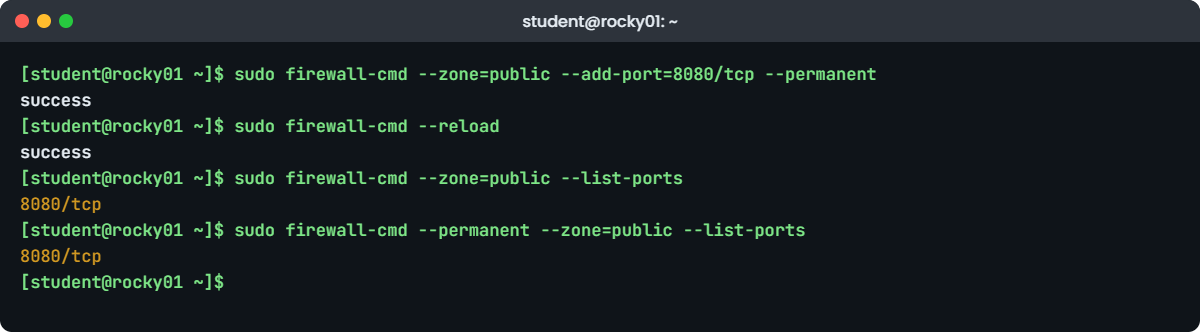
Linux firewall lab: firewall-cmd opening port 8080 on rocky01
Example output on rocky01: opening port 8080 with firewall-cmd and checking both copies.

4Open port 8080 for good

On rocky01, run this:

sudo firewall-cmd --zone=public --add-port=8080/tcp --permanent
sudo firewall-cmd --reload
sudo firewall-cmd --zone=public --list-ports
sudo firewall-cmd --permanent --zone=public --list-ports

You should see this:

success
success
8080/tcp
8080/tcp

--permanent wrote the rule to /etc/firewalld/zones/public.xml, and --reload rebuilt runtime from it, so both copies now list 8080/tcp. Repeat the curl from ubu01:

curl -sS -m 5 -o /dev/null -w '%{http_code}\n' http://10.10.10.11:8080/
200

✅ Checkpoint: ubu01 gets 200, and 8080/tcp shows in both the runtime and the permanent list.

5Allow 8080 from ubu01 only, with a rich rule

On rocky01, swap the open port for a rule that names the source:

sudo firewall-cmd --permanent --zone=public --remove-port=8080/tcp
sudo firewall-cmd --permanent --zone=public --add-rich-rule='rule family="ipv4" source address="10.10.10.21/32" port port="8080" protocol="tcp" accept'
sudo firewall-cmd --reload
sudo firewall-cmd --zone=public --list-rich-rules

You should see this:

success
success
success
rule family="ipv4" source address="10.10.10.21/32" port port="8080" protocol="tcp" accept

On ubu01, test from its normal address and from a second, temporary address:

curl -sS -m 5 -o /dev/null -w '%{http_code}\n' http://10.10.10.11:8080/
sudo ip addr add 10.10.10.22/24 dev enp0s3
curl -sS -m 5 --interface 10.10.10.22 -o /dev/null -w '%{http_code}\n' http://10.10.10.11:8080/
sudo ip addr del 10.10.10.22/24 dev enp0s3

You should see something like this:

200
curl: (7) Failed to connect to 10.10.10.11 port 8080 after 0 ms: Couldn't connect to server
000

From 10.10.10.21 the rich rule matches and the request gets 200. From 10.10.10.22 nothing matches, so the zone rejects it. This is how you open a database or monitoring port to one app server or one monitoring host instead of the whole network.

Rich rules can also log, limit a rate or reject; man firewalld.richlanguage has the full syntax. The extra address you added with ip is gone after the del (and would be gone after a reboot anyway).

✅ Checkpoint: ubu01 gets 200 from 10.10.10.21 and a failure from 10.10.10.22.

6Read the nftables rules underneath

On rocky01, run this:

sudo nft list tables
sudo nft list chain inet firewalld filter_IN_public_allow
sudo nft list chain inet firewalld filter_INPUT

You should see something like this:

table inet firewalld
table inet firewalld {
	chain filter_IN_public_allow {
		tcp dport 22 accept
		ip6 daddr fe80::/64 udp dport 546 accept
		tcp dport 9090 accept
		ip saddr 10.10.10.21 tcp dport 8080 accept
	}
}
table inet firewalld {
	chain filter_INPUT {
		type filter hook input priority filter + 10; policy accept;
		ct state { established, related } accept
		ct status dnat accept
		iifname "lo" accept
		ct state invalid drop
		jump filter_INPUT_POLICIES
		reject with icmpx admin-prohibited
	}
}

This is what the kernel enforces. Your three services became tcp dport 22, udp dport 546 and tcp dport 9090, and the rich rule became one line with ip saddr. The input chain shows the order from the explanation: established traffic first, then the zone rules, then the final reject.

Read nft output when you need proof, but make changes with firewall-cmd, because firewalld rebuilds its table at every reload and anything you add with nft by hand disappears.

✅ Checkpoint: You can find the 8080 rule and the final reject rule in the nft output.

7Switch on ufw on ubu01, SSH first

On ubu01, run this:

sudo ufw status
sudo ufw app list
sudo ufw allow OpenSSH
sudo ufw enable

Answer y to the question. You should see something like this:

Status: inactive
Available applications:
  OpenSSH
Rules updated
Rules updated (v6)
Command may disrupt existing ssh connections. Proceed with operation (y|n)? y
Firewall is active and enabled on system startup

The OpenSSH application profile comes with the openssh-server package and means 22/tcp. “Rules updated (v6)” means ufw added the same rule for IPv6. The warning appears because ufw sees you’re on SSH; you already allowed it, so y is safe.

Check the result from the laptop with a new connection (ssh ubu01 hostname) before you close anything.

sudo ufw status verbose
Status: active
Logging: on (low)
Default: deny (incoming), allow (outgoing), disabled (routed)
New profiles: skip

To                         Action      From
--                         ------      ----
22/tcp (OpenSSH)           ALLOW IN    Anywhere
22/tcp (OpenSSH (v6))      ALLOW IN    Anywhere (v6)

ubu01 also receives rocky01’s logs on TCP 514 since Lesson 29. The default deny now blocks them, so allow that one sender too: sudo ufw allow from 10.10.10.11 to any port 514 proto tcp. rsyslog on rocky01 kept the messages in its disk queue while the port was closed and sends them now. Every service you add to ubu01 later in the course gets its own rule like this.

✅ Checkpoint: ufw is active, the default for incoming is deny, and a new SSH login from the laptop still works.

8Allow, number and delete ufw rules

On ubu01, start the same test server and allow port 8080 from rocky01 only:

python3 -m http.server 8080 --directory /tmp >/tmp/http8080.log 2>&1 &
sudo ufw allow from 10.10.10.11 to any port 8080 proto tcp
sudo ufw status numbered

You should see something like this:

Rule added
Status: active

     To                         Action      From
     --                         ------      ----
[ 1] OpenSSH                    ALLOW IN    Anywhere
[ 2] 8080/tcp                   ALLOW IN    10.10.10.11
[ 3] OpenSSH (v6)               ALLOW IN    Anywhere (v6)

On rocky01, test it:

curl -sS -m 5 -o /dev/null -w '%{http_code}\n' http://10.10.10.21:8080/
200

Back on ubu01, look at the rule ufw wrote:

sudo nft list chain ip filter ufw-user-input
# Warning: table ip filter is managed by iptables-nft, do not touch!
table ip filter {
	chain ufw-user-input {
		tcp dport 22 counter packets 41 bytes 2652 accept
		ip saddr 10.10.10.11 tcp dport 8080 counter packets 1 bytes 60 accept
	}
}

ufw drives iptables, and on Ubuntu iptables is the nft-based version, so ufw’s rules show up in nft as the ufw-* chains. Now delete the 8080 rule by its number, and stop both test servers:

sudo ufw delete 2
sudo ufw status numbered
kill %1
Deleting:
 allow from 10.10.10.11 to any port 8080 proto tcp
Proceed with operation (y|n)? y
Rule deleted
Status: active

     To                         Action      From
     --                         ------      ----
[ 1] OpenSSH                    ALLOW IN    Anywhere
[ 2] OpenSSH (v6)               ALLOW IN    Anywhere (v6)

Numbers move up after every delete, so run status numbered again before you delete a second rule. On rocky01, stop its test server with kill %1 and remove the rich rule with the same text and --remove-rich-rule, then --reload. ufw stays active on ubu01 with only OpenSSH allowed; later lessons open the ports they need.

✅ Checkpoint: ufw shows only the two OpenSSH rules, rocky01’s public zone has no rich rules, and no python http.server is running on either VM.

Break It, Then Fix It

Take snapshots first (VBoxManage snapshot rocky01 take before-l34-break and the same for ubu01). The third trap locks SSH out on purpose, so do that one from the ubu01 VirtualBox console window, not over SSH.

1Open a port the quick way, runtime only

On rocky01, start the test server again and open 8080 the quick way:

python3 -m http.server 8080 --directory /tmp >/tmp/http8080.log 2>&1 &
sudo firewall-cmd --zone=public --add-port=8080/tcp
sudo firewall-cmd --zone=public --list-ports
sudo firewall-cmd --permanent --zone=public --list-ports

You’ll get this (the last line is empty):

success
8080/tcp

It works from ubu01 straight away, which is why people stop here. But the permanent list is empty. Now simulate the next person’s change, or the next reboot:

sudo firewall-cmd --reload
sudo firewall-cmd --zone=public --list-ports
success

The port is gone, and from ubu01 curl fails with “Couldn’t connect to server” again. In real life the reload happens weeks later, during someone else’s change, and nobody connects the two.

Fix: add it permanently and reload, or save the current runtime as permanent.

sudo firewall-cmd --zone=public --add-port=8080/tcp --permanent
sudo firewall-cmd --reload
# or, when runtime is already right:
sudo firewall-cmd --runtime-to-permanent

✅ Checkpoint: After another --reload, --list-ports still shows 8080/tcp. Remove it afterwards with --remove-port=8080/tcp --permanent and a reload.

2Leave out the protocol or misspell a service

On rocky01, run this:

sudo firewall-cmd --permanent --zone=public --add-port=8080
sudo firewall-cmd --permanent --zone=public --add-service=htttp

You’ll get these errors:

Error: INVALID_PORT: bad port (most likely missing protocol), correct syntax is portid[-portid]/protocol
Error: INVALID_SERVICE: Zone 'public': 'htttp' not among existing services

firewalld needs the protocol with every port (tcp or udp), and only accepts service names it has an XML file for. Both commands exit with a non-zero code, so a script using them can check $? and stop. Using the same rule twice gives a warning, “ALREADY_ENABLED”, and isn’t an error.

Fix: give the protocol, and look up service names before you use them.

sudo firewall-cmd --get-services | tr ' ' '\n' | grep -x http
sudo firewall-cmd --permanent --zone=public --add-service=http
http
success

✅ Checkpoint: Both commands succeed. Remove the http service again with --remove-service=http --permanent and reload.

3Enable ufw before allowing SSH

On the ubu01 VirtualBox console (not over SSH), wipe the rules and enable ufw:

sudo ufw --force reset
sudo ufw enable

You should see something like this:

Backing up 'user.rules' to '/etc/ufw/user.rules.20261027_124410'
Backing up 'before.rules' to '/etc/ufw/before.rules.20261027_124410'
Backing up 'after.rules' to '/etc/ufw/after.rules.20261027_124410'
Backing up 'user6.rules' to '/etc/ufw/user6.rules.20261027_124410'
Backing up 'before6.rules' to '/etc/ufw/before6.rules.20261027_124410'
Backing up 'after6.rules' to '/etc/ufw/after6.rules.20261027_124410'

Firewall is active and enabled on system startup

Now, from rocky01, try a new SSH connection:

ssh -o ConnectTimeout=5 student@10.10.10.21 hostname

You’ll get this error:

ssh: connect to host 10.10.10.21 port 22: Connection timed out

ufw’s default is to drop incoming packets, so the client hears nothing and gives up after the timeout. From the laptop, ssh ubu01 hangs and then fails too. Any SSH session that was already open would usually keep working (established connections are allowed), which is what fools people into closing it.

On a cloud VM with no console, this is the moment you’d be restoring from a snapshot.

Fix, on the console:

sudo ufw allow OpenSSH
sudo ufw status
Rule added
Rule added (v6)
Status: active

To                         Action      From
--                         ------      ----
OpenSSH                    ALLOW       Anywhere
OpenSSH (v6)               ALLOW       Anywhere (v6)

✅ Checkpoint: From rocky01 and from the laptop, a new SSH login to ubu01 works again. Stop the test server on rocky01 with kill %1.

This happened at work

The monitoring port that closed itself

Our NOC lead at a colocation data centre in Vadodara tells this one. One night a customer asked for their new monitoring server to reach the Zabbix agent port, 10050, on twelve of their Rocky Linux machines. The on-call engineer ran firewall-cmd --add-port=10050/tcp on all twelve, saw the graphs come alive, and closed the ticket.

Seven weeks later the facility did planned UPS maintenance and the customer rebooted their racks. Everything came back, but the monitoring dashboard went grey for all twelve servers, and the customer opened a priority ticket saying the agents were broken. Their team reinstalled the agent on two machines before calling us, and of course that changed nothing.

Our engineer on shift ran firewall-cmd --list-ports and saw nothing, then firewall-cmd --permanent --list-ports and saw nothing there either. The rule had only ever been in runtime. The reboot rebuilt the firewall from the permanent config, as designed, and port 10050 was closed again.

The fix took two minutes per server. The process change took longer: every firewall request now uses --permanent and --reload, the runbook ends with comparing --list-all and --permanent --list-all, and a weekly check flags any server where the two differ.

Common mistakes and troubleshooting

MistakeWhat happensWhat to do instead
Adding a firewalld rule without --permanentWorks now, gone at the next reload or rebootUse --permanent then --reload, or --runtime-to-permanent
Adding with --permanent and forgetting --reloadThe rule is saved but not active yetReload, then check both --list-all and --permanent --list-all
Running ufw enable before ufw allow OpenSSHNew SSH connections time out; you need the consoleAllow SSH first, test a new login, then enable
Opening a port to everyone when one host needs itThe service is reachable from the whole networkUse a rich rule (firewalld) or ufw allow from IP to any port N
Reading “No route to host” as a routing problemTime spent on routes while the firewall is rejectingOn RHEL-family servers check firewall-cmd --list-all first
Adding rules with nft by hand on a firewalld serverThey vanish at the next firewalld reloadMake every change through firewall-cmd
Deleting several ufw rules by number in one goNumbers shift after each delete and the wrong rule goesRun ufw status numbered before every delete

Interview questions

Click a question to open it. Each one is written the way an interviewer would ask it. Under it you will see why they ask it and one way you could answer, in your own words.

Fresher level

1. A developer says port 8080 is open on a Rocky server but nobody can reach it. What do you check?

Why they ask this: They want a calm, ordered check: is it listening, is the firewall allowing it, is it reachable.

How you might answer: First I’d check the app is listening on the right address with ss -tlnp | grep 8080, because 127.0.0.1 only is a common cause. Then I’d run firewall-cmd --list-all to see if 8080/tcp or a matching service or rich rule is in the active zone.

From a client, “No route to host” in 1 ms usually means firewalld rejected it, while “Connection refused” means nothing listens. If the port is missing I’d add it with --permanent and reload.

2. What is the difference between runtime and permanent in firewalld?

Why they ask this: A very common question; they want to know you won’t make changes that disappear after a reboot.

How you might answer: Runtime is the rule set the kernel is enforcing now; permanent is the saved config in /etc/firewalld that’s loaded at boot and at every reload. Without --permanent a change only touches runtime.

I add rules with --permanent and then --reload, and I compare --list-all with --permanent --list-all when something looks odd.

2–5 years experience

3. How would you open a MariaDB port on a database server to two app servers only?

Why they ask this: They’re checking whether you restrict access by source instead of opening a port to everyone.

How you might answer: With firewalld I’d add a rich rule per app server, like rule family="ipv4" source address="10.10.10.21/32" port port="3306" protocol="tcp" accept, with --permanent and a reload. For many sources I’d create a zone, add the app servers with --add-source and allow the mysql service there.

On Ubuntu with ufw it’s ufw allow from 10.10.10.21 to any port 3306 proto tcp per server. Either way I’d test from an app server and from a host that should be blocked.

4. You need to enable ufw on 20 remote Ubuntu servers. How do you do it without losing any of them?

Why they ask this: This tests whether you plan for lock-outs and automate safely.

How you might answer: I’d make sure SSH is allowed before enabling, in the same run: ufw allow OpenSSH (or the real SSH port if it’s changed), then ufw --force enable in Ansible. I’d test on one server with console access first and confirm a fresh SSH login works.

For the rollout I’d go in small batches, check each batch with a new connection from the control node, and keep console access ready. I’d also check nothing else, like monitoring or backup agents, needs a port before the default deny goes live.

Senior level

5. How do firewalld, ufw, iptables and nftables relate on a modern Linux server?

Why they ask this: Seniors should understand the layers so they can debug when tools disagree.

How you might answer: The kernel’s netfilter does the filtering, and nftables is the current rule language with the nft command. On RHEL 9 and 10, firewalld writes nftables rules in its own table, inet firewalld. On Ubuntu, ufw drives iptables, and iptables there is the nft-based version, so its rules show up in nft too.

When they disagree, nft list ruleset is the truth. I’d avoid running two managers on one host, and never hand-edit rules under firewalld, because a reload replaces them.

6. How would you keep firewall rules consistent and auditable across 300 servers?

Why they ask this: They want to see config management, drift detection and least privilege thinking.

How you might answer: I’d define the rules per server role in Ansible (the firewalld and ufw modules), with only the ports each role needs and sources restricted where possible. Changes go through review, so the repo is the record of who opened what and why.

For drift, a scheduled job compares runtime with permanent and with the expected list, and alerts on differences. I’d also run an external port scan of the subnets now and then, because it shows what can be reached regardless of what the config says.

Quick quiz

Q1. You run firewall-cmd --add-port=8080/tcp and it works. What happens after firewall-cmd --reload?

  1. The port stays open
  2. The port is closed again, because the rule was runtime only
  3. firewalld stops
  4. The port is opened for UDP too
Show answer

B — Without --permanent the rule exists only in runtime, and reload rebuilds runtime from permanent.

Q2. A client gets “No route to host” in 1 ms on port 8080 of a Rocky server whose network works. What is most likely?

  1. A wrong default route
  2. firewalld rejected the connection
  3. Nothing listens on 8080
  4. DNS failed
Show answer

B — firewalld rejects with ICMP admin-prohibited, which clients report as No route to host.

Q3. Which command must come before ufw enable on a remote server?

  1. ufw reset
  2. ufw allow OpenSSH
  3. ufw default allow
  4. ufw logging on
Show answer

B — Allowing SSH first keeps new SSH connections working after the default deny starts.

Q4. Where can you see the rules firewalld put in the kernel?

  1. /etc/firewalld/firewalld.conf
  2. nft list ruleset (table inet firewalld)
  3. iptables -L only
  4. ufw status
Show answer

B — firewalld uses the nftables backend; nft shows the generated rules.

Q5. You deleted ufw rule 2 and now want to delete what was rule 4. What should you do first?

  1. Delete rule 4
  2. Delete rule 3
  3. Run ufw status numbered again
  4. Reload ufw
Show answer

C — Numbers shift after each delete, so list them again first.

Quick recap

  • firewalld (Rocky, RHEL) and ufw (Ubuntu) both write nftables rules; nft list ruleset shows what the kernel enforces.
  • firewalld zones hold services, ports and rich rules; enp0s3 on rocky01 is in public.
  • Runtime is now, permanent is saved: add with --permanent, then --reload, then check both copies.
  • Rich rules and ufw allow from IP open a port to one host instead of the whole network.
  • “No route to host” from a RHEL-family server usually means firewalld rejected you; ufw drops, so clients time out.
  • On ufw, allow OpenSSH before you enable it, and re-list numbers before each delete.

Next lesson

Lesson 35: Packages on RHEL with dnf → You’ll install, update and remove software on rocky01 with dnf and rpm, read .repo files and GPG keys, undo a transaction with dnf history and build a local repository from the ISO.

Further reading: Linux firewall

Want to go deeper into Linux firewall? Read Red Hat’s Configuring firewalls and packet filters for RHEL 10, the firewalld documentation, the Ubuntu Server firewall guide and the nftables wiki. You can also see the full plan for this course on the Linux Administration course page.

Scroll to Top

This website uses cookies

We use a few cookies to keep this site working. If you allow it, we also use Google Analytics to count visits so we can improve our lessons. You can accept all, deny the optional ones, or choose what to allow.