Read-only file system and file system errors

The read-only file system Linux error (“touch: cannot touch ‘/srv/app/x’: Read-only file system”) means the kernel has stopped trusting a file system and refuses to write to it. It almost never starts in the file system itself: a disk, a SAN path, a full thin pool or a full VM datastore failed some writes, and ext4 switched itself to read-only (or XFS shut itself down) to stop the damage from spreading.

In this lesson you build two small test disks on rocky01 from image files, make the “storage” under them fail on purpose with device-mapper, and watch what ext4 and XFS each do. Then you repair them in the order that keeps data safe: find and fix the cause, unmount, check without changing anything, repair, and only then mount again. lv_app, lv_logs and lv_db are never touched.

Where this lesson fits

Lesson 78 of 82 in Linux Administration · Phase 4: Troubleshooting step by step · Before this: Lesson 77, package manager errors · Next: Lesson 79, kernel panic and kdump

TimeYou needBy the end you can
About 70 minutesrocky01 with about 1.5 GB free in /var/tmp, two SSH sessions are handy but one is enough, and a VirtualBox snapshot before the Break-It partRecognise a file system that went read-only or shut down, find the storage error behind it in the kernel log, and repair ext4 with e2fsck and XFS with xfs_repair without making things worse

What it is, in one line

When writes to the disk fail, ext4 turns itself read-only and XFS shuts itself down, so you fix the storage first, then unmount, check, repair and mount again.

In Simple Words

The bank passbook printer

At a bank branch, the passbook printer jams halfway through printing your entries. A sensible clerk doesn’t keep pressing Print, because every new line would land on top of a half-printed one. He stops the machine, puts up a “not working” card, clears the jam, checks which entries made it onto the page, and only then starts printing again.

A careless clerk tears off the card and presses Print again with the paper still jammed, and now your passbook has two lines printed over each other that nobody can read.

The jam is the disk error, the “not working” card is the read-only switch, and checking the page is fsck.

Engineer's View

What the kernel prints and what each line means

Look in dmesg -T or journalctl -k. The lines come in layers, storage first and file system after:

Kernel message (examples)LayerWhat it means
“I/O error, dev sdb, sector 2048 op 0x1:(WRITE)”Disk or SANThe device itself returned an error for a write
“Buffer I/O error on dev dm-5, logical block 65536, lost sync page write”Block layerA write the file system needed never reached the disk
“Aborting journal on device dm-5-8.”ext4 journal (jbd2)The journal can’t be written, so ext4 can’t keep its metadata consistent
“EXT4-fs error (device dm-5): …” then “Remounting filesystem read-only”ext4ext4 has stopped all writes; apps get “Read-only file system” (EROFS)
“XFS (dm-6): log I/O error -5” then “Filesystem has been shut down”XFSXFS has stopped everything; apps get “Input/output error” (EIO), even for reads
“XFS (dm-6): Metadata corruption detected at …” and “Unmount and run xfs_repair”XFSA block on disk failed its checksum or sanity test; apps see “Structure needs cleaning”
“EXT4-fs (sdb1): warning: mounting fs with errors, running e2fsck is recommended”ext4Someone mounted an ext4 that still carries the error flag, without checking it
ext4XFS
On errorsFollows the errors= mount option (continue, remount-ro, panic), else the superblock default from tune2fs -l. An aborted journal always forces read-onlyShuts the whole file system down. There is no read-only mode to fall back to
Mount table showsro on Rocky’s 6.12 kernel. Kernels 6.15 and newer, like Ubuntu 26.04’s 7.0, keep rw and add emergency_roStill rw. Only the EIO errors and the kernel log tell you
Check without changese2fsck -n /dev/X (unmounted)xfs_repair -n /dev/X (unmounted)
Repaire2fsck -f -y /dev/X; exit 0 clean, 1 fixed, 4 left errors, 8 operational errorxfs_repair /dev/X; mount once first to replay the log
At bootsystemd-fsck runs e2fsck -p for fstab pass 1 or 2fsck.xfs does nothing; XFS replays its log at mount
Last resortBackup superblocks: e2fsck -b 32768 (from mke2fs -n)xfs_repair -L throws the log away and loses its changes

Check what your own ext4 file systems are set to do: sudo tune2fs -l /dev/X | grep "Errors behavior" shows the superblock default (mke2fs leaves it at Continue) and findmnt -no OPTIONS /mountpoint shows any errors= option from fstab. On ubu01, whose root is ext4, look at both before you assume the root will protect itself.

How it works, step by step

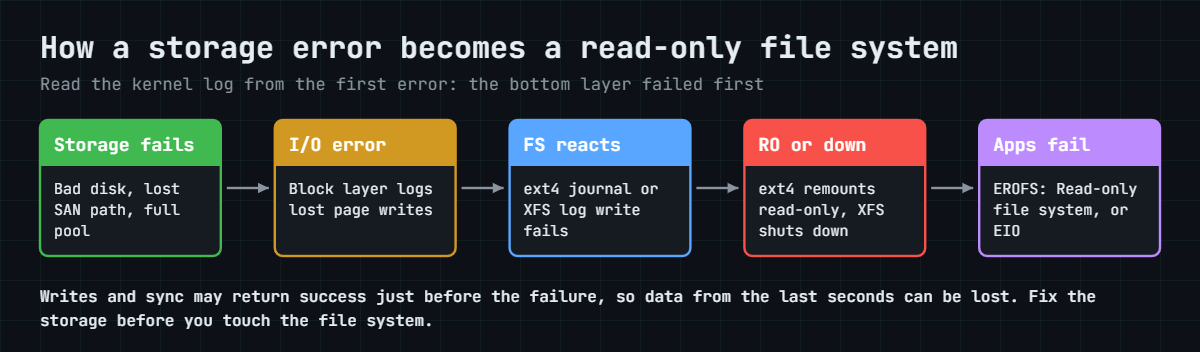
Every read-only incident follows the same chain, from the bottom of the storage stack to the application. The diagram after these steps shows it.

1A write fails below the file system

A disk develops bad sectors, a SAN path or a whole fabric drops, a thin-provisioned LUN or LVM thin pool runs out of space (Lesson 46), or the VM’s datastore fills up and the hypervisor pauses or fails its writes. The block layer gets an error back and logs it.

2The file system decides it can’t go on safely

File data that fails to write is lost quietly (the app’s write() already returned success). Metadata and journal writes are different: if ext4 can’t write its journal, it aborts the journal, and if XFS can’t write its log, it shuts down, because carrying on would leave the on-disk structures inconsistent.

Read-only file system Linux: from a failed storage write to a read-only or shut-down file system

3ext4 goes read-only

With an aborted journal, ext4 marks itself read-only no matter what errors= says. Other errors, such as a corrupted directory block found while reading, follow the errors= setting: remount-ro stops writes, continue logs the error and keeps going, panic crashes the server (used on some clusters so another node takes over). The superblock records the error, and the file system shows “clean with errors” until e2fsck has run.

4XFS shuts down

XFS has no read-only fallback. After a log write error or in-memory corruption it shuts down, and every access, even ls of the mount point, returns “Input/output error”. The mount table still says rw, so a monitoring check that only greps for ro misses it completely.

5Find the cause below the file system

Read the kernel log from the first error, not the last. Disk messages (sd, ata, nvme), path messages from multipath (Lesson 48), “lost page write” lines, and the time of the first one tell you which layer failed. On physical servers sudo smartctl -H /dev/sda gives the disk’s own verdict, and on VMs ask the virtualisation team about the datastore and the storage team about the LUN before anyone touches the file system.

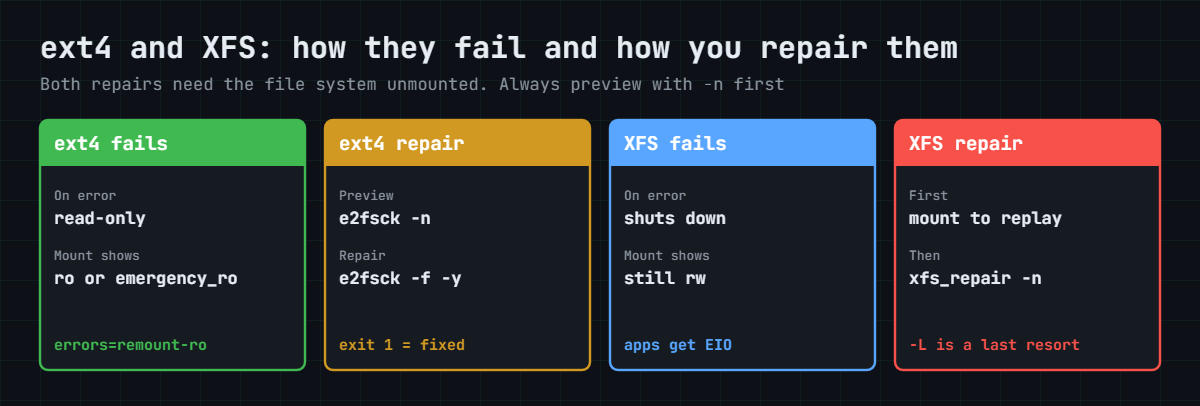
The picture below compares how ext4 and XFS fail and how each one is repaired, which is the part people mix up at 3 a.m.

Read-only file system Linux repair: ext4 with e2fsck compared with XFS and xfs_repair

6Repair in the safe order

Stop the application, fix or fail over the storage, unmount the file system, run the read-only check, repair, mount, check your data, and restore from backup whatever was lost. Remounting read-write with mount -o remount,rw before the cause is fixed and the file system is checked is the classic mistake: it usually fails or flips back to read-only within seconds, and if it works you are writing into a damaged structure.

7When it’s the root file system

You can’t unmount / on a running server. On rocky01 (XFS on rl-root), boot the Rocky ISO, choose Troubleshooting, then Rescue a Rocky Linux system, pick “Skip to shell”, run vgchange -ay rl and then xfs_repair -n /dev/mapper/rl-root. On ubu01 (ext4 root), add fsck.mode=force fsck.repair=yes to the kernel line at the GRUB menu (Lesson 50 showed how) so systemd-fsck checks the root before it is mounted read-write.

Lesson 70 covers the emergency shell you may land in.

Hands-on lab: fail a test disk under ext4 and XFS on rocky01 and repair both

Before you run any command, double-check it

Read every command twice before you press Enter. Check the target: the server name, the user, the disk or device name, the path and the sizes. These commands are for learning and were tested in our lab, not on your system. At work, run the read-only commands first, follow your change process, make sure a backup exists, and ask a second person to check anything that changes or deletes data. You run them at your own risk.

Everything runs on rocky01 as student with sudo, in one terminal, because steps 2 to 9 use two shell variables, LOOP and LOOPX. The test disks are image files in /var/tmp/lab78 attached as loop devices, with a device-mapper device on top that you can switch between “working disk” and “disk that fails writes”. lv_app, lv_logs and lv_db stay untouched; check every command names lab78 or lab78x before you press Enter. Rocky outputs are examples from our lab VM; your dm and loop numbers can differ.

1Check the server for read-only or failing file systems

Run this:

findmnt -O ro -t xfs,ext4
awk '$3 ~ /^(xfs|ext4)$/ && ($4 ~ /^ro,/ || $4 ~ /emergency_ro/)' /proc/mounts
sudo journalctl -k -b -p warning --no-pager | grep -iE 'ext4-fs|xfs \(|i/o error' | tail -n 5

On a healthy rocky01 you should see:

(no output)

All three print nothing. The first two find ext4 or XFS mounts that are read-only, including the emergency_ro marker newer kernels use; the third looks for file system and I/O errors in this boot’s kernel log. These three lines are worth a place in your health-check script (Lesson 39), because a read-only data volume often goes unnoticed until someone tries to save.

✅ Checkpoint: No read-only xfs or ext4 mounts and no file system or I/O errors in the kernel log since boot.

2Build a test disk you can break

Run this:

sudo mkdir -p /var/tmp/lab78
sudo truncate -s 512M /var/tmp/lab78/ext4.img
LOOP=$(sudo losetup --find --show /var/tmp/lab78/ext4.img); echo "$LOOP"
echo "0 1048576 linear $LOOP 0" | sudo dmsetup create lab78
sudo dmsetup table lab78
lsblk "$LOOP"

You should see something like this:

/dev/loop0
0 1048576 linear 7:0 0
NAME      MAJ:MIN RM  SIZE RO TYPE MOUNTPOINTS
loop0       7:0    0  512M  0 loop
└─lab78   253:5    0  512M  0 dm

The image file is sparse, so it uses almost no space until you write to it. losetup turns it into a block device, and dmsetup puts a device called lab78 on top with one “linear” segment: sectors 0 to 1048575 (512 MiB in 512-byte sectors) map straight onto the loop device. LVM builds its logical volumes the same way, which is why lab78 appears as major 253 next to rl-root and lv_app.

If your SSH session drops, get the variables back with LOOP=$(losetup -j /var/tmp/lab78/ext4.img | cut -d: -f1) and, from step 7 on, LOOPX=$(losetup -j /var/tmp/lab78/xfs.img | cut -d: -f1).

✅ Checkpoint: sudo dmsetup table lab78 shows one linear line and lsblk shows lab78 under your loop device.

3Put ext4 on it with errors=remount-ro

Run this:

sudo mkfs.ext4 -q -L lab78 /dev/mapper/lab78
sudo mkdir -p /mnt/lab78
sudo mount -o errors=remount-ro /dev/mapper/lab78 /mnt/lab78
printf 'order 1041\norder 1042\n' | sudo tee /mnt/lab78/orders.txt > /dev/null
sync
sudo tune2fs -l /dev/mapper/lab78 | grep -E '^(Filesystem state|Errors behavior)'
grep lab78 /proc/mounts

You should see something like this:

Filesystem state:         clean
Errors behavior:          Continue
/dev/mapper/lab78 /mnt/lab78 ext4 rw,seclabel,relatime,errors=remount-ro 0 0

The superblock default is Continue, which is what mke2fs writes unless told otherwise. The mount option errors=remount-ro overrides it for this mount, and that’s the setting you want on a data volume: stop writing at the first sign of trouble. orders.txt is your “important data”, written and synced while the disk still works.

✅ Checkpoint: /proc/mounts shows lab78 mounted rw with errors=remount-ro, and the state is clean.
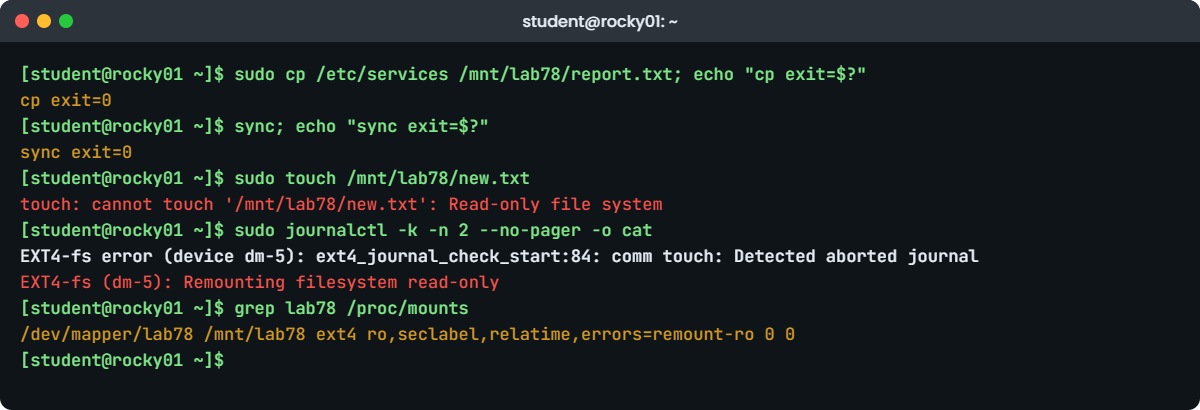
Read-only file system Linux lab: touch fails after the test disk errors on rocky01
Example output on rocky01: cp and sync return 0, then the next write fails because ext4 went read-only.

4Make the disk fail under the mounted file system

Swap the table for one where everything above 240 MiB returns an error, then keep writing:

sudo dmsetup suspend --nolockfs lab78
printf '0 491520 linear %s 0\n491520 557056 error\n' "$LOOP" | sudo dmsetup reload lab78
sudo dmsetup resume lab78
sudo dmsetup table lab78
sudo cp /etc/services /mnt/lab78/report.txt; echo "cp exit=$?"
sync; echo "sync exit=$?"
sleep 10
sudo touch /mnt/lab78/new.txt

You’ll get this:

0 491520 linear 7:0 0
491520 557056 error
cp exit=0
sync exit=0
touch: cannot touch '/mnt/lab78/new.txt': Read-only file system

The error target fails every read and write in its range, the way a dead area of disk or a lost LUN does. The ext4 journal on a 512 MiB file system sits in the middle, at 256 MiB, so the next journal commit failed. Look at the two exit codes: cp and sync both said success, yet report.txt was never safely written.

The first sign anything was wrong came from the next write, a few seconds later.

dmsetup suspend pauses I/O to the device, reload loads the new table and resume switches to it, which is how LVM changes a live volume too. --nolockfs skips freezing the file system first, because a freeze would fail on a file system that is already broken.

✅ Checkpoint: touch fails with “Read-only file system” even though cp and sync returned 0.

5Read what the kernel and the superblock say

Run this:

sudo journalctl -k -n 5 --no-pager
grep lab78 /proc/mounts
sudo tune2fs -l /dev/mapper/lab78 | grep -E '^(Filesystem state|FS Error count|First error function|First error err)'

You should see something like this:

Oct 27 13:12:41 rocky01 kernel: Aborting journal on device dm-5-8.
Oct 27 13:12:41 rocky01 kernel: Buffer I/O error on dev dm-5, logical block 65536, lost sync page write
Oct 27 13:12:41 rocky01 kernel: JBD2: I/O error when updating journal superblock for dm-5-8.
Oct 27 13:12:47 rocky01 kernel: EXT4-fs error (device dm-5): ext4_journal_check_start:84: comm touch: Detected aborted journal
Oct 27 13:12:47 rocky01 kernel: EXT4-fs (dm-5): Remounting filesystem read-only
/dev/mapper/lab78 /mnt/lab78 ext4 ro,seclabel,relatime,errors=remount-ro 0 0
Filesystem state:         clean with errors
FS Error count:           1
First error function:     ext4_journal_check_start
First error err:          EIO

Read the log top down: the journal hit a write error (“lost sync page write” for block 65536, where the journal starts), jbd2 aborted it, and on the next write ext4 noticed and remounted read-only. /proc/mounts now says ro. The superblock keeps the evidence, including the function and error code, so even after a reboot e2fsck and tune2fs know this file system had an error.

On Ubuntu 26.04 (kernel 7.0) the same failure leaves the mount listed as rw,...,emergency_ro instead of ro. That’s why the awk line in step 1 checks for both.

✅ Checkpoint: The kernel log shows “Aborting journal” and “Remounting filesystem read-only” for dm-5 (or your number), and tune2fs says “clean with errors”.

6Fix the cause first, then check and repair ext4

Put the working table back (the storage team has fixed the path), unmount, and check without changing anything:

sudo dmsetup suspend --nolockfs lab78
printf '0 1048576 linear %s 0\n' "$LOOP" | sudo dmsetup reload lab78
sudo dmsetup resume lab78
sudo umount /mnt/lab78
sudo e2fsck -n /dev/mapper/lab78; echo "e2fsck -n exit=$?"

You should see something like this:

e2fsck 1.47.1 (20-May-2024)
Warning: skipping journal recovery because doing a read-only filesystem check.
lab78 contains a file system with errors, check forced.
Pass 1: Checking inodes, blocks, and sizes
Pass 2: Checking directory structure
Pass 3: Checking directory connectivity
Pass 4: Checking reference counts
Pass 5: Checking group summary information
Free blocks count wrong (124714, counted=124718).
Fix? no

Free inodes count wrong (32755, counted=32756).
Fix? no

lab78: 13/32768 files (0.0% non-contiguous), 6358/131072 blocks
e2fsck -n exit=0

The error flag forced a full check. With -n e2fsck opens the device read-only, answers no to everything and skips the journal replay, so the counts it complains about may change once the journal is replayed. It’s your preview of how bad things are, and here it’s mild.

Now repair for real and look at your data:

sudo e2fsck -f -y /dev/mapper/lab78; echo "e2fsck exit=$?"
sudo mount /dev/mapper/lab78 /mnt/lab78
ls /mnt/lab78; cat /mnt/lab78/orders.txt

You should see something like this:

e2fsck 1.47.1 (20-May-2024)
lab78: recovering journal
Pass 1: Checking inodes, blocks, and sizes
Pass 2: Checking directory structure
Pass 3: Checking directory connectivity
Pass 4: Checking reference counts
Pass 5: Checking group summary information
Free blocks count wrong (124714, counted=124718).
Fix? yes

Free inodes count wrong (32755, counted=32756).
Fix? yes


lab78: ***** FILE SYSTEM WAS MODIFIED *****
lab78: 12/32768 files (0.0% non-contiguous), 6354/131072 blocks
e2fsck exit=1
lost+found  orders.txt
order 1041
order 1042

e2fsck replayed the journal, fixed the summary counters and exited with 1, which means “errors corrected”. orders.txt survived because it was committed before the failure. report.txt is gone, along with its inode, and no fsck can bring it back; that data has to come from the application or a backup. That’s the real cost of a read-only incident, and why you tell the app team which time window to check.

✅ Checkpoint: e2fsck reports FILE SYSTEM WAS MODIFIED with exit code 1, lab78 mounts again, orders.txt has both lines and report.txt is missing.

7Watch XFS shut down instead

Build a second test disk with XFS and fail it the same way:

sudo truncate -s 512M /var/tmp/lab78/xfs.img
LOOPX=$(sudo losetup --find --show /var/tmp/lab78/xfs.img)
echo "0 1048576 linear $LOOPX 0" | sudo dmsetup create lab78x
sudo mkfs.xfs -q -L lab78x /dev/mapper/lab78x
sudo mkdir -p /mnt/lab78x && sudo mount /dev/mapper/lab78x /mnt/lab78x
printf 'order 1041\n' | sudo tee /mnt/lab78x/orders.txt > /dev/null; sync
sudo dmsetup suspend --nolockfs lab78x
printf '0 491520 linear %s 0\n491520 557056 error\n' "$LOOPX" | sudo dmsetup reload lab78x
sudo dmsetup resume lab78x
sudo cp /etc/services /mnt/lab78x/report.txt; sync; sleep 30
ls /mnt/lab78x
grep lab78x /proc/mounts
sudo journalctl -k -n 3 --no-pager

You should see something like this:

ls: cannot access '/mnt/lab78x': Input/output error
/dev/mapper/lab78x /mnt/lab78x xfs rw,seclabel,relatime,attr2,inode64,logbufs=8,logbsize=32k,noquota 0 0
Oct 27 13:20:05 rocky01 kernel: XFS (dm-6): log I/O error -5
Oct 27 13:20:05 rocky01 kernel: XFS (dm-6): Filesystem has been shut down due to log error (0x2).
Oct 27 13:20:05 rocky01 kernel: XFS (dm-6): Please unmount the filesystem and rectify the problem(s).

XFS keeps its log in the middle of a file system this size too, so the log write failed and XFS shut down. Even ls of the mount point fails with “Input/output error”, yet /proc/mounts still says rw. On an XFS server, “everything gives I/O errors” with nothing read-only in the mount table is this situation.

✅ Checkpoint: ls /mnt/lab78x fails with Input/output error, /proc/mounts shows rw, and the kernel log says the file system has been shut down.

8Bring XFS back: replay the log, then check

Fix the “storage”, unmount, and look before you touch anything:

sudo dmsetup suspend --nolockfs lab78x
printf '0 1048576 linear %s 0\n' "$LOOPX" | sudo dmsetup reload lab78x
sudo dmsetup resume lab78x
sudo umount /mnt/lab78x
sudo xfs_repair -n /dev/mapper/lab78x; echo "xfs_repair -n exit=$?"

You should see something like this (shortened):

Phase 1 - find and verify superblock...
Phase 2 - using internal log
        - zero log...
ALERT: The filesystem has valuable metadata changes in a log which is being
ignored because the -n option was used.  Expect spurious inconsistencies
which may be resolved by first mounting the filesystem to replay the log.
        - scan filesystem freespace and inode maps...
        - found root inode chunk
Phase 3 - for each AG...
...
Phase 7 - verify link counts...
No modify flag set, skipping filesystem flush and exiting.
xfs_repair -n exit=1

The ALERT is the important line. The log still holds metadata changes that never reached their final place, and the check result means little until they are applied. XFS applies its log when it mounts, so mount once, unmount, and check again:

sudo mount /dev/mapper/lab78x /mnt/lab78x
sudo journalctl -k -n 3 --no-pager -o cat
ls /mnt/lab78x
sudo umount /mnt/lab78x
sudo xfs_repair -n /dev/mapper/lab78x > /dev/null; echo "xfs_repair -n exit=$?"

You should see something like this:

XFS (dm-6): Mounting V5 Filesystem 4b8e2d51-9c07-4f3a-a6e2-71d05c3f9b84
XFS (dm-6): Starting recovery (logdev: internal)
XFS (dm-6): Ending recovery (logdev: internal)
orders.txt
xfs_repair -n exit=0

“Starting recovery” and “Ending recovery” mean the log replay worked, and the second xfs_repair -n exits 0: no corruption at all. As with ext4, the file written after the failure is gone. Often a log replay is the whole repair on XFS.

✅ Checkpoint: The mount logged “Ending recovery”, orders.txt is there, and xfs_repair -n now exits 0.

9Corrupt XFS metadata on purpose, then repair it

Make a folder with three files, unmount, and use xfs_db to mark the folder’s inode as a plain file:

sudo mount /dev/mapper/lab78x /mnt/lab78x
sudo mkdir /mnt/lab78x/invoices
for i in 1 2 3; do echo "invoice $i" | sudo tee /mnt/lab78x/invoices/inv$i.txt > /dev/null; done
INO=$(stat -c %i /mnt/lab78x/invoices); echo "invoices inode: $INO"
sudo umount /mnt/lab78x
sudo xfs_db -x -c "inode $INO" -c 'write core.mode 0100644' /dev/mapper/lab78x
sudo mount /dev/mapper/lab78x /mnt/lab78x
ls /mnt/lab78x/invoices
sudo journalctl -k -n 4 --no-pager -o cat

You’ll get something like this (your inode may differ from 132):

invoices inode: 132
core.mode = 0100644
ls: cannot access '/mnt/lab78x/invoices': Structure needs cleaning
XFS (dm-6): Metadata corruption detected at xfs_dinode_verify_fork+0x3ae/0x440, inode 0x84 dinode
XFS (dm-6): Unmount and run xfs_repair
XFS (dm-6): First 128 bytes of corrupted metadata buffer:

The inode now says “regular file” but its data fork is in directory format, and XFS’s verifier refused it. “Structure needs cleaning” is how EFSCORRUPTED reaches the user. The file system is still mounted and the rest works; only that inode is refused.

Unmount, check, then repair:

sudo umount /mnt/lab78x
sudo xfs_repair -n /dev/mapper/lab78x; echo "exit=$?"

You should see something like this (shortened):

Phase 1 - find and verify superblock...
...
Phase 3 - for each AG...
        - scan (but don't clear) agi unlinked lists...
        - process known inodes and perform inode discovery...
        - agno = 0
bad inode format in inode 132
would have cleared inode 132
...
entry "invoices" in shortform directory 128 references free inode 132
would have junked entry "invoices" in directory inode 128
...
Phase 6 - check inode connectivity...
        - traversing filesystem ...
entry "invoices" in shortform directory inode 128 points to free inode 132, would junk entry
        - traversal finished ...
        - moving disconnected inodes to lost+found ...
disconnected inode 133, would move to lost+found
disconnected inode 134, would move to lost+found
disconnected inode 135, would move to lost+found
Phase 7 - verify link counts...
would have reset inode 128 nlinks from 3 to 2
No modify flag set, skipping filesystem flush and exiting.
exit=1
sudo xfs_repair /dev/mapper/lab78x; echo "exit=$?"
sudo mount /dev/mapper/lab78x /mnt/lab78x
sudo ls -l /mnt/lab78x/lost+found; sudo cat /mnt/lab78x/lost+found/*

You should see something like this (shortened):

...
bad inode format in inode 132
cleared inode 132
...
entry "invoices" in shortform directory 128 references free inode 132
junking entry "invoices" in directory inode 128
...
Phase 6 - check inode connectivity...
        - resetting contents of realtime bitmap and summary inodes
        - traversing filesystem ...
        - traversal finished ...
        - moving disconnected inodes to lost+found ...
disconnected inode 133, moving to lost+found
disconnected inode 134, moving to lost+found
disconnected inode 135, moving to lost+found
Phase 7 - verify and correct link counts...
resetting inode 128 nlinks from 4 to 3
done
exit=0
total 12
-rw-r--r--. 1 root root 10 Oct 27 13:31 133
-rw-r--r--. 1 root root 10 Oct 27 13:31 134
-rw-r--r--. 1 root root 10 Oct 27 13:31 135
invoice 1
invoice 2
invoice 3

xfs_repair couldn’t trust inode 132, so it cleared it and removed the “invoices” entry that pointed at it. The three files inside were still fine but had lost their folder, so it moved them to lost+found under their inode numbers. Your data survived; the names didn’t.

Reading lost+found after a repair, and telling the app team, is part of the job.

Keep both test disks for the Break-It part. If you skip it, run the clean-up block at the end of the Break-It section now.

✅ Checkpoint: xfs_repair -n exited 1 and listed the problems, xfs_repair exited 0, and lost+found holds three files with “invoice 1”, “invoice 2” and “invoice 3”.

Break It, Then Fix It

Snapshot first: VBoxManage snapshot rocky01 take before-l78-break on the laptop. Both mistakes happen on the test disks from the lab, which should both be mounted: run sudo mount /dev/mapper/lab78 /mnt/lab78 if lab78 isn’t.

1Run the repair tools on a mounted file system

Run this:

findmnt /mnt/lab78 /mnt/lab78x
sudo e2fsck -f /dev/mapper/lab78; echo "e2fsck exit=$?"
sudo xfs_repair -n /dev/mapper/lab78x; echo "xfs_repair exit=$?"

You’ll get this:

TARGET      SOURCE             FSTYPE OPTIONS
/mnt/lab78  /dev/mapper/lab78  ext4   rw,relatime,seclabel
/mnt/lab78x /dev/mapper/lab78x xfs    rw,relatime,seclabel,attr2,inode64,logbufs=8,logbsize=32k,noquota
e2fsck 1.47.1 (20-May-2024)
/dev/mapper/lab78 is mounted.
e2fsck: Cannot continue, aborting.


e2fsck exit=8
xfs_repair: /dev/mapper/lab78x contains a mounted and writable filesystem

fatal error -- couldn't initialize XFS library
xfs_repair exit=1

Both tools refuse, and that refusal protects you. A repair tool rewrites metadata on disk while the kernel holds its own copy in memory and keeps writing too; the two would overwrite each other and turn a small problem into a lost file system. Older guides show e2fsck asking “Do you really want to continue?” here, and the only right answer to that was always no.

Fix: stop whatever uses the file system, unmount, then check.

sudo fuser -vm /mnt/lab78 /mnt/lab78x
sudo umount /mnt/lab78 /mnt/lab78x
sudo e2fsck -f -n /dev/mapper/lab78 | tail -n 1
sudo xfs_repair -n /dev/mapper/lab78x > /dev/null; echo "xfs_repair -n exit=$?"

You should see something like this:

lab78: 12/32768 files (0.0% non-contiguous), 6354/131072 blocks
xfs_repair -n exit=0

For the root file system, “unmount” means booting into rescue mode as step 7 of the how-it-works section describes, never forcing a check on a running /.

✅ Checkpoint: Both checks run on unmounted devices and report a clean file system.

2Repair XFS without replaying its log

Fail lab78x again, give the storage back, unmount and go straight to xfs_repair:

sudo mount /dev/mapper/lab78x /mnt/lab78x
sudo dmsetup suspend --nolockfs lab78x
printf '0 491520 linear %s 0\n491520 557056 error\n' "$LOOPX" | sudo dmsetup reload lab78x && sudo dmsetup resume lab78x
sudo cp /etc/services /mnt/lab78x/report2.txt; sync; sleep 30
sudo dmsetup suspend --nolockfs lab78x
printf '0 1048576 linear %s 0\n' "$LOOPX" | sudo dmsetup reload lab78x && sudo dmsetup resume lab78x
sudo umount /mnt/lab78x
sudo xfs_repair /dev/mapper/lab78x; echo "xfs_repair exit=$?"

You’ll get this error:

Phase 1 - find and verify superblock...
Phase 2 - using internal log
        - zero log...
ERROR: The filesystem has valuable metadata changes in a log which needs to
be replayed.  Mount the filesystem to replay the log, and unmount it before
re-running xfs_repair.  If you are unable to mount the filesystem, then use
the -L option to destroy the log and attempt a repair.
Note that destroying the log may cause corruption -- please attempt a mount
of the filesystem before doing this.
xfs_repair exit=2

xfs_repair won’t run over a dirty log, and the message offers -L. People under pressure reach for it at once, and it throws away every metadata change still in the log, which can mean whole folders of recent files. It is only for the case where the mount itself fails, and even then take an image of the device first (xfs_metadump for the metadata, or a block copy) and ideally talk to your vendor.

Fix: mount to replay the log, unmount, then check and repair if needed.

sudo mount /dev/mapper/lab78x /mnt/lab78x && sudo umount /mnt/lab78x
sudo xfs_repair -n /dev/mapper/lab78x > /dev/null; echo "xfs_repair -n exit=$?"
xfs_repair -n exit=0

✅ Checkpoint: The replay mount works and xfs_repair -n exits 0 without anyone using -L.

Clean up both test disks (this is the end of the lesson’s changes):

sudo umount /mnt/lab78 /mnt/lab78x 2>/dev/null
sudo dmsetup remove lab78
sudo dmsetup remove lab78x
sudo losetup -d "$LOOP" "$LOOPX"
sudo rm -rf /var/tmp/lab78
sudo rmdir /mnt/lab78 /mnt/lab78x
sudo dmsetup ls | grep lab78; losetup -a

Both final commands print nothing: the device-mapper devices, loop devices and image files are gone, and rocky01 is as it was before the lesson.

This happened at work

The sale that couldn’t save a photo

A colleague of mine, Farah, looks after the Linux side of a furniture e-commerce company in Kuala Lumpur. On the first night of their 11.11 sale, sellers started reporting that product photo uploads failed. The upload service’s log was full of “Read-only file system” on /srv/media, an ext4 volume on a VMware VM that held every product image for the site.

The app team restarted the upload service twice, and when that didn’t help someone ran mount -o remount,rw /srv/media. It worked for about ninety seconds and then the volume went read-only again, with a fresh “Aborting journal” in dmesg. Farah stopped any more remounts and read the kernel log from the top: the first errors were “Buffer I/O error … lost async page write” at 9:52 p.m., twenty minutes before anyone noticed.

The VMware team found the cause in a few minutes. The datastore under that VM sat on a thin-provisioned LUN, the array’s pool had run out of space during the evening’s backup copies, and writes from several VMs were failing. Storage freed space and grew the pool, Farah stopped the upload service, unmounted /srv/media, ran e2fsck -n and then e2fsck -f -y, mounted it and started the service.

Sellers were uploading again by 11:15 p.m.; about forty minutes of uploads had to be redone from the sellers’ side.

After the sale the team added three things. The array pool now alerts at 80% and the datastore at 85%, the monitoring agent checks /proc/mounts for ro or emergency_ro on every data volume, and the runbook says in its first line: no remount until the storage team has confirmed the cause.

Common mistakes and troubleshooting

MistakeWhat happensWhat to do instead
Running mount -o remount,rw straight awayIt fails or goes read-only again, and if it works you write into a damaged file systemFind and fix the storage cause, unmount, check, repair, then mount
Running e2fsck or xfs_repair on a mounted file systemThe tools refuse; forcing it can destroy the file systemUnmount first; for / boot into rescue mode
Using xfs_repair -L as the first fixMetadata changes in the log are thrown away and recent files vanishMount once to replay the log; use -L only if the mount fails, after taking an image
Skipping -n and repairing blindYou don’t know how bad it is or what the repair will changeRun e2fsck -n or xfs_repair -n first and save the output in the ticket
Monitoring only for “ro” in the mount tableA shut-down XFS still shows rw, and newer kernels show ext4 as rw,emergency_roAlso alert on kernel I/O and file system errors and on emergency_ro
Trusting a successful write or syncData written just before the failure can be lost although every call returned 0Check the kernel log for the first error time and ask the app team to verify that window
Forgetting lost+found after a repairRecovered files sit there under numbers and nobody puts them backList lost+found after every repair and match files by content or size

Interview questions

Click a question to open it. Each one is written the way an interviewer would ask it. Under it you will see why they ask it and one way you could answer, in your own words.

Fresher level

1. A user gets “Read-only file system” when saving a file. What do you check first?

Why they ask this: They want to see you go to the kernel log and the mount table, not straight to a remount.

How you might answer: I check which mount the path is on with findmnt -T /path and whether it’s ro, then I read journalctl -k or dmesg -T from the first error. That usually shows an I/O error from the disk or SAN and then ext4 remounting read-only.

I don’t remount it read-write. I tell the app owner, involve storage or the virtualisation team for the cause, and plan an unmount and e2fsck once the storage is fixed.

2. What is the difference between checking ext4 and XFS?

Why they ask this: A basic but telling question: many people think fsck works the same everywhere.

How you might answer: ext4 uses e2fsck, which can run at boot from fstab with pass 1 or 2, and I preview with e2fsck -n before e2fsck -f -y. Both need the file system unmounted.

XFS uses xfs_repair, and fsck.xfs does nothing at boot because XFS replays its log at mount. I run xfs_repair -n first, mount once to replay a dirty log, and treat -L as a last resort.

2–5 years experience

3. An ext4 volume went read-only and a colleague wants to run mount -o remount,rw. What do you say?

Why they ask this: They’re checking that you understand why the kernel did it and the risk of undoing it.

How you might answer: I’d ask them to wait, because ext4 went read-only to protect itself after failed writes, usually an aborted journal. Until the storage problem is fixed it’ll flip back within seconds, and if it doesn’t, we’d be writing into a file system marked as having errors.

The right order is: fix the cause, stop the app, unmount, e2fsck -n then e2fsck -f -y, mount, and check the data written around the first error time.

4. On an XFS server everything returns “Input/output error” but the mount still says rw. What is going on?

Why they ask this: This checks real XFS experience: a shut-down file system doesn’t look read-only.

How you might answer: XFS has shut itself down, most likely after a log write error or metadata corruption, and the kernel log will say “Filesystem has been shut down” with a reason code. XFS has no read-only mode, so every access fails while the mount table still says rw.

I find the storage error that came first, fix it, unmount, run xfs_repair -n, mount once to replay the log, unmount and check again. Only if it still shows corruption do I run a real xfs_repair.

Senior level

5. Forty VMs’ root file systems went read-only at the same moment. How do you lead the response?

Why they ask this: Seniors should spot a shared cause (datastore, SAN, fabric) and run the incident in order, not fix VMs one by one.

How you might answer: Forty at once points at shared storage: a full datastore, a thin pool on the array, a fabric or path failure. I’d get storage and virtualisation on the call, confirm with the first kernel errors on two or three VMs, and stop further changes like remounts or reboots until the cause is fixed.

Then we recover in priority order: services fail over where they can, each VM gets an fsck of its root from rescue or a forced fsck at boot, and app owners check data around the first error time. Afterwards I want pool alerts, ro and I/O error monitoring, and a rule that nobody remounts before the cause is known.

6. xfs_repair tells you to use -L because the log can’t be replayed. What do you do?

Why they ask this: They want to see care with irreversible actions and knowledge of the tools around xfs_repair.

How you might answer: First I try the mount again after the storage is fixed, maybe read-only with -o ro,norecovery to copy off what I can. Before any -L I take a copy of the device or at least an xfs_metadump, so the vendor can look at it and we can go back.

If -L is the only way, I tell the business which data may be lost, run it, read lost+found afterwards, and restore the rest from backup. I also check the backups covered that volume, because this is the case they exist for.

Quick quiz

Q1. ext4 printed “Aborting journal” and “Remounting filesystem read-only”. What usually caused it?

  1. A full inode table
  2. Writes to the underlying disk or LUN failed
  3. A wrong fstab line
  4. Too many open files
Show answer

B — An aborted journal means journal writes failed, which points at the storage layer.

Q2. On an XFS server, ls of a data folder gives “Input/output error” and the mount shows rw. What is the most likely state?

  1. Normal operation
  2. XFS has shut itself down after an error
  3. The folder has wrong permissions
  4. The disk is full
Show answer

B — XFS shuts down instead of going read-only, and the mount table keeps saying rw.

Q3. What is the safe order after a read-only incident?

  1. Remount rw, then check
  2. Fix the cause, unmount, check with -n, repair, mount, verify data
  3. Reboot, then check
  4. Run xfs_repair -L first
Show answer

B — The storage must be healthy before any repair, and the preview comes before the change.

Q4. xfs_repair says the log has valuable metadata changes. What should you do first?

  1. Run xfs_repair -L
  2. Mount the file system to replay the log, then unmount and re-run xfs_repair
  3. Run e2fsck
  4. Delete the log file
Show answer

B — Mounting replays the log. -L destroys it and is only for when the mount fails.

Q5. e2fsck -f -y exits with code 1. What does that mean?

  1. Nothing was wrong
  2. Errors were found and corrected
  3. Errors were left uncorrected
  4. e2fsck failed to run
Show answer

B — 0 is clean, 1 errors corrected, 4 errors left uncorrected, 8 operational error.

Quick recap

  • A read-only file system on Linux is a symptom: ext4 goes read-only, and XFS shuts down, after writes to the storage below them fail.
  • Read journalctl -k from the first error to find the layer: disk, SAN path, thin pool or datastore, then the file system.
  • ext4 shows ro (or rw,emergency_ro on kernels from 6.15); a shut-down XFS still shows rw and returns Input/output error.
  • Repair order: fix the cause, unmount, e2fsck -n or xfs_repair -n, repair, mount, check data and lost+found.
  • Mount XFS once to replay a dirty log before xfs_repair; -L is a last resort after an image of the device.
  • Never remount rw or run a repair on a mounted file system; for / boot into rescue or use fsck.mode=force.

Next lesson

Lesson 79: Kernel panic and kdump → You’ll reserve memory for a crash kernel on rocky01, set up kdump, crash the VM on purpose with SysRq after a snapshot, and read the vmcore-dmesg.txt and the crash dump it leaves behind.

Further reading: read-only file system Linux

Want to go deeper into read-only file system Linux? Read the kernel’s ext4 administration guide (the errors= option), the man7.org pages for e2fsck(8) and xfs_repair(8), the kernel’s device-mapper documentation, and Red Hat’s Managing file systems guide for RHEL 10. You can also see the full plan for this course on the Linux Administration course page.

Scroll to Top

This website uses cookies

We use a few cookies to keep this site working. If you allow it, we also use Google Analytics to count visits so we can improve our lessons. You can accept all, deny the optional ones, or choose what to allow.