File systems, mounts, fstab and swap
-
Phase 0: Before you start
-
Phase 1: The origins and OS architecture
-
Phase 2: Day-to-day administration and the command builder
-
Phase 3: Enterprise infrastructure and storage
-
Phase 4: Troubleshooting step by step
-
Phase 5: Final project and career
The Linux fstab file, /etc/fstab, is the list of file systems and swap areas your server mounts every time it boots. One line per mount: what to mount (best by UUID), where, which file system type, which options, and two small numbers. Get a line right and nobody ever thinks about it again; get one wrong and the next reboot can stop in emergency mode, sometimes months after the edit.
In this lesson you put an XFS file system on sdc1 and ext4 on sdc2 (the partitions you made in Lesson 42), mount them by hand, read their details with xfs_info and tune2fs, add them to /etc/fstab by UUID and test the file with findmnt and mount -a before any reboot. Then you add swap on sdc3 and as a swap file, and break fstab on purpose to see what the tests catch.
Where this lesson fits
Lesson 43 of 82 in Linux Administration · Phase 3: Enterprise infrastructure and storage · Before this: Lesson 42, disks and partitions · Next: Lesson 44, LVM part 1
| Time | You need | By the end you can |
|---|---|---|
| About 70 minutes | rocky01 with sdc partitioned as in Lesson 42 (sdc1 2 GiB, sdc2 2 GiB, sdc3 1023 MiB, all empty) and the root password from Lesson 2 in case a boot goes wrong | Format XFS and ext4, mount them at boot from fstab by UUID, prove a new fstab line works before rebooting, and add or remove swap safely |
What it is, in one line
A file system turns a partition into folders and files, mount attaches it to a folder in the tree, and a line in /etc/fstab makes systemd do that mount again at every boot.
In Simple Words
The school timetable on the staff room wall
A new school building gets two empty classrooms. Before any class can use them, someone puts in benches and numbers (that’s the setup), and the office writes them into the timetable on the staff room wall: “Room 7, Class 9B, every day from 9 a.m.”. Every morning the peon reads the timetable and opens each room on it, without asking anyone.
If someone writes “Room 77” by mistake, the peon walks around looking for a room that doesn’t exist, and the whole morning gets stuck. A careful headmaster reads a new timetable entry once, walks to the room himself and opens it, before the peon ever sees it.
Benches are the file system, the timetable is /etc/fstab, the peon is systemd at boot, and the headmaster’s walk is findmnt --verify and mount -a.
Engineer's View
XFS, ext4, fstab fields and the options that matter
| XFS | ext4 | |
|---|---|---|
| Default on | RHEL 7 to 10, Rocky, Oracle Linux (root and /boot on rocky01) | Ubuntu (root on ubu01), Debian |
| Create | mkfs.xfs -L label /dev/sdX1 | mkfs.ext4 -L label /dev/sdX1 |
| Inspect | xfs_info /mountpoint | tune2fs -l /dev/sdX1, dumpe2fs -h |
| Grow | xfs_growfs while mounted | resize2fs while mounted |
| Shrink | Not possible: back up, recreate, restore | Only unmounted, with resize2fs to a smaller size |
| Check and repair | xfs_repair on an unmounted file system; fsck.xfs does nothing at boot | e2fsck, and fsck at boot for fields with pass 1 or 2 |
| Reserved space | None | 5% for root by default, change with tune2fs -m |
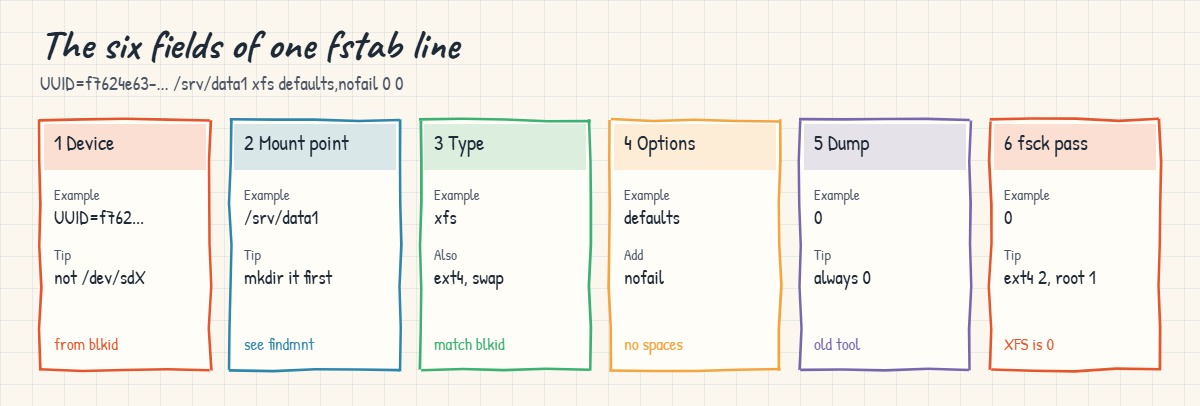
Each line of /etc/fstab has six fields separated by spaces or tabs:
| Field | Example | What it means |
|---|---|---|
| 1. What | UUID=f7624e63-8b7a-4eaf-b92e-2ddf3b10c1f7 | The file system by UUID (best), LABEL=, or a path such as /dev/mapper/rl-root. Avoid /dev/sdb1 names for data disks |
| 2. Where | /srv/data1 | The mount point, an existing empty folder. For swap it’s none |
| 3. Type | xfs, ext4, vfat, swap, nfs | Must match what blkid reports in TYPE |
| 4. Options | defaults,nofail,noatime | Comma list, no spaces. defaults means rw, suid, dev, exec, auto, nouser, async |
| 5. Dump | 0 | Used by the old dump backup tool. Always 0 today |
| 6. Pass | 0, 1 or 2 | fsck order at boot: 1 for the root file system, 2 for others, 0 to skip (XFS always 0) |
| Option | What it does | When to use it |
|---|---|---|
nofail | Boot carries on if this device is missing or fails to mount | Data disks, SAN LUNs, USB disks. Not for anything the OS needs to start |
x-systemd.device-timeout=10s | How long systemd waits for the device (default 90 seconds) | With nofail on slow or optional storage, so a missing disk costs 10 seconds, not 90 |
noatime | Don’t write the access time on every read | Busy read-heavy data such as caches and web files; relatime (the default) already skips most of these writes |
_netdev | Wait for the network before mounting | NFS, iSCSI, anything over the network (Lessons 47 and 48) |
ro, noexec | Read-only, or no programs may run from it | Archive and upload folders |
systemd reads /etc/fstab at boot and whenever you run systemctl daemon-reload, and turns each line into a unit named after the path: /srv/data1 becomes srv-data1.mount. A line without nofail is required by local-fs.target, so if it fails the boot stops in emergency mode (Lesson 70 covers the recovery).
How it works, step by step
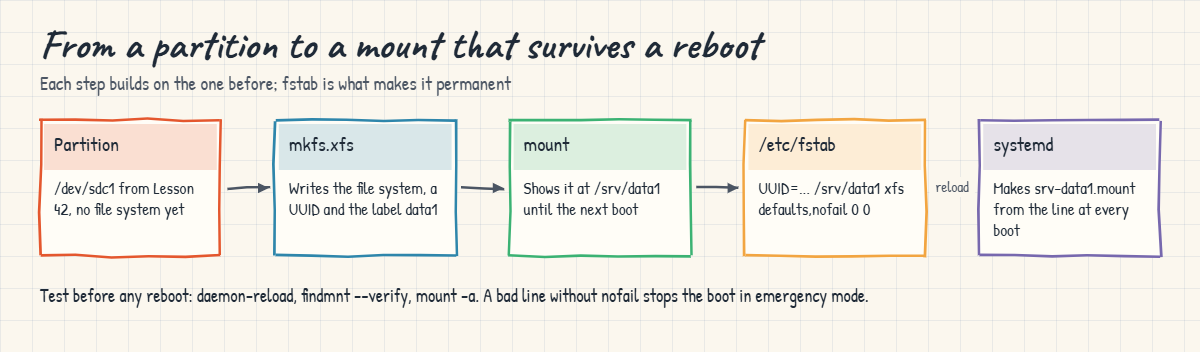
A partition from Lesson 42 is only a range of sectors. Here’s how it becomes a folder that’s there after every reboot, which the diagram below shows step by step.
1mkfs writes the file system
mkfs.xfs or mkfs.ext4 writes the structures that hold folders, inodes and free space, and gives the new file system a random UUID and the label you chose. This is the point where data on the partition is lost, so mkfs deserves the same “check the device twice” care as partitioning. mkfs.xfs refuses to overwrite an existing file system unless you add -f; mkfs.ext4 asks before it does.
2mount attaches it to a folder
mount /dev/sdc1 /srv/data1 tells the kernel to show that file system’s top folder at /srv/data1. Whatever was in the folder before is hidden, not deleted, until you unmount. A mount made by hand lasts until the next reboot.
3fstab makes it permanent
A line in /etc/fstab with the UUID, the folder, the type and the options makes systemd mount it at every boot. You use the UUID because it belongs to the file system itself: it stays the same when the disk becomes sdd after a rescan, while /dev/sdc1 might then point at a different disk or nothing at all.
4systemd reads fstab, not you
At boot, systemd-fstab-generator converts each line to a .mount unit (or a .swap unit). If you edit fstab and don’t run systemctl daemon-reload, systemd still uses the old version, and recent util-linux reminds you with a “(hint)” line when you run mount.
5Test before the reboot, not after
findmnt --verify parses every line and checks that the source exists, the folder exists and the type matches what’s on the disk. mount -a then mounts every line that isn’t mounted yet, which is the closest thing to a real boot you can do without rebooting. If both are clean, the reboot will be clean too.
The picture below takes one fstab line apart field by field, using the line you’ll write for sdc1 in the lab.
6Swap: a partition or a file
Swap is disk space the kernel uses for memory pages it hasn’t touched for a while (Lesson 22 showed swap in action). A swap partition needs mkswap and then swapon; a swap file is the same thing in a file, created with dd and set to mode 600. On rocky01, mkswap also gives the file the SELinux type swapfile_t, which systemd needs to switch it on at boot.
Both go into fstab with type swap and mount point none.
A swap file is easier to add, resize or remove later, which is why cloud images and Ubuntu installs often use one (ubu01 probably has /swap.img; check with swapon --show). Swap partitions or LVs suit servers where the layout is planned up front, like rocky01’s rl-swap.
Hands-on lab: XFS, ext4 and swap on sdc, mounted from fstab by UUID
Before you run any command, double-check it
Read every command twice before you press Enter. Check the target: the server name, the user, the disk or device name, the path and the sizes. These commands are for learning and were tested in our lab, not on your system. At work, run the read-only commands first, follow your change process, make sure a backup exists, and ask a second person to check anything that changes or deletes data. You run them at your own risk.
Everything runs on rocky01 as student with sudo. The lab writes to sdc1, sdc2 and sdc3 only, and edits /etc/fstab, so the first thing you’ll do there is take a copy of it. Step 10 reboots rocky01 once.
1Check that sdc is ready
Run this:
lsblk -o NAME,SIZE,TYPE,PARTLABEL,FSTYPE /dev/sdc
sudo wipefs /dev/sdc1 /dev/sdc2 /dev/sdc3You should see something like this:
NAME SIZE TYPE PARTLABEL FSTYPE
sdc 5G disk
├─sdc1 2G part data1
├─sdc2 2G part data2
└─sdc3 1023M part swap Three partitions, empty FSTYPE column, and wipefs prints nothing, so there’s no old file system or swap signature to worry about. If you have no sdc3 (you skipped Lesson 42’s Break-It part), create it now with sudo sgdisk -n 3:0:0 -t 3:8200 -c 3:swap /dev/sdc followed by sudo partprobe /dev/sdc.
✅ Checkpoint: lsblk shows sdc1, sdc2 and sdc3 with no FSTYPE.
2Make an XFS file system on sdc1
Run this:
sudo mkfs.xfs -L data1 /dev/sdc1You should see something like this (the option list depends on your xfsprogs version):
meta-data=/dev/sdc1 isize=512 agcount=4, agsize=131072 blks
= sectsz=512 attr=2, projid32bit=1
= crc=1 finobt=1, sparse=1, rmapbt=1
= reflink=1 bigtime=1 inobtcount=1 nrext64=0
data = bsize=4096 blocks=524288, imaxpct=25
= sunit=0 swidth=0 blks
naming =version 2 bsize=4096 ascii-ci=0, ftype=1
log =internal log bsize=4096 blocks=16384, version=2
= sectsz=512 sunit=0 blks, lazy-count=1
realtime =none extsz=4096 blocks=0, rtextents=0-L data1 sets a label of up to 12 characters. The 2 GiB partition got four allocation groups (agcount=4), which XFS uses to work on several parts of the disk at once, and 4 KiB blocks. crc=1 means metadata checksums, reflink=1 allows fast file copies, and bigtime=1 stores dates past 2038.
✅ Checkpoint: mkfs.xfs finished and shows blocks=524288 with bsize=4096, which is 2 GiB.
3Make an ext4 file system on sdc2
Run this:
sudo mkfs.ext4 -L data2 /dev/sdc2
sudo blkid /dev/sdc1 /dev/sdc2You should see something like this:
mke2fs 1.47.1 (20-May-2024)
Creating filesystem with 524288 4k blocks and 131072 inodes
Filesystem UUID: fcb309a2-e657-4e8f-b20d-bf5aa8cce041
Superblock backups stored on blocks:
32768, 98304, 163840, 229376, 294912
Allocating group tables: done
Writing inode tables: done
Creating journal (16384 blocks): done
Writing superblocks and filesystem accounting information: done
/dev/sdc1: LABEL="data1" UUID="f7624e63-8b7a-4eaf-b92e-2ddf3b10c1f7" BLOCK_SIZE="512" TYPE="xfs" PARTLABEL="data1" PARTUUID="eab1c2bf-3763-4369-ab8c-08b6c87dbd3a"
/dev/sdc2: LABEL="data2" UUID="fcb309a2-e657-4e8f-b20d-bf5aa8cce041" BLOCK_SIZE="4096" TYPE="ext4" PARTLABEL="data2" PARTUUID="2a2feed7-0a0c-462a-9f43-4223b45520af"ext4 wrote spare copies of its superblock at fixed places, which e2fsck can use if the first one is damaged, and a 64 MiB journal (16384 blocks of 4 KiB). In the blkid line, LABEL and UUID belong to the file system you made, while PARTLABEL and PARTUUID belong to the GPT partition from Lesson 42. fstab uses the first pair.
✅ Checkpoint: blkid shows TYPE=”xfs” with LABEL=”data1″ on sdc1 and TYPE=”ext4″ with LABEL=”data2″ on sdc2, each with its own UUID.
4Mount both by hand and fix their labels
Run this:
sudo mkdir -p /srv/data1 /srv/data2
sudo mount /dev/sdc1 /srv/data1
sudo mount /dev/sdc2 /srv/data2
ls -Zd /srv/data1
sudo restorecon -Rv /srv/data1 /srv/data2
findmnt /srv/data1
df -hT /srv/data1 /srv/data2You should see something like this:
system_u:object_r:unlabeled_t:s0 /srv/data1
Relabeled /srv/data1 from system_u:object_r:unlabeled_t:s0 to system_u:object_r:var_t:s0
Relabeled /srv/data2 from system_u:object_r:unlabeled_t:s0 to system_u:object_r:var_t:s0
Relabeled /srv/data2/lost+found from system_u:object_r:unlabeled_t:s0 to system_u:object_r:var_t:s0
TARGET SOURCE FSTYPE OPTIONS
/srv/data1 /dev/sdc1 xfs rw,relatime,seclabel,attr2,inode64,logbufs=8,logbsize=32k,noquota
Filesystem Type Size Used Avail Use% Mounted on
/dev/sdc1 xfs 2.0G 71M 1.9G 4% /srv/data1
/dev/sdc2 ext4 2.0G 24K 1.8G 1% /srv/data2A brand-new file system has no SELinux labels yet, so its top folder shows unlabeled_t, and confined services would be refused. One restorecon gives it the label the policy expects for that path (var_t under /srv; you’d add a semanage fcontext rule for a web or database folder, as in Lesson 41). df shows ext4 with 1.8G available out of 2.0G because 5% is reserved for root, while XFS has already used 71M for its log and metadata.
✅ Checkpoint: findmnt shows /srv/data1 on /dev/sdc1, and df lists both file systems with their types.
5Read the details with xfs_info and tune2fs
Run this:
xfs_info /srv/data1 | head -n 1
sudo tune2fs -l /dev/sdc2 | grep -E '^(Filesystem volume name|Filesystem UUID|Block count|Reserved block count|Block size|Maximum mount count|Check interval)'
sudo tune2fs -m 1 /dev/sdc2You should see something like this:
meta-data=/dev/sdc1 isize=512 agcount=4, agsize=131072 blks
Filesystem volume name: data2
Filesystem UUID: fcb309a2-e657-4e8f-b20d-bf5aa8cce041
Block count: 524288
Reserved block count: 26214
Block size: 4096
Maximum mount count: -1
Check interval: 0 (<none>)
tune2fs 1.47.1 (20-May-2024)
Setting reserved blocks percentage to 1% (5242 blocks)xfs_info prints the same block you saw from mkfs.xfs and works on a mounted file system. In tune2fs, 26214 reserved blocks is 5% of 524288; that space lets root log in and clean up when users fill a disk, but on a 2 TB data volume 5% is 100 GB nobody can use. -m 1 cut it to 1%. Maximum mount count -1 and check interval 0 mean ext4 never forces a time-based fsck at boot.
✅ Checkpoint: tune2fs reports “Setting reserved blocks percentage to 1%”.
6Add both to /etc/fstab by UUID
Unmount, back up fstab, look at what the installer wrote, then append two lines:
sudo umount /srv/data1 /srv/data2
sudo cp -a /etc/fstab /etc/fstab.bak-l43
grep -v '^#' /etc/fstab | grep .
U1=$(sudo blkid -s UUID -o value /dev/sdc1)
U2=$(sudo blkid -s UUID -o value /dev/sdc2)
echo "UUID=$U1 /srv/data1 xfs defaults,nofail 0 0" | sudo tee -a /etc/fstab
echo "UUID=$U2 /srv/data2 ext4 defaults,nofail,noatime 0 2" | sudo tee -a /etc/fstabYou should see something like this:
/dev/mapper/rl-root / xfs defaults 0 0
UUID=c41f9e07-3b2d-4a68-b5e1-8f6a0d2c9b73 /boot xfs defaults 0 0
UUID=7A3C-1F0E /boot/efi vfat umask=0077,shortname=winnt 0 2
/dev/mapper/rl-swap none swap defaults 0 0
UUID=f7624e63-8b7a-4eaf-b92e-2ddf3b10c1f7 /srv/data1 xfs defaults,nofail 0 0
UUID=fcb309a2-e657-4e8f-b20d-bf5aa8cce041 /srv/data2 ext4 defaults,nofail,noatime 0 2The installer mounts root and swap by their LVM paths (/dev/mapper names are stable) and /boot and /boot/efi by UUID. blkid -s UUID -o value prints only the UUID, so the variables hold the exact string with no copy-paste typo. tee -a appends as root; a plain > there would have replaced the whole file. The XFS line has pass 0 and the ext4 line pass 2, so only ext4 gets fsck at boot.
✅ Checkpoint: /etc/fstab ends with your two UUID lines and /etc/fstab.bak-l43 exists.
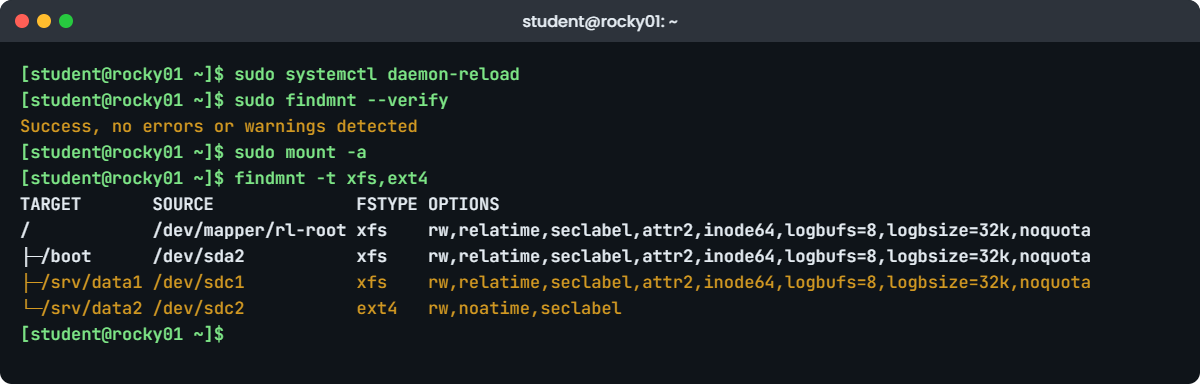
7Test the file before you reboot
Run this:
sudo systemctl daemon-reload
sudo findmnt --verify
sudo mount -a
findmnt -t xfs,ext4
systemctl list-units --type=mount | grep srv-dataYou should see something like this:
Success, no errors or warnings detected
TARGET SOURCE FSTYPE OPTIONS
/ /dev/mapper/rl-root xfs rw,relatime,seclabel,attr2,inode64,logbufs=8,logbsize=32k,noquota
├─/boot /dev/sda2 xfs rw,relatime,seclabel,attr2,inode64,logbufs=8,logbsize=32k,noquota
├─/srv/data1 /dev/sdc1 xfs rw,relatime,seclabel,attr2,inode64,logbufs=8,logbsize=32k,noquota
└─/srv/data2 /dev/sdc2 ext4 rw,noatime,seclabel
srv-data1.mount loaded active mounted /srv/data1
srv-data2.mount loaded active mounted /srv/data2daemon-reload made systemd regenerate its mount units from the new fstab. findmnt --verify found nothing wrong, mount -a mounted the two new lines (and skipped what was already mounted), and systemd now shows srv-data1.mount and srv-data2.mount as active. noatime appears in the ext4 options because you asked for it.
✅ Checkpoint: findmnt --verify says Success, and both /srv/data1 and /srv/data2 show as mounted by systemd.
8Add swap on sdc3
Run this:
sudo mkswap -L swap1 /dev/sdc3
sudo swapon /dev/sdc3
swapon --showYou should see something like this:
Setting up swapspace version 1, size = 1023 MiB (1072668672 bytes)
LABEL=swap1, UUID=6e367070-7ba8-4e4f-a5fa-67f8f7a27137
NAME TYPE SIZE USED PRIO
/dev/dm-1 partition 2G 0B -2
/dev/sdc3 partition 1023M 0B -3/dev/dm-1 is rl-swap from the installer. The kernel uses the area with the higher priority first, and areas you add without a priority get lower negative numbers. To make sdc3 permanent you’d add a line with type swap, for example by label this time:
echo "LABEL=swap1 none swap defaults,nofail 0 0" | sudo tee -a /etc/fstab
sudo swapoff /dev/sdc3
sudo systemctl daemon-reload
sudo swapon -a
swapon --show | grep sdc3swapon -a does for swap what mount -a does for file systems: it switches on every swap line in fstab, so seeing sdc3 again proves the line works.
✅ Checkpoint: swapon --show lists /dev/sdc3 after swapon -a.
9Add a swap file, then take it away again
Run this:
sudo dd if=/dev/zero of=/swapfile bs=1M count=512
sudo chmod 600 /swapfile
sudo mkswap /swapfile
ls -lZ /swapfile
sudo swapon /swapfile
swapon --show
free -hYou should see something like this:
512+0 records in
512+0 records out
536870912 bytes (537 MB, 512 MiB) copied, 0.912 s, 589 MB/s
Setting up swapspace version 1, size = 512 MiB (536866816 bytes)
no label, UUID=0bcd7f98-1bdc-401b-a10f-c0a4d70a8cd1
-rw-------. 1 root root unconfined_u:object_r:swapfile_t:s0 536870912 Oct 27 13:20 /swapfile
NAME TYPE SIZE USED PRIO
/dev/dm-1 partition 2G 0B -2
/dev/sdc3 partition 1023M 0B -3
/swapfile file 512M 0B -4
total used free shared buff/cache available
Mem: 1.7Gi 468Mi 1.0Gi 8.8Mi 392Mi 1.3Gi
Swap: 3.5Gi 0B 3.5Gidd wrote 512 MiB of real zeros. Don’t use truncate for a swap file: a file with holes is rejected by the kernel, and mkswap warns about it. chmod 600 comes before mkswap, otherwise mkswap complains about insecure permissions. mkswap set the SELinux type swapfile_t, and free now shows 3.5Gi of swap. The fstab line for a file would be /swapfile none swap defaults 0 0.
Later lessons expect rocky01 to have only its 2 GB rl-swap, so remove the swap file now (sdc3 stays until after the reboot test):
sudo swapoff /swapfile
sudo rm /swapfile✅ Checkpoint: After swapoff, swapon --show lists only /dev/dm-1 and /dev/sdc3, and /swapfile is gone.
10Reboot and check, then remove the extra swap
Run this, wait a minute, SSH back in and check:
sudo systemctl reboot
findmnt -n /srv/data1; findmnt -n /srv/data2
swapon --showYou should see something like this:
/srv/data1 /dev/sdc1 xfs rw,relatime,seclabel,attr2,inode64,logbufs=8,logbsize=32k,noquota
/srv/data2 /dev/sdc2 ext4 rw,noatime,seclabel
NAME TYPE SIZE USED PRIO
/dev/dm-1 partition 2G 0B -2
/dev/sdc3 partition 1023M 0B -3Both file systems and the sdc3 swap came back on their own, from fstab. Now take the swap line out again and switch sdc3 off; its partition and swap signature stay on the disk and do no harm:
sudo swapoff LABEL=swap1
sudo sed -i '/^LABEL=swap1 /d' /etc/fstab
sudo systemctl daemon-reload
sudo findmnt --verify✅ Checkpoint: After the reboot /srv/data1 and /srv/data2 are mounted, swap1 is no longer in fstab or in swapon --show, and findmnt --verify says Success.
Break It, Then Fix It
Snapshot first: VBoxManage snapshot rocky01 take before-l43-break on the laptop. Each failure is caught before any reboot, which is the whole point. If you reboot by mistake, your fstab.bak-l43 copy and Lesson 70 will get you out.
The first mistake gives a loud error. The second gives no error at all, which makes it the more dangerous of the two. The third is the one you’ll hit every week.
1A typo in the file system type
Change xfs to xsf on the data1 line, unmount it and test:
sudo sed -i 's| /srv/data1 xfs | /srv/data1 xsf |' /etc/fstab
sudo umount /srv/data1
sudo mount -aYou’ll get this error:
mount: /srv/data1: unknown filesystem type 'xsf'.
dmesg(1) may have more information after failed mount system call.
mount: (hint) your fstab has been modified, but systemd still uses
the old version; use 'systemctl daemon-reload' to reload.findmnt --verify points straight at it:
sudo findmnt --verify; echo "exit=$?"/srv/data1
[W] xsf seems unsupported by the current kernel
[W] xsf does not match with on-disk xfs
0 parse errors, 0 errors, 2 warnings
exit=0Note the exit code: warnings alone give 0, so a script that only checks $? would call this file good. Read the output. If you rebooted now, systemd would fail srv-data1.mount; with nofail the server comes up without /srv/data1, and without nofail it stops in emergency mode asking for the root password.
Fix: put the right type back, reload and test again.
sudo sed -i 's| /srv/data1 xsf | /srv/data1 xfs |' /etc/fstab
sudo systemctl daemon-reload
sudo mount -a
sudo findmnt --verifySuccess, no errors or warnings detected✅ Checkpoint: findmnt --verify reports Success and findmnt /srv/data1 shows it mounted again.
2A wrong UUID that nofail hides
Someone pastes a UUID from another server’s notes into the data2 line:
sudo sed -i 's|^UUID=[^ ]* /srv/data2 |UUID=fcb309a2-e657-4e8f-b20d-bf5aa8cce040 /srv/data2 |' /etc/fstab
sudo systemctl daemon-reload
sudo umount /srv/data2
sudo mount -a; echo "mount exit=$?"
findmnt /srv/data2; echo "findmnt exit=$?"You’ll get this, with no error message at all:
mount exit=0
findmnt exit=1mount -a found no device with that UUID, and because the line says nofail it skipped it quietly and returned 0. /srv/data2 isn’t mounted, so anything written there now lands on the root file system instead of sdc2. At boot the same thing happens after systemd has waited the default 90 seconds for the device.
findmnt --verify is not fooled:
sudo findmnt --verify/srv/data2
[E] unreachable on boot required source: UUID=fcb309a2-e657-4e8f-b20d-bf5aa8cce040
0 parse errors, 1 error, 0 warningsFix: take the UUID from the disk itself, add a short device timeout, and test.
U2=$(sudo blkid -s UUID -o value /dev/sdc2)
sudo sed -i "s|^UUID=[^ ]* /srv/data2 .*|UUID=$U2 /srv/data2 ext4 defaults,nofail,noatime,x-systemd.device-timeout=10s 0 2|" /etc/fstab
sudo systemctl daemon-reload
sudo mount -a
findmnt -n /srv/data2
sudo findmnt --verifyYou should see something like this:
/srv/data2 /dev/sdc2 ext4 rw,noatime,seclabel
Success, no errors or warnings detectedWith x-systemd.device-timeout=10s a missing data disk now costs ten seconds at boot instead of ninety. nofail keeps the server booting, but it also hides the problem, so pair it with monitoring that checks every fstab mount is mounted.
✅ Checkpoint: /srv/data2 is mounted from sdc2 and findmnt --verify reports Success.
3umount says the target is busy
Stand inside the mount and try to unmount it:
cd /srv/data1
sudo umount /srv/data1You’ll get this error:
umount: /srv/data1: target is busy.A file system can’t be unmounted while any process has a file open on it or a current folder inside it, and here that process is your own shell. On a server it’s usually a backup agent, a log tail or someone’s forgotten SSH session.
Fix: find who is using it, step out, then unmount and mount it again.
sudo fuser -vm /srv/data1
cd ~
sudo umount /srv/data1 && sudo mount -a && findmnt -n /srv/data1You should see something like this:
USER PID ACCESS COMMAND
/srv/data1: root kernel mount /srv/data1
student 2841 ..c.. bash
/srv/data1 /dev/sdc1 xfs rw,relatime,seclabel,attr2,inode64,logbufs=8,logbsize=32k,noquotaThe c under ACCESS means “current directory”. sudo lsof +f -- /srv/data1 gives the same answer with file names. Avoid umount -l (lazy) as a habit: it hides the mount but leaves the busy process writing to a file system you think is gone.
✅ Checkpoint: /srv/data1 is mounted again and findmnt --verify still reports Success. This is the state Lesson 44 and later lessons expect: /srv/data1 (XFS) and /srv/data2 (ext4) from fstab, swap back to rl-swap only.
This happened at work
The claims portal that waited for a disk
This one comes from a health insurance TPA in Singapore that processes hospital claims for several insurers. The on-call engineer that Sunday, Wei Ling, was finishing a planned change: a new SAN LUN for scanned claim documents on one of the claims servers. She formatted it, added /dev/sdd1 /data/scans xfs defaults 0 0 to fstab, ran mount -a, saw it mounted and closed the change.
Three weeks later the server was rebooted for patching at 6 a.m. on a Monday. The storage team had meanwhile presented a second LUN for backups, and after the reboot that new, empty LUN came up as sdd and the scans LUN as sde. systemd waited 90 seconds for a /dev/sdd1 that no longer existed, gave up and dropped the server into emergency mode. The claims portal, used by hospital billing desks from 7 a.m., was down.
The first theory was a failed patch, and the team spent half an hour preparing a rollback of the kernel. Wei Ling got the console up through the VMware client, saw “Timed out waiting for device /dev/sdd1” in journalctl -xb, and fixed the line to use the file system’s UUID with nofail and x-systemd.device-timeout=30s. The server was back at 7:40, with billing desks already queueing discharge claims on paper.
The team changed three things: fstab lines for data volumes must use UUID= and nofail, every fstab change must show a clean findmnt --verify and mount -a in the change record, and monitoring now alerts when any fstab mount point isn’t mounted, because nofail on its own would have hidden the same mistake instead of stopping the boot.
Common mistakes and troubleshooting
| Mistake | What happens | What to do instead |
|---|---|---|
| Using /dev/sdb1 names in fstab for data disks | After a rescan or a new LUN the name points at another disk or nothing, and the boot hangs | Use UUID= (or LABEL=) taken from blkid -s UUID -o value |
| Editing fstab and rebooting without testing | A typo stops the boot in emergency mode, often at a bad time | Run systemctl daemon-reload, findmnt --verify and mount -a first |
Trusting the exit code of findmnt --verify | Warnings such as a wrong type still exit with 0 | Read the output; treat any [W] or [E] line as a failure |
| nofail on a data mount with no monitoring | The server boots happily without the disk and the app writes to the root file system | Add monitoring that every fstab mount is mounted, and a short x-systemd.device-timeout |
| Running mkfs on the wrong partition | The file system that was there is gone | Check with lsblk -f and blkid before every mkfs; never add -f out of habit |
Using > instead of tee -a to add an fstab line | The whole file is replaced by one line and the next boot can’t find root | Back up fstab first and append with sudo tee -a /etc/fstab |
| Creating a swap file with truncate or a 644 mode | swapon refuses a file with holes; a readable swap file leaks memory contents | Use dd (or fallocate on XFS and ext4), chmod 600, then mkswap |
Interview questions
Click a question to open it. Each one is written the way an interviewer would ask it. Under it you will see why they ask it and one way you could answer, in your own words.
Fresher level
1. Walk me through the six fields of an /etc/fstab line.
Why they ask this: A standard question. They want each field in order with a real example, and the right numbers for the last two.
How you might answer: First is what to mount, ideally UUID= from blkid, then the mount point, then the type such as xfs or ext4, then the options like defaults,nofail. The fifth field is dump, which is always 0 today.
The sixth is the fsck pass: 1 for root, 2 for other ext4 file systems and 0 to skip, which is right for XFS. For example UUID=... /srv/data1 xfs defaults,nofail 0 0.
2. Why do we use UUID= in fstab instead of /dev/sdb1?
Why they ask this: They’re checking you know device names aren’t stable and have seen what that does at boot.
How you might answer: sdb only reflects the order the kernel found the disks in, and it can change when a disk or LUN is added, removed or rescanned. The UUID is written inside the file system by mkfs, so it follows the file system wherever it shows up.
If fstab says /dev/sdb1 and the names shift, the server either mounts the wrong disk or waits for a device that isn’t there and stops in emergency mode. LVM paths like /dev/mapper/vg-lv are also stable, which is why the installer uses them for root.
2–5 years experience
3. You’ve added a line to fstab on a remote server. How do you make sure it will boot before you reboot it?
Why they ask this: This tests change discipline on remote systems, where a bad boot means a console session or a site visit.
How you might answer: I keep a backup copy of fstab, then run systemctl daemon-reload and findmnt --verify, and read every [W] or [E] line, because warnings still exit with 0. Then I unmount the new mount if it’s mounted and run mount -a and findmnt to see it come back.
I also make sure I have console access before the reboot, and for data disks I use nofail with a short x-systemd.device-timeout, so a mistake costs a missing mount instead of the whole server.
4. XFS or ext4 for a new data volume: which would you pick and why?
Why they ask this: There’s no single right answer; they want the real trade-offs.
How you might answer: On RHEL I default to XFS: it’s the supported default, handles large files and parallel I/O well, and grows online with xfs_growfs. The big limit is that XFS can never shrink, so if the volume might need to get smaller I’d choose ext4.
ext4 can shrink while unmounted, has mature e2fsck tools, and is the default on Ubuntu. On large ext4 data volumes I lower the reserved space with tune2fs -m 1, because 5% of a big disk is a lot of space nobody can use.
Senior level
5. When would you use nofail, and what’s the risk?
Why they ask this: Seniors should see both sides: availability of the server versus silent data problems.
How you might answer: I use nofail for anything the OS doesn’t need to boot: data LUNs, NFS shares, backup disks. With x-systemd.device-timeout set low, a missing LUN delays the boot by seconds and the server stays reachable so we can fix it.
The risk is silence. The server boots, the mount point is an empty folder on the root file system, and the app writes there until root fills up. So nofail always comes with monitoring that compares fstab with findmnt, and apps should check their data path is a mount before they start, for example with RequiresMountsFor= in the unit.
6. A 64 GB database server: how much swap would you give it, and would you use a partition or a file?
Why they ask this: They want reasoning about what swap is for, not a rule of thumb from the 1990s.
How you might answer: Swap there is a safety buffer, not extra RAM, because a database that swaps is already too slow. I’d give it a few GB, enough to move rarely used pages out and to give us time before the OOM killer acts, and I’d tune vm.swappiness low as the database vendor recommends.
On a planned build I’d use an LV, which is easy to resize; a swap file is fine too and simpler to add later on XFS or ext4. What matters more is monitoring the swap-in rate, which tells me the server is short of memory long before anything crashes.
Quick quiz
Q1. Which fstab line mounts the XFS file system on sdc1 safely at boot?
/dev/sdc1 /srv/data1 xfs defaults 1 1UUID=f7624e63-... /srv/data1 xfs defaults,nofail 0 0sdc1 /srv/data1 auto defaults 0 0UUID=f7624e63-... /srv/data1 ext4 defaults 0 2
Show answer
B — UUID survives name changes, the type matches blkid, nofail keeps the boot going, and XFS uses pass 0.
Q2. You edited /etc/fstab. What should you run before rebooting?
- Nothing, systemd checks it at boot
systemctl daemon-reload,findmnt --verifyandmount -afsck -Aswapon -aonly
Show answer
B — daemon-reload updates systemd, findmnt --verify checks every line, and mount -a proves the new line mounts.
Q3. findmnt --verify prints two [W] lines and exits with 0. What does that mean?
- The file is fine
- There are problems; warnings don’t change the exit code, so read the output
- findmnt is broken
- Only swap lines were checked
Show answer
B — A wrong type shows as warnings with exit code 0.
Q4. Which statement about XFS is true?
- It can be shrunk while mounted
- It can be grown with xfs_growfs but never shrunk
- It reserves 5% for root
- It needs fsck pass 1 in fstab
Show answer
B — XFS grows online and cannot shrink. Use pass 0 for XFS.
Q5. What must you do to a swap file before mkswap?
- Nothing
- chmod 600 it, and create it with real blocks (dd), not truncate
- Mount it
- Give it fsck pass 2
Show answer
B — Holes make the kernel reject it, and a readable swap file can leak memory contents.
Quick recap
- mkfs.xfs or mkfs.ext4 creates the file system and its UUID; mount attaches it to a folder until the next reboot.
- Linux fstab lines have six fields; use UUID= from
blkid -s UUID -o value, pass 0 for XFS and 2 for ext4. - After every edit:
systemctl daemon-reload,findmnt --verify(read it, warnings exit 0) andmount -a. - nofail and
x-systemd.device-timeout=10skeep a missing data disk from stopping the boot; monitoring keeps it from going unnoticed. - Swap is a partition or a file: mkswap, swapon, a line of type swap in fstab, and
swapon -ato test it.
Next lesson
Lesson 44: LVM part 1: PV, VG and LV → You’ll turn the empty sdb into an LVM volume group called vg_data, create lv_app and lv_logs, put XFS and ext4 on them and mount them on /srv/app and /srv/logs from fstab by UUID, using everything from this lesson.
Further reading: Linux fstab
Want to go deeper into Linux fstab? Read the man7.org pages for fstab(5), findmnt(8), systemd.mount(5) and mkswap(8), and Red Hat’s Managing file systems guide for RHEL 10. You can also see the full plan for this course on the Linux Administration course page.
