Linux log analysis: searching logs with grep, awk and journalctl
-
Phase 0: Before you start
-
Phase 1: The origins and OS architecture
-
Phase 2: Day-to-day administration and the command builder
-
Phase 3: Enterprise infrastructure and storage
-
Phase 4: Troubleshooting step by step
-
Phase 5: Final project and career
Linux log analysis is how you turn “something broke around ten o’clock” into one line that says what broke, when and why. Every service on a server writes down what it does, and the admin who can search those records quickly, with grep, awk and journalctl, finds the cause while others are still restarting things to see what happens.
Rocky and Ubuntu keep the same kind of logs in different files and, since Ubuntu 24.04, in different formats. You’ll search both with grep, fix awk field numbers for each format, count failed logins, cut out a time window, read rotated .gz files and then ask the journal the same questions with -u, -p and --since.
Where this lesson fits
Lesson 24 of 82 in Linux Administration · Phase 2: Day-to-day administration and the command builder · Before this: Lesson 23, who is listening on which port · Next: Lesson 25, find and act safely
| Time | You need | By the end you can |
|---|---|---|
| About 60 minutes | rocky01 and ubu01 from Lesson 2, an SSH session to each as student | Find errors and failed logins on both distros with grep, awk and journalctl, and narrow any log to one service, one priority and one time window |
What it is, in one line
Log analysis means picking the few lines that matter out of thousands, by text with grep, by field with awk, and by service, priority and time with journalctl.
In Simple Words
The hotel front desk register
A hotel front desk keeps a register: every check-in, every complaint, every time the lift broke down, each with the time and the name of whoever wrote it. When a guest says “my room key stopped working last night”, the manager doesn’t read the whole register from January. She goes to last night’s page, looks for “key” or that room number, and reads the few lines around it.
Two branches of the same hotel group might write the date differently, one as “27 Oct, 10:02” and the other as “2026-10-27 10:02”, so a trainee who learnt one register gets confused by the other. Linux logs work the same way: the journal is the main register, the files under /var/log are copies written in each distro’s own style, and your search tools are the manager’s finger running down the page.
Engineer's View
Where the logs live on Rocky and Ubuntu
On both distros, systemd-journald collects messages from services (their stdout and stderr), from programs that use syslog, and from the kernel. rsyslog then writes text copies into files under /var/log. The journal is binary and you read it with journalctl; the files are plain text for grep and awk.
| What | Rocky Linux 10 | Ubuntu 26.04 |
|---|---|---|
| General system log | /var/log/messages | /var/log/syslog |
| Logins, sudo, sshd | /var/log/secure | /var/log/auth.log |
| Timestamp in the file | Oct 27 10:02:41 (three fields, no year) | 2026-10-27T10:02:41.118344+05:30 (one field, RFC 3339) |
| Host / program field | $4 / $5 | $2 / $3 |
| Who can read the files | root only (mode 0600) | root and the adm group (mode 0640) |
| Rotated files | messages-20261025 (date suffix, not compressed by default) | syslog.1, syslog.2.gz (compressed) |
| SSH unit for journalctl -u | sshd | ssh |
The timestamp change comes from Debian: from rsyslog 8.2210 Debian switched the default file format to RFC 3339 high-precision timestamps, and Ubuntu 24.04 and later inherit it. Every script that counted on $1 $2 $3 being month, day and time breaks quietly on Ubuntu, while Rocky (like RHEL) keeps the traditional format. Lesson 29 shows how rsyslog templates control this.
| journalctl option | What it narrows |
|---|---|
-u sshd | One systemd unit (service) |
-t saatapp | One syslog identifier (the program name in the log line) |
-p err | Priority err and more serious (emerg, alert, crit, err). -p warning adds warnings |
--since / --until | “2026-10-27 10:00”, “today”, “yesterday”, “1 hour ago” |
-b / -b -1 | This boot / the boot before (needs a persistent journal) |
-k | Kernel messages only, like dmesg with real timestamps |
-o short-iso, -o json-pretty | Output format: ISO dates for sorting, JSON for every hidden field |
-f, -n 50, --no-pager | Follow live, last 50 lines, plain output for pipes and tickets |
How it works, step by step
Before you search, it helps to know how one log line travels from a program to the places you search. The diagram below follows a single error message from an app on rocky01.
1A program writes a message
A service writes to stdout or stderr (systemd catches both), calls syslog() through the /dev/log socket, or the kernel prints a message. Each message has a priority from 0 (emerg) to 7 (debug); err is 3 and warning is 4.
2journald stores it with extra fields
journald adds the time, host, PID, user, systemd unit, boot ID and more, and stores it in its binary journal under /run/log/journal (lost at reboot) or /var/log/journal (kept). This is what journalctl filters on, which is why -u and -p are exact while a grep on text can only guess.
3rsyslog writes the text copy
rsyslog reads the same messages and writes them to files by its rules: everything at info and above to messages or syslog, authentication messages to secure or auth.log. The file format (traditional or RFC 3339) is set by rsyslog, not by the program, which is why the same app line looks different on the two VMs.
4logrotate keeps the files small
Every day or week, logrotate renames the current file and starts a new one. Ubuntu compresses older copies to .gz, so plain grep can’t read them. Rocky adds a date to the name and leaves them as text, unless someone switched on compress in /etc/logrotate.conf.
5Pick the right tool for the question
“Did this exact text appear?” is a grep question. “Which IP failed most?” or “what happened between 10:05 and 10:20?” needs fields, so awk. “What did nginx log at priority err since this morning, on this boot?” is a journalctl question, because the journal already knows the unit, priority and time of every line.
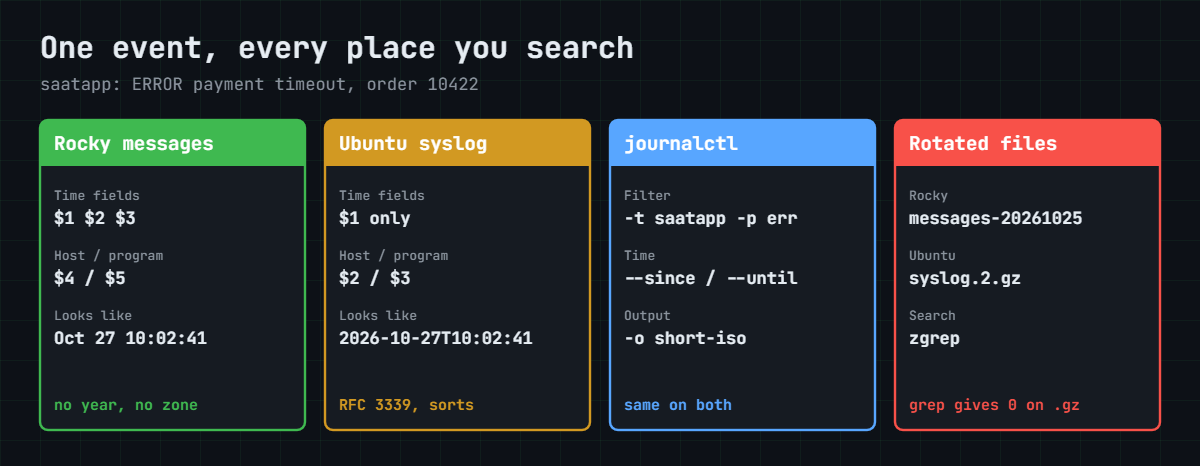
The picture below shows the same event as each source writes it.
6Work from wide to narrow
Start with journalctl -p err --since today or a case-insensitive grep for error, get the time of the first bad line, then zoom in: -u for the service, --since and --until a few minutes around that time, and grep -B 5 -A 5 to see what happened right before. Errors are often the second symptom; the cause sits a few lines earlier at warning or info level.
Always write down the time zone you read the logs in. Rocky’s file format has no year and no zone, journalctl shows local time unless you add --utc, and Ubuntu’s RFC 3339 stamps carry the offset (+05:30) with them. When two servers in different zones disagree about “10 o’clock”, the offset tells you who is right.
Hands-on lab: search Rocky and Ubuntu logs with grep, awk and journalctl
Before you run any command, double-check it
Read every command twice before you press Enter. Check the target: the server name, the user, the disk or device name, the path and the sizes. These commands are for learning and were tested in our lab, not on your system. At work, run the read-only commands first, follow your change process, make sure a backup exists, and ask a second person to check anything that changes or deletes data. You run them at your own risk.
Real logs change every minute, so most of this lab runs on four small sample files that copy the exact format of each distro: messages and secure as Rocky writes them, syslog and auth.log as Ubuntu 26.04 writes them. Every output from those files below is exact. Steps 1, 8 and 9 use the real logs and the journal on the VMs.
1Find the log files on each distro
On rocky01, run this:
sudo ls -l /var/log/messages /var/log/secure
systemctl is-active rsyslogYou should see something like this:
-rw-------. 1 root root 412886 Oct 27 10:31 /var/log/messages
-rw-------. 1 root root 18204 Oct 27 10:24 /var/log/secure
activeOn ubu01, run this:
ls -l /var/log/syslog /var/log/auth.log
systemctl is-active rsyslogYou should see something like this:
-rw-r----- 1 syslog adm 20531 Oct 27 10:24 /var/log/auth.log
-rw-r----- 1 syslog adm 388120 Oct 27 10:31 /var/log/syslog
activeSame job, different names and permissions. Only root can read the Rocky files. On Ubuntu the group is adm, and the installer puts the first user (student) in adm, so you can grep syslog without sudo there.
If rsyslog isn’t active on a server you inherit (some minimal and container images skip it), the files won’t exist and the journal is your only log.
✅ Checkpoint: You can name the general log and the login log on each VM and say who can read them.
2Create the sample logs
Paste this whole block on either VM:
mkdir -p ~/lab24 && cd ~/lab24
cat > messages <<'EOF'
Oct 27 09:58:12 rocky01 systemd[1]: Starting dnf-makecache.service - dnf makecache...
Oct 27 10:02:41 rocky01 saatapp[1440]: ERROR payment timeout after 30s order=10422
Oct 27 10:02:43 rocky01 saatapp[1440]: WARN retry queue length 12
Oct 27 10:07:55 rocky01 saatapp[1440]: ERROR payment timeout after 30s order=10431
Oct 27 10:12:30 rocky01 chronyd[801]: Selected source 10.10.10.1
Oct 27 10:15:02 rocky01 saatapp[1440]: error: database connection lost (errno 2013)
Oct 27 10:15:04 rocky01 saatapp[1440]: INFO reconnected to database
Oct 27 10:31:17 rocky01 systemd[1]: Finished dnf-makecache.service - dnf makecache.
EOF
cat > syslog <<'EOF'
2026-10-27T09:58:12.402117+05:30 ubu01 systemd[1]: Starting apt-daily.service - Daily apt download activities...
2026-10-27T10:02:41.118344+05:30 ubu01 saatapp[1520]: ERROR payment timeout after 30s order=10422
2026-10-27T10:02:43.020551+05:30 ubu01 saatapp[1520]: WARN retry queue length 12
2026-10-27T10:07:55.771230+05:30 ubu01 saatapp[1520]: ERROR payment timeout after 30s order=10431
2026-10-27T10:12:30.004512+05:30 ubu01 chronyd[790]: Selected source 10.10.10.1
2026-10-27T10:15:02.902113+05:30 ubu01 saatapp[1520]: error: database connection lost (errno 2013)
2026-10-27T10:15:04.330981+05:30 ubu01 saatapp[1520]: INFO reconnected to database
2026-10-27T10:31:17.640022+05:30 ubu01 systemd[1]: Finished apt-daily.service - Daily apt download activities.
EOF
cat > secure <<'EOF'
Oct 27 10:20:01 rocky01 sshd-session[2290]: Failed password for priya from 10.10.10.21 port 50122 ssh2
Oct 27 10:20:09 rocky01 sshd-session[2290]: Accepted password for priya from 10.10.10.21 port 50122 ssh2
Oct 27 10:21:40 rocky01 sshd-session[2301]: Invalid user admin from 10.10.10.35 port 41870
Oct 27 10:21:42 rocky01 sshd-session[2301]: Failed password for invalid user admin from 10.10.10.35 port 41870 ssh2
Oct 27 10:21:47 rocky01 sshd-session[2305]: Invalid user oracle from 10.10.10.35 port 41884
Oct 27 10:21:49 rocky01 sshd-session[2305]: Failed password for invalid user oracle from 10.10.10.35 port 41884 ssh2
Oct 27 10:21:55 rocky01 sshd-session[2309]: Failed password for root from 10.10.10.35 port 41890 ssh2
Oct 27 10:24:13 rocky01 sshd-session[2318]: Failed password for arjun from 10.10.10.48 port 52210 ssh2
Oct 27 10:24:20 rocky01 sshd-session[2318]: Accepted password for arjun from 10.10.10.48 port 52210 ssh2
EOF
cat > auth.log <<'EOF'
2026-10-27T10:20:01.746945+05:30 ubu01 sshd-session[2290]: Failed password for priya from 10.10.10.21 port 50122 ssh2
2026-10-27T10:20:09.401458+05:30 ubu01 sshd-session[2290]: Accepted password for priya from 10.10.10.21 port 50122 ssh2
2026-10-27T10:21:40.880593+05:30 ubu01 sshd-session[2301]: Invalid user admin from 10.10.10.35 port 41870
2026-10-27T10:21:42.611087+05:30 ubu01 sshd-session[2301]: Failed password for invalid user admin from 10.10.10.35 port 41870 ssh2
2026-10-27T10:21:47.191461+05:30 ubu01 sshd-session[2305]: Invalid user oracle from 10.10.10.35 port 41884
2026-10-27T10:21:49.228870+05:30 ubu01 sshd-session[2305]: Failed password for invalid user oracle from 10.10.10.35 port 41884 ssh2
2026-10-27T10:21:55.175457+05:30 ubu01 sshd-session[2309]: Failed password for root from 10.10.10.35 port 41890 ssh2
2026-10-27T10:24:13.203523+05:30 ubu01 sshd-session[2318]: Failed password for arjun from 10.10.10.48 port 52210 ssh2
2026-10-27T10:24:20.177601+05:30 ubu01 sshd-session[2318]: Accepted password for arjun from 10.10.10.48 port 52210 ssh2
EOF
wc -l messages syslog secure auth.logYou should see this:
8 messages
8 syslog
9 secure
9 auth.log
34 totalThe messages and syslog files hold the same eight events from an app called saatapp: two payment timeouts, a warning, a lost database connection and a reconnect. The secure and auth.log files hold the same SSH logins. Only the timestamp style and host name differ, which is the whole point of the comparison.
✅ Checkpoint: wc shows 8, 8, 9 and 9 lines.
3Search with grep
Run this:
grep -i error messages
grep -c -i error syslog
grep -n -E 'ERROR|WARN' syslog
grep -v saatapp messages | wc -lYou should see this:
Oct 27 10:02:41 rocky01 saatapp[1440]: ERROR payment timeout after 30s order=10422
Oct 27 10:07:55 rocky01 saatapp[1440]: ERROR payment timeout after 30s order=10431
Oct 27 10:15:02 rocky01 saatapp[1440]: error: database connection lost (errno 2013)
3
2:2026-10-27T10:02:41.118344+05:30 ubu01 saatapp[1520]: ERROR payment timeout after 30s order=10422
3:2026-10-27T10:02:43.020551+05:30 ubu01 saatapp[1520]: WARN retry queue length 12
4:2026-10-27T10:07:55.771230+05:30 ubu01 saatapp[1520]: ERROR payment timeout after 30s order=10431
3-i catches ERROR and error, which matters because programs aren’t consistent. -c counts matching lines, -n adds line numbers, -E lets you write 'ERROR|WARN' for “either”, and -v throws matches away: three lines in messages are not from saatapp. Now look around one hit:
grep -B 1 -A 1 'connection lost' messagesYou should see this:
Oct 27 10:12:30 rocky01 chronyd[801]: Selected source 10.10.10.1
Oct 27 10:15:02 rocky01 saatapp[1440]: error: database connection lost (errno 2013)
Oct 27 10:15:04 rocky01 saatapp[1440]: INFO reconnected to database-B 1 adds one line before and -A 1 one line after (use -C 5 for five on each side). The line after shows the app reconnected two seconds later, which changes the story you tell in the ticket.
✅ Checkpoint: You get 3 error lines, a count of 3, two ERROR and one WARN line, and the reconnect line after the lost connection.
4Find the field numbers before you awk
Print the first fields of one line from each format:
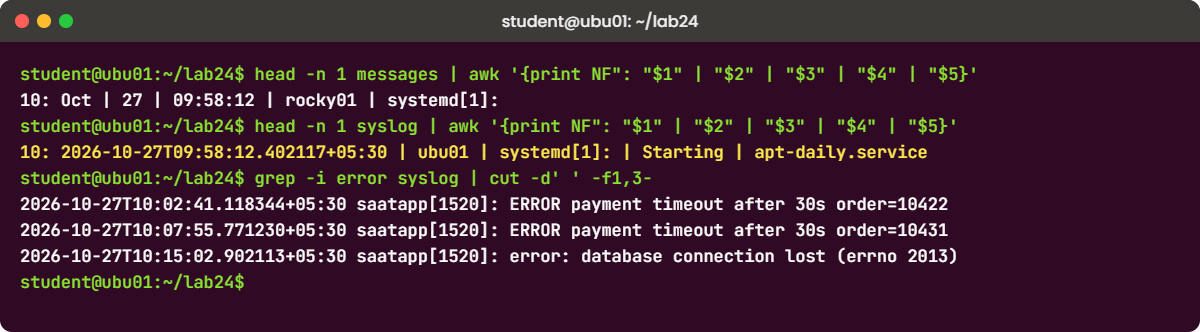
head -n 1 messages | awk '{print NF": "$1" | "$2" | "$3" | "$4" | "$5}'
head -n 1 syslog | awk '{print NF": "$1" | "$2" | "$3" | "$4" | "$5}'You should see this:
10: Oct | 27 | 09:58:12 | rocky01 | systemd[1]:
10: 2026-10-27T09:58:12.402117+05:30 | ubu01 | systemd[1]: | Starting | apt-daily.serviceOn Rocky the timestamp takes three fields and the program is $5. On Ubuntu the whole timestamp is $1, the host is $2 and the program is $3. Here is the older runbook builder, written for the Rocky style, run on the Ubuntu file:
grep -i "error" syslog | awk '{print $1, $2, $3, $4, $5}'You should see this:
2026-10-27T10:02:41.118344+05:30 ubu01 saatapp[1520]: ERROR payment
2026-10-27T10:07:55.771230+05:30 ubu01 saatapp[1520]: ERROR payment
2026-10-27T10:15:02.902113+05:30 ubu01 saatapp[1520]: error: databaseNo error message, only odd columns: a host name and two words from the message where you expected the program and the date. Use the right fields for each format, or keep the whole message with cut:
grep -i error syslog | cut -d' ' -f1,3-
grep -i error messages | cut -d' ' -f1-3,5-You should see this:
2026-10-27T10:02:41.118344+05:30 saatapp[1520]: ERROR payment timeout after 30s order=10422
2026-10-27T10:07:55.771230+05:30 saatapp[1520]: ERROR payment timeout after 30s order=10431
2026-10-27T10:15:02.902113+05:30 saatapp[1520]: error: database connection lost (errno 2013)
Oct 27 10:02:41 saatapp[1440]: ERROR payment timeout after 30s order=10422
Oct 27 10:07:55 saatapp[1440]: ERROR payment timeout after 30s order=10431
Oct 27 10:15:02 saatapp[1440]: error: database connection lost (errno 2013)Careful with cut on Rocky files in the first nine days of a month: the traditional format pads the day with a space (Oct 7), so the line has two spaces in a row and cut counts an empty field. awk treats any run of spaces as one separator and doesn’t care.
Count lines per program, dropping the PID in brackets:
awk '{sub(/\[.*/, "", $3); print $3}' syslog | sort | uniq -c | sort -rn
awk '{sub(/\[.*/, "", $5); print $5}' messages | sort | uniq -c | sort -rnYou should see this:
5 saatapp
2 systemd
1 chronyd
5 saatapp
2 systemd
1 chronydTry it yourself: build the distro-aware error search in the Command Builder.
✅ Checkpoint: Both formats give 5 saatapp, 2 systemd and 1 chronyd once you use $3 on Ubuntu and $5 on Rocky.
5Count failed logins by IP
Run this:
grep -c "Failed password" secure
grep "Failed password" secure | grep -oE 'from [0-9.]+' | sort | uniq -c | sort -rn
awk '/Failed password/ {print $(NF-3)}' auth.log | sort | uniq -c | sort -rn
grep -oE 'Invalid user [^ ]+' auth.log | sort | uniq -cYou should see this:
5
3 from 10.10.10.35
1 from 10.10.10.48
1 from 10.10.10.21
3 10.10.10.35
1 10.10.10.48
1 10.10.10.21
1 Invalid user admin
1 Invalid user oraclegrep -o prints only the part that matched, so you get “from IP” instead of the whole line. The awk version counts from the end of the line: every “Failed password” line ends with “from IP port N ssh2”, so the IP is always $(NF-3), four fields from the end, whatever the timestamp style and whether “invalid user” is in the middle. 10.10.10.35 tried three times with admin, oracle and root, which looks like someone guessing, while priya and arjun mistyped once and then got in.
Try it yourself: build the failed-login report in the Command Builder.
✅ Checkpoint: Both methods put 10.10.10.35 on top with 3 failures.
6Cut out a time window
Run this:
awk '$1 >= "2026-10-27T10:05" && $1 < "2026-10-27T10:20"' syslog
awk '$3 >= "10:05" && $3 < "10:20"' messagesYou should see this:
2026-10-27T10:07:55.771230+05:30 ubu01 saatapp[1520]: ERROR payment timeout after 30s order=10431
2026-10-27T10:12:30.004512+05:30 ubu01 chronyd[790]: Selected source 10.10.10.1
2026-10-27T10:15:02.902113+05:30 ubu01 saatapp[1520]: error: database connection lost (errno 2013)
2026-10-27T10:15:04.330981+05:30 ubu01 saatapp[1520]: INFO reconnected to database
Oct 27 10:07:55 rocky01 saatapp[1440]: ERROR payment timeout after 30s order=10431
Oct 27 10:12:30 rocky01 chronyd[801]: Selected source 10.10.10.1
Oct 27 10:15:02 rocky01 saatapp[1440]: error: database connection lost (errno 2013)
Oct 27 10:15:04 rocky01 saatapp[1440]: INFO reconnected to databaseRFC 3339 timestamps sort as text in time order (year, month, day, hour, minute), so a plain string comparison in awk gives you an exact window, across days too. On the Rocky format the same trick only works within one day, because “Oct 27” has no year and month names don’t sort in calendar order. For anything wider on Rocky, use journalctl with --since and --until (step 8).
✅ Checkpoint: Both commands print the same four events, from 10:07:55 to 10:15:04.
7Search rotated logs with zgrep
Make a rotated set like Ubuntu keeps, then search all of it:
cp syslog syslog.1
gzip -c syslog > syslog.2.gz
zgrep -c ERROR syslog syslog.1 syslog.2.gz
zgrep -h 'order=10431' syslog.2.gz
zcat syslog.2.gz | awk '{print $3}' | sort | uniq -c | sort -rn | head -n 1You should see this:
syslog:2
syslog.1:2
syslog.2.gz:2
2026-10-27T10:07:55.771230+05:30 ubu01 saatapp[1520]: ERROR payment timeout after 30s order=10431
5 saatapp[1520]:zgrep unpacks .gz files on the fly and reads plain files as they are, so one command covers the whole set (/var/log/syslog* on a real server). -h hides the file name. For awk or anything else, zcat feeds the unpacked text into the pipe. On rocky01 the rotated files are plain text named messages-20261025 and so on, and zgrep works on them too, so a habit of zgrep never hurts.
✅ Checkpoint: zgrep finds 2 ERROR lines in each of the three files, including the compressed one.
8Ask the journal on rocky01
Write your own error line, then find it three ways:
logger -i -t saatapp -p user.err "payment timeout after 30s order=10422"
sudo journalctl -t saatapp --since "10 min ago" --no-pager
sudo journalctl -t saatapp --since "10 min ago" -o short-iso --no-pager
sudo grep saatapp /var/log/messages | tail -n 1You should see something like this:
Oct 27 10:41:05 rocky01 saatapp[2702]: payment timeout after 30s order=10422
2026-10-27T10:41:05+05:30 rocky01 saatapp[2702]: payment timeout after 30s order=10422
Oct 27 10:41:05 rocky01 saatapp[2702]: payment timeout after 30s order=10422logger sends a message the way any program would: -t sets the program name, -p user.err the facility and priority, and -i adds its PID. The journal has it, -o short-iso prints the date with year and zone, and rsyslog wrote the same line to /var/log/messages. Now list everything at priority err or worse since the boot:
sudo journalctl -p err -b --no-pagerYou should see something like this:
Oct 27 09:01:14 rocky01 kernel: piix4_smbus 0000:00:07.0: SMBus base address uninitialized - upgrade BIOS or use force_addr=0xaddr
Oct 27 10:41:05 rocky01 saatapp[2702]: payment timeout after 30s order=10422On a VirtualBox guest you’ll often see a harmless kernel line like the SMBus one at boot; on real servers the first few err lines after a boot are worth reading every time. Narrow by clock time with full dates, such as --since "2026-10-27 10:00" --until "2026-10-27 10:45". -b -1 asks for the previous boot, which only works when the journal is kept on disk; check with journalctl --list-boots (Lesson 29 makes it persistent).
✅ Checkpoint: Your logger line shows up in journalctl, in short-iso format, and in /var/log/messages.
9One service’s logs: sshd
From ubu01, try to log in to rocky01 as a user that doesn’t exist, type any password once, then press Ctrl+C:
ssh -o PubkeyAuthentication=no nobody1@10.10.10.11On rocky01, look at the sshd unit:
sudo journalctl -u sshd --since "10 min ago" --no-pager | grep -iE "failed|invalid"
sudo journalctl -k -b --no-pager | head -n 2You should see something like this:
Oct 27 10:46:12 rocky01 sshd-session[2731]: Invalid user nobody1 from 10.10.10.21 port 46882
Oct 27 10:46:15 rocky01 sshd-session[2731]: Failed password for invalid user nobody1 from 10.10.10.21 port 46882 ssh2
Oct 27 10:46:15 rocky01 sshd-session[2731]: Invalid user nobody1 from 10.10.10.21 port 46882
Oct 27 09:01:10 rocky01 kernel: Linux version 6.12.0-211.16.1.el10_2.0.1.x86_64 (mockbuild@...) ...
Oct 27 09:01:11 rocky01 kernel: e1000 0000:00:03.0 enp0s3: renamed from eth0-u sshd gives only the SSH service’s lines, including those from the per-connection sshd-session processes, because they run inside the same systemd unit. On ubu01 the unit is called ssh, so the same command is sudo journalctl -u ssh. -k shows only kernel messages from this boot, with real wall-clock times instead of dmesg’s seconds since boot. To watch a log live, use sudo journalctl -fu sshd or sudo tail -f /var/log/secure and stop with Ctrl+C.
Try it yourself: build “one service’s logs since a time” in the Command Builder.
✅ Checkpoint: The journal shows “Invalid user nobody1 from 10.10.10.21”, the attempt you made from ubu01.
Break It, Then Fix It
None of these four does any damage, so no snapshot is needed. Three of them give you a wrong or empty answer with no error at all, which is worse than a crash, because people trust the number and close the ticket. Work in ~/lab24 and on rocky01.
1grep a compressed log
Run this:
grep -c ERROR syslog.2.gzYou’ll get:
0The file has two ERROR lines, but compressed bytes don’t contain the text “ERROR”, so grep honestly finds nothing. If someone asks “were there errors last week?” and you grep /var/log/syslog*, the .gz files quietly report zero.
Fix: use zgrep (or zcat into the pipe) for any log set that includes rotated files.
zgrep -c ERROR syslog.2.gz2✅ Checkpoint: zgrep reports 2 for the compressed file.
2A date journalctl doesn’t understand
Run this:
journalctl --since "27/10/2026 10:00"You’ll get this error:
Failed to parse timestamp: 27/10/2026 10:00journalctl reads dates as year-month-day, the way systemd writes them, not the day/month order most of India uses on paper. It also accepts words: today, yesterday, now, and relative times such as “1 hour ago” or “-30min”.
Fix: write the date as YYYY-MM-DD HH:MM.
sudo journalctl --since "2026-10-27 10:00" --until "2026-10-27 10:45" --no-pager | tail -n 3✅ Checkpoint: The corrected command runs and prints lines from that window.
3-p err hides the warning that explains the error
Log a warning, then look for it at priority err:
logger -i -t saatapp -p user.warning "retry queue length 40, gateway slow"
sudo journalctl -t saatapp -p err --since "1 min ago"You’ll get:
-- No entries ---p err means priority 3 and more serious; a warning is 4, so it’s filtered out. That’s fine for a first sweep, but in real incidents the warning (“gateway slow”) often comes minutes before the error and tells you why.
Fix: widen to warnings once you know the time and the service.
sudo journalctl -t saatapp -p warning --since "1 min ago" --no-pager✅ Checkpoint: With -p warning the “retry queue length 40” line appears.
4Reading Rocky’s secure log without sudo
On rocky01, as student:
grep -c "Failed password" /var/log/secureYou’ll get this error:
grep: /var/log/secure: Permission deniedRocky keeps messages and secure readable by root only. In a pipeline this error goes to the screen while the count goes nowhere, and in a cron script it can vanish completely, leaving an empty report. On ubu01 student is in the adm group, so the same command on /var/log/auth.log works without sudo, which is why scripts copied from Ubuntu fail on Rocky.
Fix: run log searches with sudo (or from root’s cron), and let errors show.
sudo grep -c "Failed password" /var/log/secure✅ Checkpoint: With sudo you get a number (at least 1, from your nobody1 attempt in lab step 9).
This happened at work
The error report that said zero for three weeks
Senthil runs the night shift for the IT team of a hotel group in Coimbatore, and he told me this one over filter coffee. Their booking servers send a small email every morning at 6 with the number of errors from the night before, built from a cron script that greps syslog and prints the program name with awk. After an upgrade from Ubuntu 22.04 to 24.04 the report showed zero errors, night after night, and everyone was pleased.
Three weeks later the front desk at their Ooty property complained that online payments for room upgrades kept failing in the late evening. The first guess was the payment gateway, so the team raised a ticket with the provider, who saw nothing wrong on their side. Senthil ran journalctl -u booking-api -p err --since "3 days ago" on one server and got 214 lines of TLS handshake errors to the gateway, every night between 9 and 11 p.m.
Two things had gone wrong at once. The upgrade switched syslog to RFC 3339 timestamps, so the script’s awk '$5 ~ /booking/' now looked at a word in the middle of the message and matched nothing. And the TLS errors came from an outbound proxy whose certificate bundle the upgrade had replaced, which only the late-evening batch of upgrade payments went through.
The proxy fix took ten minutes. The bigger change was the report: it now uses journalctl -p err --since yesterday -o json and reads the unit field instead of guessing columns, and it prints “0 errors, script OK” only after it has checked that it read at least one line of logs.
Common mistakes and troubleshooting
| Mistake | What happens | What to do instead |
|---|---|---|
| Using the same awk field numbers on Rocky and Ubuntu | On Ubuntu $2 is the host and $5 a random word; no error, wrong columns | Print one line with NF and field numbers first, or use journalctl |
Plain grep on /var/log/syslog* | Compressed .gz files report 0 matches | Use zgrep or zcat into the pipe |
Searching for “error” without -i | Misses “Error:” and “ERROR” from other programs | Use grep -i, then narrow with more words |
Only looking at -p err | The warning that explains the error stays hidden | After the first sweep, use -p warning around the incident time |
| Writing dates as 27/10/2026 in journalctl | “Failed to parse timestamp” | Use "2026-10-27 10:00", today, yesterday or “1 hour ago” |
Expecting journalctl -b -1 to work everywhere | “Specifying boot ID or boot offset has no effect, no persistent journal was found.” | Check journalctl --list-boots; make the journal persistent (Lesson 29) |
| Cron log reports without checking they read anything | Permission errors or empty files turn into “0 errors” | Run as root, and fail loudly when the input is empty |
Interview questions
Click a question to open it. Each one is written the way an interviewer would ask it. Under it you will see why they ask it and one way you could answer, in your own words.
Fresher level
1. Where would you look for failed SSH logins on Rocky Linux and on Ubuntu?
Why they ask this: A simple check that you know the two families keep logs in different places, and that the journal works on both.
How you might answer: On Rocky they go to /var/log/secure and on Ubuntu to /var/log/auth.log. I’d run sudo grep "Failed password" /var/log/secure and count by IP with grep -oE 'from [0-9.]+' | sort | uniq -c | sort -rn.
The journal works the same on both, only the unit name differs: journalctl -u sshd on Rocky and journalctl -u ssh on Ubuntu, with --since today to keep it short.
2. How would you show only the error messages from today on a Linux server?
Why they ask this: They want to see if you know journalctl priorities and not only grep.
How you might answer: I’d use sudo journalctl -p err --since today --no-pager. -p err shows priority 3 and everything more serious, so emerg, alert, crit and err.
If I also need the text files, I grep with -i error in /var/log/messages on Rocky or /var/log/syslog on Ubuntu, but the journal is more exact because it filters on the real priority, not on the word error in the text.
2–5 years experience
3. Your log-parsing script works on RHEL but prints wrong columns on Ubuntu 24.04. What changed?
Why they ask this: They’re checking whether you’ve met the RFC 3339 syslog change and how you debug a parser.
How you might answer: Ubuntu 24.04 writes syslog with an RFC 3339 timestamp like 2026-10-27T10:02:41.118344+05:30, which is one field, where RHEL still uses three fields, “Oct 27 10:02:41”. So the host moves from $4 to $2 and the program from $5 to $3.
I’d print one line with NF and the first fields to confirm, then either fix the numbers per distro or stop parsing positions, for example count from the end with $(NF-3) or read the journal with -o json.
4. A service failed at about 02:10 last night. Walk me through how you’d find out why.
Why they ask this: They want a method: find the first error, then look before it, and use the right filters.
How you might answer: I’d start with journalctl -u myservice --since "2026-10-27 01:50" --until "2026-10-27 02:20" and read from the top, not only the last lines. If it was restarted by systemd, systemctl status shows the exit code and I look for the first error, not the last one.
Then I widen: journalctl -p warning for the same window for everything on the box, -k for the kernel (an OOM kill or a disk error), and I check whether the journal kept the previous boot if the server rebooted.
Senior level
5. How would you design log searching for 300 Linux servers so nobody needs to SSH in to grep?
Why they ask this: Seniors are expected to think about central logging, structure and retention, not only commands.
How you might answer: I’d ship logs centrally, either rsyslog forwarding or an agent reading the journal, into something like Loki, Elasticsearch or the SIEM, keeping structured fields: host, unit, priority and the app’s own fields. Then people search by field instead of by column number, and format changes like RFC 3339 stop breaking things.
On the hosts I’d keep a persistent journal with a size limit so local debugging still works when the network doesn’t, and alert on log shipping gaps, because a server that stopped sending logs looks the same as a quiet one.
6. An auditor asks for every sudo command run on a server over the last 90 days. How do you answer that?
Why they ask this: They want to know if you understand retention, where sudo logs and whether local logs can be trusted.
How you might answer: sudo logs to the auth log and the journal, so I’d check what retention we have in practice: journalctl --list-boots, journalctl --disk-usage and how many rotated secure or auth.log files logrotate keeps. Often local logs cover only four weeks.
If 90 days are required, the honest answer comes from the central log store, because a root user could edit local files. I’d pull _COMM=sudo entries from there, and if the gap exists, fix retention and forwarding and tell the auditor.
Quick quiz
Q1. On Ubuntu 26.04, which awk field holds the program name in a /var/log/syslog line?
$5$4$3$2
Show answer
C — The RFC 3339 timestamp is $1 and the host is $2, so the program is $3. On Rocky’s /var/log/messages it is $5.
Q2. Which command counts ERROR lines in syslog.2.gz correctly?
grep -c ERROR syslog.2.gzzgrep -c ERROR syslog.2.gzcat syslog.2.gz | grep -c ERRORgrep -cz ERROR syslog.2.gz
Show answer
B — zgrep unpacks the file on the fly; plain grep sees compressed bytes and reports 0.
Q3. What does journalctl -p err show?
- Only priority err
- err and everything more serious
- err and everything less serious
- Only kernel errors
Show answer
B — A single priority means that level and all more serious ones (emerg, alert, crit, err).
Q4. Which --since value does journalctl accept?
- “27/10/2026 10:00”
- “10:00 27-Oct”
- “2026-10-27 10:00”
- “Oct 27 10:00”
Show answer
C — journalctl reads YYYY-MM-DD HH:MM[:SS], plus words like today, yesterday and “1 hour ago”.
Q5. Where does Rocky Linux write failed SSH login lines as text?
/var/log/auth.log/var/log/secure/var/log/syslog/var/log/sshd.log
Show answer
B — Rocky uses /var/log/secure; Ubuntu uses /var/log/auth.log.
Quick recap
- Rocky: /var/log/messages and /var/log/secure, traditional “Oct 27 10:02:41” stamps. Ubuntu: /var/log/syslog and /var/log/auth.log, one RFC 3339 field.
- Check field numbers before you awk: the program is $5 on Rocky and $3 on Ubuntu;
$(NF-3)finds the IP in any “Failed password” line. grep -i -c -n -E -vand-B/-A/-Ccover most text searches;zgrepcovers rotated .gz files.- RFC 3339 stamps sort as text, so awk can cut an exact time window on Ubuntu.
journalctl -u UNIT -p err --since "YYYY-MM-DD HH:MM"narrows by service, priority and time on both distros;-kis the kernel,-bthis boot.- Widen to
-p warningaround the incident time: the cause is often a warning before the error.
Next lesson
Lesson 25: find and act safely → You’ll find files by name, age, size, owner and permissions, dry-run every cleanup with -print, then delete with -delete or -exec {} + without surprises.
Further reading: Linux log analysis
Want to go deeper into Linux log analysis? Read the man7.org pages for journalctl(1) and logger(1), the GNU grep manual, and the rsyslog templates documentation for how file formats are set. You can also see the full plan for this course on the Linux Administration course page.
