
Before you run any command, double-check it
Read every command twice before you press Enter. Check the target: the server name, the user, the disk or device name, the path and the sizes. These commands are for learning and were tested in our lab, not on your system. At work, run the read-only commands first, follow your change process, make sure a backup exists, and ask a second person to check anything that changes or deletes data. You run them at your own risk.
Steps 1 to 9 run on rocky01 as student (step 5 also uses ubu01 as the “attacker”), step 10 runs on ubu01. Take snapshots of both first (VBoxManage snapshot rocky01 take before-l55 and the same for ubu01), and keep a VirtualBox console window open on rocky01 logged in as root or student, so a lockout mistake can’t shut you out. Start with mkdir -p ~/lab55.
1See what Lessons 33 and 34 already did
Run this on rocky01:
sudo sshd -T | grep -E '^(passwordauthentication|permitrootlogin|pubkeyauthentication) '
sudo firewall-cmd --list-services
sudo ss -tulpn
systemctl list-unit-files --type=service --state=enabled --no-legend | awk '{print $1}' | paste -sd ' '
You should see something like this:
permitrootlogin no
pubkeyauthentication yes
passwordauthentication no
cockpit dhcpv6-client ntp ssh
Netid State  Recv-Q Send-Q Local Address:Port Peer Address:Port Process
udp   UNCONN 0      0          127.0.0.1:323       0.0.0.0:*     users:(("chronyd",pid=845,fd=5))
udp   UNCONN 0      0              [::1]:323          [::]:*     users:(("chronyd",pid=845,fd=6))
tcp   LISTEN 0      128          0.0.0.0:22        0.0.0.0:*     users:(("sshd",pid=1012,fd=7))
tcp   LISTEN 0      128             [::]:22           [::]:*     users:(("sshd",pid=1012,fd=8))
auditd.service chronyd.service crond.service firewalld.service getty@.service irqbalance.service NetworkManager-dispatcher.service NetworkManager-wait-online.service NetworkManager.service oddjobd.service rsyslog.service selinux-autorelabel-mark.service sshd.service sssd.service sysstat.service tuned.service
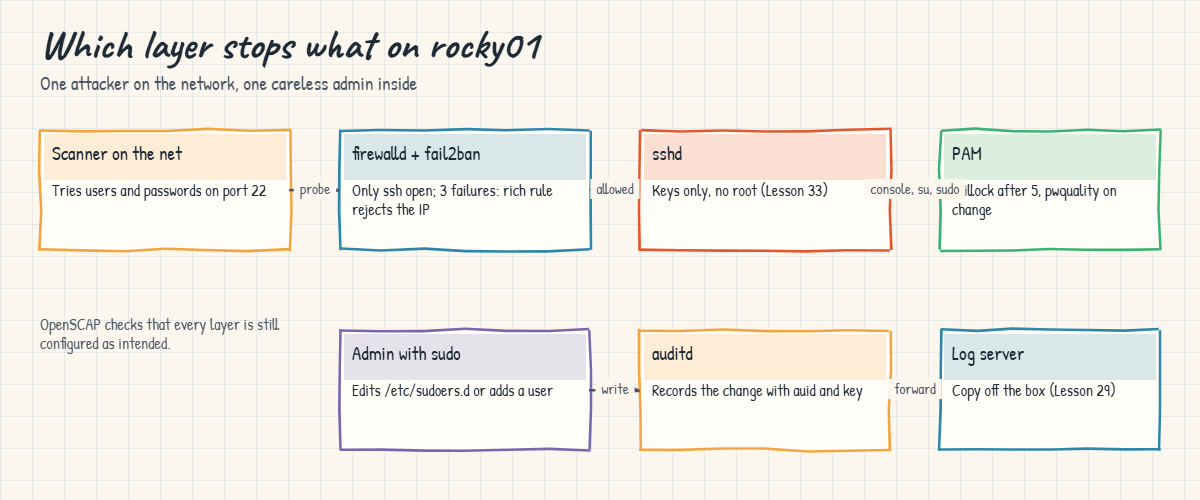
SSH is key-only with root login off, as Lesson 33 left it, so this lesson doesn’t touch sshd.
Only sshd listens on the network; chronyd’s port 323 is its local control socket. Every enabled service has a reason to be there: sssd and oddjobd for AD logins, sysstat for sar. The firewall still allows cockpit, the web console, which isn’t even installed on this minimal server.
✅ Checkpoint: You can name every listening port on rocky01 and the service behind it.
2Close what you don’t use
Remove the unused web console from the firewall zone:
sudo firewall-cmd --permanent --remove-service=cockpit
sudo firewall-cmd --reload
sudo firewall-cmd --list-services
You should see something like this:
success
success
dhcpv6-client ntp ssh
The rule opened port 9090 for a service that doesn’t exist here, so nothing broke, but the day someone installs cockpit for a quick look it would be reachable from the whole network without anyone deciding that. ntp stays because ubu01 takes its time from rocky01 (Lesson 40). dhcpv6-client stays too: it only lets DHCPv6 replies in, and removing it on a server that uses IPv6 autoconfiguration causes odd problems later. On a real server you go through the enabled services the same way and write down why each one stays.
✅ Checkpoint: firewall-cmd --list-services shows only dhcpv6-client, ntp and ssh.
3Set password quality rules
Create a drop-in file, then test some passwords against it:
sudo mkdir -p /etc/security/pwquality.conf.d
sudo tee /etc/security/pwquality.conf.d/50-saatlab.conf >/dev/null <<'EOF'
# SaatVedha Linux course, Lesson 55: password quality (CIS Level 1 values)
minlen = 14
minclass = 4
maxrepeat = 3
dictcheck = 1
enforce_for_root
EOF
grep pam_pwquality /etc/pam.d/system-auth
for p in 'Saatvedha2026' 'password12345678' 'Administrator1!' 'Coffee-Filter-Mysuru-42'; do echo "$p" | pwscore; done
You should see something like this:
password    requisite                                    pam_pwquality.so local_users_only
Password quality check failed:
 The password is shorter than 14 characters
Password quality check failed:
 The password contains less than 4 character classes
Password quality check failed:
 The password fails the dictionary check - it is based on a dictionary word
100
These are the CIS Level 1 values for RHEL 10: at least 14 characters, all four character classes, no more than 3 identical characters in a row, and a dictionary check. pwscore (from libpwquality) applies the same rules as PAM and prints a score from 0 to 100 for a password that passes. The drop-in folder keeps your settings separate from the package’s pwquality.conf, the same idea as sshd_config.d.
Now set a new password for priya as root, first a short one, then a good one you’ll remember:
sudo passwd priyaYou should see something like this:
Changing password for user priya.
New password:
BAD PASSWORD: The password is shorter than 14 characters
New password:
Retype new password:
passwd: all authentication tokens updated successfully.
Because of enforce_for_root, even root got a second prompt instead of only a warning. Existing passwords are not checked until they are changed, so a new policy takes effect gradually; that’s why auditors also ask for password ageing (chage, Lesson 15).
✅ Checkpoint: pwscore rejects the first three test passwords, and priya now has a password of 14 or more characters.
4Lock accounts after failed logins
Switch on faillock in the PAM profile and set the CIS values:
authselect current
sudo authselect enable-feature with-faillock
printf '# SaatVedha Lesson 55 (CIS Level 1)\ndeny = 5\nunlock_time = 900\n' | sudo tee -a /etc/security/faillock.conf >/dev/null
grep -E '^(deny|unlock_time)' /etc/security/faillock.conf
grep -c pam_faillock /etc/pam.d/system-auth /etc/pam.d/password-auth
authselect current
You should see something like this:
Profile ID: sssd
Enabled features:
- with-mkhomedir
deny = 5
unlock_time = 900
/etc/pam.d/system-auth:3
/etc/pam.d/password-auth:3
Profile ID: sssd
Enabled features:
- with-mkhomedir
- with-faillock
The profile is sssd with mkhomedir because realm join set it in Lesson 54 (a fresh Rocky 10 install starts with the “local” profile). Never edit /etc/pam.d/system-auth by hand on the RHEL family: authselect owns it and would overwrite your change. The defaults in faillock.conf are 3 failures and a 10-minute lock; you set 5 failures and 15 minutes (unlock_time is in seconds).
Test it: as student, try su to priya twice with a wrong password, look at the count, then log in correctly:
su - priya
su - priya
sudo faillock --user priya
su - priya -c 'echo logged in'
sudo faillock --user priya
You should see something like this:
Password:
su: Authentication failure
Password:
su: Authentication failure
priya:
When                Type  Source                                           Valid
2026-10-27 15:32:10 TTY   pts/0                                                V
2026-10-27 15:32:18 TTY   pts/0                                                V
Password:
logged in
priya:
When                Type  Source                                           Valid
Each failure is recorded with time, type (TTY for a local terminal, RHOST for a network login) and source. A successful login clears the list, so only failures in a row count, within fail_interval (15 minutes by default). The counts live in /var/run/faillock, which is in RAM, so a reboot clears them too.
✅ Checkpoint: faillock showed two failures for priya, and the list was empty after her successful login.
5Ban repeated SSH failures with fail2ban
Install fail2ban from EPEL and give the sshd jail your settings:
sudo dnf install -y epel-release
sudo dnf install -y fail2ban
sudo tee /etc/fail2ban/jail.d/sshd.local >/dev/null <<'EOF'
# SaatVedha Linux course, Lesson 55
[sshd]
enabled  = true
backend  = systemd
maxretry = 3
findtime = 10m
bantime  = 15m
ignoreip = 127.0.0.1/8 ::1 10.10.10.1
EOF
sudo systemctl enable --now fail2ban
sudo fail2ban-client status sshd
You should see something like this (the dnf part is cut):
Status for the jail: sshd
|- Filter
|  |- Currently failed:	0
|  |- Total failed:	0
|  `- Journal matches:	_SYSTEMD_UNIT=sshd.service + _COMM=sshd + _COMM=sshd-session
`- Actions
   |- Currently banned:	0
   |- Total banned:	0
   `- Banned IP list:
fail2ban on Rocky comes from EPEL with a firewalld action already set (/etc/fail2ban/jail.d/00-firewalld.conf), so bans become firewalld rich rules. Never edit jail.conf itself: put your settings in a .local file, which wins and survives package updates. The jail reads the journal, matching both the sshd and the sshd-session process names that OpenSSH 10 uses. ignoreip keeps 10.10.10.1 safe, the address your laptop’s port-forwarded connections arrive from (check yours with who).
On ubu01, try to log in four times as a user that doesn’t exist:
for i in 1 2 3 4; do ssh -o BatchMode=yes -o ConnectTimeout=5 nosuch@10.10.10.11 true; doneYou should see something like this:
nosuch@10.10.10.11: Permission denied (publickey,gssapi-keyex,gssapi-with-mic).
nosuch@10.10.10.11: Permission denied (publickey,gssapi-keyex,gssapi-with-mic).
nosuch@10.10.10.11: Permission denied (publickey,gssapi-keyex,gssapi-with-mic).
ssh: connect to host 10.10.10.11 port 22: Connection refused
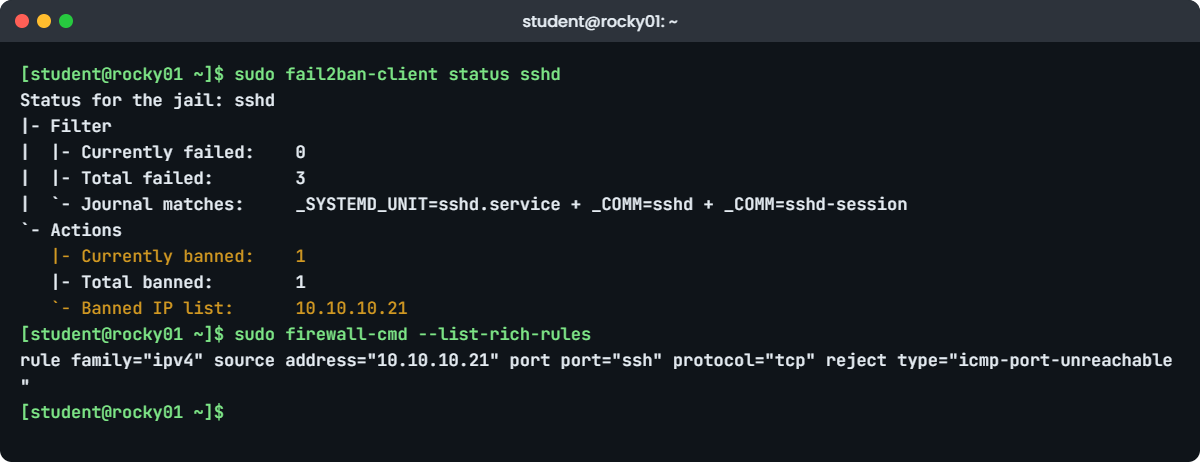
Back on rocky01, see the ban, the firewall rule behind it, and lift it:
sudo fail2ban-client status sshd
sudo firewall-cmd --list-rich-rules
sudo fail2ban-client set sshd unbanip 10.10.10.21
You should see something like this:
Status for the jail: sshd
|- Filter
|  |- Currently failed:	0
|  |- Total failed:	3
|  `- Journal matches:	_SYSTEMD_UNIT=sshd.service + _COMM=sshd + _COMM=sshd-session
`- Actions
   |- Currently banned:	1
   |- Total banned:	1
   `- Banned IP list:	10.10.10.21
rule family="ipv4" source address="10.10.10.21" port port="ssh" protocol="tcp" reject type="icmp-port-unreachable"
1
Each attempt logged an “Invalid user nosuch from 10.10.10.21” line, which the sshd filter counts as one failure. After the third, fail2ban added a rich rule that rejects SSH from ubu01, so the fourth try was refused at the firewall before sshd saw it.
The ban would end by itself after 15 minutes; unbanip ends it now (the 1 means one address was unbanned). Lift it before you go on, because later lessons SSH from ubu01 to rocky01.
✅ Checkpoint: ubu01 can SSH to rocky01 again (ssh rocky01 hostname from ubu01 prints rocky01) and the banned list is empty.
6Record changes to users, sudo and SSH settings with auditd
Add watch rules, load them and list what the kernel now has:
systemctl is-active auditd
sudo tee /etc/audit/rules.d/50-saatlab.rules >/dev/null <<'EOF'
## SaatVedha Linux course, Lesson 55: watch identity, sudo and SSH settings
-w /etc/passwd -p wa -k identity
-w /etc/shadow -p wa -k identity
-w /etc/group -p wa -k identity
-w /etc/gshadow -p wa -k identity
-w /etc/sudoers -p wa -k sudoers
-w /etc/sudoers.d/ -p wa -k sudoers
-w /etc/ssh/sshd_config.d/ -p wa -k sshd_config
EOF
sudo augenrules --check
sudo augenrules --load >/dev/null
sudo auditctl -l
You should see something like this:
active
/usr/sbin/augenrules: Rules have changed and should be updated
-w /etc/passwd -p wa -k identity
-w /etc/shadow -p wa -k identity
-w /etc/group -p wa -k identity
-w /etc/gshadow -p wa -k identity
-w /etc/sudoers -p wa -k sudoers
-w /etc/sudoers.d -p wa -k sudoers
-w /etc/ssh/sshd_config.d -p wa -k sshd_config
auditd runs by default on the RHEL family. augenrules joins every .rules file in /etc/audit/rules.d into /etc/audit/audit.rules and loads it with auditctl, so you never need to restart auditd (on Rocky, systemctl restart auditd is refused on purpose). -p wa means writes and attribute changes, and -k is a key you search by later.
Make a change through sudo and find out who did it:
sudo useradd -M -s /sbin/nologin auditdemo
sudo userdel auditdemo
sudo ausearch -k identity --start recent -i | grep '^type=SYSCALL' | tail -n 1
sudo aureport -k --summary
You should see something like this:
type=SYSCALL msg=audit(10/27/2026 15:48:21.304:1342) : arch=x86_64 syscall=rename success=yes exit=0 a0=0x7ffd3c5e8a10 a1=0x55e1b0c4f2a0 a2=0x0 a3=0x0 items=5 ppid=4102 pid=4105 auid=student uid=root gid=root euid=root suid=root fsuid=root egid=root sgid=root fsgid=root tty=pts0 ses=4 comm=userdel exe=/usr/sbin/userdel subj=unconfined_u:unconfined_r:useradd_t:s0-s0:c0.c1023 key=identity

Key Summary Report
===========================
total  key
===========================
8  identity
-i turns numbers into names. The command ran as uid=root, but auid=student shows the person who logged in and used sudo, and that survives su and sudo, which is what an auditor asks for. comm and exe say which program changed the file, and key=identity ties it to your rule. At work these logs are forwarded off the server (Lesson 29), so someone with root can’t quietly delete them.
✅ Checkpoint: auditctl -l lists seven rules and ausearch shows an event with auid=student and key=identity.
7Read the system crypto policy
Run this:
update-crypto-policies --show
ls /usr/share/crypto-policies/policies/
You should see something like this:
DEFAULT
DEFAULT.pol  FIPS.pol  FUTURE.pol  LEGACY.pol  modules
rocky01 uses DEFAULT, which on RHEL 10 already drops TLS RSA key exchange and SHA-1 signatures in TLS. Leave it there unless a benchmark or customer requires something else: sudo update-crypto-policies --set FUTURE and a reboot would tighten every library at once, but on RHEL 10 FUTURE allows only post-quantum hybrid key exchange and can break connections to older systems. The modules folder holds sub-policies you can add with a colon, for example to switch off one algorithm; ls it to see which your version ships.
✅ Checkpoint: update-crypto-policies --show prints DEFAULT.
8Scan rocky01 against CIS Level 1 with OpenSCAP
Install the scanner and the content, find the data stream file and list its profiles:
sudo dnf install -y openscap-scanner scap-security-guide
ls /usr/share/xml/scap/ssg/content/ | grep -E 'ds\.xml$'
DS=$(ls /usr/share/xml/scap/ssg/content/ssg-rl10-ds.xml 2>/dev/null || ls /usr/share/xml/scap/ssg/content/ssg-rhel10-ds.xml)
echo "$DS"
oscap info --profiles "$DS"
You should see something like this:
ssg-rl10-ds.xml
/usr/share/xml/scap/ssg/content/ssg-rl10-ds.xml
xccdf_org.ssgproject.content_profile_anssi_bp28_enhanced:ANSSI-BP-028 (enhanced)
xccdf_org.ssgproject.content_profile_anssi_bp28_high:ANSSI-BP-028 (high)
xccdf_org.ssgproject.content_profile_anssi_bp28_intermediary:ANSSI-BP-028 (intermediary)
xccdf_org.ssgproject.content_profile_anssi_bp28_minimal:ANSSI-BP-028 (minimal)
xccdf_org.ssgproject.content_profile_cis:CIS Red Hat Enterprise Linux 10 Benchmark for Level 2 - Server
xccdf_org.ssgproject.content_profile_cis_server_l1:CIS Red Hat Enterprise Linux 10 Benchmark for Level 1 - Server
xccdf_org.ssgproject.content_profile_cis_workstation_l1:CIS Red Hat Enterprise Linux 10 Benchmark for Level 1 - Workstation
xccdf_org.ssgproject.content_profile_cis_workstation_l2:CIS Red Hat Enterprise Linux 10 Benchmark for Level 2 - Workstation
xccdf_org.ssgproject.content_profile_e8:Australian Cyber Security Centre (ACSC) Essential Eight
xccdf_org.ssgproject.content_profile_hipaa:Health Insurance Portability and Accountability Act (HIPAA)
xccdf_org.ssgproject.content_profile_ism_o:Australian Cyber Security Centre (ACSC) ISM Official - Base
xccdf_org.ssgproject.content_profile_ism_o_secret:Australian Cyber Security Centre (ACSC) ISM Official - Secret
xccdf_org.ssgproject.content_profile_ism_o_top_secret:Australian Cyber Security Centre (ACSC) ISM Official - Top Secret
xccdf_org.ssgproject.content_profile_pci-dss:PCI-DSS v4.0.1 Control Baseline for Red Hat Enterprise Linux 10
xccdf_org.ssgproject.content_profile_stig:Red Hat STIG for Red Hat Enterprise Linux 10
xccdf_org.ssgproject.content_profile_stig_gui:Red Hat STIG with GUI for Red Hat Enterprise Linux 10
Rocky’s package normally ships its own data stream (ssg-rl10-ds.xml); the line with || falls back to the RHEL file if yours is named that way. Profile IDs are long, and the list changes between versions: Red Hat dropped the OSPP profile from RHEL 10, for example, so always copy the ID from oscap info on your own server.
Run the CIS Level 1 server scan (it takes a few minutes) and count the results:
sudo oscap xccdf eval --profile xccdf_org.ssgproject.content_profile_cis_server_l1 --results ~/lab55/cis-results.xml --report ~/lab55/cis-report.html "$DS" > ~/lab55/cis-scan.txt
echo "exit code: $?"
grep -E '^Result' ~/lab55/cis-scan.txt | sort | uniq -c
grep -B3 -E '^Result\s+fail' ~/lab55/cis-scan.txt | grep '^Title' | head -n 8
You should see something like this (your counts will differ):
exit code: 2
    197 Result	pass
     98 Result	fail
     19 Result	notapplicable
      7 Result	notchecked
Title	Ensure /tmp Located On Separate Partition
Title	Set Boot Loader Password in grub2
Title	Install AIDE
Title	Disable Modprobe Loading of USB Storage Driver
Title	Set SSH Client Alive Interval
Title	Set SSH authentication attempt limit
Title	Set Password Maximum Age
Title	Set Existing Passwords Maximum Age
Exit code 2 means “the scan worked and at least one rule failed” (1 would be an error). Each rule prints four lines (Title, Rule, Ident with its CCE number, Result) and the counts come from those.
The failures sort into kinds: a design choice made at install time (/tmp on its own partition), quick fixes (the USB storage module), settings that need a decision with the app team (SSH idle timeout) and policy items (password ageing). The HTML report has the same list with a description and a fix script per rule; copy it to the laptop with scp -P 2211 student@127.0.0.1:lab55/cis-report.html . and open it in a browser.
[Add your screenshot here]: the top of cis-report.html in a browser, showing the score and the pass and fail counts for rocky01.
✅ Checkpoint: The scan finished with exit code 2, and you have cis-report.html, cis-results.xml and cis-scan.txt in ~/lab55.
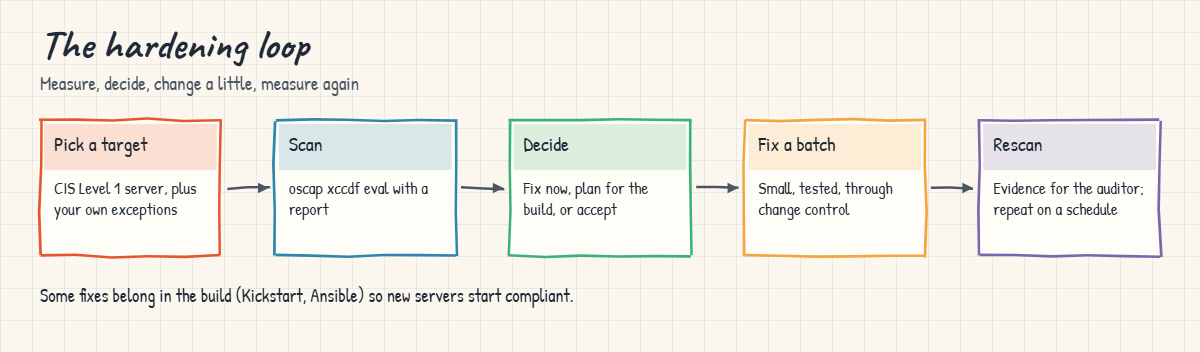
9Fix one finding and check it again
Block the USB storage driver, then re-check that rule and two you already fixed:
printf 'install usb-storage /bin/false\nblacklist usb-storage\n' | sudo tee /etc/modprobe.d/usb-storage.conf
sudo oscap xccdf eval --profile xccdf_org.ssgproject.content_profile_cis_server_l1 --rule xccdf_org.ssgproject.content_rule_kernel_module_usb-storage_disabled --rule xccdf_org.ssgproject.content_rule_accounts_passwords_pam_faillock_deny --rule xccdf_org.ssgproject.content_rule_service_firewalld_enabled "$DS"
You should see something like this:
install usb-storage /bin/false
blacklist usb-storage
--- Starting Evaluation ---

Title	Verify firewalld Enabled
Rule	xccdf_org.ssgproject.content_rule_service_firewalld_enabled
Ident	CCE-88110-2
Result	pass

Title	Lock Accounts After Failed Password Attempts
Rule	xccdf_org.ssgproject.content_rule_accounts_passwords_pam_faillock_deny
Ident	CCE-87388-5
Result	pass

Title	Disable Modprobe Loading of USB Storage Driver
Rule	xccdf_org.ssgproject.content_rule_kernel_module_usb-storage_disabled
Ident	CCE-89301-6
Result	pass
--rule runs only the rules you name, which takes seconds instead of minutes, so you can fix and check one item at a time.
The faillock rule passes because of step 4 (deny 5 and the with-faillock feature), and the firewalld one because of Lesson 34. A USB stick plugged into a server is a common way data leaves a building, and on a VM nothing needs the module. The full re-scan for the evidence file comes after a batch of changes, through your change process.
✅ Checkpoint: All three rules show Result pass.
10Do the same on ubu01
On ubu01, install the Ubuntu packages and look at what they set up:
sudo apt install -y libpam-pwquality fail2ban auditd
grep pam_pwquality /etc/pam.d/common-password
sudo fail2ban-client status sshd | head -n 4
systemctl is-active auditd
You should see something like this:
password	requisite			pam_pwquality.so retry=3
Status for the jail: sshd
|- Filter
|  |- Currently failed:	0
|  |- Total failed:	0
active
On Ubuntu, installing libpam-pwquality adds it to the PAM stack through pam-auth-update, and the same 50-saatlab.conf drop-in works. fail2ban’s sshd jail is on as soon as it’s installed (systemd backend, nftables ban action), so copy your sshd.local with the same ignoreip. The auditd rules file is the same too. The differences that matter are in the table:
| Control | Rocky Linux 10 (rocky01) | Ubuntu 26.04 (ubu01) |
|---|---|---|
| Password quality | pam_pwquality already in the authselect profile | Install libpam-pwquality; pam-auth-update adds it |
| faillock | authselect enable-feature with-faillock | Not wired in by default; add pam_faillock lines to /etc/pam.d/common-auth and common-account by hand (see man pam_faillock), with a root shell open |
| fail2ban | EPEL, bans through firewalld rich rules | Ubuntu archive, sshd jail on by default, bans through nftables |
| auditd | Installed and running | Install auditd; same rules.d files |
| Crypto policies | update-crypto-policies | No system-wide equivalent; set algorithms per service |
| CIS scanning | openscap-scanner + scap-security-guide (CIS profiles for RHEL 10) | Ubuntu Security Guide (usg) with Ubuntu Pro; the archive’s ssg-debderived content on 26.04 covers 22.04 and 24.04 only, so check whether 26.04 profiles exist before you plan on them |
✅ Checkpoint: On ubu01, pam_pwquality is in common-password, the sshd jail is running and auditd is active.