What a Linux administrator really does
-
Phase 0: Before you start
-
Phase 1: The origins and OS architecture
-
Phase 2: Day-to-day administration and the command builder
-
Phase 3: Enterprise infrastructure and storage
-
Phase 4: Troubleshooting step by step
-
Phase 5: Final project and career
A Linux administrator keeps Linux servers running, safe and fast, and fixes them when they break. Most of the job is quiet work: you read alerts, answer tickets, patch servers, add disk space and check that last night’s backups finished, and once in a while the phone rings at 2 a.m. because something important is down.
This lesson shows you that work from the inside, so the rest of the course has a shape. You’ll also run the same short health check that experienced admins type the moment they log in to a server they’ve never seen before.
Where this lesson fits
Lesson 1 of 82 in Linux Administration · Phase 0: Before you start · Next: Lesson 2, build your Linux lab in VirtualBox
| Time | You need | By the end you can |
|---|---|---|
| About 45 minutes | Any Linux machine you can reach (Ubuntu on WSL is fine). No Linux yet? Read along now and run it after Lesson 2. | Explain what a Linux admin does all week and check a server’s health with nine commands |
What it is, in one line
A Linux administrator is the person who keeps a company’s Linux servers up, secure and healthy, and who finds out why when they aren’t.
In Simple Words
The caretaker of a big building
Think of a tall apartment building. The families living there never think about the water pumps, the lifts or the electricity board until one of them stops working.
The caretaker walks the building every morning, looks at the water tank, listens to the lift motor and fixes the dripping pipe in the basement before it floods the parking. When a family calls to say there’s no water on the 9th floor, the caretaker doesn’t start by breaking walls. He checks the tank, then the pump, then the valve on that floor.
A Linux administrator does the same job for servers, where the apps and their users are the families and you look after the pumps and pipes underneath.
Engineer's View
What the job covers
Job titles change from company to company (system administrator, Linux engineer, infrastructure engineer, SRE), but the work falls into the same six buckets.
| Area | What you do | Tools you’ll meet in this course |
|---|---|---|
| Build | Install servers, set the hostname, IP address, time sync and security settings, join them to the company directory | Kickstart, nmcli, netplan, chrony, SSSD |
| Run | Create users, give sudo access, install packages, start services, add storage | useradd, sudo, dnf, apt, systemctl, LVM |
| Watch | Read monitoring alerts and logs, track disk, CPU and memory before they run out | Zabbix, journalctl, df, free, sar |
| Fix | Handle incidents, find the root cause, write down what happened | ss, lsof, strace, journalctl, dmesg |
| Change | Patch kernels, upgrade versions, apply changes that were planned and approved | dnf update, Leapp, GRUB, dracut |
| Automate | Turn repeated work into scripts so nobody types it by hand twice | bash, cron, systemd timers, Ansible |
Most companies split support into levels. L1 (often a NOC or service desk) watches alerts and follows runbooks. L2 does day-to-day administration and most fixes.
L3 or senior admins handle design, hard outages, upgrades and the runbooks everyone else follows.
Almost every task goes through a ticket (ServiceNow, Jira or similar) and anything that changes a production server goes through a change request. That paperwork can feel slow, but it’s how a team knows who changed what when a server misbehaves at night.
How it works, step by step
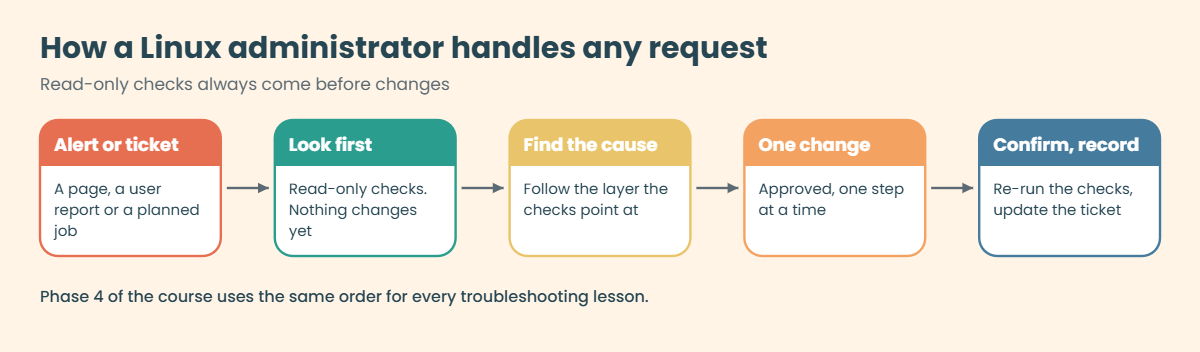
Whatever the ticket says, a good admin works in the same order. The diagram below is that order, and you’ll see it again in every troubleshooting lesson in Phase 4.
1Something reaches you
An alert fires (“disk / on web03 is 92% full”), a user raises a ticket (“the app is slow”) or a planned task comes up (“patch the payment servers on Saturday”).
2You look before you touch
You log in and run read-only commands first: what is this server, how long has it been up, how full are the disks, what is using the memory, what is listening, what errors are in the log. Nothing you run at this stage can make things worse.
3You find the cause
The first checks usually point at one layer, so you dig into that one. A full disk leads you to the folder that grew, and a slow app leads you to the process eating CPU or the disk that can’t keep up.
4You change one thing, with approval
On production, the fix goes through the change process unless it’s an emergency. You change one thing at a time, so you know which change helped.
5You confirm and write it down
You run the same checks again to prove the fix worked, then update the ticket with what you saw, what you changed and why. The next person who meets the same problem, often you in six months, will thank you.
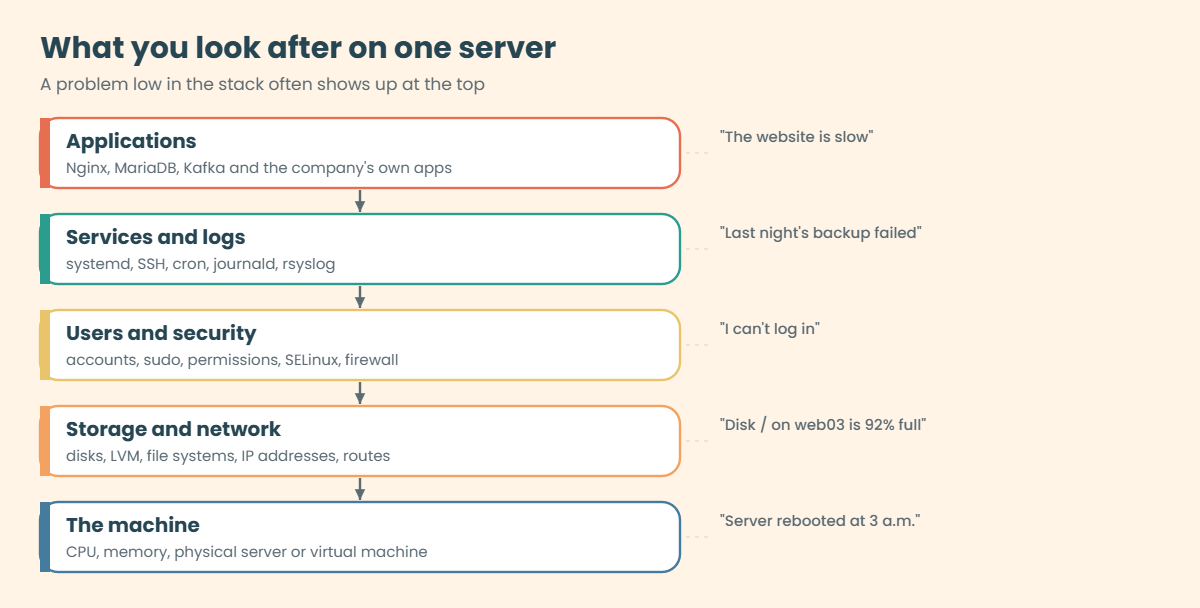
The picture underneath shows what you are looking after on a single server. Problems travel up and down these layers, so a full disk at the bottom can show up as a “website error” at the top.
As you grow, the layers stay the same but the scope widens. A fresher looks after single servers and follows runbooks. After two to five years you own a group of servers, plan patching and storage, and fix most incidents on your own.
Senior admins design how hundreds of servers are built, decide what gets automated and are the people others call when nothing makes sense.
Certifications help you get past the CV filter. The best known is Red Hat’s RHCSA (exam EX200), which is now based on RHEL 10 and is fully hands-on, so you’re marked on tasks that work, not on multiple-choice answers. This course covers what it tests, and Lesson 82 maps the objectives for you.
Hands-on lab: the first five minutes on a server
Before you run any command, double-check it
Read every command twice before you press Enter. Check the target: the server name, the user, the disk or device name, the path and the sizes. These commands are for learning and were tested in our lab, not on your system. At work, run the read-only commands first, follow your change process, make sure a backup exists, and ask a second person to check anything that changes or deletes data. You run them at your own risk.
Experienced admins have a habit: before they touch a server they don’t know, they spend five minutes reading it. These nine commands are that habit. None of them changes anything, so they are safe on any machine, including a production server you’ve been asked to “just have a look at”.
Where to run this today: on Windows, open PowerShell as administrator and run wsl --install -d Ubuntu, restart, and open the Ubuntu app. On a Mac, or if you’d rather wait, read along now and run the lab on ubu01 after Lesson 2. The outputs below come from ubu01, the Ubuntu Server 26.04 VM you’ll build next, so your names, sizes and version numbers will be a little different.
1What is this machine?
Run this:
hostnamectlYou should see something like this:
Static hostname: ubu01
Icon name: computer-vm
Chassis: vm
Machine ID: 6f3d2a91c0b84e5f9a7e1d0c4b2a8e71
Boot ID: 1c9e47b2a6d84f03b5e8c2a9d7f1e604
Virtualization: oracle
Operating System: Ubuntu 26.04.1 LTS
Kernel: Linux 7.0.0-15-generic
Architecture: x86-64
Hardware Vendor: innotek GmbH
Hardware Model: VirtualBoxIn one screen you get the hostname, the OS, the kernel and whether it’s a VM. “Virtualization: oracle” means VirtualBox. On WSL it says wsl, and on a physical server the line is missing.
✅ Checkpoint: You can name the hostname, the OS version and the kernel version of your machine.
2Which Linux, exactly?
Run this:
cat /etc/os-releaseYou should see something like this (first lines):
PRETTY_NAME="Ubuntu 26.04.1 LTS"
NAME="Ubuntu"
VERSION_ID="26.04"
VERSION="26.04.1 LTS (Resolute Raccoon)"
ID=ubuntu
ID_LIKE=debianEvery modern distribution has this file, which makes it the safest way for a script to check “am I on Rocky or Ubuntu?”. The ID_LIKE line tells you the family. On rocky01, which you’ll build in Lesson 2, the same command shows this:
NAME="Rocky Linux"
VERSION="10.2 (Red Quartz)"
ID="rocky"
ID_LIKE="rhel centos fedora"
VERSION_ID="10.2"
PRETTY_NAME="Rocky Linux 10.2 (Red Quartz)"✅ Checkpoint: You can say which family your machine belongs to, Debian or Red Hat, from the ID_LIKE line.
3How long has it been up, and who is on it?
Run this:
wYou should see something like this:
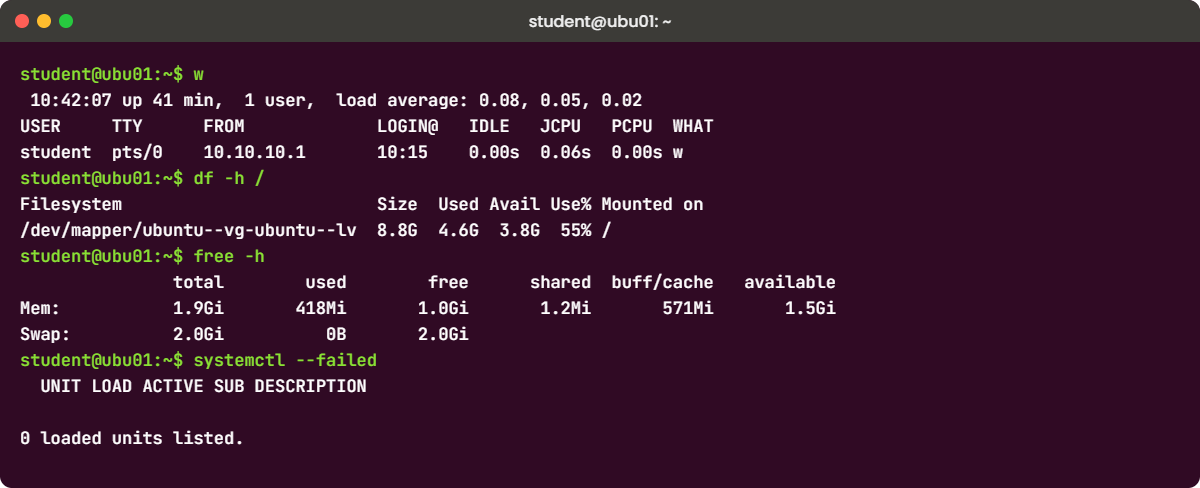
10:42:07 up 41 min, 1 user, load average: 0.08, 0.05, 0.02
USER TTY FROM LOGIN@ IDLE JCPU PCPU WHAT
student pts/0 10.10.10.1 10:15 0.00s 0.06s 0.00s wThe first line answers two questions people ask during every incident. “up 41 min” tells you whether the server rebooted recently, and the three load averages (last 1, 5 and 15 minutes) tell you how busy it is. The table shows who else is logged in, which matters before you restart anything.
✅ Checkpoint: You know your uptime and your three load-average numbers.
4Are the disks filling up?
Run this:
df -hYou should see something like this:
Filesystem Size Used Avail Use% Mounted on
tmpfs 197M 1.1M 196M 1% /run
/dev/mapper/ubuntu--vg-ubuntu--lv 8.8G 4.6G 3.8G 55% /
tmpfs 984M 0 984M 0% /dev/shm
tmpfs 5.0M 0 5.0M 0% /run/lock
tmpfs 984M 8.0K 984M 1% /tmp
/dev/sda2 1.9G 186M 1.6G 11% /boot
tmpfs 197M 12K 197M 1% /run/user/1000Look at the Use% column for /, /var and any data mount. Most teams alert at 80 or 85 percent. The tmpfs lines live in memory and can be skipped for now.
Notice that the 20 GB disk only gives / about 9 GB: the Ubuntu installer leaves about half of the volume group unused on purpose, and you’ll use that space when you grow a volume live in Lesson 45.
✅ Checkpoint: You can read the Use% of your root file system.
5Is memory tight?
Run this:
free -hYou should see something like this:
total used free shared buff/cache available
Mem: 1.9Gi 418Mi 1.0Gi 1.2Mi 571Mi 1.5Gi
Swap: 2.0Gi 0B 2.0GiRead the available column, not “free”. Linux uses spare memory as disk cache (buff/cache) and gives it back the moment a program needs it, so a low “free” number on a healthy server is normal. Low “available” plus swap being used is what should worry you.
✅ Checkpoint: You know how much memory is available on your machine.
6What is using that memory?
Run this:
ps aux --sort=-%mem | head -n 11You should see something like this:
USER PID %CPU %MEM VSZ RSS TTY STAT START TIME COMMAND
root 781 0.0 1.4 289532 28160 ? SLsl 10:01 0:00 /sbin/multipathd -d -s
root 1012 0.1 1.3 1874220 26912 ? Ssl 10:01 0:01 /usr/lib/snapd/snapd
root 402 0.0 0.9 66180 18944 ? S<s 10:01 0:00 /usr/lib/systemd/systemd-journald
root 1004 0.0 0.9 109884 18432 ? Ssl 10:01 0:00 /usr/bin/python3 /usr/share/unattended-upgrades/unattended-upgrade-shutdown
root 1 0.1 0.7 22744 13696 ? Ss 10:01 0:01 /sbin/init
systemd+ 612 0.0 0.7 21364 13312 ? Ss 10:01 0:00 /usr/lib/systemd/systemd-resolved
root 455 0.0 0.6 29548 12160 ? Ss 10:01 0:00 /usr/lib/systemd/systemd-udevd
student 1203 0.0 0.6 20108 11520 ? Ss 10:15 0:00 /usr/lib/systemd/systemd --user
_chrony 598 0.0 0.4 85920 8192 ? S 10:01 0:00 /usr/sbin/chronyd -F 1
root 1010 0.0 0.4 17984 8064 ? Ss 10:01 0:00 /usr/lib/systemd/systemd-logindThis sorts every process by memory, biggest first. Why 11 and not 10? The first line ps prints is the header, so you need 11 lines to see ten processes.
RSS is the real memory in kilobytes. You’ll take this command apart piece by piece in Lesson 22.
Try it yourself: build the top-memory and top-CPU commands in the Command Builder.
✅ Checkpoint: You can name the process using the most memory on your machine.
7What is listening on the network?
Run this:
sudo ss -tulnpYou should see something like this:
Netid State Recv-Q Send-Q Local Address:Port Peer Address:Port Process
udp UNCONN 0 0 127.0.0.54:53 0.0.0.0:* users:(("systemd-resolve",pid=612,fd=16))
udp UNCONN 0 0 127.0.0.53%lo:53 0.0.0.0:* users:(("systemd-resolve",pid=612,fd=14))
tcp LISTEN 0 4096 127.0.0.53%lo:53 0.0.0.0:* users:(("systemd-resolve",pid=612,fd=15))
tcp LISTEN 0 4096 127.0.0.54:53 0.0.0.0:* users:(("systemd-resolve",pid=612,fd=17))
tcp LISTEN 0 4096 0.0.0.0:22 0.0.0.0:* users:(("sshd",pid=1034,fd=3),("systemd",pid=1,fd=86))
tcp LISTEN 0 4096 [::]:22 [::]:* users:(("sshd",pid=1034,fd=4),("systemd",pid=1,fd=87))Every line is a door into the server: the protocol (tcp or udp), the address and port, and the program behind it. Here SSH is open on port 22 and the local DNS stub listens on 127.0.0.53. On Ubuntu 26.04, systemd itself holds port 22 and starts sshd when someone connects, which is why you see both names.
A port you can’t explain is worth a question.
✅ Checkpoint: You can see sshd (or systemd) on port 22 in your list.
8Has any service failed?
Run this:
systemctl --failedYou should see something like this:
UNIT LOAD ACTIVE SUB DESCRIPTION
0 loaded units listed.Zero is what you want. If a unit shows up here, the next command is systemctl status <unit>, which you’ll practise in Lesson 26.
✅ Checkpoint: You know whether any service on your machine is in the failed state.
9What errors happened since boot?
Run this:
sudo journalctl -p err -b --no-pagerYou should see something like this:
Oct 27 10:01:14 ubu01 kernel: [drm:vmw_host_printf [vmwgfx]] *ERROR* Failed to send host log message.
Oct 27 10:01:14 ubu01 kernel: [drm:vmw_host_printf [vmwgfx]] *ERROR* Failed to send host log message.The -p err part shows only errors and worse, and -b limits it to the current boot. These two vmwgfx lines are a well-known, harmless message from the VirtualBox graphics driver. Learning which errors are normal on your servers is half of reading logs, and Lesson 24 goes deeper.
✅ Checkpoint: You ran all nine commands and can say in two sentences whether your machine looks healthy.
Break It, Then Fix It
Three small traps are hiding in the health check. Each one gives you a wrong answer without any error, which is worse than a crash because you don’t notice.
1Forget sudo on ss
Run this, without sudo:
ss -tulnpYou’ll see the same ports, but with the Process column empty:
Netid State Recv-Q Send-Q Local Address:Port Peer Address:Port Process
udp UNCONN 0 0 127.0.0.54:53 0.0.0.0:*
udp UNCONN 0 0 127.0.0.53%lo:53 0.0.0.0:*
tcp LISTEN 0 4096 127.0.0.53%lo:53 0.0.0.0:*
tcp LISTEN 0 4096 127.0.0.54:53 0.0.0.0:*
tcp LISTEN 0 4096 0.0.0.0:22 0.0.0.0:*
tcp LISTEN 0 4096 [::]:22 [::]:*A normal user isn’t allowed to see which root-owned program holds a socket, so ss quietly leaves the column out. People have spent an hour on a call saying “nothing owns port 22” because of this.
Fix: run it again with sudo.
sudo ss -tulnp✅ Checkpoint: With sudo, every line shows users:((“program”,pid=…)).
2Take the “top 10” at face value
Run this and count the processes:
ps aux --sort=-%mem | head -n 10 | tail -n +2 | wc -lYou’ll get:
9The header line takes one of your ten lines, so “top 10” gave you nine. It matters when someone copies the number into an incident report or a script that expects ten rows.
Fix: ask for one more line, or turn the header off.
ps aux --sort=-%mem | head -n 11 | tail -n +2 | wc -l
ps -eo pid,user,%mem,rss,cmd --sort=-%mem --no-headers | head -n 10 | wc -lBoth now print:
10
10✅ Checkpoint: You get 10 from both commands.
3Mix up -h and -H
Run these two and compare the root line:
df -h /
df -H /You should see something like this:
Filesystem Size Used Avail Use% Mounted on
/dev/mapper/ubuntu--vg-ubuntu--lv 8.8G 4.6G 3.8G 55% /
Filesystem Size Used Avail Use% Mounted on
/dev/mapper/ubuntu--vg-ubuntu--lv 9.5G 5.0G 4.1G 55% /Lowercase -h counts in powers of 1024 (GiB, shown as G) and uppercase -H in powers of 1000 (GB). The disk didn’t change. When your number and the monitoring tool’s number differ by about 7 percent, this is usually why.
Fix: agree on one unit with your team. For exact numbers, ask for bytes:
df -B1 /✅ Checkpoint: You can explain why the same disk shows 8.8G and 9.5G.
This happened at work
The reboot that hid the problem
A friend of mine joined a logistics company in Pune as a junior admin. In his second week, on a Thursday evening, the tracking website started timing out, the alert for app02 went red and his team lead was on a flight.
He did what he’d seen people do in videos and rebooted the server. The site came back in four minutes and everyone relaxed. The next evening it happened again at the same time, and this time a senior admin, Kavitha, logged in first and ran the checks before anything else.
Load average was over 14 on a 4-CPU VM, but CPU use was low, which pointed at waiting on disk. ps showed a backup agent and a log compression job both started by cron at 7:30 p.m., reading the same disk the app wrote to. The reboot the night before had killed both jobs halfway, so the backup that night had failed as well, and nobody had noticed.
The fix took ten minutes: the compression job moved to 2 a.m. and the backup got its own time slot. The bigger change was a rule the team still follows: no restart on production until someone has run the read-only checks and pasted them into the ticket. A restart can make the symptom go away while the cause stays, and you lose the evidence.
Common mistakes and troubleshooting
| Mistake | What happens | What to do instead |
|---|---|---|
| Restarting first, checking later | The problem comes back and the evidence (running processes, open files, memory state) is gone | Run the nine read-only checks and save the output in the ticket before any restart |
| Reading “free” instead of “available” in free -h | You think the server is out of memory when it is only using RAM as cache | Look at the available column and whether swap is being used |
| Running ss or journalctl without sudo | Columns or log lines are silently missing | Use sudo for checks that read system-wide information |
| Trusting head -n 10 for a top 10 | You get nine results because of the header | Use head -n 11, or --no-headers |
| Comparing df -h with a tool that uses GB | Numbers look about 7% different and people argue | Use the same unit, or bytes with df -B1 |
| Working on the wrong server | You change a production box you meant to test | Check the hostname in your prompt and with hostnamectl before any change |
Interview questions
Click a question to open it. Each one is written the way an interviewer would ask it. Under it you will see why they ask it and one way you could answer, in your own words.
Fresher level
1. In your own words, what does a Linux administrator do day to day?
Why they ask this: They want to know you understand the job is mostly steady, careful work and not only firefighting. They also listen for whether you know the main areas: users, storage, services, patching and monitoring.
How you might answer: Most days I’d be working through tickets and alerts: creating users, adding disk space, installing packages, checking failed services and patching servers on a schedule. When something breaks, I’d be the one who logs in, finds the cause and fixes it.
I’d also expect to write small scripts for the jobs I repeat, and to keep notes in the ticket so the next person knows what was done.
2. You log in to a server you’ve never seen before. What are the first few commands you run?
Why they ask this: This checks whether you have a habit of looking before touching. They want read-only commands, in a sensible order.
How you might answer: I start with hostnamectl and cat /etc/os-release to know what the machine is, then w for uptime, load and who else is logged in. After that I check df -h and free -h for disk and memory.
Then I look at ps sorted by memory, sudo ss -tulnp for listening ports, systemctl --failed and journalctl -p err -b for recent errors. None of those change anything, so they’re safe on production.
2–5 years experience
3. A user says the app is slow and the server’s load average is 12 on a 4-CPU box. Where do you look next?
Why they ask this: They want to see that you know load average is not the same as CPU use, and that you can split CPU pressure from disk waits.
How you might answer: First I’d check top to see whether the CPUs are busy or mostly in wait. If CPU use is low but load is high, processes are usually waiting on disk, so I’d look at iostat or vmstat for wait time and at which processes are in the D state.
Then I’d check what started recently, like a cron job or a backup, because a timing pattern often explains it.
4. When would you refuse to restart a production service, even if it would make the alert go away?
Why they ask this: They’re testing judgement and change discipline, not commands. They want to hear about evidence, impact and approval.
How you might answer: If I don’t know the cause yet, I’d first capture the state: the process list, open files, logs and memory, because a restart wipes those. I’d also check who is using the service and whether a restart breaks something running, like a backup or a batch.
If it’s outside an agreed emergency, I’d raise it through the change process and get the owner’s OK. A restart is a fix only when I know why it helps.
Senior level
5. You’re the new senior admin and the team keeps fixing the same incidents every week. What would you change?
Why they ask this: They want to see you think about the team and the process, not only about servers. Look for root cause work, runbooks and automation.
How you might answer: I’d pull the last two or three months of tickets and group them, because usually a handful of causes make most of the noise. For each of those I’d make sure there’s a written root cause and a permanent fix, like a log rotation rule, a capacity alert at 80 percent or a moved cron job.
Then I’d turn the common checks into a runbook and a script, so L1 can collect the same evidence every time before escalating.
6. How do you decide what level of access a new junior admin gets on production?
Why they ask this: This is about risk and least privilege. They want to hear about sudo rules, audit and growing trust over time.
How you might answer: I’d give them their own named account, never a shared root login, and sudo rules that cover read-only checks and the runbook tasks they’re trained for. Everything they run through sudo is logged, so mistakes can be traced and explained without blame.
As they show they can handle changes safely, we widen the rules step by step, and anything risky still goes through a change request with a second pair of eyes.
Quick quiz
Q1. Which file tells you the distribution name and version on almost every modern Linux system?
- /etc/hostname
- /etc/os-release
- /proc/version
- /etc/issue.net
Show answer
B — /etc/os-release is standard across distributions, and its ID and ID_LIKE lines tell scripts which family they are on.
Q2. In free -h, which column best tells you how much memory programs can still use?
- free
- used
- available
- shared
Show answer
C — Linux uses spare RAM as cache and gives it back when needed, so available is the number that matters.
Q3. Why does ps aux --sort=-%mem | head -n 10 show only nine processes?
- ps skips root processes
- The first line is the header
- head counts from zero
- Sorting removes one line
Show answer
B — ps prints a header line first, so you need head -n 11 (or --no-headers) to see ten processes.
Q4. You run ss -tulnp as a normal user and the Process column is empty. Why?
- Nothing is listening
- ss needs the -a option
- Normal users can’t see which root-owned program holds a socket
- The firewall is hiding it
Show answer
C — Run it with sudo to see users:((“program”,pid=…)) on every line.
Q5. What should a careful admin do before restarting a service on production?
- Restart quickly to reduce downtime
- Run read-only checks and save the evidence first
- Reboot the whole server instead
- Delete old logs to free space
Show answer
B — A restart can hide the cause, so you capture the state first and follow the change process.
Quick recap
- A Linux administrator builds, runs, watches, fixes, changes and automates Linux servers.
- Good admins look before they touch: read-only checks first, one approved change at a time, then confirm and write it down.
- Nine safe commands give you a server’s health in five minutes:
hostnamectl,cat /etc/os-release,w,df -h,free -h,ps aux --sort=-%mem | head -n 11,sudo ss -tulnp,systemctl --failedandsudo journalctl -p err -b. - Small details change answers: the ps header, sudo on ss, and -h versus -H on df.
- RHCSA (EX200) is now based on RHEL 10, and this course covers what it tests.
Next lesson
Lesson 2: Build your Linux lab in VirtualBox → You’ll build rocky01 (Rocky Linux 10) and ubu01 (Ubuntu Server 26.04) on your laptop, connect them with a NAT Network and log in to both over SSH.
Further reading: Linux administrator
Want to go deeper into Linux administrator? Read the Rocky Linux documentation, the Ubuntu Server documentation and Red Hat’s RHEL 10 documentation, which is the reference most enterprise teams use. You can also see the full plan for this course on the Linux Administration course page.
