Pipes, redirection and quoting in Linux
-
Phase 0: Before you start
-
Phase 1: The origins and OS architecture
-
Phase 2: Day-to-day administration and the command builder
-
Phase 3: Enterprise infrastructure and storage
-
Phase 4: Troubleshooting step by step
-
Phase 5: Final project and career
Linux pipes and redirection are how you join small commands into one useful answer, and how you decide where output and errors go: to the screen, into a file, into another command, or nowhere. Almost every one-liner an experienced admin types has a | or a > in it, and most broken cron jobs and scripts come from getting one of them, or the quoting around them, slightly wrong.
You’ll learn the three standard streams, the redirection operators and why the order of 2>&1 matters, how to write into a root-owned file with sudo tee, how xargs turns a list into arguments, and the quoting rules that keep spaces and dollar signs from surprising you. The outputs were run for real wherever the result doesn’t depend on your machine.
Where this lesson fits
Lesson 13 of 82 in Linux Administration · Phase 1: The origins and OS architecture · Before this: Lesson 12, reading and editing files · Next: Lesson 14, text processing with grep, sed and awk
| Time | You need | By the end you can |
|---|---|---|
| About 60 minutes | rocky01 or ubu01 from Lesson 2 | Send output and errors where you want them, chain commands with pipes, and quote variables safely |
What it is, in one line
Every command reads from standard input and writes to standard output and standard error, and redirection and pipes let you connect those three streams to files or to other commands.
In Simple Words
A railway station with three tracks
Think of a small railway station. One track brings trains in, one sends passenger trains out, and a separate siding takes the damaged coaches away so they don’t block the main line.
A command is that station. Input comes in on track 0, normal output leaves on track 1 and errors leave on track 2. The signalman (your shell) can switch any track to another station (a pipe), to a goods yard (a file) or to the scrapyard where things disappear (/dev/null).
Engineer's View
File descriptors and the operators
Each process gets numbered file descriptors. By default 0, 1 and 2 all point at your terminal, which you can see in /proc:
$ ls -l /proc/$$/fd
lrwx------ 1 student student 64 Oct 27 12:05 0 -> /dev/pts/0
lrwx------ 1 student student 64 Oct 27 12:05 1 -> /dev/pts/0
lrwx------ 1 student student 64 Oct 27 12:05 2 -> /dev/pts/0| Operator | What it does | Example |
|---|---|---|
> | Send stdout to a file, emptying it first | ls > list.txt |
>> | Append stdout to the end of a file | date >> run.log |
2> | Send stderr to a file | find / -name x 2> err.txt |
2>&1 | Point stderr at wherever stdout points right now | cmd > all.log 2>&1 |
&> | Bash shortcut for both streams to one file | cmd &> all.log |
< | Read stdin from a file | wc -l < servers.txt |
| | Connect stdout of one command to stdin of the next | ls /etc | wc -l |
|& | Bash shortcut for 2>&1 | | cmd |& grep -i error |
/dev/null | A device that throws away whatever is written to it | cmd 2> /dev/null |
The shell sets all of this up before the command starts, so the command itself doesn’t know or care whether it’s writing to a screen, a file or a pipe. That’s also why sudo in front of a command doesn’t help a redirection: the > is done by your own shell, as your user, before sudo even runs.
| Quotes | What the shell does inside them | Example and result |
|---|---|---|
| Double quotes “…” | Expands $variables and $(commands), keeps spaces | “Hello $name” gives Hello Priya |
| Single quotes ‘…’ | Nothing at all: every character is literal | ‘Hello $name’ gives Hello $name |
| Backslash \ | Makes the next character literal | “Cost: \$5” gives Cost: $5 |
| No quotes | Expands variables, then splits on spaces and expands wildcards | $v with v=”a b” gives a b |
How it works, step by step
A pipeline looks like one line, but the shell does a fair bit of work before any command runs. The diagram below follows grep -i error app.log 2>/dev/null | sort | uniq -c > summary.txt.
1The shell splits the line at each pipe
It sees three commands: grep, sort and uniq. For each | it creates a pipe, a small buffer in the kernel (64 KiB by default on Linux), with a writing end and a reading end.
2It wires the streams, then starts every command at once
grep’s stdout goes into the first pipe and its stderr goes to /dev/null. sort reads from the first pipe and writes into the second. uniq reads from the second and its stdout goes to summary.txt. All three processes run at the same time, and data flows through as it’s produced.
3Redirections are read left to right
For cmd > file 2>&1 the shell first points stdout at the file, then points stderr at “wherever stdout points now”, which is the file. For cmd 2>&1 > file it first points stderr at the terminal (where stdout points at that moment), and only then moves stdout to the file. Same characters, different result, and the second one is a classic cron job bug.
4Exit status of a pipeline
A pipeline’s exit status is the status of the last command. So cat missing.txt | wc -l “succeeds” because wc worked, even though cat failed. Bash keeps every status in ${PIPESTATUS[@]}, and set -o pipefail makes the pipeline fail if any part fails, which is what you want in scripts (Lesson 39).
5Expansion happens before the command runs, in a fixed order
On every line, bash expands variables and $( ) first, then splits unquoted results on spaces, then expands wildcards, and only then runs the command with the final list of words. Quotes switch off some of those steps. The picture underneath shows the same variable going through with and without quotes.
6Command substitution and xargs
$(command) runs a command and puts its output in place, so echo "Kernel: $(uname -r)" prints the kernel version inside your sentence. The old backtick form does the same but is hard to read and to nest, so use $( ).
Some commands don’t read stdin at all: rm, ls and mkdir want names as arguments. xargs reads a list from stdin and turns it into arguments, so find ... | xargs rm works where find ... | rm does nothing. Because a plain list breaks on spaces in names, pair find -print0 with xargs -0, which separate names with a null byte that can’t appear in a file name.
Hands-on lab: route output, errors and pipes in ~/lab13
Before you run any command, double-check it
Read every command twice before you press Enter. Check the target: the server name, the user, the disk or device name, the path and the sizes. These commands are for learning and were tested in our lab, not on your system. At work, run the read-only commands first, follow your change process, make sure a backup exists, and ask a second person to check anything that changes or deletes data. You run them at your own risk.
Everything happens in a new folder, ~/lab13. You’ll make one real file and ask for one that doesn’t exist, so every command has something to say on both stdout and stderr. The outputs below are exact, except times, dates and counts that depend on your machine.
1See the two output streams
Paste this whole block:
mkdir -p ~/lab13 && cd ~/lab13
printf 'web01\nweb02\ndb01\n' > servers.txt
ls servers.txt nofile.txtYou should see this:
ls: cannot access 'nofile.txt': No such file or directory
servers.txtBoth lines look the same on screen, but the first came through stderr (fd 2) and the second through stdout (fd 1). The next steps pull them apart.
✅ Checkpoint: You see one error line and one file name.
2Send stdout to a file
Run this:
ls servers.txt nofile.txt > out.txt
cat out.txtYou should see this:
ls: cannot access 'nofile.txt': No such file or directory
servers.txtThe error still hit your screen because > only moved fd 1. The file name went into out.txt, which cat then printed.
✅ Checkpoint: out.txt contains only servers.txt.
3Overwrite or append
Run this:
echo one > n.txt
echo two > n.txt
cat n.txt
echo three >> n.txt
cat n.txtYou should see this:
two
two
three> empties the file before writing, so “one” is gone. >> adds to the end. Logs and reports you build over time always use >>.
Protect yourself from accidental overwrites with set -o noclobber. Then echo x > n.txt fails with “cannot overwrite existing file”, and >| forces it when you mean it.
✅ Checkpoint: n.txt ends with the lines two and three.
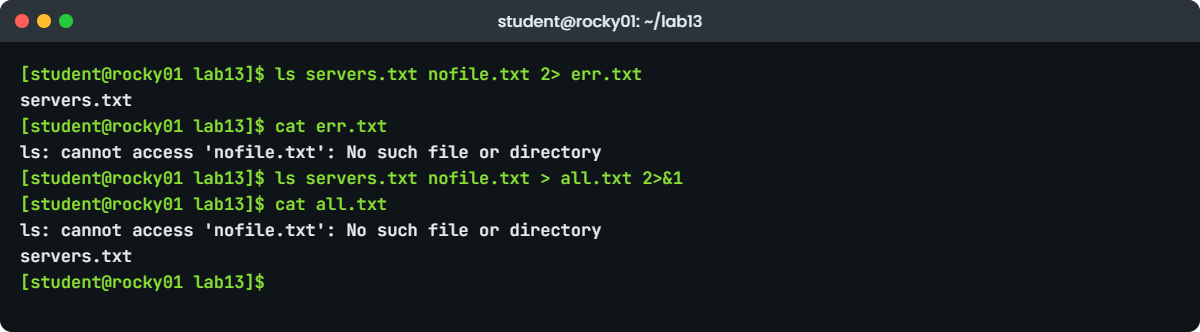
Example output from rocky01: 2> keeps only the error, and > all.txt 2>&1 puts both streams in one file4Split errors from output, or join them
Run this:
ls servers.txt nofile.txt 2> err.txt
cat err.txt
ls servers.txt nofile.txt > all.txt 2>&1
cat all.txtYou should see this:
servers.txt
ls: cannot access 'nofile.txt': No such file or directory
servers.txtThe first command printed servers.txt on screen and saved only the error. The second put both streams in all.txt, which is the form you want for a cron job log. &> all.txt does the same in bash.
✅ Checkpoint: all.txt contains both the error line and servers.txt.
5Throw output away with /dev/null
Run this:
ls nofile.txt 2>/dev/null
echo "exit status: $?"You should see this:
exit status: 2The error is gone from the screen, but the command still failed, and $? (the exit status of the last command) says so. Hiding errors is fine in a quick check; in a script, check the status, or you’ll hide real problems.
✅ Checkpoint: Nothing printed except the exit status 2.
6Pipe one command into another
Run this:
ls /etc | wc -l
wc -l < servers.txt
ls servers.txt nofile.txt 2>&1 | wc -lYou should see something like this:
178
3
2The first line counts the entries in /etc (your number will differ). wc -l < servers.txt prints only the number, because wc never saw a file name. The last one counts 2 lines because 2>&1 sent the error into the pipe as well; without it the error skips the pipe and wc counts 1.
✅ Checkpoint: wc -l < servers.txt prints 3.
7Write to a root-owned file with sudo tee
Run this:
sudo echo "10.10.10.31 kafka01.saatlab.test kafka01" >> /etc/hostsYou’ll get:
-bash: /etc/hosts: Permission deniedsudo ran echo as root, but the >> was opened by your own shell as student, before sudo started. Use tee, which reads stdin and writes it both to the screen and to a file, and run tee itself with sudo:
Run this:
grep -q kafka01 /etc/hosts || echo "10.10.10.31 kafka01.saatlab.test kafka01" | sudo tee -a /etc/hosts
tail -n 1 /etc/hostsYou should see this:
10.10.10.31 kafka01.saatlab.test kafka01
10.10.10.31 kafka01.saatlab.test kafka01The first line is tee echoing what it wrote, the second is tail proving it’s in the file. The -a matters: without it tee overwrites the file, and an /etc/hosts with one line breaks name lookups on the server. The grep -q ... || part only adds the line if it isn’t already there, so running the block twice is safe. kafka01 is the VM you’ll build in Lesson 58, and this entry matches the lab plan.
✅ Checkpoint: tail -n 1 /etc/hosts shows the kafka01 line.
8Save and watch at the same time
Run this:
df -h / | tee disk-report.txt
wc -l disk-report.txtYou should see something like this:
Filesystem Size Used Avail Use% Mounted on
/dev/mapper/rl-root 17G 1.9G 16G 11% /
2 disk-report.txtThis is the everyday use of tee: you see the output and you keep a copy for the ticket.
✅ Checkpoint: disk-report.txt has the same two lines you saw on screen.
9Turn a list into arguments with xargs
Paste this whole block:
mkdir -p logs && touch logs/a.log logs/b.log "logs/my app.log"
find logs -name "*.log" | xargs ls -lYou’ll get:
ls: cannot access 'logs/my': No such file or directory
ls: cannot access 'app.log': No such file or directory
-rw-rw-r--. 1 student student 0 Oct 27 12:14 logs/a.log
-rw-rw-r--. 1 student student 0 Oct 27 12:14 logs/b.logxargs split “my app.log” into two words. Now do it the safe way, with null separators:
Run this:
find logs -name "*.log" -print0 | xargs -0 ls -l
echo a b c d | xargs -n 2 echoYou should see something like this:
-rw-rw-r--. 1 student student 0 Oct 27 12:14 logs/a.log
-rw-rw-r--. 1 student student 0 Oct 27 12:14 logs/b.log
-rw-rw-r--. 1 student student 0 Oct 27 12:14 logs/my app.log
a b
c d-n 2 passes two arguments per run. For deleting files you’ll usually use find’s own -delete after a dry run with -print (Lesson 25), but xargs is what you reach for when the next command isn’t find.
✅ Checkpoint: The -print0 / -0 version lists all three files, including my app.log.
10Command substitution and quoting
Paste this whole block:
name="Priya"
echo "Hello $name"
echo 'Hello $name'
echo "Cost: \$5"
count=$(wc -l < servers.txt)
echo "$count servers, kernel $(uname -r)"
v="a b"
echo $v
echo "$v"You should see something like this:
Hello Priya
Hello $name
Cost: $5
3 servers, kernel 6.12.0-211.16.1.el10_2.0.1.x86_64
a b
a bDouble quotes expand, single quotes don’t, and a backslash protects one character. $( ) dropped the output of two commands into the sentence. The last pair is the one that matters most: without quotes, bash split $v into two words and echo joined them with one space. That same splitting is what turns a file called “my app.log” into two files in a script.
✅ Checkpoint: echo “$v” keeps the three spaces and echo $v does not.
Break It, Then Fix It
These three bugs show up in real cron jobs and scripts every week. Snapshot first if you like, although none of them touches anything outside ~/lab13.
12>&1 in the wrong order
Run this:
ls servers.txt nofile.txt 2>&1 > order.txt
cat order.txtYou’ll get:
ls: cannot access 'nofile.txt': No such file or directory
servers.txtThe error went to the screen and only servers.txt went to the file. Bash read left to right: 2>&1 copied “stdout is the terminal” into stderr, and then > order.txt moved only stdout. In a cron job the screen doesn’t exist, so those errors are mailed to a mailbox nobody reads, or lost, and the log looks clean.
Fix: file first, then 2>&1.
ls servers.txt nofile.txt > order.txt 2>&1
cat order.txtYou should see this:
ls: cannot access 'nofile.txt': No such file or directory
servers.txt✅ Checkpoint: This time nothing printed while the command ran, and order.txt holds both lines.
2Sorting a file into itself
Run this:
printf 'web02\ndb01\nweb01\n' > s2.txt
sort s2.txt > s2.txt
wc -c s2.txtYou’ll get:
0 s2.txtThe file is empty. The shell opened s2.txt for > and emptied it before sort started, so sort read an empty file. The same thing happens with grep ... file > file and sed ... file > file, and people have wiped a config this way on a live server.
Fix: write to a new file and move it into place, or use the tool’s own in-place option.
printf 'web02\ndb01\nweb01\n' > s2.txt
sort s2.txt > s2.sorted && mv s2.sorted s2.txt
cat s2.txt
sort -o s2.txt s2.txtYou should see this:
db01
web01
web02✅ Checkpoint: s2.txt has three sorted lines.
3A pipeline that hides a failure
Run this:
cat nofile.txt | wc -l
echo "status: $? all: ${PIPESTATUS[@]}"You’ll get:
cat: nofile.txt: No such file or directory
0
status: 0 all: 1 0The pipeline reports success (status 0) because wc, the last command, worked. A script that checks $? would carry on with a count of 0 and maybe report “no errors found” to the team. PIPESTATUS shows cat failed with 1.
Fix: turn on pipefail in scripts.
set -o pipefail
cat nofile.txt | wc -l
echo "status: $?"
set +o pipefailYou should see this:
cat: nofile.txt: No such file or directory
0
status: 1✅ Checkpoint: With pipefail on, the status is 1.
This happened at work
The nightly job that “never failed”
A colleague on the platform team at a video streaming service in Singapore found this one during a quarterly restore test. The team pulled last night’s copy of the content catalogue database from the backup bucket, and the restore failed because the file was 20 bytes, which is the size of an empty gzip file. The night before was the same, and so was every night for six weeks.
The backup job had a log and the log was clean. Every night it said “upload complete”, and the monitoring check only looked for that line. Her first idea was a storage permission problem, so she spent a morning checking bucket policies, which were fine.
Then she read the cron line properly: pg_dump catalog | gzip | upload.sh 2>&1 >> /var/log/backup.log. Two things were wrong. The 2>&1 sat before the >>, so every error went to cron’s mail, which went nowhere.
And without pipefail, the pipeline only reported upload.sh’s status, so when pg_dump started failing after a password rotation six weeks earlier, gzip compressed an empty stream and the upload “succeeded”.
The fix was a small script with set -euo pipefail, the redirection written as >> /var/log/backup.log 2>&1, and a size check that fails the job if the dump is under a sensible minimum. The bigger change was cultural: a backup only counts as working after a restore test, and the team now runs one every month.
Common mistakes and troubleshooting
| Mistake | What happens | What to do instead |
|---|---|---|
Writing 2>&1 > file | Errors go to the terminal or cron mail, not the file | Write > file 2>&1, or &> file in bash |
Using > when you meant >> | The log or config is emptied and replaced | Use >> for logs and turn on noclobber in your shell |
sudo echo ... > /etc/file | Permission denied, because your shell opens the file | Use echo ... | sudo tee -a /etc/file |
sudo tee without -a | The whole file is replaced by one line | Use tee -a to append, and keep a backup of the file |
| Reading and writing the same file in one line | The file ends up empty | Write to a new file, then mv, or use sort -o / sed -i |
| Unquoted variables | Names with spaces split and wildcards expand | Quote every variable: "$file" |
| find | xargs with plain newlines | Names with spaces break into pieces | Use find -print0 | xargs -0, or find’s own -exec ... {} + |
Interview questions
Click a question to open it. Each one is written the way an interviewer would ask it. Under it you will see why they ask it and one way you could answer, in your own words.
Fresher level
1. What are stdin, stdout and stderr, and how would you save only the errors of a command to a file?
Why they ask this: They want the basic model with the file descriptor numbers. Saying 2> confidently shows you’ve used it.
How you might answer: They’re the three standard streams every process starts with: stdin is file descriptor 0 for input, stdout is 1 for normal output and stderr is 2 for errors. By default all three are the terminal.
To keep only errors I redirect descriptor 2, like find / -name app.conf 2> errors.txt. The normal output still shows on screen.
2. What’s the difference between > and >>, and when have you used each?
Why they ask this: A simple question that tells them whether you’ve ever emptied a file by accident. They want a concrete example.
How you might answer: A single > empties the file and writes from the start, and >> adds to the end. I use > for a fresh report, like df -h > disk.txt before attaching it to a ticket.
For anything that builds up over time, like a cron job log, I always use >>, together with 2>&1 after it so errors land in the same log.
2–5 years experience
3. Your colleague runs sudo echo “line” >> /etc/hosts and gets Permission denied. Explain why and fix it.
Why they ask this: This checks that you understand the shell does the redirection before sudo runs. It’s a favourite because the error looks illogical.
How you might answer: The redirection is opened by the user’s own shell before sudo runs, so it’s student trying to open /etc/hosts for writing, not root. sudo only applies to the echo.
I’d use echo "line" | sudo tee -a /etc/hosts, where tee runs as root and opens the file. The other way is sudo sh -c 'echo line >> /etc/hosts', but tee is easier to read and the -a is the part people forget.
4. A cron job writes to a log, but when it fails the log shows nothing. What would you check?
Why they ask this: They want to see that you know redirection order, cron’s environment and exit codes. A structured answer beats a guess.
How you might answer: First I’d read the crontab line for the redirection order: >> log 2>&1 catches errors, but 2>&1 >> log sends them to cron mail. Then I’d check for pipelines without pipefail, because they report only the last command’s status.
I’d also check whether the script relies on PATH or relative paths that differ under cron, and look at journalctl -u crond on RHEL or -u cron on Ubuntu to confirm it ran at all.
Senior level
5. How do you write a shell pipeline in a production script so failures can’t be silently ignored?
Why they ask this: They want concrete habits: strict mode, checking statuses, and not trusting a log that says “done”. Experience with a real incident helps.
How you might answer: I start scripts with set -euo pipefail so an error, an unset variable or a failing part of a pipeline stops the script. Output goes to a log with >> "$LOG" 2>&1, and the script exits with a non-zero code that monitoring can alert on.
I don’t trust success messages alone, so I check the result: the backup file isn’t empty, the row count is in range, and a restore test runs on a schedule. If part of the pipeline is allowed to fail, I handle that case on purpose with PIPESTATUS instead of switching pipefail off.
6. When would you use xargs instead of find -exec, and how do you make either one safe with odd file names?
Why they ask this: They’re checking that you know the trade-offs and the null-separator habit. Bringing up the dry run shows maturity.
How you might answer: I use find’s own -exec cmd {} + or -delete when the input comes from find, because it hands names over directly. xargs is useful when the list comes from somewhere else, like grep -l or a file, or when I want parallel runs with -P.
For safety I always use -print0 with xargs -0 so spaces and newlines in names can’t split them, and I run the same command with echo or -print first and read the list before anything gets deleted.
Quick quiz
Q1. Which file descriptor number is stderr?
- 0
- 1
- 2
- 3
Show answer
C — 0 is stdin, 1 is stdout and 2 is stderr.
Q2. Which line saves both normal output and errors in run.log?
cmd 2>&1 > run.logcmd > run.log 2>&1cmd > run.log 2> /dev/nullcmd | run.log
Show answer
B — Redirections are read left to right: stdout goes to the file first, then stderr follows it.
Q3. Why does sudo echo x >> /etc/hosts fail for a normal user?
- echo can’t write files
- Your own shell opens /etc/hosts before sudo runs
- sudo blocks redirection on purpose
- /etc/hosts is immutable
Show answer
B — The redirection belongs to the shell. Use echo x | sudo tee -a /etc/hosts.
Q4. What does sort data.txt > data.txt leave you with?
- A sorted file
- An unchanged file
- An empty file
- An error message
Show answer
C — The shell empties data.txt for writing before sort reads it. Use sort -o or a temporary file.
Q5. With v=”a b”, what does echo “$v” print?
- a b
- a b
- $v
- Nothing
Show answer
B — Double quotes keep the spaces; without them bash splits the value into two words.
Quick recap
- Every process has stdin (0), stdout (1) and stderr (2); the shell connects them to files, pipes or /dev/null before the command runs.
>overwrites,>>appends,2>catches errors, and> file 2>&1(in that order) puts both in one file.- sudo doesn’t cover your shell’s redirection, so write root-owned files with
| sudo tee -a. - xargs turns a list into arguments; use
-print0andxargs -0for names with spaces. - Double quotes expand $variables and $( ), single quotes don’t, and unquoted variables split on spaces; use pipefail in scripts.
Next lesson
Lesson 14: Text processing with grep, cut, sort, uniq, tr, sed and awk → You’ll put these pipes to work: filter log lines with grep, cut and count fields, and fix text with sed and awk, the way admins summarise logs during an incident.
Further reading: Linux pipes and redirection
Want to go deeper into Linux pipes and redirection? The bash manual’s pages on redirections, pipelines and quoting are short and exact. For the kernel side, read pipe(7), and for xargs, the GNU findutils manual.
You can also see the full plan for this course on the Linux Administration course page.
