The ss command in Linux: who is listening on which port

The ss command in Linux answers the question every admin gets asked during an outage: is the service listening, on which address and port, and which process owns it? A developer says “the database is down”, the app says “connection refused”, and in ten seconds ss tells you whether MariaDB is even there to answer.

Lesson 21 showed you the socket builder and the :3306 trap. Here you take ss apart flag by flag, use its filters instead of grep, ask lsof the same question a second way, and test ports from another machine with nc and curl. Then you break it twice, the two ways it breaks at work: a service bound to 127.0.0.1 only, and a firewall that blocks a port that is listening fine.

Where this lesson fits

Lesson 23 of 82 in Linux Administration · Phase 2: Day-to-day administration and the command builder · Before this: Lesson 22, top memory and CPU users · Next: Lesson 24, searching logs

TimeYou needBy the end you can
About 60 minutesrocky01 and ubu01 from Lesson 2, both running, and an SSH session to each as studentSay which process listens on any port, on which address, test it from another host, and tell “refused”, “no route” and “timed out” apart

What it is, in one line

ss lists the network sockets on a Linux machine, so you can see which process is listening on which address and port, and who is connected to it right now.

In Simple Words

The hospital reception desk

Think of a big hospital. Each department has its own counter number: counter 22 is the pharmacy, counter 3306 is the blood bank. A patient walks in and asks for counter 3306, and the reception desk either points them there or says “nobody is sitting at that counter today”.

Some counters serve only staff from inside the building, and others serve the public at the main gate. And even when the counter is open, the security guard at the gate can stop a visitor before they reach it. ss is the reception register: which counters are open, who sits at each one, and which visitors are standing there right now.

The counter number is the port, the person sitting there is the process, “staff only” is a service bound to 127.0.0.1, and the guard at the gate is the firewall.

Engineer's View

What a socket is and what ss reads

A socket is the kernel object a program uses to talk over the network. A server program creates one, binds it to an address and port (for example 0.0.0.0:3306) and calls listen(). Every client that connects gets a new socket of its own on the server side, identified by four values: local IP, local port, remote IP, remote port. ss asks the kernel for this list over netlink (the sock_diag interface), which is why it stays fast even with 50,000 connections, where the old netstat read text files in /proc and slowed down.

FlagMeaningWhy you want it
-t / -uTCP / UDP socketsWithout them ss also prints Unix sockets, hundreds of lines
-lListening sockets onlyThe “who is waiting for connections” view
-aAll: listening and connectedSee clients and servers together
-nNumbers, no namesShows 3306 instead of mysql, and skips slow DNS lookups
-pProcess name, PID and file descriptorNeeds sudo to see other users’ processes
-oTimers (keepalive, retransmit)Tells you if a connection is alive or stuck retrying
-sSummary countsQuick check for thousands of TIME-WAIT or orphaned sockets
-4 / -6IPv4 or IPv6 onlyCuts the list in half when you know the family

TCP sockets have a state. LISTEN means a server is waiting. ESTAB is a working connection.

SYN-SENT means a client is still trying to connect, TIME-WAIT is a closed connection the kernel keeps for a short while, and CLOSE-WAIT means the other side closed but the local program never did, which usually points at a bug in the app. UDP has no connections, so a UDP server shows the state UNCONN.

The local address tells you who can reach the service. 0.0.0.0 means every IPv4 address on the machine, [::] every IPv6 address, * both at once (a dual-stack socket), 127.0.0.1 only programs on the same machine, and a real IP such as 10.10.10.11 only traffic that arrives on that address. The same ss works on Rocky Linux 10 and Ubuntu 26.04; both get it from the iproute2 package (iproute on Rocky).

How it works, step by step

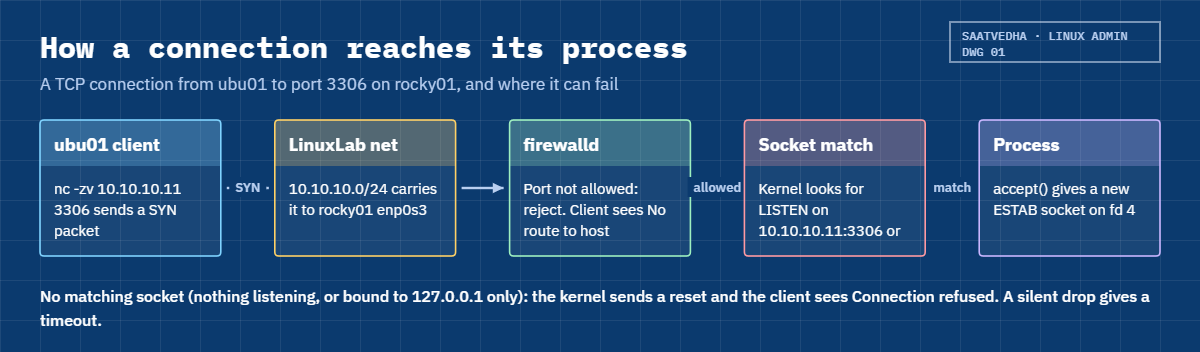
Before you can read ss output well, you need the path a connection takes from a client to the process behind the port. The diagram below follows one connection from ubu01 to a database port on rocky01.

1A server process binds and listens

The service starts, asks the kernel for a socket, binds it to an address and port and starts listening. From this moment ss shows a LISTEN line with the process name and PID. If another process already holds that address and port, the bind fails with “Address already in use” and the service doesn’t start at all.

2The client sends a SYN

The client (ubu01, or a browser, or an app server) sends a TCP SYN packet to 10.10.10.11 port 3306. Before the packet reaches any socket, the firewall on rocky01 (firewalld, which writes nftables rules) decides whether to let it in.

ss command in Linux: the path of a connection from client through firewall to the listening socket

3The kernel looks for a matching socket

If the firewall allows the packet, the kernel looks for a listening socket that matches the destination address and port. A socket bound to 0.0.0.0:3306 matches. A socket bound to 127.0.0.1:3306 doesn’t match a packet sent to 10.10.10.11, so the kernel answers with a TCP reset and the client sees “Connection refused”.

4The handshake finishes and a new socket appears

On a match, the kernel completes the three-way handshake and puts the new connection in the listen queue (Send-Q on a LISTEN line is the size of that queue, Recv-Q is how many connections wait in it right now). The program calls accept() and gets a brand new socket, which ss shows as ESTAB with the client’s IP and port as the peer.

5Three different failures look different

Each place a connection can fail leaves its own message on the client, and learning them saves you a lot of guessing. The picture below puts the four kinds of bind address side by side with who can reach each one.

Client messageWhat happenedWhere to look
Connection refusedThe host answered with a reset: nothing listens on that address and portss on the server: is it running, and bound to the right address?
No route to hostA firewall rejected the packet with an ICMP message (firewalld does this by default)firewall-cmd on the server, or a network ACL
Timed outNo answer at all: a firewall dropped the packet, or the host is down or unreachableufw (drops by default), cloud security groups, routing, the host itself
ss command in Linux: what the bind addresses 0.0.0.0, 127.0.0.1, a real IP and [::] let in

6Read ss in the right order during an incident

On the server: sudo ss -tlnp 'sport = :PORT' tells you if anything listens and on which address. If nothing does, the problem is the service (Lesson 26 shows systemctl). If it listens on 127.0.0.1 only, it’s configuration.

If it listens on 0.0.0.0 and the client still fails, test from the client with nc -zv and read the message: refused, no route or timed out tells you which layer to look at next.

The old tool for this job was netstat -tulnp from the net-tools package. It still exists, but neither Rocky 10 nor Ubuntu 26.04 installs it by default, and its output columns are slightly different. Learn ss; it’s there on every modern server.

Hands-on lab: find, test and break port 3306 on rocky01

Before you run any command, double-check it

Read every command twice before you press Enter. Check the target: the server name, the user, the disk or device name, the path and the sizes. These commands are for learning and were tested in our lab, not on your system. At work, run the read-only commands first, follow your change process, make sure a backup exists, and ask a second person to check anything that changes or deletes data. You run them at your own risk.

MariaDB is installed properly in Lesson 56, on its own LVM volume, so this lab doesn’t install it. Two tiny Python web servers stand in for it instead, one on 3306 (the MariaDB and MySQL port) and one on 33060 (the MySQL X protocol port), which is all ss needs to see. You work on rocky01 as student, test from ubu01, and stop everything at the end.

Start with mkdir -p ~/lab23 && cd ~/lab23 on rocky01.

1List every listening socket

Run this on rocky01:

sudo ss -tulnp

You should see something like this:

Netid State  Recv-Q Send-Q Local Address:Port Peer Address:PortProcess
udp   UNCONN 0      0          127.0.0.1:323       0.0.0.0:*    users:(("chronyd",pid=801,fd=5))
udp   UNCONN 0      0              [::1]:323          [::]:*    users:(("chronyd",pid=801,fd=6))
tcp   LISTEN 0      128          0.0.0.0:22        0.0.0.0:*    users:(("sshd",pid=1012,fd=7))
tcp   LISTEN 0      128             [::]:22           [::]:*    users:(("sshd",pid=1012,fd=8))

Read it as a table. Netid is the protocol, State is LISTEN for TCP servers and UNCONN for UDP ones. Local Address:Port is where the service waits: sshd on port 22 for every IPv4 and every IPv6 address, chronyd on UDP 323 for local commands only (chronyc talks to it there).

Peer Address is * because nobody is connected to a listening socket. The Process column gives the name, PID and file descriptor.

✅ Checkpoint: You can name the two programs listening on rocky01 and say which one can be reached from outside the VM.

2See what sudo and -n change

Run these two, without sudo:

ss -tlnp
ss -tl

You should see something like this:

State  Recv-Q Send-Q Local Address:Port Peer Address:PortProcess
LISTEN 0      128          0.0.0.0:22        0.0.0.0:*
LISTEN 0      128             [::]:22           [::]:*
State  Recv-Q Send-Q Local Address:Port Peer Address:PortProcess
LISTEN 0      128          0.0.0.0:ssh       0.0.0.0:*
LISTEN 0      128             [::]:ssh          [::]:*

Without sudo the Process column is empty, because ss can only show processes that belong to you; sshd runs as root. That’s why the runbook command always starts with sudo. Without -n, ss turns port numbers into names from /etc/services, so 22 becomes ssh and 3306 would show as mysql, which makes grep for a number miss the line.

✅ Checkpoint: You know why the Process column was empty and why the second command printed “ssh” instead of 22.
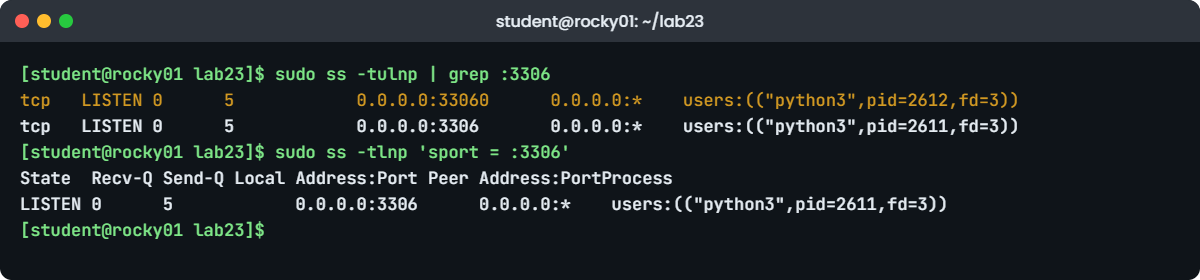
ss command in Linux lab: sudo ss -tulnp and the sport filter for port 3306 on rocky01
Example output: the grep trap and the ss filter for port 3306 on rocky01.

3Find who owns port 3306

Start the two stand-ins in the background:

cd ~/lab23
python3 -m http.server --bind 0.0.0.0 3306 > /dev/null 2>&1 &
python3 -m http.server --bind 0.0.0.0 33060 > /dev/null 2>&1 &

You should see something like this:

[1] 2611
[2] 2612

Now the command from the old runbook:

sudo ss -tulnp | grep :3306

You should see something like this:

tcp   LISTEN 0      5            0.0.0.0:33060      0.0.0.0:*    users:(("python3",pid=2612,fd=3))
tcp   LISTEN 0      5            0.0.0.0:3306       0.0.0.0:*    users:(("python3",pid=2611,fd=3))

You asked about one port and got two lines, because grep looks for the text “:3306”, and “:33060” contains it. On a real MySQL 8 server both ports belong to the same mysqld, so nobody notices, until the day 33060 belongs to something else. Let ss do the matching instead, because its filter compares the port as a number:

sudo ss -tlnp 'sport = :3306'
sudo ss -tulnp | grep -E ':3306\b'

You should see something like this:

State  Recv-Q Send-Q Local Address:Port Peer Address:PortProcess
LISTEN 0      5            0.0.0.0:3306      0.0.0.0:*    users:(("python3",pid=2611,fd=3))
tcp   LISTEN 0      5            0.0.0.0:3306       0.0.0.0:*    users:(("python3",pid=2611,fd=3))

sport is the source (local) port, dport the destination (remote) port, and the colon in front of the number is required. The single quotes keep the shell away from the filter. If you prefer grep, -E ':3306\b' adds a word boundary, so 33060 no longer matches.

You can also combine filters:

ss -tln '( sport = :3306 or sport = :33060 )'

You should see something like this:

State  Recv-Q Send-Q Local Address:Port  Peer Address:PortProcess
LISTEN 0      5            0.0.0.0:33060      0.0.0.0:*
LISTEN 0      5            0.0.0.0:3306       0.0.0.0:*

✅ Checkpoint: The filtered command shows one line, python3 with your PID for 3306, and nothing for 33060.

4Ask lsof the same question

Run this:

sudo dnf install -y lsof
sudo lsof -i :3306
sudo lsof -nP -iTCP:3306 -sTCP:LISTEN

You should see something like this:

COMMAND  PID    USER FD   TYPE DEVICE SIZE/OFF NODE NAME
python3 2611 student  3u  IPv4  31482      0t0  TCP *:mysql (LISTEN)
COMMAND  PID    USER FD   TYPE DEVICE SIZE/OFF NODE NAME
python3 2611 student  3u  IPv4  31482      0t0  TCP *:3306 (LISTEN)

lsof (“list open files”) sees sockets as open files, so it shows the same PID with the user that owns it. Plain -i :3306 prints the port name (mysql) and also lists connected clients; -nP keeps numbers for IPs and ports, and -iTCP:3306 -sTCP:LISTEN limits it to the listener. On Ubuntu lsof is already installed.

Once you have a PID, ask ps who started it and when:

ps -o pid,user,lstart,cmd -p 2611

You should see something like this:

    PID USER                      STARTED CMD
   2611 student  Tue Oct 27 11:20:14 2026 python3 -m http.server --bind 0.0.0.0 3306

✅ Checkpoint: lsof and ss agree on the PID, and ps shows the full command line that started it.

5Test the port locally with nc and curl

Install ncat (Rocky’s nc) and test:

sudo dnf install -y nmap-ncat
nc -zv 127.0.0.1 3306
curl -sI http://127.0.0.1:3306/

You should see something like this:

Ncat: Version 7.92 ( https://nmap.org/ncat )
Ncat: Connected to 127.0.0.1:3306.
Ncat: 0 bytes sent, 0 bytes received in 0.01 seconds.
HTTP/1.0 200 OK
Server: SimpleHTTP/0.6 Python/3.12.11
Date: Tue, 27 Oct 2026 05:51:02 GMT
Content-type: text/html; charset=utf-8
Content-Length: 187

-z connects and hangs up without sending data, -v prints the result. On Rocky, nc is Ncat from the nmap project, so its messages start with “Ncat:”. On Ubuntu, nc is the OpenBSD netcat with shorter messages, as you’ll see in the next step. curl goes one step further and speaks HTTP: -I asks for headers only and -s hides the progress bar.

A real MariaDB doesn’t speak HTTP, so for a database port nc is the right test and curl is for web ports.

✅ Checkpoint: nc says “Connected” and curl shows “HTTP/1.0 200 OK” from the stand-in.

6Open the firewall and test from ubu01

On rocky01, open 3306 for this session only:

sudo firewall-cmd --add-port=3306/tcp
sudo firewall-cmd --list-ports

You should see something like this:

success
3306/tcp

On ubu01, test it:

nc -zv -w 3 10.10.10.11 3306
timeout 3 bash -c '</dev/tcp/10.10.10.11/3306' && echo "port open" || echo "port closed or filtered"

You should see something like this:

Connection to 10.10.10.11 3306 port [tcp/mysql] succeeded!
port open

Without --permanent the rule lives in memory only and disappears at the next reload or reboot, which is what you want for a test. -w 3 gives up after 3 seconds instead of waiting for the system timeout. The second line is a handy fallback on servers where nc isn’t installed: bash itself opens the connection through its /dev/tcp feature. Lesson 34 covers firewalld and ufw properly.

✅ Checkpoint: ubu01 reports the connection to 10.10.10.11 port 3306 succeeded.

7Watch a live connection

On ubu01, open a connection and leave it open:

nc 10.10.10.11 3306

On rocky01, while it is open:

sudo ss -tnp state established '( sport = :3306 )'
ss -tno state established '( sport = :22 )'

You should see something like this:

Recv-Q Send-Q   Local Address:Port    Peer Address:Port Process
0      0          10.10.10.11:3306     10.10.10.21:50614 users:(("python3",pid=2611,fd=4))
Recv-Q Send-Q   Local Address:Port    Peer Address:Port Process
0      0          10.10.10.11:22        10.10.10.1:51322 timer:(keepalive,118min,0)

The first line is ubu01 (10.10.10.21) connected from a random high port, 50614, to your stand-in. It has fd 4, a new socket next to the listening one on fd 3. With a state filter, ss drops the State column because every line has the same state.

The second command shows your own SSH session arriving through the VirtualBox port forward, and -o adds its keepalive timer: sshd will probe the connection if it stays silent. Press Ctrl+C on ubu01 to close the connection.

✅ Checkpoint: You saw 10.10.10.21 as the peer on port 3306, and the line was gone after Ctrl+C on ubu01.

8See socket activation on Ubuntu

On ubu01, run this:

sudo ss -tlnp 'sport = :22'
systemctl is-active ssh.socket ssh.service

You should see something like this:

State  Recv-Q Send-Q Local Address:Port Peer Address:PortProcess
LISTEN 0      4096         0.0.0.0:22        0.0.0.0:*    users:(("sshd",pid=1104,fd=3),("systemd",pid=1,fd=111))
LISTEN 0      4096            [::]:22           [::]:*    users:(("sshd",pid=1104,fd=4),("systemd",pid=1,fd=112))
active
active

On Ubuntu 24.04 and later, OpenSSH uses systemd socket activation: ssh.socket makes systemd (PID 1) open port 22, and the first connection starts ssh.service, which takes over the socket. That’s why ss shows two owners. Before anyone connects after a boot, it shows only systemd, and people think sshd is missing.

The listen address and port come from /etc/ssh/sshd_config through a generator, so after changing Port you run sudo systemctl daemon-reload and sudo systemctl restart ssh.socket. Rocky runs sshd as a normal service, so there you only see sshd.

Clean up on rocky01:

kill %1 %2
sudo firewall-cmd --remove-port=3306/tcp
sudo ss -tln '( sport = :3306 or sport = :33060 )'

✅ Checkpoint: The last ss command prints only its header line, and sudo firewall-cmd --list-ports prints an empty line.

Break It, Then Fix It

Take a snapshot of rocky01 first (VBoxManage snapshot rocky01 take before-l23 on the laptop). The first two failures are the ones you’ll meet most at work: the service is running and the port is listening, yet the client still can’t connect. Run each one, read the client message carefully, then fix it.

1A service that listens on 127.0.0.1 only

On rocky01, start the stand-in bound to loopback and open the firewall:

cd ~/lab23
python3 -m http.server --bind 127.0.0.1 3306 > /dev/null 2>&1 &
sudo firewall-cmd --add-port=3306/tcp
nc -zv 127.0.0.1 3306 2>&1 | grep Connected

You should see something like this:

success
Ncat: Connected to 127.0.0.1:3306.

On ubu01:

nc -zv -w 3 10.10.10.11 3306

You’ll get this error:

nc: connect to 10.10.10.11 port 3306 (tcp) failed: Connection refused

The service works from rocky01 itself, the firewall is open, and still the remote test fails. “Connection refused” means the packet reached rocky01 and the kernel replied with a reset, because no socket matches 10.10.10.11:3306. ss shows it straight away:

sudo ss -tlnp 'sport = :3306'
State  Recv-Q Send-Q Local Address:Port Peer Address:PortProcess
LISTEN 0      5          127.0.0.1:3306      0.0.0.0:*    users:(("python3",pid=2640,fd=3))

This is the default for MariaDB on Ubuntu: /etc/mysql/mariadb.conf.d/50-server.cnf ships with bind-address = 127.0.0.1, so remote apps get refused until someone changes it. Rocky’s mariadb-server has no bind-address line and listens on every address.

Fix: bind to the address clients use (or 0.0.0.0), then test again from ubu01.

kill %1
python3 -m http.server --bind 10.10.10.11 3306 > /dev/null 2>&1 &
sudo ss -tln 'sport = :3306'
State  Recv-Q Send-Q Local Address:Port Peer Address:PortProcess
LISTEN 0      5        10.10.10.11:3306      0.0.0.0:*

For real MariaDB you’d set bind-address = 10.10.10.11 (or 0.0.0.0) and restart the service. Binding to the one private IP the app servers use is tighter than 0.0.0.0, and the firewall should still allow only those app servers.

✅ Checkpoint: From ubu01, nc -zv -w 3 10.10.10.11 3306 succeeds again.

2A firewall that blocks a listening port

On rocky01, remove the rule:

sudo firewall-cmd --remove-port=3306/tcp

On ubu01:

nc -zv -w 3 10.10.10.11 3306

You’ll get this error:

nc: connect to 10.10.10.11 port 3306 (tcp) failed: No route to host

“No route to host” sounds like a routing problem, and people waste an hour on routing tables because of it. The route is fine (SSH to the same IP still works). firewalld rejects packets that no rule allows with an ICMP “administratively prohibited” message, and Linux reports that to the program as EHOSTUNREACH, whose text is “No route to host”. ss on rocky01 still shows the port listening, because the packet never got as far as the socket.

On Ubuntu with ufw enabled, the default policy drops packets silently instead of rejecting them. Then the client waits and reports nc: connect to 10.10.10.21 port 3306 (tcp) timed out: Operation now in progress. Same cause, different message.

Fix: allow the port. For the lab, runtime only; at work, permanent and only from the hosts that need it.

sudo firewall-cmd --add-port=3306/tcp

# At work (Lesson 34 explains rich rules):
# sudo firewall-cmd --permanent --add-rich-rule='rule family="ipv4" source address="10.10.10.21/32" port port="3306" protocol="tcp" accept'
# sudo firewall-cmd --reload

✅ Checkpoint: ubu01 connects again, and you can say which message came from the firewall and which from the missing listener.

3Two programs, one port

With the stand-in from step 1 still running, start another one on the same port:

python3 -m http.server --bind 10.10.10.11 3306

You’ll get this error (at the end of a Python traceback):

OSError: [Errno 98] Address already in use

Only one socket can listen on the same address and port. Real services print their own version of errno 98; MariaDB writes “Can’t start server: Bind on TCP/IP port. Got error: 98: Address already in use” to its log and stops.

This happens after a crash that left an old process behind, or when two packages (MySQL and MariaDB, Apache and Nginx) both want the same port.

Fix: find the holder, decide if it should be there, then stop it or move one of them.

sudo ss -tlnp 'sport = :3306'
kill %1

✅ Checkpoint: After kill, the ss filter shows nothing on 3306 and the second stand-in starts without an error (stop it with Ctrl+C).

4Filter brackets without quotes

Run this:

ss -tln ( sport = :22 or sport = :3306 )

You’ll get this error:

bash: syntax error near unexpected token `('

The brackets are special characters for bash, so it stops before ss even runs. A single-word filter like sport = :22 happens to work without quotes, which is how people get into the habit of leaving them out. A wrong state name fails inside ss instead: ss -tn state establish prints “ss: wrong state name: establish”.

Fix: wrap every ss filter in single quotes.

ss -tln '( sport = :22 or sport = :3306 )'

✅ Checkpoint: The quoted command runs and lists port 22. Remove the runtime firewall rule with sudo firewall-cmd --remove-port=3306/tcp when you finish.

This happened at work

The lab reports that couldn’t reach their database

I was part of a small infrastructure team for a diagnostics lab chain in Bengaluru when we moved the report database from an old CentOS box to a new Ubuntu VM with MariaDB. The cut-over was on a Sunday at 6 a.m., so that by the time the first collection centres opened at 7, patients could download their reports again.

At 6:40 the report portal still showed “database unavailable”. A colleague was sure it was the firewall, opened 3306 in ufw, then disabled ufw completely to prove the point. Nothing changed.

The app logs said “Connection refused”, and that word was the clue we skipped for twenty minutes, because a firewall on Ubuntu drops packets and you get a timeout, not a refusal.

When I ran sudo ss -tlnp 'sport = :3306' on the new VM, the answer was one line: 127.0.0.1:3306. The Ubuntu MariaDB package had kept its default bind-address, while the old CentOS server had listened on every address for years without anyone knowing it. We set bind-address to the VM’s private IP, restarted MariaDB and the portal came up at 6:58.

We switched ufw back on that afternoon with 3306 allowed only from the two portal servers. The migration checklist got a new line, “compare ss -tlnp on old and new server”, and the on-call notes got a small table of what refused, no route and timed out each mean.

Common mistakes and troubleshooting

MistakeWhat happensWhat to do instead
Running ss -tlnp without sudoThe Process column is empty and you think nothing owns the portUse sudo ss -tlnp to see processes of every user
grep :3306 on ss outputPort 33060 (and 33061) match tooUse the ss filter 'sport = :3306' or grep -E ':3306\b'
Leaving out -nss prints mysql instead of 3306 and a grep for the number misses itAlways add -n when you search for a port number
Treating “No route to host” as a routing problemYou check routes and gateways while the firewall is rejecting the portCheck firewall-cmd first if other ports on the same IP work
Testing only from the server itself127.0.0.1 works, so you declare the service fine while remote clients failTest from a client machine with nc -zv -w 3 IP PORT
Opening the firewall to the world to “test”The database stays reachable from everywhere after the testUse a runtime rule or a rich rule limited to the client IP, and remove it after
Expecting sshd in ss output on a fresh Ubuntu bootOnly systemd owns port 22 until the first loginCheck systemctl status ssh.socket; this is socket activation, not a fault

Interview questions

Click a question to open it. Each one is written the way an interviewer would ask it. Under it you will see why they ask it and one way you could answer, in your own words.

Fresher level

1. How would you check which process is listening on port 8080 on a Linux server?

Why they ask this: A basic hands-on check. They listen for sudo, the -p flag and whether you know a filter beats grep.

How you might answer: I’d run sudo ss -tlnp 'sport = :8080'. -t is TCP, -l listening, -n numeric and -p shows the process name and PID, which needs sudo for services running as other users.

If I need more about the process I take the PID to ps -o pid,user,lstart,cmd -p PID or use sudo lsof -nP -iTCP:8080 -sTCP:LISTEN, which shows the same thing from the open-files side.

2. What’s the difference between a service listening on 0.0.0.0 and on 127.0.0.1?

Why they ask this: They want to know whether you understand bind addresses, which is behind half of all “can’t connect” tickets.

How you might answer: 0.0.0.0 means the service accepts connections on every IPv4 address of the machine, so other hosts can reach it if the firewall allows it. 127.0.0.1 is loopback only, so only programs on the same server can connect.

From another host, a service on 127.0.0.1 gives “Connection refused”. MariaDB on Ubuntu ships bound to 127.0.0.1, so I check that first after installing it for remote apps.

2–5 years experience

3. An app server says “connection refused” to the database, but the DBA says MariaDB is up. Walk me through what you check.

Why they ask this: They want a structured approach from the client to the server, and whether you know what the error message itself tells you.

How you might answer: “Refused” means the packet reached the DB host and nothing matched that address and port, so I start on the DB server with sudo ss -tlnp 'sport = :3306'. If it shows 127.0.0.1:3306, it’s bind-address. If nothing listens, the service isn’t up at all or listens on another port.

If it listens on the right address, I test from the app server with nc -zv -w 3 dbhost 3306 and check the app is using the right host name and port. A firewall would normally give “No route to host” or a timeout instead.

4. You see 4,000 sockets in CLOSE-WAIT on a web server. What does that tell you?

Why they ask this: They’re checking whether you can read TCP states and point at the right owner of the problem.

How you might answer: CLOSE-WAIT means the other side closed the connection and our program never called close(), so it’s almost always an application bug, like a connection pool that leaks. I’d count them with ss -tan state close-wait | wc -l and see which process with sudo ss -tanp state close-wait.

Then I’d group by peer to see which backend they belong to, and give that to the developers. Restarting the app clears them for a while, but they come back until the code closes its sockets.

Senior level

5. How would you audit 200 servers for services listening on interfaces they shouldn’t?

Why they ask this: Seniors should think in baselines and automation, not one-off logins.

How you might answer: I’d collect ss -Htlnp and ss -Hulnp from every host with Ansible, normalise it to host, address, port and process, and compare it with an approved list per server role. Anything on 0.0.0.0 that should be on loopback, or a port nobody owns in the CMDB, becomes a finding.

I’d run it on a schedule, alert on changes, and back it up with a network-side scan from a separate subnet, because a host firewall can hide a listener from outside but ss still shows the truth on the box.

6. A client times out connecting to a port, but ss shows it listening and the local test works. How do you find where the packet stops?

Why they ask this: They want to see you move through the layers with evidence instead of guessing.

How you might answer: A timeout means no answer at all, so something drops the packet. I’d run sudo tcpdump -ni enp0s3 tcp port 3306 on the server while the client tests. If no SYN arrives, the drop is before the host: a security group, a network ACL, a routing problem on the client side.

If the SYN arrives and nothing goes back, it’s the host firewall (nft list ruleset shows it) or a reply going out another interface, which happens with two NICs and asymmetric routing.

Quick quiz

Q1. Which command shows the process listening on TCP port 3306 and nothing for 33060?

  1. ss -tln | grep 3306
  2. sudo ss -tlnp 'sport = :3306'
  3. ss -s 3306
  4. sudo ss -tup 3306
Show answer

B — The ss filter compares the port as a number, -p with sudo shows the process.

Q2. A remote client gets “Connection refused”. What is the most likely reason?

  1. firewalld rejected the packet
  2. Nothing listens on that address and port
  3. The host is powered off
  4. DNS failed
Show answer

B — A refusal is a TCP reset from the host: it is reachable, but no socket matches. firewalld gives “No route to host”.

Q3. What does a LISTEN line on 127.0.0.1:3306 mean?

  1. Anyone can connect
  2. Only programs on the same server can connect
  3. Only IPv6 clients can connect
  4. The port is closed
Show answer

B — Loopback addresses can only be reached from the machine itself.

Q4. Why is the Process column empty when you run ss -tlnp as student?

  1. -p only works for UDP
  2. ss can only show processes that belong to you
  3. The service crashed
  4. You also need -a
Show answer

B — Other users’ processes (root’s sshd) are hidden unless you run ss with sudo.

Q5. On a fresh Ubuntu 26.04 boot, ss shows systemd on port 22 instead of sshd. Why?

  1. sshd is broken
  2. SSH is socket-activated by ssh.socket until the first connection
  3. Port 22 is blocked
  4. systemd replaced OpenSSH
Show answer

B — ssh.socket holds the port and starts ssh.service when the first client connects.

Quick recap

  • sudo ss -tulnp lists every TCP and UDP listener with its process; add sudo or the Process column stays empty.
  • Filter in ss, not grep: sudo ss -tlnp 'sport = :3306', and quote every filter.
  • sudo lsof -nP -iTCP:3306 -sTCP:LISTEN and ps -o pid,user,lstart,cmd -p PID tell you more about the owner.
  • Test from the client with nc -zv -w 3 IP PORT (or bash /dev/tcp), and curl for HTTP ports.
  • Refused = nothing listening on that address; No route to host = firewalld rejected it; timed out = dropped or unreachable.
  • 0.0.0.0 and [::] accept from everywhere, 127.0.0.1 only from the same box; Ubuntu’s MariaDB starts on 127.0.0.1.

Next lesson

Lesson 24: Searching logs: grep, awk and journalctl → You’ll find errors in /var/log/messages on Rocky and /var/log/syslog on Ubuntu, fix the awk field numbers for RFC 3339 timestamps and narrow the journal with -u, -p and --since.

Further reading: ss command in Linux

Want to go deeper into ss command in Linux? Read the ss(8) and lsof(8) man pages on man7.org, the Ncat user guide, and the MariaDB page on configuring MariaDB for remote client access. You can also see the full plan for this course on the Linux Administration course page.

Scroll to Top

This website uses cookies

We use a few cookies to keep this site working. If you allow it, we also use Google Analytics to count visits so we can improve our lessons. You can accept all, deny the optional ones, or choose what to allow.