Build your Linux lab in VirtualBox

A good Linux lab setup is two small servers on your own laptop that you can break, fix and roll back as often as you like. In this lesson you build that lab once, properly: a Rocky Linux 10 VM called rocky01 and an Ubuntu Server 26.04 VM called ubu01, on their own private network, with fixed IP addresses and SSH from your laptop.

Every lesson after this one uses these two machines, so take your time and follow the names and addresses as written. You’ll also learn the one hardware check that decides whether Rocky Linux 10 will boot at all, and what to do if your CPU fails it.

Where this lesson fits

Lesson 2 of 82 in Linux Administration · Phase 0: Before you start · Before this: Lesson 1, what a Linux administrator does · Next: Lesson 3, the terminal and getting help

TimeYou needBy the end you can
About 2 hours (most of it waiting for installers)A laptop with 8 GB RAM or more, about 50 GB of disk space, internet access and admin rights to install VirtualBoxRun rocky01 and ubu01 in VirtualBox, reach both over SSH from your laptop, and roll either one back to a clean snapshot

What it is, in one line

Your lab is two virtual servers, rocky01 (10.10.10.11) and ubu01 (10.10.10.21), on a VirtualBox NAT Network called LinuxLab, which you reach from your laptop with SSH on ports 2211 and 2221.

In Simple Words

Two flats inside one building

Think of your laptop as a building and VirtualBox as the builder who divides one floor into two small flats. Each flat gets its own door number, its own electricity meter and its own furniture, even though they share the same building.

The flats sit on a private corridor with a watchman at the gate. The watchman lets the people inside go out to the market (the internet), and when a visitor from your side of the building asks for “flat 2211”, he walks them to the right door. Before you repaint a flat, you take a photo of it, and if the paint goes wrong you can make the flat look like the photo again in a minute.

The corridor is the NAT Network, the watchman is its gateway at 10.10.10.1, and the photo is a snapshot.

Engineer's View

What you are building

ItemValueWhy this choice
HypervisorVirtualBox 7.2.10 or laterRuns on Windows, macOS and Linux. 7.2.8 had a bug that stopped EL10 guests booting, fixed in 7.2.10
NetworkNAT Network LinuxLab, 10.10.10.0/24, DHCP off, gateway 10.10.10.1VMs talk to each other and to the internet, and fixed IPs never change between lessons
rocky01Rocky Linux 10.2, 2 vCPU, 2048 MB, 20 GB, EFI, 10.10.10.11Same packages as RHEL 10, which is what most enterprise teams run
ubu01Ubuntu Server 26.04.1 LTS, 2 vCPU, 2048 MB, 20 GB, BIOS, 10.10.10.21The other big family: apt, netplan, AppArmor
SSH from the laptop127.0.0.1 port 2211 to rocky01, 2221 to ubu01Port forwarding on the NAT Network, so you work from your own terminal
Userstudent (UID 1000) on both, admin rightsThe same name everywhere keeps commands identical
Snapshot“base” on both VMs at the end of this lessonYour clean starting point before every Break-It lab

RHEL 10 and its rebuilds (Rocky, AlmaLinux, Oracle Linux) are compiled for the x86-64-v3 level of the 64-bit Intel/AMD instruction set. That level adds AVX2, BMI1/BMI2, FMA and MOVBE on top of what RHEL 9 needed (x86-64-v2). If the CPU your VM sees doesn’t have them, the very first program the system starts dies with “Fatal glibc error: CPU does not support x86-64-v3”.

LevelAdds (main ones)Roughly which CPUsWho needs it
x86-64 (v1)The original 64-bit setEvery 64-bit PC since about 2004Ubuntu 26.04 standard amd64 build
x86-64-v2SSE4.2, POPCNT, CMPXCHG16BIntel Nehalem (2009) and later, most AMD from about 2011RHEL 9, AlmaLinux 10 x86_64_v2 build
x86-64-v3AVX, AVX2, BMI1, BMI2, FMA, MOVBEIntel Haswell (4th gen Core, 2013) and later, AMD Excavator and every RyzenRHEL 10, Rocky 10, AlmaLinux 10, Oracle Linux 10
x86-64-v4AVX-512Some Intel Xeon and newer AMD Zen 4/5Nothing in this course

Watch out for budget chips: some Intel Pentium, Celeron and Atom models sold after 2013 still have no AVX, so they stay at v2. Ubuntu 26.04 runs on all of these, because its normal amd64 build only needs v1 (an optional amd64v3 package variant exists, but you have to choose it).

How it works, step by step

Before you click anything, it helps to see the whole picture. The diagram below is your lab: one private network inside VirtualBox, two servers on it today and two more that later lessons add.

1VirtualBox makes the hardware

For each VM, VirtualBox pretends to be a whole PC: CPUs, memory, a SATA disk controller, a DVD drive and an Intel PRO/1000 network card. The guest OS sees ordinary hardware and installs as it would on a real server, which is why the first network card shows up as enp0s3 in both VMs.

2The NAT Network is a private switch with a router on it

LinuxLab works like a small office switch with a router plugged in at 10.10.10.1. VMs on it can reach each other directly, and the router translates their traffic to your laptop’s own connection when they go to the internet. The same router also answers DNS questions on 10.10.10.1, which is why you’ll give both VMs that address as their name server.

Linux lab setup network map: LinuxLab 10.10.10.0/24, gateway 10.10.10.1, rocky01, ubu01 and port forwards

3Fixed addresses, so nothing moves

You switch the NAT Network’s DHCP server off and type each VM’s address in the installer. With DHCP, rocky01 might be .5 today and .7 after a reboot, and every port forward and /etc/hosts entry would break. Real servers get fixed addresses for the same reason, usually reserved in an IPAM tool first.

4Port forwarding opens a door from the laptop

Your laptop can’t reach 10.10.10.11 directly, because that network lives inside VirtualBox. So you add rules to LinuxLab: “anything that arrives on the laptop at 127.0.0.1 port 2211 goes to 10.10.10.11 port 22”. Binding to 127.0.0.1 means only your own laptop can use the door, not other people on the same Wi-Fi.

5What happens when you type ssh -p 2211

This is the path you’ll use hundreds of times in this course, so it’s worth following once. When you run ssh -p 2211 student@127.0.0.1 on the laptop, the connection never leaves your machine: VirtualBox is listening on that port, and it opens a new connection to rocky01 on the private network.

The diagram underneath follows one connection from your terminal to sshd on rocky01. If any box in the chain is missing (the rule, the network, the IP, the service), SSH fails with a different error, and the Break-It lab shows you three of them.

Linux lab setup: path of ssh -p 2211 from the laptop through the NAT Network to sshd on rocky01

6Snapshots freeze a disk in time

When you take a snapshot, VirtualBox stops writing to the original disk file and puts every new change into a separate “differencing” file. Restoring a snapshot throws that file away, so the VM is back to the moment you took it. Snapshots cost almost nothing at first but grow as the VM changes, so keep a few named ones and delete the rest.

A snapshot is not a backup. It lives on the same laptop disk as the VM, and if that disk dies, both go together. That’s fine for a lab, and you’ll meet real backups in Lessons 62 and 63.

7Why the CPU check comes first

On most laptops VirtualBox passes your real CPU features straight to the VM. Two things can hide them: an older CPU, and Windows features such as Hyper-V, WSL 2 or Memory integrity, which make VirtualBox run on top of Microsoft’s hypervisor (you’ll see a small green turtle in the VM’s status bar). In that mode some VirtualBox versions showed the guest an x86-64-v2 CPU.

So you’ll check what the VM sees, inside ubu01, before you install Rocky.

Hands-on lab: build rocky01 and ubu01 on the LinuxLab network

Before you run any command, double-check it

Read every command twice before you press Enter. Check the target: the server name, the user, the disk or device name, the path and the sizes. These commands are for learning and were tested in our lab, not on your system. At work, run the read-only commands first, follow your change process, make sure a backup exists, and ask a second person to check anything that changes or deletes data. You run them at your own risk.

The commands below use Windows paths and PowerShell, because most readers are on Windows. On macOS or Linux the VBoxManage commands are the same: replace C:\Lab\Linux with ~/Lab/Linux and run them in your normal terminal. If you prefer clicking, every step also says what to choose in VirtualBox Manager.

Apple Silicon Macs (M1 to M4) can’t run x86 VMs at a usable speed. Use VirtualBox for Arm (or UTM) with the aarch64 ISOs of Rocky Linux 10 and Ubuntu Server 26.04. The names, IPs and steps stay the same, only the ISO files change.

1Check your CPU and install VirtualBox

On Windows, find your CPU model, then look it up: Intel 4th generation Core (model numbers like i5-4xxx) or newer, or any AMD Ryzen, is fine for Rocky Linux 10.

Run this in PowerShell:

Get-CimInstance Win32_Processor | Select-Object Name

You should see something like this:

Name
----
11th Gen Intel(R) Core(TM) i5-1135G7 @ 2.40GHz

On a Linux laptop, ask glibc directly. Look for x86-64-v3 (supported, searched):

/lib64/ld-linux-x86-64.so.2 --help | grep x86-64

Now install VirtualBox 7.2.10 or later from virtualbox.org (on Windows you may also need the Microsoft Visual C++ redistributable it asks for). VBoxManage, the command-line tool, isn’t on the Windows PATH by default, so add it for this PowerShell window and check the version:

Run this:

$env:Path += ";C:\Program Files\Oracle\VirtualBox"
VBoxManage --version
mkdir C:\Lab\Linux\ISO

You should see something like this:

7.2.10r173892

Download two ISO files into C:\Lab\Linux\ISO: Rocky-10.2-x86_64-minimal.iso (about 1.9 GiB, from rockylinux.org/download) and ubuntu-26.04.1-live-server-amd64.iso (about 2.7 GiB, from ubuntu.com/download/server). Check each one against the SHA256 checksum published next to it:

Get-FileHash C:\Lab\Linux\ISO\Rocky-10.2-x86_64-minimal.iso -Algorithm SHA256
Get-FileHash C:\Lab\Linux\ISO\ubuntu-26.04.1-live-server-amd64.iso -Algorithm SHA256

✅ Checkpoint: VBoxManage prints 7.2.10 or newer, both ISOs are in C:\Lab\Linux\ISO and their hashes match the published ones.

2Create the LinuxLab NAT Network with port forwards

This makes the private network and the four SSH doors. Rules for kafka01 and ad01 point at machines that don’t exist yet, which does no harm, and it saves you coming back here in Lessons 54 and 58.

Paste this whole block:

VBoxManage natnetwork add --netname=LinuxLab --network=10.10.10.0/24 --dhcp=off --enable
VBoxManage natnetwork modify --netname=LinuxLab --port-forward-4="ssh-rocky01:tcp:[127.0.0.1]:2211:[10.10.10.11]:22"
VBoxManage natnetwork modify --netname=LinuxLab --port-forward-4="ssh-ubu01:tcp:[127.0.0.1]:2221:[10.10.10.21]:22"
VBoxManage natnetwork modify --netname=LinuxLab --port-forward-4="ssh-kafka01:tcp:[127.0.0.1]:2231:[10.10.10.31]:22"
VBoxManage natnetwork modify --netname=LinuxLab --port-forward-4="ssh-ad01:tcp:[127.0.0.1]:2241:[10.10.10.40]:22"
VBoxManage natnetwork list LinuxLab

You should see something like this:

NAT Networks:

Name:         LinuxLab
Enabled:      Yes
Network:      10.10.10.0/24
Gateway:      10.10.10.1
DHCP Server:  No
IPv6:         No
Port-forwarding (ipv4)
        ssh-ad01:tcp:[127.0.0.1]:2241:[10.10.10.40]:22
        ssh-kafka01:tcp:[127.0.0.1]:2231:[10.10.10.31]:22
        ssh-rocky01:tcp:[127.0.0.1]:2211:[10.10.10.11]:22
        ssh-ubu01:tcp:[127.0.0.1]:2221:[10.10.10.21]:22
loopback mappings (ipv4)
        127.0.0.1=2

1 network found

Each rule reads name:protocol:[host IP]:host port:[guest IP]:guest port. In VirtualBox Manager the same screen is under File, Tools, Network Manager, the NAT Networks tab, where you can also see the rules on the Port Forwarding tab.

✅ Checkpoint: natnetwork list shows LinuxLab, 10.10.10.0/24, DHCP Server: No and four port-forwarding rules.

3Create both VMs

Both VMs get a SATA controller for the disk and a separate IDE controller for the DVD. That keeps SATA ports 1 to 3 empty for the extra disks you’ll hot-add in Lessons 42 and 45.

Paste this whole block (ubu01):

VBoxManage createvm --name=ubu01 --ostype=Ubuntu_64 --basefolder="C:\Lab\Linux" --register
VBoxManage modifyvm ubu01 --memory=2048 --cpus=2 --firmware=bios --graphicscontroller=vmsvga --vram=16 --audio-enabled=off --nic1=natnetwork --nat-network1=LinuxLab --nic-type1=82540EM
VBoxManage createmedium disk --filename="C:\Lab\Linux\ubu01\ubu01.vdi" --size=20480 --format=VDI
VBoxManage storagectl ubu01 --name=SATA --add=sata --controller=IntelAhci --portcount=4
VBoxManage storageattach ubu01 --storagectl=SATA --port=0 --device=0 --type=hdd --medium="C:\Lab\Linux\ubu01\ubu01.vdi"
VBoxManage storagectl ubu01 --name=IDE --add=ide
VBoxManage storageattach ubu01 --storagectl=IDE --port=1 --device=0 --type=dvddrive --medium="C:\Lab\Linux\ISO\ubuntu-26.04.1-live-server-amd64.iso"

You should see something like this:

Virtual machine 'ubu01' is created and registered.
UUID: 4d1c7e2a-93b6-4f0e-8a57-2c6b1e9d0f43
Settings file: 'C:\Lab\Linux\ubu01\ubu01.vbox'
0%...10%...20%...30%...40%...50%...60%...70%...80%...90%...100%
Medium created. UUID: 9a2f61c4-0b7d-4e38-b1a5-6d3c8e2f7a10

Paste this whole block (rocky01):

VBoxManage createvm --name=rocky01 --ostype=RedHat_64 --basefolder="C:\Lab\Linux" --register
VBoxManage modifyvm rocky01 --memory=2048 --cpus=2 --firmware=efi --graphicscontroller=vmsvga --vram=16 --audio-enabled=off --nic1=natnetwork --nat-network1=LinuxLab --nic-type1=82540EM
VBoxManage createmedium disk --filename="C:\Lab\Linux\rocky01\rocky01.vdi" --size=20480 --format=VDI
VBoxManage storagectl rocky01 --name=SATA --add=sata --controller=IntelAhci --portcount=4
VBoxManage storageattach rocky01 --storagectl=SATA --port=0 --device=0 --type=hdd --medium="C:\Lab\Linux\rocky01\rocky01.vdi"
VBoxManage storagectl rocky01 --name=IDE --add=ide
VBoxManage storageattach rocky01 --storagectl=IDE --port=1 --device=0 --type=dvddrive --medium="C:\Lab\Linux\ISO\Rocky-10.2-x86_64-minimal.iso"

rocky01 boots with EFI and ubu01 with BIOS on purpose, so in Lesson 9 you can compare both boot paths on real machines. In VirtualBox Manager the equivalent is New, name and folder as above, turn unattended installation off, 2048 MB and 2 CPUs, tick EFI for rocky01 only, a 20 GB disk, and then Settings, Network, Adapter 1 attached to NAT Network “LinuxLab”.

✅ Checkpoint: VBoxManage list vms shows “ubu01” and “rocky01”, and showvminfo for each shows NIC 1 attached to NAT Network ‘LinuxLab’.

4Install Ubuntu Server on ubu01

Run this, then use the VM window:

VBoxManage startvm ubu01 --type=gui

Pick “Try or Install Ubuntu Server” and go through the installer with these choices. Anything not listed here, leave at the default.

Installer screenWhat to choose
Language, keyboardEnglish, and your keyboard layout
Type of installationUbuntu Server (not the minimized one)
NetworkSelect enp0s3, Edit IPv4, Method Manual. Subnet 10.10.10.0/24, Address 10.10.10.21, Gateway 10.10.10.1, Name servers 10.10.10.1, Search domains saatlab.test
Proxy, mirrorLeave empty and accept the default mirror once its test passes
StorageUse an entire disk, with “Set up this disk as an LVM group” ticked (the default)
ProfileYour name Student, server name ubu01, username student, a password you’ll remember
Ubuntu ProSkip for now
SSHTick “Install OpenSSH server”
Featured snapsNone

When it says “Installation complete”, choose Reboot Now. If it asks you to remove the installation medium, press Enter (VirtualBox ejects the ISO by itself). Log in at the console as student, then check the address:

Run this on ubu01:

ip -br a show enp0s3

You should see something like this:

enp0s3           UP             10.10.10.21/24 fe80::a00:27ff:fe5e:7d21/64

[Add your screenshot here]: the Ubuntu installer’s “Edit enp0s3 IPv4 configuration” screen with Manual selected and the five fields filled in as in the table.

✅ Checkpoint: ubu01 shows 10.10.10.21/24 on enp0s3, and you can log in as student.
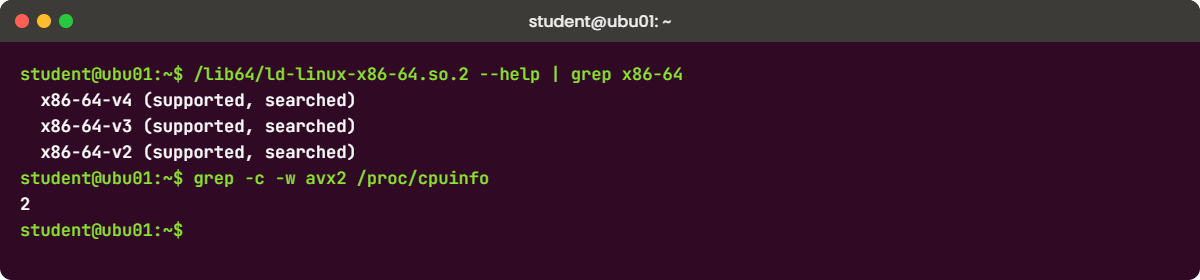
Linux lab setup check on ubu01: ld-linux shows x86-64-v3 supported and avx2 on both vCPUs
Example output from ubu01: glibc lists x86-64-v3 as supported, so rocky01 will boot

5Check that your VM sees an x86-64-v3 CPU

ubu01 boots on any 64-bit CPU, so use it as a test probe. It sees the same virtual CPU that rocky01 will see, which tells you before installing whether Rocky Linux 10 can start.

Run this on ubu01:

/lib64/ld-linux-x86-64.so.2 --help | grep x86-64
grep -c -w avx2 /proc/cpuinfo

You should see something like this:

  x86-64-v4 (supported, searched)
  x86-64-v3 (supported, searched)
  x86-64-v2 (supported, searched)
2

“x86-64-v3 (supported, searched)” means glibc found every v3 feature, and the 2 means both vCPUs show the avx2 flag. You’re good to install Rocky. If the v3 line has no “(supported, searched)” after it and the count is 0, don’t install Rocky yet: read Break It 2 first, and if you can’t fix it, use the AlmaLinux 10 fallback in the note below.

Fallback for older CPUs: AlmaLinux 10 also publishes an x86_64_v2 build. Download the x86_64_v2 minimal ISO (named like AlmaLinux-10.2-x86_64_v2-minimal.iso), attach it to the rocky01 VM instead of the Rocky ISO and keep the name rocky01, so every later lesson still works. The commands in this course are the same. You’ll notice small differences: the prompt and /etc/os-release say AlmaLinux, and the default volume group is called almalinux instead of rl.

✅ Checkpoint: Your ubu01 output shows x86-64-v3 as supported, or you have switched rocky01 to the AlmaLinux x86_64_v2 ISO.

6Install Rocky Linux on rocky01

Run this, then use the VM window:

VBoxManage startvm rocky01 --type=gui

Choose “Install Rocky Linux 10.2”. On the Installation Summary screen set these spokes, then click Begin Installation:

SpokeWhat to choose
Keyboard, Language SupportYour layout, English
Time & DateAsia/Kolkata (or your own city), Network Time on
Software SelectionMinimal Install. If “Standard” is listed on the right, tick it (step 10 installs it anyway)
Installation DestinationThe 20 GiB disk, Storage Configuration Automatic
KDUMPUntick “Enable kdump”. With the RHEL 10 default (crashkernel=2G-64G:256M) a 2 GB VM gets no crash memory, so kdump.service would fail at every boot. Lesson 79 sets kdump up properly
Network & Host NameHost Name rocky01, Apply. Select enp0s3, Configure, IPv4 Settings, Method Manual. Add address 10.10.10.11, netmask 24, gateway 10.10.10.1, DNS servers 10.10.10.1, search domains saatlab.test. Save, then switch the card ON
Root Password (Root Account)Enable root account and set a root password. Leave “Allow root SSH login with password” unticked
User CreationFull name Student, user name student, tick “Add administrative privileges to this user account (wheel group membership)”

Why set a root password when you’ll use sudo every day? Because in Phase 4 you’ll break the boot on purpose, and RHEL-family emergency mode asks for the root password before it gives you a shell. After the reboot, log in at the console as student:

Run this on rocky01:

ip -br a show enp0s3
ip route

You should see something like this:

enp0s3           UP             10.10.10.11/24 fe80::a00:27ff:fe3b:9c11/64
default via 10.10.10.1 dev enp0s3 proto static metric 100
10.10.10.0/24 dev enp0s3 proto kernel scope link src 10.10.10.11 metric 100

[Add your screenshot here]: the Rocky Linux Installation Summary with every spoke filled in (no orange warnings), showing “Network: Wired (enp0s3) connected” and the root account enabled.

✅ Checkpoint: rocky01 shows 10.10.10.11/24 on enp0s3 and a default route via 10.10.10.1.

7Check DNS and the internet from both VMs

Both VMs use 10.10.10.1 as their name server, which is VirtualBox’s DNS proxy on the NAT Network. Test it with getent, which asks the system resolver the same way dnf and apt do:

Run this on rocky01:

getent hosts dl.rockylinux.org
sudo dnf -y makecache

You should see something like this (first line):

151.101.130.132 dl.rockylinux.org

On ubu01 run getent hosts archive.ubuntu.com and sudo apt update instead. Any IP address on the first line means DNS works. If getent prints nothing and dnf or apt say they can’t resolve the host, the proxy isn’t answering on your laptop (some VPNs and company laptops block it), so add a public resolver as a second server:

On Rocky Linux / RHELOn Ubuntu
sudo nmcli connection modify enp0s3 ipv4.dns "10.10.10.1 1.1.1.1"
sudo nmcli connection up enp0s3

Edit /etc/netplan/50-cloud-init.yaml and add 1.1.1.1 under nameservers addresses, then run:

sudo netplan apply

✅ Checkpoint: getent returns an IP address for the repository host on both VMs, and dnf makecache and apt update finish without errors.

8Give every VM the same /etc/hosts

A lab doesn’t need a DNS server for four machines. One block in /etc/hosts on each VM lets you use names like ubu01 and rocky01.saatlab.test everywhere.

Paste this whole block on rocky01, then again on ubu01:

sudo tee -a /etc/hosts > /dev/null <<'EOF'
10.10.10.11  rocky01.saatlab.test  rocky01
10.10.10.21  ubu01.saatlab.test    ubu01
10.10.10.31  kafka01.saatlab.test  kafka01
10.10.10.40  ad01.saatlab.test     ad01
EOF
ping -c 3 ubu01

You should see something like this on rocky01:

PING ubu01.saatlab.test (10.10.10.21) 56(84) bytes of data.
64 bytes from ubu01.saatlab.test (10.10.10.21): icmp_seq=1 ttl=64 time=0.612 ms
64 bytes from ubu01.saatlab.test (10.10.10.21): icmp_seq=2 ttl=64 time=0.498 ms
64 bytes from ubu01.saatlab.test (10.10.10.21): icmp_seq=3 ttl=64 time=0.521 ms

--- ubu01.saatlab.test ping statistics ---
3 packets transmitted, 3 received, 0% packet loss, time 2034ms
rtt min/avg/max/mdev = 0.498/0.543/0.612/0.050 ms

sudo tee -a appends as root, which a plain >> after sudo can’t do (Lesson 13 explains why). On ubu01, ping rocky01 instead. Ubuntu already has a line like 127.0.1.1 ubu01 near the top of the file, which is normal and can stay.

✅ Checkpoint: ping by name works in both directions with 0% packet loss.

9SSH in from your laptop

Windows 10 and 11, macOS and Linux all have the OpenSSH client built in. Open a new terminal on the laptop (not inside a VM):

Run this:

ssh -p 2211 student@127.0.0.1

You should see something like this:

The authenticity of host '[127.0.0.1]:2211 ([127.0.0.1]:2211)' can't be established.
ED25519 key fingerprint is SHA256:Qm4Zr8yVt1kH2cW9pLx6dN0sJfA3eB7uT5gR1oYiK8M.
This key is not known by any other names.
Are you sure you want to continue connecting (yes/no/[fingerprint])? yes
Warning: Permanently added '[127.0.0.1]:2211' (ED25519) to the list of known hosts.
student@127.0.0.1's password:
Last login: Tue Oct 27 11:02:41 2026
[student@rocky01 ~]$

Type yes the first time only. SSH saves the server’s key under [127.0.0.1]:2211, so rocky01 and ubu01 don’t clash even though both are “127.0.0.1”. Type exit, then do the same for ubu01 with ssh -p 2221 student@127.0.0.1.

From now on you can minimise the VM windows and work only over SSH.

✅ Checkpoint: You get the [student@rocky01 ~]$ prompt on port 2211 and student@ubu01:~$ on port 2221.

10Update both VMs and take the “base” snapshot

Run this on rocky01, then shut it down:

sudo dnf -y group install standard
sudo dnf -y update
sudo systemctl poweroff

Run this on ubu01, then shut it down:

sudo apt update && sudo apt -y full-upgrade
sudo systemctl poweroff

The standard group adds the everyday admin tools a minimal install leaves out, such as the man pages you’ll use in Lesson 3. Updates bring a new kernel more often than not, and the power-off makes sure the snapshot holds a clean, fully stopped system. Then, back on the laptop:

Run this:

VBoxManage snapshot rocky01 take base --description="Lesson 2: clean install, static IP, student user, updated"
VBoxManage snapshot ubu01 take base --description="Lesson 2: clean install, static IP, student user, updated"
VBoxManage snapshot rocky01 list --details

You should see something like this:

0%...10%...20%...30%...40%...50%...60%...70%...80%...90%...100%
Snapshot taken. UUID: 7e4b2d90-1f6a-4c83-9e05-b8d2a6c3f117
0%...10%...20%...30%...40%...50%...60%...70%...80%...90%...100%
Snapshot taken. UUID: c3a91f08-5d2e-47b6-8f14-0e7a9b2d6c55
   Name: base (UUID: 7e4b2d90-1f6a-4c83-9e05-b8d2a6c3f117) *
   Description: Lesson 2: clean install, static IP, student user, updated

To start the VMs without a window from now on, use VBoxManage startvm rocky01 --type=headless. On an 8 GB laptop run only two VMs at a time, which is all you need until Phase 3.

✅ Checkpoint: Both VMs have a snapshot called base, and you can start them headless and SSH in on 2211 and 2221.

Break It, Then Fix It

Both VMs have a “base” snapshot now, so nothing here can cost you more than a restore: VBoxManage snapshot rocky01 restore base with the VM powered off.

Each of these is a fault I’ve seen people lose an evening to. You’ll cause it, read the exact error, and fix it.

1Lose the SSH door (and then the network)

Delete the rocky01 rule on the laptop, then try to connect:

VBoxManage natnetwork modify --netname=LinuxLab --port-forward-4 delete ssh-rocky01
ssh -p 2211 student@127.0.0.1

You’ll get this error:

ssh: connect to host 127.0.0.1 port 2211: Connection refused

“Connection refused” means nothing on your laptop is listening on 2211, so the problem is on the laptop side, not inside the VM. A timeout would point somewhere else, like a firewall dropping packets.

Fix: put the rule back.

VBoxManage natnetwork modify --netname=LinuxLab --port-forward-4="ssh-rocky01:tcp:[127.0.0.1]:2211:[10.10.10.11]:22"

Now the second, sneakier version. In VirtualBox Manager, people often pick “NAT” instead of “NAT Network” for Adapter 1. Do that to the running rocky01 from the laptop, then try to reach ubu01 from the rocky01 console:

Run this on the laptop, then the ping on rocky01’s console:

VBoxManage controlvm rocky01 nic1 nat
ping -c 2 ubu01

You’ll get this error:

PING ubu01.saatlab.test (10.10.10.21) 56(84) bytes of data.
From rocky01.saatlab.test (10.10.10.11) icmp_seq=1 Destination Host Unreachable
From rocky01.saatlab.test (10.10.10.11) icmp_seq=2 Destination Host Unreachable

--- ubu01.saatlab.test ping statistics ---
2 packets transmitted, 0 received, +2 errors, 100% packet loss, time 1023ms

Plain NAT gives every VM its own private 10.0.2.0/24 world with nobody else in it, so rocky01 still has its 10.10.10.11 address but is now alone. Its ARP request for 10.10.10.21 gets no answer, which is what “Destination Host Unreachable” means here, and SSH from the laptop stops working too.

Fix: attach the card to the NAT Network again.

VBoxManage controlvm rocky01 nic1 natnetwork LinuxLab

✅ Checkpoint: ping ubu01 works again from rocky01 and ssh -p 2211 logs you in.

2Boot Rocky on a CPU without x86-64-v3

You can make VirtualBox show rocky01 an older CPU with a CPU profile. The i7-3960X (Sandy Bridge, 2011) has AVX but no AVX2, so it is an x86-64-v2 CPU. On some hosts VirtualBox can’t apply a profile fully, and if Rocky still boots, read the output below and move on.

With rocky01 powered off, run this on the laptop:

VBoxManage modifyvm rocky01 --cpu-profile="Intel Core i7-3960X"
VBoxManage startvm rocky01 --type=gui

You’ll get this error on the console, a second or two after the kernel starts:

Fatal glibc error: CPU does not support x86-64-v3
[    2.418230] Kernel panic - not syncing: Attempted to kill init! exitcode=0x00007f00

The kernel itself starts fine. The crash comes from the first user-space program (systemd, inside the initramfs), because glibc on EL10 checks the CPU level before it runs anything. This is the same message people saw with VirtualBox 7.2.8, and on Windows hosts where VirtualBox runs on top of Hyper-V (the green turtle icon).

Fix: power the VM off and give it the real host CPU again.

VBoxManage controlvm rocky01 poweroff
VBoxManage modifyvm rocky01 --cpu-profile=host
VBoxManage startvm rocky01 --type=headless

When the cause is your setup and not a test like this one: update VirtualBox to 7.2.10 or later first. If the turtle still shows on Windows, turn off Memory integrity (Windows Security, Device security, Core isolation), run bcdedit /set hypervisorlaunchtype off in an admin PowerShell and reboot. That also stops WSL 2, which needs Hyper-V, so you choose one or the other.

On a CPU that is older than v3, use the AlmaLinux x86_64_v2 ISO.

✅ Checkpoint: rocky01 boots again and ssh -p 2211 works.

3Give two machines the same IP

Duplicate IPs are one of the most common faults in real data centres, usually after someone clones a VM. Add rocky01’s address to ubu01 as a second, temporary address (it disappears at the next reboot):

Run this on ubu01:

sudo ip addr add 10.10.10.11/24 dev enp0s3

Now, from rocky01, ask who answers for its own address:

sudo arping -D -I enp0s3 -c 2 10.10.10.11; echo "exit=$?"

You’ll get something like this:

ARPING 10.10.10.11 from 0.0.0.0 enp0s3
Unicast reply from 10.10.10.11 [08:00:27:5E:7D:21]  0.743ms
Sent 1 probes (1 broadcast(s))
Received 1 response(s)
exit=1

The -D option is duplicate address detection: arping asks “is anyone using this address?” from 0.0.0.0, so rocky01 doesn’t answer itself. A reply means another machine (here ubu01’s MAC, 08:00:27:5E:7D:21) claims the address, and exit code 1 says so to a script. Exit code 0 with “Received 0 response(s)” is the healthy answer.

Meanwhile SSH on port 2211 may land on the wrong machine, and you’ll get this:

@@@@@@@@@@@@@@@@@@@@@@@@@@@@@@@@@@@@@@@@@@@@@@@@@@@@@@@@@@@
@    WARNING: REMOTE HOST IDENTIFICATION HAS CHANGED!     @
@@@@@@@@@@@@@@@@@@@@@@@@@@@@@@@@@@@@@@@@@@@@@@@@@@@@@@@@@@@
IT IS POSSIBLE THAT SOMEONE IS DOING SOMETHING NASTY!

Don’t answer that warning by deleting the old key. Here it’s telling you the truth: a different machine is answering on that address.

Fix: remove the extra address on ubu01, then repeat the arping on rocky01.

sudo ip addr del 10.10.10.11/24 dev enp0s3

✅ Checkpoint: arping -D on rocky01 shows Received 0 response(s) and exit=0, and SSH on 2211 reaches rocky01 without a warning.

This happened at work

The UAT server that answered for someone else

My team lead tells this one to every new joiner. It happened at a private bank in Ahmedabad, on a Monday during a UAT cycle for the new loan processing app, when the test team said the app server “logs them out every few minutes”.

The application team restarted Tomcat twice and blamed the load balancer. An engineer trying to SSH in got the “REMOTE HOST IDENTIFICATION HAS CHANGED” warning, decided it was because of last week’s rebuild, removed the old key and carried on, and the next time he logged in he landed on a completely different server with the same IP.

Our lead ran arping -D for the address from a neighbouring server and got replies from two MAC addresses. A reporting VM had been cloned from a template on Friday, and the person who built it reused the template’s static IP without checking. Half of the users’ sessions were going to a server that didn’t have the app at all.

The fix took five minutes: give the clone its own reserved address. The process change took longer. Every new IP is now reserved in the IPAM sheet before the VM is built, the build checklist has an arping -D step before the network is brought up, and nobody clears a known_hosts warning without first finding out why the key changed.

Common mistakes and troubleshooting

MistakeWhat happensWhat to do instead
Choosing “NAT” instead of “NAT Network” for Adapter 1The VM is alone on its own 10.0.2.0/24 and can’t see the other VM, and the port forwards on LinuxLab never reach itAttach Adapter 1 to NAT Network, name LinuxLab, and check with VBoxManage showvminfo
Leaving DHCP on in the NAT NetworkSome VMs pick a DHCP address instead of the planned one, and rules and /etc/hosts point to the wrong placeCreate LinuxLab with --dhcp=off and type the static IPs in the installer
Installing Rocky 10 before checking the CPU levelThe install ISO panics with the x86-64-v3 error and people think the ISO is brokenRun the ld-linux check on ubu01 first, update VirtualBox, or use the AlmaLinux x86_64_v2 ISO
Skipping the root password on rocky01Emergency mode in Phase 4 refuses to give you a shellEnable the root account in the installer, and keep root SSH login off
Binding port forwards to 0.0.0.0 or leaving the host IP emptyAnyone on the same Wi-Fi can try passwords on your VMsUse [127.0.0.1] as the host IP in every rule
Treating snapshots as backups, or keeping dozensSnapshot files grow, the laptop disk fills, and a dead disk takes VM and snapshots togetherKeep a few named snapshots like base and delete the rest with VBoxManage snapshot ... delete
Clearing a host key warning straight awayYou may log in to the wrong machine and type your password into itFind out why the key changed (rebuild, duplicate IP) before you run ssh-keygen -R

Interview questions

Click a question to open it. Each one is written the way an interviewer would ask it. Under it you will see why they ask it and one way you could answer, in your own words.

Fresher level

1. You need two Linux VMs on your laptop that can talk to each other, reach the internet and accept SSH from the laptop. How would you set up the networking in VirtualBox?

Why they ask this: They want to see that you know the VirtualBox network modes and can pick the right one for a goal, rather than clicking the defaults.

How you might answer: I’d create a NAT Network, for example 10.10.10.0/24, and attach both VMs to it. The VMs can see each other and get out to the internet through the NAT gateway at .1.

For SSH from the laptop I’d add port forwarding rules on that NAT Network, such as 127.0.0.1:2211 to 10.10.10.11:22, and give the VMs static IPs so the rules always point at the right machine.

2. Rocky Linux 10 won’t boot in your VM and the console says “Fatal glibc error: CPU does not support x86-64-v3”. What does that mean and what would you try?

Why they ask this: This checks whether you read an error message carefully and know the RHEL 10 hardware baseline instead of guessing.

How you might answer: It means the CPU the VM sees doesn’t have the x86-64-v3 features like AVX2, which RHEL 10 and its rebuilds are compiled for. The kernel starts but the first user-space program stops at once.

I’d check what the guest sees with ld-linux-x86-64.so.2 --help from another VM, update VirtualBox (7.2.8 had this bug), and on Windows make sure it isn’t running on top of Hyper-V. If the CPU is too old, I’d use AlmaLinux 10’s x86_64_v2 build.

2–5 years experience

3. SSH to a server suddenly says the remote host identification has changed. What do you do before you type anything else?

Why they ask this: They want to know you treat the warning as a security signal and can tell a rebuild from a duplicate IP or something worse.

How you might answer: I stop and find out why. If the server was rebuilt and I can confirm that in the change record, removing the old entry with ssh-keygen -R is fine.

If nobody rebuilt it, I check for a duplicate IP with arping -D from a neighbouring host and compare MAC addresses, and I check the new key’s fingerprint on the console. I don’t type a password until I know which machine I’m talking to.

4. Why would you give lab or production servers static IP addresses instead of DHCP, and how do you avoid clashes?

Why they ask this: This tests whether you understand addressing as part of operations: dependencies, documentation and checks.

How you might answer: Firewall rules, port forwards, monitoring, DNS records and /etc/hosts all point at an address, so it mustn’t change after a reboot. DHCP reservations can work too, but many teams prefer the address in the server’s own config.

To avoid clashes I reserve the address in the IPAM tool first and run arping -D before bringing the interface up. Cloning from templates is where most duplicates come from, so the template shouldn’t carry a real static IP.

Senior level

5. Your team wants a standard lab for training juniors on RHEL and Ubuntu. What would you put in it, and how would you keep it repeatable?

Why they ask this: They want to hear you design for repeatability and safe failure, which is how a senior admin thinks about any environment.

How you might answer: I’d keep it small: one RHEL-family VM and one Ubuntu VM on a private network with fixed IPs, a named user, SSH from the laptop and a clean snapshot. I’d script the VM creation with VBoxManage, so anyone can rebuild it in minutes, and keep the names and IPs in one shared document.

Later I’d add a Kickstart file for RHEL and an autoinstall file for Ubuntu, so even the OS install is repeatable, and every risky exercise starts from a snapshot.

6. A business unit wants to move to RHEL 10, but part of their hardware is from 2012. How do you handle that?

Why they ask this: This checks whether you know the x86-64-v3 change and can turn a technical limit into a plan.

How you might answer: First I’d inventory the CPUs and check each host for x86-64-v3, because RHEL 10 won’t run without it. Machines that fail can stay on RHEL 9, which needs only v2 and is supported until 2032, while we plan their hardware refresh.

If a v2 machine must run an EL10-compatible OS, AlmaLinux 10’s x86_64_v2 build is an option, but I’d be clear that it isn’t RHEL and isn’t covered by Red Hat support.

Quick quiz

Q1. Which VirtualBox network mode lets rocky01 and ubu01 see each other, reach the internet and use port forwards from the laptop?

  1. NAT
  2. NAT Network
  3. Internal Network
  4. Not attached
Show answer

B — A NAT Network is a shared private network with a NAT gateway. Plain NAT puts each VM in its own separate network.

Q2. What does “Fatal glibc error: CPU does not support x86-64-v3” tell you?

  1. The ISO file is damaged
  2. The VM has too little memory
  3. The CPU the VM sees lacks features (like AVX2) that RHEL 10 needs
  4. The disk controller is wrong
Show answer

C — RHEL 10 and its rebuilds are compiled for x86-64-v3, so glibc stops at once on a v2 CPU.

Q3. ssh -p 2211 student@127.0.0.1 says “Connection refused”. Where do you look first?

  1. The port forwarding rule on the laptop side
  2. The SELinux mode on rocky01
  3. The user’s password
  4. The DNS server
Show answer

A — Refused means nothing is listening on the laptop’s port 2211, so check the NAT Network rule first.

Q4. Why set a root password on rocky01 even though you use sudo?

  1. Ubuntu requires it
  2. RHEL emergency mode asks for the root password before giving a shell
  3. sudo doesn’t work without it
  4. SSH needs it
Show answer

B — You’ll need it in Phase 4 when you repair a broken boot.

Q5. What is true about a VirtualBox snapshot?

  1. It is a full backup on another disk
  2. It keeps changes in a differencing file, and restoring discards them
  3. It can only be taken while the VM runs
  4. It copies the whole disk each time
Show answer

B — After a snapshot, new writes go to a differencing file. Restoring throws that file away.

Quick recap

  • Your lab is rocky01 (Rocky Linux 10.2, 10.10.10.11) and ubu01 (Ubuntu Server 26.04.1, 10.10.10.21) on the NAT Network LinuxLab, 10.10.10.0/24, gateway and DNS 10.10.10.1.
  • Port forwards on 127.0.0.1 give you SSH from the laptop: ssh -p 2211 student@127.0.0.1 for rocky01 and port 2221 for ubu01.
  • RHEL 10 and its rebuilds need an x86-64-v3 CPU. Check from ubu01 with /lib64/ld-linux-x86-64.so.2 --help | grep x86-64, use VirtualBox 7.2.10 or later, and fall back to AlmaLinux 10 x86_64_v2 if needed.
  • Static IPs, one shared /etc/hosts block and a root password on rocky01 keep every later lesson working.
  • The “base” snapshot is your safety net: restore it whenever a Break-It lab goes further than you planned.

Next lesson

Lesson 3: The terminal, the shell prompt and getting help → You’ll read the prompt, find help with man, --help and apropos, and move around the shell much faster with history, tab completion and Ctrl shortcuts.

Further reading: Linux lab setup

Want to go deeper into Linux lab setup? Read the VirtualBox user manual (the VBoxManage natnetwork, modifyvm and snapshot chapters), the Rocky Linux installation guide, the Ubuntu Server documentation and the AlmaLinux release notes for the x86_64_v2 build. You can also see the full plan for this course on the Linux Administration course page.

Scroll to Top

This website uses cookies

We use a few cookies to keep this site working. If you allow it, we also use Google Analytics to count visits so we can improve our lessons. You can accept all, deny the optional ones, or choose what to allow.