Working with files and folders in Linux

The Linux file commands you’ll learn here (ls, cp, mv, rm, mkdir, touch and ln) are the ones you type more than anything else on a server. You use them to copy a config before you change it, clear old logs, move a release into place and check who owns a file, and a careless one can delete a week of work in less than a second.

In this lesson you’ll read every column of ls -l, move around with absolute and relative paths, let the shell pick files for you with wildcards, and look under the hood at inodes, which explain how hard links and soft links work. You’ll also see the rm -rf mistakes that end careers, safely, inside your own lab.

Where this lesson fits

Lesson 11 of 82 in Linux Administration · Phase 1: The origins and OS architecture · Before this: Lesson 10, the Linux file system hierarchy · Next: Lesson 12, read and edit files with less and vim

TimeYou needBy the end you can
About 60 minutesrocky01 from Lesson 2 (ubu01 works too; the differences are pointed out)Copy, move, delete and link files with confidence, read ls -l and stat output, and explain what an inode is

What it is, in one line

Linux file commands let you list, create, copy, move, rename, link and delete files and folders, and every file underneath is an inode with one or more names pointing at it.

In Simple Words

Flats, name plates and the society register

Think of a big housing society. The office keeps a register where every flat has a number, and next to the number it writes who owns the flat, how big it is and when it was last painted. The name plate on the door is only a label, so one flat can have two name plates (the Sharmas and the Kapoors share it) and it’s still one flat.

Now suppose the Sharmas move out and leave a board at the gate saying “Sharmas: now in B-204”. If B-204 is later demolished, the board still stands, but it points nowhere.

On Linux the register entry is the inode, a hard link is a second name plate on the same flat, and a soft link is that board at the gate.

Engineer's View

What ls -l is telling you

Here is one line of ls -l from rocky01, taken apart column by column:

-rw-rw-r--. 2 student student 17 Oct 27 10:21 servers.txt
PartExampleMeaning
File type–The first character: - regular file, d directory, l symbolic link, c and b character and block devices (you met them in /dev in Lesson 10)
Permissionsrw-rw-r--Three groups of three: owner, group, others. Read, write, execute. Lesson 17 covers them in full
SELinux dot.On Rocky and RHEL a dot means the file has an SELinux label. Ubuntu doesn’t print it. A + here means the file has an ACL (Lesson 19)
Link count2How many names (hard links) point at this inode. For a directory it’s 2 plus the number of subdirectories
Owner and groupstudent studentThe user and group that own the file
Size17Size in bytes. Add -h for K, M and G
TimeOct 27 10:21Last modification time (mtime). Files older than six months show the year instead of the time
Nameservers.txtThe name, and for a link, name -> target

The everyday commands, with the options you’ll use most:

CommandWhat it doesOptions worth knowing
lsList files-l long, -a hidden files too, -h human sizes, -t newest first, -r reverse, -i inode numbers, -d the directory itself
cpCopy (makes a new inode)-i ask before overwriting, -r folders, -p keep owner, mode and times, -a archive (keeps everything, used for backups)
mvMove or rename-i ask before overwriting, -n never overwrite
rmRemove a name-i ask, -r folders and their contents, -f never ask and ignore missing files
mkdirMake a directory-p make missing parents, no error if it exists
touchCreate an empty file or update its time-d set a given date
lnMake a link-s symbolic, -f replace, -n treat a link to a folder as a file

One thing changed recently on Ubuntu: since 25.10 it ships the Rust rewrite of coreutils (uutils) by default, and 26.04 keeps it. You type the same commands, but a few outputs can look slightly different from GNU coreutils on Rocky, so scripts should ask for exact fields with stat -c instead of parsing the screen.

How it works, step by step

Before any of these commands can touch a file, the kernel has to find it. The diagram below follows one path, step by step, from the name you type to the bytes on disk.

1The path is read one piece at a time

For /home/student/practice/servers.txt the kernel starts at the root directory /, looks up home inside it, then student, then practice. A directory is a small table of names and inode numbers, nothing more.

2The last name gives an inode number

Inside practice the entry servers.txt says “inode 33575012”. The inode holds everything about the file except its name: type, permissions, owner, size, times, link count and where the data blocks are. The kernel checks your permissions there and then reads the blocks.

Linux file commands: how the kernel follows a path from / to the inode and data blocks

3Wildcards are expanded by the shell, before the command runs

When you type ls *.log, bash looks in the current folder, replaces *.log with the matching names and only then starts ls. So ls never sees the star. * matches any characters, ? one single character, and [0-9] one character from a set. If nothing matches, bash passes the pattern through unchanged, which is why you get an error that mentions the star itself.

Names that start with a dot are skipped by *.

4cp, mv and rm work on names and inodes

cp creates a new inode and copies the bytes, so the copy has a new inode number. mv inside the same file system only changes the directory entry: the inode and data never move, which is why renaming a 20 GB file is instant. rm removes one name and lowers the link count, and the kernel frees the data only when the count reaches zero and no process still has the file open. That last part is the reason behind “I deleted the log but df didn’t change”, which you’ll fix in Lesson 66.

5Hard links and soft links

A hard link is a second directory entry with the same inode number. Both names are equal, neither is the “original”, and the data stays until the last name is removed. Hard links can’t point at directories and can’t cross into another file system, because inode numbers only mean something inside one file system.

A soft (symbolic) link is a tiny file of its own, with its own inode, whose content is a path. The kernel follows that path every time you open it. It can point at folders and other file systems, and it breaks if the target is moved or deleted.

The picture underneath puts both side by side.

Linux file commands: hard link versus soft link at the inode level

6Absolute and relative paths

An absolute path starts with / and works from anywhere: /etc/ssh/sshd_config. A relative path starts from your current folder, which pwd prints. . is the current folder, .. its parent, ~ your home folder and cd - takes you back to the previous folder.

In scripts, cron jobs and systemd units, always use absolute paths. Cron starts your script in your home folder, not in the folder where you tested it, so a relative path that worked on your screen can point somewhere else at 2 a.m.

Hands-on lab: build, copy, link and delete a practice folder

Before you run any command, double-check it

Read every command twice before you press Enter. Check the target: the server name, the user, the disk or device name, the path and the sizes. These commands are for learning and were tested in our lab, not on your system. At work, run the read-only commands first, follow your change process, make sure a backup exists, and ask a second person to check anything that changes or deletes data. You run them at your own risk.

You’ll build a small practice folder in your home directory on rocky01, fill it with files, and then copy, move, link and delete them. Everything stays inside ~/practice, so nothing on the system is at risk. Log in as student over SSH from your laptop (ssh -p 2211 student@127.0.0.1).

Your inode numbers, times and sizes will differ from the ones below. On ubu01 you won’t see the dot after the permissions (no SELinux), directories show 4096 as their size on ext4, and stat has no Context line.

1Know where you are

Run this:

cd
pwd
cd /etc
pwd
cd -

You should see this:

/home/student
/etc
/home/student

cd with nothing after it takes you home, and cd - jumps back to where you were and prints the folder. Get used to running pwd before any delete: most “wrong folder” accidents happen because someone assumed where they were.

✅ Checkpoint: pwd prints /home/student after cd -.

2Make a folder tree in one go

Run this:

mkdir practice/reports/2026/october
mkdir -p practice/reports/2026/october
ls -R practice

You should see this:

mkdir: cannot create directory 'practice/reports/2026/october': No such file or directory
practice:
reports

practice/reports:
2026

practice/reports/2026:
october

practice/reports/2026/october:

Plain mkdir refuses because the parent folders don’t exist yet. mkdir -p creates every missing parent and stays quiet if the folder is already there, which is why scripts use it. ls -R lists the tree recursively.

✅ Checkpoint: ls -R shows practice, reports, 2026 and october.

3Create files and read ls -l

Run this:

cd ~/practice
touch notes.txt app.log app.log.1 app.log.2 report1.csv report2.csv report10.csv
printf 'web01\nweb02\ndb01\n' > servers.txt
ls -l

You should see something like this:

total 4
-rw-rw-r--. 1 student student  0 Oct 27 10:16 app.log
-rw-rw-r--. 1 student student  0 Oct 27 10:16 app.log.1
-rw-rw-r--. 1 student student  0 Oct 27 10:16 app.log.2
-rw-rw-r--. 1 student student  0 Oct 27 10:16 notes.txt
-rw-rw-r--. 1 student student  0 Oct 27 10:16 report1.csv
-rw-rw-r--. 1 student student  0 Oct 27 10:16 report10.csv
-rw-rw-r--. 1 student student  0 Oct 27 10:16 report2.csv
drwxrwxr-x. 3 student student 18 Oct 27 10:15 reports
-rw-rw-r--. 1 student student 17 Oct 27 10:16 servers.txt

touch made seven empty files (size 0). printf wrote three lines into servers.txt, which is 17 bytes including the line endings; Lesson 13 explains the > sign. The files are rw-rw-r-- because student’s umask is 0002 on both Rocky and Ubuntu (user private groups), and reports shows a size of 18 because a small XFS directory stores its entries inside the inode.

✅ Checkpoint: You can point at the type, permissions, link count, owner, size, time and name of servers.txt.

4Let the shell pick files with wildcards

Run this:

ls app.log*
ls report?.csv
ls report[0-9]*.csv
echo report*.csv
ls *.CSV

You should see this:

app.log
app.log.1
app.log.2
report1.csv
report2.csv
report1.csv
report10.csv
report2.csv
report1.csv report10.csv report2.csv
ls: cannot access '*.CSV': No such file or directory

report?.csv skips report10.csv because ? stands for one character only. echo shows you the list bash built, which is the safest way to test a pattern before you hand it to rm. The last error mentions *.CSV literally because nothing matched (names are case-sensitive), so bash passed the pattern through untouched.

✅ Checkpoint: echo report*.csv prints three names and you can say why report?.csv printed only two.

5Copy safely

Run this (answer n to the question):

cp servers.txt servers.bak
cp -i servers.txt servers.bak
cp reports reports-backup
cp -r reports reports-backup
ls -d reports*

You should see this:

cp: overwrite 'servers.bak'? n
cp: -r not specified; omitting directory 'reports'
reports
reports-backup

The first copy overwrites silently if servers.bak exists, which is the default and the danger. -i asks first. A folder needs -r, and when you back up config at work, use cp -a (or cp -p) so the owner, permissions and times stay the same as the original.

✅ Checkpoint: ls -d reports* shows both reports and reports-backup.

6Rename with mv and watch the inode

Run this:

ls -i notes.txt
mv notes.txt todo.txt
ls -i todo.txt

You should see something like this:

33575013 notes.txt
33575013 todo.txt

The inode number didn’t change. mv inside one file system rewrites the directory entry and leaves the data where it is. Across file systems (say from /home to /dev/shm) it has to copy and then delete, which takes longer and gives the file a new inode.

✅ Checkpoint: The inode number is the same before and after the rename.

7Delete with care

Run this (answer y to the last question):

mkdir -p old/stuff
rmdir old
rm old
rm -i app.log.2
rm -r reports-backup old
ls

You should see this, then the remaining files:

rmdir: failed to remove 'old': Directory not empty
rm: cannot remove 'old': Is a directory
rm: remove regular empty file 'app.log.2'? y

rmdir only removes empty folders, plain rm refuses folders, and rm -r removes a folder and everything in it. There is no recycle bin on a Linux server, so a deleted file is gone unless a backup or snapshot has it.

✅ Checkpoint: old, reports-backup and app.log.2 are gone; todo.txt and servers.txt are still there.

8Look inside the inode with stat

Run this:

stat servers.txt

You should see something like this:

  File: servers.txt
  Size: 17        	Blocks: 8          IO Block: 4096   regular file
Device: 253,0	Inode: 33575012    Links: 1
Access: (0664/-rw-rw-r--)  Uid: ( 1000/ student)   Gid: ( 1000/ student)
Context: unconfined_u:object_r:user_home_t:s0
Access: 2026-10-27 10:16:40.512334018 +0530
Modify: 2026-10-27 10:16:40.512334018 +0530
Change: 2026-10-27 10:16:40.512334018 +0530
 Birth: 2026-10-27 10:16:40.512334018 +0530

This is the society register entry: inode number, link count, permissions in number and letter form, owner and group by UID and GID, the SELinux label (Rocky only) and four times. Modify changes when the content changes, Change when the inode changes (chmod, chown, a new hard link), Access when it’s read (Linux updates it lazily), and Birth is when it was created. To get one field in a script, ask for it: stat -c %i servers.txt prints only the inode number.

✅ Checkpoint: You can read the inode number and the link count (1) from stat.
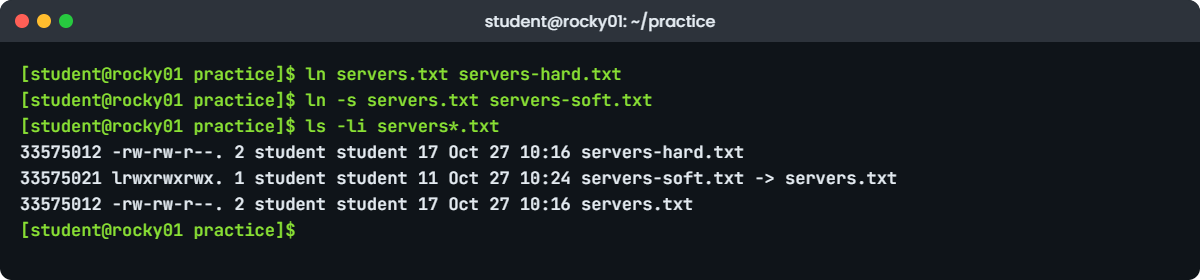
Linux file commands lab output: ls -li with a hard link and a soft link on rocky01
Example output from rocky01: ls -li shows the hard link sharing one inode number with servers.txt (your numbers will differ)

9Make a hard link and a soft link

Run this:

ln servers.txt servers-hard.txt
ln -s servers.txt servers-soft.txt
ls -li servers*.txt

You should see something like this:

33575012 -rw-rw-r--. 2 student student 17 Oct 27 10:16 servers-hard.txt
33575021 lrwxrwxrwx. 1 student student 11 Oct 27 10:24 servers-soft.txt -> servers.txt
33575012 -rw-rw-r--. 2 student student 17 Oct 27 10:16 servers.txt

servers.txt and servers-hard.txt share inode 33575012 and the link count went up to 2. The soft link has its own inode, type l, and its size is 11 because it stores the 11 characters “servers.txt”.

Now remove the original name and read both links:

rm servers.txt
ls -l servers-hard.txt servers-soft.txt
cat servers-hard.txt
cat servers-soft.txt

You should see something like this:

-rw-rw-r--. 1 student student 17 Oct 27 10:16 servers-hard.txt
lrwxrwxrwx. 1 student student 11 Oct 27 10:24 servers-soft.txt -> servers.txt
web01
web02
db01
cat: servers-soft.txt: No such file or directory

The hard link still has the data, because the inode had two names and only one was removed. The soft link is now broken: it points at a name that no longer exists. Put the file back so the next lesson has it:

mv servers-hard.txt servers.txt

✅ Checkpoint: cat servers-soft.txt works again after the mv, because the name it points to is back.

Break It, Then Fix It

Take a VirtualBox snapshot of rocky01 before this part (Machine, Take Snapshot, name it “before-lesson11-break”). Nothing below should touch anything outside ~/practice, but the habit is worth building now.

1rm -rf with an empty variable

This is the classic script accident. A variable holds a folder name, something leaves it empty, and rm -rf "$APPDIR"/cache turns into rm -rf /cache. Swap the dangerous command for echo and see what bash would have run:

Run this:

APPDIR=
echo rm -rf "$APPDIR"/cache

You’ll get:

rm -rf /cache

One missing value and the path now starts at the root of the system. A run as root with something like "$APPDIR"/* would delete almost everything. GNU rm refuses rm -rf / itself with “it is dangerous to operate recursively on ‘/'” (the --preserve-root default), but it can’t protect you from /* or /cache.

Fix: make bash stop when the variable is empty.

echo rm -rf "${APPDIR:?APPDIR is empty}"/cache

You’ll get:

-bash: APPDIR: APPDIR is empty

${VAR:?message} aborts the command (and a script) when the variable is unset or empty. Lesson 39 adds set -u for the same reason. At work, also print the target and check it before any recursive delete.

✅ Checkpoint: The echo with 😕 prints the error and never shows an rm command.

2A relative soft link that points nowhere

Run this:

cd ~/practice
ln -s servers.txt reports/link
ls -l reports/link
cat reports/link

You’ll get:

lrwxrwxrwx. 1 student student 11 Oct 27 10:31 reports/link -> servers.txt
cat: reports/link: No such file or directory

The link looks fine in ls, but a relative target is resolved from the folder the link lives in, not from where you were standing when you made it. The kernel looks for reports/servers.txt, which doesn’t exist.

Fix: point it at the right relative path (or use an absolute one) and replace the old link:

ln -sfn ../servers.txt reports/link
cat reports/link
find . -xtype l

You should see:

web01
web02
db01

find . -xtype l lists broken links, and here it prints nothing. It’s a good check after any migration where folders moved.

✅ Checkpoint: cat reports/link prints the three server names.

3File names with spaces and dashes

Run this:

touch "my report.txt"
touch -- -rf.txt
rm my report.txt
rm -rf.txt

You’ll get:

rm: cannot remove 'my': No such file or directory
rm: cannot remove 'report.txt': No such file or directory
rm: invalid option -- '.'
Try 'rm ./-rf.txt' to remove the file '-rf.txt'.
Try 'rm --help' for more information.

Bash splits words on spaces, so rm got two names. A name that starts with a dash looks like options. Here it failed safely, but a file called -rf sitting in a folder where someone runs rm * gets read as the option, which is a real trick people pull on careless admins.

Fix: quote names with spaces, and put ./ in front of names that start with a dash (or end the options with --).

rm "my report.txt"
rm ./-rf.txt

✅ Checkpoint: Both files are gone and ls shows no error.

4A hard link to another file system

Run this:

ln servers.txt /dev/shm/servers.txt

You’ll get:

ln: failed to create hard link '/dev/shm/servers.txt' => 'servers.txt': Invalid cross-device link

/dev/shm is a tmpfs in memory, a different file system from /home, and inode 33575012 means nothing there.

Fix: use a soft link when you need to point across file systems.

ln -s ~/practice/servers.txt /dev/shm/servers.txt
cat /dev/shm/servers.txt
rm /dev/shm/servers.txt

✅ Checkpoint: The soft link reads the file, and you removed it afterwards.

This happened at work

The trailing slash that emptied the results site

I was on call for a state government portal in Lucknow the week the board exam results went live. The deploy script was simple: copy the new release into a dated folder, switch a symlink called current to it, and clean up. At 6:40 a.m., twenty minutes before results were due, the site started returning blank pages.

The first thing the team tried was rolling the symlink back to the previous release. It made no difference, and that confused everyone, because the previous release folder was right there. When I opened it, it was empty.

So was the new one.

The cleanup line in the script was rm -rf "$CURRENT/", meant to remove the old symlink before making a new one. With the trailing slash, rm doesn’t remove the link; it follows it and deletes everything inside the folder it points to, and -f hid the final “Not a directory” error. Someone had added the slash a week earlier to “make it clearer it’s a folder”, and the script had already run against both releases.

We restored the release from the previous night’s backup in about fifteen minutes and results went out a little late. The script now uses ln -sfn to replace the link in one step, never runs rm on the link, prints every path it’s about to touch, and has ${CURRENT:?} guards. We also tried the same command in a test folder for the whole team, and nobody forgets a demo where the files vanish while ls still shows a healthy-looking link.

Common mistakes and troubleshooting

MistakeWhat happensWhat to do instead
Running rm -rf with a variable that can be emptyThe path collapses to / or /something and the wrong tree is deletedUse "${VAR:?}", print the target first, and test the line with echo
Putting a trailing slash on a symlink in rm -rfrm follows the link and empties the real folderRemove a link with plain rm linkname (no slash), or replace it with ln -sfn
Copying config without -a or -pThe backup has your ownership and today’s time, so a restore can break a serviceUse cp -a file file.bak.$(date +%F)
Testing a wildcard straight inside rmMore (or different) files match than you expectedRun echo pattern or ls pattern first, then rm with the same pattern
Using relative paths in cron jobs and scriptsThe script runs from a different folder and works on the wrong filesUse absolute paths everywhere in automation
Making a relative soft link from the wrong folderThe link is created but points nowhereRemember the target is resolved from the link’s folder; check with readlink -f or find -xtype l
Thinking rm frees disk space at onceA process still holds the file open and df doesn’t changeCheck with lsof +L1 (Lesson 66)

Interview questions

Click a question to open it. Each one is written the way an interviewer would ask it. Under it you will see why they ask it and one way you could answer, in your own words.

Fresher level

1. Walk me through what each column of ls -l means for a normal file.

Why they ask this: They want to see that you read output instead of guessing. Naming the link count and the SELinux dot correctly shows you’ve looked closely on a real server.

How you might answer: The first character is the type, a dash for a regular file, then nine permission characters for owner, group and others. On RHEL there’s often a dot after them, which means an SELinux label.

After that come the hard link count, the owner, the group, the size in bytes, the last modified time and the name. For a symlink the name shows an arrow to its target.

2. What’s the difference between an absolute and a relative path, and which would you use in a cron job?

Why they ask this: They’re checking a basic idea that causes real outages in automation. They want to hear that you know why the context of cron is different.

How you might answer: An absolute path starts with a slash and means the same thing from anywhere, like /var/log/messages. A relative path is worked out from the current directory, so it depends on where you are.

In cron and systemd units I always use absolute paths, because the job starts in the user’s home directory and doesn’t have my shell’s environment. A relative path that works in my terminal can point at the wrong place there.

2–5 years experience

3. Explain hard links and soft links. When would you choose one over the other?

Why they ask this: They want the inode-level explanation, not only “a soft link is a shortcut”. Knowing the limits (no directories, no crossing file systems) shows depth.

How you might answer: A hard link is another directory entry pointing at the same inode, so both names are equal and the data stays until the link count reaches zero. It can’t point at a directory or cross into another file system. A soft link is its own small file that stores a path, so it can point anywhere, but it breaks if the target moves.

In practice I use soft links almost always, for example a current link pointing at a release folder, or /opt/app pointing at a versioned directory. Hard links show up in backup tools that de-duplicate snapshots.

4. You deleted a 10 GB log file but df still shows the disk as full. What’s going on?

Why they ask this: This connects rm and inodes to a common incident. They want you to know that space is freed only when no name and no open handle remain.

How you might answer: rm only removed the name. If a process like the application or rsyslog still has the file open, the inode and its blocks stay allocated until that process closes it.

I’d run sudo lsof +L1 to find the process, then restart or reload it during an agreed slot, or if I can’t restart, truncate the open handle through /proc/PID/fd after checking what it is. Next time I’d truncate a live log instead of deleting it, or let logrotate handle it.

Senior level

5. A junior asks you to review a cleanup script that runs rm -rf as root. What do you look for?

Why they ask this: They want to see your safety habits and how you teach them. Good answers mention empty variables, trailing slashes, globs, dry runs and logging.

How you might answer: First I check every variable in a path for a guard like ${VAR:?} and that the script uses set -u, because an empty variable is the classic way to end up deleting from /. I look for trailing slashes on symlinks, unquoted variables that can split on spaces, and globs that could match more than intended.

Then I ask for a dry-run mode that prints what it would delete, a log of what it did, and a test on a copy of the real folder structure. For anything big I want a backup or snapshot first and a second person to read the paths.

6. A file system has plenty of free space but users get “No space left on device”. How do inodes come into it?

Why they ask this: They’re testing whether you understand that inodes are a separate, limited resource on some file systems, and how you’d find the culprit.

How you might answer: Every file needs an inode, and ext4 creates a fixed number of them when the file system is made, so millions of tiny files can use them all while blocks are still free. df -i shows inode use, and a 100 percent IUse% confirms it. XFS allocates inodes dynamically, so it hits this far less often.

To find where they went I count files per folder, usually a session or cache folder that nobody cleans. The fix is to clean that folder and add a cleanup job, and if the pattern is normal for the app, rebuild the file system with more inodes or move it to XFS. Lesson 67 covers this case in full.

Quick quiz

Q1. In ls -l output, what does the number right after the permissions tell you?

  1. The file size in blocks
  2. The number of hard links to the inode
  3. The inode number
  4. How many users have the file open
Show answer

B — It’s the link count. For a directory it’s 2 plus the number of subdirectories.

Q2. Which command creates /data/a/b/c even if /data/a does not exist yet?

  1. mkdir /data/a/b/c
  2. mkdir -r /data/a/b/c
  3. mkdir -p /data/a/b/c
  4. touch /data/a/b/c
Show answer

C — The -p option creates every missing parent and doesn’t complain if the folder exists.

Q3. You rename a 20 GB file with mv in the same file system. Why is it instant?

  1. mv compresses the file
  2. Only the directory entry changes; the inode and data stay put
  3. mv runs in the background
  4. The kernel caches it in RAM
Show answer

B — Within one file system mv only rewrites the name. Across file systems it has to copy and delete.

Q4. Which statement about hard links is true?

  1. They can point at directories
  2. They work across file systems
  3. They share the same inode number as the original name
  4. They break when the original name is deleted
Show answer

C — A hard link is another name for the same inode, so deleting one name leaves the data reachable through the other.

Q5. Who expands *.log in the command ls *.log?

  1. ls
  2. The kernel
  3. The shell, before ls starts
  4. The file system driver
Show answer

C — Bash replaces the pattern with matching names first, so ls receives a list of file names.

Quick recap

  • ls -l shows type, permissions, link count, owner, group, size, time and name; on Rocky a dot after the permissions means an SELinux label.
  • cp makes a new inode, mv in one file system only renames, and rm removes a name; data is freed when no name and no open handle remain.
  • mkdir -p builds whole trees, touch creates empty files, and the shell expands *, ? and [ ] before the command runs.
  • A hard link is another name for the same inode; a soft link is a small file that stores a path and can break.
  • Before any recursive delete: pwd, echo the pattern, guard variables with ${VAR:?} and never put a trailing slash on a symlink.

Next lesson

Lesson 12: Read and edit files with less and vim → You’ll read files and live logs with cat, less, head and tail -f, then learn enough vim to edit any config on any server, safely.

Further reading: Linux file commands

Want to go deeper into Linux file commands? The GNU coreutils manual covers ls, cp, mv, rm, ln and stat in detail. For how the kernel finds a file, read path_resolution(7), inode(7) and symlink(7), and the bash manual’s section on filename expansion.

You can also see the full plan for this course on the Linux Administration course page.

Scroll to Top

This website uses cookies

We use a few cookies to keep this site working. If you allow it, we also use Google Analytics to count visits so we can improve our lessons. You can accept all, deny the optional ones, or choose what to allow.