“No space left on device” with free space: inodes and other causes
-
Phase 0: Before you start
-
Phase 1: The origins and OS architecture
-
Phase 2: Day-to-day administration and the command builder
-
Phase 3: Enterprise infrastructure and storage
-
Phase 4: Troubleshooting step by step
-
Phase 5: Final project and career
Few errors confuse people like no space left on device on a disk where df -h clearly shows gigabytes free. The kernel returns that error (ENOSPC) whenever any resource a write needs has run out, and blocks are only one of them: inodes, the 5% reserve for root, a tmpfs size limit, a quota or a full /boot can all produce the same message.
In Lesson 66 the disk looked emptier than it was. Here it looks fuller than it is. You’ll build a small ext4 file system on rocky01 with very few inodes, fill it with tiny session files until writes fail at 28% used, find the folder responsible and clean it safely, then hit the reserved-block limit as a normal user and fill a tmpfs the way Ubuntu 26.04’s /tmp can fill.
Where this lesson fits
Lesson 67 of 82 in Linux Administration · Phase 4: Troubleshooting step by step · Before this: Lesson 66, du and df don’t match · Next: Lesson 68, a custom systemd service fails to start
| Time | You need | By the end you can |
|---|---|---|
| About 60 minutes | rocky01 with about 1 GB of space left on the root file system, and ubu01 for one read-only check | Tell which resource ran out when a write fails with ENOSPC, find the folder with millions of small files, clean it without “Argument list too long”, and know where else the error comes from |
What it is, in one line
“No space left on device” means some resource a write needs has run out, which can be inodes, the space a normal user is allowed, a tmpfs limit or a quota, not only data blocks.
In Simple Words
The parking lot with no tokens left
A mall parking lot has 400 spaces, and at the gate the guard hands every car a numbered token. One evening the lot is half empty, yet the guard waves cars away, because he has run out of tokens: someone printed only 300. A delivery company has parked 290 scooters in the corner, each taking a token and hardly any space.
The board outside says “200 spaces free”, which is true, and the guard says “full”, which is also true. The first ten spaces near the lift are kept for the mall manager’s car, so even a token doesn’t get you one of those.
Spaces are data blocks, tokens are inodes, and the manager’s spaces are the blocks ext4 reserves for root.
Engineer's View
Everything that can make a write fail with ENOSPC
Every file and folder needs one inode, which holds its owner, permissions, times and the list of its data blocks. On ext4 the number of inodes is fixed when you run mkfs (by default one per 16 KiB of space) and only grows when you grow the file system. A folder with millions of 1 KiB files uses up the inodes long before the blocks.
XFS creates inodes as it needs them, up to a share of the space set by imaxpct (25% on small and medium file systems), so it almost never runs out of them.
| What ran out | What you see | How to check |
|---|---|---|
| Inodes (ext4) | Writes fail; df -h shows space, df -i shows 100% | df -i, sudo du --inodes -x /path | sort -rn | head |
| Reserved blocks (ext4) | Users get the error at 95%, root can still write | sudo tune2fs -l DEVICE | grep -i reserved |
| tmpfs size (/tmp on Ubuntu 26.04, /run, /dev/shm) | A big download, extract or build in /tmp fails | findmnt /tmp, df -h /tmp |
| Deleted files still open | df full, du much lower | Lesson 66: sudo lsof +L1 |
| Full /boot | Kernel updates fail while / is fine | df -h /boot, Lesson 49 |
| Container storage | Pulls and builds fail, home or /var fills | podman system df, docker system df |
| XFS project quota | ENOSPC inside one folder tree only | sudo xfs_quota -x -c report /mountpoint |
Ordinary user and group quotas return a different error, “Disk quota exceeded” (EDQUOT), which is a useful clue in itself. A few things that have nothing to do with disks also borrow ENOSPC: the inotify watch limit (tail -f or a file-watching app reports “No space left on device” when fs.inotify.max_user_watches is reached) and System V semaphores (semget failing on a database server). If every disk check is clean, read which call failed in the error and think about those.
On Ubuntu 26.04 /tmp is a tmpfs by default, sized at 50% of RAM, so on ubu01 with 2 GB it’s under 1 GB and lives in memory. Rocky Linux 10 keeps /tmp on the root file system unless you change it.
How it works, step by step
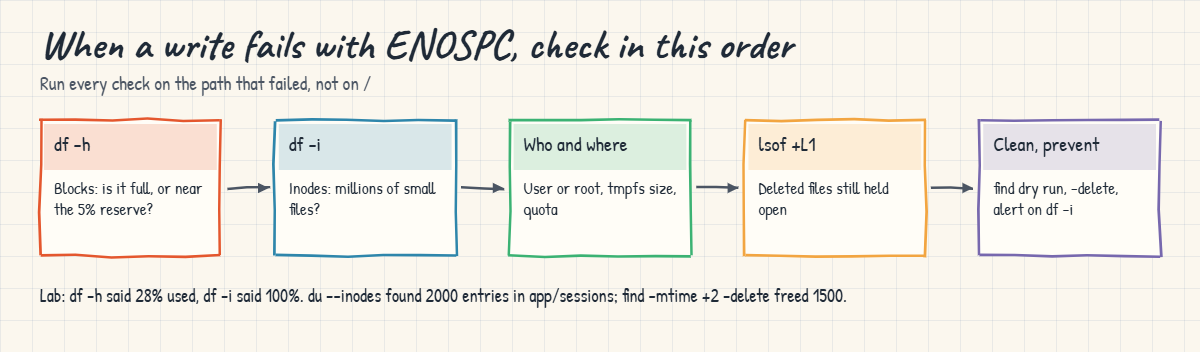
A file write needs several things, and the kernel checks them in turn. The diagram below shows the order you check them in when the error appears.
1Creating a file takes an inode
open() with O_CREAT asks the file system for a free inode. If none is left, the call fails with ENOSPC before a single byte is written. That’s why touch and mkdir fail on an inode-full file system, while appending to an existing file still works.
2Writing data takes blocks
write() needs free data blocks. On ext4 the last 5% (by default) are kept for root and for the file system’s own use, so a normal user gets ENOSPC while root can still write. That reserve is what lets root log in and clean up a full root file system, and why services running as root keep going a little longer than user apps.
3Limits on top: tmpfs size and quotas
A tmpfs has a size limit set at mount time (size=) and an inode limit (nr_inodes=), and it fails with ENOSPC when either is reached, even if the machine has RAM to spare. Quotas cap what one user, group or project may use; ext4 and XFS user quotas say “Disk quota exceeded”, XFS project quotas say “No space left on device”.
4Check in a fixed order
When the error appears, run df -h and df -i on the path that failed (not on /), then think about who was writing (root or a user), what kind of file system it is (df -hT), and whether a deleted file is held open. Five commands answer most cases.
5Find the folder with too many files
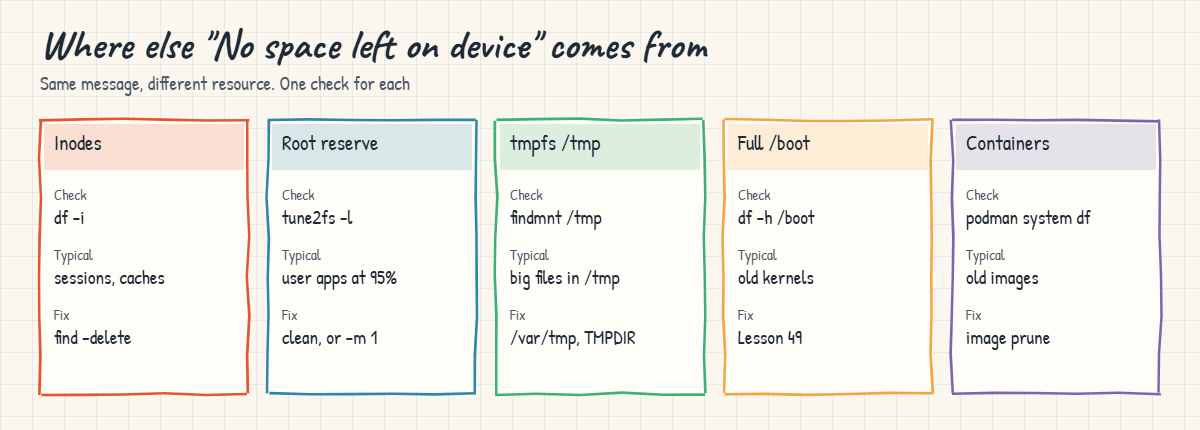
Once df -i shows 100%, you need the folder holding the inodes, which is rarely the one holding the gigabytes. du --inodes counts files per folder the way du -h counts bytes. Typical culprits are PHP or app session folders, cache and thumbnail folders, mail queues, and a cron job that writes one small file per run and never cleans up. The picture below lists the other places this error comes from and how to check each one.
6Clean safely and stop it coming back
Delete with find, dry run first: print and count what matches, then run the same command with -delete. A shell glob such as rm /path/sess_* fails with “Argument list too long” once there are tens of thousands of files, which you’ll meet in Break-It 2. Then fix the cause: a cleanup timer for the cache, a session lifetime in the app, or a file system made with more inodes (mkfs.ext4 -i 4096 gives one inode per 4 KiB) or XFS for that data.
Growing an ext4 file system adds inodes in proportion, because new block groups come with their own inode tables. It buys time, but if the app never deletes anything you’ll be back in a week. Add df -i to your monitoring next to df -h, with an alert at around 80%.
Hands-on lab: run a file system out of inodes and back
Before you run any command, double-check it
Read every command twice before you press Enter. Check the target: the server name, the user, the disk or device name, the path and the sizes. These commands are for learning and were tested in our lab, not on your system. At work, run the read-only commands first, follow your change process, make sure a backup exists, and ask a second person to check anything that changes or deletes data. You run them at your own risk.
Everything that fills up in this lab is a 256 MiB file system kept in /var/tmp/lab67.img and mounted through a loop device, so vg_data, lv_app, lv_logs and the root file system stay safe. Work on rocky01 as student and take a snapshot first (VBoxManage snapshot rocky01 take before-l67 on the laptop). The outputs on the test file system came from running these exact steps; only the loop device number and times will differ on yours.
1Build a small file system with very few inodes
Run this on rocky01:
truncate -s 256M /var/tmp/lab67.img
mkfs.ext4 -q -L lab67 -b 4096 -N 2000 /var/tmp/lab67.img
sudo mkdir -p /mnt/lab67
sudo mount -o loop /var/tmp/lab67.img /mnt/lab67
sudo chown student:student /mnt/lab67
df -h /mnt/lab67
df -i /mnt/lab67You should see this:
Filesystem Size Used Avail Use% Mounted on
/dev/loop0 240M 24K 222M 1% /mnt/lab67
Filesystem Inodes IUsed IFree IUse% Mounted on
/dev/loop0 2016 11 2005 1% /mnt/lab67-N 2000 asks mkfs for about 2000 inodes instead of the usual one per 16 KiB (which would be about 16,000 here). ext4 rounds the number up to fill its block groups, so you get 2016, and 11 are taken straight away by the root folder, lost+found and the file system’s own reserved inodes. A real server volume has millions, but it runs out the same way.
✅ Checkpoint: df -h shows 240M with 222M available and df -i shows 2016 inodes.
2Fill it the way a busy app does
Create three big reports and a lot of tiny session files:
mkdir -p /mnt/lab67/app/sessions /mnt/lab67/app/reports
cd /mnt/lab67/app/reports
for m in 07 08 09; do dd if=/dev/zero of=gstr-2026-$m.pdf bs=1M count=20 status=none; done
cd /mnt/lab67/app/sessions
touch -d '5 days ago' sess_{0001..1500}
touch sess_{1501..2500} 2>&1 | tail -n 2
ls | wc -l
echo "invoice 1044" > /mnt/lab67/app/reports/inv-1044.txtYou’ll get this:
touch: cannot touch 'sess_2499': No space left on device
touch: cannot touch 'sess_2500': No space left on device
1999
-bash: /mnt/lab67/app/reports/inv-1044.txt: No space left on deviceThe first 1500 session files get a time five days ago (old sessions an app forgot to clean), the rest are new. Somewhere after 1999 files touch starts failing, and then the important write, a new invoice, fails too with the same error. 2>&1 | tail -n 2 keeps the screen from filling with 500 identical error lines.
✅ Checkpoint: touch fails with “No space left on device” and the invoice file can’t be created.
3Compare df -h with df -i
Run this:
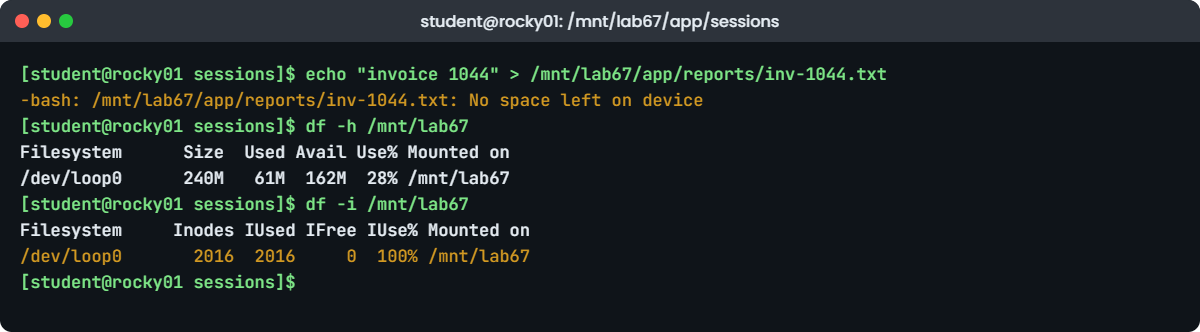
df -h /mnt/lab67
df -i /mnt/lab67You should see this:
Filesystem Size Used Avail Use% Mounted on
/dev/loop0 240M 61M 162M 28% /mnt/lab67
Filesystem Inodes IUsed IFree IUse% Mounted on
/dev/loop0 2016 2016 0 100% /mnt/lab67Blocks: 28% used, 162M available. Inodes: 2016 of 2016 used, 0 free, IUse% 100%. This pair of commands is the whole diagnosis for an inode problem, and the second one is the one people forget.
Always run both on the path that failed, because / can be fine while /var/lib/app is full.
✅ Checkpoint: You can point at IUse% 100% as the reason the invoice couldn’t be written.
4Find the folder with the most files
Run this:
sudo du --inodes -x /mnt/lab67 | sort -rn | head -n 5
find /mnt/lab67 -xdev -type f -printf '%h\n' | sort | uniq -c | sort -rn | head -n 3You should see this:
2007 /mnt/lab67
2005 /mnt/lab67/app
2000 /mnt/lab67/app/sessions
4 /mnt/lab67/app/reports
1 /mnt/lab67/lost+found
1999 /mnt/lab67/app/sessions
3 /mnt/lab67/app/reportsdu --inodes counts inodes (files and folders) under each folder, and the numbers add up the tree, so read from the deepest folder with a big count: app/sessions holds 2000. The find line prints the folder of every file and counts them, which works the same with any find and helps when du is an older version. sudo lets du read lost+found, which only root may enter. On Ubuntu 26.04 du comes from uutils; if it doesn’t accept --inodes on your version, use the find line.
Try it yourself: find the biggest folders by size in the Command Builder.
✅ Checkpoint: Both commands point at /mnt/lab67/app/sessions.
5Clean old files: dry run first, then delete
See what would go, and how many:
find /mnt/lab67/app/sessions -xdev -type f -name 'sess_*' -mtime +2 -print | head -n 3
find /mnt/lab67/app/sessions -xdev -type f -name 'sess_*' -mtime +2 -print | wc -lYou should see something like this:
/mnt/lab67/app/sessions/sess_1339
/mnt/lab67/app/sessions/sess_0058
/mnt/lab67/app/sessions/sess_0731
1500-mtime +2 means “last modified more than two full days ago”, so only the 1500 old sessions match and the 499 new ones are safe. find lists files in directory order, not by name, which is why the sample looks random. When the count matches what you expect, run the same command with -delete at the end:
find /mnt/lab67/app/sessions -xdev -type f -name 'sess_*' -mtime +2 -delete
df -i /mnt/lab67
echo "invoice 1044" > /mnt/lab67/app/reports/inv-1044.txt && cat /mnt/lab67/app/reports/inv-1044.txtYou should see this:
Filesystem Inodes IUsed IFree IUse% Mounted on
/dev/loop0 2016 516 1500 26% /mnt/lab67
invoice 10441500 inodes are free again and the invoice is written. On a real server, the next step is to find out why the app stopped cleaning its sessions, and to add a timer (Lesson 28) that runs this find every night.
Try it yourself: find the biggest files under a folder in the Command Builder.
✅ Checkpoint: df -i shows 516 used (26%) and inv-1044.txt contains “invoice 1044”.
6Hit the reserved-block limit as a normal user
Fill the space as student, then try the same as root:
mkdir /mnt/lab67/scratch
dd if=/dev/zero of=/mnt/lab67/scratch/fill.bin bs=1M
df -h /mnt/lab67You’ll get this:
dd: error writing '/mnt/lab67/scratch/fill.bin': No space left on device
162+0 records in
161+0 records out
168820736 bytes (169 MB, 161 MiB) copied, 0.385302 s, 438 MB/s
Filesystem Size Used Avail Use% Mounted on
/dev/loop0 240M 222M 220K 100% /mnt/lab67Student’s dd stopped with ENOSPC, and df shows 100% with 220K available, even though Size minus Used is still 18M. Now write 5 MiB as root and look at the reserve:
sudo dd if=/dev/zero of=/mnt/lab67/scratch/root.bin bs=1M count=5 status=none; echo "root wrote 5 MiB"
df -h /mnt/lab67
sudo tune2fs -l $(findmnt -no SOURCE /mnt/lab67) | grep -E 'Reserved block count|Reserved blocks uid'You should see this:
root wrote 5 MiB
Filesystem Size Used Avail Use% Mounted on
/dev/loop0 240M 227M 0 100% /mnt/lab67
Reserved block count: 3276
Reserved blocks uid: 0 (user root)Root could still write because 3276 blocks (5% of 65536, about 12.8 MiB) are reserved for UID 0. This is why an app running as a normal user can fail on a “95% full” disk while root’s cron jobs carry on. On data volumes that only an app uses, admins often lower the reserve with sudo tune2fs -m 1 DEVICE; on / and /var keep the default, because that reserve is what lets you log in and clean up.
Remove the fill files with sudo rm /mnt/lab67/scratch/*.bin.
✅ Checkpoint: student got ENOSPC, root wrote 5 MiB afterwards, and tune2fs shows 3276 reserved blocks for root.
7See how XFS and the real volumes count inodes
Read-only, on rocky01’s real file systems:
df -hT / /srv/app /srv/logs
df -i / /srv/app /srv/logs
xfs_info /srv/app | grep -o 'imaxpct=[0-9]*'You should see something like this:
Filesystem Type Size Used Avail Use% Mounted on
/dev/mapper/rl-root xfs 17G 3.9G 13G 23% /
/dev/mapper/vg_data-lv_app xfs 4.2G 148M 4.1G 4% /srv/app
/dev/mapper/vg_data-lv_logs ext4 1.5G 1.2M 1.4G 1% /srv/logs
Filesystem Inodes IUsed IFree IUse% Mounted on
/dev/mapper/rl-root 8597504 61842 8535662 1% /
/dev/mapper/vg_data-lv_app 2190336 52 2190284 1% /srv/app
/dev/mapper/vg_data-lv_logs 98304 14 98290 1% /srv/logs
imaxpct=25lv_logs is ext4 and has a fixed 98,304 inodes: one per 16 KiB of its 1.5 GiB, including the ones added when you grew it in Lesson 45. The two XFS file systems show millions, because XFS reports how many inodes it could still create from free space, up to 25% of the space (imaxpct). On XFS the inode total shrinks as you fill the disk with data: on a 512 MiB XFS test, writing 300 MiB took it from 262,144 to 230,056 with only 4 inodes used.
That’s why inode exhaustion is mostly an ext4 problem.
✅ Checkpoint: You can say which of the three file systems has a fixed inode count.
8Check the other usual suspects
On ubu01, run this:
findmnt /tmp
df -h /tmp /bootYou should see something like this:
TARGET SOURCE FSTYPE OPTIONS
/tmp tmpfs tmpfs rw,nosuid,nodev,size=1007616k,nr_inodes=1048576,inode64
Filesystem Size Used Avail Use% Mounted on
tmpfs 984M 4.0K 984M 1% /tmp
/dev/sda2 1.9G 186M 1.6G 11% /bootOn Ubuntu 26.04 /tmp is a tmpfs with size set to 50% of RAM, under 1 GB on ubu01, plus a limit of about a million inodes. A 2 GB ISO downloaded to /tmp or a big tar extracted there will fail with ENOSPC while / has plenty of room. Then on rocky01:
df -h /boot
podman system dfYou should see something like this:
Filesystem Size Used Avail Use% Mounted on
/dev/sda2 1.9G 418M 1.5G 22% /boot
TYPE TOTAL ACTIVE SIZE RECLAIMABLE
Images 2 1 195.8MB 45.3MB (23%)
Containers 1 1 1.093kB 0B (0%)
Local Volumes 0 0 0B 0B (0%)/boot on rocky01 is its own partition of about 2 GB, and each kernel with its initramfs and rescue image takes room (Lesson 49 showed what happens when it fills). podman system df shows what your rootless Podman from Lesson 57 keeps under ~/.local/share/containers, on the root file system; podman image prune removes unused images. Together with sudo lsof +L1 from Lesson 66, that’s the full checklist.
✅ Checkpoint: You know the /tmp size limit on ubu01 and how full /boot is on both VMs.
9Leave the test file system for Break-It, or clean up now
Break-It below uses a separate small tmpfs, so you can remove the lab file system now:
cd ~
sudo umount /mnt/lab67
sudo rmdir /mnt/lab67
rm /var/tmp/lab67.img
losetup -alosetup -a should print nothing: a loop device set up by mount -o loop is released automatically on unmount.
✅ Checkpoint: /mnt/lab67 is gone and losetup -a prints nothing.
Break It, Then Fix It
Both exercises use a 64 MiB tmpfs on rocky01, so they cost at most 64 MiB of RAM plus some memory for inodes, and disappear on unmount. Create it first:
sudo mkdir -p /mnt/lab67tmp
sudo mount -t tmpfs -o size=64M,mode=1777 lab67tmp /mnt/lab67tmp
df -h /mnt/lab67tmp1Fill a tmpfs the way /tmp fills on Ubuntu 26.04
Write a 100 MiB “export” into it:
dd if=/dev/zero of=/mnt/lab67tmp/export.tar bs=1M count=100
df -h /mnt/lab67tmpYou’ll get this:
dd: error writing '/mnt/lab67tmp/export.tar': No space left on device
65+0 records in
64+0 records out
67108864 bytes (67 MB, 64 MiB) copied, 0.029851 s, 2.2 GB/s
Filesystem Size Used Avail Use% Mounted on
lab67tmp 64M 64M 0 100% /mnt/lab67tmpThe tmpfs stopped at its size limit, no matter how much RAM or disk the VM has. This is what a developer meets on Ubuntu 26.04 when a build or an archive goes to /tmp, and the root file system they check with df shows plenty of space.
Fix: put big temporary files on disk, or change the limit on purpose.
rm /mnt/lab67tmp/export.tar
sudo mount -o remount,size=128M /mnt/lab67tmp
df -h /mnt/lab67tmpFor a single job, point its temporary files at a disk folder, for example TMPDIR=/var/tmp sort -o out.txt big.txt; TMPDIR is read by sort, mktemp and most build tools. A remount changes a tmpfs size on the fly (it can’t shrink below what is in use). For /tmp itself on Ubuntu, either add your own /tmp line to /etc/fstab with the size you want, or run sudo systemctl mask tmp.mount to keep /tmp on the root file system; both take effect at the next boot.
✅ Checkpoint: After the remount df shows 128M for /mnt/lab67tmp.
2Clean up thousands of files with a glob
Create 100,000 empty session files (xargs feeds touch in batches), then try the usual cleanup:
mkdir /mnt/lab67tmp/sessions
cd /mnt/lab67tmp/sessions
seq -f 'sess_%06g' 1 100000 | xargs touch
ls | wc -l
cd ~
rm /mnt/lab67tmp/sessions/sess_*You’ll get this error:
100000
-bash: /usr/bin/rm: Argument list too longThe shell expanded the glob into 100,000 full paths and tried to pass them all to rm in one exec() call. The kernel limits the size of a command’s arguments plus environment (about 2 MB with the default 8 MB stack, see getconf ARG_MAX), so rm never even started. No file was deleted.
On a real server this is the moment people reach for loops that call rm once per file, which takes hours on millions of files.
Fix: let find delete them; it never builds one huge argument list.
find /mnt/lab67tmp/sessions -type f -name 'sess_*' -print | wc -l
find /mnt/lab67tmp/sessions -type f -name 'sess_*' -delete
ls /mnt/lab67tmp/sessions | wc -l
df -i /mnt/lab67tmp | tail -n 1You should see something like this:
100000
0
lab67tmp 242090 2 242088 1% /mnt/lab67tmpfind deletes each file as it walks the folder. If you need rm for some reason, find ... -print0 | xargs -0 rm also works, because xargs splits the list into batches that fit. The inode total on your tmpfs depends on the VM’s RAM, so your number will differ.
Clean up:
sudo umount /mnt/lab67tmp
sudo rmdir /mnt/lab67tmp✅ Checkpoint: The glob failed with “Argument list too long”, find removed all 100,000 files, and /mnt/lab67tmp is unmounted.
This happened at work
GST deadline day and the thumbnail folder
I was looking after the servers of a GST billing software company in Indore when this happened, on the 20th of the month, the GSTR-3B filing deadline, which is our busiest day. Around 4 p.m. customers started reporting that invoices failed to save with “No space left on device”. The developer on call opened the dashboard: the data volume on the main app server was at 61%, with about 80 GB free.
The first fix the team tried was to grow the volume by 50 GB with lvextend -r, on the theory that the dashboard was wrong. It worked for about forty minutes, which convinced everyone it was a space problem. When the errors came back I ran df -i on the volume: 100% of 13 million inodes used.
Growing the ext4 volume had added inodes along with the new block groups, which is why it helped for a while.
sudo du --inodes -x /var/lib/billing | sort -rn | head pointed at the PDF thumbnail cache, with 11.4 million files of 2 to 6 KB each. A cleanup cron job had been deleting thumbnails older than seven days, but after an app upgrade two months earlier the cache folder had moved, and the cron job had been cleaning an empty folder ever since. I ran the find with -mtime +7 -print | wc -l first, which counted 9.1 million files, then the same find with -delete.
It took 25 minutes, and invoices were saving again by 5:30 p.m.
After the deadline we moved the cache to its own XFS volume, replaced the cron job with a systemd timer that fails loudly when its folder doesn’t exist, and added a df -i alert at 80% for every mount. The 50 GB we added in a panic stayed, because shrinking ext4 online isn’t possible.
Common mistakes and troubleshooting
| Mistake | What happens | What to do instead |
|---|---|---|
Checking only df -h | Inode exhaustion looks like a wrong error message | Run df -h and df -i on the path that failed |
| Checking / instead of the failing path | / is fine while /var/lib/app or /tmp is full | df -h /full/path resolves to the right mount |
Cleaning with rm /path/* on a huge folder | “Argument list too long”, nothing is deleted | Use find ... -delete after a dry run |
| Growing the volume to fix an inode problem | Helps for a while, then the files catch up again | Find and clean the folder, fix the app or the cleanup job |
Setting tune2fs -m 0 on / or /var | No room left for root to log in and clean up when it fills | Keep the reserve on system volumes; lower it only on app data volumes |
| Putting big downloads or builds in /tmp on Ubuntu 26.04 | The tmpfs fills at 50% of RAM | Use /var/tmp or set TMPDIR |
| Assuming every ENOSPC is about disks | Hours spent on clean disks while inotify or semaphores ran out | Read which call failed, then check fs.inotify.max_user_watches or ipcs |
Interview questions
Click a question to open it. Each one is written the way an interviewer would ask it. Under it you will see why they ask it and one way you could answer, in your own words.
Fresher level
1. An app says “No space left on device” but df -h shows 40% used. What would you check?
Why they ask this: The classic inode question. They want df -i first, and to hear that you’d check the path that failed.
How you might answer: I’d run df -i on the path the app writes to, because the file system may have run out of inodes even with free blocks. If IUse% is 100%, I find the folder with sudo du --inodes -x /path | sort -rn | head.
If inodes are fine, I check whether the app runs as a normal user on an ext4 volume above 95% (the root reserve), whether the path is a tmpfs like /tmp on Ubuntu, and whether a quota applies.
2. What is an inode, and can a file system run out of them?
Why they ask this: A basics check: they want to know you understand what an inode holds and that ext4 has a fixed number.
How you might answer: An inode is the record for one file or folder: owner, permissions, times, size and where the data blocks are. The name lives in the directory, not in the inode.
On ext4 the number of inodes is fixed at mkfs time, about one per 16 KiB by default, so millions of tiny files can use them all up while space is left. XFS creates inodes as needed up to a percentage of the space, so it rarely runs out.
2–5 years experience
3. You need to delete five million old session files from one folder on a live server. How do you do it safely?
Why they ask this: They’re checking that you know the argument-list limit, the dry run habit and the load a mass delete puts on a server.
How you might answer: I’d count first with find /path -type f -name 'sess_*' -mtime +7 -print | wc -l and look at a sample, then run the same find with -delete. A shell glob would fail with “Argument list too long”, and a loop calling rm per file would take hours.
On a busy server I’d run it with ionice -c3 nice -n 19 so it doesn’t slow the app, and maybe in chunks by age. Then I’d fix why sessions weren’t cleaned, for example the app’s session lifetime or a timer.
4. A normal user gets ENOSPC, but root can still write on the same ext4 file system. Explain.
Why they ask this: This checks knowledge of reserved blocks and what they’re for, and whether you’d tune them sensibly.
How you might answer: ext4 reserves a share of blocks, 5% by default, for UID 0, shown by tune2fs -l as “Reserved block count”. Users hit ENOSPC when only the reserve is left, while root can keep going.
The reserve exists so root can log in and clean up a full system disk and to limit fragmentation. On a large data volume used only by an app I might lower it with tune2fs -m 1, but never on / or /var.
Senior level
5. Design a file system layout for an app that stores tens of millions of small files.
Why they ask this: Seniors are expected to think ahead about inodes, file system choice and operations.
How you might answer: I’d put that data on its own volume so it can never fill / or /var, and I’d use XFS, which allocates inodes on demand. If it has to be ext4, I’d format with a smaller bytes-per-inode ratio, for example mkfs.ext4 -i 4096, after estimating the average file size.
I’d also spread files across hashed subfolders so no single folder holds millions of entries, monitor df -i next to df -h, and make sure retention is enforced by a timer whose failure raises an alert. For very large counts I’d ask whether object storage fits better.
6. Every disk check is clean, yet a process logs “No space left on device”. What else could it be?
Why they ask this: They want to see you go beyond disks and read the failing call.
How you might answer: I’d read which operation failed. If it’s inotify_add_watch, as with tail -f or a file-watching service, the watch limit fs.inotify.max_user_watches is reached and I’d raise it with a sysctl drop-in. If it’s semget on a database server, System V semaphores ran out, which ipcs -s and kernel.sem show.
I’d also check XFS project quotas, which return ENOSPC rather than “quota exceeded”, deleted files held open, and container overlay storage. strace on the process shows the exact call and errno when the message is vague.
Quick quiz
Q1. df -h shows 28% used, but creating a file fails with “No space left on device”. What do you run next?
du -sh /df -ifree -hlsblk
Show answer
B — df -i shows inode use. 100% IUse% explains ENOSPC with free blocks.
Q2. Which file system is most likely to run out of inodes while it still has free space?
- XFS
- ext4
- tmpfs with nr_inodes unlimited
- btrfs
Show answer
B — ext4 fixes the inode count at mkfs time; XFS creates inodes on demand.
Q3. Why can root write to an ext4 file system after a normal user gets ENOSPC?
- root bypasses all limits
- About 5% of blocks are reserved for root by default
- root writes to a different disk
- root uses the page cache only
Show answer
B — tune2fs -l shows the reserved block count and the reserved UID (0).
Q4. rm /data/cache/* fails with “Argument list too long”. What is the safe fix?
- Run it again with sudo
- Use
find /data/cache -type f -deleteafter a dry run - Reboot the server
- Use
rm -rf /data
Show answer
B — find never builds one huge argument list; run it with -print first to check what matches.
Q5. On Ubuntu 26.04, a 2 GB download to /tmp fails on a 2 GB RAM server with plenty of disk. Why?
- /tmp is read-only
- /tmp is a tmpfs limited to 50% of RAM
- The disk is out of inodes
- wget has a size limit
Show answer
B — Ubuntu 26.04 ships the upstream tmp.mount; use /var/tmp or TMPDIR for big files.
Quick recap
- “No space left on device” means something a write needs has run out: blocks, inodes, the user share of blocks, a tmpfs limit or a quota.
- Always run
df -handdf -ion the path that failed. - Find inode-heavy folders with
sudo du --inodes -x /path | sort -rn | head, then clean with find:-print | wc -lfirst, then-delete. - ext4 has a fixed inode count and a 5% root reserve; XFS creates inodes as it needs them.
- Ubuntu 26.04 /tmp is a tmpfs at 50% of RAM; put big temporary files in /var/tmp or set TMPDIR.
- Also check /boot, container storage, deleted-but-open files (Lesson 66), and, if disks are clean, inotify and semaphore limits.
Next lesson
Lesson 68: A custom systemd service fails to start → You’ll break a service of your own in the classic ways (status=203/EXEC, a missing execute bit, a wrong SELinux label, a forgotten daemon-reload) and read journalctl -xeu to fix each one.
Further reading: no space left on device
Want to go deeper into no space left on device? Read the man7.org pages for df, mke2fs (the -N and -i options), tune2fs (-m for the reserve), tmpfs(5) and inotify(7), plus the kernel’s XFS admin guide and the Ubuntu 26.04 release notes on /tmp as tmpfs. You can also see the full plan for this course on the Linux Administration course page.
