Join Linux to Active Directory with realmd and SSSD

When you join Linux to Active Directory, people log in to your Linux servers with the same user name and password they use for Windows and email, and you control who gets in and who gets sudo from AD groups instead of local accounts on every box. When someone leaves the company, disabling one AD account locks them out of every joined server at once.

In this lesson you build a small domain controller of your own, ad01, running Samba as an AD DC for the domain corp.saatlab.test, with its own firewall rules. Then you join rocky01 and ubu01 to it with realmd, SSSD and adcli, look up AD users, allow only one AD group to log in and give another AD group sudo. You’ll also break it the two ways it breaks most at work: a wrong clock and the wrong DNS server.

Where this lesson fits

Lesson 54 of 82 in Linux Administration · Phase 3: Enterprise infrastructure and storage · Before this: Lesson 53, performance basics · Next: Lesson 55, Linux hardening

TimeYou needBy the end you can
About 2 hours (ad01 install included)A new VM ad01 (Ubuntu Server 26.04 ISO from Lesson 2, 1 vCPU, 1.5 GB RAM, 15 GB disk), rocky01 and ubu01. On an 8 GB laptop run ad01 with one of them at a timeBuild a lab AD domain, join Rocky and Ubuntu servers to it, control logins and sudo with AD groups, and fix clock and DNS problems

What it is, in one line

Joining Linux to AD creates a computer account for the server in the domain, and SSSD then asks AD (over Kerberos and LDAP) who each user is, which groups they’re in and whether their password is right.

In Simple Words

The company ID card and the building guard

In a big office park, every company used to keep its own visitor register, and each guard had to know every employee by face. Then the park gave everyone one ID card from a central office. The guard at any building swipes the card, the central system says who you are and which floors you may enter, and the guard lets you in or doesn’t.

The guard must trust the central office first (that’s the join), his watch must show the right time because the cards carry a time stamp, and he must know the central office’s phone number. In this lesson the central office is AD on ad01, the guard is SSSD, the watch is chrony, and the phone number is DNS.

Engineer's View

realmd, adcli, SSSD and the AD services they talk to

Four pieces work together. realmd (realm) is the front door: it discovers the domain, installs and configures everything. adcli does the join itself: it authenticates as an AD admin, creates the computer account ROCKY01$ and writes its password into /etc/krb5.keytab. SSSD then runs all the time, looking users up for NSS (id, getent, ls -l) and checking passwords and access for PAM (su, console and SSH logins, sudo). oddjob-mkhomedir creates a home folder on first login.

AD servicePort on ad01Used for
DNS53 TCP/UDPSRV records like _ldap._tcp.corp.saatlab.test that tell clients where the DCs are
Kerberos KDC88 TCP/UDPTickets and password checks. Clocks must agree within 5 minutes
kpasswd464 TCP/UDPSetting the computer account password at join and when it rotates
LDAP / CLDAP389 TCP/UDPUser and group lookups (TCP), domain discovery ping (UDP)
Global Catalog3268 TCPGroup lookups across the forest
SMB445 TCPGroup Policy files (only with access_provider = ad) and Windows clients
Rocky Linux 10 (rocky01)Ubuntu 26.04 (ubu01)
Packagesrealmd sssd adcli oddjob oddjob-mkhomedir samba-common-tools krb5-workstationrealmd sssd-ad sssd-tools adcli libnss-sss libpam-sss
PAM setup at joinrealmd runs authselect select sssd with-mkhomedir for youAutomatic for pam_sss; home folders need pam-auth-update --enable mkhomedir
sudoClassic sudo 1.9sudo-rs: AD groups in /etc/sudoers.d work; the SSSD sudo provider does not
Default user name formatmeera@corp.saatlab.testSame

Samba on Linux can be a full AD domain controller (Kerberos KDC, LDAP, DNS, replication), which is what ad01 is. Ubuntu 26.04 ships Samba 4.23. If you did the SaatVedha Windows Server course, you can join DC01 instead and skip Part A; only the domain name and the Administrator account change.

How it works, step by step

Before any user can log in, the server has to find the domain and join it, and the diagram below shows what one realm join does.

1DNS tells the client where the domain controllers are

realmd asks DNS for the SRV record _ldap._tcp.corp.saatlab.test, which returns ad01.corp.saatlab.test on port 389. That only works if the server’s DNS resolver is an AD DNS server; your normal DNS has never heard of corp.saatlab.test. Then a small UDP LDAP query (the CLDAP “netlogon ping”) asks ad01 for the domain’s details.

2adcli creates the computer account

Using a Kerberos ticket for the admin you named, adcli creates CN=ROCKY01 in the Computers container, sets a long random password on it and saves that password as keys in /etc/krb5.keytab. From now on the server proves who it is to AD with those keys, and SSSD changes the password by itself every 30 days.

Join Linux to Active Directory: what realm join does step by step

3realmd writes the configuration

It writes /etc/sssd/sssd.conf with an [domain/corp.saatlab.test] section, adds the realm to /etc/krb5.conf, starts sssd and switches PAM and NSS to use it (authselect on Rocky). Nothing about users is copied to the server. Each lookup goes to SSSD, which asks AD and caches the answer.

4A login is a Kerberos check plus an access check

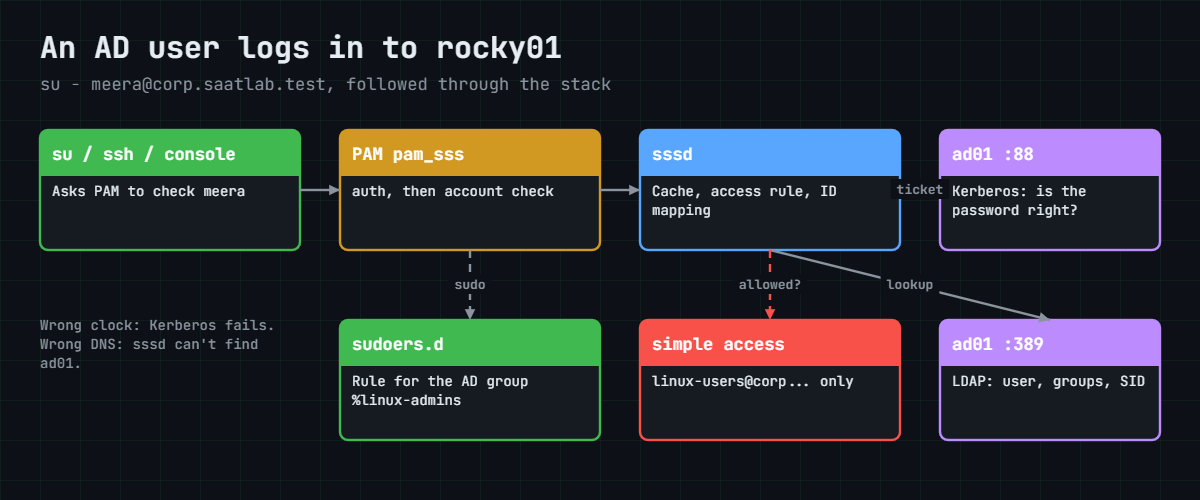
When meera types her password, pam_sss passes it to SSSD, which asks the KDC on ad01 for a Kerberos ticket with it. A ticket means the password was right. Then SSSD checks the access rule (realm permit) to decide whether this user may log in to this server at all.

5Groups decide access and sudo

SSSD reads the user’s AD groups, so id meera@corp.saatlab.test shows linux-admins@corp.saatlab.test like any local group. That means a normal rule in /etc/sudoers.d can name an AD group, and realm permit -g can limit logins to one. The picture below follows one login through PAM, SSSD and ad01.

Join Linux to Active Directory: how an AD user login passes through PAM, SSSD and ad01

6User and group IDs are calculated, not stored

Linux needs a number for every user. By default SSSD calculates it from the user’s SID (ldap_id_mapping = True), so meera gets the same UID on every server joined the same way, with nothing to set in AD. Companies that already store uidNumber and gidNumber in AD switch that off and read their own numbers instead, which matters for NFS (Lesson 47).

Logins over SSH with a password have been off on rocky01 and ubu01 since Lesson 33. AD users therefore test with su - and the VirtualBox console here; at work they normally use SSH keys or Kerberos single sign-on.

Hands-on lab: build ad01 and join rocky01 and ubu01

Before you run any command, double-check it

Read every command twice before you press Enter. Check the target: the server name, the user, the disk or device name, the path and the sizes. These commands are for learning and were tested in our lab, not on your system. At work, run the read-only commands first, follow your change process, make sure a backup exists, and ask a second person to check anything that changes or deletes data. You run them at your own risk.

Part A (steps 1 to 5) builds ad01. Part B (steps 6 to 11) joins rocky01, and step 12 joins ubu01.

Take snapshots of rocky01 and ubu01 first (VBoxManage snapshot rocky01 take before-l54 and the same for ubu01), and take one of ad01 at the end of step 5. Pick an Administrator password you’ll remember, at least 8 characters with upper case, lower case and digits, because Samba checks complexity.

1Create ad01 and give it its name

On the laptop, create the VM the same way you made ubu01 in Lesson 2, smaller:

VBoxManage createvm --name=ad01 --ostype=Ubuntu_64 --basefolder="C:\Lab\Linux" --register
VBoxManage modifyvm ad01 --memory=1536 --cpus=1 --firmware=bios --graphicscontroller=vmsvga --vram=16 --audio-enabled=off --nic1=natnetwork --nat-network1=LinuxLab --nic-type1=82540EM
VBoxManage createmedium disk --filename="C:\Lab\Linux\ad01\ad01.vdi" --size=15360 --format=VDI
VBoxManage storagectl ad01 --name=SATA --add=sata --controller=IntelAhci --portcount=4
VBoxManage storageattach ad01 --storagectl=SATA --port=0 --device=0 --type=hdd --medium="C:\Lab\Linux\ad01\ad01.vdi"
VBoxManage storagectl ad01 --name=IDE --add=ide
VBoxManage storageattach ad01 --storagectl=IDE --port=1 --device=0 --type=dvddrive --medium="C:\Lab\Linux\ISO\ubuntu-26.04.1-live-server-amd64.iso"
VBoxManage startvm ad01 --type=gui

In the installer use the same answers as for ubu01, except: IPv4 manual with subnet 10.10.10.0/24, address 10.10.10.40, gateway 10.10.10.1, name server 10.10.10.1, search domain corp.saatlab.test; server name ad01; user student; OpenSSH server on. The port forward 2241 to ad01 already exists from Lesson 2, so after the reboot connect from the laptop with ssh -p 2241 student@127.0.0.1 (password for now, keys come later).

On ad01, fix the host name entry and the time zone:

sudo sed -i '/^127\.0\.1\.1/d' /etc/hosts
echo '10.10.10.40  ad01.corp.saatlab.test  ad01' | sudo tee -a /etc/hosts
sudo timedatectl set-timezone Asia/Kolkata
hostname -f
timedatectl | grep -E 'Time zone|synchronized|NTP service'

You should see something like this:

10.10.10.40  ad01.corp.saatlab.test  ad01
ad01.corp.saatlab.test
                Time zone: Asia/Kolkata (IST, +0530)
System clock synchronized: yes
              NTP service: active

A domain controller’s full name must point to its real IP, not to the 127.0.1.1 line the Ubuntu installer adds, or the DNS records Samba creates will be wrong. The time zone is only for your eyes; Kerberos compares clocks in UTC. What matters is “synchronized: yes”, from chrony, which is Ubuntu’s default time service since 25.10.

✅ Checkpoint: hostname -f prints ad01.corp.saatlab.test and the clock is synchronized.

2Install Samba as a domain controller

Run this on ad01:

sudo apt update
sudo apt install -y samba-ad-dc krb5-user bind9-dnsutils

krb5-user asks three questions. Answer CORP.SAATLAB.TEST for the default realm and ad01.corp.saatlab.test for both server questions; the file it writes is replaced in step 3 anyway.

Then switch off the file-server services and get the DC service ready:

sudo systemctl disable --now smbd nmbd winbind
sudo systemctl mask smbd nmbd winbind
sudo systemctl unmask samba-ad-dc
sudo systemctl enable samba-ad-dc
sudo mv /etc/samba/smb.conf /etc/samba/smb.conf.orig
samba --version

You should see something like this (the systemctl lines are cut):

Version 4.23.6-Ubuntu

A Samba DC runs everything from one service, samba-ad-dc, and the normal smbd, nmbd and winbind services must not start beside it. If one of them isn’t installed, systemctl says the unit doesn’t exist; that’s fine. The old smb.conf has to move out of the way because provisioning writes a new one.

✅ Checkpoint: systemctl is-enabled samba-ad-dc prints enabled and systemctl is-enabled smbd prints masked.

3Provision the domain corp.saatlab.test

Run this on ad01:

sudo samba-tool domain provision --use-rfc2307 --realm=CORP.SAATLAB.TEST --domain=SAATLAB --server-role=dc --dns-backend=SAMBA_INTERNAL

The last lines look something like this (the INFO prefix with the date and file name is shortened):

INFO ... Server Role:           active directory domain controller
INFO ... Hostname:              ad01
INFO ... NetBIOS Domain:        SAATLAB
INFO ... DNS Domain:            corp.saatlab.test
INFO ... DOMAIN SID:            S-1-5-21-2918346021-1460372877-3542210589
INFO ... Admin password:        <a random password>

That one command created the AD database, the Kerberos realm, the DNS zone corp.saatlab.test and the Administrator account. Without --adminpass it picks a random Administrator password and prints it, which keeps your password out of the shell history; you set your own below. --use-rfc2307 adds the Unix attribute fields to AD for later use.

Now point Samba’s DNS at the lab resolver for outside names, let ad01 use its own DNS, and start it:

sudo sed -i 's/^\(\s*dns forwarder = \).*/\110.10.10.1/' /etc/samba/smb.conf
sudo grep -E 'dns forwarder|realm|server role|workgroup' /etc/samba/smb.conf
sudo cp /var/lib/samba/private/krb5.conf /etc/krb5.conf
sudo systemctl disable --now systemd-resolved
sudo unlink /etc/resolv.conf
printf 'nameserver 127.0.0.1\nsearch corp.saatlab.test\n' | sudo tee /etc/resolv.conf
sudo systemctl start samba-ad-dc
sudo samba-tool user setpassword Administrator

You should see something like this:

	dns forwarder = 10.10.10.1
	realm = CORP.SAATLAB.TEST
	server role = active directory domain controller
	workgroup = SAATLAB
nameserver 127.0.0.1
search corp.saatlab.test
New Password:
Retype Password:
Changed password OK

Provisioning copied the resolver it found (127.0.0.53, the systemd-resolved stub) as the forwarder, which would loop once resolved is off, so it now forwards to 10.10.10.1. systemd-resolved is stopped because Samba’s DNS server needs port 53 and ad01 should ask itself first. The krb5.conf that Samba generated points Kerberos at this realm.

✅ Checkpoint: systemctl is-active samba-ad-dc prints active and the Administrator password is the one you chose.

4Open ad01’s firewall and test DNS and Kerberos

Switch on ufw on ad01 with SSH and the DC ports, for the lab network only:

sudo ufw allow OpenSSH
sudo ufw allow from 10.10.10.0/24 to any port 53,88,389,445,464,636,3268,3269 proto tcp
sudo ufw allow from 10.10.10.0/24 to any port 53,88,389,464 proto udp
sudo ufw enable
sudo ufw status numbered

Answer y. You should see something like this:

Status: active

     To                         Action      From
     --                         ------      ----
[ 1] OpenSSH                    ALLOW IN    Anywhere
[ 2] 53,88,389,445,464,636,3268,3269/tcp ALLOW IN    10.10.10.0/24
[ 3] 53,88,389,464/udp          ALLOW IN    10.10.10.0/24
[ 4] OpenSSH (v6)               ALLOW IN    Anywhere (v6)

ad01 follows the same rule as ubu01 in Lesson 34: deny everything, then open what the service needs. Linux members need DNS, Kerberos, kpasswd, LDAP (TCP, plus UDP for the discovery ping) and the Global Catalog; 445 is there for Group Policy and Windows clients, 636 and 3269 for LDAP over TLS. A domain with Windows members or a second DC also needs 135, 139 and the RPC range 49152 to 65535, which this lab leaves closed.

Test from ad01 itself:

host -t SRV _ldap._tcp.corp.saatlab.test
host -t SRV _kerberos._udp.corp.saatlab.test
host -t A ad01.corp.saatlab.test
host -t A archive.ubuntu.com
kinit Administrator
klist

You should see something like this:

_ldap._tcp.corp.saatlab.test has SRV record 0 100 389 ad01.corp.saatlab.test.
_kerberos._udp.corp.saatlab.test has SRV record 0 100 88 ad01.corp.saatlab.test.
ad01.corp.saatlab.test has address 10.10.10.40
archive.ubuntu.com has address 185.125.190.82
Password for Administrator@CORP.SAATLAB.TEST:
Ticket cache: FILE:/tmp/krb5cc_1000
Default principal: Administrator@CORP.SAATLAB.TEST

Valid starting       Expires              Service principal
10/27/26 12:49:05    10/27/26 22:49:05    krbtgt/CORP.SAATLAB.TEST@CORP.SAATLAB.TEST
	renew until 11/03/26 12:49:01

The SRV records are what clients use to find this DC, outside names still resolve through the forwarder, and a Kerberos ticket for Administrator proves the KDC works. Tickets last 10 hours and can be renewed for 7 days, the AD defaults.

✅ Checkpoint: All four host lookups answer and klist shows a krbtgt ticket for CORP.SAATLAB.TEST.

5Create AD users and groups

On ad01, create two users (set a password for each when asked) and two groups:

sudo samba-tool user add meera --given-name=Meera --surname=Iyer
sudo samba-tool user add ravi --given-name=Ravi --surname=Kumar
sudo samba-tool group add linux-admins
sudo samba-tool group add linux-users
sudo samba-tool group addmembers linux-admins meera
sudo samba-tool group addmembers linux-users meera
sudo samba-tool group listmembers linux-users

You should see something like this:

New Password:
Retype Password:
User 'meera' added successfully
New Password:
Retype Password:
User 'ravi' added successfully
Added group linux-admins
Added group linux-users
Added members to group linux-admins
Added members to group linux-users
meera

meera is a Linux admin and may log in; ravi is an ordinary AD user who is only in Domain Users, so you can test a refusal later. These are AD accounts stored on ad01, not Linux accounts in /etc/passwd. Take the ad01 snapshot now (VBoxManage snapshot ad01 take ad01-ready).

Lesson 33’s SSH hardening isn’t on ad01 yet. Copy your laptop key with ssh-copy-id -p 2241 student@127.0.0.1, then create the same /etc/ssh/sshd_config.d/00-saat-hardening.conf on ad01 and restart ssh, so all VMs are key-only.

✅ Checkpoint: sudo samba-tool user list shows meera and ravi, and listmembers shows meera in linux-users.

6Point rocky01 at ad01 for DNS and check its clock

On rocky01, run this:

sudo nmcli connection modify enp0s3 ipv4.dns "10.10.10.40 10.10.10.1" ipv4.dns-search "corp.saatlab.test saatlab.test"
sudo nmcli device reapply enp0s3
sudo sed -i 's/^10\.10\.10\.40 .*/10.10.10.40  ad01.corp.saatlab.test  ad01.saatlab.test  ad01/' /etc/hosts
cat /etc/resolv.conf
dig +short -t SRV _ldap._tcp.corp.saatlab.test
chronyc -n tracking | grep -E '^(Reference ID|System time)'

You should see something like this:

# Generated by NetworkManager
search corp.saatlab.test saatlab.test
nameserver 10.10.10.40
nameserver 10.10.10.1
0 100 389 ad01.corp.saatlab.test.
Reference ID    : 2D4F0B2C (45.79.11.44)
System time     : 0.000183402 seconds fast of NTP time

ad01 is now the first DNS server, and the SRV lookup works from rocky01. 10.10.10.1 stays second so rocky01 can still reach the internet when ad01 is switched off on a small laptop; at work you would list only AD DNS servers (normally two DCs), because a resolver that doesn’t know the AD zone gives wrong answers. chrony says rocky01 is a fraction of a millisecond off, far inside Kerberos’s 5 minutes.

✅ Checkpoint: dig returns the SRV record for ad01 and the System time offset is well under a second.

7Discover and join the domain from rocky01

Install the packages, look at the domain, then join it:

sudo dnf install -y realmd sssd adcli oddjob oddjob-mkhomedir samba-common-tools krb5-workstation
realm discover corp.saatlab.test
sudo realm join -v -U Administrator corp.saatlab.test

You should see something like this (many join lines are cut):

corp.saatlab.test
  type: kerberos
  realm-name: CORP.SAATLAB.TEST
  domain-name: corp.saatlab.test
  configured: no
  server-software: active-directory
  client-software: sssd
  required-package: oddjob
  required-package: oddjob-mkhomedir
  required-package: sssd
  required-package: adcli
  required-package: samba-common-tools
 * Resolving: _ldap._tcp.corp.saatlab.test
 * Performing LDAP DSE lookup on: 10.10.10.40
 * Successfully discovered: corp.saatlab.test
Password for Administrator:
 * LANG=C /usr/sbin/adcli join --verbose --domain corp.saatlab.test --domain-realm CORP.SAATLAB.TEST --domain-controller 10.10.10.40 --login-type user --login-user Administrator --stdin-password
 * Calculated computer account name from fqdn: ROCKY01
 * Authenticated as user: Administrator@CORP.SAATLAB.TEST
 * Created computer account: CN=ROCKY01,CN=Computers,DC=corp,DC=saatlab,DC=test
 * Added the entries to the keytab: host/rocky01.saatlab.test@CORP.SAATLAB.TEST: FILE:/etc/krb5.keytab
 * /usr/bin/systemctl enable sssd.service
 * /usr/bin/sh -c /usr/bin/authselect select sssd with-mkhomedir --force && /usr/bin/systemctl enable oddjobd.service && /usr/bin/systemctl start oddjobd.service
 * Successfully enrolled machine in realm

realm discover found the domain through DNS and lists the packages it needs, which you installed. The join did everything in section 1 to 3 of “How it works”: adcli authenticated as Administrator, created the computer account ROCKY01$, wrote the keytab, and realmd switched PAM to SSSD with home folder creation. Without -v a successful join prints nothing after the password.

✅ Checkpoint: realm list shows corp.saatlab.test with “configured: kerberos-member”.

Join Linux to Active Directory lab: realm list and id meera on rocky01
Example output: realm list and id for an AD user on rocky01 after the join.

8Look up AD users from rocky01

Run this:

id meera@corp.saatlab.test
getent passwd meera@corp.saatlab.test
id ravi@corp.saatlab.test
kinit meera@CORP.SAATLAB.TEST
klist

You should see something like this:

uid=1735401103(meera@corp.saatlab.test) gid=1735400513(domain users@corp.saatlab.test) groups=1735400513(domain users@corp.saatlab.test),1735401105(linux-admins@corp.saatlab.test),1735401106(linux-users@corp.saatlab.test)
meera@corp.saatlab.test:*:1735401103:1735400513:Meera Iyer:/home/meera@corp.saatlab.test:/bin/bash
uid=1735401104(ravi@corp.saatlab.test) gid=1735400513(domain users@corp.saatlab.test) groups=1735400513(domain users@corp.saatlab.test)
Password for meera@CORP.SAATLAB.TEST:
Ticket cache: KCM:1000
Default principal: meera@CORP.SAATLAB.TEST

Valid starting       Expires              Service principal
10/27/2026 13:12:40  10/27/2026 23:12:40  krbtgt/CORP.SAATLAB.TEST@CORP.SAATLAB.TEST
	renew until 11/03/2026 13:12:36

rocky01 now knows AD users and their groups without a single local account. The UIDs are large because SSSD calculated them from each SID: the last digits are the AD relative ID (1103 for meera, 513 for Domain Users), the front part is a range picked for this domain. The ticket proves meera’s password works against ad01; on Rocky the ticket cache lives in SSSD’s KCM service rather than a file in /tmp.

✅ Checkpoint: id shows linux-admins and linux-users for meera, only domain users for ravi, and klist shows meera’s ticket.

9Read and adjust sssd.conf

Run this:

sudo cat /etc/sssd/sssd.conf

You should see something like this:

[sssd]
domains = corp.saatlab.test
config_file_version = 2
services = nss, pam

[domain/corp.saatlab.test]
default_shell = /bin/bash
krb5_store_password_if_offline = True
cache_credentials = True
krb5_realm = CORP.SAATLAB.TEST
realmd_tags = manages-system joined-with-adcli
id_provider = ad
fallback_homedir = /home/%u@%d
ad_domain = corp.saatlab.test
use_fully_qualified_names = True
ldap_id_mapping = True
access_provider = ad

Three lines are worth knowing by heart. use_fully_qualified_names = True makes user names meera@corp.saatlab.test, so an AD “priya” can never clash with the local priya from Lesson 15; companies with one domain often set it to False so people type only “meera”. fallback_homedir = /home/%u@%d sets the home folder, and ldap_id_mapping = True is the SID-based UID calculation. Any change needs a restart of sssd and, for user details, a cache flush.

Turn off dynamic DNS updates (ad01 doesn’t host the saatlab.test zone that rocky01’s own name is in), check, and restart:

sudo sed -i '/^\[domain\/corp.saatlab.test\]/a dyndns_update = False' /etc/sssd/sssd.conf
sudo sssctl config-check
sudo sss_cache -E
sudo systemctl restart sssd

You should see something like this:

Issues identified by validators: 0

Messages generated during configuration merging: 0

Used configuration snippet files: 0

sssctl catches typos in option names before a restart breaks logins. At work, servers usually have names inside the AD DNS zone and SSSD keeps their A records up to date itself, which is why dyndns_update is on by default.

✅ Checkpoint: sssctl reports 0 issues and id meera@corp.saatlab.test still answers after the restart.

10Allow only one AD group to log in

Run this:

sudo realm permit -g linux-users@corp.saatlab.test
realm list | grep -E 'login-policy|permitted'
sudo grep -E '^(access_provider|simple_allow_groups)' /etc/sssd/sssd.conf

You should see something like this:

  login-policy: allow-permitted-logins
  permitted-groups: linux-users@corp.saatlab.test
access_provider = simple
simple_allow_groups = linux-users@corp.saatlab.test

By default every user in the domain may log in to a joined server, which in a company of 5,000 people is rarely what you want. realm permit -g switches SSSD to the simple access provider with one allowed group. Now test both users as student (not root, so su asks for the password):

su - meera@corp.saatlab.test
id -un; pwd; exit
su - ravi@corp.saatlab.test
sudo journalctl --since "5 min ago" --no-pager | grep 'Access denied'

You should see something like this:

Password:
Creating home directory for meera@corp.saatlab.test.
meera@corp.saatlab.test
/home/meera@corp.saatlab.test
logout
Password:
su: Permission denied
Oct 27 13:20:44 rocky01 su[3402]: pam_sss(su-l:account): Access denied for user ravi@corp.saatlab.test: 6 (Permission denied)

meera’s password was checked against AD and oddjob created her home folder on first login. ravi’s password was right too, but the account check said no, and the log names the PAM service (su-l) and the reason. “Permission denied” after a correct password always means an access rule, not a wrong password.

✅ Checkpoint: meera gets a shell in /home/meera@corp.saatlab.test and ravi gets “su: Permission denied”.

11Give an AD group sudo

Create a rule file for linux-admins the Lesson 16 way, through visudo:

echo '%linux-admins@corp.saatlab.test ALL=(ALL) ALL' | sudo EDITOR='tee' visudo -f /etc/sudoers.d/ad-linux-admins >/dev/null
sudo chmod 0440 /etc/sudoers.d/ad-linux-admins
sudo visudo -c
sudo -l -U meera@corp.saatlab.test | tail -n 2
su - meera@corp.saatlab.test -c 'sudo whoami'

You should see something like this:

/etc/sudoers: parsed OK
/etc/sudoers.d/ad-linux-admins: parsed OK
/etc/sudoers.d/webteam: parsed OK
User meera@corp.saatlab.test may run the following commands on rocky01:
    (ALL) ALL
Password:
[sudo] password for meera@corp.saatlab.test:
root

The % means a group, and the group name is written the way id prints it, lower case with @corp.saatlab.test. sudo asks for meera’s own AD password, and the log line will say meera@corp.saatlab.test ran the command. Full root for an admin group is normal; for other teams, use narrow command lists like the webteam rule. When someone leaves linux-admins in AD, their sudo goes away on every server at their next login.

✅ Checkpoint: sudo -l -U meera@corp.saatlab.test shows (ALL) ALL and sudo -l -U ravi@corp.saatlab.test says ravi may not run sudo.

12Join ubu01 the same way

On ubu01, point DNS at ad01 (the nameservers block of the netplan file from Lesson 32) and fix the hosts line:

sudo sed -i -e 's/search: \[saatlab.test\]/search: [corp.saatlab.test, saatlab.test]/' -e 's/addresses: \[10.10.10.1\]/addresses: [10.10.10.40, 10.10.10.1]/' /etc/netplan/50-cloud-init.yaml
sudo netplan apply
resolvectl dns enp0s3; resolvectl domain enp0s3
sudo sed -i 's/^10\.10\.10\.40 .*/10.10.10.40  ad01.corp.saatlab.test  ad01.saatlab.test  ad01/' /etc/hosts

You should see something like this:

Link 2 (enp0s3): 10.10.10.40 10.10.10.1
Link 2 (enp0s3): corp.saatlab.test saatlab.test

If your nameservers block looks different from Lesson 32’s, edit it by hand so it lists 10.10.10.40 first. systemd-resolved keeps using whichever server answered last, so if AD names stop resolving on ubu01 after ad01 was off, run sudo resolvectl flush-caches or restart systemd-resolved.

Then install, join, switch on home folders, limit logins and add the sudo rule:

sudo apt install -y realmd sssd-ad sssd-tools adcli libnss-sss libpam-sss
sudo realm join -U Administrator corp.saatlab.test
sudo pam-auth-update --enable mkhomedir
sudo sed -i '/^\[domain\/corp.saatlab.test\]/a dyndns_update = False' /etc/sssd/sssd.conf
sudo systemctl restart sssd
sudo realm permit -g linux-users@corp.saatlab.test
echo '%linux-admins@corp.saatlab.test ALL=(ALL) ALL' | sudo EDITOR='tee' visudo -f /etc/sudoers.d/ad-linux-admins >/dev/null
sudo chmod 0440 /etc/sudoers.d/ad-linux-admins
sudo visudo -c
id meera@corp.saatlab.test

You should see something like this:

Password for Administrator:
/etc/sudoers: parsed OK
uid=1735401103(meera@corp.saatlab.test) gid=1735400513(domain users@corp.saatlab.test) groups=1735400513(domain users@corp.saatlab.test),1735401105(linux-admins@corp.saatlab.test),1735401106(linux-users@corp.saatlab.test)

Same UIDs as on rocky01, with nothing configured to make them match: both servers calculate them from the same SIDs. On Ubuntu realmd doesn’t touch PAM’s home folder setting, which is why pam-auth-update --enable mkhomedir is a separate step. The sudo rule works under sudo-rs too, because it only names a group; what sudo-rs can’t do is read sudo rules stored in AD through SSSD.

✅ Checkpoint: su - meera@corp.saatlab.test works on ubu01, su - ravi@corp.saatlab.test says Permission denied, and realm list on ubu01 shows kerberos-member.

Break It, Then Fix It

Take a snapshot of rocky01 first (VBoxManage snapshot rocky01 take before-l54-break). Both failures are the first two things to check whenever AD logins stop working on a Linux server, and the third is a sudo rule mistake that comes with AD group names.

1A clock that is 10 minutes wrong

On rocky01, stop time sync and move the clock forward:

sudo systemctl stop chronyd
sudo date -s '+10 minutes'
kdestroy -A
kinit meera@CORP.SAATLAB.TEST
su - meera@corp.saatlab.test

You’ll get this error:

Tue Oct 27 13:41:02 IST 2026
Password for meera@CORP.SAATLAB.TEST:
kinit: Clock skew too great while getting initial credentials
Password:
su: Authentication failure

Kerberos tickets carry time stamps, and the KDC refuses any request whose clock is more than 5 minutes away from its own, to stop old captured requests from being replayed. kinit tells you the reason plainly; su only says “Authentication failure”, the same as for a wrong password, which is why people reset passwords first. SSSD writes the real reason (“Clock skew too great”) to its log in /var/log/sssd/ when its debug level is raised.

Fix: start time sync and let chrony step the clock back.

sudo systemctl start chronyd
sudo chronyc makestep
chronyc tracking | grep 'System time'
kinit meera@CORP.SAATLAB.TEST && klist | head -n 2

You should see something like this:

200 OK
System time     : 0.000412700 seconds slow of NTP time
Password for meera@CORP.SAATLAB.TEST:
Ticket cache: KCM:1000
Default principal: meera@CORP.SAATLAB.TEST

makestep jumps the clock in one go instead of slewing it slowly, which is what you want after a big jump. At work, point member servers at the domain controllers or at the same NTP servers the DCs use, and alert on offset (Lesson 40).

✅ Checkpoint: kinit works again and su - meera@corp.saatlab.test logs in.

2DNS that doesn’t know the domain

Point rocky01 back at the normal lab resolver only:

sudo nmcli connection modify enp0s3 ipv4.dns 10.10.10.1
sudo nmcli device reapply enp0s3
realm discover corp.saatlab.test
dig +short -t SRV _ldap._tcp.corp.saatlab.test
getent hosts ad01.corp.saatlab.test
id meera@corp.saatlab.test | cut -c1-60

You’ll get this:

realm: No such realm found: corp.saatlab.test
10.10.10.40     ad01.corp.saatlab.test ad01.saatlab.test ad01
uid=1735401103(meera@corp.saatlab.test) gid=1735400513(domai

realm can’t find the domain because 10.10.10.1 has no SRV records for it, and dig returns nothing. Two things make this one confusing at work: ad01’s name still resolves (from /etc/hosts), so “ping works” and people blame AD, and id still answers for meera because SSSD serves cached entries while it is offline. New users, group changes and password checks against AD fail until DNS is fixed, and SSSD caches only last so long.

Fix: put ad01 back as the first DNS server and let SSSD reconnect.

sudo nmcli connection modify enp0s3 ipv4.dns "10.10.10.40 10.10.10.1"
sudo nmcli device reapply enp0s3
dig +short -t SRV _ldap._tcp.corp.saatlab.test
sudo systemctl restart sssd
realm discover corp.saatlab.test | grep configured

You should see something like this:

0 100 389 ad01.corp.saatlab.test.
  configured: kerberos-member

✅ Checkpoint: dig returns the SRV record again and realm discover shows rocky01 as a kerberos-member.

3An AD group name with a space in a sudo rule

Someone wants Domain Admins to have sudo. Test the rule in a scratch file before installing it:

echo '%domain admins@corp.saatlab.test ALL=(ALL) ALL' > /tmp/ad-domain-admins
sudo visudo -c -f /tmp/ad-domain-admins

You’ll get this error:

/tmp/ad-domain-admins:1:34: syntax error
%domain admins@corp.saatlab.test ALL=(ALL) ALL
                                 ^~~

To sudo, the space ends the group name, so it reads a group called “domain” and then nonsense. On ubu01, sudo-rs words it differently: syntax error: expecting '=' but found '@'. If a rule like this were written straight into /etc/sudoers.d without a check, sudo would ignore that line and complain on every run (Lesson 16).

Fix: escape the space with a backslash, check again, then install it through visudo, or (better) create a group without spaces such as linux-admins.

echo '%domain\ admins@corp.saatlab.test ALL=(ALL) ALL' > /tmp/ad-domain-admins
sudo visudo -c -f /tmp/ad-domain-admins
rm /tmp/ad-domain-admins
/tmp/ad-domain-admins: parsed OK

✅ Checkpoint: The escaped version says parsed OK on rocky01 (and on ubu01 with sudo-rs), and no test file is left in /etc/sudoers.d.

This happened at work

Monday morning, and no lawyer could open a file

The on-call engineer at the managed services company I worked for got this call at 9:10 on a Monday from a law firm in Coimbatore. About forty associates couldn’t open the document server, a Rocky Linux box joined to the firm’s AD and sharing case files with Samba, and two partners had a court filing due by noon. Windows logins and email were fine.

The firm’s helpdesk had already reset three people’s passwords, which changed nothing, and someone had tried realm leave and realm join on the server, which failed with “Clock skew too great”. That message was the whole answer. chronyc sources showed its only NTP server with a question mark, unreachable, and the clock was seven minutes behind the DCs.

Over the weekend the office firewall had been replaced. chrony on the server pointed at the old firewall’s address for time, nobody had moved that setting, and when the VM was restored from a snapshot after a failed app update on Saturday, its clock went back with it and never came forward again. Each login sent a Kerberos request with a time stamp the DCs rejected.

He pointed chrony at the two domain controllers, ran chronyc makestep, rejoined the domain properly and had people working by 9:45. The firm’s runbook for “AD login fails on Linux” now starts with chronyc tracking and dig SRV _ldap._tcp before anyone touches a password, and monitoring alerts when any server drifts more than one second.

Common mistakes and troubleshooting

MistakeWhat happensWhat to do instead
Leaving the server’s DNS pointed at a resolver that doesn’t know the AD zonerealm discover says “No such realm found”; later, logins fail when the SSSD cache runs outUse AD DNS servers (the DCs) as resolvers on joined servers
Not watching time sync“Clock skew too great” from kinit, “Authentication failure” from su and SSHRun chrony against the DCs or the same NTP sources, and alert on offset
Joining with a Domain Admin account in scriptsA powerful password sits in automation and shell historyCreate a join account that may only create computer objects in one OU, and use --computer-ou
Leaving “allow every domain user” onAny of thousands of AD users can log in to the serverUse realm permit -g (or simple_allow_groups) for the right groups
Writing an AD group with a space into sudoersA syntax error, and the rule is ignoredEscape the space with a backslash or use group names without spaces, and test with visudo -c -f
Reverting a joined VM to an old snapshotThe computer password in the keytab no longer matches AD after a rotation, and logins failRejoin after a revert, or run adcli update before the old password expires
Turning off use_fully_qualified_names without thinkingAn AD user and a local user with the same name collideKeep full names, or make sure local and AD names never overlap

Interview questions

Click a question to open it. Each one is written the way an interviewer would ask it. Under it you will see why they ask it and one way you could answer, in your own words.

Fresher level

1. What does realm join actually do to a Linux server?

Why they ask this: They want a clear picture of the moving parts, not only the command.

How you might answer: It finds the domain through DNS SRV records, then adcli logs in as an AD admin, creates a computer account for the server and saves its password in /etc/krb5.keytab. realmd then writes sssd.conf, adds the realm to krb5.conf, starts SSSD and switches PAM and NSS to it, with authselect on RHEL.

After that, users aren’t copied anywhere. SSSD asks AD over Kerberos and LDAP each time and caches the answers, so id user@domain works immediately.

2. Why does a Linux server joined to AD need the right time?

Why they ask this: A basic check that you know the Kerberos 5-minute rule and can link a symptom to it.

How you might answer: AD logins use Kerberos, and the KDC rejects requests whose time stamp is more than 5 minutes away from its own clock, to stop replay attacks. If the server’s clock drifts, every login fails even with the right password.

kinit shows “Clock skew too great”, while su and SSH only show an authentication failure. So I check chronyc tracking first and keep members in sync with the DCs.

2–5 years experience

3. Only the Linux admins group in AD should log in to a server and get sudo. How do you set that up?

Why they ask this: They’re testing whether you know access control and sudo are separate steps and how each is done.

How you might answer: After the join, I’d run realm permit -g linux-admins@corp.saatlab.test, which sets the simple access provider in sssd.conf so only that group can log in. Then I’d add %linux-admins@corp.saatlab.test ALL=(ALL) ALL in a file under /etc/sudoers.d with visudo.

I’d test with a user inside the group and one outside: the outside user gets “Permission denied” after a correct password and an “Access denied” line from pam_sss in the journal. In a real setup the files would come from Ansible, not by hand.

4. An AD user shows a different UID on two servers. What could cause that?

Why they ask this: They want to see that you understand SSSD ID mapping versus Unix attributes in AD.

How you might answer: With ldap_id_mapping = True, SSSD calculates the UID from the SID, so two servers with the same settings get the same number. A difference usually means one server maps IDs and the other reads uidNumber from AD with mapping off, or the idmap range settings differ.

It matters for NFS and shared storage, where the number is what owns the files. I’d pick one method for the whole estate, put it in the build, and flush the cache with sss_cache -E after fixing it.

Senior level

5. How would you design AD integration for 500 Linux servers?

Why they ask this: Seniors should cover join accounts, OUs, access, sudo, DNS and time, and lifecycle, not only commands.

How you might answer: I’d create an OU per environment for Linux computer objects and a join service account that can only create and manage computers in those OUs, used by Ansible with --computer-ou. Login access and sudo come from AD groups per role, with access set through simple_allow_groups and sudo rules as files in /etc/sudoers.d, or SSSD’s sudo provider on RHEL if the team wants rules in AD.

DNS on every server points at DCs in its site and chrony syncs with them. I’d monitor SSSD state and time offset, and have a decommission step that removes the computer account so AD doesn’t fill with dead servers.

6. Logins worked for weeks on one server, then every AD user fails at once. id still works. Where do you look?

Why they ask this: They’re checking that you can separate lookups (cached) from authentication and know about machine account passwords.

How you might answer: id working means the cache is answering, so I’d look at authentication: chronyc tracking for time, DNS SRV lookups, then the keytab. sudo klist -k and kinit -k with the host principal tell me whether the machine password still matches AD.

A common cause is a VM reverted to an old snapshot after SSSD had rotated the computer password, or someone resetting the computer account in AD. The fix is adcli update if the old password still works, otherwise a clean realm leave and join.

Quick quiz

Q1. Which DNS record does realmd look up to find the domain controllers for corp.saatlab.test?

  1. A record for corp.saatlab.test
  2. SRV record _ldap._tcp.corp.saatlab.test
  3. MX record
  4. PTR record for 10.10.10.40
Show answer

B — SRV records list the DCs and ports; they only exist in AD DNS, so the server must use it.

Q2. kinit says “Clock skew too great”. What is wrong?

  1. The password is wrong
  2. The server’s clock is more than 5 minutes away from the KDC’s
  3. Port 88 is closed
  4. The user is locked
Show answer

B — Kerberos rejects time stamps outside the allowed skew, 5 minutes by default.

Q3. After realm permit -g linux-users@corp.saatlab.test, ravi (not in that group) types the right password for su -. What does he see?

  1. A shell
  2. su: Authentication failure
  3. su: Permission denied
  4. Clock skew too great
Show answer

C — The password check passes, then the access check fails, so PAM returns Permission denied.

Q4. Which sudoers line gives the AD group linux-admins full sudo on a server joined with default settings?

  1. linux-admins ALL=(ALL) ALL
  2. %linux-admins@corp.saatlab.test ALL=(ALL) ALL
  3. @linux-admins ALL=(ALL) ALL
  4. %LINUX-ADMINS ALL=ALL
Show answer

B — % marks a group, and the name must match what id prints, with the domain because use_fully_qualified_names is True.

Q5. On Ubuntu, why do AD users get no home folder after a plain realm join?

  1. SSSD is not running
  2. realmd doesn’t enable pam_mkhomedir on Ubuntu; run pam-auth-update --enable mkhomedir
  3. Ubuntu doesn’t support AD
  4. fallback_homedir is missing
Show answer

B — On Rocky realmd runs authselect with with-mkhomedir; on Ubuntu you enable the mkhomedir PAM profile yourself.

Quick recap

  • ad01 is a Samba 4.23 AD DC on Ubuntu 26.04: samba-ad-dc, samba-tool domain provision, its own DNS (forwarder 10.10.10.1), krb5.conf, and ufw open for the DC ports from 10.10.10.0/24 only.
  • Joined servers need AD DNS (SRV records) and correct time (Kerberos allows 5 minutes).
  • realm discover then realm join -U Administrator: adcli makes the computer account and keytab, realmd configures SSSD and PAM.
  • SSSD gives AD users and groups to id, getent and PAM; UIDs are calculated from SIDs, the same on every server.
  • Limit logins with realm permit -g and give sudo with %group@domain rules in /etc/sudoers.d, checked with visudo.
  • On Ubuntu also run pam-auth-update --enable mkhomedir; sudo-rs reads AD groups from sudoers files fine.

Next lesson

Lesson 55: Linux hardening → You’ll build on Lesson 33’s SSH settings with password quality rules, faillock, fail2ban, auditd and an OpenSCAP CIS scan of rocky01.

Further reading: join Linux to Active Directory

Want to go deeper into join Linux to Active Directory? Read Red Hat’s RHEL 10 documentation on integrating RHEL systems directly with Windows Active Directory, the Ubuntu Server guide to provisioning a Samba AD DC, the Samba wiki on setting up an AD DC, and the SSSD documentation for sssd.conf and the AD provider. You can also see the full plan for this course on the Linux Administration course page.

Scroll to Top

This website uses cookies

We use a few cookies to keep this site working. If you allow it, we also use Google Analytics to count visits so we can improve our lessons. You can accept all, deny the optional ones, or choose what to allow.