Linux processes and signals: ps, top, kill and nice
-
Phase 0: Before you start
-
Phase 1: The origins and OS architecture
-
Phase 2: Day-to-day administration and the command builder
-
Phase 3: Enterprise infrastructure and storage
-
Phase 4: Troubleshooting step by step
-
Phase 5: Final project and career
Linux process management is how you see what is running on a server, who started it, how much it is using and how to stop it politely (or not so politely) when it misbehaves. Every app, every cron job and every shell you open is a process, so this is the skill you use on almost every ticket.
In this lesson you’ll read processes with ps, top, pstree and /proc, move jobs between the foreground and background, change priorities with nice and renice, and send signals with kill and pkill. You’ll also see why the habit of typing kill -9 first causes so many 2 a.m. problems.
Where this lesson fits
Lesson 20 of 82 in Linux Administration · Phase 1: The origins and OS architecture · Before this: Lesson 19, Access Control Lists · Next: Lesson 21, how to build a Linux command
| Time | You need | By the end you can |
|---|---|---|
| About 60 minutes | rocky01 (ubu01 works too, the commands are the same) and an SSH session as student | Find any process, read its state and parent, change its priority, and stop it safely with the right signal |
What it is, in one line
A process is a program that is running right now, with its own number (PID), its own memory and a parent that started it, and signals are the short messages you send it to stop, pause or reload.
In Simple Words
A busy restaurant kitchen
Picture the kitchen of a busy restaurant in the evening. The recipe book on the shelf does nothing by itself, but when the head chef hands a recipe to a cook, a dish starts getting made. Each order gets a ticket number, and the head chef knows which cook took which ticket.
Some cooks are chopping right now, some are waiting for the oven, one is on a tea break. When the manager says “finish what you’re doing and clean up”, the cook wipes the counter and leaves. If the manager drags the cook out by the arm, the half-cooked dish stays on the stove and the next cook finds a mess.
In Linux the recipe is the program file, the cook working on it is the process, the ticket is the PID and the manager’s words are signals.
Engineer's View
What the kernel keeps for every process
When a program starts, the kernel creates a process and gives it a PID, a parent PID (PPID), an owner (UID), its own memory, a list of open files, a current directory and a scheduling priority. On Rocky Linux 10 and Ubuntu 26.04, PID 1 is systemd, and every other process is its child, grandchild or further down the tree.
Each process is always in one state. The letter you see in the STAT column of ps (or S in top) is the first thing to read when something looks stuck.
| State | Name | What it means at work |
|---|---|---|
| R | Running | On a CPU now or waiting in the queue for one. Many R processes on a small box means CPU pressure. |
| S | Sleeping | Waiting for something (a network packet, a timer, a keypress). Most processes are here most of the time, and that’s healthy. |
| D | Uninterruptible sleep | Waiting on I/O inside the kernel, usually disk or NFS. It ignores signals, even KILL, until the I/O finishes. Many D processes push the load average up. |
| Z | Zombie | Finished, but the parent hasn’t collected its exit status yet. It uses no memory, only a slot in the process table. |
| T | Stopped | Paused by Ctrl+Z or SIGSTOP (t means stopped by a debugger). It continues with SIGCONT, bg or fg. |
| I | Idle kernel thread | Kernel worker threads with nothing to do. You can ignore them. |
ps adds extra letters after the state: s session leader, l multi-threaded, + in the foreground of a terminal, < high priority, N low priority. So Ssl reads as “sleeping, session leader, multi-threaded”, which is what most daemons look like.
| Signal | Number | Can the process catch it? | Typical use |
|---|---|---|---|
| SIGTERM | 15 | Yes | The default of kill. “Please finish and exit.” Good programs save state and clean up. |
| SIGKILL | 9 | No | The kernel removes the process at once. No cleanup, no chance to save anything. |
| SIGHUP | 1 | Yes | Sent when the terminal goes away. Many daemons (Nginx, rsyslog, sshd) treat it as “reload your config”. |
| SIGINT | 2 | Yes | What Ctrl+C sends to the foreground job. |
| SIGSTOP / SIGCONT | 19 / 18 | STOP no, CONT yes | Pause and resume. Ctrl+Z sends the catchable cousin SIGTSTP (20). |
The numbers above are for x86-64 and Arm, which is what you’ll meet on servers. Use names in scripts (kill -TERM, not kill -15) and nobody has to remember them.
How it works, step by step
Behind every command you type is the same short life story. Once you know it, ps output stops being a wall of text.
1A parent copies itself, then becomes the new program
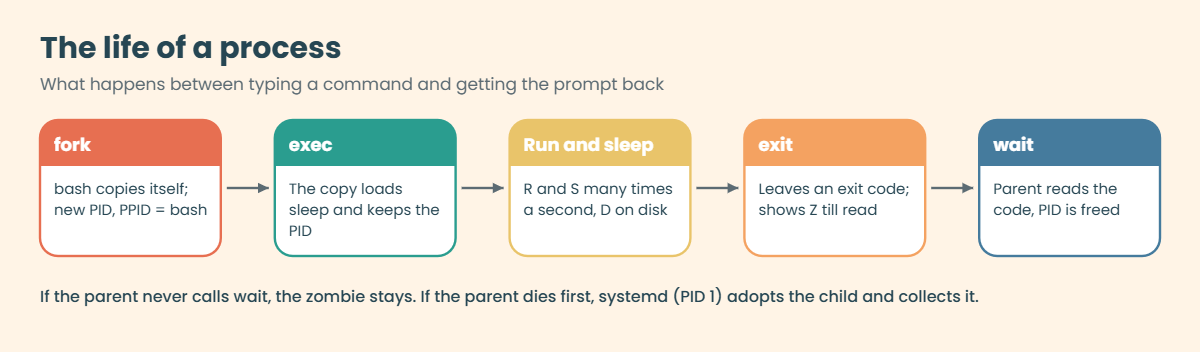
When you type sleep 60, your bash shell asks the kernel to make a copy of itself (the fork system call). The copy gets a new PID and its PPID is bash’s PID. The copy then replaces itself with the sleep program (exec), keeping the same PID.
That’s why the parent of almost everything you start by hand is your shell.
2The process runs, sleeps, exits and gets collected
While it lives, the process moves between running and sleeping many times a second. When it exits, it leaves a small exit code for its parent (0 means success). Until the parent reads that code with the wait call, the finished process is a zombie.
If the parent dies first, systemd (PID 1) adopts the orphan and collects it. The diagram below shows the whole cycle.
3The scheduler shares the CPUs, guided by nice
A 2-vCPU VM can run only two things at the same instant, so the kernel scheduler keeps switching between all the R processes. The nice value (from -20 to 19, default 0) tells it how polite a process should be. A high nice value like 19 means “give others the CPU first”, which is perfect for backups and report jobs.
Anyone can make their own process nicer, but only root can make one less nice (a negative value or a lower one than before).
4Your terminal has a foreground and a background
A job in the foreground owns your keyboard, and Ctrl+C or Ctrl+Z goes to it. Putting & at the end of a command starts it in the background, so you get your prompt back. The shell numbers these jobs (%1, %2) and lets you move them with fg and bg.
Jobs belong to that shell, so when the terminal closes, the shell sends them SIGHUP.
5Signals are how you talk to a running process
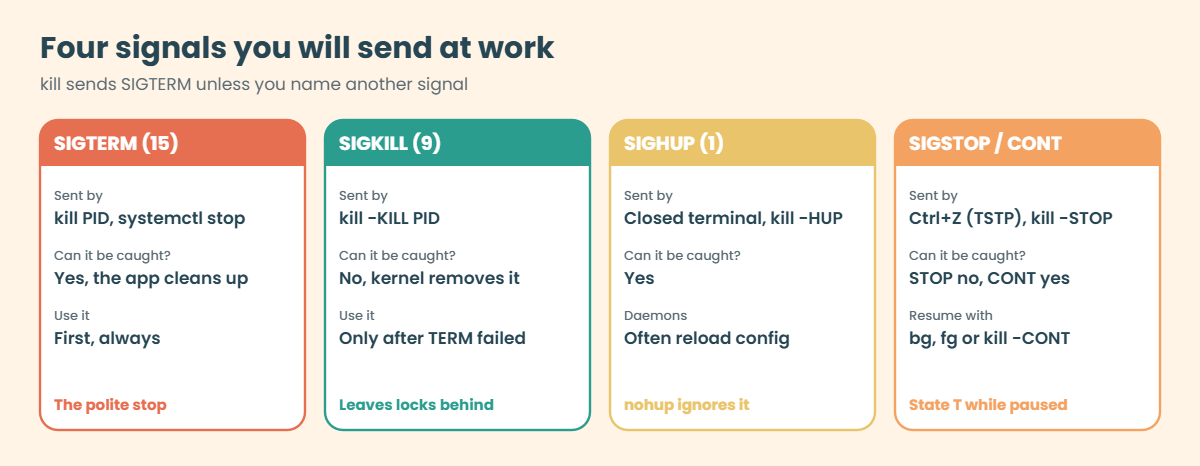
A signal is a tiny message with a number and no text. For most signals the process can run its own handler (clean up, reload, ignore), or the default action happens, which is usually “exit”. SIGKILL and SIGSTOP are different: the kernel handles them itself and the program never gets a say.
That’s why kill -9 always works on a normal process and also why it leaves lock files, half-written files and open transactions behind.
The picture underneath compares the four signals you’ll send most often at work.
6Everything ps and top show comes from /proc
/proc is not on any disk. The kernel builds it in memory, with one folder per PID, and tools like ps, top, pgrep and free only read and format those files. When a tool is missing or you need one detail fast, you can read /proc/PID/status, /proc/PID/cmdline or the /proc/PID/fd folder yourself.
Threads show up here too. A Java or database process may have hundreds of threads that share one PID’s memory, and ps -L or the H key in top lists them one by one.
Hands-on lab: find, pause, renice and stop processes on rocky01
Before you run any command, double-check it
Read every command twice before you press Enter. Check the target: the server name, the user, the disk or device name, the path and the sizes. These commands are for learning and were tested in our lab, not on your system. At work, run the read-only commands first, follow your change process, make sure a backup exists, and ask a second person to check anything that changes or deletes data. You run them at your own risk.
You’ll do everything as student on rocky01 over SSH, so nothing here can hurt the server. Make a folder for the lab first with mkdir -p ~/lab20 && cd ~/lab20. Your PIDs will be different from the ones below, so always use the numbers your own commands print.
1Your shell is a process too
Run this:
echo $$
ps -o pid,ppid,user,stat,cmd -p $$You should see something like this:
1842
PID PPID USER STAT CMD
1842 1841 student Ss -bash$$ is the PID of the shell you’re typing in. Its parent (1841) is the SSH session process that logged you in. “Ss” means sleeping and session leader, because bash spends nearly all its time waiting for you to type.
The dash in -bash marks a login shell.
✅ Checkpoint: You can name your shell’s PID and its parent PID.
2See every process on the box
Run this:
ps -eo pid,ppid,user,stat,comm | head -n 8
ps -eo stat= | cut -c1 | sort | uniq -cYou should see something like this:
PID PPID USER STAT COMMAND
1 0 root Ss systemd
2 0 root S kthreadd
3 2 root S pool_workqueue_
4 2 root I< kworker/R-rcu_g
5 2 root I< kworker/R-sync_
6 2 root I< kworker/R-slub_
7 2 root I< kworker/R-netns
44 I
1 R
86 S-e means every process and -o picks the columns, which is the style you’ll use most in scripts. The second command counts processes by state. On a quiet server you want almost all S and I, a few R, and no Z or D that stay around.
You’ll also see two older styles at work. ps aux (BSD style, no dash) adds %CPU, %MEM, VSZ and RSS, and ps -ef (UNIX style) shows PPID and the start time. Both are fine, but don’t mix the two styles in one command.
✅ Checkpoint: You know how many processes on rocky01 are sleeping and whether any are in Z or D.
3Draw the family tree
Run this:
pstree -ps $$
pstree -p 1 | head -n 15You should see something like this (first command):
systemd(1)───sshd(1103)───sshd-session(1835)───sshd-session(1841)───bash(1842)───pstree(1990)-p adds PIDs and -s shows the parents above your shell, not only its children. Here you can read how your login was built: sshd (the listener) started a session process for your connection, which started your bash, which started pstree. The second command shows the whole tree from systemd.
If you get “pstree: command not found”, it lives in the psmisc package: sudo dnf install psmisc on Rocky, sudo apt install psmisc on Ubuntu.
✅ Checkpoint: You can trace the chain from sshd down to your own bash.
4Start a test process, find it and look inside
Run this:
sleep 3600 &
pgrep -a sleep
ps -o pid,ppid,stat,ni,cmd -C sleepYou should see something like this:
[1] 2210
2210 sleep 3600
PID PPID STAT NI CMD
2210 1842 S 0 sleep 3600pgrep -a searches by name and prints the PID with the full command line. ps -C sleep picks processes by command name. Both are safer than ps aux | grep sleep, which also finds the grep itself. Now read the same process straight from /proc (use your own PID):
grep -E '^(Name|State|Pid|PPid|Uid|VmRSS|Threads)' /proc/2210/status
ls -l /proc/2210/cwd /proc/2210/exe
tr '\0' ' ' < /proc/2210/cmdline; echoYou should see something like this:
Name: sleep
State: S (sleeping)
Pid: 2210
PPid: 1842
Uid: 1000 1000 1000 1000
VmRSS: 1664 kB
Threads: 1
lrwxrwxrwx. 1 student student 0 Oct 27 10:31 /proc/2210/cwd -> /home/student
lrwxrwxrwx. 1 student student 0 Oct 27 10:31 /proc/2210/exe -> /usr/bin/sleep
sleep 3600The status file gives you the state, parent, owner and real memory (VmRSS) in one place. cwd and exe are links to the folder it runs in and the program file. cmdline uses zero bytes between arguments, which is why you swap them for spaces with tr.
Try it yourself: build a find-a-process command in the Command Builder.
✅ Checkpoint: You found PID 2210 (or yours) three ways: pgrep, ps -C and /proc.
5Move jobs between foreground and background
Run this, then press Ctrl+Z:
sleep 900You should see:
^Z
[2]+ Stopped sleep 900Now send it to the background and list your jobs:
bg
jobs -lYou should see something like this:
[2]+ sleep 900 &
[1]- 2210 Running sleep 3600 &
[2]+ 2224 Running sleep 900 &Ctrl+Z paused the job (state T), bg let it carry on in the background, and jobs -l lists this shell’s jobs with their PIDs. The + marks the current job, the one fg brings back. Bring job 2 back with fg %2 and stop it with Ctrl+C.
✅ Checkpoint: jobs shows only %1 (sleep 3600) after you stopped job 2 with Ctrl+C.
6Change priority with nice and renice
Run this:
nice -n 10 sleep 3000 &
ps -o pid,ni,cmd -p $!
renice -n 15 -p 2231
renice -n 5 -p 2231You should see something like this:
[2] 2231
PID NI CMD
2231 10 sleep 3000
2231 (process ID) old priority 10, new priority 15
renice: failed to set priority for 2231 (process ID): Permission deniedThe job started at nice 10, and you could raise it to 15 as a normal user. Going back down to 5 failed, because lowering a nice value needs root, even for your own process. With sudo it works:
sudo renice -n 5 -p 22312231 (process ID) old priority 15, new priority 5On the util-linux renice that Rocky 10 and Ubuntu 26.04 ship, -n sets the value you give (absolute). If you want “5 more than now”, use renice --relative 5 -p PID. Old guides that say -n is always relative are describing other systems.
✅ Checkpoint: ps shows NI 5 for your sleep 3000 after the sudo renice.
7Watch it live with top
Run this:
topInside top, try these keys: P sorts by CPU, M by memory, 1 shows each CPU, u then student shows only your processes, k sends a signal to a PID, r renices one, and q quits. For a ticket or a script you want a snapshot, not a live screen, so use batch mode:
top -b -n 1 | head -n 10You should see something like this:
top - 10:36:12 up 1:24, 1 user, load average: 0.00, 0.01, 0.00
Tasks: 134 total, 1 running, 133 sleeping, 0 stopped, 0 zombie
%Cpu(s): 0.0 us, 3.1 sy, 0.0 ni, 96.9 id, 0.0 wa, 0.0 hi, 0.0 si, 0.0 st
MiB Mem : 1742.2 total, 1009.8 free, 455.6 used, 432.4 buff/cache
MiB Swap: 2048.0 total, 2048.0 free, 0.0 used. 1286.6 avail Mem
PID USER PR NI VIRT RES SHR S %CPU %MEM TIME+ COMMAND
2001 student 20 0 231460 5632 3456 R 6.2 0.3 0:00.01 top
1 root 20 0 49288 40192 10624 S 0.0 2.3 0:02.11 systemd
2 root 20 0 0 0 0 S 0.0 0.0 0:00.02 kthreaddThe summary at the top gives you load, task states (including zombies) and memory. PR is the kernel priority, which top shows as 20 plus the nice value. Lesson 22 reads the memory lines in detail.
✅ Checkpoint: You sorted top by memory with M and quit with q.
8Send signals to a script that listens
Create the test script (paste this whole block):
cat > ~/lab20/worker.sh <<'EOF'
#!/bin/bash
# worker.sh: a pretend batch job that holds a lock file while it runs
LOCK=/tmp/worker.lock
if [ -e "$LOCK" ]; then
echo "worker: already running (lock $LOCK exists)" >&2
exit 1
fi
echo $$ > "$LOCK"
trap 'echo "worker: got TERM, cleaning up"; rm -f "$LOCK"; exit 0' TERM
trap 'echo "worker: got HUP, reloading settings"' HUP
while true; do sleep 1; done
EOF
chmod +x ~/lab20/worker.sh
bash -n ~/lab20/worker.sh && echo syntax okIt writes its PID into a lock file, says something when it gets HUP, and removes the lock when it gets TERM. Real batch jobs and daemons behave like this. Start it, send HUP, then the default TERM:
cd ~/lab20
./worker.sh > worker.log 2>&1 &
pgrep -af worker.sh
kill -HUP 2260
sleep 2
kill 2260
sleep 2
cat worker.log; ls /tmp/worker.lockYou should see something like this:
[3] 2260
2260 /bin/bash ./worker.sh
worker: got HUP, reloading settings
worker: got TERM, cleaning up
ls: cannot access '/tmp/worker.lock': No such file or directoryHUP did not stop it, because the script chose to treat HUP as “reload”. Plain kill sent TERM, and the script cleaned up its lock before exiting. That’s the polite stop, and it’s what systemd sends first when you run systemctl stop.
Try it yourself: build the “TERM first, then KILL” stop command in the Command Builder.
✅ Checkpoint: worker.log has both lines and /tmp/worker.lock is gone.

9Keep a job running after the connection drops
Run this:
nohup ./worker.sh > worker.log 2>&1 &Now close the terminal window itself (the X on PuTTY or Windows Terminal), which is what a dropped VPN looks like to the server. Log in again over SSH and check:
pgrep -af worker.sh
ps -o pid,ppid,stat,cmd -p $(pgrep -f worker.sh)You should see something like this:
2290 /bin/bash ./worker.sh
PID PPID STAT CMD
2290 1 S /bin/bash ./worker.shWhen the connection dropped, bash got SIGHUP and passed it on to its jobs, but nohup had told this one to ignore it. Its parent is now 1, because the old bash is gone and systemd adopted it. nohup is fine for a one-off job, but anything that must keep running belongs in a systemd service, which you’ll write in Lesson 27. Clean up now:
pkill -TERM -f '^/bin/bash ./worker.sh$'
pkill -x sleep
pgrep -a sleep; pgrep -af worker.sh; echo "left: $?"left: 1✅ Checkpoint: pgrep finds nothing and exits with 1, so no lab processes are left running.
Break It, Then Fix It
Take a snapshot of rocky01 first (VBoxManage snapshot rocky01 take before-l20 on the laptop, or Machine, Take Snapshot in VirtualBox Manager). These four traps happen on real servers every week.
1Use kill -9 first and leave a mess behind
Run this:
cd ~/lab20
./worker.sh > worker.log 2>&1 &
sleep 2
kill -9 $!
./worker.shYou’ll get this error:
[1]+ Killed ./worker.sh > worker.log 2>&1
worker: already running (lock /tmp/worker.lock exists)SIGKILL gave the script no chance to run its TERM handler, so the lock file stayed. The next run thinks a copy is still alive and refuses to start. Real apps leave the same kind of thing behind: PID files, lock files, half-written temp files and database transactions that need recovery.
Fix: check the PID in the lock is gone, then remove the stale lock.
cat /tmp/worker.lock
ps -p $(cat /tmp/worker.lock) || rm -f /tmp/worker.lock
./worker.sh > worker.log 2>&1 &From now on, stop things in order: kill PID (TERM), wait 10 to 30 seconds, check with ps -p PID, and only then kill -KILL PID.
✅ Checkpoint: The worker starts again and a fresh /tmp/worker.lock holds its new PID.
2Let pkill -f match more than you meant
Run this:
tail -f ~/lab20/worker.log > /dev/null &
TAILPID=$!
pgrep -af workerYou should see something like this:
4 [kworker/R-rcu_gp]
5 [kworker/R-sync_wq]
7 [kworker/R-slub_flushwq]
(about 30 more kworker lines)
2318 /bin/bash ./worker.sh
2325 tail -f /home/student/lab20/worker.logThe pattern “worker” matched far more than your script. -f searches the whole command line, so the tail command matches because it contains worker.log, and the kernel’s own kworker threads match too. As student, pkill -f worker would kill your tail along with the script (the kernel threads are safe only because you aren’t root). On a real server the same pattern can catch a monitoring agent, someone’s vim session, or even your own SSH command if you run pkill -f remotely.
Fix: always run the pgrep first and make the pattern exact.
pgrep -af '^/bin/bash ./worker.sh$'
pkill -TERM -f '^/bin/bash ./worker.sh$'
kill $TAILPID
pgrep -af 'worker[.](sh|log)'✅ Checkpoint: The last pgrep shows nothing, and the lock file was removed by the TERM handler.
3Try to kill a zombie
This makes a child that exits while its parent never collects it:
bash -c 'sleep 1 & exec sleep 300' &
sleep 2
ps -o pid,ppid,stat,cmd --ppid $!You should see something like this:
PID PPID STAT CMD
2343 2341 Z [sleep] <defunct>Now try to kill it:
kill -9 2343
ps -o pid,ppid,stat,cmd -p 2343It is still there:
PID PPID STAT CMD
2343 2341 Z [sleep] <defunct>A zombie has already exited, so there is nothing left to kill. It stays until its parent (2341) calls wait. The fix is always the parent: ask it to behave, restart it, or stop it, and then systemd adopts and collects the zombie.
Fix: stop the parent.
kill 2341
ps -p 2343 || echo "zombie gone" PID TTY TIME CMD
zombie gone✅ Checkpoint: The zombie disappears as soon as its parent is gone.
4Ask for more CPU without sudo
Run this:
sleep 500 &
renice -n -5 -p $!You’ll get this error:
renice: failed to set priority for 2360 (process ID): Permission deniedNormal users may only make processes nicer. Negative values, or going back down, need root (or a limit set in /etc/security/limits.conf for that user, which few teams allow).
Fix: use sudo, and only when you can explain why this process deserves it.
sudo renice -n -5 -p $!
kill $!✅ Checkpoint: The sudo renice prints “old priority 0, new priority -5” and you stopped the test sleep.
This happened at work
The price update that died at midnight
My team lead tells this one from his time at a supermarket chain in Bhubaneswar. The night before a big festival sale, around 11:30 p.m., an engineer started the price update script for 140 stores from his laptop over the office VPN. It usually took about 50 minutes, so he left it running in his SSH window and went to make tea.
At 6 a.m. the first stores opened and the billing counters showed old prices for half the items. The engineer tried to run the script again, and it refused with “update already running”. Someone suggested a reboot of the server, which would have taken the stock system down while stores were opening, and the team lead said no.
He read the script’s log and the VPN logs side by side. The VPN had dropped at 11:52 p.m., the SSH session closed, bash sent SIGHUP to its jobs, and the script, which had no handler, died halfway through store 71. Its lock file and PID file were still on disk.
A quick ps -p on the PID in the lock file showed nothing running, so he removed the stale lock and ran the update for the remaining stores, which finished by 7:15.
Two things changed after that night. Long jobs now run as systemd units started with systemd-run or a timer, never from someone’s terminal, and the script got a trap that removes its lock on TERM and HUP and remembers the last store it finished, so a rerun carries on from there.
Common mistakes and troubleshooting
| Mistake | What happens | What to do instead |
|---|---|---|
| Typing kill -9 as the first step | The app gets no chance to clean up; lock files, temp files and half-done writes stay behind | Send TERM (kill PID), wait, check with ps -p PID, then KILL only if needed |
| ps aux | grep name | The grep line shows up in the result and scripts count one process too many | Use pgrep -a name or ps -C name |
| pkill -f with a short pattern | Other processes whose command line contains the word die too, sometimes your own session | Run pgrep -af with the same pattern first, and anchor it with ^ and $ |
| Trying to kill zombies or D-state processes | Nothing happens, and people start talking about a reboot | For Z, fix or restart the parent. For D, find the stuck disk or NFS mount with ps -eo pid,stat,wchan:30,cmd |
| Running long jobs in an SSH window | The job dies with SIGHUP when the connection drops | Use nohup for a one-off, and a systemd service or systemd-run for anything that matters |
| Reading a negative nice value as “low priority” | You slow down the wrong process | Lower nice means more CPU. Batch work gets 10 to 19; only root sets negative values |
Interview questions
Click a question to open it. Each one is written the way an interviewer would ask it. Under it you will see why they ask it and one way you could answer, in your own words.
Fresher level
1. What’s the difference between kill and kill -9, and which one do you use first?
Why they ask this: They want to see that you know signals by meaning, not only by number. A good answer mentions cleanup and the order you send them in.
How you might answer: Plain kill sends SIGTERM, which asks the process to exit, and a well-written program closes files, removes its lock and saves state. kill -9 sends SIGKILL, which the kernel carries out at once, so the program can’t clean up anything.
I always send TERM first, wait 10 to 30 seconds and check with ps -p. Only if it’s still there do I send KILL, and then I look for stale lock or PID files before starting it again.
2. You see a process in state Z in ps. What is it, and how do you get rid of it?
Why they ask this: This checks that you understand the parent and child relationship. Many candidates say “kill -9 it”, which doesn’t work.
How you might answer: Z is a zombie: the process has already exited, but its parent hasn’t read its exit status yet. It uses no memory, only a slot in the process table, and kill -9 does nothing because there is nothing left running.
I find the parent with ps -o ppid= -p PID and deal with that: restart it or stop it. Then systemd adopts the zombie and collects it. A few zombies for a second are normal; a growing number means a bug in the parent.
2–5 years experience
3. Load average is 9 on a 4-vCPU server, but top shows the CPUs mostly idle. What’s going on and how do you check?
Why they ask this: They want to know you understand that load counts D-state processes, not only CPU use, and that you can find what they wait on.
How you might answer: On Linux, load average counts processes that are running and those in uninterruptible sleep, D state, which are usually waiting for disk or NFS. So high load with idle CPUs points at I/O.
I’d list them with ps -eo pid,stat,wchan:30,cmd and filter for D, check the wa value in top, and look at the storage with iostat or the NFS mount. kill won’t touch D-state processes, so the fix is on the storage side.
4. A colleague started a two-hour data load in an SSH session and it died when the VPN dropped. How would you run it next time?
Why they ask this: This tests whether you know what SIGHUP is and whether you think beyond nohup to how teams run work safely.
How you might answer: The shell sent SIGHUP to its jobs when the session closed, and the script had no handler, so it died. For a one-off I’d use nohup with the output sent to a log file, or a tmux session.
For anything the business depends on I’d run it as a systemd unit, for example with systemd-run or a proper service and timer, so it has logs in the journal, a clear stop signal and no link to anybody’s terminal.
Senior level
5. How would you design a clean shutdown for an app that sometimes takes three minutes to stop?
Why they ask this: Seniors are expected to think about the whole stop path: signals, timeouts and what systemd does when time runs out.
How you might answer: The app should handle SIGTERM by stopping new work, finishing or saving what’s in progress and exiting. In its systemd unit I’d set TimeoutStopSec to something like 240 seconds, because the default is 90, after which systemd sends SIGKILL.
I’d also make sure the app removes its own lock and PID files on TERM, and that the start script can tell a stale lock from a live one. Then we test it: stop under load, measure, and adjust.
6. A cron job sometimes starts a second copy while the first is still running, and they corrupt each other’s output. What do you change?
Why they ask this: They want a fix that survives crashes and kill -9, not only “add a check in the script”.
How you might answer: I’d wrap the job with flock, like flock -n /run/lock/job.lock /usr/local/bin/job.sh, because the kernel releases that lock when the process dies, even with SIGKILL. A plain lock file can go stale and block every future run.
I’d also look at why it runs long: maybe it should move to a systemd timer, which won’t start a second run of the same service while the first is active.
Quick quiz
Q1. Which signal does plain kill PID send?
- SIGKILL (9)
- SIGHUP (1)
- SIGTERM (15)
- SIGINT (2)
Show answer
C — kill sends SIGTERM by default, which the process can catch so it can clean up before exiting.
Q2. A process shows STAT D in ps. What does that tell you?
- It is a zombie
- It is waiting on I/O inside the kernel and ignores signals
- It was stopped with Ctrl+Z
- It is a daemon
Show answer
B — D is uninterruptible sleep, usually on disk or NFS. Even SIGKILL waits until the I/O finishes.
Q3. As a normal user, which of these renice commands will fail on a process currently at nice 10?
renice -n 15 -p PIDrenice -n 19 -p PIDrenice -n 5 -p PIDrenice -n 10 -p PID
Show answer
C — Normal users may only make a process nicer. Lowering the nice value (giving it more CPU) needs root.
Q4. Why does a job started with nohup survive when you log out?
- nohup makes it a systemd service
- nohup makes it ignore SIGHUP
- nohup changes its parent to sshd
- nohup raises its priority
Show answer
B — The shell sends SIGHUP to its jobs when the session ends. nohup sets that signal to be ignored, and systemd adopts the orphan.
Q5. Where do ps and top get their information from?
- /var/log/messages
- /etc/process.conf
- The /proc folder the kernel builds in memory
- The systemd journal
Show answer
C — /proc has one folder per PID, and ps, top and pgrep read and format those files.
Quick recap
- A process is a running program with a PID, a PPID, an owner and its own memory; systemd is PID 1 and the root of the tree.
- Read the state letter first: R running, S sleeping, D waiting on I/O, Z zombie, T stopped.
- Find processes with
pgrep -a,ps -C,pstree -pand the files in /proc/PID. - Stop things politely: TERM first, wait, then KILL; check pgrep -af before any pkill -f.
- nice and renice share the CPU (higher is nicer); only root can lower a nice value.
- Jobs belong to your shell: &, Ctrl+Z, bg, fg, jobs, and nohup or systemd for work that must outlive the session.
Next lesson
Lesson 21: How to build a Linux command → You’ll take admin commands apart into tool, options, arguments, pipes and redirection, then put four real ones back together the right way.
Further reading: Linux process management
Want to go deeper into Linux process management? Read the man pages on man7.org for ps, signal(7) and proc(5), and the RHEL 10 documentation for how systemd starts and stops services. You can also see the full plan for this course on the Linux Administration course page.
