Scheduling jobs: cron, at and systemd timers

Linux cron jobs are the oldest and most common way to make a server do something on a schedule: rotate a file at midnight, send a report every weekday at 9, clean a folder every Sunday. Nearly every server you inherit at work will have a few crontab lines, and many of them will have small mistakes that nobody noticed because cron fails quietly.

In Lesson 27 you scheduled disk-report with a systemd timer. Here you learn the other tools: crontab lines for users, /etc/cron.d files for the system, anacron for machines that aren’t always on, and at for one-off jobs. You’ll also break cron the two ways it breaks most often, PATH and the % sign, and decide when a timer is the better choice.

Where this lesson fits

Lesson 28 of 82 in Linux Administration · Phase 2: Day-to-day administration and the command builder · Before this: Lesson 27, write your own service and timer · Next: Lesson 29, logging with journald, rsyslog and logrotate

TimeYou needBy the end you can
About 60 minutesrocky01 with Lesson 27 done (disk-report.sh and its timer exist); ubu01 for the Ubuntu notesWrite and read crontab lines, add a system job in /etc/cron.d, explain how cron.daily runs on Rocky, queue jobs with at, and fix the PATH and % problems from the logs

What it is, in one line

cron runs commands at fixed times from crontab lines, anacron makes sure daily and weekly jobs still run on machines that were switched off, and at runs a command once at a time you choose.

In Simple Words

The school bell, the sticky note and the late register

A school runs on a bell timetable: first bell at 8:00, lunch at 12:30, last bell at 3:15, every working day without anyone pressing a button. If the timetable is written wrongly, the bell rings at the wrong time and nobody knows why until the children are standing in the corridor.

The head teacher also leaves sticky notes: “call the electrician at 4 today”. That happens once and the note goes in the bin. And when a teacher is on leave on the day the register must be filled, she fills it first thing the morning she returns.

The bell timetable is cron, the sticky note is at, and the late register is anacron.

Engineer's View

The crontab line and where cron jobs live

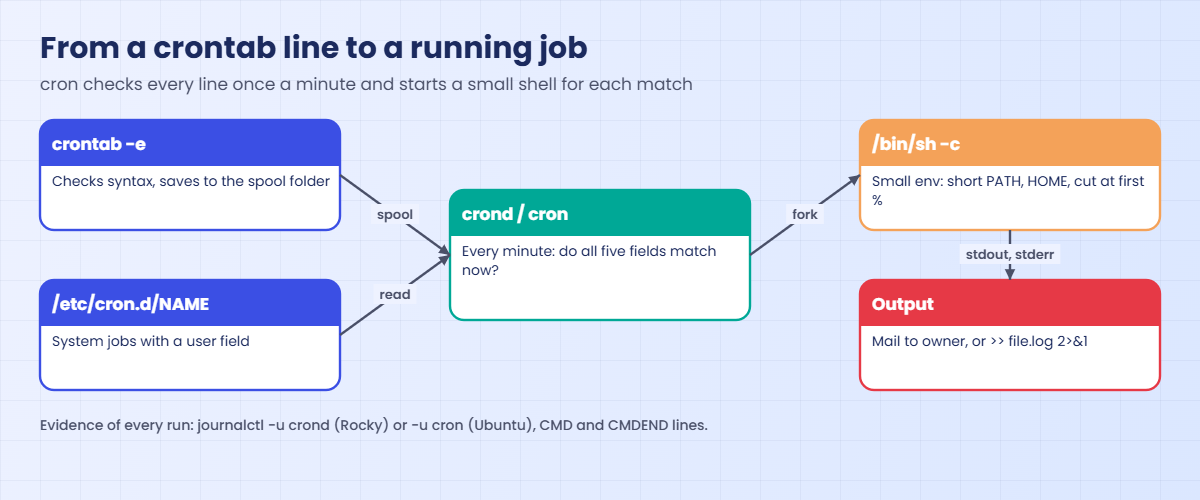
A crontab line has five time fields and then the command. cron checks every line once a minute and runs the ones whose fields all match the current time.

FieldAllowed valuesExamples
minute0-590, */15 (every 15 minutes), 5,35
hour0-232, 9-18 (every hour from 9 to 18)
day of month1-311 (the 1st), *
month1-12 or jan-dec*, 1,4,7,10
day of week0-7 (0 and 7 are Sunday) or sun-sat1-5 (Monday to Friday)

So 30 2 * * * is every day at 02:30 and 0 9 * * 1-5 is 9:00 on weekdays. Shortcuts such as @daily, @weekly and @reboot exist too. If you set both day of month and day of week, cron runs when either matches, which surprises almost everyone.

WhereWho edits itUser field?Notes
Your crontabcrontab -e, crontab -l, crontab -rNo, runs as youStored in /var/spool/cron/USER on Rocky, /var/spool/cron/crontabs/USER on Ubuntu. Never edit those files directly
/etc/crontabroot, with an editorYesThe system crontab. Packages may replace it, so keep your jobs elsewhere
/etc/cron.d/NAMEroot, one file per job or appYesPicked up automatically. Use only letters, digits, – and _ in the name: Ubuntu ignores names with dots
/etc/cron.daily/ and friendsroot, executable scriptsNoRun by run-parts. On Rocky anacron runs daily, weekly and monthly; on Ubuntu /etc/crontab runs them at 06:25 unless anacron is installed

Rocky Linux 10 uses cronie (service crond, with cronie-anacron), and Ubuntu 26.04 uses Debian’s cron (service cron). A job gets a small environment, not your login shell: SHELL is /bin/sh, HOME is your home folder, and on Rocky PATH is a short default with no /usr/local/bin. Ubuntu changed this in 24.04: its cron.service starts cron with -P, so jobs inherit systemd’s PATH, which does include /usr/local/bin.

Output that a job prints is mailed to the owner, and on a server with no mail program installed it’s thrown away.

How it works, step by step

Here is the path from a line you save in your crontab to a command running at the right minute.

1crontab saves your lines where cron can read them

crontab -e opens a temporary copy in your editor, checks the syntax when you save and installs it in the spool folder. A bad line is rejected with “errors in crontab file, can’t install” and nothing changes, which is a good reason to use crontab -e instead of writing into the spool folder yourself. Files in /etc/cron.d and /etc/crontab are read directly; cronie notices changes straight away and Debian’s cron checks once a minute.

2Every minute, cron forks a shell for each matching line

At the start of each minute the daemon compares the time with every line. For each match it forks, switches to the job’s user, builds the small environment and runs the command with /bin/sh -c. The diagram below follows one line through those steps.

Linux cron jobs: how a crontab line becomes a running job with a small environment

3Output goes to mail unless you send it somewhere

Anything the command prints is collected and mailed to the crontab owner, or to the address in a MAILTO= line. Minimal servers have no mail program, so the output, including every error message, is lost. Always end a job with >> /path/to/file.log 2>&1, or pipe it to logger -t jobname so it lands in the journal.

4The % sign means something else in a crontab

cron cuts the command at the first unescaped %, runs the part before it, and feeds the rest to the command as input with every further % turned into a new line. So date +%F in a crontab line breaks the command in half, along with any redirect that came after it. Write \% inside crontab lines, or move the command into a script where % is ordinary.

5anacron catches up on machines that were off

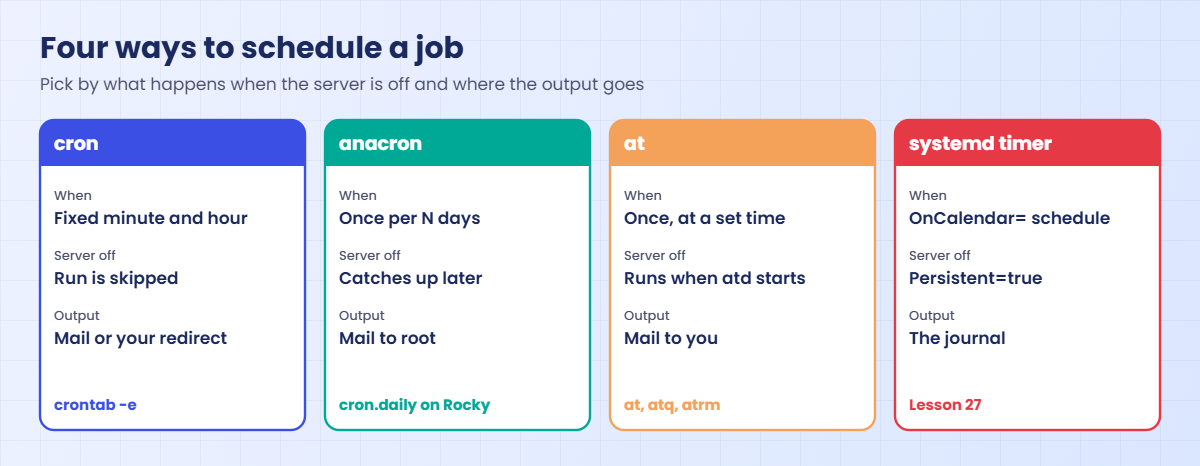
cron only runs a job if the machine is on at that minute. anacron works in days instead: it keeps a timestamp per job and runs any daily, weekly or monthly job that is overdue. On Rocky, /etc/cron.d/0hourly runs /etc/cron.hourly every hour at minute 01, the 0anacron script there starts anacron, and anacron runs /etc/cron.daily after a random delay, only between 03:00 and 22:00. The picture below compares the four schedulers side by side.

Linux cron jobs compared with anacron, at and systemd timers

6at runs something once

The at daemon (atd) keeps a queue of one-off jobs. at 23:30 or at now + 2 hours reads commands from your terminal or a pipe, copies your current environment and folder into the job, and runs it once. atq lists the queue and atrm deletes a job. It’s the right tool for “restart this after the backup finishes tonight” without leaving a crontab line behind.

7Pick the right scheduler

You needUse
A simple repeat on a server that’s always on, or a job other teams expect to find in crontabcron
A daily or weekly job on a laptop or VM that is often offanacron (cron.daily on Rocky) or a timer with Persistent=true
One run at a set time, then forget itat
Logs in the journal, dependencies, resource limits, alerts with OnFailure=, randomised start across many serversA systemd timer (Lesson 27)

Hands-on lab: schedule, trace and fix cron jobs on rocky01

Before you run any command, double-check it

Read every command twice before you press Enter. Check the target: the server name, the user, the disk or device name, the path and the sizes. These commands are for learning and were tested in our lab, not on your system. At work, run the read-only commands first, follow your change process, make sure a backup exists, and ask a second person to check anything that changes or deletes data. You run them at your own risk.

You’ll work on rocky01, mostly as student in a folder called ~/lab28, with one system job in /etc/cron.d that you remove at the end. cron jobs need real minutes to pass, so start the lab when you have time to wait a few minutes between steps. Create the folder first with mkdir -p ~/lab28 && cd ~/lab28.

1Check the cron daemon and your crontab

Run this:

systemctl is-active crond
crontab -l
cat /etc/crontab

You should see something like this:

active
no crontab for student
SHELL=/bin/bash
PATH=/sbin:/bin:/usr/sbin:/usr/bin
MAILTO=root

# For details see man 4 crontabs

# Example of job definition:
# .---------------- minute (0 - 59)
# |  .------------- hour (0 - 23)
# |  |  .---------- day of month (1 - 31)
# |  |  |  .------- month (1 - 12) OR jan,feb,mar,apr ...
# |  |  |  |  .---- day of week (0 - 6) (Sunday=0 or 7) OR sun,mon,tue,wed,thu,fri,sat
# |  |  |  |  |
# *  *  *  *  * user-name  command to be executed

crond is running, student has no crontab yet, and /etc/crontab on Rocky holds only variables and a reminder of the field order (keep that comment block in mind, it’s the quickest reference on any server). On ubu01 the service is cron and /etc/crontab also contains the lines that run cron.hourly, daily, weekly and monthly.

✅ Checkpoint: crond is active and crontab -l says there is no crontab for student.

2Write a small job and add it to your crontab

Paste this whole block:

cat > ~/lab28/stamp.sh <<'EOF'
#!/bin/bash
# stamp.sh: write one line with the time, the user and the PATH this job got
echo "$(date '+%F %T') stamp from $(whoami), PATH=$PATH"
EOF
chmod 755 ~/lab28/stamp.sh
~/lab28/stamp.sh
(crontab -l 2>/dev/null; echo '*/2 * * * * /home/student/lab28/stamp.sh >> /home/student/lab28/stamp.log 2>&1') | crontab -
crontab -l

You should see something like this:

2026-10-27 12:10:42 stamp from student, PATH=/home/student/.local/bin:/home/student/bin:/usr/local/bin:/usr/bin:/usr/local/sbin:/usr/sbin
*/2 * * * * /home/student/lab28/stamp.sh >> /home/student/lab28/stamp.log 2>&1

Run by hand, the script sees your login PATH, with /usr/local/bin in it. The crontab line runs it every two minutes and appends both output and errors to stamp.log. The (crontab -l; echo ...) | crontab - form adds a line without opening an editor, which is handy in scripts.

For everyday edits use crontab -e, which opens vi on Rocky (or whatever $EDITOR says) and checks the line when you save.

✅ Checkpoint: crontab -l shows your one line.
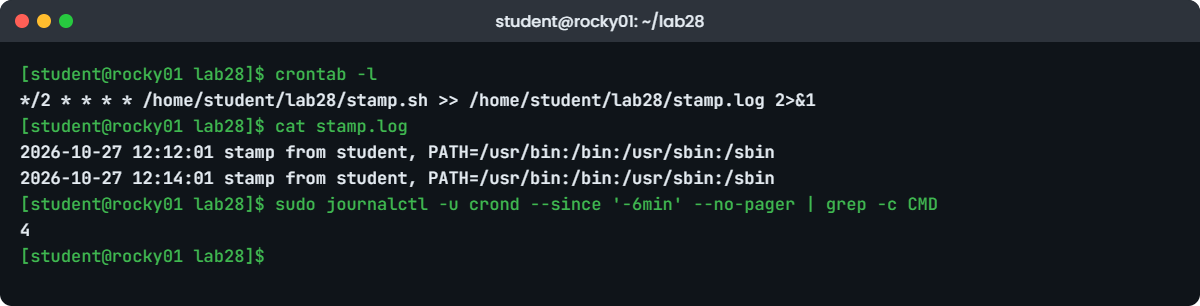
Linux cron jobs lab: crontab -l, job log and CROND journal lines on rocky01
Example output from rocky01: the stamp job in crontab, its log and the CROND lines in the journal.

3Check that the job ran

Wait about four minutes, then run this:

cat ~/lab28/stamp.log
sudo journalctl -u crond --since '-6min' --no-pager | grep stamp

You should see something like this:

2026-10-27 12:12:01 stamp from student, PATH=/usr/bin:/bin:/usr/sbin:/sbin
2026-10-27 12:14:01 stamp from student, PATH=/usr/bin:/bin:/usr/sbin:/sbin
Oct 27 12:12:01 rocky01 CROND[2681]: (student) CMD (/home/student/lab28/stamp.sh >> /home/student/lab28/stamp.log 2>&1)
Oct 27 12:12:01 rocky01 CROND[2679]: (student) CMDEND (/home/student/lab28/stamp.sh >> /home/student/lab28/stamp.log 2>&1)
Oct 27 12:14:01 rocky01 CROND[2712]: (student) CMD (/home/student/lab28/stamp.sh >> /home/student/lab28/stamp.log 2>&1)
Oct 27 12:14:01 rocky01 CROND[2710]: (student) CMDEND (/home/student/lab28/stamp.sh >> /home/student/lab28/stamp.log 2>&1)

Look at the PATH in the log: under cron it’s a short default, and /usr/local/bin is missing. Remember that for the Break-It section. Each run leaves a CMD line when it starts and a CMDEND line when it ends, also in /var/log/cron on Rocky.

On ubu01 use journalctl -u cron; the lines are tagged CRON there, and the PATH shows /usr/local/bin because Ubuntu’s cron inherits systemd’s PATH.

✅ Checkpoint: stamp.log has a new line every two minutes and the journal shows matching CMD lines.

4Add a system job in /etc/cron.d

Run this:

echo '*/5 * * * * root /usr/local/bin/disk-report.sh >> /var/log/disk-report.log 2>&1' | sudo tee /etc/cron.d/lab28-disk-report
ls -l /etc/cron.d/

You should see something like this:

*/5 * * * * root /usr/local/bin/disk-report.sh >> /var/log/disk-report.log 2>&1
total 8
-rw-r--r--. 1 root root 128 Jan 23  2025 0hourly
-rw-r--r--. 1 root root  80 Oct 27 12:16 lab28-disk-report

A file in /etc/cron.d has the extra user field, here root, between the time and the command. It needs no crontab command and no restart, and it should be owned by root, mode 644, with no dots in its name. The script is called with its full path, so the short PATH doesn’t matter.

Wait until the next five-minute mark, then check:

sudo tail -n 3 /var/log/disk-report.log

You should see something like this:

/boot      xfs   960M  297M  664M  31%
/boot/efi  vfat  599M  8.4M  591M   2%
OK: every file system is below 80%

✅ Checkpoint: /var/log/disk-report.log has a fresh report from cron.

5See how cron.daily runs through anacron on Rocky

Run this:

cat /etc/cron.d/0hourly
ls /etc/cron.hourly/
grep -v '^#' /etc/anacrontab | grep .
sudo cat /var/spool/anacron/cron.daily

You should see something like this:

# Run the hourly jobs
SHELL=/bin/bash
PATH=/sbin:/bin:/usr/sbin:/usr/bin
MAILTO=root
01 * * * * root run-parts /etc/cron.hourly
0anacron
SHELL=/bin/sh
PATH=/sbin:/bin:/usr/sbin:/usr/bin
MAILTO=root
RANDOM_DELAY=45
START_HOURS_RANGE=3-22
1	5	cron.daily		nice run-parts /etc/cron.daily
7	25	cron.weekly		nice run-parts /etc/cron.weekly
@monthly 45	cron.monthly		nice run-parts /etc/cron.monthly
20261027

Read it as a chain: crond runs everything in /etc/cron.hourly at minute 01, 0anacron there starts anacron, and anacron runs cron.daily once a day (period 1) after 5 minutes plus up to 45 random minutes, only between 03:00 and 22:00. The timestamp file says cron.daily last ran today. If rocky01 is off for a week, the daily jobs run once, soon after it’s back on.

On Rocky Linux / RHELOn Ubuntu
cron.daily, weekly and monthly go through anacron from /etc/cron.hourly/0anacron. Logs: journalctl -u crond and /var/log/cron/etc/crontab runs cron.daily at 06:25 with run-parts, unless the anacron package is installed (it isn’t on a default Ubuntu Server). Logs: journalctl -u cron

✅ Checkpoint: You can trace cron.daily from 0hourly to anacrontab and read its last-run date.

6Queue one-off jobs with at

Install at and start its daemon (on ubu01: sudo apt install at, which starts atd for you):

sudo dnf install -y at
sudo systemctl enable --now atd

Then queue two jobs, list them and remove one:

echo '/usr/local/bin/disk-report.sh > /home/student/lab28/at-report.txt 2>&1' | at now + 2 minutes
echo 'echo late job' | at 23:30
atq
atrm 2
atq

You should see something like this:

warning: commands will be executed using /bin/sh
job 1 at Tue Oct 27 12:24:00 2026
warning: commands will be executed using /bin/sh
job 2 at Tue Oct 27 23:30:00 2026
1	Tue Oct 27 12:24:00 2026 a student
2	Tue Oct 27 23:30:00 2026 a student
1	Tue Oct 27 12:24:00 2026 a student

The warning is normal: at always runs jobs with /bin/sh. “now + 2 minutes” is rounded to the start of a minute. Each atq line shows the job number, the time, the queue (a) and the owner.

After 12:24, head -n 2 ~/lab28/at-report.txt shows the report and job 1 is gone from atq. Unlike cron, at copies your current environment, PATH included, into the job; at -c 1 prints the whole script it will run.

If at prints “Can’t open /run/atd.pid to signal atd. No atd running?”, the job is queued but atd isn’t running, so nothing will ever run it. Start atd with sudo systemctl enable --now atd.

✅ Checkpoint: Job 1 ran and wrote at-report.txt, and job 2 is gone after atrm.

7Compare with the systemd timers on the same server

Run this:

systemctl list-timers --all --no-pager | head -n 5

You should see something like this:

NEXT                         LEFT LAST                             PASSED UNIT                         ACTIVATES
Tue 2026-10-27 12:51:16 IST 31min Tue 2026-10-27 11:43:52 IST   36min ago dnf-makecache.timer          dnf-makecache.service
Wed 2026-10-28 00:00:00 IST   11h Tue 2026-10-27 09:12:04 IST 3h 7min ago logrotate.timer              logrotate.service
Wed 2026-10-28 02:30:00 IST   14h Tue 2026-10-27 11:50:37 IST   29min ago disk-report.timer            disk-report.service
Wed 2026-10-28 09:16:33 IST   20h Tue 2026-10-27 09:16:33 IST 3h 3min ago systemd-tmpfiles-clean.timer systemd-tmpfiles-clean.service

rocky01 already schedules most of its own housekeeping with timers, including logrotate and disk-report from Lesson 27, and each line shows the next run and the last one, which cron can’t tell you. Right now disk-report runs twice: from its timer every night and from your /etc/cron.d file every five minutes. That’s a real problem on many servers, where a job was moved to a timer and the old cron line was never removed.

You’ll delete the cron copy at the end of the Break-It section.

✅ Checkpoint: You can see disk-report.timer in the list and you know the cron.d file is a duplicate.

Break It, Then Fix It

These two mistakes cause most “it works when I run it” tickets about cron. Both fail without any message on screen, so the skill here is finding the evidence. Keep the stamp job from the lab running while you do this.

1The script works by hand but not from cron (PATH)

Write a script that calls disk-report.sh by name, test it, then schedule it:

cat > ~/lab28/report.sh <<'EOF'
#!/bin/bash
# report.sh: save the latest disk report in the lab folder
disk-report.sh > /home/student/lab28/report-latest.txt
EOF
chmod 755 ~/lab28/report.sh
~/lab28/report.sh && head -n 1 ~/lab28/report-latest.txt
(crontab -l; echo '*/2 * * * * /home/student/lab28/report.sh >> /home/student/lab28/report.log 2>&1') | crontab -

By hand it works:

Disk report for rocky01 at 2026-10-27 12:30:11

Wait two minutes, then look at the job’s log:

cat ~/lab28/report.log
wc -c ~/lab28/report-latest.txt

You’ll get this:

/home/student/lab28/report.sh: line 3: disk-report.sh: command not found
0 /home/student/lab28/report-latest.txt

Your login shell finds disk-report.sh because /usr/local/bin is in your PATH. cron’s PATH (you saw it in stamp.log) doesn’t have it, so bash can’t find the command and the redirect leaves an empty report file behind. Without the 2>&1 in the crontab line, that error would have gone to mail and been lost.

Fix: use full paths in scripts that cron runs (or set PATH at the top of the script).

sed -i 's|^disk-report.sh|/usr/local/bin/disk-report.sh|' ~/lab28/report.sh
sleep 120; tail -n 1 ~/lab28/report.log; head -n 1 ~/lab28/report-latest.txt

You should see something like this (no new error, and a fresh report):

/home/student/lab28/report.sh: line 3: disk-report.sh: command not found
Disk report for rocky01 at 2026-10-27 12:34:01

The old error line is still the last line of report.log, but report-latest.txt is now filled at 12:34 by cron. You could also put PATH=/usr/local/bin:/usr/bin:/bin as the first line of the crontab. On Ubuntu 24.04 and later this example works even without the fix, because cron there inherits systemd’s PATH, but a script that relies on ~/bin or a variable from your .bashrc still breaks the same way.

✅ Checkpoint: report-latest.txt has content written by cron, not by you.

2A % sign cuts the command in half

Add a job that logs the time with date:

(crontab -l; echo '*/2 * * * * echo "ran at $(date +%H:%M)" >> /home/student/lab28/when.log') | crontab -

Wait two minutes, then look for the log:

cat ~/lab28/when.log

You’ll get this:

cat: /home/student/lab28/when.log: No such file or directory

The cron log shows what cron ran:

sudo journalctl -u crond --since '-3min' --no-pager | grep 'ran at'

You should see something like this:

Oct 27 12:36:01 rocky01 CROND[2801]: (student) CMD (echo "ran at $(date +)
Oct 27 12:36:01 rocky01 CROND[2799]: (student) CMDEND (echo "ran at $(date +)

cron cut the command at the first %, so the shell got echo "ran at $(date + with no closing bracket and no redirect. Run that half by hand and you see the error cron mailed to nobody:

sh -c 'echo "ran at $(date +'
sh: -c: line 2: unexpected EOF while looking for matching `)'

Fix: escape every % in the crontab line (or move the command into a script).

crontab -l | grep -v 'ran at' | crontab -
(crontab -l; echo '*/2 * * * * echo "ran at $(date +\%H:\%M)" >> /home/student/lab28/when.log') | crontab -
sleep 120; cat ~/lab28/when.log

You should see something like this:

ran at 12:40

✅ Checkpoint: when.log exists and shows the time the job ran.

3Clean up

Remove your crontab, the duplicate system job and its log:

crontab -r
crontab -l
sudo rm /etc/cron.d/lab28-disk-report /var/log/disk-report.log
atq

You should see this:

no crontab for student

atq prints nothing because the queue is empty. disk-report.timer from Lesson 27 stays as the only schedule for the report. Keep ~/lab28 if you want to practise, or delete it.

✅ Checkpoint: No crontab, no lab file in /etc/cron.d, and disk-report.timer still listed by systemctl list-timers.

This happened at work

The NAV file that never left

This happened to me at a mutual fund house in Jaipur. Every weekday evening a job uploaded the day’s NAV file to the registrar, and the deadline was late in the evening. A developer had moved the job to a new server that afternoon, tested the command by pasting it into his shell, and added it to the crontab for 21:30.

At 22:10 the operations team called: the distributor portal still showed yesterday’s NAVs. The crontab line was there, crond was running, and the script ran perfectly when I started it by hand, so I uploaded the file manually at 22:25 and we made the deadline with minutes to spare. Nothing in the job’s log file had changed since the afternoon test.

The next morning I looked at the cron log instead of the job’s log. The CMD line for 21:30 ended at NAV_$(date +. The crontab line built the file name with date +%d%m%Y, cron had cut it at the first %, and the half-command failed with a shell syntax error.

The redirect to the log file was in the part cron threw away, and the error was mailed to a local account nobody read.

We moved the date logic into the script so the crontab line has no % at all, set MAILTO to the team mailbox through the company mail relay, and added a check at 22:00 that alerts if the file isn’t on the registrar’s side. Six months later we moved the job to a systemd timer with an OnFailure= alert, and the rule “never test a cron job by pasting it into your own shell” went into the team’s checklist.

Common mistakes and troubleshooting

MistakeWhat happensWhat to do instead
Calling commands by name in a cron script“command not found” under cron’s short PATH, though it works by handUse full paths, or set PATH at the top of the script or crontab
Unescaped % in a crontab line, often in date +%FThe command is cut at the %, the redirect is lost and nothing is loggedWrite \%, or move the command into a script
No redirect and no MAILTO on a server without mailErrors vanish and the job “silently does nothing”End every line with >> file.log 2>&1 or pipe to logger -t name
Leaving out the user field in /etc/cron.d or /etc/crontabcron reads the command name as the user and the job never runsLines there are: five fields, user, command
A dot in a /etc/cron.d file name such as backup.cronUbuntu’s cron ignores the file without any warningUse letters, digits, – and _ only
Running crontab -r when you meant crontab -eYour whole crontab is deleted with no question askedKeep a copy: crontab -l > ~/crontab.bak before changes
Moving a job to a timer and keeping the old cron lineThe job runs twice, sometimes at the same momentRemove the cron line and check with grep -r name /etc/cron* /var/spool/cron

Interview questions

Click a question to open it. Each one is written the way an interviewer would ask it. Under it you will see why they ask it and one way you could answer, in your own words.

Fresher level

1. Write a crontab line that runs /usr/local/bin/cleanup.sh at 11:45 p.m. every weekday, and tell me where its output goes.

Why they ask this: A basic syntax check. They also want to hear that you think about output, not only the timing fields.

How you might answer: It’s 45 23 * * 1-5 /usr/local/bin/cleanup.sh >> /var/log/cleanup.log 2>&1. The fields are minute, hour, day of month, month and day of week, and 1-5 is Monday to Friday.

Without the redirect the output is mailed to the crontab owner, and on most servers there’s no mail setup, so I always send stdout and stderr to a log file or to logger.

2. What is the difference between crontab -e and editing /etc/crontab?

Why they ask this: They’re checking that you know user crontabs and system crontabs are different formats and owned by different people.

How you might answer: crontab -e edits my own crontab, checks the syntax when I save and runs the jobs as me, so there’s no user field. /etc/crontab and files in /etc/cron.d are system crontabs with an extra user field after the five time fields.

For system jobs I prefer one file per job in /etc/cron.d, because a package update can replace /etc/crontab and a separate file is easier to review and remove.

2–5 years experience

3. A script runs fine when you start it, but does nothing from cron. How do you troubleshoot?

Why they ask this: A classic. They want a methodical answer that covers environment, logging and permissions.

How you might answer: First I check that cron ran it at all: journalctl -u crond or /var/log/cron shows a CMD line for each run, and on Ubuntu journalctl -u cron. If the line is there, I make sure the job logs its output with 2>&1 so I can see the error.

The usual causes are PATH (commands not found, because cron’s PATH has no /usr/local/bin on RHEL), a % in the crontab line, relative paths because cron starts in HOME, and variables that only exist in my .bashrc. I test with env -i HOME=$HOME PATH=/usr/bin:/bin /bin/sh -c '...' to get close to cron’s environment.

4. On Rocky, cron.daily jobs run at a different time every day. Why, and how would you control it?

Why they ask this: They want to know whether you understand anacron, not only cron.

How you might answer: On Rocky cron.daily isn’t run by cron directly. /etc/cron.d/0hourly runs cron.hourly, where 0anacron starts anacron, and anacron runs cron.daily with a 5-minute delay plus RANDOM_DELAY up to 45 minutes, within START_HOURS_RANGE 3-22.

If a job needs a fixed time, I don’t put it in cron.daily. I give it its own line in /etc/cron.d, or better a systemd timer with OnCalendar= and Persistent=true. I could also change /etc/anacrontab, but that affects every daily job.

Senior level

5. You inherit 150 servers with years of crontab entries. How would you get them under control?

Why they ask this: Seniors are expected to think about inventory, ownership and gradual migration, not a big rewrite.

How you might answer: First an inventory: collect every user crontab, /etc/crontab, /etc/cron.d and the cron.daily folders from all servers with Ansible, and put them in one sheet with owner, schedule and what the job does. Many will be dead jobs pointing at scripts that no longer exist.

Then I’d remove the dead ones with their owners’ agreement, move the important ones to systemd timers or a central scheduler with logging and alerts, and manage what stays as /etc/cron.d files from Ansible so the servers match what’s in git.

6. When would you still choose cron over a systemd timer today?

Why they ask this: They want judgement and honesty about trade-offs, not loyalty to one tool.

How you might answer: cron is fine for simple, low-risk jobs where a one-line schedule is clearer than two unit files, when other teams or vendor software expect to manage a crontab, or on systems where people only know cron and the job must be easy to find.

For anything that matters, I prefer timers: the journal keeps every run, OnFailure= can alert, Persistent=true catches up after downtime, and list-timers shows the next and last run. at stays my tool for one-off jobs.

Quick quiz

Q1. What does 0 9 * * 1-5 mean in a crontab?

  1. 9 minutes past every hour
  2. 09:00 Monday to Friday
  3. 09:00 on the 1st to 5th of each month
  4. Every 9 hours on weekdays
Show answer

B — Fields are minute, hour, day of month, month, day of week; 1-5 is Monday to Friday.

Q2. A crontab line uses date +%F and the job never writes its log. Why?

  1. cron doesn’t allow the date command
  2. cron cuts the command at the first unescaped %, so the rest, including the redirect, is lost
  3. The log folder is full
  4. %F only works in bash
Show answer

B — Escape it as \% or move the command into a script.

Q3. Which line is valid in /etc/cron.d/backup?

  1. 30 2 * * * /usr/local/bin/backup.sh
  2. 30 2 * * * root /usr/local/bin/backup.sh
  3. root 30 2 * * * /usr/local/bin/backup.sh
  4. @daily backup.sh root
Show answer

B — System crontabs need the user field after the five time fields.

Q4. On Rocky Linux, what runs the scripts in /etc/cron.daily?

  1. crond directly at midnight
  2. anacron, started from /etc/cron.hourly/0anacron
  3. systemd-tmpfiles
  4. logrotate
Show answer

B — 0hourly runs cron.hourly, 0anacron starts anacron, and anacron runs cron.daily once a day within START_HOURS_RANGE.

Q5. Which command lists your pending at jobs?

  1. at -r
  2. crontab -l
  3. atq
  4. systemctl list-timers
Show answer

C — atq lists the queue (at -l is the same thing on both distributions); atrm removes a job.

Quick recap

  • A crontab line is minute, hour, day of month, month, day of week, then the command; system crontabs add a user field.
  • Use crontab -e and crontab -l for your own jobs and one file per job in /etc/cron.d for system jobs, with no dots in the name.
  • Cron jobs get a small environment: use full paths, escape % as \%, and send output to a log with 2>&1.
  • On Rocky, anacron runs cron.daily, weekly and monthly from /etc/cron.hourly/0anacron; on Ubuntu /etc/crontab runs them at 06:25.
  • at, atq and atrm handle one-off jobs, and atd must be running.
  • Find evidence in the cron log (journalctl -u crond or -u cron), and prefer a systemd timer for jobs that need logging, alerts or catch-up.

Next lesson

Lesson 29: Logging: journald, rsyslog, remote syslog and logrotate → You’ll make the journal persistent, send rocky01’s logs to ubu01 with rsyslog, and write a logrotate rule you can test before it runs.

Further reading: Linux cron jobs

Want to go deeper into Linux cron jobs? Read the man pages for crontab(5), crontab(1), anacron(8) and anacrontab(5), Debian’s at(1) page, and the cronie project that Rocky Linux uses. You can also see the full plan for this course on the undefined course page.

Scroll to Top

This website uses cookies

We use a few cookies to keep this site working. If you allow it, we also use Google Analytics to count visits so we can improve our lessons. You can accept all, deny the optional ones, or choose what to allow.