Package manager errors: locks, repos, keys and half-installed packages

Linux package errors stop the one job you do on every server every month: installing and patching software. They look scary because dnf and apt print a lot of text, but almost every one of them belongs to a small family (a lock held by someone else, a repository you can’t reach or trust, an install that stopped halfway, a damaged package database, or dependencies that can’t all be met), and each family has its own first command.

Lessons 35 and 36 showed dnf and apt when everything works. Here you make them fail on purpose and fix them the way you would at work: on ubu01 two apt sessions fight over the dpkg lock, a package’s setup script fails, and a source with the wrong key gives NO_PUBKEY; on rocky01 dnf waits for a lock and you check, back up and rebuild the rpm database.

Where this lesson fits

Lesson 77 of 82 in Linux Administration · Phase 4: Troubleshooting step by step · Before this: Lesson 76, DNS and name resolution problems · Next: Lesson 78, read-only file systems

TimeYou needBy the end you can
About 75 minutesrocky01 and ubu01 with internet access, two SSH sessions to each VM, and VirtualBox snapshots before the Break-It partRead any dnf or apt error, put it in the right family, find the process, file or key behind it and fix it without deleting lock files or switching off signature checks

What it is, in one line

A package error is almost always one of five things: another process holds the lock, a repository can’t be reached or trusted, the last install stopped halfway, the package database is damaged, or the dependencies can’t all be met.

In Simple Words

One register at the society office

Picture the maintenance office of a big housing society. There is one register for every repair job in every flat, and only one clerk may write in it at a time. If the plumber’s clerk is halfway through an entry, the electrician’s clerk waits at the counter; he doesn’t tear the page out to make room.

Work orders from the builder come with the secretary’s stamp, and the clerk refuses an order with an unknown stamp or one dated next week. And if a repair was started but never finished, nobody opens a new job on that flat until the old one is either completed or properly closed.

The register is the package database, the queue at the counter is the lock, the stamp is the GPG signature, and the unfinished repair is a package that dpkg or rpm couldn’t finish setting up.

Engineer's View

Five families and the words that give them away

Read the last error line first, then the lines above it. These are the phrases you’ll see on Rocky Linux 10 (dnf 4.20 with rpm 4.19) and Ubuntu 26.04 (apt 3.2 with dpkg 1.23):

FamilyRocky: dnf and rpm sayUbuntu: apt and dpkg sayFirst command
Lock held“Waiting for process with pid 2412 to finish.” or rpm’s “can’t create transaction lock on /var/lib/rpm/.rpm.lock”“Could not get lock /var/lib/dpkg/lock-frontend. It is held by process 1873 (unattended-upgr)”ps -o pid,etime,args -p PID and sudo lsof LOCKFILE
Repo unreachable or stale“Cannot download repomd.xml”, “All mirrors were tried”“Failed to fetch”, “Temporary failure resolving”, “Release file … is not valid yet”curl -sI URL, getent hosts HOST, timedatectl
Signature“Public key for X.rpm is not installed”, “GPG check FAILED”, “already installed but they are not correct for this package”“NO_PUBKEY 871920D1991BC93C”, “is not signed”, “Conflicting values set for option Signed-By”rpm -q gpg-pubkey or grep -r Signed-By /etc/apt/sources.list.d/
Half-finished installDuplicate packages after a killed transaction, shown by dnf check“dpkg was interrupted”, “post-installation script subprocess returned error exit status 1”, “1 not fully installed or removed”sudo dnf check or sudo dpkg --audit
Damaged database“database disk image is malformed” from the sqlite rpmdb“parsing file ‘/var/lib/dpkg/status’ near line …”sudo rpmdb --verifydb; dpkg keeps daily copies in /var/backups
Dependencies and holds“Problem: … nothing provides …” with a hint to try --skip-broken“Unable to satisfy dependencies”, “Held packages were changed”, “Not upgrading yet due to phasing”apt-mark showhold, grep -i exclude /etc/dnf/dnf.conf

Locks are held by a running process through the kernel, not by the file existing. The file stays on disk after the process ends and then means nothing, which is why deleting it never fixes anything; while a holder is alive, deleting it lets two writers into the same database. The files that matter:

LockTaken byHow it works
/var/lib/dnf/rpmdb_lock.piddnf, during the transactionHolds the PID of the dnf that owns it. A second dnf waits while that PID is alive and takes over if it’s dead
/var/cache/dnf/metadata_lock.piddnf, while it refreshes metadataSame PID method, for the cache
/var/lib/rpm/.rpm.lockrpm itself (and dnf through librpm)A kernel lock; a second rpm fails at once
/var/lib/dpkg/lock-frontendapt, apt-get, unattended-upgrades, packagekitTaken before apt even shows its prompt, held until it exits
/var/lib/dpkg/lockdpkg itselfThe inner lock on the status database
/var/lib/apt/lists/lock, /var/cache/apt/archives/lockapt update, downloadsStop two updates or downloads at once

The tools wait differently. dnf 4 waits by default and prints a line; add --setopt=exit_on_lock=True and it stops at once with exit code 200 instead. Interactive apt shows “Waiting for cache lock” with a counter, while apt-get fails immediately unless you give it -o DPkg::Lock::Timeout=SECONDS, which is what scripts and Ansible tasks should do.

On Ubuntu 26.04 apt writes “Error:”, “Warning:” and “Notice:” where apt-get still writes “E:”, “W:” and “N:”, so a monitoring grep should look for both. The apt 3 solver also explains a dependency failure with a numbered “Reached two conflicting assignments” trace instead of the old “you have held broken packages” line, although that older text still exists in some paths.

How it works, step by step

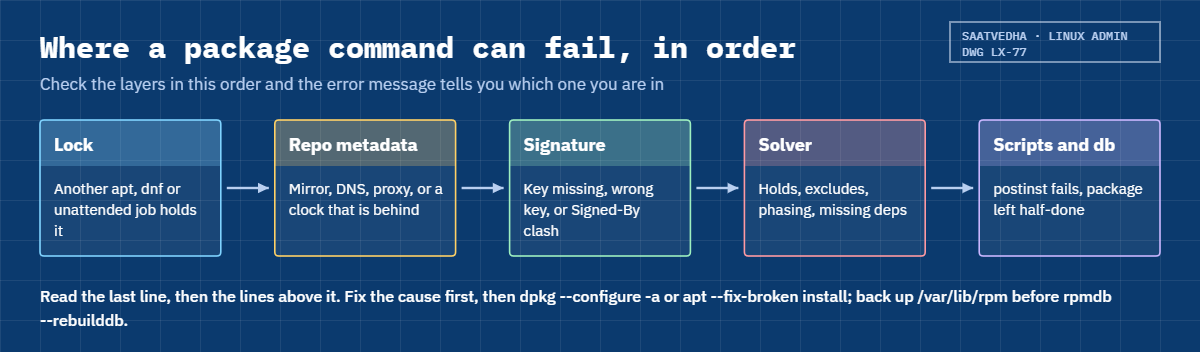
Here is the order in which a package command meets trouble. If you check the layers in the same order, you rarely guess wrong. The diagram after these steps shows the path.

1Read the error from the bottom up

The last line is a summary (“Error: GPG check FAILED”, “Error: Sub-process /usr/bin/dpkg returned an error code (1)”). The cause is a few lines higher: the key ID, the package name, the script that failed, the URL that timed out. Copy the whole block into the ticket before you try anything, because the second attempt often prints less.

2Put it in a family

A PID or a lock file name means a lock. A URL, a host name or a date means the repository layer. A key ID, NOKEY, NO_PUBKEY or Signed-By means signatures.

A package name next to “half configured”, “post-installation script” or “interrupted” means an install that didn’t finish, and “unmet”, “conflicting” or “held” means the solver.

Linux package errors in order: lock, repository metadata, signature, solver and install scripts

3Locks: find the holder, then wait or stop it cleanly

The error usually names the PID. ps -o pid,etime,args -p PID tells you what it is and how long it has run. A job that started two minutes ago (unattended-upgrades on Ubuntu, dnf-automatic or another admin on Rocky) should be allowed to finish. One that has been stuck for hours deserves a look at what it’s waiting for before you stop it with systemctl stop on its unit, followed by dpkg --configure -a on Ubuntu.

4Repositories: network, name, proxy, clock

A fetch error is a network problem until proven otherwise: test the exact URL with curl -sI, resolve the host with getent hosts (Lesson 76), and check any proxy setting in /etc/dnf/dnf.conf or /etc/apt/apt.conf.d. “Not valid yet” means your clock is behind the mirror’s, which is a chrony problem (Lesson 40), not an apt problem.

5Signatures: the right key for the right repo

dnf trusts a package when its signing key is in the rpm database (imported with rpm --import or offered from the repo’s gpgkey= line). apt trusts a repository when its InRelease file is signed by a key in the keyring named by that source’s Signed-By field. So NO_PUBKEY means “the keyring you pointed me at doesn’t hold this key”, and the fix is the right keyring file, checked by fingerprint, never gpgcheck=0 or [trusted=yes].

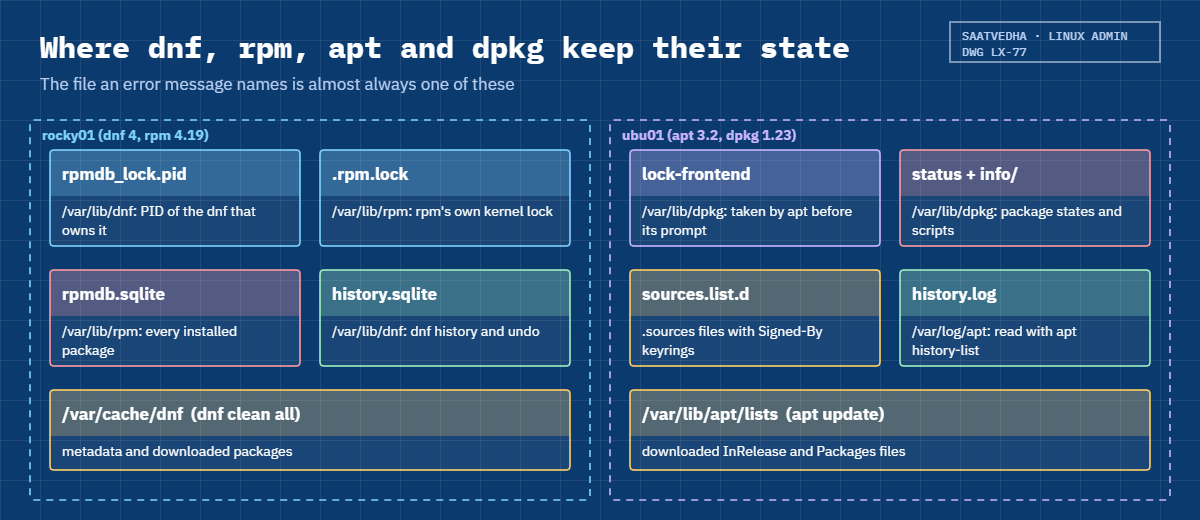
The picture below maps where each tool keeps its locks, databases, caches and history on rocky01 and ubu01, so you know which file an error message is talking about.

Linux package errors: where dnf, rpm, apt and dpkg keep locks, databases, caches and history

6Half-finished installs and the database

On Ubuntu, a package whose maintainer script failed stays half-configured, and every later apt run retries it and fails again. Read the script in /var/lib/dpkg/info/PACKAGE.postinst, fix what it needs, then run sudo dpkg --configure -a. Use sudo apt --fix-broken install when the problem is a missing dependency rather than a failing script.

On Rocky, a killed transaction can leave two versions of one package registered; dnf check lists them and dnf remove --duplicates cleans them.

The rpm database on RHEL 9 and 10 is a single sqlite file, /var/lib/rpm/rpmdb.sqlite. Old advice to delete /var/lib/rpm/__db.* files belongs to the Berkeley DB format of RHEL 8 and earlier and does nothing useful now. Back up the folder, check it with rpmdb --verifydb, and only then run rpmdb --rebuilddb, which rewrites the database from what it can read.

7Dependencies, holds and excludes

When the solver gives up, ask what is pinning things in place: apt-mark showhold on Ubuntu (Lesson 36 traced a two-year-old hold this way), exclude= or excludepkgs= lines in dnf.conf and .repo files on Rocky, and versionlock plugins. “Not upgrading yet due to phasing” on Ubuntu is not an error: Canonical releases some updates to a growing share of machines over a few days, and yours will get it later.

Hands-on lab: break and fix apt on ubu01 and dnf on rocky01

Before you run any command, double-check it

Read every command twice before you press Enter. Check the target: the server name, the user, the disk or device name, the path and the sizes. These commands are for learning and were tested in our lab, not on your system. At work, run the read-only commands first, follow your change process, make sure a backup exists, and ask a second person to check anything that changes or deletes data. You run them at your own risk.

Steps 1 to 7 run on ubu01 and steps 8 and 9 on rocky01, as student with sudo. You’ll need two SSH sessions to each VM; the steps call them session A and session B. Ubuntu outputs come from apt 3.2.0 and dpkg 1.23, the versions in 26.04; your PIDs, sizes and dates will differ, and the Rocky outputs are examples from our lab VM.

1Take a baseline before you break anything

On ubu01, run this:

sudo dpkg --audit; echo "audit exit=$?"
apt-mark showhold
sudo apt-get check
systemctl list-timers 'apt-daily*' --no-pager

You should see something like this:

audit exit=0
Reading package lists...
Building dependency tree...
Reading state information...
NEXT                            LEFT LAST                            PASSED UNIT                    ACTIVATES
Tue 2026-10-27 19:04:41 IST  7h left Tue 2026-10-27 08:12:09 IST 3h 50min ago apt-daily.timer         apt-daily.service
Wed 2026-10-28 06:31:17 IST 18h left Tue 2026-10-27 06:47:55 IST 5h 14min ago apt-daily-upgrade.timer apt-daily-upgrade.service

2 timers listed.

dpkg --audit prints nothing and exits 0 when every package is fully installed, showhold prints nothing because Lesson 36 removed its holds, and apt-get check ends quietly when the dependency tree is consistent. The two timers are the ones that start apt on their own: apt-daily refreshes the package lists and apt-daily-upgrade runs unattended-upgrades, each at a randomised time. When you see a lock error on Ubuntu, they are suspect number one.

✅ Checkpoint: dpkg --audit exits 0, nothing is held, and you know when the two apt timers will fire next.

2Build two practice packages

Paste this whole block in session A:

mkdir -p ~/lab77 && cd ~/lab77 || exit
for v in 1.0 2.0; do
  mkdir -p "saat-demo-$v/DEBIAN" "saat-demo-$v/usr/share/doc/saat-demo"
  echo "SaatVedha practice package $v" > "saat-demo-$v/usr/share/doc/saat-demo/README"
  cat > "saat-demo-$v/DEBIAN/control" <<CTL
Package: saat-demo
Version: $v
Architecture: all
Maintainer: student <student@ubu01.saatlab.test>
Description: Practice package for Lesson 77
CTL
done
cat > saat-demo-2.0/DEBIAN/postinst <<'SCRIPT'
#!/bin/sh
set -e
if [ ! -f /etc/saat-demo.conf ]; then
    echo "saat-demo: /etc/saat-demo.conf is missing, cannot configure" >&2
    exit 1
fi
echo "saat-demo: configured"
SCRIPT
chmod 755 saat-demo-2.0/DEBIAN/postinst
dpkg-deb --root-owner-group --build saat-demo-1.0 .
dpkg-deb --root-owner-group --build saat-demo-2.0 .
ls -l ./*.deb

You should see something like this:

dpkg-deb: building package 'saat-demo' in './saat-demo_1.0_all.deb'.
dpkg-deb: building package 'saat-demo' in './saat-demo_2.0_all.deb'.
-rw-rw-r-- 1 student student 584 Oct 27 12:04 ./saat-demo_1.0_all.deb
-rw-rw-r-- 1 student student 710 Oct 27 12:04 ./saat-demo_2.0_all.deb

A .deb is two archives: the files to install and a small DEBIAN folder with the control file and optional scripts. Version 1.0 is harmless. Version 2.0 carries a postinst (post-installation) script that refuses to finish unless /etc/saat-demo.conf exists, which is how real packages behave when a service can’t start or a config file is missing. --root-owner-group makes the files belong to root inside the package, as they should.

✅ Checkpoint: ~/lab77 holds saat-demo_1.0_all.deb and saat-demo_2.0_all.deb.
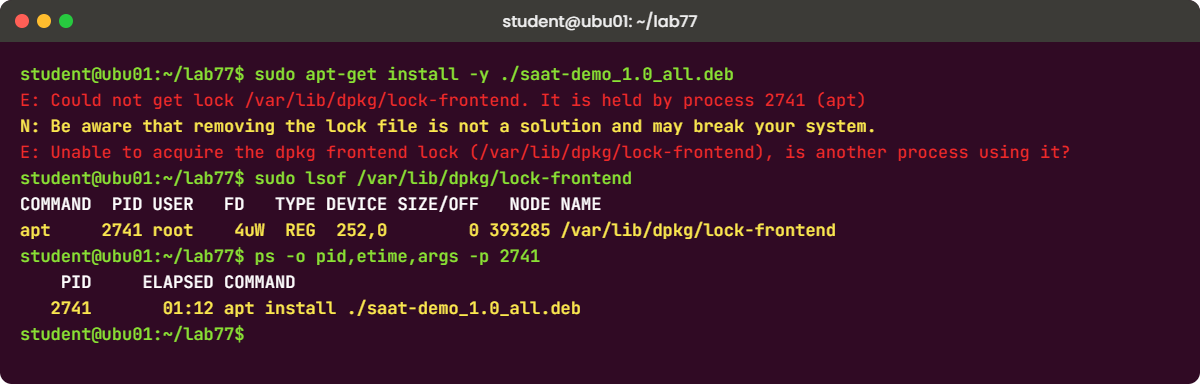
Linux package errors lab: dpkg lock-frontend error and lsof on ubu01
Example output on ubu01: apt-get refused by the dpkg frontend lock, and lsof showing who holds it.

3Make two apt sessions fight over the lock

In session A, start an install and leave it at the question. Don’t answer yet:

cd ~/lab77 && sudo apt install ./saat-demo_1.0_all.deb

Session A shows something like this and waits:

Note, selecting 'saat-demo' instead of './saat-demo_1.0_all.deb'
Installing:
  saat-demo

Summary:
  Upgrading: 0, Installing: 1, Removing: 0, Not Upgrading: 0
  Download size: 0 B / 584 B
  Space needed: 12.3 kB / 15.7 GB available

Continue? [Y/n]

In session B, try a second install the way a script would:

cd ~/lab77 && sudo apt-get install -y ./saat-demo_1.0_all.deb

You’ll get this error:

E: Could not get lock /var/lib/dpkg/lock-frontend. It is held by process 2741 (apt)
N: Be aware that removing the lock file is not a solution and may break your system.
E: Unable to acquire the dpkg frontend lock (/var/lib/dpkg/lock-frontend), is another process using it?

Still in session B, find out who holds it (use the PID from your error):

sudo lsof /var/lib/dpkg/lock-frontend
ps -o pid,etime,args -p 2741

You should see something like this:

COMMAND  PID USER   FD   TYPE DEVICE SIZE/OFF   NODE NAME
apt     2741 root    4uW  REG  252,0        0 393285 /var/lib/dpkg/lock-frontend
    PID     ELAPSED COMMAND
   2741       01:12 apt install ./saat-demo_1.0_all.deb

apt takes the frontend lock before it asks its question, so a forgotten prompt in someone’s terminal blocks every other install on the server. In lsof the W after the FD number means a write lock, and ps tells you the holder is an apt command that has been waiting for a minute. At work the name in brackets is usually unattended-upgr (the process name is cut to 15 characters), packagekitd or another admin’s apt.

Now make session B wait politely instead of failing, then answer Y in session A within a minute:

sudo apt-get -o DPkg::Lock::Timeout=120 install -y ./saat-demo_1.0_all.deb

Session B should end with something like this:

Waiting for cache lock: Could not get lock /var/lib/dpkg/lock-frontend. It is held by process 2741 (apt)... 9s
Reading package lists...
Building dependency tree...
Reading state information...
Note, selecting 'saat-demo' instead of './saat-demo_1.0_all.deb'
saat-demo is already the newest version (1.0).
0 upgraded, 0 newly installed, 0 to remove and 0 not upgraded.

With a timeout, apt-get waited for the lock, then found that session A had already installed version 1.0. This is the setting to put in scripts and automation (the Ansible apt module has a lock_timeout option for the same reason). Deleting the lock file would have let both sessions write to the dpkg database at once.

✅ Checkpoint: dpkg -l saat-demo shows ii with version 1.0, and you can name the process that held the lock and how long it had run.

4Install a package whose setup script fails

In session A, run this:

sudo apt install -y ./saat-demo_2.0_all.deb

You’ll get this error:

Note, selecting 'saat-demo' instead of './saat-demo_2.0_all.deb'
Upgrading:
  saat-demo

Summary:
  Upgrading: 1, Installing: 0, Removing: 0, Not Upgrading: 0
  Download size: 0 B / 710 B
  Space needed: 0 B / 15.7 GB available

Get:1 /home/student/lab77/saat-demo_2.0_all.deb saat-demo all 2.0 [710 B]
(Reading database ... 91783 files and directories currently installed.)
Preparing to unpack .../lab77/saat-demo_2.0_all.deb ...
Unpacking saat-demo (2.0) over (1.0) ...
Setting up saat-demo (2.0) ...
saat-demo: /etc/saat-demo.conf is missing, cannot configure
dpkg: error processing package saat-demo (--configure):
 installed saat-demo package post-installation script subprocess returned error exit status 1
Errors were encountered while processing:
 saat-demo
Error: Sub-process /usr/bin/dpkg returned an error code (1)

Look at the state it left behind:

dpkg -l saat-demo | tail -n 1
sudo dpkg --audit

You should see this:

iF  saat-demo      2.0          all          Practice package for Lesson 77
The following packages are only half configured, probably due to problems
configuring them the first time.  The configuration should be retried using
dpkg --configure <package> or the configure menu option in dselect:
 saat-demo            Practice package for Lesson 77

dpkg unpacked the new files (so 2.0 is on disk), then ran the postinst, which exited with 1. The package is now iF: wanted installed, half-configured. Every later apt command will try to configure it again and fail the same way, printing “1 not fully installed or removed” in its summary, so one broken package quietly blocks all patching on the server.

✅ Checkpoint: dpkg -l shows iF for saat-demo and dpkg --audit names it as half configured.

5Read the script, fix the cause, finish the job

Run this:

cat /var/lib/dpkg/info/saat-demo.postinst
echo "port=8080" | sudo tee /etc/saat-demo.conf
sudo dpkg --configure -a
dpkg -l saat-demo | tail -n 1

You should see this:

#!/bin/sh
set -e
if [ ! -f /etc/saat-demo.conf ]; then
    echo "saat-demo: /etc/saat-demo.conf is missing, cannot configure" >&2
    exit 1
fi
echo "saat-demo: configured"
port=8080
Setting up saat-demo (2.0) ...
saat-demo: configured
ii  saat-demo      2.0          all          Practice package for Lesson 77

Every installed package’s maintainer scripts live in /var/lib/dpkg/info, named after the package. Reading the failing one told you what it needed. Once the cause was fixed, dpkg --configure -a finished every package left unconfigured, and saat-demo is ii again.

Run dpkg --configure -a after you fix the cause, not instead of it. If you run it first it fails with the same message, which is fine and harmless. Use sudo apt --fix-broken install when apt reports unmet dependencies rather than a failing script.

✅ Checkpoint: dpkg -l saat-demo shows ii 2.0 and sudo dpkg --audit prints nothing.

6Ask apt what happened, then clean up

Run this:

apt history-list | tail -n 3
sudo apt history-info 25

You should see something like this (use the ID from your own list):

ID  Command line             Date and Time          Action    Changes

...
24  install ./saat-demo_1... 2026-10-27  12:07:44   Install   1
25  install -y ./saat-dem... 2026-10-27  12:10:19   Upgrade   1
Transaction ID: 25
Start time: 2026-10-27  12:10:19
End time: 2026-10-27  12:10:20
Requested by: student (1000)
Command line: apt install -y ./saat-demo_2.0_all.deb
Error: Sub-process /usr/bin/dpkg returned an error code (1)
Packages changed:
    Upgrade saat-demo:amd64 (1.0 -> 2.0)

apt 3 on Ubuntu 26.04 keeps this history from /var/log/apt/history.log, including the error the transaction ended with and who ran it through sudo. Installs done with plain dpkg -i don’t appear here; they are only in /var/log/dpkg.log. Remove the practice package and its config file:

sudo apt purge -y saat-demo
sudo rm /etc/saat-demo.conf
dpkg -l saat-demo 2>&1 | tail -n 1

✅ Checkpoint: dpkg -l saat-demo says no packages found, and you found the failed transaction with its error line in apt history.

7Point a source at the wrong key and read NO_PUBKEY

Add a test source for the proposed pocket that names the wrong keyring, then update:

sudo tee /etc/apt/sources.list.d/lab77-proposed.sources > /dev/null <<'EOF'
Types: deb
URIs: http://archive.ubuntu.com/ubuntu/
Suites: resolute-proposed
Components: main
Signed-By: /usr/share/keyrings/ubuntu-cloudimage-keyring.gpg
EOF
sudo apt update

You’ll get this:

Hit:1 http://archive.ubuntu.com/ubuntu resolute InRelease
Hit:2 http://archive.ubuntu.com/ubuntu resolute-updates InRelease
Hit:3 http://archive.ubuntu.com/ubuntu resolute-backports InRelease
Hit:4 http://security.ubuntu.com/ubuntu resolute-security InRelease
Get:5 http://archive.ubuntu.com/ubuntu resolute-proposed InRelease [138 kB]
Err:5 http://archive.ubuntu.com/ubuntu resolute-proposed InRelease
  The following signatures couldn't be verified because the public key is not available: NO_PUBKEY 871920D1991BC93C
Reading package lists... Done
Warning: OpenPGP signature verification failed: http://archive.ubuntu.com/ubuntu resolute-proposed InRelease: The following signatures couldn't be verified because the public key is not available: NO_PUBKEY 871920D1991BC93C
Error: The repository 'http://archive.ubuntu.com/ubuntu resolute-proposed InRelease' is not signed.
Notice: Updating from such a repository can't be done securely, and is therefore disabled by default.
Notice: See apt-secure(8) manpage for repository creation and user configuration details.

The proposed pocket is signed by the 2018 Ubuntu archive key, ID 871920D1991BC93C, but this source told apt to trust only the cloud image keyring, which doesn’t hold it. apt refuses the whole pocket; the other sources still work. Find which keyring holds the key before you change anything:

gpg --show-keys /usr/share/keyrings/ubuntu-archive-keyring.gpg 2>/dev/null | grep -B1 -A1 871920D1991BC93C
gpg --no-default-keyring --keyring /usr/share/keyrings/ubuntu-archive-keyring.gpg --list-keys 2>/dev/null | head -n 13

You should see something like this (from the second command):

/usr/share/keyrings/ubuntu-archive-keyring.gpg
---------------------------------------------
pub   rsa4096 2012-05-11 [SC]
      790BC7277767219C42C86F933B4FE6ACC0B21F32
uid           [ unknown] Ubuntu Archive Automatic Signing Key (2012) <ftpmaster@ubuntu.com>

pub   rsa4096 2012-05-11 [SC]
      8439D8FF7C6CF3D4C7F5EAB6D94AA3F0EFE21092
uid           [ unknown] Ubuntu CD Image Automatic Signing Key (2012) <cdimage@ubuntu.com>

pub   rsa4096 2018-09-17 [SC]
      F6ECB3762474EDA9D21B7022871920D1991BC93C
uid           [ unknown] Ubuntu Archive Automatic Signing Key (2018) <ftpmaster@ubuntu.com>

Fix: point Signed-By at the keyring that holds the key, update, then remove the test source:

sudo sed -i 's|ubuntu-cloudimage-keyring.gpg|ubuntu-archive-keyring.gpg|' /etc/apt/sources.list.d/lab77-proposed.sources
sudo apt update 2>&1 | grep proposed; echo "---"
sudo rm /etc/apt/sources.list.d/lab77-proposed.sources
sudo apt update > /dev/null 2>&1; echo "update exit=$?"

You should see something like this:

Get:5 http://archive.ubuntu.com/ubuntu resolute-proposed InRelease [138 kB]
Get:6 http://archive.ubuntu.com/ubuntu resolute-proposed/main amd64 Packages [312 kB]
Get:7 http://archive.ubuntu.com/ubuntu resolute-proposed/main Translation-en [51.7 kB]
Fetched 502 kB in 1s (433 kB/s)
Reading package lists... Done
---
update exit=0

Don’t run apt upgrade while the proposed source exists. Proposed holds updates that are still being tested, and apt would offer them as upgrades. Removing the file and updating again puts ubu01 back to normal.

For a vendor repository the fix is the same shape: download the vendor’s key once, check its fingerprint against the vendor’s website with gpg --show-keys, store it under /etc/apt/keyrings, and name that file in Signed-By. The key ID in the error tells you which key to look for.

✅ Checkpoint: The first update shows NO_PUBKEY 871920D1991BC93C, the second fetches the proposed pocket, and after removing the file apt update exits 0.

8On rocky01, make dnf wait for a lock

In session B on rocky01, start a stand-in for a stuck dnf job: it writes its own PID into dnf’s lock file and sleeps for two minutes:

sudo -v
sudo sh -c 'echo $$ > /var/lib/dnf/rpmdb_lock.pid; exec sleep 120' &

In session A, install tmux:

sudo dnf install -y tmux

Session A stops here:

Last metadata expiration check: 1:02:14 ago on Tue 27 Oct 2026 11:05:51 AM IST.
Dependencies resolved.
...
Downloading Packages:
tmux-3.3a-13.20230918gitb202a2f.el10.x86_64.rpm  2.0 MB/s | 476 kB     00:00
--------------------------------------------------------------------------------
Total                                           1.1 MB/s | 476 kB     00:00
Running transaction check
Waiting for process with pid 2412 to finish.

Back in session B, see who dnf is waiting for:

cat /var/lib/dnf/rpmdb_lock.pid
ps -o pid,etime,args -p "$(cat /var/lib/dnf/rpmdb_lock.pid)"

You should see something like this:

2412
    PID     ELAPSED COMMAND
   2412       00:41 sleep 120

dnf 4 doesn’t keep a kernel lock on that file. It writes its PID inside, and any other dnf checks whether that PID is still alive: if it is, it waits and says so once; if the process is gone, it takes the lock over by itself. So a leftover lock file after a crash never blocks dnf, and a live one means a real dnf (or dnf-automatic, or PackageKit) is busy.

Stop the stand-in in session B with sudo kill 2412 (your PID), and session A carries on:

Transaction check succeeded.
Running transaction test
Transaction test succeeded.
Running transaction
...
Installed:
  tmux-3.3a-13.20230918gitb202a2f.el10.x86_64

Complete!

Put rocky01 back the way Lesson 35 left it with sudo dnf history undo last -y, which removes tmux again. For scripts that must not hang, sudo dnf --setopt=exit_on_lock=True install ... fails at once with exit code 200 and prints the lock owner instead of waiting.

✅ Checkpoint: dnf printed “Waiting for process with pid …” with your stand-in’s PID, finished after you stopped it, and tmux is removed again.

9Check, back up and rebuild the rpm database

Run this:

sudo dnf check; echo "dnf check exit=$?"
sudo rpmdb --verifydb; echo "verifydb exit=$?"
rpm -qa | wc -l
sudo tar -czf /root/rpmdb-before-l77.tar.gz -C /var/lib rpm
sudo ls -lh /root/rpmdb-before-l77.tar.gz /var/lib/rpm
sudo rpmdb --rebuilddb; echo "rebuild exit=$?"
rpm -qa | wc -l

You should see something like this:

dnf check exit=0
verifydb exit=0
472
-rw-r--r--. 1 root root 5.9M Oct 27 12:31 /root/rpmdb-before-l77.tar.gz

/var/lib/rpm:
total 27M
-rw-r--r--. 1 root root 27M Oct 27 12:22 rpmdb.sqlite
-rw-r--r--. 1 root root 32K Oct 27 12:22 rpmdb.sqlite-shm
-rw-r--r--. 1 root root   0 Oct 27 12:22 rpmdb.sqlite-wal
rebuild exit=0
472

dnf check looks for duplicate packages, missing dependencies and obsoleted packages that are still installed; silence means none. rpmdb --verifydb runs sqlite’s own integrity check on rpmdb.sqlite. The backup comes before the rebuild every time, because a rebuild only copies what it can read: on a database with a damaged page, packages it can’t read disappear from the new one. The count before and after should match.

On a damaged database rpm says something like error: SELECT hnum, blob FROM 'Packages': 11: database disk image is malformed. Copy /var/lib/rpm somewhere safe first, then try the rebuild, compare the package count with your inventory or with dnf history, and if packages went missing restore the copy or the VM snapshot and open a vendor case.

✅ Checkpoint: dnf check and verifydb both exit 0, the backup file exists, and the package count is the same before and after the rebuild. Keep /root/rpmdb-before-l77.tar.gz until the end of the lesson, then delete it.

Break It, Then Fix It

Snapshot both VMs first: VBoxManage snapshot ubu01 take before-l77-break and VBoxManage snapshot rocky01 take before-l77-break on the laptop. The first two failures happen on ubu01, the third on rocky01.

1Two sources for one repository with different keys

This happens when two install guides for the same vendor repo are followed on one server. Create both files:

printf 'Types: deb\nURIs: http://archive.ubuntu.com/ubuntu/\nSuites: resolute-proposed\nComponents: main\nSigned-By: /usr/share/keyrings/ubuntu-archive-keyring.gpg\n' | sudo tee /etc/apt/sources.list.d/lab77-proposed.sources > /dev/null
echo 'deb [signed-by=/usr/share/keyrings/ubuntu-cloudimage-keyring.gpg] http://archive.ubuntu.com/ubuntu/ resolute-proposed main' | sudo tee /etc/apt/sources.list.d/lab77-old.list > /dev/null
sudo apt update
sudo apt install ncdu

You’ll get this error from both commands:

Error: Conflicting values set for option Signed-By regarding source http://archive.ubuntu.com/ubuntu/ resolute-proposed: /usr/share/keyrings/ubuntu-cloudimage-keyring.gpg != /usr/share/keyrings/ubuntu-archive-keyring.gpg
Error: The list of sources could not be read.

This one is worse than NO_PUBKEY. apt can’t decide which key to trust for that URI and suite, so it refuses to read any sources at all, and every apt command on the server fails, including security updates. The message names both keyring files, which points you at the two source files.

Fix: find every file that mentions the URI, keep one, and test.

grep -rl 'resolute-proposed' /etc/apt/sources.list /etc/apt/sources.list.d/ 2>/dev/null
sudo rm /etc/apt/sources.list.d/lab77-old.list /etc/apt/sources.list.d/lab77-proposed.sources
sudo apt update > /dev/null 2>&1; echo "update exit=$?"
update exit=0

On a real server you’d keep the deb822 .sources file and delete the old one-line .list; sudo apt modernize-sources converts leftover .list files so this clash can’t creep back.

✅ Checkpoint: apt update exits 0 and grep finds no lab77 files.

2A clock that is two days behind

Stop time sync, move ubu01’s clock back, and refresh the lists:

sudo timedatectl set-ntp false
sudo timedatectl set-time '2026-10-25 10:00:00'
sudo rm /var/lib/apt/lists/*InRelease
sudo apt update

You’ll get something like this:

Hit:1 http://archive.ubuntu.com/ubuntu resolute InRelease
Get:2 http://archive.ubuntu.com/ubuntu resolute-updates InRelease [137 kB]
Get:3 http://archive.ubuntu.com/ubuntu resolute-backports InRelease [137 kB]
Get:4 http://security.ubuntu.com/ubuntu resolute-security InRelease [137 kB]
Reading package lists... Done
Error: Release file for http://archive.ubuntu.com/ubuntu/dists/resolute-updates/InRelease is not valid yet (invalid for another 1d 23h 46min 17s). Updates for this repository will not be applied.
Error: Release file for http://archive.ubuntu.com/ubuntu/dists/resolute-backports/InRelease is not valid yet (invalid for another 1d 23h 45min 52s). Updates for this repository will not be applied.
Error: Release file for http://security.ubuntu.com/ubuntu/dists/resolute-security/InRelease is not valid yet (invalid for another 2d 1h 2min 8s). Updates for this repository will not be applied.

Each InRelease file carries the date it was signed. A Release file from the future looks like a replay or a tampered mirror, so apt refuses to use it, and your server stops getting security updates without anything else looking wrong. The release pocket still says Hit because its date is from release day.

Removing the cached InRelease files forced fresh downloads, so the check ran on all of them.

Fix: put time sync back and wait for chrony to step the clock, then update again.

sudo timedatectl set-ntp true
sleep 20; timedatectl | grep -E 'Local time|synchronized'
sudo apt update > /dev/null 2>&1; echo "update exit=$?"

You should see something like this:

               Local time: Tue 2026-10-27 12:48:03 IST
System clock synchronized: yes
update exit=0

On servers that have no route to public NTP, point chrony at an internal time source (Lesson 40). Never work around this with -o Acquire::Check-Date=false; the date check is part of what makes the signature mean something.

✅ Checkpoint: timedatectl shows today’s date with “System clock synchronized: yes” and apt update exits 0.

3A repo whose gpgkey line names the wrong key

On rocky01, make a copy of BaseOS that points at the EPEL key from Lesson 35, take the Rocky key out of the rpm database, and install from it:

sudo tee /etc/yum.repos.d/lab-wrongkey.repo > /dev/null <<'EOF'
[lab-wrongkey]
name=Lab copy of BaseOS with the wrong key
mirrorlist=https://mirrors.rockylinux.org/mirrorlist?arch=$basearch&repo=BaseOS-$releasever$rltype
gpgcheck=1
gpgkey=file:///etc/pki/rpm-gpg/RPM-GPG-KEY-EPEL-10
enabled=0
EOF
sudo rpm -e gpg-pubkey-6fedfc85
sudo dnf --repo lab-wrongkey install -y tmux

You’ll get something like this at the end:

warning: /var/cache/dnf/lab-wrongkey-5b2e81c0d4a7f3e9/packages/tmux-3.3a-13.20230918gitb202a2f.el10.x86_64.rpm: Header V4 RSA/SHA256 Signature, key ID 6fedfc85: NOKEY
GPG key at file:///etc/pki/rpm-gpg/RPM-GPG-KEY-EPEL-10 (0xE37ED158) is already installed
The GPG keys listed for the "Lab copy of BaseOS with the wrong key" repository are already installed but they are not correct for this package.
Check that the correct key URLs are configured for this repository.. Failing package is: tmux-3.3a-13.20230918gitb202a2f.el10.x86_64
 GPG Keys are configured as: file:///etc/pki/rpm-gpg/RPM-GPG-KEY-EPEL-10
The downloaded packages were saved in cache until the next successful transaction.
You can remove cached packages by executing 'dnf clean packages'.
Error: GPG check FAILED

Unlike Lesson 35’s NOKEY case, this repo does have a gpgkey line. dnf tried it, found that key already imported, and saw that it still doesn’t match the package’s key ID 6fedfc85. You meet this when a vendor rotates its signing key and old servers still point at the old key file, or when a .repo file was copied from another product. (The double full stop after “repository” is in dnf’s own message.)

Fix: put the right key back and the right file in the repo definition, then test and clean up.

gpg --show-keys /etc/pki/rpm-gpg/RPM-GPG-KEY-Rocky-10 | grep -A1 '^pub'
sudo rpm --import /etc/pki/rpm-gpg/RPM-GPG-KEY-Rocky-10
sudo sed -i 's|RPM-GPG-KEY-EPEL-10|RPM-GPG-KEY-Rocky-10|' /etc/yum.repos.d/lab-wrongkey.repo
sudo dnf --repo lab-wrongkey install -y tmux | tail -n 1
sudo dnf remove -y tmux > /dev/null
sudo rm /etc/yum.repos.d/lab-wrongkey.repo
rpm -q gpg-pubkey --qf '%{VERSION} %{SUMMARY}\n'

You should see something like this:

pub   rsa4096 2025-05-19 [SC]
      FC22685918FBAB34B25CC4B26FEDFC85
Complete!
6fedfc85 Release Engineering (Rocky Linux 10) <releng@rockylinux.org> public key
e37ed158 Fedora (epel10) <epel@fedoraproject.org> public key

The fingerprint ends in 6FEDFC85, which matches the key ID in the warning and the fingerprint published on rockylinux.org/keys. Checking that before an import is the whole point of signatures; importing whatever key makes the error go away is how a fake repository gets trusted.

✅ Checkpoint: rpm -q gpg-pubkey lists the Rocky key 6fedfc85 again, lab-wrongkey.repo is gone, and tmux is not installed.

This happened at work

The garba pass sale and the lock file

I was on call for an event ticketing platform in Surat the evening the passes for the city’s biggest Navratri garba went on sale. At 6:45 p.m. the release pipeline started pushing a small hotfix package to twenty Ubuntu servers, fifteen minutes before the sale. Six servers failed with “Could not get lock /var/lib/dpkg/lock-frontend.

It is held by process … (unattended-upgr)”, and the pipeline turned red in front of the whole team.

A teammate found a blog post and ran sudo rm /var/lib/dpkg/lock-frontend /var/lib/dpkg/lock on one of them, then re-ran the pipeline. The hotfix installed, but unattended-upgrades was in the middle of an OpenSSL update on the same server, and now two dpkg processes were writing at once. Ten minutes later that server answered every apt command with “dpkg was interrupted” and its web service wouldn’t restart because libssl was half unpacked.

On the other five I ran ps -o pid,etime,args on the PID from the error: unattended-upgrades had started at 6:38 p.m. from its randomised timer and was crawling because the mirror was slow. They all finished by 6:52 and the hotfix went out cleanly. The broken server needed sudo dpkg --configure -a, a reinstall of the OpenSSL packages and a service restart, and it stayed out of the load balancer until 7:20, by which time the first wave of buyers had come and gone.

We changed three things that week. apt-daily-upgrade.timer got a drop-in with OnCalendar=*-*-* 03:30 so unattended upgrades run at night, every pipeline apt task got lock_timeout: 300, and the runbook gained one line in bold: never delete a lock file, find the PID behind it.

Common mistakes and troubleshooting

MistakeWhat happensWhat to do instead
Deleting /var/lib/dpkg/lock* or a dnf lock file to get past an errorTwo processes write the package database at once and you get half-installed packagesFind the PID with ps -o pid,etime,args -p PID and wait, or stop its unit cleanly
Running apt-get in scripts without a lock timeoutThe script fails whenever unattended-upgrades happens to be runningAdd -o DPkg::Lock::Timeout=300 (or the Ansible lock_timeout option)
Fixing NO_PUBKEY or NOKEY with [trusted=yes] or gpgcheck=0Anyone who can tamper with the mirror or the network can install code as rootGet the right key, check its fingerprint, name it in Signed-By or gpgkey
Running dpkg --configure -a again and again without reading the errorIt fails the same way every time and the package stays half-configuredRead /var/lib/dpkg/info/PKG.postinst and the error line, fix the cause, then configure
Running rpmdb --rebuilddb first on a damaged databasePackages it can’t read vanish from the rebuilt databaseCopy /var/lib/rpm first, run rpmdb --verifydb, compare package counts after
Two source files for one repo with different Signed-ByEvery apt command fails with “Conflicting values set for option Signed-By”Keep one deb822 .sources file per repo; run apt modernize-sources on old .list files
Ignoring “not valid yet” as an apt glitchThe server silently stops getting security updatesFix the clock: timedatectl, chronyc tracking, an internal NTP source

Interview questions

Click a question to open it. Each one is written the way an interviewer would ask it. Under it you will see why they ask it and one way you could answer, in your own words.

Fresher level

1. apt says it could not get the lock on /var/lib/dpkg/lock-frontend. What do you do?

Why they ask this: A classic first-week problem. They want to hear that you find the holder instead of deleting the lock file.

How you might answer: I read the PID and name in the error, then run ps -o pid,etime,args -p PID to see what it is and how long it has run. Most of the time it’s unattended-upgrades from the apt-daily-upgrade timer, or someone else’s apt sitting at a prompt, so I wait or ask them to finish.

I never delete the lock file, because that lets two dpkg processes write at once. If the job is truly stuck for hours I check what it’s waiting on, stop its unit cleanly, and then run sudo dpkg --configure -a and sudo dpkg --audit.

2. What does NO_PUBKEY mean in apt update output, and how would you fix it?

Why they ask this: They’re checking that you understand repository signing and won’t switch it off.

How you might answer: It means the repository’s InRelease file is signed by a key that isn’t in the keyring the source trusts, and the long hex string is the key ID. On modern Ubuntu each source names its keyring in Signed-By, so either the keyring file is missing or the source points at the wrong one.

I get the vendor’s key from their documented URL, check the fingerprint with gpg --show-keys, save it under /etc/apt/keyrings and name that file in the .sources file. I don’t use [trusted=yes] and apt-key is gone on 26.04 anyway.

2–5 years experience

3. Every apt command on a server ends with “1 not fully installed or removed” and a dpkg error. Walk me through fixing it.

Why they ask this: They want a calm, ordered approach to a half-configured package, not a reinstall of everything.

How you might answer: First I run sudo dpkg --audit and dpkg -l | grep -v ^ii to see which package is stuck and in what state. Then I read the error line and the maintainer script in /var/lib/dpkg/info, because a postinst usually fails for a reason like a missing config file or a service that won’t start.

Once the cause is fixed I run sudo dpkg --configure -a, or sudo apt --fix-broken install if the problem was a missing dependency. If the package isn’t needed at all I purge it. Then I check apt history-info for what else that transaction touched.

4. dnf hangs at “Waiting for process with pid 2412 to finish.” What is happening and what do you check?

Why they ask this: This tests whether you know how dnf’s lock works and can tell a busy dnf from a stuck one.

How you might answer: dnf 4 writes its PID into /var/lib/dnf/rpmdb_lock.pid, and another dnf waits while that PID is alive. I check ps -o pid,etime,args -p 2412: usually it’s dnf-automatic, PackageKit or another admin, and it finishes on its own.

A stale file from a crash doesn’t block dnf, because it takes over when the PID is dead. In scripts I use --setopt=exit_on_lock=True so the job fails fast with exit code 200 instead of hanging, and I schedule automatic updates away from deployment times.

Senior level

5. A colleague wants to fix a corrupted rpm database by running a rebuild straight away. What do you tell them?

Why they ask this: Seniors should know the sqlite rpmdb on RHEL 9 and 10, the risk of rebuilding blind, and when to stop and call the vendor.

How you might answer: Copy /var/lib/rpm first, because a rebuild writes a new database from whatever it can read, and unreadable entries are lost. Then check with rpmdb --verifydb and note the package count. The old trick of deleting __db files is for the Berkeley DB format of RHEL 8 and earlier and does nothing on sqlite.

After the rebuild I compare rpm -qa | wc -l and our inventory, and run dnf check. If packages are missing I restore the copy or a VM snapshot and open a case with Red Hat, and I look for the root cause, which is often a full /var or a storage error during a transaction.

6. How do you stop automatic updates from colliding with your deployments across 300 Ubuntu and RHEL servers?

Why they ask this: They want a fleet-level answer: scheduling, locking behaviour in tools, and visibility.

How you might answer: I schedule automatic updates in a known slot with drop-ins for apt-daily-upgrade.timer and dnf-automatic.timer, outside deployment hours, and make deployment tooling wait on locks: lock_timeout in Ansible apt tasks, DPkg::Lock::Timeout for apt-get, and exit_on_lock with retries for dnf.

I also watch for the symptoms: a monitoring check on dpkg --audit and dnf check, alerts on “not valid yet” or signature errors in apt-daily logs, and the apt and dnf history in the change record so we know what each run changed.

Quick quiz

Q1. apt-get fails with “Could not get lock /var/lib/dpkg/lock-frontend. It is held by process 1873 (unattended-upgr)”. What is the right first step?

  1. Delete the lock file
  2. Reboot the server
  3. Check what PID 1873 is doing and wait for it to finish
  4. Run dpkg --configure -a
Show answer

C — The lock is held by a live process. Find it with ps, let it finish or stop it cleanly; deleting the file lets two writers in.

Q2. A package is shown as iF by dpkg -l. What does that mean?

  1. Installed and fine
  2. Wanted installed, half-configured: its configure step failed
  3. Held
  4. Removed but config files remain
Show answer

B — i is the wanted state and F is half-configured, usually after a failing postinst script.

Q3. apt update prints NO_PUBKEY 871920D1991BC93C for one source. What is the safest fix?

  1. Add [trusted=yes] to the source
  2. Point Signed-By at the keyring that holds that key, after checking its fingerprint
  3. Delete all keyrings
  4. Run apt-key add
Show answer

B — The key ID tells you which key is needed; the source must name a keyring that contains it.

Q4. What does “Release file … is not valid yet” usually mean?

  1. The mirror is down
  2. The server’s clock is behind the date the Release file was signed
  3. The key expired
  4. The disk is full
Show answer

B — apt rejects Release files dated in the future. Fix the time with chrony.

Q5. Before running rpmdb --rebuilddb on a suspect database, you should:

  1. Delete /var/lib/rpm/__db.*
  2. Run gpgcheck=0
  3. Back up /var/lib/rpm and note the package count
  4. Remove dnf
Show answer

C — A rebuild keeps only what it can read, so you need a copy to fall back on and a count to compare.

Quick recap

  • Linux package errors fall into families: locks, repositories, signatures, half-finished installs, a damaged database, and dependencies or holds.
  • Locks belong to live processes: find the PID with ps -o pid,etime,args -p PID and never delete lock files. Use DPkg::Lock::Timeout and exit_on_lock in scripts.
  • A failing maintainer script leaves a package iF; read /var/lib/dpkg/info/PKG.postinst, fix the cause, then sudo dpkg --configure -a.
  • NO_PUBKEY, NOKEY and “not correct for this package” all mean the wrong or missing key: check the fingerprint, then fix Signed-By or gpgkey.
  • “Not valid yet” is a clock problem, and “Conflicting values set for option Signed-By” means two files describe one repo.
  • On RHEL 9 and 10 the rpm database is sqlite: back it up, rpmdb --verifydb, then rpmdb --rebuilddb, and compare counts.

Next lesson

Lesson 78: Read-only file system and file system errors → You’ll make a test disk fail under ext4 and XFS on rocky01, watch the kernel switch a file system to read-only or shut it down, and repair it in the right order with e2fsck and xfs_repair.

Further reading: Linux package errors

Want to go deeper into Linux package errors? Read Red Hat’s Managing software with the DNF tool (RHEL 10) and the dnf.conf reference (exit_on_lock, skip_if_unavailable), the Debian manual pages for apt-secure(8), sources.list(5) and dpkg(1), and Ubuntu’s package management guide. You can also see the full plan for this course on the Linux Administration course page.

Scroll to Top

This website uses cookies

We use a few cookies to keep this site working. If you allow it, we also use Google Analytics to count visits so we can improve our lessons. You can accept all, deny the optional ones, or choose what to allow.