The Linux find command: find files and act on them safely

The Linux find command walks through a folder tree and picks out files by name, age, size, owner or permissions, and then it can act on them: list them, change them or delete them. It’s the tool behind every “clean up logs older than 30 days” job, and also behind some of the most painful “I deleted the wrong files” stories in operations.

In this lesson you build a small practice tree with old and new logs, big exports and a world-writable script, and you ask find every question an admin asks. Then you learn the habit that keeps you safe: run the same find with -print first, count what it found, and only then add -delete at the very end.

Where this lesson fits

Lesson 25 of 82 in Linux Administration · Phase 2: Day-to-day administration and the command builder · Before this: Lesson 24, searching logs · Next: Lesson 26, systemd services with systemctl

TimeYou needBy the end you can
About 60 minutesrocky01 from Lesson 2 and an SSH session as student (ubu01 works the same for everything except step 9)Find files by name, type, age, size, owner and permissions, act on them with -exec, xargs or -delete, and dry-run every cleanup before it deletes anything

What it is, in one line

find walks a folder tree, tests every file and folder against your conditions from left to right, and runs an action (print, exec or delete) on the ones that pass all of them.

In Simple Words

The godown clean-up

Picture the owner of a provision store asking his helper to clear the godown: “throw out every biscuit packet that expired more than a month ago.” A careful helper walks every rack, picks up each packet, checks it is a biscuit packet, checks the date, and puts the old ones in a basket. Before anything goes in the dustbin, the owner looks at the basket.

A careless helper hears “throw out” first and starts throwing out everything on the first rack before he has even heard “biscuits” and “expired”. find works like the helper and checks your conditions in the order you write them, so the order of words decides whether you get a basket for checking or an empty godown.

Engineer's View

How find reads its command line

A find command has three parts: where to start (/var/log, .), an expression made of tests and actions, and options such as -maxdepth and -xdev. Every item in the expression is evaluated left to right for each file, joined by an invisible AND, and evaluation stops at the first test that is false. If you give no action, find adds -print for you.

TestMatchesWatch out for
-name '*.gz' / -inameFile name (not the path) by shell pattern; -iname ignores caseAlways quote the pattern, or the shell expands it first
-type f / d / lRegular file, directory, symbolic linkWithout it, directories match name and age tests too
-mtime +30 / -30Modified more than / less than 30 days agoAge is counted in whole days, rounded down: +30 means 31 days or older
-mmin -60, -newer FILEChanged in the last 60 minutes / after FILE was changed-newermt takes a date string, such as “20 days ago”
-size +100M / -1MBigger than / smaller than, in k, M, G (powers of 1024)Sizes round up to the unit, so -1M matches only empty files
-user root, -groupOwner or group-nouser finds files whose owner was deleted
-perm 755 / -o+w / /111Only these bits / all of these bits / any of these bitsThe prefix changes the meaning completely
-emptyEmpty files and empty directories
ActionWhat it does
-print, -ls, -printfShow the path, an ls-style line, or your own format (date, size, path)
-exec cmd {} \;Runs cmd once per file, with {} replaced by the path
-exec cmd {} +Runs cmd once with as many paths as fit on one command line, much faster
-print0 | xargs -0 cmdLike {} +, but through a pipe; -0 keeps names with spaces and newlines in one piece
-deleteDeletes files and empty folders. Implies -depth. Must be the last item

-xdev keeps find on the file system it started on, so a search of / or /var doesn’t wander into NFS mounts, /proc or a backup disk. Rocky Linux 10 and Ubuntu 26.04 both ship GNU findutils, so every option here works the same on both.

How it works, step by step

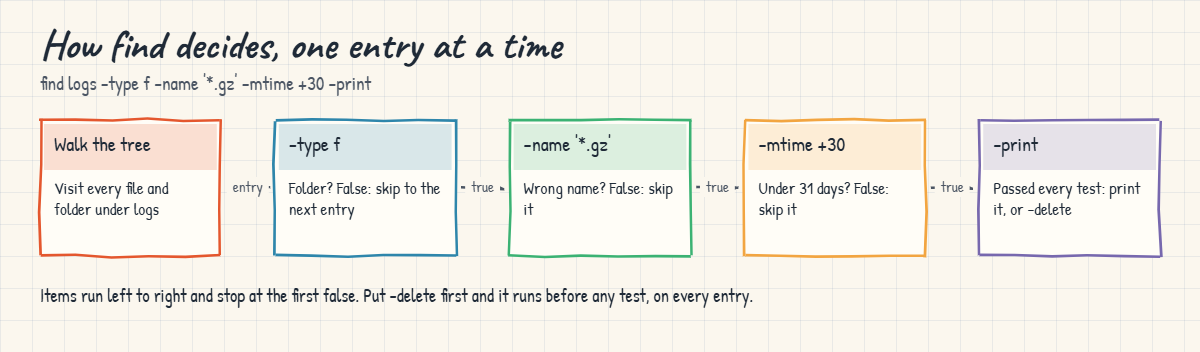
Here is what happens inside find for one command, find logs -type f -name '*.gz' -mtime +30 -print. The diagram below shows the same walk.

1find walks the tree

It starts at logs and visits every file and folder below it, depth first, in the order the file system returns them (not sorted). Options like -maxdepth 1 limit how deep it goes, and -xdev stops it at mount points.

2Each entry is tested left to right

For every entry, find checks -type f. A folder fails, and find moves to the next entry without looking at the other tests. A file goes on to -name '*.gz', then to -mtime +30.

Only an entry that passes all three reaches -print.

Linux find command: how find walks the tree and tests each entry left to right

3Actions are tests too

This is the part that bites. An action is an item in the same chain, evaluated at the moment find reaches it. -print prints and returns true; -delete deletes and returns true. Put -delete first and it runs for every entry before any test is checked, so find deletes everything under the starting point.

GNU find warns about this order only in some cases, so never count on a warning.

4Age is counted in whole days

For -mtime, find takes the file’s age in seconds, divides by 86,400 and throws away the fraction. A file 30 days and 20 hours old counts as 30, so -mtime +30 (more than 30) skips it and -mtime 30 matches it. In practice, -mtime +30 means “at least 31 days old”.

5Pick how the action runs

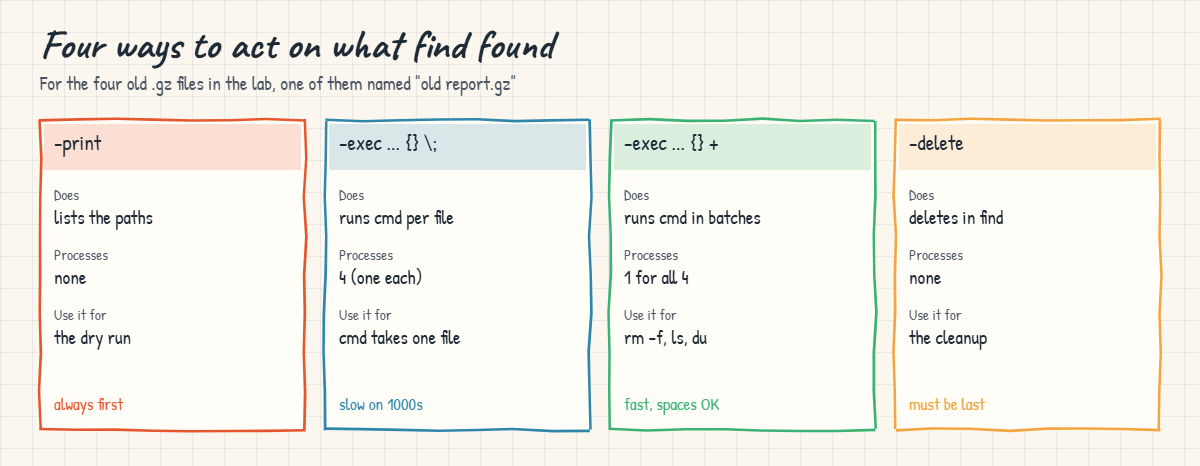
When you want to run another command on the results, you have four ways, and they differ in speed and in what happens to odd file names. The picture below compares them for the four old logs in this lab.

Linux find command: -print, -exec with semicolon, -exec with plus and -delete compared

6The safe cleanup routine

Every cleanup at work follows the same four moves. Run the find with -print and read the list. Count it with | wc -l and size it with -exec du -ch {} + | tail -n 1, so you know what you’re about to free.

Then press the up arrow and replace -print with -delete, changing nothing else. Finally run the -print version again; it should print nothing.

The classic runbook line find /var/log -type f -name "*.gz" -mtime +30 -exec rm -f {} \; gets the tests right but skips the first two moves and starts one rm process per file. On a box with 40,000 old files that’s 40,000 processes. -delete does the same job inside find, and -exec rm -f {} + batches the files when you need rm’s own options.

Hands-on lab: find old, big and risky files and clean up safely

Before you run any command, double-check it

Read every command twice before you press Enter. Check the target: the server name, the user, the disk or device name, the path and the sizes. These commands are for learning and were tested in our lab, not on your system. At work, run the read-only commands first, follow your change process, make sure a backup exists, and ask a second person to check anything that changes or deletes data. You run them at your own risk.

Everything in this lab happens inside ~/lab25 as student, except step 9, which only looks at /var/log and changes nothing. The block in step 1 creates a fixed set of files with known ages and sizes, so the outputs below match yours, apart from dates and the order of unsorted lines. The big files are made with truncate, which sets the size without writing data, so they take almost no real disk space.

1Build the practice tree

Paste this whole block on rocky01:

mkdir -p ~/lab25/logs/nginx ~/lab25/exports ~/lab25/tmp/cache ~/lab25/scripts && cd ~/lab25
seq 1 5000 > logs/app.log
seq 1 3000 > logs/nginx/access.log
for f in app.log.2.gz app.log.3.gz app.log.4.gz "old report.gz" APP-ARCHIVE.GZ nginx/access.log.5.gz; do seq 1 2000 | gzip > "logs/$f"; done
seq 1 4000 > logs/app.log.1
touch -d "2 days ago" logs/app.log.1
touch -d "10 days ago" logs/app.log.2.gz
touch -d "35 days ago" logs/app.log.3.gz
touch -d "40 days ago" logs/app.log.4.gz
touch -d "45 days ago" "logs/old report.gz"
touch -d "60 days ago" logs/APP-ARCHIVE.GZ
touch -d "32 days ago" logs/nginx/access.log.5.gz
truncate -s 12M exports/orders-2026-09.csv && touch -d "50 days ago" exports/orders-2026-09.csv
truncate -s 3M exports/orders-2026-10.csv && touch -d "1 day ago" exports/orders-2026-10.csv
truncate -s 150M exports/db-dump.sql && touch -d "3 days ago" exports/db-dump.sql
truncate -s 600K tmp/session.dat
touch tmp/empty.txt
printf '#!/bin/bash\necho cleanup\n' > scripts/cleanup.sh && chmod 777 scripts/cleanup.sh
printf '#!/bin/bash\necho deploy\n' > scripts/deploy.sh && chmod 755 scripts/deploy.sh
sudo touch logs/audit.log
find . -type f | sort

You should see this:

./exports/db-dump.sql
./exports/orders-2026-09.csv
./exports/orders-2026-10.csv
./logs/APP-ARCHIVE.GZ
./logs/app.log
./logs/app.log.1
./logs/app.log.2.gz
./logs/app.log.3.gz
./logs/app.log.4.gz
./logs/audit.log
./logs/nginx/access.log
./logs/nginx/access.log.5.gz
./logs/old report.gz
./scripts/cleanup.sh
./scripts/deploy.sh
./tmp/empty.txt
./tmp/session.dat

touch -d "35 days ago" sets a file’s modification time to the past, which is how you test age rules without waiting a month. The one sudo touch creates an empty file owned by root for the owner tests. Sorting the output makes it easy to compare, because find itself lists entries in whatever order the file system keeps them.

✅ Checkpoint: find lists 17 files, including “old report.gz” with a space in its name.

2Find by name and type

Run this:

find . -name '*.gz' | sort
find . -iname '*.gz' | sort

You should see this:

./logs/app.log.2.gz
./logs/app.log.3.gz
./logs/app.log.4.gz
./logs/nginx/access.log.5.gz
./logs/old report.gz
./logs/APP-ARCHIVE.GZ
./logs/app.log.2.gz
./logs/app.log.3.gz
./logs/app.log.4.gz
./logs/nginx/access.log.5.gz
./logs/old report.gz

-name is case-sensitive, so APP-ARCHIVE.GZ only shows up with -iname. Both match the file name, not the path; to match a path use -path '*/nginx/*'. The pattern is in single quotes so that find, not the shell, sees the star.

find . -type d | sort
find . -empty | sort

You should see this:

.
./exports
./logs
./logs/nginx
./scripts
./tmp
./tmp/cache
./logs/audit.log
./tmp/cache
./tmp/empty.txt

-type d lists folders, and the starting point “.” counts as one. -empty catches empty files and empty folders together; add -type f if you only want files.

✅ Checkpoint: -iname finds six .gz files and -name finds five.

3Limit how deep find goes

Run this:

find logs -maxdepth 1 -type f -name '*.gz' | sort
find . -mindepth 2 -maxdepth 2 -type d | sort

You should see this:

logs/app.log.2.gz
logs/app.log.3.gz
logs/app.log.4.gz
logs/old report.gz
./logs/nginx
./tmp/cache

With -maxdepth 1 find stays in logs itself and skips the nginx folder, so access.log.5.gz is missing. -mindepth 2 -maxdepth 2 gives only folders two levels down, no more and no less. Put these options right after the starting path; GNU find prints a warning if they come after a test.

✅ Checkpoint: The nginx log is missing from the first list, and the second shows nginx and cache.

4Find by age

Run this:

find logs -type f -mtime +30 | sort
find . -type f -mtime -7 | sort

You should see this:

logs/APP-ARCHIVE.GZ
logs/app.log.3.gz
logs/app.log.4.gz
logs/nginx/access.log.5.gz
logs/old report.gz
./exports/db-dump.sql
./exports/orders-2026-10.csv
./logs/app.log
./logs/app.log.1
./logs/audit.log
./logs/nginx/access.log
./scripts/cleanup.sh
./scripts/deploy.sh
./tmp/empty.txt
./tmp/session.dat

-mtime +30 found the five files that are 32 to 60 days old, both cases of .gz. -mtime -7 is the opposite, everything changed in the last seven days. Two more ways to say “newer than”:

find logs -type f -newer logs/app.log.2.gz | sort
find . -type f -newermt '20 days ago' ! -newermt '5 days ago'

You should see this:

logs/app.log
logs/app.log.1
logs/audit.log
logs/nginx/access.log
./logs/app.log.2.gz

-newer FILE compares with another file’s time, which is handy with a marker file your script touches at the start of a job. -newermt takes a date string such as “2026-10-01” or “20 days ago”, and ! (NOT) turns the second test round, so together they give a window: older than 5 days but newer than 20. -mmin -60 does the same in minutes.

✅ Checkpoint: The first list has five old logs and the last command finds only app.log.2.gz.

5Find the big files

Run this:

find . -type f -size +100M
find . -type f -size +1M -exec ls -lh {} + | sort -k5 -rh

You should see something like this:

./exports/db-dump.sql
-rw-r--r--. 1 student student 150M Oct 24 11:02 ./exports/db-dump.sql
-rw-r--r--. 1 student student  12M Sep  7 11:02 ./exports/orders-2026-09.csv
-rw-r--r--. 1 student student 3.0M Oct 26 11:02 ./exports/orders-2026-10.csv

-size +100M means bigger than 100 MiB. The second line is the big-files report from the runbook: find hands every match to one ls -lh, and sort -k5 -rh sorts on the size column with human units (150M above 12M above 3.0M), largest first. On a real server you’d run it as sudo find /var -xdev -type f -size +100M ... when a disk fills up.

✅ Checkpoint: db-dump.sql is at the top of the sorted list at 150M.

6Find by owner and permissions

Run this:

find . -user root
find . -type f ! -user student
find . -type f -perm -o+w
find scripts -type f -perm 755
find . -type f -perm /111 | sort

You should see this:

./logs/audit.log
./logs/audit.log
./scripts/cleanup.sh
scripts/deploy.sh
./scripts/cleanup.sh
./scripts/deploy.sh

The root-owned audit.log shows up both ways. -perm -o+w (with a minus) means “at least the other-write bit”, which is how you hunt world-writable files, here cleanup.sh with mode 777. -perm 755 (no prefix) means 755 and nothing else. -perm /111 (slash) means “any execute bit at all”, so both scripts match. On a server, sudo find / -xdev -type f -perm -o+w is a standard security check (Lesson 55).

✅ Checkpoint: cleanup.sh is the only world-writable file, and both scripts have an execute bit.

7Print, exec and xargs

Show date, size and path for the old .gz files:

find logs -type f -name '*.gz' -mtime +30 -printf '%TY-%Tm-%Td  %6s  %p\n' | sort

You should see something like this:

2026-09-12    4218  logs/old report.gz
2026-09-17    4218  logs/app.log.4.gz
2026-09-22    4218  logs/app.log.3.gz
2026-09-25    4218  logs/nginx/access.log.5.gz

-printf prints what you ask for: %TY-%Tm-%Td is the modification date, %s the size in bytes and %p the path. Sorting by date puts the oldest first. Now see how the two -exec forms call a command, using echo so nothing is removed:

find logs -type f -name '*.gz' -mtime +30 -exec echo rm {} \;
find logs -type f -name '*.gz' -mtime +30 -exec echo rm {} +

You should see something like this (the order may differ):

rm logs/app.log.4.gz
rm logs/old report.gz
rm logs/nginx/access.log.5.gz
rm logs/app.log.3.gz
rm logs/app.log.4.gz logs/old report.gz logs/nginx/access.log.5.gz logs/app.log.3.gz

With \; find started echo four times, once per file. With + it started echo once with all four paths. With 5,000 files the first form starts 5,000 processes and takes seconds; the second starts one or two and finishes almost at once.

The backslash in \; stops the shell from treating the semicolon as the end of the command. The pipe version needs -print0 and xargs -0 so that “old report.gz” stays one name:

find logs -type f -name '*.gz' -mtime +30 -print0 | xargs -0 ls -1

You should see this:

logs/app.log.3.gz
logs/app.log.4.gz
logs/nginx/access.log.5.gz
logs/old report.gz

✅ Checkpoint: echo ran four times with \; and once with +, and ls listed “old report.gz” as one file.
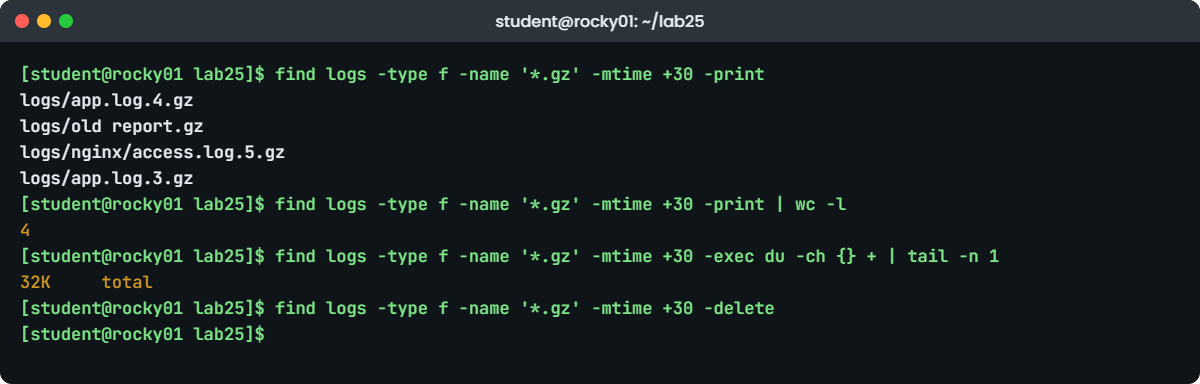
Linux find command lab: dry run with -print, count and size, then -delete on rocky01
Example output: the dry run, count and size before -delete on rocky01.

8Dry run, then delete

First the dry run: the list, the count and the space it will free.

find logs -type f -name '*.gz' -mtime +30 -print
find logs -type f -name '*.gz' -mtime +30 -print | wc -l
find logs -type f -name '*.gz' -mtime +30 -exec du -ch {} + | tail -n 1

You should see something like this:

logs/app.log.4.gz
logs/old report.gz
logs/nginx/access.log.5.gz
logs/app.log.3.gz
4
32K	total

Four files, 32K on disk. APP-ARCHIVE.GZ is 60 days old but isn’t in the list, because -name is case-sensitive. That’s the kind of thing you only notice in a dry run, and here it’s what you want: you decide whether that file belongs in the cleanup or not.

Now press the up arrow to get the first command back and change only the last word:

find logs -type f -name '*.gz' -mtime +30 -delete
find logs -type f -name '*.gz' -mtime +30 -print | wc -l
find logs -type f -iname '*.gz' | sort

You should see this:

0
logs/APP-ARCHIVE.GZ
logs/app.log.2.gz

-delete prints nothing when it works. The second dry run counts zero, and the last line shows the two .gz files the rule was meant to keep: the 10-day-old one and the upper-case archive. If you need rm’s options, -exec rm -f {} + in the same last position does the same job.

✅ Checkpoint: The repeat dry run prints 0 and only app.log.2.gz and APP-ARCHIVE.GZ are left.

9Dry run on the real /var/log

On ubu01, run the runbook dry run (read-only):

sudo find /var/log -xdev -type f -name '*.gz' -print
sudo find /var/log -xdev -type f -name '*.gz' -print | wc -l

You should see something like this:

/var/log/syslog.2.gz
/var/log/auth.log.2.gz
/var/log/kern.log.2.gz
/var/log/apt/history.log.1.gz
4

On rocky01, look at the rotated files instead:

sudo find /var/log -xdev -type f \( -name '*-2026*' -o -name '*.[0-9]' \) -print

You should see something like this:

/var/log/messages-20261025
/var/log/secure-20261025
/var/log/cron-20261025
/var/log/dnf.librepo.log.1

On a lab VM a few days old, adding -mtime +30 prints nothing, and that’s a correct dry-run result. On Ubuntu the old logs are .gz files; on Rocky, logrotate adds a date and leaves them uncompressed, so a “*.gz” rule finds nothing there. Read the dry run before you trust a rule written for the other distro. \( ... -o ... \) groups two tests with OR; the brackets are escaped so the shell passes them to find.

Don’t delete anything here; logrotate already looks after these files (Lesson 29).

✅ Checkpoint: You can say whether -name '*.gz' would clean anything on each VM, without deleting a single file.

Break It, Then Fix It

Take a snapshot of rocky01 first (VBoxManage snapshot rocky01 take before-l25 on the laptop). Everything below runs inside ~/lab25. Step 1 deletes a whole folder on purpose, so it works on a copy; read each command twice before you run it, which is the habit this section is about.

1-delete in the wrong place

Make a copy of the logs folder and “clean” it with -delete first:

cd ~/lab25
cp -a logs logs-copy
find logs-copy -delete -name '*.gz'
ls logs-copy

You’ll get this error:

ls: cannot access 'logs-copy': No such file or directory

find ran without a single message and deleted everything: every log, the nginx folder and logs-copy itself. -delete was the first item, so for each entry it deleted first and tested the name afterwards, when it no longer mattered. People write it this way when they “tidy up” a working command by moving the action to the front, or build the line in a script from pieces.

Fix: tests first, -delete last, and always the dry run before.

cp -a logs logs-copy
find logs-copy -type f -name '*.gz' -print
find logs-copy -type f -name '*.gz' -delete
ls logs-copy

✅ Checkpoint: logs-copy still exists and holds app.log, app.log.1, APP-ARCHIVE.GZ, audit.log and the nginx folder. Remove it with rm -r logs-copy.

2An unquoted pattern

Recreate two old logs, then run find from inside the logs folder without quotes:

cd ~/lab25/logs
seq 1 2000 | gzip > app.log.3.gz && touch -d "35 days ago" app.log.3.gz
seq 1 2000 | gzip > app.log.4.gz && touch -d "40 days ago" app.log.4.gz
find . -name *.gz -mtime +30

You’ll get this error:

find: paths must precede expression: `app.log.3.gz'
find: possible unquoted pattern after predicate `-name'?

The shell expanded *.gz into the .gz names in the current folder before find started, so find received -name app.log.2.gz app.log.3.gz app.log.4.gz and choked on the extra names. The dangerous version is when only one .gz file sits in the folder: then the pattern becomes that one name, find runs without any error and quietly matches only that file, everywhere in the tree.

Fix: quote the pattern, so find gets the star.

find . -name '*.gz' -mtime +30
./app.log.3.gz
./app.log.4.gz

✅ Checkpoint: The quoted command lists the two old logs (the order may differ).

3-size -1M finds almost nothing

Look for “files smaller than 1 MB”:

cd ~/lab25
find . -type f -size -1M | sort

You’ll get:

./logs/audit.log
./tmp/empty.txt

Only the two empty files, although session.dat (600K), the logs and both scripts are all well under 1 MB. find rounds every size up to whole units before it compares, so a 600K file counts as 1M, and “less than 1” leaves only files of size 0. The same happens with -size -1G.

Fix: use a smaller unit, or bytes with c.

find . -type f -size -1024k | wc -l
find . -type f -size -1048576c | wc -l
12
12

✅ Checkpoint: Both commands count 12 files under 1 MiB (everything except the three exports).

4xargs and a space in the name

Make “old report.gz” old again and pipe without -print0:

seq 1 2000 | gzip > "logs/old report.gz" && touch -d "45 days ago" "logs/old report.gz"
find logs -type f -name '*.gz' -mtime +30 | xargs ls -1

You’ll get these errors (next to the other names):

ls: cannot access 'logs/old': No such file or directory
ls: cannot access 'report.gz': No such file or directory

xargs splits its input on spaces and newlines, so one file name became two. With ls that’s a harmless error. With rm it can remove the wrong files: if there were a file called logs/old, rm would delete it, and the real “old report.gz” would stay.

Fix: pass names with NUL separators, or let find run the command itself.

find logs -type f -name '*.gz' -mtime +30 -print0 | xargs -0 ls -1
find logs -type f -name '*.gz' -mtime +30 -exec ls -1 {} +

✅ Checkpoint: Both commands list “logs/old report.gz” as one file. Delete the practice folder with rm -r ~/lab25 when you are done, or keep it for practice.

This happened at work

The cleanup line that was tidied up

A junior on my team at a car maker’s dealer portal in Mysuru learnt this one the hard way. The portal keeps every invoice PDF the dealers download under /srv/portal/invoices, and a nightly cron job removed temporary copies older than seven days from a sub-folder. The line was long and a review comment said “make it readable”, so he rewrote it in a script with the path, the action and the tests in separate variables.

The script built find "$DIR" $ACTION $TESTS, with ACTION=-delete. He tested it with ACTION=-print, where the order didn’t matter, saw the right forty files and shipped it. At 1:30 the next morning find visited the folder, deleted first and checked the name and age afterwards, and the folder went with it: about 48,000 invoices, including the current month.

The dealer helpdesk started getting calls at 8:30 when dealers couldn’t download invoices for vehicles they were delivering that day. Our first guess was a broken mount, because the folder had vanished, but grep CRON /var/log/messages showed the job had run at 1:30, and the script made the rest obvious. Restoring the folder from the night’s backup took a little under three hours.

Nobody was blamed; the review had asked for the change. What we changed was the pattern: every cleanup script now runs the find with -print and logs the count and the total size first, refuses to continue if the count is above a limit, and the delete step is the same line with only -delete added at the end. The variables went, because a find line you can read in one go is easier to review than a tidy one.

Common mistakes and troubleshooting

MistakeWhat happensWhat to do instead
-delete anywhere but lastEverything under the start path is deleted before the tests runTests first, -delete last, and a -print dry run before
Unquoted -name *.gz“paths must precede expression”, or worse, a silent match of one file nameAlways quote: -name '*.gz'
Expecting -mtime +30 to include 30-day-old filesFiles 30 days and some hours old are skippedRemember whole days round down; use -mtime +29 or -mmin if it matters
-size -1M for “small files”Only empty files match, because sizes round upUse -size -1024k or bytes with c
find ... | xargs rmNames with spaces split into wrong namesUse -print0 | xargs -0 or -exec rm -f {} +
-exec rm {} \; on thousands of filesOne rm process per file, slow and heavyUse -delete or -exec rm -f {} +
Searching / without -xdevfind wanders into /proc, NFS shares and backup mountsAdd -xdev, or name the file systems you mean

Interview questions

Click a question to open it. Each one is written the way an interviewer would ask it. Under it you will see why they ask it and one way you could answer, in your own words.

Fresher level

1. How would you find all files over 500 MB under /var when a disk fills up?

Why they ask this: A practical first-day command. They listen for -xdev, -type f and sorting the result.

How you might answer: I’d run sudo find /var -xdev -type f -size +500M -exec ls -lh {} + | sort -k5 -rh. -xdev keeps find on the /var file system, -type f skips folders, and ls with sort shows the biggest first.

Before that I usually run sudo du -xh --max-depth=1 /var | sort -rh to see which folder is big, and then point find at that folder.

2. What is the difference between -mtime +30, -mtime -30 and -mtime 30?

Why they ask this: They want to see you understand the plus and minus prefixes, and ideally the rounding.

How you might answer: +30 means modified more than 30 days ago, -30 less than 30 days ago, and 30 alone means 30 days, counted in whole days. find drops the fraction of a day, so a file 30 days and 20 hours old counts as 30.

So -mtime +30 in practice finds files at least 31 days old. When the exact boundary matters I use -mmin or -newermt with a date.

2–5 years experience

3. Walk me through how you would safely delete log files older than 30 days on a production server.

Why they ask this: They’re checking change discipline: dry run, count, size, and the right action in the right place.

How you might answer: I’d run sudo find /var/log/app -xdev -type f -name '*.gz' -mtime +30 -print and read the list, then count it with wc -l and size it with -exec du -ch {} + | tail -n 1. If that matches what I expect, I run the same line with -delete at the end and nothing else changed.

Then I run the print version again to confirm it’s empty, and check df -h. If the files belong to a running app I also make sure it isn’t holding them open, otherwise the space stays used (lsof +L1, Lesson 66).

4. What’s the difference between -exec rm {} \; , -exec rm {} + and xargs?

Why they ask this: They want you to know the performance and file-name differences, not only the syntax.

How you might answer: With \; find starts one rm per file, which is slow for thousands of files. With + it packs as many names as fit into one command line, like xargs does, so it’s fast.

xargs is useful when you need its options, such as -P for parallel jobs, but then I always use -print0 with xargs -0, otherwise names with spaces or newlines split into wrong names. For plain deletion I use -delete.

Senior level

5. A cleanup script deleted far more than it should. How would you investigate, and what would you change?

Why they ask this: Seniors are expected to handle the incident calmly, find the real cause and fix the process, not only the line.

How you might answer: First, stop the job (disable the timer or cron entry) and start the restore from backup, since that’s what the users need. Then I’d get the exact command that ran: the script version, the variables, the cron or journal log of that run, and test it on a copy with -print in place of -delete.

The usual causes are -delete before the tests, an empty variable making the path / or the parent folder, or an unquoted pattern. I’d change the pattern for all cleanup jobs: dry run with count and size logged, a maximum count that aborts, set -u in the script, and code review that reads the final command line, not the pieces.

6. How would you find world-writable files and files with no owner across 200 servers, and what would you do with them?

Why they ask this: They want a security-minded audit approach with sensible scoping and follow-up.

How you might answer: On each host, find / -xdev \( -type f -perm -o+w -o -nouser -o -nogroup \) -print run per local file system, so NFS and /proc are skipped. I’d run it through Ansible, collect the results centrally and compare with an allowed list, because a few paths are world-writable by design.

For findings I’d fix permissions with the owning team, assign orphaned files to the right owner or remove them, and add the same check to the regular OpenSCAP or CIS scan so it stays clean.

Quick quiz

Q1. What does find logs -delete -name '*.gz' do?

  1. Deletes only .gz files
  2. Deletes everything under logs, including logs itself
  3. Prints an error and stops
  4. Asks before each file
Show answer

B — Items run left to right, so -delete acts on every entry before the name test. Put -delete last.

Q2. A file is 30 days and 20 hours old. Which test matches it?

  1. -mtime +30
  2. -mtime 30
  3. -mtime -30
  4. -mtime +31
Show answer

B — find counts age in whole days, rounded down, so the file counts as 30.

Q3. Why should you write -name '*.gz' with quotes?

  1. find needs quotes for every option
  2. So the shell doesn’t expand *.gz into file names before find starts
  3. Quotes make the match case-insensitive
  4. Quotes make find faster
Show answer

B — Without quotes the shell replaces *.gz with matching names in the current folder.

Q4. Which runs one command for many files at once?

  1. -exec rm {} \;
  2. -exec rm {} +
  3. -ok rm {} \;
  4. -print
Show answer

B — {} + packs many paths into one command line; \; runs the command once per file.

Q5. Which safely passes file names with spaces from find to xargs?

  1. find ... | xargs rm
  2. find ... -print0 | xargs -0 rm
  3. find ... -ls | xargs rm
  4. find ... | xargs -n 1 rm
Show answer

B — NUL separators keep each name in one piece, whatever characters it contains.

Quick recap

  • find tests every entry left to right and stops at the first false test; actions are part of the same chain.
  • Quote patterns (-name '*.gz'), use -type f, and add -xdev when you start high in the tree.
  • -mtime +30 counts whole days rounded down; -size rounds up, so use k or c for small sizes.
  • -perm -o+w means “at least”, -perm /111 “any of”, and no prefix “this mode only”.
  • Act with -exec cmd {} + or -print0 | xargs -0; {} \; starts one process per file.
  • Every cleanup: -print, count, size, then the same line with -delete last, then the dry run again.

Next lesson

Lesson 26: systemd services with systemctl → You’ll start, stop, enable and mask services, read systemctl status like a pro, switch targets and change a unit safely with a drop-in from systemctl edit.

Further reading: Linux find command

Want to go deeper into Linux find command? Read the GNU findutils manual (the section on deleting files is worth a careful read), and the man7.org pages for find(1) and xargs(1). You can also see the full plan for this course on the Linux Administration course page.

Scroll to Top

This website uses cookies

We use a few cookies to keep this site working. If you allow it, we also use Google Analytics to count visits so we can improve our lessons. You can accept all, deny the optional ones, or choose what to allow.