Containers for Linux admins: Podman and Docker basics

Sooner or later a team asks you to “run this container for us” on one of your servers, and Podman basics are what a Linux admin on Rocky Linux or RHEL needs for that: pull an image from a registry, run it without root, publish a port, give it a folder of data with the right SELinux label and make it start at boot like any other service. Docker does the same job with a different design, and you’ll meet it on Ubuntu servers and developer laptops.

In this lesson you’ll run Nginx in rootless Podman containers on rocky01, look at the same processes from inside and outside the container, mount a folder with :Z, and turn the container into a systemd service with a Quadlet file. Then you’ll install Docker on ubu01 for a short look, and see why membership of the docker group is the same as root and why Docker’s published ports walk straight past ufw.

Where this lesson fits

Lesson 57 of 82 in Linux Administration · Phase 3: Enterprise infrastructure and storage · Before this: Lesson 56, host a web app with Nginx and MariaDB · Next: Lesson 58, Apache Kafka on Linux with KRaft

TimeYou needBy the end you can
About 75 minutesrocky01 with Nginx from Lesson 56 still on port 80, ubu01 with ufw from Lesson 34, internet access from both VMs to pull imagesRun, inspect and clean up rootless Podman containers, fix the SELinux volume and low-port errors, run a container as a Quadlet service that survives a reboot, and explain the risks of the docker group

What it is, in one line

A container is an ordinary Linux process that the kernel fences in with namespaces and cgroups, started from a read-only image, and Podman runs it without a central daemon and, by default on RHEL, without root.

In Simple Words

The PG room and the separate flat

A virtual machine is like renting a separate flat: its own kitchen, its own water tank, its own main door. It is very private, but it costs a lot and takes time to set up. A container is a room in a paying-guest house: you bring your own bag with everything you need, the house shares one kitchen and one water connection, and your room has its own lock, so you can’t walk into the next room.

Rootless Podman goes one step further: the room is rented in your own name, not the landlord’s. If someone breaks out of your room, they get only your rights in the house, not the keys to every room.

The shared kitchen is the Linux kernel, and the bag you bring is the image.

Engineer's View

What a container is under the hood

There is no “container” object in the kernel. A container runtime (crun on RHEL 10) starts a normal process and gives it its own namespaces: PID (its own process 1), mount (its own file tree from the image), network (its own interfaces), UTS (its own hostname), IPC, and for rootless containers a user namespace that maps UID 0 inside to your own UID outside. cgroups v2 limit its CPU, memory and number of processes. The image is a stack of read-only layers joined by overlayfs, with one thin writable layer on top that is thrown away with the container.

Podman (Rocky 10.2)Docker (Ubuntu 26.04 docker.io)
Versionpodman 5.8 on Rocky 10.2 (5.6 on 10.1)docker.io 29.1 from universe; Docker CE from Docker’s own repo is newer
DesignNo daemon: each podman command starts the container, conmon watches itdockerd daemon running as root; the docker CLI talks to its socket
Default userRootless for normal users; root containers with sudoRoot (dockerd); rootless mode exists but is extra setup
Rootless networkpasta, a user-space process that listens on the host portKernel NAT rules (iptables or nftables) that dockerd manages
Start at bootQuadlet .container file turned into a systemd serviceRestart policy inside dockerd (--restart unless-stopped)
Who can run containersAny user with subuid/subgid ranges, each in their own spaceroot and the docker group, which is the same as root
SELinuxContainers run as container_t, volumes need :Z or :zAppArmor profile docker-default on Ubuntu

The commands are nearly the same (podman run and docker run take the same flags), and both use the same OCI image format from the same registries. Always write the full image name, such as docker.io/library/nginx:alpine. A short name like nginx makes Podman search a list of registries in /etc/containers/registries.conf, which can prompt you or pull from a registry you didn’t mean.

How it works, step by step

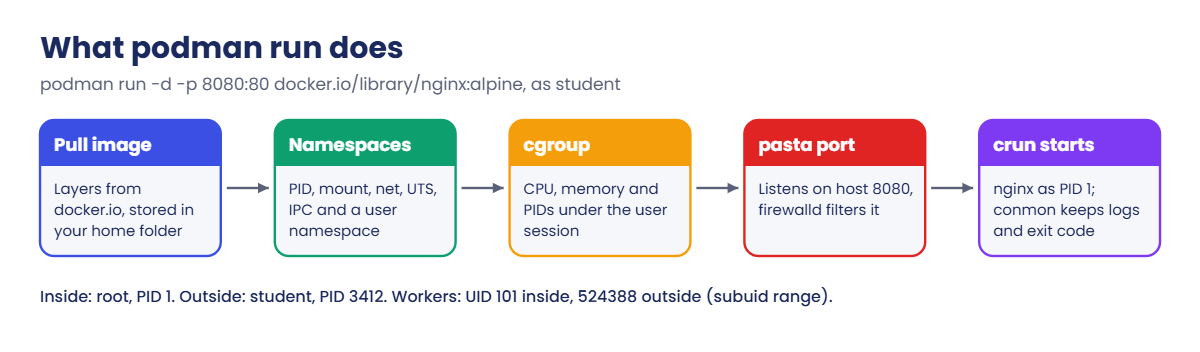
Here is what happens between typing podman run -d -p 8080:80 docker.io/library/nginx:alpine as student and Nginx answering on port 8080.

1The image is pulled and stored in your home

Podman contacts docker.io, downloads each layer it doesn’t have yet, checks its digest and unpacks it under ~/.local/share/containers/storage. A rootful container (with sudo) keeps its images in /var/lib/containers instead, so root and student don’t see each other’s images.

2Podman builds the fences and starts the process

It creates the namespaces, a cgroup under your user session, the writable layer and the network, then asks crun to start the image’s command, here nginx -g "daemon off;". conmon stays behind as a small parent that keeps the logs and the exit code. The diagram below shows the chain from the command to a running process.

Podman basics: what podman run does, from image pull to a running process

3Inside root, outside you

The user namespace uses the ranges in /etc/subuid and /etc/subgid. For student that is student:524288:65536: UID 0 in the container is student (1000) on the host, UID 1 is 524288, and Nginx’s worker user (UID 101 in the image) is 524388 on the host. If a process ever escaped the container, it would be a nobody with no rights on rocky01.

4Ports and the firewall

A rootless user can’t bind ports below 1024 on the host, the same rule as for any non-root program, so publish to 8080 or higher. With pasta, the published port is a normal listening socket on rocky01, which means firewalld filters it like any other service: you must open 8080 yourself. Docker works the other way, with NAT rules that bypass ufw on Ubuntu, and you’ll see that in step 8 of the lab.

5Data lives outside the container

When the container is removed, its writable layer goes with it, so anything worth keeping goes in a volume: a folder on the host mounted into the container. With SELinux enforcing, a container (container_t) may only read files labelled container_file_t. The :Z option relabels the folder for this one container (private MCS categories), and :z relabels it so several containers can share it.

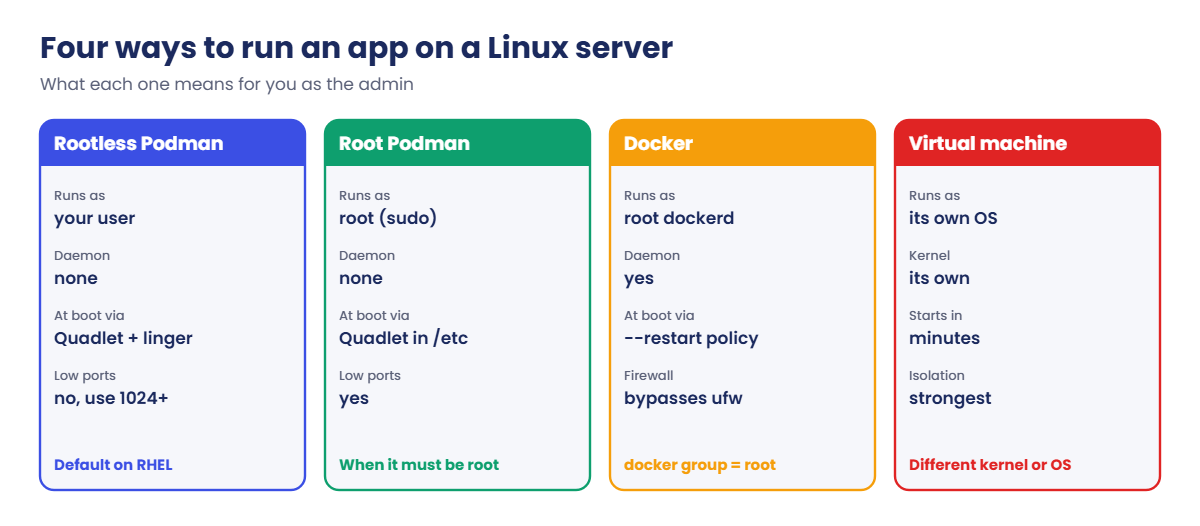
The cards below compare the four ways you’ll see apps run on a Linux server, and what each means for you as the admin.

Podman basics: rootless Podman, root Podman, Docker and a VM compared

6Make it a service with Quadlet

The old podman generate systemd command is deprecated. Since Podman 4.4 you write a small .container file, in ~/.config/containers/systemd/ for a rootless service or /etc/containers/systemd/ for a root one. On systemctl daemon-reload, the Quadlet generator turns it into a normal .service unit with the right podman run line, so you manage it with systemctl and read it with journalctl.

A rootless service lives in student’s own systemd user manager, which normally starts at login and stops at logout. loginctl enable-linger student keeps that manager running from boot, which is what a server needs.

Containers suit stateless or easily rebuilt apps that ship as images, like a status page or a small API. A VM still makes sense when you need a different kernel, a full OS a vendor supports, or strong isolation between customers.

Hands-on lab: rootless Podman, Quadlet and a look at Docker

Before you run any command, double-check it

Read every command twice before you press Enter. Check the target: the server name, the user, the disk or device name, the path and the sizes. These commands are for learning and were tested in our lab, not on your system. At work, run the read-only commands first, follow your change process, make sure a backup exists, and ask a second person to check anything that changes or deletes data. You run them at your own risk.

Steps 1 to 7 run on rocky01 as student; only package installs, the firewall and linger need sudo. Step 8 runs on ubu01. Both VMs need internet access to reach docker.io.

Nginx from Lesson 56 keeps port 80 on rocky01, so the containers use 8080 and 8081.

1Install Podman and see how it runs

Run this:

sudo dnf install -y podman
podman --version
podman info --format '{{.Host.Security.Rootless}} {{.Host.NetworkBackend}} {{.Host.RootlessNetworkCmd}} {{.Store.GraphDriverName}} {{.Host.OCIRuntime.Name}}'
grep student /etc/subuid /etc/subgid

You should see something like this:

podman version 5.8.2
true netavark pasta overlay crun
/etc/subuid:student:524288:65536
/etc/subgid:student:524288:65536

You’re rootless, container networks are handled by netavark with pasta for rootless ports, images sit on overlayfs and crun starts the processes. The subuid and subgid lines were added when student was created; a user without them can’t run rootless containers, which is the first thing to check for a service account made by hand.

✅ Checkpoint: podman info prints “true” as the first word and student has a 65536-ID range in both files.

2Pull an image by its full name

Run this:

podman pull docker.io/library/nginx:alpine
podman images

You should see something like this:

Trying to pull docker.io/library/nginx:alpine...
Getting image source signatures
Copying blob 9824c27679d3 done   |
Copying blob 6d79cc6084d4 done   |
Copying blob 5f6ee5a7a4a8 done   |
Copying config 5e7abcdd2021 done   |
Writing manifest to image destination
5e7abcdd20216bbeedf1369529564ffd60f830ed3540c477938ca580b645dff5
REPOSITORY               TAG         IMAGE ID      CREATED      SIZE
docker.io/library/nginx  alpine      5e7abcdd2021  3 weeks ago  52.6 MB

Each “blob” is one layer of the image, checked against its digest as it arrives. The tag alpine moves whenever the Nginx team publishes a new build, so at work you’d pin a version tag or the digest for anything that must not change under you.

✅ Checkpoint: podman images lists docker.io/library/nginx with the alpine tag.

3Run a container and look at it

Run this:

podman run -d --name web1 -p 8080:80 docker.io/library/nginx:alpine
podman ps
curl -s http://localhost:8080/ | grep '<title>'
podman logs web1 2>&1 | tail -n 3
podman exec web1 sh -c 'id -u; hostname'

You should see something like this:

3f2a9c81d4b7e0c55a1f9d0e8b6c2a47d13e9f05b8c7a6d4e2f1b0c9a8d7e6f5
CONTAINER ID  IMAGE                           COMMAND               CREATED        STATUS        PORTS                 NAMES
3f2a9c81d4b7  docker.io/library/nginx:alpine  nginx -g daemon o...  4 seconds ago  Up 4 seconds  0.0.0.0:8080->80/tcp  web1
<title>Welcome to nginx!</title>
2026/10/27 07:02:08 [notice] 1#1: start worker processes
2026/10/27 07:02:08 [notice] 1#1: start worker process 30
2026/10/27 07:02:08 [notice] 1#1: start worker process 31
0
3f2a9c81d4b7

-d runs it in the background and prints the full container ID, -p 8080:80 publishes container port 80 on host port 8080. The container’s logs are Nginx’s own stdout and stderr, kept by conmon. Times are UTC because the image has no time zone set.

Inside, the shell runs as UID 0 and the hostname is the short container ID.

✅ Checkpoint: curl shows the “Welcome to nginx!” title and podman ps lists web1 as Up.
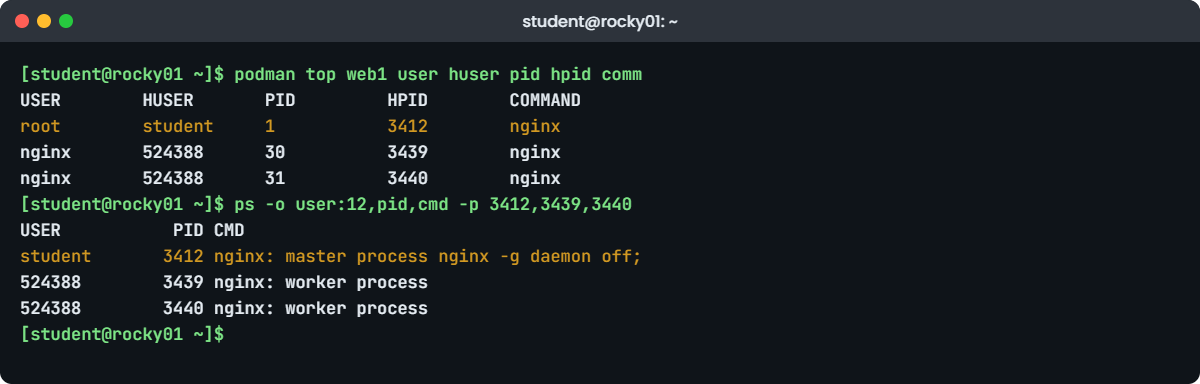
Podman basics lab: podman top and ps show container root mapped to student
Example output on rocky01: the same Nginx processes seen inside the container and on the host.

4See rootless from the host side

Run this:

podman top web1 user huser pid hpid comm
ps -o user:12,pid,cmd -p 3412,3439,3440

You should see something like this:

USER        HUSER       PID         HPID        COMMAND
root        student     1           3412        nginx
nginx       524388      30          3439        nginx
nginx       524388      31          3440        nginx
USER           PID CMD
student       3412 nginx: master process nginx -g daemon off;
524388        3439 nginx: worker process
524388        3440 nginx: worker process

The same three processes appear twice: PID 1, 30 and 31 inside, 3412, 3439 and 3440 on rocky01. Container root is student on the host, and the nginx user (UID 101 inside) is 524388, which is 524288 + 100 from the subuid range. ps on the host shows no name for 524388 because no account has that UID, which is the point. Use the HPID numbers from your own podman top in the ps command; ps -C nginx would also list the Lesson 56 Nginx, whose master runs as root.

✅ Checkpoint: podman top shows a HUSER of student for PID 1 and 524388 for the workers.

5Serve your own page from a volume with :Z

Create a folder with a page and mount it read-only into a second container:

mkdir -p ~/saatweb
echo '<h1>SaatShop status: all good</h1>' > ~/saatweb/index.html
podman run -d --name web2 -p 8081:80 -v ~/saatweb:/usr/share/nginx/html:ro,Z docker.io/library/nginx:alpine
curl -s http://localhost:8081/
ls -ldZ ~/saatweb

You should see something like this:

b81c06e4f2d95a7310c8e4d2a6f9b1c37e05d8a2f4c6b9e1d3a5c7f9e2b4d6a8
<h1>SaatShop status: all good</h1>
drwxr-xr-x. 2 student student system_u:object_r:container_file_t:s0:c241,c907 24 Oct 27 12:34 /home/student/saatweb

:ro makes the mount read-only inside, so a compromised Nginx can’t change your page. :Z relabelled the folder to container_file_t with two MCS categories (c241,c907) that only this container gets, so another container can’t read it. Now remove both test containers; the image stays for the next steps:

podman rm -f web1 web2
podman ps -a
web1
web2
CONTAINER ID  IMAGE       COMMAND     CREATED     STATUS      PORTS       NAMES

✅ Checkpoint: curl on 8081 printed your own heading, ls -Z shows container_file_t, and podman ps -a is empty.

6Turn it into a service with Quadlet

Write the Quadlet file, check what systemd will get, then start it:

mkdir -p ~/.config/containers/systemd
cat > ~/.config/containers/systemd/saatweb.container <<'EOF'
# ~/.config/containers/systemd/saatweb.container  (SaatVedha Linux course, Lesson 57)
[Unit]
Description=SaatShop status page (rootless Podman)

[Container]
Image=docker.io/library/nginx:alpine
ContainerName=saatweb
PublishPort=8080:80
Volume=/home/student/saatweb:/usr/share/nginx/html:ro,Z

[Service]
Restart=always

[Install]
WantedBy=default.target
EOF
/usr/libexec/podman/quadlet -dryrun -user | grep '^ExecStart='
systemctl --user daemon-reload
systemctl --user start saatweb.service
systemctl --user status saatweb.service --no-pager | head -n 4
podman quadlet list

You should see something like this:

ExecStart=/usr/bin/podman run --name saatweb --replace --rm --cgroups=split --sdnotify=conmon -d -v /home/student/saatweb:/usr/share/nginx/html:ro,Z --publish 8080:80 docker.io/library/nginx:alpine
● saatweb.service - SaatShop status page (rootless Podman)
     Loaded: loaded (/home/student/.config/containers/systemd/saatweb.container; generated)
     Active: active (running) since Tue 2026-10-27 12:38:51 IST; 3s ago
 Invocation: 6c1e0b9a2f4d47e8b3a5c7d9e1f20a4b
NAME               UNIT NAME        PATH ON DISK                                              STATUS          APPLICATION
saatweb.container  saatweb.service  /home/student/.config/containers/systemd/saatweb.container  active/running

The dry run shows the exact podman run line the generator wrote: --replace and --rm mean every start gets a fresh container from the image, which is how containers are meant to live. “generated” in the Loaded line tells you this unit came from Quadlet, so you edit the .container file, never the .service. The [Install] section is what makes it start at boot; systemctl --user enable doesn’t work on generated units.

✅ Checkpoint: saatweb.service is active (running) and podman quadlet list shows it as active/running.

7Keep it running after logout and reboot, and open the port

Run this:

sudo loginctl enable-linger student
loginctl show-user student --property=Linger
sudo firewall-cmd --permanent --add-port=8080/tcp
sudo firewall-cmd --reload
Linger=yes
success
success

Reboot rocky01 and, without logging in on it, run this on ubu01:

curl -s http://rocky01.saatlab.test:8080/
curl -s http://rocky01.saatlab.test/health.php

You should see this:

<h1>SaatShop status: all good</h1>
OK db=up orders=5

With linger on, systemd starts student’s user manager at boot, which starts saatweb.service from the [Install] section. The firewall port was needed because pasta listens on 8080 like any normal program. SaatShop from Lesson 56 on port 80 came back too, so both stacks live side by side.

✅ Checkpoint: After a reboot with nobody logged in, ubu01 gets the status page from port 8080 and “OK db=up” from port 80.

8A short look at Docker on ubu01

On ubu01, install Ubuntu’s Docker package and run a test image:

sudo apt install -y docker.io
docker --version
sudo docker run --rm docker.io/library/hello-world 2>/dev/null | head -n 3

You should see something like this:

Docker version 29.1.3, build 29.1.3-0ubuntu4

Hello from Docker!
This message shows that your installation appears to be working correctly.

Here a root daemon, dockerd, did the work, and you needed sudo. Many guides tell you to run sudo usermod -aG docker student to drop the sudo. Look at what any member of that group could then do, no sudo asked:

sudo docker run --rm -v /etc:/host-etc:ro docker.io/library/alpine head -n 1 /host-etc/shadow

You should see something like this:

root:*:20746:0:99999:7:::

The container’s root is the host’s root here, so mounting /etc gives it the password hashes, and mounting / read-write would give it the whole server. That’s why the docker group is treated as root in audits. Now see what happens to the firewall from Lesson 34:

sudo docker run -d --name ufwtest -p 8090:80 docker.io/library/nginx:alpine
sudo ufw status | head -n 6

Then on rocky01:

curl -sI http://10.10.10.21:8090/ | head -n 1

You should see something like this:

HTTP/1.1 200 OK

ufw allows only SSH (and syslog from rocky01), yet port 8090 answered. Docker writes its own NAT rules that send the traffic to the container before ufw’s INPUT rules ever see it, and Docker’s own documentation says the two are incompatible. Publish on 127.0.0.1 (for example -p 127.0.0.1:8090:80) when only the server itself needs the port.

Clean up and stop Docker so it doesn’t hold memory on ubu01:

sudo docker rm -f ufwtest
sudo systemctl disable --now docker.service docker.socket

✅ Checkpoint: You saw the shadow line through a container and port 8090 answer through ufw, and docker.service is now inactive.

Break It, Then Fix It

Take a snapshot of rocky01 first (VBoxManage snapshot rocky01 take before-l57-break). All three failures happen as student on rocky01.

1A volume without :Z gives 403 Forbidden

Make a promo page and mount it the way most Docker guides show, without a label option:

mkdir -p ~/promo
echo '<h1>Diwali offers</h1>' > ~/promo/index.html
podman run -d --name promo -p 8082:80 -v ~/promo:/usr/share/nginx/html:ro docker.io/library/nginx:alpine
curl -s http://localhost:8082/ | grep '<title>'
podman logs promo 2>&1 | grep -o '".*" is forbidden.*denied)'
sudo ausearch -m AVC -ts recent | grep index.html | tail -n 1

You’ll get this error:

<title>403 Forbidden</title>
"/usr/share/nginx/html/index.html" is forbidden (13: Permission denied)
type=AVC msg=audit(1793085700.318:1342): avc:  denied  { getattr } for  pid=3871 comm="nginx" path="/usr/share/nginx/html/index.html" dev="dm-0" ino=1049321 scontext=system_u:system_r:container_t:s0:c118,c560 tcontext=unconfined_u:object_r:user_home_t:s0 tclass=file permissive=0

The file mode is fine (644), but the folder still has its home-folder label user_home_t, and container_t isn’t allowed to touch it. The same command works on Ubuntu, which is why people copy it and then disable SELinux on RHEL. Don’t.

Fix: recreate the container with :Z (or :z if several containers share the folder).

podman rm -f promo
podman run -d --name promo -p 8082:80 -v ~/promo:/usr/share/nginx/html:ro,Z docker.io/library/nginx:alpine
curl -s http://localhost:8082/
podman rm -f promo
<h1>Diwali offers</h1>

Never use :Z or :z on a system folder or your whole home, such as -v /etc:/etc:Z or -v ~:/data:Z. Relabelling them breaks SSH keys, logins and services that expect their own labels; Podman refuses the most dangerous paths, but not every one. Make a small folder for the container instead.

✅ Checkpoint: With :Z the promo page loads, and the AVC no longer appears for new requests.

2Port 80 as a normal user

Try to publish the status page on port 80:

podman run -d --name web80 -p 80:80 docker.io/library/nginx:alpine

You’ll get this error:

Error: pasta failed with exit code 1:
Failed to bind port 80 (Permission denied) for option '-t 80-80:80-80', exiting

Ports below 1024 are privileged, and student is a normal user on the host, container or not:

cat /proc/sys/net/ipv4/ip_unprivileged_port_start
1024

You could lower that limit with a sysctl drop-in in /etc/sysctl.d, but it opens every low port to every user, and on rocky01 port 80 already belongs to Nginx from Lesson 56, so you’d swap “Permission denied” for “Address already in use”. The container was created before the port failed, so it also blocks the name web80.

Fix: remove the half-made container and keep rootless services on ports from 1024 up; put Nginx on 80 or 443 in front of them when users need a standard port.

podman rm -f web80
podman run -d --name web80 -p 8083:80 docker.io/library/nginx:alpine
podman ps --format '{{.Names}} {{.Ports}}'
podman rm -f web80

You should see something like this:

saatweb 0.0.0.0:8080->80/tcp
web80 0.0.0.0:8083->80/tcp
web80

✅ Checkpoint: web80 ran on 8083 and was removed, and saatweb is still up on 8080.

3A typo in the Quadlet file makes the service disappear

Change one key the way people often misspell it, and reload:

sed -i 's/^PublishPort=/PublishPorts=/' ~/.config/containers/systemd/saatweb.container
systemctl --user daemon-reload
systemctl --user restart saatweb.service

You’ll get this error:

Failed to restart saatweb.service: Unit saatweb.service not found.

The generator refused the file, so no service was made, and systemd says nothing about why. Ask Quadlet directly:

/usr/libexec/podman/quadlet -dryrun -user 2>&1 | grep saatweb

You should see something like this:

quadlet-generator[4120]: converting "saatweb.container": unsupported key 'PublishPorts' in group 'Container' in /home/student/.config/containers/systemd/saatweb.container

Fix: correct the key, reload and start.

sed -i 's/^PublishPorts=/PublishPort=/' ~/.config/containers/systemd/saatweb.container
systemctl --user daemon-reload
systemctl --user start saatweb.service
systemctl --user is-active saatweb.service
active

✅ Checkpoint: quadlet -dryrun prints no error for saatweb.container and the service is active again.

This happened at work

The map tiles that waited for someone to log in

The on-call engineer at a maps and navigation startup in Chennai told me about this one. They served map tiles for delivery apps from rootless Podman containers on six Rocky servers, each run by a service account called tiles, and it had worked well for months. Then, the Sunday after monthly kernel patching, two delivery partners called at 6 a.m.: blank grey squares wherever their riders zoomed in.

The servers were up, SSH worked and podman ps as root showed nothing at all. Someone guessed that the Podman update had broken the images and started pulling them again, which took twenty minutes and changed nothing. As soon as the engineer logged in as tiles to look around, the containers started on their own, and that was the real clue.

The services were rootless Quadlet units in the tiles user’s systemd manager. Linger had been turned on by hand on the first two servers during the original build and never on the other four, and before that patch nobody had rebooted those four. Without linger, the user manager only started when someone logged in, so the tiles waited for a human.

The team added loginctl enable-linger tiles to the Ansible role that creates the account, and a post-patch check that runs loginctl show-user tiles --property=Linger and curls each tile endpoint from outside. They also stopped checking rootless containers with sudo, because sudo podman ps only shows root’s containers, which had made the first ten minutes of that morning so confusing.

Common mistakes and troubleshooting

MistakeWhat happensWhat to do instead
Using short image names like nginxA prompt in scripts, or a pull from a registry you didn’t intendAlways write registry/namespace/name:tag, like docker.io/library/nginx:alpine
Mounting a host folder without :Z on RHEL403 or Permission denied inside the container, then someone disables SELinuxAdd :Z (one container) or :z (shared); keep the folder small
Checking rootless containers with sudo podman psRoot sees only its own containers, so everything looks goneRun podman as the user who owns the containers
Forgetting loginctl enable-linger for a rootless serviceThe container starts only when the user logs in, not at bootEnable linger for the service account and test with a reboot
Editing the generated .service fileThe change vanishes on the next daemon-reloadEdit the .container file and run systemctl --user daemon-reload
Adding people to the docker group for convenienceEvery member can mount / and act as root without sudo or a log lineUse sudo docker, or rootless Podman, and treat the docker group as root in access reviews
Trusting ufw to protect Docker portsPublished ports are reachable from the network despite ufwPublish on 127.0.0.1, or filter in the DOCKER-USER chain or an external firewall

Interview questions

Click a question to open it. Each one is written the way an interviewer would ask it. Under it you will see why they ask it and one way you could answer, in your own words.

Fresher level

1. What’s the difference between a container and a virtual machine, and when would you pick each?

Why they ask this: A basic concept question; they want the shared-kernel point and a practical rule for choosing.

How you might answer: A VM has its own kernel on virtual hardware, so it can run any OS and is strongly isolated, but it takes gigabytes and minutes to start. A container is a process on the host kernel, fenced in with namespaces and cgroups, so it starts in a second and uses only what the app needs.

I’d pick containers for apps that ship as images and can be rebuilt, like a web front end or an API, and a VM when I need a different kernel or OS version, a vendor-supported full system, or strong separation between customers.

2. What does “rootless” mean in Podman, and why does it matter?

Why they ask this: They’re checking that you understand user namespaces at a basic level and the security benefit.

How you might answer: Rootless means a normal user runs the containers, with no root daemon involved. Podman maps UID 0 inside the container to my own UID on the host, and other container UIDs to a range from /etc/subuid, like 524288 and up.

So if someone breaks out of the container, they land on the host as me or as an unused UID, not as root. The trade-offs are that I can’t bind ports below 1024 and I need linger for services that must start at boot.

2–5 years experience

3. A container on RHEL gets “Permission denied” reading a mounted folder, though the file modes look fine. How do you fix it?

Why they ask this: They want to hear SELinux labels, the difference between :Z and :z, and a safe fix rather than setenforce 0.

How you might answer: First I’d confirm it’s SELinux with ausearch -m AVC -ts recent, which usually shows container_t denied on a file labelled user_home_t or var_t. The fix is to run the container with :Z on the volume so Podman relabels the folder to container_file_t for that container, or :z if several containers share it.

I’d never do that on a system folder like /etc or a whole home folder, because relabelling them breaks other services. In that case I’d copy the needed files into a dedicated folder for the container.

4. How do you run a container as a proper service on RHEL 10, so it restarts and starts at boot?

Why they ask this: They’re checking whether you know Quadlet replaced podman generate systemd, and the rootless details.

How you might answer: I’d write a Quadlet .container file with Image, PublishPort, Volume and an [Install] section, in /etc/containers/systemd for a root service or ~/.config/containers/systemd for a rootless one. After a daemon-reload, systemd has a generated .service that I start and check with systemctl and journalctl.

For rootless I’d also enable linger for the account, and I’d test the whole thing with a reboot. If the service doesn’t appear, /usr/libexec/podman/quadlet -dryrun shows the parsing error.

Senior level

5. A developer team wants to be added to the docker group on shared build servers. What do you say?

Why they ask this: Seniors should explain the root-equivalence risk and offer workable alternatives instead of a flat no.

How you might answer: I’d explain that the docker group can start a container with / mounted and get full root on the server, with nothing in sudo’s log, so it’s the same as handing out root on a shared box. For shared build servers I’d offer rootless Podman, where each developer’s containers run under their own UID, or rootless Docker if their tooling needs the Docker API.

If they truly need root containers, I’d use dedicated, disposable build VMs per team, managed by automation, rather than one shared server where any member can reach everyone else’s work.

6. How would you keep container images on 50 servers patched against security fixes?

Why they ask this: They want to see that you know images don’t get dnf updates and that patching is a rebuild-and-redeploy process.

How you might answer: Containers don’t pick up host patches for their userland, so I’d rebuild or re-pull images regularly from a trusted base, scan them in the registry, and pin by digest or version tag so I know what runs where. With Quadlet I can set AutoUpdate=registry and run podman-auto-update.timer, which pulls a newer image for the same tag and restarts the service, rolling back if it fails to start.

The host still gets normal OS patches for the kernel, Podman and crun. I’d report image age and scan results per server so old images show up before an audit does.

Quick quiz

Q1. In rootless Podman, which host user owns the container’s PID 1 if it runs as root inside?

  1. root
  2. The user who started the container
  3. nobody
  4. UID 524288
Show answer

B — UID 0 inside maps to your own UID; other container UIDs map to your subuid range.

Q2. Why did the promo container return 403 Forbidden on rocky01?

  1. The file mode was 600
  2. The folder kept the user_home_t label and container_t can’t read it
  3. Port 8082 was closed
  4. The image was corrupt
Show answer

B — Add :Z so Podman relabels the folder to container_file_t.

Q3. What does a Quadlet .container file become after systemctl daemon-reload?

  1. A Docker Compose file
  2. A generated systemd .service unit
  3. A cron job
  4. A kernel module
Show answer

B — The Quadlet generator writes the .service; you edit the .container file, not the generated unit.

Q4. What makes a rootless Quadlet service start at boot without anyone logging in?

  1. systemctl --user enable
  2. loginctl enable-linger for that user plus an [Install] section
  3. Restart=always
  4. podman generate systemd
Show answer

B — Linger starts the user manager at boot; [Install] WantedBy=default.target starts the service in it.

Q5. Why is the docker group treated as root?

  1. It can read /etc/sudoers
  2. Members can start a root container with host folders mounted and change anything
  3. It disables SELinux
  4. It owns /var/lib/docker
Show answer

B — dockerd runs as root, so docker -v /:/host gives full control of the host.

Quick recap

  • A container is a normal process fenced in by namespaces and cgroups, started from read-only image layers.
  • Podman has no daemon and runs rootless by default: root inside maps to your UID, other UIDs to /etc/subuid.
  • Use full image names, publish rootless ports from 1024 up, and open them in firewalld yourself.
  • On RHEL, mount volumes with :Z (private) or :z (shared), never on system folders.
  • Run containers as services with a Quadlet .container file, daemon-reload, and loginctl enable-linger for rootless ones.
  • The docker group equals root, and Docker’s published ports bypass ufw: publish on 127.0.0.1 when you can.

Next lesson

Lesson 58: Apache Kafka on Linux with KRaft → You’ll build kafka01, install Kafka 4.4 with Java 21, run a three-node KRaft cluster as systemd template units with a LimitNOFILE drop-in, and watch the quorum survive a lost node.

Further reading: Podman basics

Want to go deeper into Podman basics? Read the Podman documentation, especially podman-systemd.unit(5) for Quadlet, Red Hat’s RHEL 10 documentation on building, running and managing containers, and Docker’s page on packet filtering and firewalls, which explains the ufw problem. You can also see the full plan for this course on the Linux Administration course page.

Scroll to Top

This website uses cookies

We use a few cookies to keep this site working. If you allow it, we also use Google Analytics to count visits so we can improve our lessons. You can accept all, deny the optional ones, or choose what to allow.