Kernel tuning: sysctl, tuned, ulimit and systemd LimitNOFILE

sysctl kernel parameters are the settings under /proc/sys that change how the running kernel behaves: how keen it is to swap, how many memory maps one process may have, how long the queue of new connections can grow. Together with per-process limits such as the open-files limit, they’re the first thing a database or Kafka install guide asks you to set, and the first thing to check when a busy service starts failing for no visible reason.

You’ll read and change values on rocky01 and ubu01, make them survive a reboot with a drop-in in /etc/sysctl.d, see what tuned does on Rocky, and set open-file limits for a login shell and for a systemd service. Then you’ll hit the classic trap where a change in limits.conf does nothing for a service, which is the mistake to avoid on kafka01 in Lesson 58.

Where this lesson fits

Lesson 51 of 82 in Linux Administration · Phase 3: Enterprise infrastructure and storage · Before this: Lesson 50, GRUB and dracut · Next: Lesson 52, major OS upgrades

TimeYou needBy the end you can
About 80 minutesrocky01 and ubu01 with sudo (rocky01 needs the appsvc account from Lesson 15), and a snapshot before the Break-It partChange kernel parameters at runtime and permanently, choose a tuned profile, and set open-file limits for login sessions and for systemd services

What it is, in one line

sysctl changes kernel settings under /proc/sys while the system runs, a file in /etc/sysctl.d makes them survive a reboot, and a service’s open-files limit is set in its systemd unit, not in limits.conf.

In Simple Words

The housing society rules

Picture a big housing society. The committee decides rules for the whole building: when the water pump runs, how full the overhead tank is kept, how many visitors the gate allows at once. Every flat lives with those rules, and changing one changes it for everybody.

Each family also has its own limit, say how many buckets they may fill at a time. The rule for that is pinned on the notice board at the main gate, so residents who walk in through the gate see it. The water tanker that comes in through the service entrance never passes that board, so it follows only what’s written in its own contract with the society.

The committee rules are sysctl settings, the bucket limit is a process limit like ulimit, the notice board is limits.conf for login sessions, and the tanker’s contract is LimitNOFILE in a systemd unit.

Engineer's View

The settings in this lesson, and their defaults

ParameterWhat it controlsWhat you’ll see by defaultKafka-style value
vm.swappinessHow readily the kernel swaps out program memory instead of dropping file cache (0 to 200)60 on Ubuntu; 30 on a Rocky VM, because tuned’s virtual-guest profile sets it1
vm.max_map_countHow many memory map areas one process may have. Kafka maps two index files per log segment65530 on Rocky (kernel default); 1048576 on Ubuntu 24.04 and later262144 (Ubuntu’s value is already higher)
net.core.somaxconnThe ceiling on any listen() backlog, per network namespace4096 (the kernel default since 5.4)Leave it; the app must also ask for a big backlog
fs.file-maxOpen file handles for the whole system9223372036854775807, because systemd raises it at bootLeave it
fs.nr_openThe highest open-files limit any single process may be given1073741816, also raised by systemdLeave it
Open-files limit (RLIMIT_NOFILE)Per process, with a soft value (what applies) and a hard value (the ceiling)1024 soft, 524288 hard, for both shells and servicesLimitNOFILE=100000 on the service

sysctl settings are kernel-wide. Limits are per process: each one carries a soft and a hard value, a process may raise its soft value up to the hard one, and only root can raise the hard one. A child process copies the limits of its parent, so what matters is who started the process.

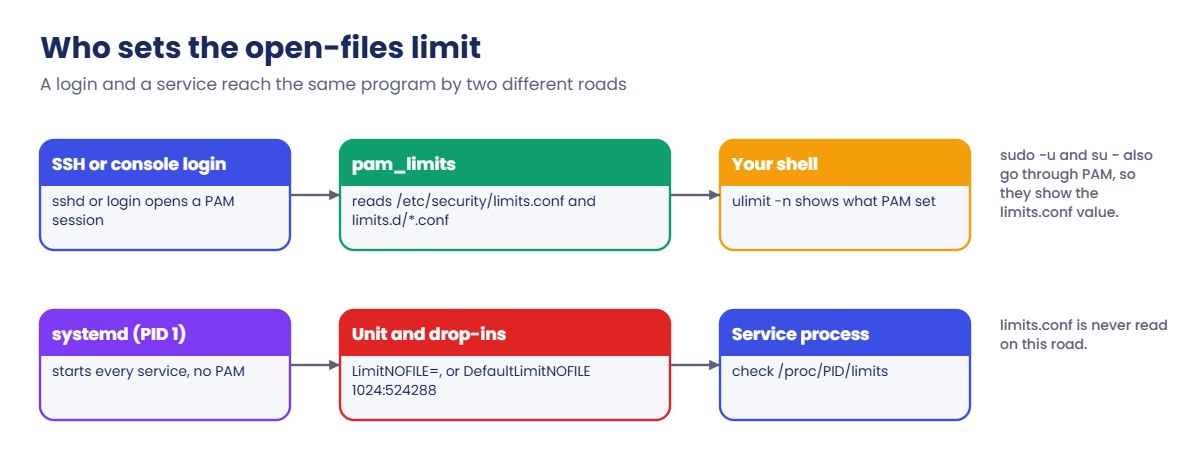
Login sessions get their limits from pam_limits, which reads /etc/security/limits.conf and /etc/security/limits.d/*.conf. Services are started by systemd (PID 1), which never goes through PAM, so they get LimitNOFILE= from their unit or systemd’s own DefaultLimitNOFILE=1024:524288. The 1024 soft value is there on purpose: old programs that use select() break above it, and modern ones raise their own soft limit or have it set in the unit.

Settings files are read from /usr/lib/sysctl.d (packages), /run/sysctl.d and /etc/sysctl.d (yours), sorted by file name across all three, and a later setting of the same key wins. Use a drop-in such as /etc/sysctl.d/90-kafka.conf rather than /etc/sysctl.conf. On Ubuntu 26.04, as on Debian 13, systemd-sysctl no longer reads /etc/sysctl.conf at boot and the file isn’t even shipped; Rocky still reads it through a link, /etc/sysctl.d/99-sysctl.conf, but a drop-in is easier to review and nothing else will ever edit it.

How it works, step by step

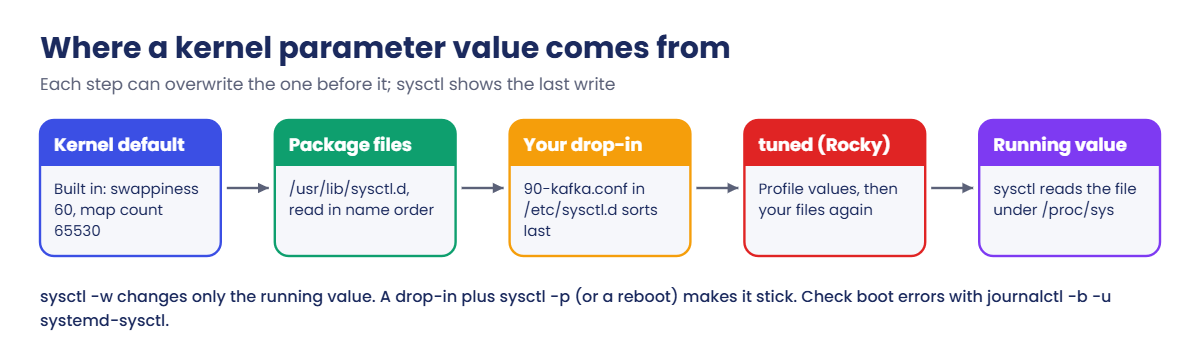
A value you see with sysctl has usually been set several times since power-on. The diagram after these steps shows the order.

1The kernel keeps its settings as files under /proc/sys

vm.swappiness is the file /proc/sys/vm/swappiness: the dots in the name are slashes in the path. sysctl reads and writes those files, the change takes effect at once, and it’s gone at the next reboot because /proc lives in memory.

2At boot, systemd-sysctl applies the config files

Early in the boot, systemd-sysctl.service reads every .conf file in the sysctl.d folders, sorted by file name, and writes each value. A file in /etc/sysctl.d with the same name as one in /usr/lib/sysctl.d replaces it entirely, which is how you override a package’s file without editing it. sysctl --system does the same job by hand, and prints each file as it goes.

sysctl kernel parameters: where a value comes from at boot, from kernel default to /etc/sysctl.d and tuned

3tuned may apply a profile on top (Rocky)

Rocky starts tuned.service, which picks a profile for the machine (virtual-guest on a VM) and writes its own values, swappiness 30 among them. Then, because reapply_sysctl = 1 in /etc/tuned/tuned-main.conf, it reapplies your files from /etc/sysctl.d, so your drop-in still wins. Very old tuned versions didn’t do that, which is why you’ll find forum posts saying “tuned overwrote my sysctl.conf”.

Ubuntu doesn’t install tuned by default.

4Some values are only read when an application starts

swappiness and max_map_count act at once. net.core.somaxconn is a ceiling checked when a program calls listen(), so a running service keeps its old queue until it restarts, and a program that asks for a backlog of 511 gets 511 however high the ceiling is.

5Each process carries its own limits

Limits are copied from parent to child when a process starts. A shell you open over SSH inherits what sshd’s PAM session set; a service inherits what systemd set from its unit. The same program can therefore have a limit of 65536 when you start it by hand and 1024 when systemd starts it, which is where most “works in testing, fails in production” stories about open files come from.

The picture below shows the two paths side by side. The login path reads limits.conf; the service path never does.

sysctl kernel parameters and limits: login sessions use limits.conf, systemd services use LimitNOFILE

ulimit -n in your shell shows your shell’s limit, nothing more. For a service, read the running process: /proc/PID/limits shows its soft and hard values, and ls /proc/PID/fd | wc -l shows how many it has open right now. Lesson 75 uses both when a server reports “Too many open files”.

A last word on copying tuning lists. Vendors and blogs publish long lists of sysctl values “for performance”, many written for kernels from 2012. Set only what your application’s documentation asks for, write down why in a comment in the drop-in, and measure before and after (Lesson 53 shows how).

Hands-on lab: set Kafka-style kernel parameters and open-file limits

Before you run any command, double-check it

Read every command twice before you press Enter. Check the target: the server name, the user, the disk or device name, the path and the sizes. These commands are for learning and were tested in our lab, not on your system. At work, run the read-only commands first, follow your change process, make sure a backup exists, and ask a second person to check anything that changes or deletes data. You run them at your own risk.

Steps 1 to 4 run on both VMs, step 5 on rocky01, and steps 6 to 10 on rocky01 only, because they use the appsvc account from Lesson 15. Make a folder for the files you’ll keep: mkdir -p ~/lab51. The values in step 4 are the ones Kafka needs, and step 10 saves copies of them for kafka01 in Lesson 58.

1Read a few kernel parameters on both VMs

Run this:

sysctl vm.swappiness vm.max_map_count net.core.somaxconn fs.file-max fs.nr_open
cat /proc/sys/vm/swappiness

You should see something like this on rocky01:

vm.swappiness = 30
vm.max_map_count = 65530
net.core.somaxconn = 4096
fs.file-max = 9223372036854775807
fs.nr_open = 1073741816
30

And on ubu01:

vm.swappiness = 60
vm.max_map_count = 1048576
net.core.somaxconn = 4096
fs.file-max = 9223372036854775807
fs.nr_open = 1073741816
60

The cat proves sysctl is only reading a file. swappiness differs because tuned set 30 on rocky01, and max_map_count differs because Ubuntu ships a higher default. The two huge fs values are systemd’s doing; on a server they mean “no practical system-wide limit”, and the per-process limit is what you’ll tune instead.

✅ Checkpoint: You can explain why swappiness and max_map_count differ between the two VMs.

2Find where the values come from

On ubu01, run this:

grep -r max_map_count /usr/lib/sysctl.d /etc/sysctl.d
ls /etc/sysctl.d/

You should see something like this:

/usr/lib/sysctl.d/50-default.conf:vm.max_map_count = 1048576
/usr/lib/sysctl.d/55-map-count.conf:vm.max_map_count=1048576
README.sysctl

Two package files set the same value, and /etc/sysctl.d holds only a README: Ubuntu 26.04 keeps vendor settings in /usr/lib and leaves /etc to you. On rocky01, ls -l /etc/sysctl.d/ shows the link that still makes /etc/sysctl.conf work there:

lrwxrwxrwx. 1 root root 14 Oct 20 18:31 99-sysctl.conf -> ../sysctl.conf

✅ Checkpoint: You found the package file that sets vm.max_map_count on ubu01.

3Change a value now, without saving it

Run this on both VMs:

sudo sysctl -w vm.swappiness=10
cat /proc/sys/vm/swappiness

You should see this:

vm.swappiness = 10
10

The kernel uses 10 from this moment, and no file anywhere knows about it, so a reboot brings back 30 or 60. sysctl -w is how you test a value, never how you keep one. Note there are no spaces around the = sign.

✅ Checkpoint: /proc/sys/vm/swappiness shows 10 on both VMs.

4Write the Kafka-style drop-in

Paste this whole block on both VMs:

sudo tee /etc/sysctl.d/90-kafka.conf >/dev/null <<'EOF'
# Kafka-style settings (Lesson 51). Kafka docs: swap as little as possible,
# and more memory map areas for its index files.
vm.swappiness = 1
vm.max_map_count = 262144
EOF
sudo sysctl -p /etc/sysctl.d/90-kafka.conf
sudo sysctl --system | grep -E 'kafka|map-count|swappiness|max_map_count'

You should see this on ubu01:

vm.swappiness = 1
vm.max_map_count = 262144
* Applying /usr/lib/sysctl.d/55-map-count.conf ...
* Applying /etc/sysctl.d/90-kafka.conf ...
vm.max_map_count = 1048576
vm.swappiness = 1
vm.max_map_count = 262144

sysctl -p FILE loads one file. sysctl --system loads every file in boot order, which is the real test, because it shows whether something later overrides you. Read the last four lines: max_map_count is set to 1048576 twice by package files and then to 262144 by yours, because 90-kafka.conf sorts last. On rocky01 the list of files is different, but your two values come last there too.

Ubuntu’s 1048576 is already higher than Kafka needs, so on ubu01 the max_map_count line lowers it. That’s harmless here, but at work you’d leave that line out on Ubuntu. Read the current value before you copy a tuning file between distributions.

✅ Checkpoint: sysctl vm.swappiness vm.max_map_count prints 1 and 262144 on both VMs.

5Reboot rocky01 and see what tuned does

Reboot rocky01, log in again and run:

sysctl vm.swappiness vm.max_map_count
tuned-adm active
tuned-adm recommend
grep -B4 reapply_sysctl /etc/tuned/tuned-main.conf

You should see something like this:

vm.swappiness = 1
vm.max_map_count = 262144
Current active profile: virtual-guest
virtual-guest
# Whether to reapply sysctl from /run/sysctl.d/, /etc/sysctl.d/ and
# /etc/sysctl.conf. If enabled, these sysctls will be reappliead
# after TuneD sysctls are applied, i.e. TuneD sysctls will not
# override user-provided system sysctls.
reapply_sysctl = 1

Your values survived the reboot, even though tuned’s virtual-guest profile asks for swappiness 30, and the comment in tuned-main.conf explains why. tuned-adm recommend says which profile tuned would choose for this machine. To see the others, run tuned-adm list:

Available profiles:
- accelerator-performance     - Throughput performance based tuning with disabled higher latency STOP states
- balanced                    - General non-specialized TuneD profile
- latency-performance         - Optimize for deterministic performance at the cost of increased power consumption
- network-latency             - Optimize for deterministic performance at the cost of increased power consumption, focused on low latency network performance
- powersave                   - Optimize for low power consumption
- throughput-performance      - Broadly applicable tuning that provides excellent performance across a variety of common server workloads
- virtual-guest               - Optimize for running inside a virtual guest
- virtual-host                - Optimize for running KVM guests
Current active profile: virtual-guest

The list above is shortened. On a database or Kafka server, sudo tuned-adm profile throughput-performance is a common choice, and you switch back with sudo tuned-adm profile virtual-guest. Leave rocky01 on virtual-guest for this course.

✅ Checkpoint: After the reboot rocky01 shows swappiness 1, and tuned-adm active shows virtual-guest.

6See somaxconn cap a listen queue

On rocky01, start a listener that asks for a huge backlog, then look at it:

python3 -c 'import socket,time; s=socket.socket(); s.bind(("0.0.0.0",9092)); s.listen(65535); time.sleep(30)' &
sleep 1
ss -ltn 'sport = :9092'

You should see this:

State  Recv-Q Send-Q Local Address:Port Peer Address:PortProcess
LISTEN 0      4096         0.0.0.0:9092      0.0.0.0:*

For a listening socket, ss shows the backlog in the Send-Q column. The program asked for 65535 and got 4096, the value of net.core.somaxconn. Raising somaxconn helps only when the application asks for more and is restarted afterwards; Nginx, for example, asks for 511 unless you set backlog= on its listen line.

The listener stops on its own after 30 seconds.

✅ Checkpoint: Send-Q shows 4096 for port 9092.

7Read and change your own open-files limit

On rocky01, in your SSH session, run this:

ulimit -Sn
ulimit -Hn
grep 'open files' /proc/$$/limits
ulimit -Sn 4096
ulimit -Sn
ulimit -Hn
ulimit -Sn 600000

You should see something like this:

1024
524288
Max open files            1024                 524288               files
4096
524288
-bash: ulimit: open files: cannot modify limit: Invalid argument

$$ is your shell’s PID, so /proc/$$/limits shows its limits with both columns. You raised the soft value to 4096 without root, because it stayed under the hard value. Asking for more than the hard value is refused.

Use -Sn and -Hn on purpose: plain ulimit -n 2048 sets both, lowering your hard limit for the rest of the session.

✅ Checkpoint: Your soft limit is 4096 and your hard limit is still 524288.

8Create a test service and read its limits

Paste this whole block on rocky01:

sudo tee /usr/local/bin/saat-fdtest.py >/dev/null <<'EOF'
#!/usr/bin/python3
# saat-fdtest.py: opens N files and keeps them open, like a busy broker (Lesson 51)
import resource
import sys
import time

want = int(sys.argv[1]) if len(sys.argv) > 1 else 500
soft, hard = resource.getrlimit(resource.RLIMIT_NOFILE)
print(f"open-files limit: soft={soft} hard={hard}, opening {want} files", flush=True)
held = [open("/dev/null") for _ in range(want)]
print(f"holding {len(held)} open files", flush=True)
time.sleep(86400)
EOF
sudo chmod 755 /usr/local/bin/saat-fdtest.py
echo 'FILES=500' | sudo tee /etc/saat-fdtest.env
sudo tee /etc/systemd/system/saat-fdtest.service >/dev/null <<'EOF'
[Unit]
Description=Open-files test service (Lesson 51)

[Service]
User=appsvc
EnvironmentFile=/etc/saat-fdtest.env
ExecStart=/usr/local/bin/saat-fdtest.py $FILES

[Install]
WantedBy=multi-user.target
EOF
sudo systemctl daemon-reload
sudo systemctl start saat-fdtest
sleep 2; sudo journalctl -u saat-fdtest -n 2 -o cat --no-pager

You should see this:

FILES=500
open-files limit: soft=1024 hard=524288, opening 500 files
holding 500 open files

Now ask systemd and the kernel what limit the service got:

systemctl show saat-fdtest -p LimitNOFILE -p LimitNOFILESoft
grep 'open files' /proc/$(systemctl show -p MainPID --value saat-fdtest)/limits
systemctl show -p DefaultLimitNOFILE -p DefaultLimitNOFILESoft

You should see something like this:

LimitNOFILE=524288
LimitNOFILESoft=1024
Max open files            1024                 524288               files
DefaultLimitNOFILE=524288
DefaultLimitNOFILESoft=1024

The service got 1024 soft and 524288 hard, systemd’s defaults, shown by the last command. Your shell’s 4096 from step 7 made no difference, because systemd started this process, not your shell. 500 files fit under 1024, so it runs.

✅ Checkpoint: The service holds 500 files and its /proc limits line shows 1024 and 524288.
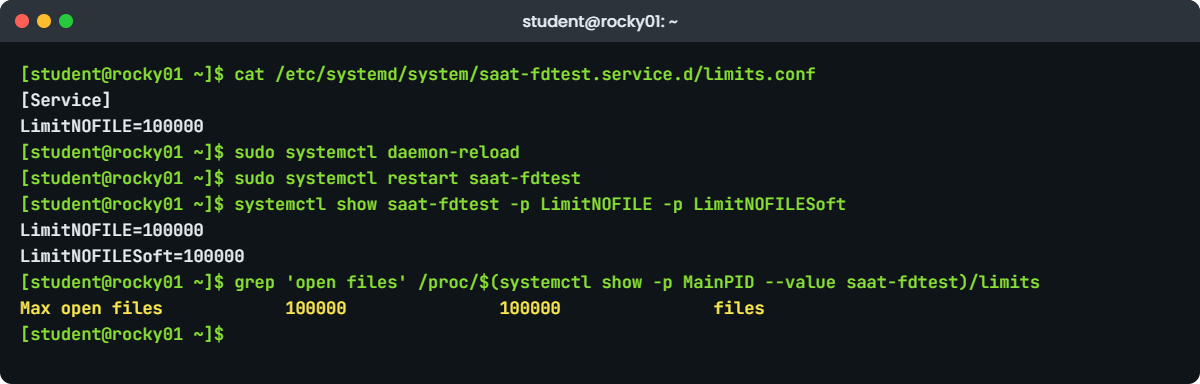
sysctl kernel parameters lab: LimitNOFILE drop-in and /proc/PID/limits on rocky01
Example output from rocky01: a LimitNOFILE drop-in and the limit the running service really got.

9Give the service its own limit with a drop-in

Paste this whole block:

sudo mkdir -p /etc/systemd/system/saat-fdtest.service.d
sudo tee /etc/systemd/system/saat-fdtest.service.d/limits.conf >/dev/null <<'EOF'
[Service]
LimitNOFILE=100000
EOF
sudo systemctl daemon-reload
sudo systemctl restart saat-fdtest
systemctl show saat-fdtest -p LimitNOFILE -p LimitNOFILESoft
grep 'open files' /proc/$(systemctl show -p MainPID --value saat-fdtest)/limits

You should see this:

LimitNOFILE=100000
LimitNOFILESoft=100000
Max open files            100000               100000               files     

One value sets both soft and hard; write LimitNOFILE=65536:100000 if you want them different. The drop-in sits next to the unit, so a package update that replaces the unit file keeps your change. sudo systemctl edit saat-fdtest opens an editor on a drop-in called override.conf in the same folder and runs daemon-reload for you when you save.

✅ Checkpoint: /proc/PID/limits for the service shows 100000 in both columns.

10Save the Kafka files for Lesson 58 and tidy up

On rocky01:

cp /etc/sysctl.d/90-kafka.conf ~/lab51/
cp /etc/systemd/system/saat-fdtest.service.d/limits.conf ~/lab51/kafka-limits.conf
sudo rm /etc/sysctl.d/90-kafka.conf
sudo sysctl -w vm.swappiness=30 vm.max_map_count=65530
ls ~/lab51

On ubu01:

sudo rm /etc/sysctl.d/90-kafka.conf
sudo sysctl -w vm.swappiness=60 vm.max_map_count=1048576

Deleting a drop-in doesn’t change the running value; the kernel keeps whatever was written last until you set it again or reboot. That’s why each VM gets an explicit sysctl -w back to its own default. Leave the test service running, the Break-It part uses it.

✅ Checkpoint: ~/lab51 on rocky01 holds 90-kafka.conf and kafka-limits.conf, and swappiness is back to 30 on rocky01 and 60 on ubu01.

Break It, Then Fix It

Take a snapshot of rocky01 first (VBoxManage snapshot rocky01 take before-l51-break on the laptop). All three failures use the test service and files from the lab.

1limits.conf can’t help a systemd service

Remove the drop-in, then let the service “grow” to 2000 open files, the way a broker does when partitions are added:

sudo rm -r /etc/systemd/system/saat-fdtest.service.d
echo 'FILES=2000' | sudo tee /etc/saat-fdtest.env
sudo systemctl daemon-reload
sudo systemctl restart saat-fdtest
sleep 2; sudo journalctl -u saat-fdtest -o cat --no-pager --since "20s ago"

You’ll get something like this:

Stopping saat-fdtest.service - Open-files test service (Lesson 51)...
saat-fdtest.service: Deactivated successfully.
Stopped saat-fdtest.service - Open-files test service (Lesson 51).
Started saat-fdtest.service - Open-files test service (Lesson 51).
open-files limit: soft=1024 hard=524288, opening 2000 files
Traceback (most recent call last):
  File "/usr/local/bin/saat-fdtest.py", line 10, in <module>
    held = [open("/dev/null") for _ in range(want)]
            ~~~~^^^^^^^^^^^^^
OSError: [Errno 24] Too many open files: '/dev/null'
saat-fdtest.service: Main process exited, code=exited, status=1/FAILURE
saat-fdtest.service: Failed with result 'exit-code'.

Errno 24 is EMFILE, the per-process limit. Now do what most people try first, the fix from countless blog posts, and give appsvc a bigger limit in limits.d:

sudo tee /etc/security/limits.d/90-appsvc.conf >/dev/null <<'EOF'
appsvc  soft  nofile  100000
appsvc  hard  nofile  100000
EOF
sudo -u appsvc bash -c 'ulimit -n'
sudo systemctl restart saat-fdtest
sleep 2; sudo journalctl -u saat-fdtest -o cat --no-pager --since "20s ago" | grep -E 'opening|Errno'

You’ll get this:

100000
open-files limit: soft=1024 hard=524288, opening 2000 files
OSError: [Errno 24] Too many open files: '/dev/null'

This is the trap. sudo -u appsvc goes through PAM, so pam_limits applies the file and the test prints 100000, which convinces people it worked. The service is started by systemd, PAM is never asked, and its first log line still says soft=1024.

Fix: remove the useless file and put the limit where systemd reads it:

sudo rm /etc/security/limits.d/90-appsvc.conf
sudo mkdir -p /etc/systemd/system/saat-fdtest.service.d
printf '[Service]\nLimitNOFILE=100000\n' | sudo tee /etc/systemd/system/saat-fdtest.service.d/limits.conf
sudo systemctl daemon-reload
sudo systemctl restart saat-fdtest
sleep 2; sudo journalctl -u saat-fdtest -n 2 -o cat --no-pager

You should see this:

[Service]
LimitNOFILE=100000
open-files limit: soft=100000 hard=100000, opening 2000 files
holding 2000 open files

✅ Checkpoint: The service holds 2000 files and /etc/security/limits.d/90-appsvc.conf is gone.

2A typo in a sysctl file fails without a word

Write a drop-in with one letter missing and load it the way you did in the lab:

printf 'vm.swapiness = 1\n' | sudo tee /etc/sysctl.d/91-typo.conf
sudo sysctl --system >/dev/null; echo "exit code $?"
sysctl vm.swappiness

You’ll get this:

vm.swapiness = 1
exit code 0
vm.swappiness = 30

No error and exit code 0, yet swappiness didn’t change. When sysctl --system meets a key that doesn’t exist, it skips it quietly, and systemd-sysctl does the same at boot, leaving only a line in the journal. Load the file on its own and the problem shows itself:

sudo sysctl -p /etc/sysctl.d/91-typo.conf
sudo /usr/lib/systemd/systemd-sysctl /etc/sysctl.d/91-typo.conf

You’ll get this error:

sysctl: cannot stat /proc/sys/vm/swapiness: No such file or directory
Couldn't write '1' to 'vm/swapiness', ignoring: No such file or directory

Fix: remove the bad file (or correct the key and load it with -p), then check the value:

sudo rm /etc/sysctl.d/91-typo.conf
sysctl -a 2>/dev/null | grep swappiness

At boot the same mistake appears only in journalctl -b -u systemd-sysctl, which is worth a look after any sysctl change.

✅ Checkpoint: The typo file is gone and you know to test new files with sysctl -p, not only --system.

3Out of range, and spaces in the wrong place

Run this:

sudo sysctl -w vm.swappiness=300
sudo sysctl -w vm.swappiness = 10

You’ll get this error:

sysctl: setting key "vm.swappiness": Invalid argument
sysctl: command line(0): invalid syntax, continuing...

swappiness accepts 0 to 200, so the kernel rejects 300. In the second command the shell splits the line at the spaces, so sysctl sees three words, none of them a valid name=value. Spaces around = are fine inside a .conf file, never on the command line.

Fix: one word, a value in range, then clean up the test service:

sudo sysctl -w vm.swappiness=30
sudo systemctl disable --now saat-fdtest
sudo rm -r /etc/systemd/system/saat-fdtest.service /etc/systemd/system/saat-fdtest.service.d /etc/saat-fdtest.env /usr/local/bin/saat-fdtest.py
sudo systemctl daemon-reload

✅ Checkpoint: sysctl vm.swappiness prints 30 and systemctl status saat-fdtest says the unit could not be found.

This happened at work

The gates that stopped at 1,024

A colleague of mine was the on-call engineer for a metro rail operator in Thiruvananthapuram on the morning of Attukal Pongala, the day the city fills with lakhs of devotees and every station is packed from dawn. At 6:40 a.m. the station controllers started calling: the QR ticket gates at three busy stations were rejecting valid tickets every few minutes, and queues were spilling onto the road.

The gates talked to a gate-sync service on two Rocky Linux servers, a Python program that kept one connection open to every gate and handheld validator. Its log said “OSError: [Errno 24] Too many open files”. The first reaction was to restart it, which bought ten minutes.

Then someone found that, a month earlier, a ticket had raised nofile to 65536 for the service account in /etc/security/limits.conf, “tested” with su - gatesync -c 'ulimit -n', which printed 65536.

She checked the running process instead: grep 'open files' /proc/$(pgrep -f gatesync)/limits said 1024. The service was started by systemd, so limits.conf had never applied, and on a normal day about 700 connections fitted under 1024. On festival morning the operator had added temporary gates and handhelds, the count went past 1,100, and every new connection after 1,024 failed.

She added a drop-in with LimitNOFILE=65536, ran daemon-reload and restarted one server at a time, and the gates were clean by 7:15. Afterwards the team deleted the limits.conf line so nobody would trust it again, put the drop-in into their Ansible role, and added a monitoring item comparing the number of entries in /proc/PID/fd with the soft limit, with a warning at 70 percent.

Common mistakes and troubleshooting

MistakeWhat happensWhat to do instead
Setting nofile for a service user in limits.confNo effect on a systemd service; it still gets 1024Use a unit drop-in with LimitNOFILE= and check /proc/PID/limits
Testing a limit with su - or sudo -uThose go through PAM and show the limits.conf value, which the service never getsRead the running process: /proc/PID/limits
Using sysctl -w and calling it doneThe value is lost at the next rebootWrite a drop-in in /etc/sysctl.d and test it with sysctl -p FILE
Putting settings in /etc/sysctl.conf on Ubuntu 26.04Works with sysctl --system, gone after a reboot because systemd-sysctl no longer reads itUse /etc/sysctl.d/NN-name.conf on both distributions
Trusting a silent sysctl --systemA typo in a key is skipped without an errorLoad new files with sysctl -p and check journalctl -b -u systemd-sysctl
Raising somaxconn and expecting a running app to benefitIts backlog was fixed when it called listen()Raise the app’s own backlog setting and restart it; check Send-Q with ss -ltn
Copying a long “performance” sysctl list from a blogSettings meant for old kernels or other workloads, nobody knows why they’re thereSet only what your application documents, with a comment saying why

Interview questions

Click a question to open it. Each one is written the way an interviewer would ask it. Under it you will see why they ask it and one way you could answer, in your own words.

Fresher level

1. How do you change a kernel parameter so that it survives a reboot?

Why they ask this: A basic check. They want the drop-in folder and a way to apply and verify it, not only sysctl -w.

How you might answer: I test it first with sudo sysctl -w vm.swappiness=10, then put it in a file such as /etc/sysctl.d/90-app.conf with a comment saying why. I load it with sysctl -p on that file, then sysctl --system to make sure nothing later in the boot order overrides it.

After the next reboot I check the value again with sysctl vm.swappiness. On RHEL I also keep in mind that tuned applies its profile, though modern tuned reapplies my /etc/sysctl.d files afterwards.

2. What is the difference between the soft and hard open-files limit?

Why they ask this: They’re checking you understand how limits work before they ask about services.

How you might answer: The soft limit is what applies to the process right now; the hard limit is the ceiling. A normal user can raise the soft limit up to the hard one with ulimit -Sn, but only root can raise the hard limit.

On Rocky and Ubuntu both shells and services start with 1024 soft and 524288 hard. I read a process’s real values in /proc/PID/limits.

2–5 years experience

3. A Kafka broker logs “Too many open files” even though nofile was raised in limits.conf. Why, and how do you fix it?

Why they ask this: This is the classic trap. They want to hear that systemd services don’t use PAM, and a proper fix with verification.

How you might answer: limits.conf is applied by pam_limits for login sessions, and the broker is started by systemd, which doesn’t go through PAM, so it still has the default 1024 soft limit. I’d confirm it with grep "open files" /proc/PID/limits and count open files with ls /proc/PID/fd | wc -l.

The fix is a drop-in, sudo systemctl edit kafka with [Service] LimitNOFILE=100000, then a rolling restart of the brokers and a check of /proc/PID/limits on each one.

4. You set vm.swappiness=10 in a sysctl file on a RHEL VM, but after a reboot it shows 30. What would you check?

Why they ask this: They want a methodical look at the boot order and at tuned, not guesses.

How you might answer: First the file itself: is it in /etc/sysctl.d with a .conf ending, is the key spelled right, and does sysctl -p on it give an error? Then I’d run sysctl --system and see whether a file later in the order sets swappiness again.

If the files are fine, I’d look at tuned: tuned-adm active and the reapply_sysctl setting in /etc/tuned/tuned-main.conf. 30 is the value the virtual-guest profile sets, so either reapply_sysctl is off or the tuned version is old. I’d fix it with a custom tuned profile or by turning reapply back on.

Senior level

5. A vendor sends a list of 25 sysctl settings “for performance”. How do you decide which to apply?

Why they ask this: Seniors are expected to push back on cargo-cult tuning and to measure.

How you might answer: I’d ask which of them the vendor’s own documentation requires for this product and version, and check each one against the current kernel defaults, because many lists were written for old kernels where the defaults were much lower. Settings that are already the default or higher go out.

The rest go into one drop-in with a comment per line, onto a test server first, with a before and after measurement of the thing they claim to help. Anything that touches networking or memory reclaim goes to production in a small batch first.

6. How would you manage and audit kernel parameters and service limits across 200 servers?

Why they ask this: They want configuration management plus a way to catch drift.

How you might answer: I’d keep the sysctl drop-ins and the systemd LimitNOFILE drop-ins in Ansible roles per application, so every server of a type gets the same files with comments. The role applies them with sysctl -p and restarts services in a controlled order.

For audit I’d run a check in check mode regularly and also collect live values, sysctl output and /proc/PID/limits for key services, into monitoring, because a value set by hand with sysctl -w won’t show up in any file.

Quick quiz

Q1. Which file keeps vm.swappiness = 1 after a reboot on both Rocky 10 and Ubuntu 26.04?

  1. /proc/sys/vm/swappiness
  2. /etc/sysctl.d/90-kafka.conf
  3. /etc/security/limits.conf
  4. /etc/default/grub
Show answer

B — A drop-in in /etc/sysctl.d is read at every boot by systemd-sysctl on both distributions.

Q2. A service started by systemd needs 100000 open files. Where do you set it?

  1. /etc/security/limits.conf
  2. ulimit -n 100000 in your shell
  3. LimitNOFILE=100000 in a unit drop-in
  4. fs.file-max
Show answer

C — systemd services don’t use PAM, so limits.conf and your shell’s ulimit don’t reach them.

Q3. sysctl --system prints no error, but your new value isn’t applied. What is a likely cause?

  1. The file name starts with 90
  2. A typo in the key, which --system skips quietly
  3. sysctl needs a reboot
  4. The value has spaces around =
Show answer

B — Unknown keys are skipped without an error; load the file with sysctl -p to see the problem.

Q4. ss -ltn shows Send-Q 4096 for a listener that asked for 65535. Why?

  1. The disk is slow
  2. net.core.somaxconn caps the backlog at 4096
  3. Send-Q shows bytes waiting
  4. The firewall limits it
Show answer

B — For listening sockets Send-Q is the backlog, and the kernel caps it at somaxconn.

Q5. On rocky01, tuned’s profile sets swappiness to 30, yet your drop-in value of 1 wins. Why?

  1. tuned is disabled on Rocky
  2. reapply_sysctl = 1 makes tuned reapply /etc/sysctl.d after its own values
  3. sysctl.d always runs after tuned by accident
  4. swappiness can’t be changed by tuned
Show answer

B — tuned-main.conf has reapply_sysctl = 1, so user files in /etc/sysctl.d win over the profile.

Quick recap

  • sysctl kernel parameters are files under /proc/sys; sysctl -w changes them now, a drop-in in /etc/sysctl.d keeps them.
  • Files are read in name order and the last setting wins; test a new file with sysctl -p FILE, because sysctl --system skips bad keys quietly.
  • On Rocky, tuned applies a profile (virtual-guest on a VM) and then reapplies your /etc/sysctl.d files.
  • Limits are per process, soft and hard; ulimit -Sn changes your shell, /proc/PID/limits shows any process.
  • limits.conf is for login sessions through PAM; a systemd service needs LimitNOFILE= in a drop-in.
  • Kafka-style values: vm.swappiness = 1, vm.max_map_count = 262144, LimitNOFILE=100000, saved in ~/lab51 for Lesson 58.

Next lesson

Lesson 52: Major OS upgrades: Leapp and do-release-upgrade → You’ll check servers for a major upgrade, write a rollback plan, run do-release-upgrade from Ubuntu 24.04 to 26.04 on a throwaway VM and learn what Leapp does on RHEL and why Rocky asks for a fresh install.

Further reading: sysctl kernel parameters

Want to go deeper into sysctl kernel parameters? Read the kernel’s documentation for /proc/sys/vm and /proc/sys/net, the man pages for sysctl.d(5), systemd.exec(5) (LimitNOFILE) and getrlimit(2), and Red Hat’s RHEL 10 performance guide for tuned. You can also see the full plan for this course on the Linux Administration course page.

Scroll to Top

This website uses cookies

We use a few cookies to keep this site working. If you allow it, we also use Google Analytics to count visits so we can improve our lessons. You can accept all, deny the optional ones, or choose what to allow.