Packages on Ubuntu: apt, dpkg, deb822 sources and unattended upgrades

APT package management is how you install, update, hold and remove software on Ubuntu and Debian. apt reads the repository list, downloads signed package indexes, works out dependencies and hands .deb files to dpkg, which unpacks them, runs their scripts and keeps the record of what is installed.

In Lesson 35 you did this on rocky01 with dnf and rpm. Now you’ll do the same jobs on ubu01 running Ubuntu Server 26.04, which brings two changes people trip over: repositories are written in the deb822 format, and apt 3.x has a new look, its own history and undo commands, and no apt-key at all. You’ll also break dpkg on purpose and set up automatic security updates.

Where this lesson fits

Lesson 36 of 82 in Linux Administration · Phase 2: Day-to-day administration and the command builder · Before this: Lesson 35, packages on RHEL with dnf · Next: Lesson 37, tar, compression and rsync

TimeYou needBy the end you can
About 70 minutesubu01 from Lesson 2 with internet access through the LinuxLab NAT Network, an SSH session as student, and a snapshot before the Break-It partRead and write deb822 sources, install, query, hold, undo and purge packages, recover an interrupted dpkg and run unattended security updates on Ubuntu 26.04

What it is, in one line

apt decides what to install from the sources in /etc/apt/sources.list.d and fetches it, while dpkg does the unpacking and remembers every file and its state.

In Simple Words

The tiffin service and its kitchen

Think of a dabba service in an office. Every evening the manager collects the next day’s menus from the approved kitchens, each menu stamped by the kitchen so nobody can slip in a fake one. When you order a thali, he knows it also needs a box and a spoon, and he sends the whole set.

The delivery boy does the actual work: he opens each box, sets it out and writes it in the register. If he trips halfway, the register shows boxes “half served”, and somebody has to finish the job before the next order goes out.

apt update is the evening menu collection, apt is the manager, dpkg is the delivery boy, and the register is /var/lib/dpkg/status.

Engineer's View

apt, dpkg and the files behind them

ToolWhat it doesCommands you’ll use
apt (apt-get, apt-cache, apt-mark)Reads sources, downloads and checks indexes, solves dependencies, fetches .deb files, keeps historyupdate upgrade full-upgrade install remove purge autoremove show policy search, history-list and history-undo (new in apt 3.1)
dpkg (dpkg-query)Installs a .deb it is given, runs maintainer scripts, keeps the database in /var/lib/dpkg. No downloads, no dependency solvingdpkg -l, -L, -S, --configure -a, --audit

Ubuntu 24.04 moved its own sources to the deb822 format, and 26.04 keeps it: /etc/apt/sources.list.d/ubuntu.sources holds stanzas of fields, and /etc/apt/sources.list only has a comment pointing there.

deb822 fieldMeaning
Types:deb for binary packages, add deb-src for source packages
URIs:The mirror, for example http://archive.ubuntu.com/ubuntu/ or a country mirror such as in.archive.ubuntu.com
Suites:Release name plus pockets: resolute (26.04 as released), resolute-updates, resolute-backports, resolute-security
Components:main (Canonical supported), restricted (drivers), universe (community), multiverse (licence limits)
Signed-By:The keyring that must have signed this repo’s InRelease file. Only that key is trusted for that repo

apt 3.x (26.04 ships apt 3.2) changed things you’ll notice at once. Output is grouped into “Installing:”, “Upgrading:” and a “Summary:” block, errors start with “Error:” instead of “E:”, apt-key is gone completely, and apt modernize-sources converts old one-line .list files to deb822. Scripts should keep using apt-get and apt-cache, whose output stays stable; apt itself warns that its CLI isn’t stable when you pipe it.

How it works, step by step

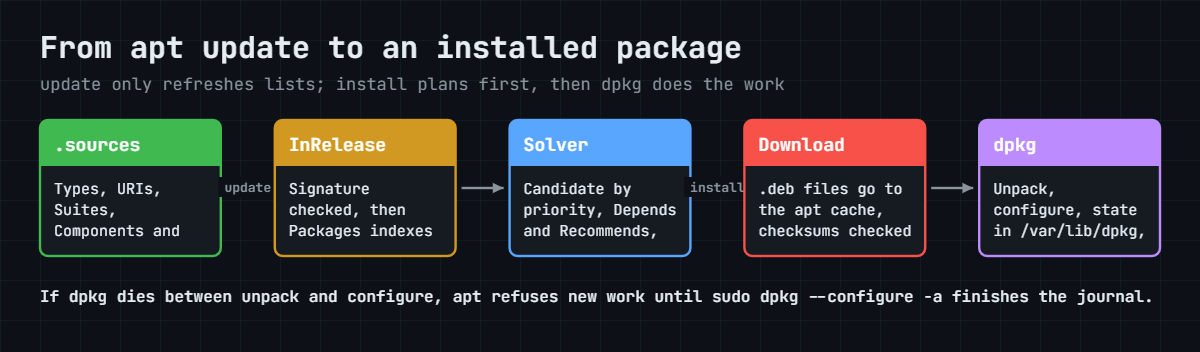
Here is what happens when you run sudo apt update and then sudo apt install ncdu. The diagram after these steps shows the same path.

1apt update fetches signed indexes

For every stanza in the .sources files, apt downloads the suite’s InRelease file and checks its signature against the Signed-By keyring. Only if that passes does it download the Packages indexes (lists of every package, version and dependency) into /var/lib/apt/lists/. Nothing is installed by update.

2apt picks a candidate version

When the same package is in several pockets, apt gives each a priority (500 for normal repos, 100 for the installed copy) and picks the highest version with the best priority. apt policy NAME shows the whole table, which is the answer to “why did it pick that version?”.

3The solver works out the full set

apt 3 has a new dependency solver that explains itself when it fails, listing the conflicting choices. It pulls in Depends, and by default Recommends too, and prints the plan as Installing, Upgrading and Removing lists before it touches anything.

APT package management flow: signed InRelease, Packages index, solver, download and dpkg

4Packages are downloaded and checked

The .deb files land in /var/cache/apt/archives/. Each file’s checksum must match the signed index, which is how a signature on one InRelease file protects thousands of packages.

5dpkg unpacks and configures

apt calls dpkg in two passes: unpack (files go in place, the package is “unpacked”) and configure (the postinst script runs, services may start, the package becomes “installed”). Between and during those passes dpkg keeps a journal in /var/lib/dpkg/updates/. If dpkg is killed in the middle, that journal is why apt later refuses to work until you run dpkg --configure -a.

6Every package has a state

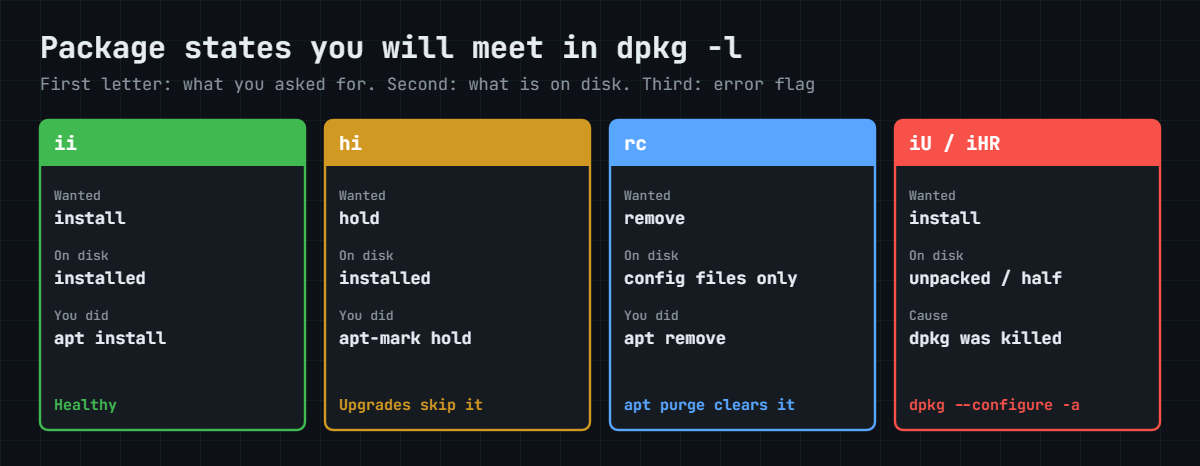
dpkg tracks two letters for each package in dpkg -l: what you want (i install, h hold, r remove, p purge) and what it is (i installed, c config files only, U unpacked, H half-installed). Holds, purges and broken installs all show up there, and the picture below shows the states you’ll meet in this lesson.

APT package management states in dpkg -l: ii, hi, rc and half-installed

Security updates without you. Ubuntu Server installs unattended-upgrades and turns it on. Two systemd timers drive it: apt-daily.timer runs the equivalent of apt update, and apt-daily-upgrade.timer runs unattended-upgrade, which installs only packages from the origins listed in /etc/apt/apt.conf.d/50unattended-upgrades (the release and -security pockets by default, not -updates).

Held packages are skipped and the reason goes to /var/log/unattended-upgrades/.

It never reboots unless you set Unattended-Upgrade::Automatic-Reboot "true";. When a kernel or core library update needs one, Ubuntu creates /var/run/reboot-required and lists the packages in reboot-required.pkgs, which is what your monitoring should look for.

Third-party repos. The safe pattern is a vendor key file in /etc/apt/keyrings/ and a .sources file whose Signed-By points to it, so the vendor’s key can only vouch for the vendor’s repo. PPAs (Personal Package Archives, added with add-apt-repository ppa:owner/name) follow the same pattern but are built by individuals; on servers they are a supply-chain risk and can replace core packages.

Hands-on lab: install, hold, undo and purge with apt on ubu01

Before you run any command, double-check it

Read every command twice before you press Enter. Check the target: the server name, the user, the disk or device name, the path and the sizes. These commands are for learning and were tested in our lab, not on your system. At work, run the read-only commands first, follow your change process, make sure a backup exists, and ask a second person to check anything that changes or deletes data. You run them at your own risk.

Everything runs on ubu01 as student with sudo. You’ll install and remove a few small tools (ncdu, socat, lynx) and leave the system as you found it. Outputs were captured from apt 3.2 on Ubuntu 26.04; version numbers, sizes and IDs on your VM will differ as updates are released, which is why the labels say “something like this”.

1Read where apt gets its packages

Run this:

ls /etc/apt/sources.list.d/
cat /etc/apt/sources.list.d/ubuntu.sources | grep -v '^#'
cat /etc/apt/sources.list

You should see something like this:

ubuntu.sources
Types: deb
URIs: http://archive.ubuntu.com/ubuntu/
Suites: resolute resolute-updates resolute-backports
Components: main restricted universe multiverse
Signed-By: /usr/share/keyrings/ubuntu-archive-keyring.gpg

Types: deb
URIs: http://security.ubuntu.com/ubuntu/
Suites: resolute-security
Components: main restricted universe multiverse
Signed-By: /usr/share/keyrings/ubuntu-archive-keyring.gpg
# Ubuntu sources have moved to /etc/apt/sources.list.d/ubuntu.sources

Two stanzas: the main mirror with the release, updates and backports pockets, and the security mirror. Both trust only the Ubuntu archive keyring through Signed-By. Your URIs may name a country mirror chosen by the installer.

The old sources.list is empty apart from that comment, and a stanza can be switched off by adding Enabled: no instead of deleting it.

✅ Checkpoint: You can name the four suites, the four components and the keyring ubu01 trusts.

2Refresh the indexes and look for upgrades

Run this:

sudo apt update
apt list --upgradable

You should see something like this:

Hit:1 http://archive.ubuntu.com/ubuntu resolute InRelease
Get:2 http://archive.ubuntu.com/ubuntu resolute-updates InRelease [136 kB]
Hit:3 http://archive.ubuntu.com/ubuntu resolute-backports InRelease
Hit:4 http://security.ubuntu.com/ubuntu resolute-security InRelease
Fetched 136 kB in 1s (167 kB/s)
All packages are up to date.

Hit means the index hasn’t changed since last time; Get means a new one was downloaded. When updates exist, the last line says how many and apt list --upgradable lists them with the pocket they come from. Run update before every install, because apt only knows what the last update downloaded.

✅ Checkpoint: apt update finishes without any Err: or Warning: lines.

3Inspect a package before you install it

Run this:

apt search --names-only '^ncdu'
apt show ncdu

You should see something like this:

ncdu/resolute 1.22-1build1 amd64
  ncurses disk usage viewer

Package: ncdu
Version: 1.22-1build1
Priority: optional
Section: universe/admin
Origin: Ubuntu
Maintainer: Ubuntu Developers <ubuntu-devel-discuss@lists.ubuntu.com>
Installed-Size: 122 kB
Depends: libc6 (>= 2.34), libncursesw6 (>= 6), libtinfo6 (>= 6)
Homepage: https://dev.yorhel.nl/ncdu/
Download-Size: 51.0 kB
APT-Sources: http://archive.ubuntu.com/ubuntu resolute/universe amd64 Packages

The Section says universe, so this is a community package, not one Canonical supports in main. Depends lists what it needs, Download-Size and Installed-Size tell you the cost, and APT-Sources shows the exact pocket it would come from.

✅ Checkpoint: You can say which component ncdu comes from and how big the download is.

4Install, then ask dpkg about it

Run this:

sudo apt install -y ncdu

You should see something like this:

Installing:
  ncdu

Summary:
  Upgrading: 0, Installing: 1, Removing: 0, Not Upgrading: 0
  Download size: 51.0 kB
  Space needed: 122 kB / 15.8 GB available

Get:1 http://archive.ubuntu.com/ubuntu resolute/universe amd64 ncdu amd64 1.22-1build1 [51.0 kB]
Fetched 51.0 kB in 0s (333 kB/s)
Selecting previously unselected package ncdu.
(Reading database ... 91762 files and directories currently installed.)
Preparing to unpack .../ncdu_1.22-1build1_amd64.deb ...
Unpacking ncdu (1.22-1build1) ...
Setting up ncdu (1.22-1build1) ...
Processing triggers for man-db (2.13.1-1) ...

Now query the dpkg database:

dpkg -l ncdu
dpkg -L ncdu | grep -E 'bin|share/(doc|man)/'
dpkg -S /usr/bin/ncdu /etc/ssh/sshd_config.d/00-saat-hardening.conf

You should see something like this:

Desired=Unknown/Install/Remove/Purge/Hold
| Status=Not/Inst/Conf-files/Unpacked/halF-conf/Half-inst/trig-aWait/Trig-pend
|/ Err?=(none)/Reinst-required (Status,Err: uppercase=bad)
||/ Name           Version      Architecture Description
+++-==============-============-============-=================================
ii  ncdu           1.22-1build1 amd64        ncurses disk usage viewer
/usr/bin/ncdu
/usr/share/doc/ncdu/changelog.Debian.gz
/usr/share/doc/ncdu/copyright
/usr/share/man/man1/ncdu.1.gz
ncdu: /usr/bin/ncdu
dpkg-query: no path found matching pattern /etc/ssh/sshd_config.d/00-saat-hardening.conf

dpkg -l prints the state letters (“ii” means wanted installed, is installed), -L lists the package’s files and -S finds the package that owns a path, like rpm -qf on Rocky. The 00-saat-hardening.conf you put in sshd_config.d in Lesson 33 isn’t owned by any package, which is how you spot local changes.

✅ Checkpoint: dpkg -l ncdu starts with ii and dpkg -S /usr/bin/ncdu names ncdu.

5Install an older version and see the upgrade waiting

Install socat at the version from the release pocket on purpose, then check:

apt policy socat | head -n 3
sudo apt install -y socat=1.8.1.1-1
apt policy socat
apt list --upgradable

You should see something like this (the install, then the policy and upgradable lines):

Installing:
  socat

Installing dependencies:
  libwrap0

Summary:
  Upgrading: 0, Installing: 2, Removing: 0, Not Upgrading: 0
  Download size: 451 kB
  Space needed: 1871 kB / 15.8 GB available

Get:1 http://archive.ubuntu.com/ubuntu resolute/main amd64 socat amd64 1.8.1.1-1 [402 kB]
...
Setting up socat (1.8.1.1-1) ...
socat:
  Installed: 1.8.1.1-1
  Candidate: 1.8.1.1-1ubuntu0.1
  Version table:
     1.8.1.1-1ubuntu0.1 500
        500 http://archive.ubuntu.com/ubuntu resolute-updates/main amd64 Packages
        500 http://security.ubuntu.com/ubuntu resolute-security/main amd64 Packages
 *** 1.8.1.1-1 500
        500 http://archive.ubuntu.com/ubuntu resolute/main amd64 Packages
        100 /var/lib/dpkg/status
socat/resolute-updates,resolute-security 1.8.1.1-1ubuntu0.1 amd64 [upgradable from: 1.8.1.1-1]

NAME=VERSION asks for an exact version; use the older version your own apt policy lists if it differs. The *** marks the installed version, and both the updates and security pockets offer the newer one. On a fresh install with no older version available, read along: the hold behaviour in the next step is the part that matters.

✅ Checkpoint: apt list --upgradable shows socat upgradable from the version you installed.
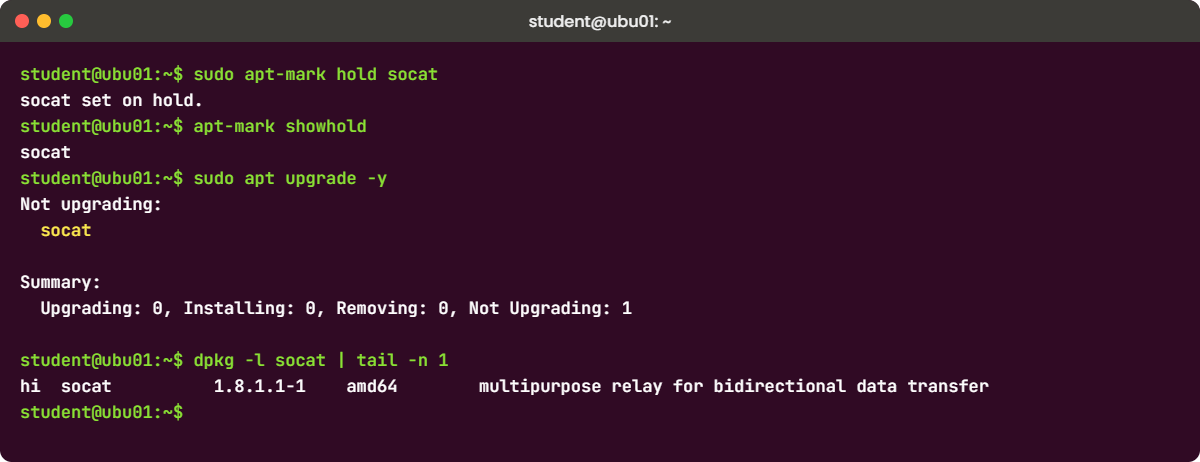
APT package management lab: apt-mark hold and apt upgrade on ubu01
Example output on ubu01: a held package is skipped by apt upgrade. Versions on your VM may differ.

6Hold a package, watch upgrade skip it, then release it

Run this:

sudo apt-mark hold socat
apt-mark showhold
sudo apt upgrade -y

You should see something like this:

socat set on hold.
socat
Not upgrading:
  socat

Summary:
  Upgrading: 0, Installing: 0, Removing: 0, Not Upgrading: 1

A hold tells apt and unattended-upgrades never to change this package, which is useful while a vendor certifies a new version. The Summary says “Not Upgrading: 1”, and dpkg -l socat now starts with “hi”. Release it and upgrade:

sudo apt-mark unhold socat
sudo apt upgrade -y

You should see something like this:

Canceled hold on socat.
Upgrading:
  socat

Summary:
  Upgrading: 1, Installing: 0, Removing: 0, Not Upgrading: 0
  Download size: 403 kB
  Space needed: 3072 B / 15.8 GB available

Get:1 http://archive.ubuntu.com/ubuntu resolute-updates/main amd64 socat amd64 1.8.1.1-1ubuntu0.1 [403 kB]
...
Unpacking socat (1.8.1.1-1ubuntu0.1) over (1.8.1.1-1) ...
Setting up socat (1.8.1.1-1ubuntu0.1) ...

✅ Checkpoint: apt-mark showhold prints nothing and apt policy socat shows *** on the newer version.

7Look back with apt history, then undo

Run this:

apt history-list | tail -n 3
apt history-info 14

You should see something like this (use the ID of your ncdu install):

ID  Command line             Date and Time          Action    Changes

14  install -y ncdu          2026-10-27  11:12:41   Install   1
15  install -y socat=1.8.... 2026-10-27  11:15:03   Install   1
16  upgrade -y               2026-10-27  11:17:30   Upgrade   1

Transaction ID: 14
Start time: 2026-10-27  11:12:41
End time: 2026-10-27  11:12:42
Requested by: student (1000)
Command line: apt install -y ncdu
Packages changed:
    Install ncdu:amd64 (1.22-1build1)

apt 3.1 added history commands that work like dnf history, reading /var/log/apt/history.log. Undo the ncdu install:

sudo apt history-undo 14

You should see something like this:

REMOVING:
  ncdu

Summary:
  Upgrading: 0, Installing: 0, Removing: 1, Not Upgrading: 0
  Freed space: 122 kB

(Reading database ... 91773 files and directories currently installed.)
Removing ncdu (1.22-1build1) ...

Undo reverses installs and removals well. In our tests on apt 3.2 an undo of an upgrade answered “already the newest version” and didn’t downgrade, so for upgrades you still install the old version by hand (apt install NAME=VERSION) or restore a snapshot. On Ubuntu 24.04 and older these commands don’t exist; /var/log/apt/history.log and /var/log/dpkg.log are your record there.

✅ Checkpoint: dpkg -l ncdu no longer shows ii, and history-list has a new line for the undo.

8Remove, autoremove and purge

Install lynx (a text web browser), then take it away in three stages:

sudo apt install -y lynx
sudo apt remove -y lynx
dpkg -l lynx lynx-common | tail -n 2

You should see something like this:

REMOVING:
  lynx

Summary:
  Upgrading: 0, Installing: 0, Removing: 1, Not Upgrading: 0
  Freed space: 2056 kB

Removing lynx (2.9.2-2) ...
rc  lynx           2.9.2-2      amd64        classic non-graphical (text-mode) web browser
ii  lynx-common    2.9.2-2      all          shared files for lynx package

remove took the program away but left two things: its config (state “rc”, removed with config files left) and lynx-common, which was pulled in as a dependency. apt said so in a line telling you to use autoremove:

sudo apt autoremove -y
dpkg -l lynx lynx-common | tail -n 2
ls /etc/lynx

You should see something like this:

REMOVING:
  lynx-common

Summary:
  Upgrading: 0, Installing: 0, Removing: 1, Not Upgrading: 0
  Freed space: 5243 kB

Removing lynx-common (2.9.2-2) ...
rc  lynx           2.9.2-2      amd64        classic non-graphical (text-mode) web browser
rc  lynx-common    2.9.2-2      all          shared files for lynx package
lynx.cfg  lynx.lss

The config files in /etc/lynx are still there. purge removes those too:

sudo apt purge -y lynx lynx-common
ls /etc/lynx

You should see something like this:

REMOVING:
  lynx*  lynx-common*

Summary:
  Upgrading: 0, Installing: 0, Removing: 2, Not Upgrading: 0
  Space needed: 0 B / 15.8 GB available

Purging configuration files for lynx (2.9.2-2) ...
Purging configuration files for lynx-common (2.9.2-2) ...
ls: cannot access '/etc/lynx': No such file or directory

Use remove when you might reinstall and want your config kept, purge when you want a clean slate, and read the autoremove list before saying yes, because a package you rely on may only be there “automatically”.

✅ Checkpoint: dpkg -l lynx lynx-common no longer shows rc and /etc/lynx is gone.

9Check automatic security updates

Run this:

cat /etc/apt/apt.conf.d/20auto-upgrades
grep -A 6 '^Unattended-Upgrade::Allowed-Origins' /etc/apt/apt.conf.d/50unattended-upgrades
systemctl list-timers 'apt-daily*'

You should see something like this:

APT::Periodic::Update-Package-Lists "1";
APT::Periodic::Unattended-Upgrade "1";
Unattended-Upgrade::Allowed-Origins {
	"${distro_id}:${distro_codename}";
	"${distro_id}:${distro_codename}-security";
	"${distro_id}ESMApps:${distro_codename}-apps-security";
	"${distro_id}ESM:${distro_codename}-infra-security";
//	"${distro_id}:${distro_codename}-updates";

NEXT                            LEFT LAST                           PASSED UNIT                    ACTIVATES
Tue 2026-10-27 18:41:07 IST     7h Tue 2026-10-27 09:02:55 IST 2h 27min ago apt-daily.timer         apt-daily.service
Wed 2026-10-28 06:23:44 IST    19h Tue 2026-10-27 06:11:20 IST 5h 19min ago apt-daily-upgrade.timer apt-daily-upgrade.service

2 timers listed.

The two “1” lines switch on daily index updates and daily unattended upgrades. Only the release and security origins are allowed; the -updates line is commented out, so bug-fix updates wait for you. Now see what it would do today, without doing it.

Install socat at the old version again first so there’s something to find:

sudo apt install -y --allow-downgrades socat=1.8.1.1-1
sudo unattended-upgrade --dry-run -v

You should see something like this:

Starting unattended upgrades script
Allowed origins are: o=Ubuntu,a=resolute, o=Ubuntu,a=resolute-security, o=UbuntuESMApps,a=resolute-apps-security, o=UbuntuESM,a=resolute-infra-security
Initial blacklist:
Initial whitelist (not strict):
Option --dry-run given, *not* performing real actions
Packages that will be upgraded: socat
Writing dpkg log to /var/log/unattended-upgrades/unattended-upgrades-dpkg.log
/usr/bin/dpkg --status-fd 9 --no-triggers --unpack --auto-deconfigure /var/cache/apt/archives/socat_1.8.1.1-1ubuntu0.1_amd64.deb
/usr/bin/dpkg --status-fd 9 --configure --pending
All upgrades installed

Run it without --dry-run to apply the update now. Real runs log to /var/log/unattended-upgrades/unattended-upgrades.log, and ls /var/run/reboot-required tells you whether a reboot is waiting. To limit when the timer fires or let it reboot at 02:00, use a drop-in for the timer (Lesson 26) and the Automatic-Reboot options in 50unattended-upgrades.

✅ Checkpoint: The dry run lists socat under “Packages that will be upgraded”, and after a real run apt policy socat shows the newer version installed.

10See where repository keys belong now

Run this:

ls /etc/apt/keyrings /usr/share/keyrings
apt-key list

You should see something like this:

/etc/apt/keyrings:

/usr/share/keyrings:
ubuntu-archive-keyring.gpg
ubuntu-archive-removed-keys.gpg
ubuntu-cloudimage-keyring.gpg
ubuntu-cloudimage-removed-keys.gpg
ubuntu-master-keyring.gpg
-bash: apt-key: command not found

apt-key is gone in Ubuntu 26.04, so every old guide that starts with curl ... | sudo apt-key add - fails here. The current pattern for a vendor repo is two files, shown below for an imaginary vendor. Don’t run it; you’ll use the same pattern for real with Zabbix in Lesson 61:

# key, stored in binary form, readable by apt
curl -fsSL https://repo.vendor.example/key.asc | sudo gpg --dearmor -o /etc/apt/keyrings/vendor.gpg

# /etc/apt/sources.list.d/vendor.sources
Types: deb
URIs: https://repo.vendor.example/ubuntu
Suites: resolute
Components: main
Signed-By: /etc/apt/keyrings/vendor.gpg

Because of Signed-By, that key can only vouch for that one repo. If you inherit old .list files after an upgrade, sudo apt modernize-sources converts them to .sources, adds Signed-By where it can and keeps .bak copies.

✅ Checkpoint: You can explain why a vendor key belongs in /etc/apt/keyrings with a Signed-By line, and what replaced apt-key.

Break It, Then Fix It

Take a snapshot of ubu01 first (VBoxManage snapshot ubu01 take before-l36-break on the laptop). The first failure leaves dpkg half-done on purpose, the second blocks an upgrade with a hold.

1Kill dpkg in the middle of an install

Download the packages first, then start the install and kill dpkg as soon as it starts (paste this whole block):

sudo -v
sudo apt install -y --download-only apache2
sudo apt install -y apache2 > /tmp/apache-install.log 2>&1 &
until pgrep -x dpkg > /dev/null; do sleep 0.1; done; sleep 0.5
sudo pkill -9 -x dpkg
sleep 3; tail -n 3 /tmp/apache-install.log

You should see something like this:

Preparing to unpack .../04-apache2-bin_2.4.66-2ubuntu2.6_amd64.deb ...
Unpacking apache2-bin (2.4.66-2ubuntu2.6) ...
Error: Sub-process /usr/bin/dpkg exited unexpectedly

Now try any other install:

sudo apt install -y ncdu

You’ll get this error:

Error: dpkg was interrupted, you must manually run 'sudo dpkg --configure -a' to correct the problem.

This is what a power cut, a closed SSH window during an upgrade or an out-of-memory kill leaves behind. dpkg’s journal in /var/lib/dpkg/updates still has unfinished entries, so apt refuses to start anything new until they are finished. Which packages end up half-done depends on the exact moment of the kill, so your list will differ.

Fix: let dpkg finish its journal, check what is still broken, then let apt complete the job.

sudo dpkg --configure -a
sudo dpkg --audit
sudo apt install -f
dpkg -l | grep -v '^ii' | grep -v '^rc' | tail -n +6

You should see something like this from dpkg --audit if a package was caught mid-unpack:

The following packages are in a mess due to serious problems during
installation.  They must be reinstalled for them (and any packages
that depend on them) to function properly:
 apache2-bin          Apache HTTP Server (modules and other binary files)

--configure -a replays the journal and configures everything that was unpacked. Packages stuck half-installed (state iH or iHR) need sudo apt install --reinstall NAME, and apt install -f (“fix broken”) completes any missing dependencies. When dpkg --audit prints nothing and the last command shows no lines, the database is clean.

Remove the test web server afterwards with sudo apt purge -y apache2 apache2-bin apache2-data apache2-utils and sudo apt autoremove -y.

✅ Checkpoint: sudo dpkg --audit prints nothing and sudo apt install -y ncdu works again.

2A hold that blocks a needed upgrade

jq is installed on Ubuntu Server and depends on an exact version of its library. Put both back to the release version, hold the library, then ask for the current jq:

sudo apt install -y --allow-downgrades jq=1.8.1-4ubuntu1 libjq1=1.8.1-4ubuntu1
sudo apt-mark hold libjq1
sudo apt install jq

You’ll get this error:

libjq1 set on hold.
Solving dependencies... Error!
Some packages could not be installed. This may mean that you have
requested an impossible situation or if you are using the unstable
distribution that some required packages have not yet been created
or been moved out of Incoming.
The following information may help to resolve the situation:

Unsatisfied dependencies:
 jq : Depends: libjq1 (= 1.8.1-4ubuntu2) but 1.8.1-4ubuntu1 is to be installed
Error: Unable to satisfy dependencies. Reached two conflicting assignments:
   1. libjq1:amd64=1.8.1-4ubuntu2 is selected as an upgrade because:
      1. jq:amd64=1.8.1-4ubuntu2 is selected as an upgrade
      2. jq:amd64=1.8.1-4ubuntu2 Depends libjq1 (= 1.8.1-4ubuntu2)
   2. libjq1:amd64=1.8.1-4ubuntu2 is not selected for install because:
      1. libjq1:amd64=1.8.1-4ubuntu1 is selected for install
      2. libjq1:amd64=1.8.1-4ubuntu2 conflicts with other versions of itself

The new jq needs the new libjq1, and the hold forbids it. Older apt said “you have held broken packages” here; apt 3’s solver shows the two choices that clash, and the second one exists only because of your hold. A plain sudo apt upgrade is quieter and worse: it lists both under “Not upgrading” and moves on, and unattended-upgrades logs “Package libjq1 is marked to be held back.” every night while security fixes wait.

If your versions differ, use the two from apt policy jq.

Fix: find holds, release the one in the way, and install.

apt-mark showhold
dpkg -l libjq1 | tail -n 1
sudo apt-mark unhold libjq1
sudo apt install -y jq

You should see something like this:

libjq1
hi  libjq1:amd64   1.8.1-4ubuntu1 amd64        lightweight and flexible command-line JSON processor - shared library
Canceled hold on libjq1.
Upgrading:
  jq  libjq1

✅ Checkpoint: apt-mark showhold is empty and apt policy jq libjq1 shows both on the same newer version.

This happened at work

The hold nobody remembered

A colleague handled this at a city water board in Delhi, a few weeks before the monsoon. The board’s telemetry portal, which shows reservoir levels and pump status to the control room, ran on four Ubuntu servers, and an external security audit reported that all four were missing several months of OpenSSL and Nginx security fixes. The servers had unattended-upgrades switched on, so the first reaction in the room was that the auditors had made a mistake.

She checked the obvious things first. 20auto-upgrades had both lines set to “1”, systemctl list-timers 'apt-daily*' showed both timers firing every day, and other packages were updating fine. Then she read /var/log/unattended-upgrades/unattended-upgrades.log properly, and every night it ended with lines saying the libssl and nginx packages were marked to be held back.

apt-mark showhold listed nine packages. Two years earlier a contractor had held Nginx and its libraries during a migration, so a vendor module wouldn’t break, and nobody had ever released the holds. The module had been replaced long ago.

She unheld the packages on a test server, ran the portal checks, then rolled the upgrades to production one server at a time behind the load balancer.

Holds now need a ticket number and an end date in the change record, and the weekly patch report prints apt-mark showhold and any “held back” lines from the unattended-upgrades log for every server, so a forgotten hold shows up in a week instead of in an audit.

Common mistakes and troubleshooting

MistakeWhat happensWhat to do instead
Following an old guide with apt-key add“apt-key: command not found” on 26.04, or one key trusted for every repo on older releasesPut the key in /etc/apt/keyrings/ and point a .sources file at it with Signed-By:
Running apt install without apt update firstOld indexes, so 404 errors or an outdated versionRun sudo apt update first; in scripts use apt-get update
Fixing “dpkg was interrupted” by deleting lock filesThe database stays half-written and later installs fail in odd waysRun sudo dpkg --configure -a, then dpkg --audit and apt install -f
Holding a package and forgetting itSecurity updates for it and its dependents never arrive, silentlyRecord holds with an end date; review apt-mark showhold in the patch report
Using apt in scripts and parsing its outputapt warns its CLI isn’t stable, and apt 3 changed the layoutUse apt-get, apt-cache and dpkg-query in scripts
Adding PPAs to production serversPackages built by one person replace Ubuntu’s, with no security team behind themPrefer Ubuntu’s own packages or a vendor repo with Signed-By, mirrored and tested first
Saying yes to autoremove without reading the listA tool you use, installed only as a dependency, disappearsRead the list, and mark keepers with sudo apt-mark manual NAME

Interview questions

Click a question to open it. Each one is written the way an interviewer would ask it. Under it you will see why they ask it and one way you could answer, in your own words.

Fresher level

1. What’s the difference between apt update and apt upgrade?

Why they ask this: The most common fresher question on Ubuntu; they want to hear that update only refreshes the lists.

How you might answer: apt update downloads fresh package indexes from the repositories in the sources files and checks their signatures; it installs nothing. apt upgrade then installs newer versions of what’s already installed, using those indexes.

There’s also full-upgrade, which may remove packages to complete an upgrade, for example when a library is renamed. On a server I run update, read apt list --upgradable, then upgrade.

2. How do you find which package a file on an Ubuntu server came from?

Why they ask this: A practical dpkg question; the interviewer checks you know the query tools.

How you might answer: For an installed file I use dpkg -S /path/to/file, which prints the owning package, and dpkg -L NAME lists all files of a package.

If dpkg -S finds nothing, the file was created locally or by a script, which is useful in itself. For files of packages not installed I’d use apt-file search after installing apt-file.

2–5 years experience

3. apt says “dpkg was interrupted” and tells you to run sudo dpkg --configure -a. What do you do, and what don’t you do?

Why they ask this: They want calm recovery steps and to hear you won’t start deleting lock or status files.

How you might answer: First I make sure no apt or dpkg process is still running, then run sudo dpkg --configure -a to finish what was unpacked. After that sudo dpkg --audit tells me if anything is half-installed; those get apt install --reinstall, and apt install -f fixes missing dependencies.

I don’t delete files under /var/lib/dpkg or the lock files, because that hides the problem. I also check why it was interrupted: an OOM kill, a full disk or a dropped SSH session, and for the last one I run upgrades inside tmux next time.

4. How are automatic security updates set up on Ubuntu, and how would you check they’re really working?

Why they ask this: They’re checking you know the moving parts and don’t trust a config file alone.

How you might answer: unattended-upgrades is driven by apt-daily.timer and apt-daily-upgrade.timer, switched on by 20auto-upgrades, and the allowed origins in 50unattended-upgrades decide what it installs, by default the release and security pockets.

To check, I read /var/log/unattended-upgrades/unattended-upgrades.log for recent runs and “held back” lines, run unattended-upgrade --dry-run -v, check apt-mark showhold and look for /var/run/reboot-required so pending reboots get planned.

Senior level

5. Your team still has playbooks that add vendor repos with apt-key. You’re moving to Ubuntu 26.04. What changes?

Why they ask this: Seniors should know why apt-key was removed and the replacement pattern, and think about fleet-wide migration.

How you might answer: apt-key put every key in a global keyring that apt trusted for every repo, so a vendor key could sign packages that look like Ubuntu’s. On 26.04 apt-key doesn’t exist at all, so those playbooks fail.

I’d change them to download the key to /etc/apt/keyrings with a checked fingerprint and write deb822 .sources files with Signed-By, using Ansible’s deb822_repository module. On upgraded servers apt modernize-sources converts leftover .list files, and old keys in /etc/apt/trusted.gpg.d get reviewed and removed.

6. How would you design patching for 200 Ubuntu servers so security fixes land quickly but nothing surprising reaches production?

Why they ask this: They want a balance of automation and control, with evidence.

How you might answer: I’d leave unattended-upgrades on for the security pocket everywhere, and serve all servers from an internal mirror or Landscape with dated snapshots, so dev gets a snapshot first and production gets it a week later. The -updates pocket goes through the same stages in a monthly window with apt-get.

Holds are allowed only with a ticket and an expiry, and a nightly report collects held packages, reboot-required flags and failed unattended runs. Reboots are rolled per group with Livepatch covering kernel fixes in between.

Quick quiz

Q1. Where does Ubuntu 26.04 keep its own repository definitions?

  1. /etc/apt/sources.list
  2. /etc/apt/sources.list.d/ubuntu.sources
  3. /etc/yum.repos.d/ubuntu.repo
  4. /var/lib/apt/lists/sources
Show answer

B — Since 24.04 Ubuntu uses deb822 .sources files; sources.list only holds a comment.

Q2. What does the state “rc” in dpkg -l mean?

  1. Running and configured
  2. Removed, but config files are still there
  3. Reinstall required
  4. Recently changed
Show answer

B — remove leaves config files; apt purge removes them and the rc line goes away.

Q3. A package is held and a security update is out for it. What does unattended-upgrades do?

  1. Installs it anyway
  2. Skips it and logs that it is held back
  3. Removes the hold
  4. Fails every other update too
Show answer

B — Holds are respected; the log says the package is marked to be held back.

Q4. apt says “dpkg was interrupted”. What is the first command to run?

  1. sudo rm /var/lib/dpkg/lock
  2. sudo dpkg --configure -a
  3. sudo apt clean
  4. sudo reboot
Show answer

B — It finishes the journal of the interrupted run. Then check with dpkg --audit.

Q5. What replaced apt-key for adding a vendor repository?

  1. A key file in /etc/apt/keyrings and Signed-By in the .sources file
  2. gpgcheck=0
  3. add-apt-repository only
  4. Nothing, keys are no longer needed
Show answer

A — Signed-By ties one key to one repo, so it can’t vouch for others.

Quick recap

  • apt fetches signed indexes and solves dependencies; dpkg installs .deb files and keeps state in /var/lib/dpkg.
  • Ubuntu 26.04 uses deb822 sources in /etc/apt/sources.list.d/ubuntu.sources with Types, URIs, Suites, Components and Signed-By.
  • Query with apt show, apt policy, dpkg -l -L -S; hold with apt-mark hold and review with apt-mark showhold.
  • apt 3.1+ has history-list, history-info and history-undo; undo reverses installs and removals, not upgrades.
  • remove keeps config (rc), purge deletes it, autoremove clears unused dependencies.
  • Recover an interrupted dpkg with dpkg --configure -a, dpkg --audit and apt install -f; unattended-upgrades handles security updates and skips holds.

Next lesson

Lesson 37: Archive, compress and copy: tar, gzip, xz and rsync → You’ll back up a small app folder with tar, compare gzip, xz and zstd, and copy it from rocky01 to the backup folder on ubu01 with rsync, including the trailing slash that catches everyone.

Further reading: apt package management

Want to go deeper into apt package management? Read the Ubuntu Server docs on package management and automatic updates, and the man pages for sources.list(5), apt(8), dpkg(1) and apt-mark(8). You can also see the full plan for this course on the Linux Administration course page.

Scroll to Top

This website uses cookies

We use a few cookies to keep this site working. If you allow it, we also use Google Analytics to count visits so we can improve our lessons. You can accept all, deny the optional ones, or choose what to allow.