Disks and partitions: lsblk, fdisk, parted, gdisk, GPT and MBR

Linux disk partitioning is how you take a raw new disk and divide it into partitions the system can use: you find the disk, check that it is empty, choose a partition table (GPT or the older MBR), create the partitions and make sure the kernel sees them. It sounds like a one-line job, and it is, which is why a single wrong letter in a device name can wipe the wrong disk.

In this lesson you add two 5 GB disks to rocky01 in VirtualBox, find them with lsblk and their serial numbers, read them with blkid, wipefs and fdisk, and partition the practice disk with fdisk, parted and gdisk. The other disk, sdb, stays untouched and empty, because Lesson 44 builds LVM on it.

Where this lesson fits

Lesson 42 of 82 in Linux Administration · Phase 3: Enterprise infrastructure and storage · Before this: Lesson 41, SELinux in practice · Next: Lesson 43, file systems, fstab and swap

TimeYou needBy the end you can
About 60 minutesrocky01 from Lesson 2 (SATA controller “SATA” with ports 1 to 3 free), VirtualBox on your laptop, and a snapshot before the Break-It partAdd a disk to a VM, prove which /dev name it got, create GPT or MBR partitions with fdisk, parted or sgdisk, back up the table, and fix a kernel that hasn’t seen the change

What it is, in one line

A partition table is a small index at the start (and, with GPT, also the end) of a disk that says where each partition begins and ends; partitioning tools only write that index, and the kernel has to re-read it before /dev/sdc1 and friends appear.

In Simple Words

Marking plots on a new piece of land

Your family buys an empty plot of land and wants to build a house, a small shop and a garden on it. Before anyone digs, the surveyor comes with a measuring tape and a register, marks the boundaries with stones, and writes in the register “shop from 0 to 20 feet, house from 20 to 60, garden from 60 to the end”. Nothing is built yet; only the register and the stones exist.

The registry office keeps a copy of that register, and a wise family keeps a photocopy at home too. If a careless worker pulls out the stones, you can put them back where they were from the copy, and the house that’s built inside the lines doesn’t notice.

The plot is the disk, the register is the partition table, and the photocopy is the backup you’ll make with sfdisk -d.

Engineer's View

MBR, GPT and the tools that write them

MBR (also called msdos or dos)GPT (GUID Partition Table)
Where the table lives64 bytes in the first sector (LBA 0), ending with the 55 aa signatureLBA 1 (header) and LBA 2 to 33 (entries), plus a backup copy in the last 33 sectors
How many partitions4 primary, or 3 primary plus an extended one holding logical partitions128 by default, all equal
Biggest disk2 TiB with 512-byte sectors (32-bit sector numbers)8 ZiB (64-bit sector numbers), no practical limit
Partition typeOne byte: 83 Linux, 82 swap, 8e LVMA GUID: Linux filesystem 0FC63DAF-…, Linux swap 0657FD6D-…, Linux LVM E6D6D379-…
SafetyNo checksum and no backupCRC32 checksums on header and entries, backup table, protective MBR for old tools
BootingBIOS reads the first sectorUEFI reads the EFI system partition; BIOS can boot GPT if there’s a 1 MiB BIOS boot partition

Use GPT for every new disk unless something old forces MBR. rocky01 boots with UEFI from a GPT disk, and Ubuntu’s installer uses GPT even on BIOS machines like ubu01, adding a tiny BIOS boot partition for GRUB.

ToolGood forRemember
lsblk, blkidSeeing disks, partitions, file systems and UUIDsRead-only. blkid needs sudo for a fresh answer
wipefsListing (no options) or erasing (-a) signatures: partition tables, file systems, swap, LVMWithout -a it only reads. With -a it erases, no question asked
fdiskInteractive MBR or GPT editing, from util-linuxNothing is written until you type w
gdisk, sgdiskGPT only. gdisk is interactive, sgdisk is for scriptsPackage gdisk on Rocky; installed on Ubuntu Server
parted, parted -sInteractive or one-line scripted, MBR or GPT, sizes in MiB/GiB or %Each command is written to disk at once; -s never asks for confirmation
sfdisk, sfdisk -dScripted partitioning and dumping a table to a text fileA dump fed back with sfdisk /dev/sdX < file restores the table
partprobe, partx -uTelling the kernel about a changed tableNeeded when a tool couldn’t update the kernel itself

Device names such as sda and sdb come from the order the kernel detects disks, and that order can change when disks are added, moved or rescanned. Names under /dev/disk/by-id/ are built from the disk’s model and serial number (or WWN on SAN LUNs) and stay the same.

How it works, step by step

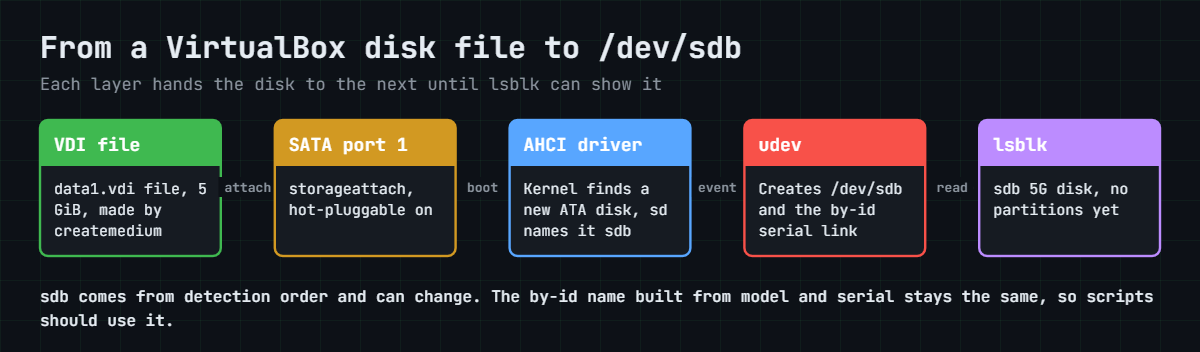
Here’s what happens between “add a disk in VirtualBox” and “lsblk shows sdb”. The diagram below follows one disk file all the way to its device name.

1VirtualBox puts a disk on a SATA port

A VDI file on your laptop becomes a virtual SATA disk when you attach it to a port of rocky01’s “SATA” controller. VirtualBox reports it to the guest as model “VBOX HARDDISK” with a serial number made from the disk’s UUID, the way a real disk reports its factory serial. Marking the port hot-pluggable lets you add or remove the disk while the VM runs, which Lesson 45 uses.

2The kernel finds it and udev names it

At boot (or on a hot-plug event) the kernel’s AHCI driver finds the device, the SCSI disk driver gives it the next free name, sda, sdb, sdc, and udev creates the device file plus stable links such as /dev/disk/by-id/ata-VBOX_HARDDISK_VB2b7c41e0-b8f5a3d7. With nothing written to it yet, the disk has no partitions, no file system and no signatures of any kind.

Linux disk partitioning: path from a VirtualBox disk file to /dev/sdb

3A tool writes the partition table

fdisk, gdisk, parted and sfdisk all do the same job: they write the MBR or GPT structures to the first (and for GPT, last) sectors. They don’t create file systems and they don’t move data. Partitions start at sector 2048 (1 MiB) by default, which keeps them aligned to SSD pages and SAN stripe sizes.

4The kernel must be told

The kernel keeps its own copy of the table in memory, and that copy is what creates /dev/sdc1. A tool can ask for a full re-read (the BLKRRPART call), which the kernel refuses if any partition on that disk is in use, or it can add and remove single partitions (BLKPG calls), which works even while another partition is mounted. parted always works partition by partition, and recent fdisk switches to that when the disk is in use; gdisk and sgdisk only ask for the full re-read and print a warning if it’s refused.

5What GPT writes on the disk

GPT puts a protective MBR in sector 0, so old tools see the disk as full and leave it alone. Sector 1 holds the GPT header with the disk GUID and checksums, sectors 2 to 33 hold 128 partition entries, and the same entries and header are copied to the end of the disk. That backup is why gdisk can repair a GPT disk whose start was damaged.

The picture below shows that layout for the 5 GiB practice disk sdc as it will look at the end of the lab.

Linux disk partitioning: GPT layout with protective MBR, header, entries, partitions and backup

6Partition or whole disk?

A disk that goes into LVM can be used whole (pvcreate /dev/sdb) or through one partition (pvcreate /dev/sdb1). Whole disk is simpler to grow later, because there’s no partition to resize first, and it’s what this course does with sdb in Lesson 44. A partition with the Linux LVM type is easier for other people and tools to recognise as “in use”, which is why some teams make it their standard.

Both are fine; follow your team’s build standard.

In this lab sdb stays completely empty for Lesson 44, and sdc ends with three GPT partitions (2 GiB, 2 GiB and 1023 MiB) that Lesson 43 formats with XFS, ext4 and swap.

Hands-on lab: add two disks to rocky01 and partition the practice disk

Before you run any command, double-check it

Read every command twice before you press Enter. Check the target: the server name, the user, the disk or device name, the path and the sizes. These commands are for learning and were tested in our lab, not on your system. At work, run the read-only commands first, follow your change process, make sure a backup exists, and ask a second person to check anything that changes or deletes data. You run them at your own risk.

Step 1 runs in PowerShell on the laptop (on macOS or Linux use the same VBoxManage commands with ~/Lab/Linux paths and grep instead of Select-String). Everything else runs on rocky01 as student with sudo. Only sdc gets written to in this lesson.

Read every command that names a disk twice before you press Enter.

1Add two 5 GB disks to rocky01

Shut rocky01 down first (on rocky01: sudo systemctl poweroff), then on the laptop paste this whole block:

VBoxManage createmedium disk --filename="C:\Lab\Linux\rocky01\rocky01-data1.vdi" --size=5120 --format=VDI
VBoxManage createmedium disk --filename="C:\Lab\Linux\rocky01\rocky01-data2.vdi" --size=5120 --format=VDI
VBoxManage storageattach rocky01 --storagectl=SATA --port=1 --device=0 --type=hdd --medium="C:\Lab\Linux\rocky01\rocky01-data1.vdi" --hotpluggable=on
VBoxManage storageattach rocky01 --storagectl=SATA --port=2 --device=0 --type=hdd --medium="C:\Lab\Linux\rocky01\rocky01-data2.vdi" --hotpluggable=on

You should see something like this:

0%...10%...20%...30%...40%...50%...60%...70%...80%...90%...100%
Medium created. UUID: 2b7c41e0-6d5f-4a93-8e21-90c4d7a3f5b8
0%...10%...20%...30%...40%...50%...60%...70%...80%...90%...100%
Medium created. UUID: 8e3f0a6d-1c42-4b7e-9d58-37a2c6e1b904

--size is in MiB, so 5120 is 5 GiB, and VDI files are dynamically allocated: each starts at a few MB and grows only as the guest writes. storageattach prints nothing when it works. If it says the controller isn’t found, run VBoxManage showvminfo rocky01 and use the name shown under “Storage Controllers” (Lesson 2 named it SATA). Now check the ports and start the VM:

VBoxManage showvminfo rocky01 --machinereadable | Select-String '"SATA-[0-9]-0"|hot-pluggable'
VBoxManage startvm rocky01 --type=headless

You should see something like this:

"SATA-0-0"="C:\\Lab\\Linux\\rocky01\\rocky01.vdi"
"SATA-hot-pluggable-0-0"="off"
"SATA-1-0"="C:\\Lab\\Linux\\rocky01\\rocky01-data1.vdi"
"SATA-hot-pluggable-1-0"="on"
"SATA-2-0"="C:\\Lab\\Linux\\rocky01\\rocky01-data2.vdi"
"SATA-hot-pluggable-2-0"="on"
"SATA-3-0"="none"

Port 0 is the system disk, ports 1 and 2 hold the new disks marked hot-pluggable, and port 3 is still empty for the disk you’ll hot-add in Lesson 45. Machine-readable output doubles every backslash, which is normal. In VirtualBox Manager you’d see the same under Settings, Storage, Controller: SATA.

[Add your screenshot here]: VirtualBox Manager, rocky01, Settings, Storage, with Controller: SATA selected and rocky01.vdi on port 0, rocky01-data1.vdi on port 1 and rocky01-data2.vdi on port 2, the Hot-pluggable box ticked for the new disks.

✅ Checkpoint: showvminfo lists rocky01-data1.vdi on SATA-1-0 and rocky01-data2.vdi on SATA-2-0, both hot-pluggable on, and rocky01 is running again.

Linux disk partitioning lab: lsblk showing new disks sdb and sdc on rocky01
Example output on rocky01: lsblk shows the two new 5 GB disks sdb and sdc with their VirtualBox serials.

2Find the new disks

SSH back in to rocky01 and run this:

lsblk
lsblk -d -o NAME,SIZE,TYPE,TRAN,MODEL,SERIAL
ls -l /dev/disk/by-id/ | grep ata-VBOX_HARDDISK | grep -v part

You should see something like this:

NAME        MAJ:MIN RM  SIZE RO TYPE MOUNTPOINTS
sda           8:0    0   20G  0 disk
├─sda1        8:1    0  600M  0 part /boot/efi
├─sda2        8:2    0    1G  0 part /boot
└─sda3        8:3    0 18.4G  0 part
  ├─rl-root 253:0    0 16.4G  0 lvm  /
  └─rl-swap 253:1    0    2G  0 lvm  [SWAP]
sdb           8:16   0    5G  0 disk
sdc           8:32   0    5G  0 disk
sr0          11:0    1 1024M  0 rom  
NAME  SIZE TYPE TRAN MODEL         SERIAL
sda    20G disk sata VBOX HARDDISK VB5f3e9a21-7c8d4b16
sdb     5G disk sata VBOX HARDDISK VB2b7c41e0-b8f5a3d7
sdc     5G disk sata VBOX HARDDISK VB8e3f0a6d-04b9e1c6
sr0  1024M rom  ata  VBOX CD-ROM   VB2-01700376
lrwxrwxrwx. 1 root root  9 Oct 27 12:31 ata-VBOX_HARDDISK_VB2b7c41e0-b8f5a3d7 -> ../../sdb
lrwxrwxrwx. 1 root root  9 Oct 27 12:31 ata-VBOX_HARDDISK_VB5f3e9a21-7c8d4b16 -> ../../sda
lrwxrwxrwx. 1 root root  9 Oct 27 12:31 ata-VBOX_HARDDISK_VB8e3f0a6d-04b9e1c6 -> ../../sdc

Two new 5G disks with no children: no partitions, nothing mounted. -d shows whole disks only, and the SERIAL column is how you tell two same-sized disks apart. VirtualBox builds the serial from the disk’s UUID, so VB2b7c41e0 matches the UUID createmedium printed for rocky01-data1.vdi, which proves that disk is sdb. On a real server you’d match the serial or the WWN against what the storage team gave you.

✅ Checkpoint: lsblk shows sdb and sdc at 5G with no partitions, and the serial of sdb starts with the first 8 characters of rocky01-data1.vdi’s UUID.

3Read before you write

Run this:

sudo blkid
sudo wipefs /dev/sdb /dev/sdc
sudo fdisk -l /dev/sdb
sudo parted /dev/sda print

You should see something like this:

/dev/mapper/rl-swap: UUID="5d0c7b3e-2a91-4f6d-8e47-b13c9f0a6e25" TYPE="swap"
/dev/sda3: UUID="Xq3vTk-8LmP-2wRb-Yc7N-hd4F-Ze9s-K1aJ0u" TYPE="LVM2_member" PARTUUID="a8e4c2d1-6f37-4b95-9e10-2c7d5b8f3a46"
/dev/sda1: UUID="7A3C-1F0E" BLOCK_SIZE="512" TYPE="vfat" PARTLABEL="EFI System Partition" PARTUUID="3f2a6c1e-9b7d-4e21-8c5a-0d4f6b2e9a17"
/dev/sda2: UUID="c41f9e07-3b2d-4a68-b5e1-8f6a0d2c9b73" BLOCK_SIZE="512" TYPE="xfs" PARTUUID="e2b7d9a4-1c08-4f53-a6e2-97b4c0d81f5e"
/dev/mapper/rl-root: UUID="9b2e4f61-7d3a-4c85-a0f9-6e1d8b3c2a47" BLOCK_SIZE="512" TYPE="xfs"
Disk /dev/sdb: 5 GiB, 5368709120 bytes, 10485760 sectors
Disk model: VBOX HARDDISK
Units: sectors of 1 * 512 = 512 bytes
Sector size (logical/physical): 512 bytes / 512 bytes
I/O size (minimum/optimal): 512 bytes / 512 bytes
Model: ATA VBOX HARDDISK (scsi)
Disk /dev/sda: 21.5GB
Sector size (logical/physical): 512B/512B
Partition Table: gpt
Disk Flags:

Number  Start   End     Size    File system     Name                  Flags
 1      1049kB  630MB   629MB   fat32           EFI System Partition  boot, esp
 2      630MB   1704MB  1074MB  xfs
 3      1704MB  21.5GB  19.8GB                                        lvm

blkid lists every partition and volume that carries a signature, and sdb and sdc aren’t in the list. wipefs printed nothing, which means it found no partition table, file system, RAID or LVM signature on either disk. fdisk shows sdb’s size and model but no “Disklabel type” line, so it has no partition table. Compare with sda: a GPT disk with the EFI partition, /boot on XFS and the LVM partition that holds rl-root and rl-swap. Make this read-only check a habit before every write.

✅ Checkpoint: blkid doesn’t mention sdb or sdc, wipefs prints nothing and fdisk -l /dev/sdb shows no Disklabel line.

4Make an MBR table with fdisk

Install gdisk for later, then start fdisk on the practice disk:

sudo dnf install -y gdisk parted
sudo fdisk /dev/sdc

Type the answers shown after each prompt (n, p, 1, Enter, +1G, p, w). You should see something like this:

Welcome to fdisk (util-linux 2.40.2).
Changes will remain in memory only, until you decide to write them.
Be careful before using the write command.

Device does not contain a recognized partition table.
Created a new DOS (MBR) disklabel with disk identifier 0x8d2c41f7.

Command (m for help): n
Partition type
   p   primary (0 primary, 0 extended, 4 free)
   e   extended (container for logical partitions)
Select (default p): p
Partition number (1-4, default 1): 1
First sector (2048-10485759, default 2048):
Last sector, +/-sectors or +/-size{K,M,G,T,P} (2048-10485759, default 10485759): +1G

Created a new partition 1 of type 'Linux' and of size 1 GiB.

Command (m for help): p
Disk /dev/sdc: 5 GiB, 5368709120 bytes, 10485760 sectors
Disk model: VBOX HARDDISK
Units: sectors of 1 * 512 = 512 bytes
Sector size (logical/physical): 512 bytes / 512 bytes
I/O size (minimum/optimal): 512 bytes / 512 bytes
Disklabel type: dos
Disk identifier: 0x8d2c41f7

Device     Boot Start     End Sectors Size Id Type
/dev/sdc1        2048 2099199 2097152   1G 83 Linux

Command (m for help): w
The partition table has been altered.
Calling ioctl() to re-read partition table.
Syncing disks.

fdisk made a DOS (MBR) label because the disk had none. n creates a partition, p prints the table, and nothing touches the disk until w. If you make a mistake, q quits without writing. Press g at the first prompt instead if you want fdisk to create a GPT label.

Check what the kernel sees:

lsblk /dev/sdc

You should see this:

NAME   MAJ:MIN RM SIZE RO TYPE MOUNTPOINTS
sdc      8:32   0   5G  0 disk
└─sdc1   8:33   0   1G  0 part 

✅ Checkpoint: lsblk shows sdc1 at 1G and fdisk -l /dev/sdc says Disklabel type: dos.

5Erase the table with wipefs

List the signatures, then erase them:

sudo wipefs /dev/sdc
sudo wipefs -a /dev/sdc
lsblk /dev/sdc

You should see something like this:

DEVICE OFFSET TYPE UUID LABEL
sdc    0x1fe  dos
/dev/sdc: 2 bytes were erased at offset 0x000001fe (dos): 55 aa
/dev/sdc: calling ioctl to re-read partition table: Success
NAME MAJ:MIN RM SIZE RO TYPE MOUNTPOINTS
sdc    8:32   0   5G  0 disk 

An MBR table is recognised by the two bytes 55 aa at offset 0x1fe, the end of the first sector. wipefs erased only those signature bytes and asked the kernel to re-read the table, so sdc1 is gone. On a GPT disk wipefs also erases the backup header at the end, which a simple dd of the first sectors would leave behind and confuse tools later.

✅ Checkpoint: lsblk shows sdc with no partitions and wipefs /dev/sdc prints nothing.

6Make a GPT table with parted in one line

Run this:

sudo parted -s /dev/sdc mklabel gpt mkpart data1 xfs 1MiB 2049MiB mkpart data2 ext4 2049MiB 4097MiB
sudo parted /dev/sdc unit MiB print free

You should see something like this:

Model: ATA VBOX HARDDISK (scsi)
Disk /dev/sdc: 5120MiB
Sector size (logical/physical): 512B/512B
Partition Table: gpt
Disk Flags:

Number  Start    End      Size     File system  Name   Flags
        0.02MiB  1.00MiB  0.98MiB  Free Space
 1      1.00MiB  2049MiB  2048MiB               data1
 2      2049MiB  4097MiB  2048MiB               data2
        4097MiB  5120MiB  1023MiB  Free Space

-s (script mode) runs the whole line without a single question. On GPT the word after mkpart is the partition name (data1, data2). The xfs and ext4 words only set the partition type, Linux filesystem; they don’t create any file system, which is Lesson 43’s job.

Starting at 1MiB keeps the partitions aligned, and the last 1023 MiB stays free for later.

✅ Checkpoint: parted shows a gpt table with data1 and data2 at 2048MiB each and 1023MiB of free space at the end.

7Read the GPT with gdisk and lsblk

Run this:

sudo gdisk -l /dev/sdc
lsblk -o NAME,SIZE,TYPE,PARTLABEL,PARTTYPENAME /dev/sdc

You should see something like this:

GPT fdisk (gdisk) version 1.0.10

Partition table scan:
  MBR: protective
  BSD: not present
  APM: not present
  GPT: present

Found valid GPT with protective MBR; using GPT.
Disk /dev/sdc: 10485760 sectors, 5.0 GiB
Model: VBOX HARDDISK
Sector size (logical/physical): 512/512 bytes
Disk identifier (GUID): C38D2603-4C27-4B89-8CA2-46AD4DF2469D
Partition table holds up to 128 entries
Main partition table begins at sector 2 and ends at sector 33
First usable sector is 34, last usable sector is 10485726
Partitions will be aligned on 2048-sector boundaries
Total free space is 2097085 sectors (1024.0 MiB)

Number  Start (sector)    End (sector)  Size       Code  Name
   1            2048         4196351   2.0 GiB     8300  data1
   2         4196352         8390655   2.0 GiB     8300  data2
NAME   SIZE TYPE PARTLABEL PARTTYPENAME
sdc      5G disk
├─sdc1   2G part data1     Linux filesystem
└─sdc2   2G part data2     Linux filesystem

gdisk confirms a valid GPT with a protective MBR, room for 128 entries in sectors 2 to 33, and both partitions on 2048-sector boundaries. Code 8300 is gdisk’s short name for the Linux filesystem type GUID. -l only lists; without it gdisk opens an interactive menu much like fdisk’s, where again nothing is written until w.

✅ Checkpoint: gdisk -l reports “Found valid GPT with protective MBR” and lsblk shows the PARTLABEL values data1 and data2.

8Save a copy of the partition table

Run this:

mkdir -p ~/lab42
sudo sfdisk -d /dev/sdc | tee ~/lab42/sdc-table.txt
lsblk /dev/sdb

You should see something like this:

label: gpt
label-id: C38D2603-4C27-4B89-8CA2-46AD4DF2469D
device: /dev/sdc
unit: sectors
first-lba: 34
last-lba: 10485726
sector-size: 512

/dev/sdc1 : start=        2048, size=     4194304, type=0FC63DAF-8483-4772-8E79-3D69D8477DE4, uuid=EAB1C2BF-3763-4369-AB8C-08B6C87DBD3A, name="data1"
/dev/sdc2 : start=     4196352, size=     4194304, type=0FC63DAF-8483-4772-8E79-3D69D8477DE4, uuid=2A2FEED7-0A0C-462A-9F43-4223B45520AF, name="data2"
NAME MAJ:MIN RM SIZE RO TYPE MOUNTPOINTS
sdb    8:16   0   5G  0 disk 

This text file holds everything needed to rebuild the table: the disk GUID, each partition’s start, size, type GUID, unique GUID and name. On real servers a nightly job that saves sfdisk -d for every disk (along with lsblk -f and blkid output) costs nothing and has saved many weekends. sdb is still an empty disk, ready for Lesson 44.

✅ Checkpoint: ~/lab42/sdc-table.txt lists sdc1 and sdc2, and lsblk shows sdb with no partitions.

Break It, Then Fix It

Take a snapshot first: VBoxManage snapshot rocky01 take before-l42-break on the laptop. Both failures only touch sdc.

The first mistake destroys a partition table without a single warning. The second leaves the disk and the kernel disagreeing about what partitions exist. Both happen at work every year.

1Write a new label on the wrong disk

A ticket says “put a fresh GPT label on the new 5 GB disk”. Two disks are 5 GB, and you pick sdc without checking:

sudo parted -s /dev/sdc mklabel gpt
lsblk /dev/sdc

You’ll get this, with no question and no error:

NAME MAJ:MIN RM SIZE RO TYPE MOUNTPOINTS
sdc    8:32   0   5G  0 disk 

data1 and data2 are gone. In script mode parted never asks; interactive parted would have warned “The existing disk label on /dev/sdc will be destroyed and all data on this disk will be lost. Do you want to continue?”.

Only the table was replaced, though. The sectors inside the old partitions are untouched, so if you put the same boundaries back, any file system that was there comes back with them.

Fix: restore the table from the copy you saved in lab step 8.

sudo sfdisk /dev/sdc < ~/lab42/sdc-table.txt
lsblk -o NAME,SIZE,PARTLABEL /dev/sdc

You should see something like this:

Checking that no-one is using this disk right now ... OK

Disk /dev/sdc: 5 GiB, 5368709120 bytes, 10485760 sectors
Disk model: VBOX HARDDISK
Units: sectors of 1 * 512 = 512 bytes
Sector size (logical/physical): 512 bytes / 512 bytes
I/O size (minimum/optimal): 512 bytes / 512 bytes
Disklabel type: gpt
Disk identifier: E53F060B-0881-4732-865A-8BB20C1B82A3

Old situation:

>>> Script header accepted.
>>> Created a new GPT disklabel (GUID: C38D2603-4C27-4B89-8CA2-46AD4DF2469D).
/dev/sdc1: Created a new partition 1 of type 'Linux filesystem' and of size 2 GiB.
/dev/sdc2: Created a new partition 2 of type 'Linux filesystem' and of size 2 GiB.
/dev/sdc3: Done.

New situation:
Disklabel type: gpt
Disk identifier: C38D2603-4C27-4B89-8CA2-46AD4DF2469D

Device       Start     End Sectors Size Type
/dev/sdc1     2048 4196351 4194304   2G Linux filesystem
/dev/sdc2  4196352 8390655 4194304   2G Linux filesystem

The partition table has been altered.
Calling ioctl() to re-read partition table.
Syncing disks.
NAME   SIZE PARTLABEL
sdc      5G
├─sdc1   2G data1
└─sdc2   2G data2

sfdisk rebuilt the same disk GUID, the same start sectors and the same partition GUIDs. Without a dump you’d still have options (testdisk or parted’s rescue command search for file system starts), but they’re slower and less certain. Before any write, lsblk on the target and a look at the serial take five seconds.

✅ Checkpoint: sdc has data1 and data2 again, at the same sizes as before.

2The kernel keeps using the old table

Make sdc1 busy for a few minutes by using it as swap (Lesson 43 explains swap properly):

sudo mkswap /dev/sdc1
sudo swapon /dev/sdc1
lsblk /dev/sdc

You should see something like this:

Setting up swapspace version 1, size = 2 GiB (2147479552 bytes)
no label, UUID=4c1e8b27-93fa-4d06-b5c2-7a0e1f3d9b68
NAME   MAJ:MIN RM SIZE RO TYPE MOUNTPOINTS
sdc      8:32   0   5G  0 disk
├─sdc1   8:33   0   2G  0 part [SWAP]
└─sdc2   8:34   0   2G  0 part 

Now add a third partition with sgdisk, the script version of gdisk, and try to use it:

sudo sgdisk -n 3:0:0 -t 3:8200 -c 3:swap /dev/sdc
lsblk /dev/sdc
sudo mkswap /dev/sdc3

You’ll get this:

Warning: The kernel is still using the old partition table.
The new table will be used at the next reboot or after you
run partprobe(8) or kpartx(8)
The operation has completed successfully.
NAME   MAJ:MIN RM SIZE RO TYPE MOUNTPOINTS
sdc      8:32   0   5G  0 disk
├─sdc1   8:33   0   2G  0 part [SWAP]
└─sdc2   8:34   0   2G  0 part
mkswap: cannot open /dev/sdc3: No such file or directory

sgdisk wrote partition 3 to the disk (start 0 means “first free sector”, end 0 means “last”, type 8200 is Linux swap) and then asked the kernel for a full re-read. The kernel refused because sdc1 is in use as swap, so its in-memory table still has two partitions and /dev/sdc3 doesn’t exist. sgdisk prints only a warning and says the operation completed, so in a script this slips straight through.

wipefs is careful in the same situation. sudo wipefs -a /dev/sdc now fails with “wipefs: error: /dev/sdc: probing initialization failed: Device or resource busy”, because it opens the whole disk exclusively before erasing anything. That error is protecting you.

Fix: tell the kernel about the new partition without a reboot.

sudo partprobe /dev/sdc
lsblk /dev/sdc

You should see something like this:

NAME   MAJ:MIN RM  SIZE RO TYPE MOUNTPOINTS
sdc      8:32   0    5G  0 disk
├─sdc1   8:33   0    2G  0 part [SWAP]
├─sdc2   8:34   0    2G  0 part
└─sdc3   8:35   0 1023M  0 part 

partprobe (from parted) compares the table on disk with the kernel’s copy and adds or removes only the partitions that changed, so a busy sdc1 doesn’t stop it. sudo partx -u /dev/sdc does the same job from util-linux. The one change neither can apply is resizing or removing a partition that’s in use; for that you stop using it first, or reboot.

Clean up: stop the temporary swap, erase its signature and save the final table:

sudo swapoff /dev/sdc1
sudo wipefs -a /dev/sdc1
sudo sfdisk -d /dev/sdc > ~/lab42/sdc-table.txt
lsblk -o NAME,SIZE,TYPE,PARTLABEL,PARTTYPENAME,FSTYPE /dev/sdb /dev/sdc

You should see something like this:

/dev/sdc1: 10 bytes were erased at offset 0x00000ff6 (swap): 53 57 41 50 53 50 41 43 45 32
NAME   SIZE TYPE PARTLABEL PARTTYPENAME     FSTYPE
sdb      5G disk
sdc      5G disk
├─sdc1   2G part data1     Linux filesystem
├─sdc2   2G part data2     Linux filesystem
└─sdc3 1023M part swap      Linux swap       

✅ Checkpoint: sdb is an empty disk; sdc has sdc1 (data1), sdc2 (data2) and sdc3 (swap, Linux swap type), and the FSTYPE column is empty for all of them. That’s the state Lesson 43 starts from.

This happened at work

The photo volume that nearly lost its table

I was the on-call engineer for a matrimony site in Noida on a Saturday night when this happened. The ticket, written on Friday, said “new 200 GB disk added to the media server, partition /dev/sdb and hand it over to the app team”. Between Friday and Saturday the VM had been rebooted for host patching, and the new disk had been attached to a second SCSI controller slot.

The engineer working the ticket ran parted -s /dev/sdb mklabel gpt and got a long message: “Partition(s) 1 on /dev/sdb have been written, but we have been unable to inform the kernel of the change, probably because it/they are in use.” He thought the disk was “stuck” and asked me whether to reboot. Luckily he asked first. After the reboot the names had swapped: sdb was now the 200 GB volume holding nine years of profile photos, still mounted on /srv/media, and the new empty disk was sdc.

The site was still serving photos because the kernel was using its old copy of the table, which was why parted couldn’t inform it. A reboot would have brought the server up with no partition and no /srv/media. Our nightly config backup had the sfdisk -d output for every disk, so we restored the table with sfdisk /dev/sdb, checked it matched the kernel’s view in /proc/partitions and rebooted in the morning with the business watching.

The XFS volume mounted clean.

The runbook changed the next Monday. Tickets now name disks by serial or WWN, never by sdX, the engineer pastes lsblk -o NAME,SIZE,SERIAL,WWN,MOUNTPOINTS into the ticket before any write, and “unable to inform the kernel” on a disk you think is new means stop and check, not reboot.

Common mistakes and troubleshooting

MistakeWhat happensWhat to do instead
Choosing a disk by its sdX name from an old ticket or a different bootYou write to a disk that holds data; names can change after reboots and rescansMatch size, serial or WWN with lsblk -o NAME,SIZE,SERIAL,WWN and use /dev/disk/by-id paths in scripts
Skipping the read-only checkYou overwrite an LVM PV, a file system or a RAID member you didn’t know aboutRun lsblk, blkid and wipefs (without -a) on the target first
Using parted -s or wipefs -a by hand when tiredNo confirmation at all, the table is gone in a secondUse interactive parted or fdisk for one-off work, and keep sfdisk -d backups
Creating MBR on a disk larger than 2 TiBEverything past 2 TiB can’t be usedUse GPT for every new disk
Starting partitions at sector 63 or another odd numberSlower I/O on SSDs and SAN LUNs because writes cross block boundariesLet the tools start at 1MiB (sector 2048)
Ignoring “The kernel is still using the old partition table”mkfs fails with “No such file or directory”, or worse, you work on the old layoutRun partprobe /dev/sdX or partx -u and check with lsblk before going on
Rebooting when parted says it couldn’t inform the kernelIf you wrote to the wrong disk, the reboot makes the damage realStop, find out which disk you wrote to and why it’s busy, and restore the table if needed

Interview questions

Click a question to open it. Each one is written the way an interviewer would ask it. Under it you will see why they ask it and one way you could answer, in your own words.

Fresher level

1. What’s the difference between MBR and GPT, and which would you use for a new 4 TB data disk?

Why they ask this: A basic question, but they want the real limits (2 TiB, four primaries) and a clear choice, not a vague “GPT is newer”.

How you might answer: MBR keeps the table in the first sector, allows four primary partitions and can address only 2 TiB with 512-byte sectors. GPT uses 64-bit sector numbers, has 128 entries by default, checksums and a backup copy at the end of the disk.

For a 4 TB disk I’d use GPT without thinking twice, because MBR would leave about 2 TB unusable. I’d create it with parted -s /dev/sdX mklabel gpt after checking the disk with lsblk and wipefs.

2. A new disk was added to a VM. How do you find it and make sure it’s the right one before you touch it?

Why they ask this: They’re checking discipline more than commands: do you verify before you write?

How you might answer: I run lsblk to find a disk of the expected size with no partitions, then lsblk -d -o NAME,SIZE,SERIAL,WWN and compare the serial or WWN with what the VMware or storage team gave me.

Then sudo blkid and sudo wipefs /dev/sdX should show nothing on it. Only when all three agree do I partition it, and I put the by-id path in any script instead of sdX.

2–5 years experience

3. You created a partition but lsblk doesn’t show it and mkfs says “No such file or directory”. What’s going on and how do you fix it without a reboot?

Why they ask this: This tests whether you understand that the kernel keeps its own copy of the table.

How you might answer: The table on disk changed, but the kernel didn’t re-read it, usually because another partition on that disk is mounted or used as swap or by LVM, and the tool only tried a full re-read. gdisk and sgdisk print “The kernel is still using the old partition table” in that case.

I’d run partprobe /dev/sdX or partx -u /dev/sdX, which add only the changed partitions, then check with lsblk. If the change was a resize of a partition that’s in use, I’d stop using it or plan a reboot.

4. fdisk, gdisk or parted: which do you use, and when?

Why they ask this: They want to see that you know the tools’ strengths, especially for scripts.

How you might answer: For a quick interactive job I use fdisk, which handles both MBR and GPT and writes nothing until I press w. gdisk is GPT only and I use it mostly for repairs, like rebuilding the main header from the backup.

In scripts and Ansible I use parted -s or sgdisk, because they take everything on one line, and sfdisk -d to dump and restore tables. parted also understands sizes like 1MiB and 100%, which keeps alignment simple.

Senior level

5. Someone ran mklabel on the wrong disk in production. What do you do in the first ten minutes?

Why they ask this: Seniors are expected to stay calm, stop further damage and know that a lost table is usually recoverable.

How you might answer: First, nobody reboots, remounts or runs anything else on that disk, because a mounted file system is still working from the kernel’s old copy of the table. I check /proc/partitions and lsblk to see what the kernel still knows, and look for an sfdisk -d dump in the config backups.

If there’s a dump, I restore it with sfdisk, compare start sectors with /proc/partitions, and run a read-only check like xfs_repair -n before declaring it fixed. Without a dump I’d use the kernel’s numbers or testdisk to rebuild the same boundaries, and I’d take a block-level copy first if the data matters.

6. For data disks that go into LVM, would you use the whole disk or a partition? Defend your choice.

Why they ask this: There’s no single right answer; they want trade-offs and a team standard.

How you might answer: Whole disk is simpler: when the LUN grows, I rescan and run pvresize, with no partition to grow first. The risk is that a disk with no partition table looks empty to someone running fdisk or a different OS installer.

A single partition with the Linux LVM type makes the disk look “in use” to every tool, at the cost of one extra step when growing it (growpart or parted resizepart). I’d pick one for the whole fleet, write it in the build standard and label disks clearly either way.

Quick quiz

Q1. Which partition table should you use for a new 3 TB data disk?

  1. MBR, because it’s more compatible
  2. GPT, because MBR can’t address past 2 TiB with 512-byte sectors
  3. Either, they have the same limits
  4. No table, always
Show answer

B — MBR uses 32-bit sector numbers, so 512-byte sectors give a 2 TiB limit.

Q2. What does sudo wipefs /dev/sdb (with no options) do?

  1. Erases all signatures on sdb
  2. Lists signatures on sdb without changing anything
  3. Creates a GPT table
  4. Formats sdb
Show answer

B — Without -a, wipefs only lists. With -a it erases.

Q3. In parted -s /dev/sdc mkpart data1 xfs 1MiB 2049MiB, what does “xfs” do?

  1. Creates an XFS file system
  2. Only sets the partition type; no file system is made
  3. Mounts the partition
  4. Nothing at all
Show answer

B — parted sets the partition type from that word. mkfs.xfs makes the file system (Lesson 43).

Q4. sgdisk prints “The kernel is still using the old partition table”. What fixes it without a reboot?

  1. sudo partprobe /dev/sdc
  2. sudo wipefs -a /dev/sdc
  3. sudo mkswap /dev/sdc3
  4. sudo blkid
Show answer

A — partprobe (or partx -u) tells the kernel about the changed partitions.

Q5. Which is the safest way to know a 5 GB disk is the one you mean to partition?

  1. It’s called sdb
  2. Match its serial or WWN, check it has no partitions and no signatures
  3. It’s the last disk in lsblk
  4. Run mklabel and see what happens
Show answer

B — Device names can change. Serial or WWN plus lsblk, blkid and wipefs proves it.

Quick recap

  • Linux disk partitioning writes only a small table; partitions start at 1 MiB, and no file system exists until Lesson 43’s mkfs.
  • Find and prove the disk first: lsblk -d -o NAME,SIZE,SERIAL, /dev/disk/by-id, then blkid and wipefs without -a.
  • Use GPT for new disks. fdisk and gdisk are interactive and write on w; parted -s and sgdisk write at once with no questions.
  • Keep sfdisk -d dumps: sfdisk /dev/sdX < dump puts a lost table back with the data inside untouched.
  • If the kernel didn’t re-read the table, partprobe or partx -u fixes it; never reboot to “unstick” a disk you aren’t sure about.

Next lesson

Lesson 43: File systems, mounts, fstab and swap → You’ll put XFS on sdc1 and ext4 on sdc2, mount them by UUID from /etc/fstab, test the file with findmnt --verify and mount -a before any reboot, and add swap on sdc3 and in a swap file.

Further reading: Linux disk partitioning

Want to go deeper into Linux disk partitioning? Read Red Hat’s Managing storage devices guide for RHEL 10, the man7.org pages for fdisk(8), sfdisk(8) and wipefs(8), the GNU parted manual and Rod Smith’s GPT fdisk tutorial. You can also see the full plan for this course on the Linux Administration course page.

Scroll to Top

This website uses cookies

We use a few cookies to keep this site working. If you allow it, we also use Google Analytics to count visits so we can improve our lessons. You can accept all, deny the optional ones, or choose what to allow.