Server stuck in emergency mode: fix fstab on Rocky and Ubuntu
-
Phase 0: Before you start
-
Phase 1: The origins and OS architecture
-
Phase 2: Day-to-day administration and the command builder
-
Phase 3: Enterprise infrastructure and storage
-
Phase 4: Troubleshooting step by step
-
Phase 5: Final project and career
Linux emergency mode is where systemd stops the boot when a file system it was told is required can’t be mounted, most often because of one line in /etc/fstab: a disk or SAN LUN that didn’t show up, a wrong UUID, or a typo in the options. The server isn’t broken; it’s waiting on the console for someone with the root password, and on Ubuntu, where root is locked, it won’t even let you in without a trick at the boot menu.
Lesson 43 showed what nofail and x-systemd.device-timeout do in fstab, and Lesson 9 showed the emergency target. Here you put them together under pressure: you’ll read which lines of rocky01’s fstab can stop a boot, pull a disk out in VirtualBox to watch nofail save the day, practise the emergency shell on both VMs, and then break the boot for real on rocky01 and ubu01 and fix it from the console.
Where this lesson fits
Lesson 70 of 82 in Linux Administration · Phase 4: Troubleshooting step by step · Before this: Lesson 69, static routes disappear after a reboot · Next: Lesson 71, reset a forgotten root password
| Time | You need | By the end you can |
|---|---|---|
| About 90 minutes | rocky01 and ubu01 with their VirtualBox console windows, VBoxManage on the laptop, the rocky01 root password from Lesson 2, Lessons 43, 44 and 56 done | Tell which fstab lines can stop a boot, get a root shell in emergency mode on Rocky and on Ubuntu, fix fstab from there, and prevent the next one with nofail, x-systemd.device-timeout, findmnt --verify and mount -a |
What it is, in one line
Emergency mode is systemd’s safe stop when a required mount fails: almost nothing runs, and you get a root shell on the console to fix /etc/fstab and carry on.
In Simple Words
The school van that won’t leave without a child
A school van driver has a list for the morning round. Some children are marked “must come”, and if one of them isn’t at the gate, the driver waits, then stops the van and phones the office, because he can’t leave a child behind. Others are marked “if present”: he waits a short while and drives on without them.
The office phone only works with the principal’s code. In one school the principal never set a code, so the driver can’t call anyone and the van stays parked until someone comes out to the gate.
The required fstab lines are the “must come” children, nofail is “if present”, and the locked phone is Ubuntu’s root account.
Engineer's View
What decides whether a mount can stop the boot
At every boot and every systemctl daemon-reload, systemd-fstab-generator turns each fstab line into a mount unit in /run/systemd/generator/. The options on the line decide how that unit is tied to local-fs.target, and local-fs.target has OnFailure=emergency.target in its unit file.
| fstab options | What the generator writes | If the device is missing |
|---|---|---|
| defaults (no nofail) | A link in local-fs.target.requires/ and Before=local-fs.target | Waits 90 s (DefaultDeviceTimeoutSec), the mount fails, local-fs.target fails, emergency mode |
| nofail | A link in local-fs.target.wants/ and no Before= ordering | Boot carries on; the mount quietly stays empty |
| x-systemd.device-timeout=10s | A drop-in for the .device unit with JobRunningTimeoutSec=10s | Gives up after 10 s instead of 90 s. Without nofail it still ends in emergency mode, only sooner |
| _netdev, or an nfs/cifs type | Tied to remote-fs.target, after the network | Only remote-fs.target fails; add nofail too so boot doesn’t wait |
| noauto | Not started at boot at all | Nothing happens until you mount it by hand |
| Rocky Linux 10 (root password set) | Ubuntu 26.04 (root locked) | |
|---|---|---|
| Prompt | “Give root password for maintenance (or press Control-D to continue):” | “Cannot open access to console, the root account is locked.” then “Press Enter to continue.” |
| Getting in | Type the root password | At GRUB press e and add systemd.setenv=SYSTEMD_SULOGIN_FORCE=1 to the linux line, or use init=/bin/bash (Lesson 71) |
| Root file system | Usually read-write already; read-only if you booted straight into emergency.target | Same |
| After the fix | systemctl daemon-reload, mount -a, then systemctl default or exit | Same |
Emergency mode and rescue mode aren’t the same. Rescue mode first mounts everything in fstab, so a bad fstab breaks rescue mode too; emergency mode starts only the shell, which is why systemd chooses it here. A RHEL or Rocky system installed without a root password behaves like Ubuntu, so check yours before you need it.
How it works, step by step
Here is what happens between GRUB and the emergency prompt when a required disk is missing.
1The generator turns fstab into units
Early in boot, systemd runs systemd-fstab-generator, which writes one mount unit per line, such as srv-archive.mount for /srv/archive, with What=/dev/disk/by-uuid/.... A required line gets a link in local-fs.target.requires/; a nofail line only goes in local-fs.target.wants/.
2Each mount waits for its device
A mount unit depends on a device unit, and the device unit only becomes active when udev sees a disk with that UUID. While it waits you see “A start job is running for /dev/disk/by-uuid/…” with a counter that ends at 1min 30s, the default device timeout. The diagram below follows one missing LUN from the fstab line to the prompt.
3The timeout fails the chain
When the 90 seconds are up, systemd prints “Timed out waiting for device”, then “Dependency failed for” the mount and for local-fs.target. A file system check (systemd-fsck@) for that device fails the same way if the line has a non-zero pass number.
4local-fs.target pulls the emergency brake
Because local-fs.target failed, its OnFailure= starts emergency.target in “replace-irreversibly” mode: every other boot job is cancelled, no network, no SSH, no services. emergency.service runs sulogin on the console, after the message “You are in emergency mode”.
5sulogin decides whether you get a shell
sulogin asks for root’s password. If root has one, you type it and get a root shell; if root is locked, as on Ubuntu, sulogin refuses unless systemd tells it to force a shell with the SYSTEMD_SULOGIN_FORCE=1 variable. The picture below shows both paths and the fix they share.
6Fix, test, then continue
In the shell, read journalctl -xb for the “Timed out” and “Dependency failed” lines, back up fstab, and fix the line: correct UUID, comment it out until storage confirms the LUN, or add nofail,x-systemd.device-timeout=10s if the server can run without it. Then systemctl daemon-reload so the generator rebuilds the units, findmnt --verify and mount -a to test, and systemctl default to carry on to the normal target.
Check findmnt -no OPTIONS / before you edit. If it starts with ro, run mount -o remount,rw / first, or your editor will fail to save. Don’t reboot to “see if it works” until both tests are clean, because every failed attempt costs another 90 seconds on the console.
Hands-on lab: pull a disk, read the mount units and practise the emergency shell
Before you run any command, double-check it
Read every command twice before you press Enter. Check the target: the server name, the user, the disk or device name, the path and the sizes. These commands are for learning and were tested in our lab, not on your system. At work, run the read-only commands first, follow your change process, make sure a backup exists, and ask a second person to check anything that changes or deletes data. You run them at your own risk.
You’ll work on rocky01 first and ubu01 at the end, mostly from the VirtualBox console windows, because SSH isn’t available in emergency mode. Nothing in this lab leaves a change behind: the disk goes back, and the boot overrides are typed at the GRUB menu for one boot only. rocky01’s fstab is the one Lessons 43, 44, 47 and 56 built, so your UUIDs will differ from the ones shown.
1Take snapshots of both VMs
On the laptop, run this:
VBoxManage snapshot rocky01 take before-l70
VBoxManage snapshot ubu01 take before-l70You should see something like this, twice:
0%...10%...20%...30%...40%...50%...60%...70%...80%...90%...100%
Snapshot taken. UUID: 4f1d2c9a-7b3e-4e05-9a61-2c8d0f5b7e13A snapshot of a running VM saves its disks and memory, so if anything in this lesson goes wrong you can restore it in a minute. At work the equivalent is a recent backup and a tested way to reach the console (iLO, iDRAC, the hypervisor) before you touch fstab.
✅ Checkpoint: Both snapshots are listed by VBoxManage snapshot rocky01 list and VBoxManage snapshot ubu01 list.
2List which fstab lines can stop a boot
On rocky01, run this:
awk '!/^#/ && NF && $3 != "swap" {print $2, ($4 ~ /nofail/ ? "optional" : "REQUIRED"), $4}' /etc/fstab | column -t
sudo findmnt --verifyYou should see something like this:
/ REQUIRED defaults
/boot REQUIRED defaults
/boot/efi REQUIRED umask=0077,shortname=winnt
/srv/data1 optional defaults,nofail
/srv/data2 optional defaults,nofail,noatime,x-systemd.device-timeout=10s
/srv/app REQUIRED defaults
/srv/logs REQUIRED defaults
/mnt/share optional _netdev,nofail
/var/lib/mysql REQUIRED defaults
Success, no errors or warnings detectedawk skips comments, empty lines and swap, and marks every line without nofail as REQUIRED. Six lines on rocky01 can stop the boot: the three from the installer, lv_app and lv_logs from Lesson 44, and lv_db from Lesson 56. The data disk lines from Lesson 43 and the NFS share from Lesson 47 can’t, because they have nofail.
At work, run this on any server before patching, and ask about every REQUIRED line that isn’t on the boot disk.
✅ Checkpoint: You can name the REQUIRED lines on your rocky01 and findmnt reports Success.
3See the units systemd built from fstab
Run this:
systemctl cat srv-data2.mount srv-app.mount
ls /run/systemd/generator/local-fs.target.requires/ /run/systemd/generator/local-fs.target.wants/
cat /run/systemd/generator/dev-disk-by*.device.d/50-device-timeout.confYou should see something like this:
# /run/systemd/generator/srv-data2.mount
# Automatically generated by systemd-fstab-generator
[Unit]
Documentation=man:fstab(5) man:systemd-fstab-generator(8)
SourcePath=/etc/fstab
Requires=systemd-fsck@dev-disk-by\x2duuid-fcb309a2\x2de657\x2d4e8f\x2db20d\x2dbf5aa8cce041.service
After=systemd-fsck@dev-disk-by\x2duuid-fcb309a2\x2de657\x2d4e8f\x2db20d\x2dbf5aa8cce041.service
After=blockdev@dev-disk-by\x2duuid-fcb309a2\x2de657\x2d4e8f\x2db20d\x2dbf5aa8cce041.target
[Mount]
What=/dev/disk/by-uuid/fcb309a2-e657-4e8f-b20d-bf5aa8cce041
Where=/srv/data2
Type=ext4
Options=defaults,nofail,noatime
# /run/systemd/generator/srv-app.mount
# Automatically generated by systemd-fstab-generator
[Unit]
Documentation=man:fstab(5) man:systemd-fstab-generator(8)
SourcePath=/etc/fstab
Before=local-fs.target
After=blockdev@dev-disk-by\x2duuid-6b1f3c2e\x2d9a4d\x2d4e57\x2d8c1b\x2d2f7d0a9e5c31.target
[Mount]
What=/dev/disk/by-uuid/6b1f3c2e-9a4d-4e57-8c1b-2f7d0a9e5c31
Where=/srv/app
Type=xfs
/run/systemd/generator/local-fs.target.requires/:
-.mount boot-efi.mount boot.mount srv-app.mount srv-logs.mount var-lib-mysql.mount
/run/systemd/generator/local-fs.target.wants/:
srv-data1.mount srv-data2.mount systemd-remount-fs.service
# Automatically generated by systemd-fstab-generator
# from supplied options "defaults,nofail,noatime,x-systemd.device-timeout=10s"
[Unit]
JobRunningTimeoutSec=10sCompare the two. srv-app.mount has Before=local-fs.target and sits in the .requires folder, so local-fs.target can’t finish without it. srv-data2.mount has neither; it’s only wanted. Its x-systemd.device-timeout=10s became a drop-in for the .device unit, so systemd waits 10 seconds for that disk instead of 90. nofail and the timeout don’t appear in Options= because they are instructions for systemd, not for the kernel.
✅ Checkpoint: srv-app.mount is in local-fs.target.requires and srv-data2.mount in local-fs.target.wants.
4Pull a disk and watch nofail save the boot
Shut rocky01 down, take away its sdc disk (the one with data1 and data2) on the laptop, and start it again:
sudo systemctl poweroffVBoxManage storageattach rocky01 --storagectl=SATA --port=2 --device=0 --medium=none
VBoxManage startvm rocky01About 30 seconds after it starts, log in over SSH and run this:
systemd-analyze
systemctl list-jobs --no-pager
findmnt /srv/data1 /srv/data2; echo "findmnt exit=$?"
lsblk -d -o NAME,SIZE,FSTYPEYou should see something like this:
Bootup is not yet finished (org.freedesktop.systemd1.Manager.FinishTimestampMonotonic=0).
Please try again later.
Hint: Use 'systemctl list-jobs' to see active jobs
JOB UNIT TYPE STATE
97 srv-data1.mount start waiting
98 dev-disk-by\x2duuid-f7624e63\x2d8b7a\x2d4eaf\x2db92e\x2d2ddf3b10c1f7.device start running
2 jobs listed.
findmnt exit=1
NAME SIZE FSTYPE
sda 20G
sdb 5G LVM2_member
sdc 5G LVM2_member
sr0 1024MSSH worked and every service is up, yet systemd says the boot isn’t finished: it’s still waiting the full 90 seconds for the data1 disk in the background, because that line has nofail but no timeout. data2 already gave up after 10 seconds. Note the disk names too: with port 2 empty, the Lesson 45 disk that used to be sdd is now sdc, and nothing broke because LVM and fstab use UUIDs.
Wait two minutes, then read what happened:
journalctl -b --no-pager | grep -E 'Timed out waiting|Dependency failed for srv'
systemctl is-active srv-data1.mount srv-data2.mountYou should see something like this:
Oct 27 16:05:24 rocky01 systemd[1]: Timed out waiting for device dev-disk-by\x2duuid-fcb309a2\x2de657\x2d4e8f\x2db20d\x2dbf5aa8cce041.device - /dev/disk/by-uuid/fcb309a2-e657-4e8f-b20d-bf5aa8cce041.
Oct 27 16:05:24 rocky01 systemd[1]: Dependency failed for srv-data2.mount - /srv/data2.
Oct 27 16:06:44 rocky01 systemd[1]: Timed out waiting for device dev-disk-by\x2duuid-f7624e63\x2d8b7a\x2d4eaf\x2db92e\x2d2ddf3b10c1f7.device - /dev/disk/by-uuid/f7624e63-8b7a-4eaf-b92e-2ddf3b10c1f7.
Oct 27 16:06:44 rocky01 systemd[1]: Dependency failed for srv-data1.mount - /srv/data1.
inactive
inactiveThe two timeouts are 80 seconds apart: 10 seconds for data2, 90 for data1. The mounts are inactive, not failed, so systemctl --failed shows nothing and only your monitoring of mount points would notice. That’s the price of nofail, and why Lesson 43 pairs it with a check that the mount is there.
✅ Checkpoint: rocky01 booted without sdc, /srv/data1 and /srv/data2 are empty, and the journal shows both timeouts.
5Put the disk back
Shut down, re-attach sdc on the laptop and start again:
sudo systemctl poweroffVBoxManage storageattach rocky01 --storagectl=SATA --port=2 --device=0 --type=hdd --medium="C:\Lab\Linux\rocky01\rocky01-data2.vdi" --hotpluggable=on
VBoxManage startvm rocky01Log in and check:
findmnt -n -o TARGET,SOURCE /srv/data1 /srv/data2
lsblk -d -o NAME,SIZE,FSTYPE | grep -c LVM2_memberYou should see something like this:
/srv/data1 /dev/sdc1
/srv/data2 /dev/sdc2
2On macOS or Linux the path is ~/Lab/Linux/rocky01/rocky01-data2.vdi. The disk is back on port 2, so it’s sdc again and the Lesson 45 disk is sdd.
✅ Checkpoint: /srv/data1 and /srv/data2 are mounted from sdc1 and sdc2 again.
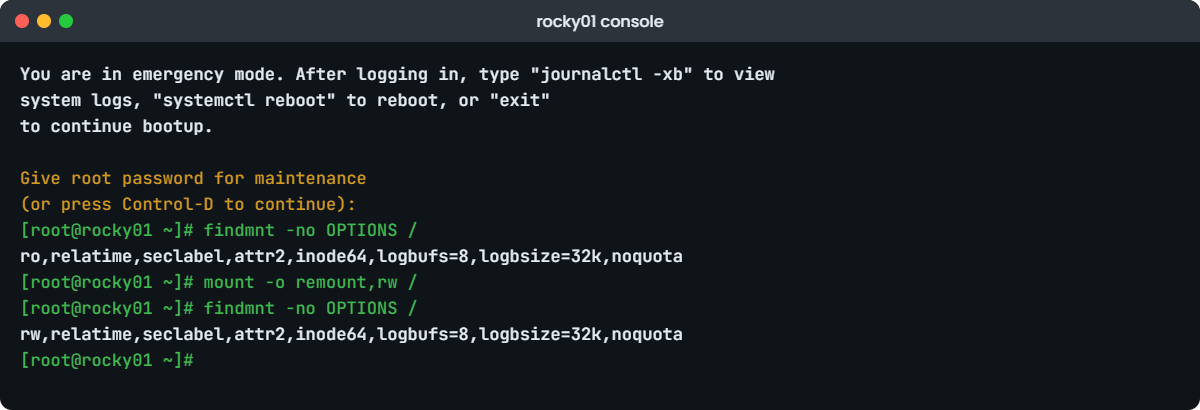
6Practise the emergency shell on rocky01
Restart rocky01 from the console (Machine, Reset). When the boot menu appears, highlight the top entry, press e, go to the end of the line that starts with linux and add:
systemd.unit=emergency.targetPress Ctrl+X to boot. You’ll see this on the console:
You are in emergency mode. After logging in, type "journalctl -xb" to view
system logs, "systemctl reboot" to reboot, or "exit"
to continue bootup.
Give root password for maintenance
(or press Control-D to continue):Type the root password you set in Lesson 2, then run this:
findmnt -no OPTIONS /
mount -o remount,rw /
findmnt -no OPTIONS /
findmnt /boot /srv/app; echo "findmnt exit=$?"You should see something like this:
ro,relatime,seclabel,attr2,inode64,logbufs=8,logbsize=32k,noquota
rw,relatime,seclabel,attr2,inode64,logbufs=8,logbsize=32k,noquota
findmnt exit=1Booted straight into emergency.target, the root file system is still read-only as the initramfs left it, because nothing ran the service that remounts it. That’s why editing fstab here fails with “Read-only file system” until you remount. Only / and the kernel’s own file systems are mounted; findmnt finds neither /boot nor /srv/app.
When you land in emergency mode because of a failed mount, / is usually already read-write, so always check before you remount.
Carry on to the normal boot:
systemctl default✅ Checkpoint: You got a root prompt with the root password, saw ro change to rw, and rocky01 then booted normally with SSH working.
7Try the same on ubu01, where root is locked
Reset ubu01 and open its boot menu (hold Shift on a BIOS VM, press Esc on a UEFI one). Press e on the first Ubuntu entry, add the same text to the end of the linux line, and boot with Ctrl+X:
systemd.unit=emergency.targetYou’ll get this on the console:
You are in emergency mode. After logging in, type "journalctl -xb" to view
system logs, "systemctl reboot" to reboot, or "exit"
to continue bootup.
Cannot open access to console, the root account is locked.
See sulogin(8) man page for more details.
Press Enter to continue.Ubuntu ships with no root password, so sulogin has nothing to check and refuses. Pressing Enter only shows the message again. Reset ubu01, open the menu again, and this time add both of these to the end of the linux line:
systemd.unit=emergency.target systemd.setenv=SYSTEMD_SULOGIN_FORCE=1You should see something like this:
You are in emergency mode. After logging in, type "journalctl -xb" to view
system logs, "systemctl reboot" to reboot, or "exit"
to continue bootup.
Press Enter for maintenance
(or press Control-D to continue):
root@ubu01:~#systemd.setenv= puts a variable into the environment systemd gives its services, and SYSTEMD_SULOGIN_FORCE=1 tells sulogin to open a root shell when root has no usable password. It needs physical or console access to the boot menu, which is the same trust you need for any recovery. Type systemctl default to carry on, and check that SSH works again.
If your boot menu is protected with a GRUB password (Lesson 71 shows how), you’ll need that password before you can press e. That’s the point of it, so keep it in the same vault as the root passwords.
✅ Checkpoint: ubu01 refused the plain emergency shell, gave you a root prompt with SYSTEMD_SULOGIN_FORCE=1, and then booted normally.
Break It, Then Fix It
These are real boot failures, so take fresh snapshots first (VBoxManage snapshot rocky01 take before-l70-break and the same for ubu01). Keep the console windows open; you’ll need them. If anything goes badly wrong, power the VM off and restore the snapshot.
1A LUN in fstab that storage never presented
The storage team says an archive LUN “will be there after the weekend”, so someone adds it ahead of time on rocky01, skips the check and the server reboots for patching:
sudo cp /etc/fstab /root/fstab.l70
sudo mkdir -p /srv/archive
echo 'UUID=9e4b2c71-5d8a-4f3e-b6a0-c2d1e8f47a19 /srv/archive xfs defaults 0 0' | sudo tee -a /etc/fstab
sudo systemctl daemon-reload
sudo systemctl rebootOn the console, you’ll see something like this for 90 seconds:
[ *** ] A start job is running for /dev/disk/by-uuid/9e4b2c71-5d8a-4f3e-b6a0-c2d1e8f47a19 (1min 2s / 1min 30s)and then:
[ TIME ] Timed out waiting for device dev-disk-by\x2duuid-9e4b2c71\x2d5d8a\x2d4f3e\x2db6a0\x2dc2d1e8f47a19.device - /dev/disk/by-uuid/9e4b2c71-5d8a-4f3e-b6a0-c2d1e8f47a19.
[DEPEND] Dependency failed for srv-archive.mount - /srv/archive.
[DEPEND] Dependency failed for local-fs.target - Local File Systems.
You are in emergency mode. After logging in, type "journalctl -xb" to view
system logs, "systemctl reboot" to reboot, or "exit"
to continue bootup.
Give root password for maintenance
(or press Control-D to continue):The device never appeared, so after 90 seconds the mount failed, local-fs.target failed with it, and systemd switched to emergency mode. findmnt --verify would have said “[E] unreachable on boot required source” before the reboot. Pressing Control-D only tries to continue the boot, which fails the same way.
Fix: log in with the root password, confirm the cause, check / is writable, and comment the line out.
journalctl -b -p warning --no-pager | grep -E 'Timed out|Dependency failed'
findmnt -no OPTIONS / | cut -d, -f1
sed -i 's|^UUID=9e4b2c71|#&|' /etc/fstab
grep archive /etc/fstab
systemctl daemon-reload
findmnt --verify
mount -a && systemctl defaultYou should see something like this:
Oct 27 16:21:47 rocky01 systemd[1]: Timed out waiting for device dev-disk-by\x2duuid-9e4b2c71\x2d5d8a\x2d4f3e\x2db6a0\x2dc2d1e8f47a19.device - /dev/disk/by-uuid/9e4b2c71-5d8a-4f3e-b6a0-c2d1e8f47a19.
Oct 27 16:21:47 rocky01 systemd[1]: Dependency failed for srv-archive.mount - /srv/archive.
Oct 27 16:21:47 rocky01 systemd[1]: Dependency failed for local-fs.target - Local File Systems.
rw
#UUID=9e4b2c71-5d8a-4f3e-b6a0-c2d1e8f47a19 /srv/archive xfs defaults 0 0
Success, no errors or warnings detectedThis time / was already rw, because the remount ran before the device timed out. Commenting out keeps the line for when the LUN arrives; then you add it back with nofail,x-systemd.device-timeout=10s if the server can live without it, or without nofail once the LUN is there and tested with mount -a. systemctl default carried on to multi-user.target, so SSH works again without another reboot.
✅ Checkpoint: rocky01 reached the normal target, SSH works, and the archive line in fstab starts with #.
2A typo that findmnt --verify doesn’t catch
Someone edits the data1 line by hand and mistypes nofail:
sudo sed -i 's|/srv/data1 xfs defaults,nofail|/srv/data1 xfs defaults,nofial|' /etc/fstab
sudo systemctl daemon-reload
sudo findmnt --verify; echo "verify exit=$?"You’ll get a clean report:
Success, no errors or warnings detected
verify exit=0findmnt checks that the source exists, the type matches and the target is there, but it treats words it doesn’t know as file system options and leaves them to the kernel. After a reboot, the kernel would refuse the mount, and since the line no longer says nofail, the boot would stop in emergency mode at once, without even the 90-second wait.
mount -a catches it, as long as the file system isn’t already mounted:
sudo umount /srv/data1
sudo mount -a; echo "mount exit=$?"
sudo dmesg | tail -n 1You’ll get this error:
mount: /srv/data1: wrong fs type, bad option, bad superblock on /dev/sdc1, missing codepage or helper program, or other error.
dmesg(1) may have more information after failed mount system call.
mount exit=32
[ 1768.632464] xfs: Unknown parameter 'nofial'Fix: correct the word, reload and test both ways.
sudo sed -i 's|defaults,nofial|defaults,nofail|' /etc/fstab
sudo systemctl daemon-reload
sudo findmnt --verify
sudo mount -a && findmnt -n -o TARGET,SOURCE /srv/data1Success, no errors or warnings detected
/srv/data1 /dev/sdc1✅ Checkpoint: /srv/data1 is mounted again and both checks are clean. Every fstab change gets findmnt --verify and mount -a, in that order.
3The same missing LUN on ubu01, with root locked
On ubu01, add a line for a disk that doesn’t exist and reboot:
sudo cp /etc/fstab /root/fstab.l70
sudo mkdir -p /srv/archive
echo 'UUID=2b7d4c19-8e3f-4a60-9c1d-5f0e7a8b3c42 /srv/archive ext4 defaults 0 2' | sudo tee -a /etc/fstab
sudo systemctl daemon-reload
sudo systemctl rebootAfter 90 seconds, the end of the console looks something like this:
[DEPEND] Dependency failed for local-fs.target - Local File Systems.
You are in emergency mode. After logging in, type "journalctl -xb" to view
system logs, "systemctl reboot" to reboot, or "exit"
to continue bootup.
Cannot open access to console, the root account is locked.
See sulogin(8) man page for more details.
Press Enter to continue.This is the situation that sends people to reinstall: the server is down, the screen says go to emergency mode, and the door is locked. You already know the way in.
Fix: reset ubu01, open the boot menu, press e and add this to the end of the linux line, then Ctrl+X:
systemd.setenv=SYSTEMD_SULOGIN_FORCE=1The boot waits the 90 seconds again, then gives you “Press Enter for maintenance”. Press Enter and fix fstab from the root prompt:
findmnt -no OPTIONS / | cut -d, -f1
sed -i 's|^UUID=2b7d4c19|#&|' /etc/fstab
systemctl daemon-reload
findmnt --verify
mount -a && systemctl defaultYou should see something like this:
rw
Success, no errors or warnings detectedIn a hurry, add systemd.unit=emergency.target as well. You skip the 90-second wait, but / is read-only then, so run mount -o remount,rw / before the sed.
✅ Checkpoint: ubu01 reached its normal target, SSH works, and the archive line is commented out.
4Clean up
On both VMs, put the original fstab back and remove the empty folder:
sudo cp /root/fstab.l70 /etc/fstab
sudo rmdir /srv/archive
sudo systemctl daemon-reload
sudo findmnt --verify
sudo rm /root/fstab.l70Success, no errors or warnings detected✅ Checkpoint: On both VMs findmnt --verify reports Success, /srv/archive is gone, and on rocky01 /srv/data1, /srv/data2, /srv/app, /srv/logs and /var/lib/mysql are all mounted.
This happened at work
The archive LUN nobody remembered
My team lead still tells this one from her time on the infrastructure team of an insurance aggregator in Hyderabad, the kind of site where people compare car and health policies. One Saturday night at 11, the monthly kernel patch rebooted the quote database servers, and the second replica didn’t come back. Monitoring showed it down, and the hypervisor console showed “Give root password for maintenance”.
The on-call engineer pulled the root password from the vault, and it was wrong: a password rotation script had changed it months earlier but failed to update the vault entry. That cost him forty minutes and a rd.break reset (Lesson 71) before he could even read the journal. When he did, it said “Timed out waiting for device” for a UUID mounted on /reports/archive.
The storage team had removed an old reporting LUN in a clean-up two weeks before, after checking it had no I/O. Nobody had checked fstab, and the line had no nofail, so the first reboot since then stopped in emergency mode. He commented the line out, ran daemon-reload and mount -a, and the replica was back in the cluster by 1 a.m.; the site never went down because the first replica carried the load.
Three changes came out of it. Non-critical data mounts got nofail,x-systemd.device-timeout=30s and a monitoring check that the mount point is mounted, the LUN decommission checklist got a step to search fstab on every host that saw the LUN, and root passwords are now tested from the console every quarter, not only stored.
Common mistakes and troubleshooting
| Mistake | What happens | What to do instead |
|---|---|---|
| Adding an fstab line for a LUN that isn’t presented yet | The next reboot waits 90 s and stops in emergency mode | Add it after the LUN is visible, or with nofail,x-systemd.device-timeout=10s |
Testing only with findmnt --verify | Option typos like nofial pass and fail at boot | Run findmnt --verify and then mount -a with the mount unmounted |
| Using nofail everywhere and forgetting it | The server boots without the data and writes into the empty folder on / | Use nofail only where the server can run without the mount, and monitor that it’s mounted |
| Editing fstab without daemon-reload | systemd keeps the old mount units until the next reboot | Run systemctl daemon-reload after every edit |
| Planning on the root password on Ubuntu | “The root account is locked” at the worst moment | Know the GRUB edit with systemd.setenv=SYSTEMD_SULOGIN_FORCE=1, and test console access |
| Editing fstab in emergency mode without checking / | “Read-only file system” when saving | Check findmnt -no OPTIONS / and mount -o remount,rw / if needed |
| Rebooting again and again to “see if it boots now” | Ninety seconds lost each time, and no new information | Fix it in the shell, test with mount -a, then systemctl default |
Interview questions
Click a question to open it. Each one is written the way an interviewer would ask it. Under it you will see why they ask it and one way you could answer, in your own words.
Fresher level
1. A server shows “You are in emergency mode” after a reboot. What does that usually mean, and what do you do first?
Why they ask this: A fresher question to see if you link emergency mode to fstab and know to read the log instead of rebooting.
How you might answer: It usually means a required mount in /etc/fstab failed, often a missing disk or a wrong UUID, so local-fs.target failed and systemd stopped the boot. I log in on the console with the root password and run journalctl -xb to find the “Timed out waiting for device” or “Dependency failed” lines.
Then I fix that line, run systemctl daemon-reload and mount -a, and continue with systemctl default.
2. What does nofail do in fstab, and is it always a good idea?
Why they ask this: They want to know you understand the trade-off, not only the option name.
How you might answer: nofail tells systemd the mount is wanted but not required, so if the device is missing the boot carries on instead of stopping in emergency mode. I pair it with x-systemd.device-timeout= so the wait is short.
It’s not always good: an application might write into the empty mount point on the root file system without anyone noticing. So I use it for mounts the server can run without, and I monitor that they’re mounted.
2–5 years experience
3. How do you get a root shell in emergency mode on Ubuntu, where root has no password?
Why they ask this: A practical question that separates people who have done this from people who have read about it.
How you might answer: sulogin refuses with “the root account is locked”, so I go in at the boot menu: press e on the entry and add systemd.setenv=SYSTEMD_SULOGIN_FORCE=1 to the linux line. sulogin then opens a root shell without a password, and I fix fstab.
If that doesn’t work on an older system, init=/bin/bash or a rescue ISO gets me a shell, and I’d remount / read-write before editing.
4. You’re adding a new SAN LUN to fstab. Walk me through how you make sure it can’t stop the next boot.
Why they ask this: They are listening for a habit of testing before reboot, and for knowing which tests catch what.
How you might answer: I use the UUID from blkid on the new device, decide whether the server can run without it, and if so add nofail with a short device timeout. I back up fstab, then run systemctl daemon-reload, findmnt --verify and mount -a, and check findmnt shows it mounted.
findmnt --verify catches a wrong UUID or type, but not an option typo, which is why mount -a is the second test. Where I can, I do one planned reboot with the console open before handing it over.
Senior level
5. How would you prevent fstab-related boot failures across a large fleet?
Why they ask this: Seniors should think about process, monitoring and access, not single commands.
How you might answer: Mounts would be managed by configuration management with UUIDs and a rule that non-boot mounts get nofail and a device timeout unless the application owner signs off. A pre-patch check runs findmnt --verify and lists REQUIRED lines not on the boot disk.
Storage decommissions include searching fstab and multipath config on every host that saw the LUN, monitoring alerts on unmounted fstab entries, and we test root or console access quarterly, because the vault and the console are part of the recovery plan.
6. A database’s data volume is on a SAN LUN. Should its fstab line have nofail? Argue both sides.
Why they ask this: They want judgment: availability versus data safety.
How you might answer: With nofail the server boots and you can SSH in, which is easier remotely, but the database might start against an empty directory and initialise a fresh data folder, or fill the root file system. Without nofail the server stops in emergency mode, which is louder but protects the data.
I prefer no nofail plus a short device timeout, or nofail combined with a systemd dependency so the database unit has RequiresMountsFor= the data path and won’t start without it. Either way the decision is written down with the application team.
Quick quiz
Q1. A required fstab line points to a disk that is missing. How long does systemd wait by default before giving up?
- 10 seconds
- 30 seconds
- 90 seconds
- Forever
Show answer
C — DefaultDeviceTimeoutSec is 90 s; x-systemd.device-timeout= changes it per line.
Q2. Which fstab option lets the boot continue when the device is missing?
- noauto
- nofail
- _netdev
- defaults
Show answer
B — nofail makes local-fs.target only want the mount, not require it.
Q3. On Ubuntu, emergency mode says the root account is locked. What can you add at the boot menu?
singlesystemd.setenv=SYSTEMD_SULOGIN_FORCE=1nofailrd.lvm=0
Show answer
B — It tells sulogin to open a root shell when root has no usable password.
Q4. findmnt --verify says Success, but the line says nofial. What happens at the next boot?
- Nothing, the typo is ignored
- The kernel rejects the option, and without nofail the boot stops in emergency mode
- The mount is skipped quietly
- findmnt fixes it
Show answer
B — findmnt passes unknown options to the kernel; mount -a would have shown the error.
Q5. You booted with systemd.unit=emergency.target and sed says “Read-only file system”. What do you run?
systemctl daemon-reloadmount -o remount,rw /fsck /systemctl default
Show answer
B — In that mode nothing has remounted / read-write yet.
Quick recap
- A required fstab mount that fails makes local-fs.target fail, and its OnFailure= starts emergency mode.
- Missing device: 90 s wait by default; nofail lets the boot continue and x-systemd.device-timeout= shortens the wait.
- Rocky asks for the root password; Ubuntu says root is locked, so add
systemd.setenv=SYSTEMD_SULOGIN_FORCE=1at the boot menu. - In the shell:
journalctl -xb, checkfindmnt -no OPTIONS /, fix fstab,daemon-reload,mount -a,systemctl default. - Test every fstab change with
findmnt --verifyand thenmount -a; findmnt alone misses option typos. - Keep console access and a working root or GRUB password ready before you need them.
Next lesson
Lesson 71: Reset a forgotten root password → You’ll reset root on rocky01 with rd.break and the SELinux relabel, and on ubu01 with init=/bin/bash, and protect the boot menu with a GRUB password.
Further reading: Linux emergency mode
Want to go deeper into Linux emergency mode? Read the man pages for systemd-fstab-generator(8), systemd.mount(5) (nofail and x-systemd.device-timeout), sulogin(8) and kernel-command-line(7) (systemd.unit= and systemd.setenv=), and Red Hat’s Managing file systems guide for RHEL 10. You can also see the full plan for this course on the Linux Administration course page.
