Shared storage with NFS and autofs
-
Phase 0: Before you start
-
Phase 1: The origins and OS architecture
-
Phase 2: Day-to-day administration and the command builder
-
Phase 3: Enterprise infrastructure and storage
-
Phase 4: Troubleshooting step by step
-
Phase 5: Final project and career
An NFS server lets many machines use the same folder over the network as if it were a local disk. Web servers share uploaded images this way, app servers share reports and batch output, and admins share scripts and installers. In this NFS server Linux lab, ubu01 becomes the server and rocky01 mounts its folder by hand, from fstab and on demand with autofs.
You’ll also meet the two things that break NFS at work more than anything else: root_squash and user IDs that don’t match between machines. Both give the same short “Permission denied”, so it pays to understand why each one happens before you see it on a busy night.
Where this lesson fits
Lesson 47 of 82 in Linux Administration · Phase 3: Enterprise infrastructure and storage · Before this: Lesson 46, LVM snapshots and thin pools · Next: Lesson 48, iSCSI and multipath
| Time | You need | By the end you can |
|---|---|---|
| About 70 minutes | ubu01 and rocky01, both running, SSH with keys from Lesson 33, ufw on ubu01 from Lesson 34 | Export a folder from Ubuntu, mount it on Rocky by hand, in fstab and with autofs, open the right port, and explain and fix root_squash and UID mismatch problems |
What it is, in one line
NFS shares a folder from one Linux server so other servers can mount it and read and write files in it over the network.
In Simple Words
The society notice board
Picture a housing society with one notice board near the gate. Nobody carries the board home. Every family walks up to it, reads the same notices and pins up their own, and the secretary decides which flats are allowed to pin things and which can only read.
The secretary also has one firm rule: the man who calls himself the “owner of everything” in his own flat gets no special power at the board. There he is treated like any visitor. That rule is root_squash, and the board is the exported folder.
Engineer's View
The pieces of NFS on both distributions
NFS is a kernel service. On the server, the nfsd kernel threads answer requests on TCP port 2049, and a small user-space helper reads /etc/exports to decide who may mount what. On the client, the kernel’s NFS client turns every file operation on the mount point into a network call.
NFSv4.2 is the default on both Rocky 10 and Ubuntu 26.04, and it needs only port 2049. NFSv3 also needs rpcbind (port 111) and mountd on extra ports, which is why it is harder to firewall.
| Piece | Ubuntu 26.04 | Rocky Linux 10 |
|---|---|---|
| Server package | nfs-kernel-server | nfs-utils |
| Client package | nfs-common | nfs-utils |
| Server service | nfs-server.service | nfs-server.service |
| Exports file | /etc/exports and /etc/exports.d/*.exports | same |
| Firewall for NFSv4 | ufw allow from NET to any port 2049 proto tcp | firewall-cmd --permanent --add-service=nfs (add mountd and rpc-bind for NFSv3 and showmount) |
| On-demand mounts | autofs package | same, plus SELinux boolean use_nfs_home_dirs for home folders |
An export line names a folder, then one or more clients, each with its options in brackets and no space between the client and the bracket:
| Option | What it means |
|---|---|
rw / ro | Clients may write, or only read |
sync | The server writes data to disk before it answers. Slower than async, but nothing is lost if the server crashes |
root_squash | Requests from UID 0 on the client are mapped to the anonymous user (UID 65534, nobody). This is the default |
no_root_squash | Client root stays root on the server. Only for special cases such as diskless boot, and only to named hosts |
all_squash | Every user becomes the anonymous user, handy for a public drop folder |
no_subtree_check | Skips a slow and fragile check when you export a subfolder. The default, but write it so exportfs doesn’t warn |
NFS with the default security (sec=sys) trusts the client to say who the user is. The client sends a numeric UID and GID with every request, and the server checks normal file permissions against those numbers. Names don’t travel, so UID 1001 must mean the same person on every machine, or you need central identity (SSSD with Active Directory in Lesson 54) or Kerberos with sec=krb5p.
If Windows clients need the same files, use Samba (SMB) on the server instead of, or next to, NFS.
How it works, step by step
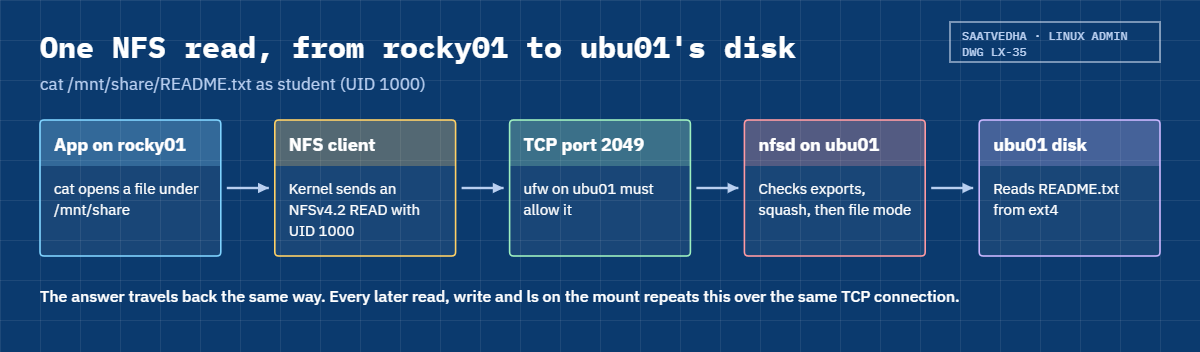
Here is what happens between typing a mount command on rocky01 and reading a file that lives on ubu01’s disk. The diagram after these steps follows one read request end to end.
1The server publishes a folder
You write a line in /etc/exports and run exportfs -rav. exportfs hands the list to the kernel, and from then on nfsd will answer clients from 10.10.10.0/24 for /srv/nfs/share. Nothing reaches the clients yet; the export only says who is allowed.
2The client mounts it
mount -t nfs4 ubu01:/srv/nfs/share /mnt/share makes the client kernel open a TCP connection to port 2049, agree on NFSv4.2 and attach the remote folder to /mnt/share. From now on, every open, read or write under that folder becomes an NFS call over that one connection.
3Every request carries the user’s numbers
When student (UID 1000) on rocky01 reads a file, the request says “UID 1000, GID 1000”. nfsd on ubu01 checks the file’s owner, group and mode against those numbers, the same way it would for a local UID 1000. ubu01’s student is also 1000, so it works, and the file shows the same owner on both sides.
4Names are only for display
ls -l on the client turns the numbers into names from the client’s own /etc/passwd. If rocky01 has no user with UID 1201, you see the number. NFSv4 can also send “user@domain” strings (the idmapd domain in /etc/idmapd.conf), and when the domains don’t match you see “nobody”.
With sec=sys, Linux clients and servers send plain numbers by default, so the UID match is what counts.
5root is squashed
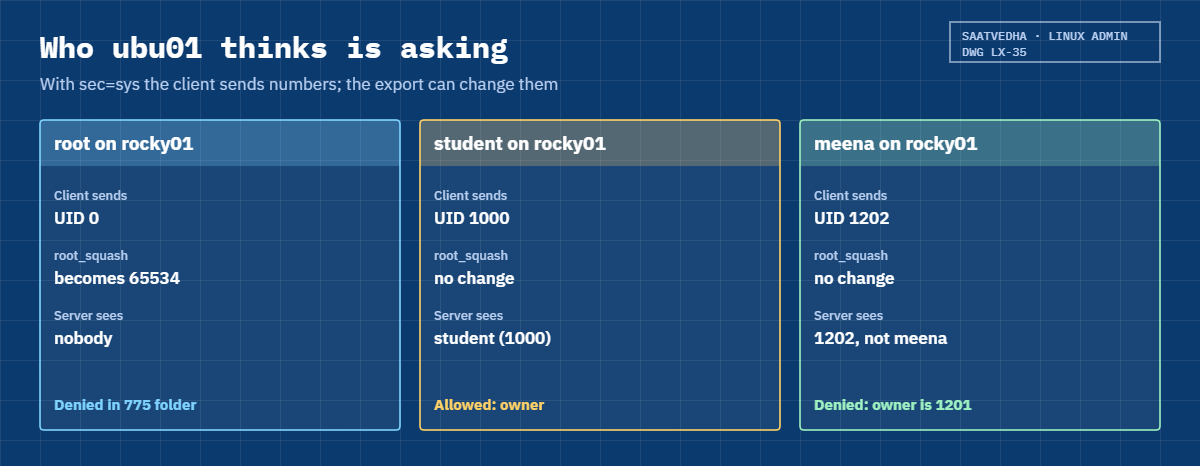
Root on the client is a special case. With root_squash, any request from UID 0 is changed to UID 65534 (nobody) before the permission check, so client root can only do what a stranger could do. That protects the server from anyone who has root on any machine in the allowed network, which is far more people than the storage team usually thinks.
The cards below show how ubu01 sees three different users from rocky01, including the one that breaks in the Break-It section.
Mounts by hand vanish at reboot, so you choose between two permanent methods. An fstab line mounts the share at boot; add _netdev so systemd waits for the network and nofail so a dead NFS server doesn’t drop the client into emergency mode (Lesson 70). autofs mounts the share the first time someone opens the folder and unmounts it after a quiet period, which suits home folders, rarely used shares and big fleets where you don’t want every reboot to depend on every NFS server.
Keep the default hard option for anything that writes. A hard mount waits and retries while the server is away, so applications stall but data isn’t silently lost. A soft mount gives up and returns an I/O error, which is acceptable only for read-only data you can fetch again.
One more habit: showmount -e asks mountd, which is an NFSv3 service. With a firewall that allows only NFSv4 (port 2049), showmount from a client hangs and times out while the mount itself works. Run showmount on the server, or test with a real mount.
Hands-on lab: share a folder from ubu01 and mount it on rocky01 three ways
Before you run any command, double-check it
Read every command twice before you press Enter. Check the target: the server name, the user, the disk or device name, the path and the sizes. These commands are for learning and were tested in our lab, not on your system. At work, run the read-only commands first, follow your change process, make sure a backup exists, and ask a second person to check anything that changes or deletes data. You run them at your own risk.
ubu01 is the server and rocky01 the client. Steps 1 to 3 run on ubu01 and steps 4 to 7 on rocky01, and step 8 goes back to ubu01. Keep one SSH window open to each VM.
The share you build here stays in place, because Lesson 81’s final project uses it again.
1Install the NFS server and make the folder
Run this on ubu01:
sudo apt update
sudo apt install -y nfs-kernel-server
systemctl is-enabled nfs-server
systemctl is-active nfs-serverYou should see this at the end:
enabled
activeUbuntu starts and enables the server as soon as the package is installed. It has nothing to share yet, so it sits idle. Now create the folder, give it to student and put one file in it:
sudo mkdir -p /srv/nfs/share
sudo chown student:student /srv/nfs/share
sudo chmod 775 /srv/nfs/share
echo "Shared from ubu01 on $(date +%F)" > /srv/nfs/share/README.txt
ls -ld /srv/nfs/share
ls -l /srv/nfs/shareYou should see something like this:
drwxrwxr-x 2 student student 4096 Oct 27 11:05 /srv/nfs/share
total 4
-rw-rw-r-- 1 student student 32 Oct 27 11:05 README.txt✅ Checkpoint: nfs-server is enabled and active, and /srv/nfs/share belongs to student with mode 775.
2Export the folder to the lab network
Run this on ubu01:
echo '/srv/nfs/share 10.10.10.0/24(rw,sync,no_subtree_check,root_squash)' | sudo tee -a /etc/exports
sudo exportfs -rav
sudo exportfs -vYou should see something like this:
/srv/nfs/share 10.10.10.0/24(rw,sync,no_subtree_check,root_squash)
exporting 10.10.10.0/24:/srv/nfs/share
/srv/nfs/share 10.10.10.0/24(sync,wdelay,hide,no_subtree_check,sec=sys,rw,root_squash,no_all_squash)-r re-reads every export, -a applies them all and -v says what it did. The second exportfs -v shows the options the kernel is using, including defaults you didn’t type, such as wdelay, sec=sys and no_all_squash. Always read this line after a change rather than trusting the file.
✅ Checkpoint: exportfs -v lists /srv/nfs/share for 10.10.10.0/24 with rw and root_squash.
3Open the NFS port in ufw
Run this on ubu01:
sudo ufw allow from 10.10.10.0/24 to any port 2049 proto tcp
sudo ufw status numbered
showmount -e localhostYou should see something like this:
Rule added
Status: active
To Action From
-- ------ ----
[ 1] OpenSSH ALLOW IN Anywhere
[ 2] 514/tcp ALLOW IN 10.10.10.11
[ 3] 2049/tcp ALLOW IN 10.10.10.0/24
[ 4] OpenSSH (v6) ALLOW IN Anywhere (v6)
Export list for localhost:
/srv/nfs/share 10.10.10.0/24Since Lesson 34, ufw drops every incoming connection that no rule allows. NFSv4 needs only TCP 2049, so one rule for the lab network is enough. Rule 2 is the rsyslog rule from Lesson 34. showmount works here because it asks the server itself; from rocky01 it would time out, as the Engineer’s View explained.
✅ Checkpoint: ufw shows 2049/tcp allowed from 10.10.10.0/24 and showmount lists the export.
4Mount the share on rocky01 by hand
Run this on rocky01:
sudo dnf install -y nfs-utils
sudo mkdir -p /mnt/share
sudo mount -t nfs4 ubu01:/srv/nfs/share /mnt/share
findmnt /mnt/shareYou should see something like this:
TARGET SOURCE FSTYPE OPTIONS
/mnt/share ubu01:/srv/nfs/share nfs4 rw,relatime,vers=4.2,rsize=524288,wsize=524288,namlen=255,hard,proto=tcp,timeo=600,retrans=2,sec=sys,clientaddr=10.10.10.11,local_lock=none,addr=10.10.10.21rocky01 is only a client, so its own firewalld needs no change: the connection goes out from rocky01 to ubu01. Read the options: vers=4.2 was agreed with the server, hard means it waits and retries if ubu01 disappears, and rsize and wsize are the largest block the server offered (512 KiB on a 2 GB server, 1 MiB on bigger ones).
✅ Checkpoint: findmnt shows /mnt/share from ubu01:/srv/nfs/share, type nfs4, vers=4.2.
5Read and write as student
Run this on rocky01:
cat /mnt/share/README.txt
touch /mnt/share/from-rocky01.txt
ls -l /mnt/share
ls -ln /mnt/shareYou should see something like this:
Shared from ubu01 on 2026-10-27
total 4
-rw-rw-r--. 1 student student 0 Oct 27 11:12 from-rocky01.txt
-rw-rw-r--. 1 student student 32 Oct 27 11:05 README.txt
total 4
-rw-rw-r--. 1 1000 1000 0 Oct 27 11:12 from-rocky01.txt
-rw-rw-r--. 1 1000 1000 32 Oct 27 11:05 README.txtThen on ubu01:
ls -l /srv/nfs/sharetotal 4
-rw-rw-r-- 1 student student 0 Oct 27 11:12 from-rocky01.txt
-rw-rw-r-- 1 student student 32 Oct 27 11:05 README.txtls -ln prints the numbers that travel over the network: 1000 and 1000. The name “student” appears on both machines only because both have student as UID 1000. The dot after the mode on rocky01 is SELinux saying the file has a label (nfs_t for NFS files).
✅ Checkpoint: The file you created on rocky01 shows up on ubu01 owned by student.
6Mount it at boot with fstab
Run this on rocky01:
sudo umount /mnt/share
echo 'ubu01:/srv/nfs/share /mnt/share nfs4 _netdev,nofail 0 0' | sudo tee -a /etc/fstab
sudo systemctl daemon-reload
sudo mount -a
findmnt /mnt/shareYou should see something like this:
ubu01:/srv/nfs/share /mnt/share nfs4 _netdev,nofail 0 0
TARGET SOURCE FSTYPE OPTIONS
/mnt/share ubu01:/srv/nfs/share nfs4 rw,relatime,vers=4.2,rsize=524288,wsize=524288,namlen=255,hard,proto=tcp,timeo=600,retrans=2,sec=sys,clientaddr=10.10.10.11,local_lock=none,addr=10.10.10.21_netdev marks it as a network file system, so systemd mounts it after the network is up and unmounts it before the network goes down at shutdown. nofail lets the boot carry on if ubu01 is off, which on an 8 GB laptop running two VMs at a time will happen. daemon-reload makes systemd re-read fstab, and mount -a proves the line works before you ever reboot (Lesson 43).
✅ Checkpoint: mount -a printed no error and findmnt shows /mnt/share again.

7Mount on demand with autofs
Paste this whole block on rocky01:
sudo dnf install -y autofs
echo '/nfs /etc/auto.nfs --timeout=60' | sudo tee /etc/auto.master.d/nfs.autofs
echo 'share -fstype=nfs4,rw ubu01:/srv/nfs/share' | sudo tee /etc/auto.nfs
sudo systemctl enable --now autofsYou should see something like this:
/nfs /etc/auto.nfs --timeout=60
share -fstype=nfs4,rw ubu01:/srv/nfs/share
Created symlink '/etc/systemd/system/multi-user.target.wants/autofs.service' → '/usr/lib/systemd/system/autofs.service'.The master map line says “autofs owns the folder /nfs, the keys inside it are listed in /etc/auto.nfs, and idle mounts go away after 60 seconds”. The map line says “the key share is ubu01:/srv/nfs/share, mounted as NFSv4 read-write”. Rocky’s /etc/auto.master already includes every *.autofs file in /etc/auto.master.d, so you never edit the main file.
Now use it:
ls /nfs
ls /nfs/share
findmnt -R /nfsYou should see something like this:
from-rocky01.txt README.txt
TARGET SOURCE FSTYPE OPTIONS
/nfs /etc/auto.nfs autofs rw,relatime,fd=18,pgrp=2716,timeout=60,minproto=5,maxproto=5,indirect,pipe_ino=31352
└─/nfs/share ubu01:/srv/nfs/share nfs4 rw,relatime,vers=4.2,rsize=524288,wsize=524288,namlen=255,hard,proto=tcp,timeo=600,retrans=2,sec=sys,clientaddr=10.10.10.11,local_lock=none,addr=10.10.10.21The first ls /nfs printed nothing: autofs doesn’t show keys until they’re used. Opening /nfs/share triggered the mount within a second. Wait about two minutes without touching it, then run findmnt -R /nfs again:
TARGET SOURCE FSTYPE OPTIONS
/nfs /etc/auto.nfs autofs rw,relatime,fd=18,pgrp=2716,timeout=60,minproto=5,maxproto=5,indirect,pipe_ino=31352✅ Checkpoint: /nfs/share mounts when you open it and is gone from findmnt after a couple of idle minutes.
8See the client from the server side
Run this on ubu01:
sudo ss -tn state established '( sport = :2049 )'You should see something like this:
State Recv-Q Send-Q Local Address:Port Peer Address:Port Process
ESTAB 0 0 10.10.10.21:2049 10.10.10.11:823One TCP connection from rocky01, even though rocky01 has two mounts of the same server: the NFS client shares one connection per server. The client port is below 1024 because the export’s default secure option expects a privileged port. When users complain that “the share is slow”, this is where you start on the server: who is connected, and is anything queued in Recv-Q or Send-Q.
✅ Checkpoint: ss shows an ESTAB connection from 10.10.10.11 to port 2049.
Break It, Then Fix It
Take a VirtualBox snapshot of both VMs first (“before-l47-break”). All three failures print a short message that hides the real cause, which is why they cost so much time at work.
1Write as root into the share
Run this on rocky01:
sudo touch /mnt/share/root-was-hereYou’ll get this error:
touch: cannot touch '/mnt/share/root-was-here': Permission deniedroot can write anywhere on rocky01, so this looks impossible. But ubu01 never sees root: root_squash turned UID 0 into nobody (65534), and nobody isn’t the owner of the folder, isn’t in the student group, and “others” have only r-x. The server did what the export told it to.
Fix: write as the user who owns the data. If root on clients must drop files somewhere, give it a folder that “nobody” can write. On ubu01:
sudo install -d -m 1777 /srv/nfs/share/dropboxThen on rocky01:
sudo touch /mnt/share/dropbox/root-was-here
ls -l /mnt/share/dropbox-rw-r--r--. 1 nobody nobody 0 Oct 27 11:40 root-was-hereOn ubu01 the same file shows as nobody nogroup, because Ubuntu calls GID 65534 nogroup. The tempting fix, no_root_squash, would let root on any machine in 10.10.10.0/24 own every file on the share, so use it only for a named host and a written reason.
✅ Checkpoint: root’s file in dropbox is owned by nobody, and you can explain why the first touch failed.
2Same name, different UID
On ubu01, create a user meena with UID 1201 and a private folder for her:
sudo useradd -m -u 1201 meena
sudo install -d -o meena -g meena -m 700 /srv/nfs/share/meena
sudo -u meena sh -c 'echo "meena notes" > /srv/nfs/share/meena/notes.txt'On rocky01, create meena too, but let the UID come out differently (1202), and try her folder:
sudo useradd -m -u 1202 meena
sudo -u meena ls /mnt/share/meena
ls -ln /mnt/share | grep meena
ls -l /mnt/share | grep meenaYou’ll get this:
ls: cannot open directory '/mnt/share/meena': Permission denied
drwx------. 2 1201 1201 4096 Oct 27 11:45 meena
drwx------. 2 1201 1201 4096 Oct 27 11:45 meenaBoth machines have a user called meena, but the request from rocky01 says “UID 1202”, and the folder belongs to 1201, so the server refuses. The giveaway is that ls -l on rocky01 shows a number instead of a name, because rocky01 has no user 1201. On a real fleet this happens when two servers were built on different days and useradd picked the next free number on each.
Fix: make the numbers match. On rocky01 (meena must not be logged in):
sudo usermod -u 1201 meena
sudo groupmod -g 1201 meena
sudo chown -R meena:meena /home/meena
sudo -u meena cat /mnt/share/meena/notes.txtmeena notesusermod -u also changes the owner of files in her home folder, and the chown catches the group. For more than a few servers, fix it at the source: give service accounts fixed IDs in your build (useradd -u in Ansible, Lesson 64), or let every server take users from one directory with SSSD (Lesson 54).
✅ Checkpoint: ls -l on rocky01 now shows meena as the owner and she can read notes.txt.
3Lose the firewall rule
On ubu01, delete the NFS rule (as if someone “cleaned up” ufw):
sudo ufw delete allow from 10.10.10.0/24 to any port 2049 proto tcpRule deletedOn rocky01, stop autofs and remount the fstab share:
sudo systemctl stop autofs
sudo umount /mnt/share
sudo mount /mnt/shareThe mount hangs for about two minutes, then you’ll get:
mount.nfs: Connection timed out for ubu01:/srv/nfs/share on /mnt/shareA drop rule never answers, so the client keeps retrying until its two-minute limit runs out. Notice that the share kept working right up to the moment you unmounted it: ufw lets established connections continue, so a bad firewall change on an NFS server often shows up days later, when a client reboots.
Fix: put the rule back on ubu01, then mount again on rocky01:
sudo ufw allow from 10.10.10.0/24 to any port 2049 proto tcpsudo mount -a
sudo systemctl start autofs
findmnt /mnt/share✅ Checkpoint: findmnt shows /mnt/share again and ls /nfs/share works.
Clean up the Break-It objects. On rocky01:
sudo userdel -r meenaOn ubu01:
sudo rm -rf /srv/nfs/share/meena /srv/nfs/share/dropbox
sudo userdel -r meena✅ Checkpoint: Neither VM has a meena user, and /srv/nfs/share holds only README.txt and from-rocky01.txt.
This happened at work
The new server that couldn’t see its own uploads
Our on-call engineer at a grocery delivery app in Bhopal had this one during a festival sale. The product team had added a seventh web server on the Friday evening to handle the traffic, built from a fresh image, and all seven mounted the same NFS share for product photos. By 9 p.m. the sellers’ app was full of complaints: photos uploaded “successfully” were showing as broken images for about one shopper in seven.
The first guesses were the CDN and then Nginx, so caches were purged and Nginx restarted twice, which changed nothing. Someone remounted the share on the new server, and after that someone else suggested opening the export with no_root_squash “to rule out permissions”. He stopped that one and ran ls -ln on the photo folder instead.
Every photo uploaded through the new server belonged to UID 998, mode 640, and every other photo to UID 1005. The web service account had been created with plain useradd -r on the new image, which picked the next free system number. The old servers couldn’t read files owned by 998, and the new server couldn’t read anything owned by 1005.
A usermod -u 1005 on the new server, a chown of the 640 new files and an Nginx restart fixed it in ten minutes.
After the sale the team pinned the UID and GID of every service account in their Ansible role, added a check that compares id appsvc across all servers that mount the same share, and wrote one line in the runbook: if NFS says Permission denied, look at ls -ln before anyone touches the export.
Common mistakes and troubleshooting
| Mistake | What happens | What to do instead |
|---|---|---|
A space between the client and the bracket: 10.10.10.0/24 (rw,sync) | exportfs warns, the network gets the read-only defaults and everyone else (*) gets read-write | No space: 10.10.10.0/24(rw,sync), then read exportfs -v |
Turning on no_root_squash to make a Permission denied go away | Root on any allowed client owns every file on the server | Find the real cause with ls -ln; use no_root_squash only for named hosts that need it |
| Creating the same user with different UIDs on different servers | Files show numbers instead of names and access is denied | Pin UIDs and GIDs in your build, or use central identity (SSSD) |
An NFS fstab line without _netdev,nofail | The client hangs at boot or drops to emergency mode when the server is down | Add both options and test with mount -a after systemctl daemon-reload |
Testing a firewall with showmount -e from the client | It times out on an NFSv4-only firewall, so people open rpcbind and mountd for no reason | Test with a real mount; run showmount on the server itself |
Using soft mounts for data that is written | A short network blip becomes an I/O error and a half-written file | Keep the default hard for anything that writes |
Editing /etc/exports and forgetting exportfs -ra | Clients still get the old rules, so the change “didn’t work” | Run sudo exportfs -rav and read exportfs -v |
Interview questions
Click a question to open it. Each one is written the way an interviewer would ask it. Under it you will see why they ask it and one way you could answer, in your own words.
Fresher level
1. What does root_squash do on an NFS export, and why is it the default?
Why they ask this: They want to know if you understand that root on a client is not trusted by the server, and why that matters for security.
How you might answer: root_squash maps requests from UID 0 on the client to the anonymous user, nobody with UID 65534, before the server checks permissions. So root on a client can only do what a stranger could do on the share.
It’s the default because anyone with root on any machine in the allowed network could otherwise change or delete every file. When one host truly needs root access, I give no_root_squash to that host only, never to a whole subnet.
2. A user says /mnt/share is empty after a reboot. How do you check what’s going on?
Why they ask this: A practical first-response question. They’re checking that you look before you change anything.
How you might answer: I’d run findmnt /mnt/share to see whether anything is mounted there. If it isn’t, the user is looking at the empty local folder underneath, and I’d check the fstab line, then try sudo mount /mnt/share and read the error.
“Connection timed out” points me at the network or the server’s firewall, “access denied by server” at the export list. I’d also look at journalctl -b -u mnt-share.mount to see what happened during boot.
2–5 years experience
3. Files written from one app server show a number instead of a user name on the others, and the app can’t read them. What’s happening?
Why they ask this: This is the classic UID mismatch. They want the explanation in terms of how NFS sends identities, and a fix that lasts.
How you might answer: With sec=sys, NFS sends numeric UIDs and GIDs, not names, so the service account on that server has a different UID from the others. ls -ln on the share and id appsvc on each server would show it straight away.
For the immediate fix I’d change the UID on the odd server with usermod -u and chown the files it wrote. Then I’d pin service account IDs in our Ansible role or move users to SSSD, so a new server can’t pick a different number again.
4. When would you use autofs instead of an fstab entry for an NFS share?
Why they ask this: They want to hear trade-offs, not a definition. Real admins have opinions on boot dependencies.
How you might answer: fstab is right for a share the server needs all the time, like an app’s upload folder, and I give it _netdev,nofail so boot doesn’t depend on the NFS server. autofs is better for home folders, rarely used shares or many shares on many clients, because it mounts on first access and unmounts when idle.
With autofs a dead NFS server only affects the people who open that folder, not every reboot. The cost is one more service to understand, and the mount isn’t there until someone touches it, which can confuse monitoring.
Senior level
5. You’re designing NFS storage for 30 web servers. Walk me through the decisions you’d make.
Why they ask this: Senior design question. They’re looking for security, consistency, failure behaviour and operations, in your own words.
How you might answer: I’d use NFSv4.2 only, so the firewall needs only TCP 2049, export to the web subnet with root_squash, and pin UIDs for the service account across all 30 servers. If the network can’t be trusted I’d use Kerberos with sec=krb5p instead of sec=sys. Clients get hard mounts with _netdev and nofail.
The server itself must not be a single point of failure, so I’d put it on an HA pair or a managed NFS service, with snapshots and backups of the export. I’d monitor latency from a client, not only the server’s health, and document what the web servers do when the share stalls.
6. After a firewall change, existing NFS clients work fine but a client that rebooted can’t mount. How do you troubleshoot it, and what does it tell you?
Why they ask this: They want you to connect stateful firewalls with long-lived NFS connections, and to avoid the showmount trap.
How you might answer: Working old clients and a failing new one point at the firewall: established connections are still allowed, new ones aren’t. I’d check the rule set on the server with ufw status or firewall-cmd --list-all for 2049/tcp, and on the client the mount error, usually “Connection timed out” with a drop rule.
I wouldn’t test with showmount, because it needs rpcbind and mountd, which an NFSv4 setup doesn’t open. It also tells me the change was never tested with a fresh connection, so I’d add a new-connection check to the firewall change procedure.
Quick quiz
Q1. Which port must be open on the server for NFSv4?
- TCP 111
- TCP 2049
- TCP 445
- UDP 514
Show answer
B — NFSv4 uses only TCP 2049. Port 111 (rpcbind) and mountd are needed for NFSv3 and showmount.
Q2. root on rocky01 runs touch on the share and gets Permission denied. What is the most likely reason?
- The share is mounted read-only
- root_squash mapped root to nobody, who can’t write in that folder
- rocky01’s firewalld blocks writes
- NFSv4.2 doesn’t support root
Show answer
B — With root_squash, UID 0 becomes 65534, and normal permissions are checked for that user.
Q3. What do _netdev and nofail do on an NFS fstab line?
- Make the mount faster
- Wait for the network, and let the boot continue if the mount fails
- Turn off root_squash
- Mount it only when it’s used
Show answer
B — _netdev orders the mount after the network, and nofail stops a failed mount from blocking the boot.
Q4. meena on rocky01 can’t open her folder on the share, and ls -l shows 1201 as the owner. Why?
- Her password is wrong
- Her UID on rocky01 is not 1201, and NFS sends numbers, not names
- autofs is not running
- The export uses all_squash
Show answer
B — With sec=sys the server compares the client’s numeric UID with the file owner.
Q5. Which command shows the options the server is using for each export?
cat /etc/exportsshowmount -eexportfs -vnfsstat -m
Show answer
C — exportfs -v shows the active options, including defaults. nfsstat -m shows mount options on a client.
Quick recap
- An NFS server on Linux exports folders listed in
/etc/exports;exportfs -ravapplies them andexportfs -vshows what is active. - NFSv4.2 needs only TCP 2049, so on ubu01 one ufw rule for the lab network is enough. showmount needs NFSv3 services and is a poor test from a client.
- Clients mount with
mount -t nfs4, in fstab with_netdev,nofail, or on demand with autofs (/etc/auto.master.d/*.autofsplus a map file). - With sec=sys the server checks numeric UIDs and GIDs from the client, so the same user must have the same numbers everywhere.
- root_squash maps client root to nobody (65534). Keep it on, and use no_root_squash only for named hosts that need it.
Next lesson
Lesson 48: iSCSI and multipath on Linux → You’ll turn ubu01 into an iSCSI target with targetcli, add a second network so rocky01 reaches it on two paths, and let device-mapper multipath keep the disk alive when one path fails.
Further reading: NFS server Linux
Want to go deeper into NFS server Linux? Read the man pages for exports(5) and nfs(5), the Ubuntu Server documentation on NFS, Red Hat’s RHEL 10 documentation on network file services and autofs, and the kernel’s NFS documentation. You can also see the full plan for this course on the Linux Administration course page.
