Time sync with chrony: clocks, time zones and NTP
-
Phase 0: Before you start
-
Phase 1: The origins and OS architecture
-
Phase 2: Day-to-day administration and the command builder
-
Phase 3: Enterprise infrastructure and storage
-
Phase 4: Troubleshooting step by step
-
Phase 5: Final project and career
Every log line, certificate check and AD login depends on the clock, and on Rocky Linux 10 and Ubuntu 26.04 the service that keeps it right is chrony NTP: the chronyd daemon asks time servers on the network for the time with the Network Time Protocol and nudges the system clock until it agrees. When the clock drifts, logins fail, TLS connections are refused and nobody can line up the logs from two servers.
In this lesson you’ll read the clock with timedatectl, see which servers chrony trusts with chronyc sources and how far off it is with chronyc tracking, and set the time zone on both VMs. Then rocky01 becomes the lab’s own time server for ubu01, and in Break-It you mix up the time zone, push the clock back by hours and block NTP at the firewall, which are the three time problems you’ll meet at work.
Where this lesson fits
Lesson 40 of 82 in Linux Administration · Phase 2: Day-to-day administration and the command builder · Before this: Lesson 39, bash scripting for admins · Next: Lesson 41, SELinux in practice
| Time | You need | By the end you can |
|---|---|---|
| About 70 minutes | rocky01 and ubu01 running with internet access, sudo on both, and a VirtualBox snapshot before Break-It | Tell a wrong time zone from a wrong clock, read chronyc sources and tracking, set the zone with timedatectl, serve time to other servers and fix NTP that is blocked |
What it is, in one line
chrony keeps the system clock in step with trusted time servers over NTP, while the time zone only changes how that same moment is shown to you.
In Simple Words
The station clock and everyone’s watch
At a big railway station, the clock on the platform is set from a master clock, and the station master checks his watch against it every morning. If his watch runs a few seconds fast, he doesn’t smash it to the right time in the middle of announcing a train; he lets it run a little slower until it agrees. Only when a new watch arrives hours out does he set it in one go.
A passenger who has just flown in from London looks at the same moment and her phone shows a different number, because it shows London’s time. Nobody’s clock is wrong; they only show the hour differently. chrony is the station master checking against the master clock, and the time zone is the city your watch is set to show.
Engineer's View
Three clocks, two services, one protocol
A Linux server has three things people call “the time”. The hardware clock (RTC) is a battery-backed chip on the motherboard, read once at boot. The system clock lives in the kernel and counts seconds since 1 January 1970 in UTC; this is what chrony corrects.
The time zone is only a rule file, /etc/localtime, a link into /usr/share/zoneinfo that tells programs how to display UTC as local time.
| Rocky Linux 10 | Ubuntu 26.04 | |
|---|---|---|
| Package and service | chrony, chronyd.service | chrony, chrony.service (alias chronyd). It replaced systemd-timesyncd as the default in 25.10 |
| Main config | /etc/chrony.conf | /etc/chrony/chrony.conf, plus drop-ins in /etc/chrony/conf.d/ and /etc/chrony/sources.d/ |
| Default time servers | pool 2.rocky.pool.ntp.org iburst | NTS pools 1 to 4.ntp.ubuntu.com and ntp-bootstrap.ubuntu.com, in sources.d/ubuntu-ntp-pools.sources |
| Runs as user | chrony | _chrony |
| Ports | 123/udp NTP; 323/udp on localhost for chronyc | 123/udp NTP; 4460/tcp outbound for the NTS key exchange; 323/udp for chronyc |
NTS (Network Time Security) adds a certificate-checked key exchange on TCP port 4460, so a man in the middle can’t feed your server a false time. Ubuntu turns it on by default; Rocky uses plain NTP unless you add nts to a server line. chrony fixes small errors by slewing, running the clock slightly faster or slower until it catches up, and only steps (jumps) the clock when the error is larger than the makestep limit, which both distributions allow only in the first three updates after start.
Why it matters at work: Kerberos, and so every Active Directory login (Lesson 54), rejects tickets when the clocks differ by more than 5 minutes by default. TLS refuses certificates that look “not yet valid” or “expired” to a wrong clock. Cron jobs and timers fire at the wrong moment, and logs from two servers can’t be put in order during an incident.
How it works, step by step
This is what chronyd does from the moment it starts. The picture after these steps shows where rocky01 and ubu01 sit in the chain of time servers once you finish the lab.
1Ask several servers, quickly at first
A pool line is a DNS name that returns several addresses, and chrony uses up to four of them as separate sources. iburst sends four quick requests at start-up, so the clock is usable within seconds instead of minutes; after that chrony polls every 64 seconds and stretches the interval up to 1024 seconds when the clock is stable.
2Each reply gives an offset and a stratum
From the four timestamps in a request and its reply, chrony works out the round-trip delay and how far your clock is from the server’s, the offset. Every server also reports its stratum: stratum 1 servers read a reference clock such as GPS or an atomic clock, a server that syncs from them is stratum 2, and each hop adds one.
3Choose the best sources, throw out the liars
chrony compares the sources’ answers. A server whose time doesn’t overlap with the others is marked as a falseticker and ignored, one that jumps around too much is marked too variable, and the best of the rest is selected with *. Others that agree are combined with it (+).
That’s why you want at least three or four sources: with two that disagree, chrony can’t tell which one is wrong.
4Correct the clock gently, and remember the drift
chrony slews the clock by a tiny rate rather than jumping it, so time never runs backwards under a running database. It also measures how fast the local clock gains or loses (the frequency, in parts per million) and saves it in the drift file, so after a reboot it starts with the right correction. With rtcsync the kernel copies the system time to the hardware clock every 11 minutes.
5The time zone only changes the display
The kernel keeps UTC and doesn’t know about time zones at all. When a program prints a time, the C library reads /etc/localtime and converts. timedatectl set-timezone changes that link and nothing else, and a single command can use a different zone with the TZ variable. The picture below shows the layers from the chip on the motherboard to the line in your log.
6timedatectl and chronyc split the work
timedatectl talks to systemd-timedated: it shows the clock, sets the time zone, and turns NTP on or off by starting or stopping whichever service is listed in /usr/lib/systemd/ntp-units.d/ (chronyd on Rocky, chrony on Ubuntu). While NTP is on, it refuses to set the time by hand. Everything about servers and accuracy is chrony’s job, through chronyc.
Reading commands such as sources and tracking work as any user. Commands that change something, such as makestep and reload sources, and a few that show other machines’ details, such as clients, need sudo, because chronyc then talks to chronyd over a socket only root can open. For monitoring, watch two things: whether the clock is synchronised at all, and the offset in chronyc tracking.
Hands-on lab: check, set and serve time with chrony
Before you run any command, double-check it
Read every command twice before you press Enter. Check the target: the server name, the user, the disk or device name, the path and the sizes. These commands are for learning and were tested in our lab, not on your system. At work, run the read-only commands first, follow your change process, make sure a backup exists, and ask a second person to check anything that changes or deletes data. You run them at your own risk.
Steps 1 to 7 only read information, apart from setting the time zone. Step 8 changes chrony on both VMs and opens a firewall port on rocky01. The times, IP addresses and offsets in your output will differ, because the pool hands out different servers to everyone.
1Read the clock with timedatectl
Run this on rocky01, then on ubu01:
timedatectlYou should see something like this on rocky01:
Local time: Tue 2026-10-27 11:31:07 IST
Universal time: Tue 2026-10-27 06:01:07 UTC
RTC time: Tue 2026-10-27 06:01:07
Time zone: Asia/Kolkata (IST, +0530)
System clock synchronized: yes
NTP service: active
RTC in local TZ: noLocal time and Universal time are the same moment shown in two ways, five and a half hours apart. RTC time is the hardware clock, kept in UTC (“RTC in local TZ: no”, which is what you want on Linux). “System clock synchronized: yes” means chrony has a good source and has brought the clock into line; “NTP service: active” means the time service is running.
ubu01 shows the same layout. If its Time zone line says Etc/UTC (UTC, +0000), the Ubuntu installer didn’t pick a zone for you, which is normal on cloud images; step 6 sets it.
✅ Checkpoint: Both VMs say “System clock synchronized: yes” and “NTP service: active”.
2Find the service that keeps time
Run this on rocky01:
systemctl is-active chronyd
ps -o user,pid,cmd -C chronydYou should see something like this:
active
USER PID CMD
chrony 760 /usr/sbin/chronyd -F 2And on ubu01, where the unit is called chrony:
systemctl is-active chrony
ps -o user,pid,cmd -C chronydYou should see something like this:
active
USER PID CMD
_chrony 812 /usr/sbin/chronyd -n -F 1The program is chronyd on both, running as its own unprivileged user, and -F turns on a seccomp filter that limits which system calls it may make. On Ubuntu systemctl is-active chronyd also works, because chronyd is an alias of chrony.service. You won’t find systemd-timesyncd on a fresh 26.04 server: the chrony package conflicts with it, so installing one removes the other.
✅ Checkpoint: chronyd is active on both VMs.
3Read chrony’s configuration
Run this on rocky01:
grep -Ev '^(#|$)' /etc/chrony.confYou should see something like this (your file may have one or two more lines, such as keyfile):
pool 2.rocky.pool.ntp.org iburst
sourcedir /run/chrony-dhcp
driftfile /var/lib/chrony/drift
makestep 1.0 3
rtcsync
ntsdumpdir /var/lib/chrony
logdir /var/log/chronyAnd on ubu01, where the servers live in their own file:
grep -Ev '^(#|$)' /etc/chrony/sources.d/ubuntu-ntp-pools.sources
grep -E '^(makestep|rtcsync|sourcedir|confdir)' /etc/chrony/chrony.confYou should see this:
pool 1.ntp.ubuntu.com iburst maxsources 1 nts prefer
pool 2.ntp.ubuntu.com iburst maxsources 1 nts prefer
pool 3.ntp.ubuntu.com iburst maxsources 1 nts prefer
pool 4.ntp.ubuntu.com iburst maxsources 1 nts prefer
pool ntp-bootstrap.ubuntu.com iburst maxsources 1 nts certset 1
sourcedir /run/chrony-dhcp
sourcedir /etc/chrony/sources.d
makestep 1 3
rtcsync
confdir /etc/chrony/conf.dmakestep 1.0 3 (written makestep 1 3 on Ubuntu) means “step the clock if it’s more than one second out, but only in the first three updates”. sourcedir /run/chrony-dhcp adds any NTP servers your DHCP server hands out. Ubuntu keeps its server list in sources.d, so you can add your own file there without touching the package’s config.
✅ Checkpoint: You found the pool line on rocky01 and the five NTS pool lines on ubu01.
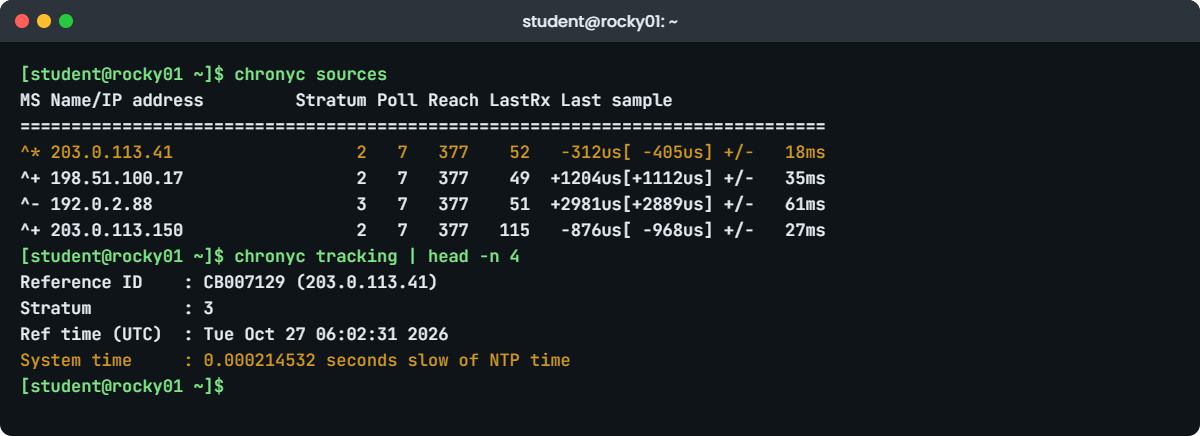
4See which servers chrony uses
Run this on rocky01:
chronyc sources -vYou should see something like this:
.-- Source mode '^' = server, '=' = peer, '#' = local clock.
/ .- Source state '*' = current best, '+' = combined, '-' = not combined,
| / 'x' = may be in error, '~' = too variable, '?' = unusable.
|| .- xxxx [ yyyy ] +/- zzzz
|| Reachability register (octal) -. | xxxx = adjusted offset,
|| Log2(Polling interval) --. | | yyyy = measured offset,
|| \ | | zzzz = estimated error.
|| | | \
MS Name/IP address Stratum Poll Reach LastRx Last sample
===============================================================================
^* 203.0.113.41 2 7 377 52 -312us[ -405us] +/- 18ms
^+ 198.51.100.17 2 7 377 49 +1204us[+1112us] +/- 35ms
^- 192.0.2.88 3 7 377 51 +2981us[+2889us] +/- 61ms
^+ 203.0.113.150 2 7 377 115 -876us[ -968us] +/- 27msThe legend at the top explains the first two columns. ^* is the source chrony follows, ^+ sources agree and are combined with it, and ^- is usable but left out, probably because it’s further away (stratum 3). Reach is an octal record of the last eight polls: 377 means all eight answered. Last sample is how far your clock was from that server: a few hundred microseconds is excellent for a VM.
✅ Checkpoint: One line starts with ^* and Reach is 377 (or climbing towards it) for most sources.
5Check how far off the clock is
Run this on rocky01:
chronyc trackingYou should see something like this:
Reference ID : CB007129 (203.0.113.41)
Stratum : 3
Ref time (UTC) : Tue Oct 27 06:02:31 2026
System time : 0.000214532 seconds slow of NTP time
Last offset : -0.000093117 seconds
RMS offset : 0.000418274 seconds
Frequency : 3.482 ppm fast
Residual freq : -0.004 ppm
Skew : 0.091 ppm
Root delay : 0.031872012 seconds
Root dispersion : 0.001523644 seconds
Update interval : 129.3 seconds
Leap status : NormalReference ID is the selected server (CB007129 is 203.0.113.41 in hex), and rocky01 itself is now stratum 3, one more than its source. System time is the line that matters most: the clock is 0.2 milliseconds slow of NTP time and chrony is slewing it. Frequency says this VM’s clock gains 3.5 parts per million, about 0.3 seconds a day, which chrony corrects all the time.
“Leap status: Not synchronised” would mean chrony has no usable source.
✅ Checkpoint: System time is well under one second and Leap status says Normal.
6Set the time zone and compare zones
Find zone names, then show one moment in four ways on rocky01:
timedatectl list-timezones | grep -E 'Kolkata|London|New_York'
date '+%F %T %Z'
TZ=Europe/London date '+%F %T %Z'
TZ=America/New_York date '+%F %T %Z'
date -u '+%F %T %Z'You should see something like this:
America/New_York
Asia/Kolkata
Europe/London
2026-10-27 11:33:20 IST
2026-10-27 06:03:20 GMT
2026-10-27 02:03:20 EDT
2026-10-27 06:03:20 UTCSame second, four labels. London has already left summer time on 25 October, so it shows GMT, while New York is still on EDT until 1 November. TZ=... changes the zone for one command only.
Now set ubu01’s zone for good (if it already says Asia/Kolkata, the command changes nothing):
sudo timedatectl set-timezone Asia/Kolkata
timedatectl | grep 'Time zone'
ls -l /etc/localtimeYou should see something like this:
Time zone: Asia/Kolkata (IST, +0530)
lrwxrwxrwx 1 root root 34 Oct 27 11:35 /etc/localtime -> ../usr/share/zoneinfo/Asia/Kolkata✅ Checkpoint: ubu01 shows Asia/Kolkata (IST, +0530) and /etc/localtime points at it.
7Look at the hardware clock
Run this on rocky01:
sudo hwclock --show
timedatectl | grep -E 'RTC'You should see something like this:
2026-10-27 11:36:02.512304+05:30
RTC time: Tue 2026-10-27 06:06:02
RTC in local TZ: nohwclock reads the chip and prints it in local time; timedatectl shows the raw value, which is UTC. In VirtualBox the “hardware clock” comes from the host, and the VM setting “Hardware Clock in UTC Time” (System, Motherboard) should stay ticked for Linux guests. Keep the RTC in UTC: storing local time in it causes a one-hour mess twice a year in any zone with summer time.
[Add your screenshot here]: VirtualBox, rocky01 Settings, System, Motherboard tab, with “Hardware Clock in UTC Time” ticked.
✅ Checkpoint: The hardware clock agrees with the system clock to within a second, and RTC in local TZ is no.
8Serve time to the lab from rocky01
On rocky01, allow the lab network, restart chronyd and open the firewall:
sudo cp -a /etc/chrony.conf /etc/chrony.conf.bak
echo 'allow 10.10.10.0/24' | sudo tee -a /etc/chrony.conf
sudo systemctl restart chronyd
sudo firewall-cmd --permanent --add-service=ntp
sudo firewall-cmd --reload
sudo firewall-cmd --list-services
sudo ss -ulnp | grep chronydYou should see something like this:
allow 10.10.10.0/24
success
success
cockpit dhcpv6-client ntp ssh
UNCONN 0 0 0.0.0.0:123 0.0.0.0:* users:(("chronyd",pid=1544,fd=7))
UNCONN 0 0 127.0.0.1:323 0.0.0.0:* users:(("chronyd",pid=1544,fd=5))
UNCONN 0 0 [::1]:323 [::]:* users:(("chronyd",pid=1544,fd=6))chronyd only opens port 123 for other machines once an allow line exists; before this it listened on 323 for chronyc alone (you saw that in Lesson 23). The firewalld service ntp opens 123/udp, as in Lesson 34. Now point ubu01 at rocky01 with a file of its own in sources.d:
On ubu01:
echo 'server rocky01.saatlab.test iburst' | sudo tee /etc/chrony/sources.d/saatlab.sources
sudo chronyc reload sources
sleep 20
chronyc -N sourcesYou should see something like this:
server rocky01.saatlab.test iburst
200 OK
MS Name/IP address Stratum Poll Reach LastRx Last sample
===============================================================================
^* 1.ntp.ubuntu.com 2 6 377 34 -201us[ -287us] +/- 92ms
^+ 2.ntp.ubuntu.com 2 6 377 35 +412us[ +326us] +/- 97ms
^+ 3.ntp.ubuntu.com 2 6 377 33 -655us[ -741us] +/- 95ms
^+ 4.ntp.ubuntu.com 2 6 377 36 +128us[ +42us] +/- 101ms
^- ntp-bootstrap.ubuntu.com 2 6 377 35 +1820us[+1734us] +/- 118ms
^- rocky01.saatlab.test 3 6 17 4 +247us[ +247us] +/- 19ms-N prints the names from the config files instead of reverse DNS names, which is clearer with pools. rocky01 is reachable (Reach 17 after four polls) at stratum 3, and ubu01 keeps following its NTS servers, which the Ubuntu file marks with prefer. At work you’d remove the public pools and list two or three internal servers instead. Back on rocky01, check that the requests arrive:
sudo chronyc clientsYou should see something like this:
Hostname NTP Drop Int IntL Last Cmd Drop Int Last
===============================================================================
ubu01.saatlab.test 11 0 6 - 18 0 0 - -✅ Checkpoint: ubu01 lists rocky01.saatlab.test with Reach above 0, and rocky01 lists ubu01 as a client.
9Check sync the way a script would
Run this on either VM:
timedatectl show -p Timezone -p NTPSynchronized
chronyc tracking | awk '/^System time/ {print $4, $5, $6}'You should see something like this:
Timezone=Asia/Kolkata
NTPSynchronized=yes
0.000214532 seconds slowtimedatectl show prints properties as Name=value, which a script can test without parsing a table, and awk pulls the offset out of tracking. A monitoring check usually alerts when NTPSynchronized is no for more than a few minutes, or when the offset passes a limit such as 100 ms; that would make a good tenth check for saat-health.sh from Lesson 39.
✅ Checkpoint: NTPSynchronized is yes and you can read the offset as one line.
Break It, Then Fix It
Take a VirtualBox snapshot of both VMs first (on the laptop: VBoxManage snapshot rocky01 take before-l40, and the same for ubu01). Each failure below looks like “the time is wrong”, and each has a different cause and fix.
1Wrong time zone, right time
On ubu01, pretend someone set the wrong zone:
sudo timedatectl set-timezone America/New_York
date '+%F %T %Z'
chronyc tracking | grep -E '^(System time|Leap status)'You should see something like this:
2026-10-27 02:13:05 EDT
System time : 0.000081342 seconds fast of NTP time
Leap status : NormalA user would report “the server is nine and a half hours behind”, but chrony says the clock is perfect, and it is: date -u would show the right UTC time. Only the display is wrong, so anything that prints local time is nine and a half hours out. Don’t touch chrony or the clock for this.
On Ubuntu, try the old name of India’s zone that many runbooks still use:
sudo timedatectl set-timezone Asia/CalcuttaYou’ll get this error on ubu01:
Failed to set time zone: Invalid or not installed time zone 'Asia/Calcutta'Ubuntu moved old zone names such as Asia/Calcutta and US/Eastern into a separate package, tzdata-legacy, which a server doesn’t install. Rocky still accepts the old name as a link. Use the current names from timedatectl list-timezones everywhere.
Fix: set the right zone with its current name.
sudo timedatectl set-timezone Asia/Kolkata
date '+%F %T %Z'2026-10-27 11:43:05 IST✅ Checkpoint: ubu01 shows IST again, and you never changed the clock itself.
2Wrong time: the clock itself is off
On rocky01, try to set the clock back by hand:
sudo timedatectl set-time '2026-10-27 09:00:00'You’ll get this error:
Failed to set time: Automatic time synchronization is enabledtimedated won’t let you fight the time service. Turn NTP off first, which stops and disables chronyd, then set the wrong time. sudo may ask for your password again, because its cached login now looks like it comes from the future.
sudo timedatectl set-ntp false
sudo timedatectl set-time '2026-10-27 09:00:00'
date '+%F %T %Z'
chronyc trackingYou should see something like this:
2026-10-27 09:00:01 IST
506 Cannot talk to daemonThe clock is now about 2 hours 41 minutes behind, and chronyc can’t reach chronyd because it isn’t running. On a domain-joined server, Kerberos logins would already fail, and any HTTPS call would refuse a certificate issued in the last few hours as “not yet valid”.
Fix: turn NTP back on and watch chrony step the clock (it’s within the first three updates, so makestep applies):
sudo timedatectl set-ntp true
sleep 15
journalctl -u chronyd -n 4 --no-pager
timedatectl | grep -E 'Local time|synchronized'You should see something like this:
Oct 27 09:00:41 rocky01 systemd[1]: Started chronyd.service - NTP client/server.
Oct 27 09:00:46 rocky01 chronyd[1873]: Selected source 203.0.113.41 (2.rocky.pool.ntp.org)
Oct 27 09:00:46 rocky01 chronyd[1873]: System clock wrong by 9663.418205 seconds
Oct 27 11:41:49 rocky01 chronyd[1873]: System clock was stepped by 9663.418205 seconds
Local time: Tue 2026-10-27 11:42:05 IST
System clock synchronized: yesLook at the timestamps: the journal jumps from 09:00 to 11:41 on the line where the clock was stepped. If the clock goes wrong long after start-up, makestep no longer applies and chrony would slew for hours; then you step it on purpose with sudo chronyc makestep (it answers 200 OK), ideally after stopping the applications that care.
✅ Checkpoint: timedatectl shows the right local time and “System clock synchronized: yes”.
3NTP blocked by the firewall
On rocky01, take the NTP service out of the firewall (the way a “tidy-up” of firewall rules often does):
sudo firewall-cmd --permanent --remove-service=ntp
sudo firewall-cmd --reloadOn ubu01, restart chrony so it has to ask again, wait, then look at rocky01:
sudo systemctl restart chrony
sleep 30
chronyc -N sources | grep rocky01You should see something like this:
^? rocky01.saatlab.test 0 7 0 - +0ns[ +0ns] +/- 0ns^? means unusable, Reach 0 means no reply to any poll, and LastRx - means nothing has ever arrived. The server side looks healthy, which is what makes this one slow to find: chronyd is running on rocky01 and still listening on 123. Check the path, not the daemon:
sudo ss -ulnp | grep ':123 '
sudo firewall-cmd --list-servicesOn rocky01 you should see something like this:
UNCONN 0 0 0.0.0.0:123 0.0.0.0:* users:(("chronyd",pid=1873,fd=7))
cockpit dhcpv6-client sshFix: open NTP again on rocky01, then restart chrony on ubu01 and check:
sudo firewall-cmd --permanent --add-service=ntp
sudo firewall-cmd --reloadsudo systemctl restart chrony
sleep 20
chronyc -N sources | grep rocky01On ubu01 you should see something like this:
^- rocky01.saatlab.test 3 6 17 5 +305us[ +305us] +/- 19msIf the time server were ubu01 with ufw active, the rule would be sudo ufw allow 123/udp. For servers that use NTS, outbound TCP 4460 must also be open, or chrony keeps waiting for the key exchange.
✅ Checkpoint: rocky01 shows in ubu01’s sources with Reach above 0 again. Keep the allow line and saatlab.sources; they don’t harm later lessons.
This happened at work
Half the agents couldn’t log in
I was supporting a property listing portal in Hyderabad when we added four new VMs behind the load balancer for the agents’ dashboard, which uses Active Directory single sign-on. The morning after go-live, the helpdesk had a queue of agents who could log in on one try and not the next. It was random enough that the first theory was “the users are typing the password wrong”.
We reset a few passwords, which changed nothing, then someone rejoined one of the new VMs to the domain, which also changed nothing. The clue was in the SSSD log on the new VMs: “Clock skew too great”. timedatectl on the first one said “NTP service: inactive” and “System clock synchronized: no”, and the clock was six minutes ahead of the domain controllers. The old servers were fine, and only requests that landed on the new ones failed.
The VM template the new servers came from had chronyd disabled, left over from a test years earlier, and the hypervisor’s clock was running fast. We enabled chronyd, and it still didn’t sync: chronyc sources showed both domain controllers as ^? with Reach 0, because the firewall between the new VLAN and the DCs didn’t allow UDP 123. The network team added the rule that afternoon, chrony stepped the clocks within a minute, and the logins went quiet.
Three things changed for good: the template now enables chronyd and points at the DCs, the build checklist has a chronyc sources line with “Reach must be 377”, and monitoring alerts when NTPSynchronized is no on any server for more than ten minutes.
Common mistakes and troubleshooting
| Mistake | What happens | What to do instead |
|---|---|---|
| Changing the clock when only the time zone is wrong | Logs and timers get worse, chrony fights back | Compare date with date -u first; fix the zone with timedatectl set-timezone |
| Using old zone names like Asia/Calcutta | “Invalid or not installed time zone” on Ubuntu 26.04 | Use the names from timedatectl list-timezones, such as Asia/Kolkata |
| Only one or two time sources | chrony can’t tell which source is wrong | Configure three or four servers or a pool |
| Opening 123/udp only one way, or forgetting it on a new VLAN | Sources show ^? and Reach 0, the clock drifts slowly | Allow UDP 123 between clients and time servers (and TCP 4460 out for NTS) |
Running chronyc makestep without sudo | “501 Not authorised” | Use sudo for chronyc commands that change something |
| Running chrony and another time service together (ntpd, timesyncd, VirtualBox Guest Additions time sync) | Two programs steer the same clock and it jumps | Keep one: chrony on both distributions |
| Keeping the hardware clock in local time | Wrong times after boot and around summer time changes | Keep RTC in local TZ: no and let rtcsync update it |
Interview questions
Click a question to open it. Each one is written the way an interviewer would ask it. Under it you will see why they ask it and one way you could answer, in your own words.
Fresher level
1. What’s the difference between the time zone and the system time on a Linux server?
Why they ask this: They want to see that you know the kernel keeps UTC and the zone is only for display, which is the first step in any time problem.
How you might answer: The system clock is kept by the kernel in UTC and corrected by chrony. The time zone is a setting, the /etc/localtime link, that decides how that UTC time is shown, so changing it with timedatectl set-timezone Asia/Kolkata never changes the clock itself.
If a user says the time is wrong, I compare date with date -u: if UTC is right, it’s only the zone.
2. Which commands do you use to check whether a server’s clock is synchronised?
Why they ask this: A practical question. They’re checking that you know both timedatectl and chronyc and what to read in each.
How you might answer: I start with timedatectl and look at “System clock synchronized” and “NTP service”. Then chronyc sources shows which servers are used, with a star on the selected one and Reach 377 when they all answer.
Finally chronyc tracking gives the offset on the System time line and the Leap status, which says Not synchronised if chrony has no usable source.
2–5 years experience
3. A server’s clock is 10 minutes behind and chronyd is running. Why hasn’t chrony fixed it, and what do you do?
Why they ask this: They want to hear about makestep and slewing, and a check of the sources before any change.
How you might answer: First I’d check chronyc sources and tracking: if no source is reachable, chrony has nothing to correct against, and I’d look at DNS and the firewall for UDP 123. If the sources are fine, it’s usually makestep: by default chrony only steps in the first three updates, so a clock that went wrong later is being slewed, which takes hours for 10 minutes.
Then I’d step it once with sudo chronyc makestep, ideally after warning the application owners, and find out why it drifted, for example a hypervisor setting or a second time service fighting chrony.
4. AD users can’t log in to one Linux server and the logs mention clock skew. Walk me through it.
Why they ask this: This checks that you connect Kerberos to time sync and troubleshoot in order rather than rejoining the domain at once.
How you might answer: Kerberos refuses tickets when the clocks differ by more than five minutes, so I’d compare the server’s UTC time with a domain controller’s and check timedatectl and chronyc sources. Often chronyd is disabled, or it can’t reach the DCs or the company’s NTP servers through a firewall.
I’d fix the sync, step the clock with makestep if it’s far out, and then test a login. Rejoining the domain doesn’t help with skew; it only resets the machine account.
Senior level
5. How would you design time sync for 500 servers across two data centres?
Why they ask this: Seniors should talk about a hierarchy, redundancy, security and monitoring, not only a chrony.conf line.
How you might answer: I’d run two or three internal time servers per site, each syncing from several trusted upstream sources (public NTS servers or GPS appliances), and point every client at three or four of them across both sites, pushed by Ansible. Firewalls allow UDP 123 from clients to those servers only, and hypervisor guest tools time sync is turned off so chrony is the only one steering the clock.
Monitoring alerts on NTPSynchronized=no and on offsets above, say, 100 ms, and on the time servers themselves losing their upstream. I’d also make sure all servers handle leap seconds the same way, so they never disagree by a second.
6. Why can stepping the clock on a busy database or Kafka host be dangerous, and how do you avoid it?
Why they ask this: They want awareness of what a time jump does to running software, and how chrony settings control it.
How you might answer: A step makes time jump, sometimes backwards, so timestamps go out of order, timeouts and TTLs fire early or late, and scheduled jobs run twice or not at all. Well-written software uses the monotonic clock for timeouts, but logs, audit records and many applications use wall-clock time.
So I keep makestep limited to the first updates after boot, let chrony slew small errors, and if a big correction is needed I do it in a planned window with the application stopped. Good monitoring catches drift early, long before a step is needed.
Quick quiz
Q1. A user says the server shows 02:13 when it’s 11:43 in India. chronyc tracking shows a tiny offset. What is wrong?
- The hardware clock
- chrony has no sources
- The time zone
- The CPU frequency
Show answer
C — The clock is right (small offset); only the display is wrong. Fix it with timedatectl set-timezone Asia/Kolkata.
Q2. In chronyc sources, what does ^* mean?
- The source is unreachable
- The source chrony currently follows
- A peer that is combined
- A local reference clock
Show answer
B — * marks the selected source; + sources are combined with it.
Q3. What does makestep 1.0 3 do?
- Steps the clock by 1 second every 3 minutes
- Steps the clock if it’s more than 1 second off, but only in the first 3 updates
- Limits chrony to 3 sources
- Polls every 1 to 3 seconds
Show answer
B — After the first three updates chrony only slews, unless you run chronyc makestep yourself.
Q4. Which port must be open from ubu01 to rocky01 for ubu01 to use rocky01 as a time server?
- TCP 123
- UDP 323
- UDP 123
- TCP 4460
Show answer
C — NTP uses UDP 123. 323 is chronyc on localhost, and TCP 4460 is the NTS key exchange.
Q5. Why does timedatectl set-time fail with “Automatic time synchronization is enabled”?
- The time format is wrong
- You need to be root
- NTP is on, so timedated refuses to fight it
- The RTC is in local time
Show answer
C — Turn NTP off with timedatectl set-ntp false first, or better, let chrony fix the time.
Quick recap
- chrony NTP keeps the kernel’s UTC clock right; the time zone in /etc/localtime only changes how it’s shown.
timedatectlshows the clock, sets the zone and turns NTP on or off;chronyc sourcesandtrackingshow the servers and the offset.- Rocky uses chronyd with
/etc/chrony.confand a Rocky pool; Ubuntu 26.04 uses chrony.service with NTS servers in/etc/chrony/sources.d/. - chrony slews small errors and steps only within the makestep limit;
sudo chronyc makestepsteps on demand. - To serve time, add
allowand open UDP 123; a source with ^? and Reach 0 usually means a firewall in the way. - Wrong time breaks Kerberos (5 minutes), TLS certificates, cron and log timelines, so monitor NTPSynchronized and the offset.
Next lesson
Lesson 41: SELinux in practice → You’ll read SELinux modes and contexts on rocky01, fix a wrong label with restorecon, use semanage for a new web folder and port, flip a boolean, read denials with audit2why, and see how AppArmor does a similar job on Ubuntu.
Further reading: chrony NTP
Want to go deeper into chrony NTP? Read the chrony documentation (chrony.conf, chronyc and the FAQ), Red Hat’s guide to configuring time synchronization on RHEL 10, Ubuntu’s about time synchronisation page, and the man7.org page for timedatectl(1). You can also see the full plan for this course on the Linux Administration course page.
