systemd services with systemctl: start, enable, mask and drop-ins

systemctl commands are how you start, stop, restart and check every service on a modern Linux server, and how you decide which services come up on their own after a reboot. Rocky Linux 10 and Ubuntu 26.04 both run systemd as process number 1, so the same commands work on both, and they are some of the commands you’ll type most in your whole career.

In Lesson 25 you learned to find files and act on them safely. Here you learn to handle the programs that run all the time: you’ll stop and start the time service on rocky01, switch it off and on at boot, read where its unit file lives, change one setting the right way with a drop-in, mask it so nobody can start it, and see how targets decide what a server starts at boot.

Where this lesson fits

Lesson 26 of 82 in Linux Administration · Phase 2: Day-to-day administration and the command builder · Before this: Lesson 25, find and act safely · Next: Lesson 27, write your own service and timer

TimeYou needBy the end you can
About 60 minutesrocky01 from Lesson 2 with an SSH session as student (chronyd is already installed and running); ubu01 if you want to try the Ubuntu namesRead systemctl status like an admin, start, stop, enable and mask any service, change a unit safely with systemctl edit, and know when daemon-reload is needed

What it is, in one line

systemctl is the command you use to talk to systemd: it starts and stops services now, decides which ones start at boot, and shows you their state and latest log lines in one place.

In Simple Words

The watchman’s register at an apartment gate

Think of the watchman at the gate of a big apartment complex. He keeps a register with one card for each service person: the milkman, the newspaper boy, the lift technician. Each card says who they are, what they need before they can work (the lift man needs the power on) and what to do if they don’t turn up.

When the secretary says “call the plumber now”, the watchman calls him; that is start. When she says “put the milkman on the daily list”, he comes every morning without anyone asking; that is enable. If she writes “NOT ALLOWED” across a card, nobody can call that person, even by mistake; that is mask.

And when she edits a card, the watchman keeps working from the old copy until she tells him to read the register again.

systemd is the watchman, unit files are the cards, and that last part is what systemctl daemon-reload does.

Engineer's View

What systemctl talks to, and the verbs you’ll use

systemd manages units. A unit is anything systemd can start, stop or watch, described by a small text file. The type is in the file name: .service (a program), .timer (a schedule, Lesson 27), .target (a group of units, like a boot stage), .socket, .mount and a few more.

Rocky Linux 10 ships systemd 257 and Ubuntu 26.04 ships systemd 259; everything in this lesson works the same on both.

CommandWhat it doesChanges boot behaviour?
systemctl status NAMEState, main PID, memory, CGroup and the last 10 log linesNo
start / stopRun it now / end it nowNo
restartStop then start. New PID, short gap in serviceNo
reloadAsk the running program to re-read its config, same PID. Only works if the unit has ExecReload=No
enable / disableCreate or remove the symlink that starts it at boot. Add --now to start or stop it as wellYes
mask / unmaskPoint the unit at /dev/null so nothing can start it, not even another unitYes
is-active, is-enabled, is-failedOne-word answer plus an exit code, made for scriptsNo
list-units, list-unit-filesWhat is loaded in memory now / what unit files exist on disk and their enable stateNo
cat, editShow the unit file plus drop-ins / create a drop-in safelyedit: yes
daemon-reloadMake systemd re-read every unit file from diskNo (but needed after hand edits)
get-default, set-default, isolateRead or set the boot target / switch to a target nowset-default: yes

Unit files live in three places, and the first one wins when the same name exists twice:

FolderWho writes thereSurvives a package update?
/etc/systemd/system/You, the admin (and systemctl enable, mask, edit)Yes
/run/systemd/system/Runtime units, gone after a rebootGone at reboot
/usr/lib/systemd/system/Packages (dnf, apt). On both distributions /lib is a link to /usr/libNo, the package owns it

A drop-in is a file such as /etc/systemd/system/chronyd.service.d/override.conf that adds or changes a few settings on top of the package’s unit file. Never edit files in /usr/lib/systemd/system: the next update puts the vendor version back and your change disappears without any warning.

How it works, step by step

Here is what happens from the moment a unit file lands on disk to the moment the service is running and comes back after every reboot.

1systemd reads unit files into memory

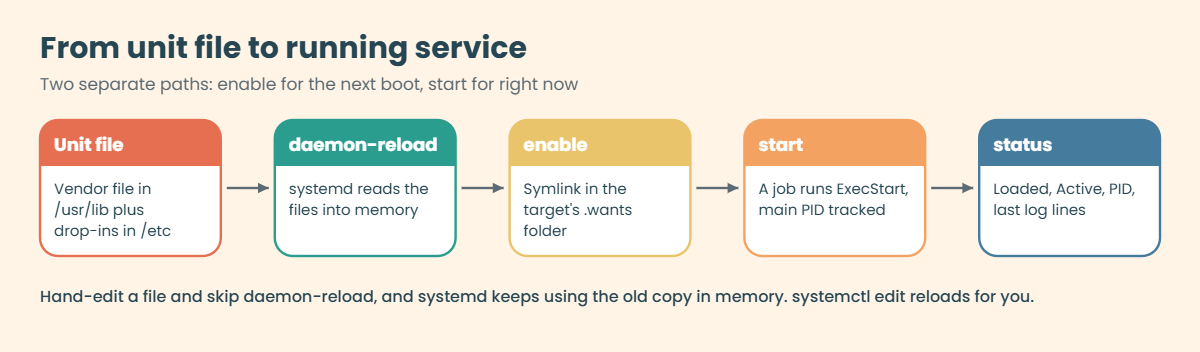
At boot, and every time you run systemctl daemon-reload, systemd reads all unit files from the three folders, merges each one with its drop-ins and keeps the result in memory. From then on it works from that copy in memory, not from the files. That’s why a hand-edited file changes nothing until you reload.

2enable writes a symlink, start runs the program

The [Install] section of a unit says which target wants it, for example WantedBy=multi-user.target. systemctl enable turns that into a symlink in /etc/systemd/system/multi-user.target.wants/, so the service starts the next time that target is reached. start is a separate thing: systemd queues a job, runs ExecStart= and tracks the main PID. The diagram below shows both paths.

systemctl commands: how a unit file is loaded, enabled at boot and started

3Jobs: start, stop, restart, reload

Every start or stop is a job that systemd puts in a queue and orders by the unit’s After= and Before= lines. systemctl waits for the job to finish and prints nothing when it works. If it fails, you get “Job for X failed” with a hint to run systemctl status and journalctl -xeu. A reload needs ExecReload= in the unit; services without it (chronyd is one) refuse a reload, and reload-or-restart falls back to a restart.

4Drop-ins merge with the vendor file

systemd reads the main file first, then every *.conf in the NAME.service.d/ folders in name order. A single-value setting such as Restart= is replaced by the later file. A list setting such as ExecStart=, Environment= or After= gets added to instead, so to replace ExecStart you first write an empty ExecStart= line to clear the list.

You’ll break this on purpose later.

5Targets decide what starts at boot

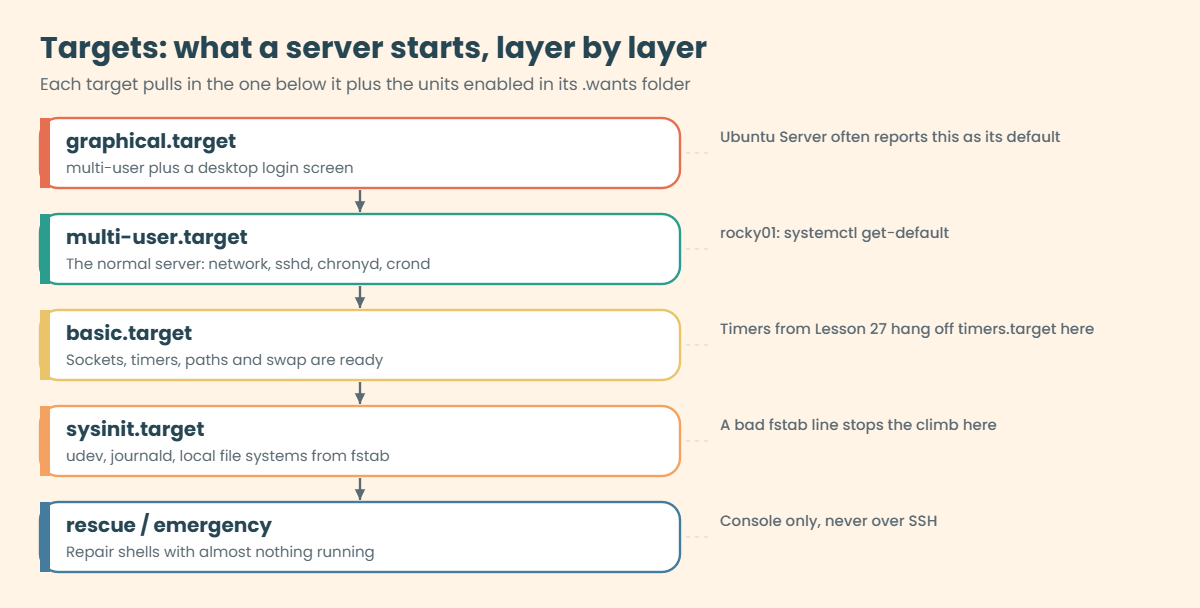
A target is a unit that does nothing itself but groups other units, like a boot stage. The kernel starts systemd, systemd goes for default.target, which is a link to multi-user.target on a server, and that pulls in basic.target, sysinit.target and every unit listed in its .wants folder. The picture below shows the main targets from the bottom up.

systemctl isolate rescue.target switches a running server to one target and stops everything that target doesn’t need, SSH included. Only do that from the console, never over SSH.

systemctl commands and targets: from sysinit.target to multi-user.target

6Read the two lines that matter in status

The Loaded: line is about the file on disk: where it is, whether it’s enabled for boot, and the vendor preset (what the distribution would choose). The Active: line is about right now: running, exited, inactive or failed, and since when. A service can be enabled but stopped, or running but disabled, and people mix them up all the time.

A unit with no [Install] section shows static: you can start it, but you can’t enable it, because something else (a timer, a socket or another unit) starts it. Names differ between the two families: the time service is chronyd on Rocky and chrony on Ubuntu (with chronyd as an alias), SSH is sshd on Rocky and ssh on Ubuntu, cron is crond on Rocky and cron on Ubuntu.

On Rocky Linux / RHELOn Ubuntu
Time service: chronyd.service
Unit file: /usr/lib/systemd/system/chronyd.service
Options file: /etc/sysconfig/chronyd
Time service: chrony.service (alias chronyd). chrony replaced systemd-timesyncd as the default in Ubuntu 25.10
Unit file: /usr/lib/systemd/system/chrony.service
Options file: /etc/default/chrony

Hands-on lab: control chronyd from start to mask on rocky01

Before you run any command, double-check it

Read every command twice before you press Enter. Check the target: the server name, the user, the disk or device name, the path and the sizes. These commands are for learning and were tested in our lab, not on your system. At work, run the read-only commands first, follow your change process, make sure a backup exists, and ask a second person to check anything that changes or deletes data. You run them at your own risk.

Everything here runs on rocky01 as student with sudo, on chronyd, the service that keeps the clock right. Stopping it for a few minutes does no harm in the lab, and at the end you’ll put it back the way the installer left it. Take a VirtualBox snapshot first if you like (VBoxManage snapshot rocky01 take before-l26 on the laptop).

On ubu01 use the name chrony wherever you see chronyd.

1Read the status of a service

Run this:

systemctl status chronyd --no-pager

You should see something like this:

● chronyd.service - NTP client/server
     Loaded: loaded (/usr/lib/systemd/system/chronyd.service; enabled; preset: enabled)
     Active: active (running) since Tue 2026-10-27 09:01:12 IST; 2h 14min ago
 Invocation: 8b3f6c1e2d9a4f7b9c0e5a1d2f3b4c6e
       Docs: man:chronyd(8)
             man:chrony.conf(5)
    Process: 742 ExecStart=/usr/sbin/chronyd $OPTIONS (code=exited, status=0/SUCCESS)
   Main PID: 760 (chronyd)
      Tasks: 1 (limit: 10936)
     Memory: 3.9M (peak: 4.4M)
        CPU: 98ms
     CGroup: /system.slice/chronyd.service
             └─760 /usr/sbin/chronyd -F 2

Oct 27 09:01:12 rocky01 systemd[1]: Starting chronyd.service - NTP client/server...
Oct 27 09:01:12 rocky01 systemd[1]: Started chronyd.service - NTP client/server.

The green dot means active. Loaded says the unit file is in /usr/lib (the package put it there), it is enabled for boot, and the vendor preset agrees. Active says it has been running since boot. chronyd is Type=forking, so the Process line shows the starter that exited with 0/SUCCESS and Main PID 760 is the daemon that stayed.

The last lines come from the journal, which is why you need sudo or the wheel group to see all of them.

Without --no-pager systemctl opens long output in less; press q to quit. A reader using a narrow window may see lines cut on the right: add -l to see them in full.

✅ Checkpoint: You can point to the line that says it starts at boot and the line that says it runs now.

2Ask yes-or-no questions the script way

Run this:

systemctl is-active chronyd
systemctl is-enabled chronyd
systemctl is-failed chronyd; echo "exit code: $?"

You should see this:

active
enabled
active
exit code: 1

Each prints one word and sets an exit code: 0 for “yes”, non-zero for “no”. is-failed answers “is it in the failed state?”, so for a healthy service it prints the real state (active) and exits with 1, meaning no. In a script you write if systemctl is-active --quiet chronyd; then ... and the word isn’t printed at all.

✅ Checkpoint: is-active and is-enabled both say yes, and is-failed returns exit code 1.

3Stop, start, restart and try a reload

Run this:

sudo systemctl stop chronyd
systemctl is-active chronyd
sudo systemctl start chronyd
systemctl show -p MainPID chronyd
sudo systemctl restart chronyd
systemctl show -p MainPID chronyd
sudo systemctl reload chronyd

You should see something like this:

inactive
MainPID=2187
MainPID=2203
Failed to reload chronyd.service: Job type reload is not applicable for unit chronyd.service.

stop and start print nothing when they work, so check with is-active. Each start gives a new main PID. The reload fails because chronyd’s unit has no ExecReload= line; Nginx and sshd have one, which is why you reload them after a config change instead of restarting. systemctl reload-or-restart chronyd does whichever the unit supports.

✅ Checkpoint: The PID changed after restart, and you can say why the reload was refused.

4Disable and enable for boot

Run this:

sudo systemctl disable chronyd
systemctl is-enabled chronyd; systemctl is-active chronyd
sudo systemctl enable --now chronyd
ls -l /etc/systemd/system/multi-user.target.wants/chronyd.service

You should see something like this:

Removed '/etc/systemd/system/multi-user.target.wants/chronyd.service'.
disabled
active
Created symlink '/etc/systemd/system/multi-user.target.wants/chronyd.service' → '/usr/lib/systemd/system/chronyd.service'.
lrwxrwxrwx. 1 root root 39 Oct 27 11:21 /etc/systemd/system/multi-user.target.wants/chronyd.service -> /usr/lib/systemd/system/chronyd.service

disable only removed the boot symlink: chronyd was still active afterwards. enable put the symlink back, and --now also started it (it was already running, so nothing changed there). That symlink is all “enabled” means. The dot after the permissions in ls is the SELinux label marker you met in Lesson 17.

✅ Checkpoint: is-enabled says disabled after the first command and enabled after the enable.

5Find the unit file and see it the way systemd does

Run this:

systemctl show -p FragmentPath chronyd
systemctl list-unit-files 'chrony*'
systemctl cat chronyd | head -n 13

You should see something like this:

FragmentPath=/usr/lib/systemd/system/chronyd.service
UNIT FILE                  STATE    PRESET
chrony-wait.service        disabled disabled
chronyd-restricted.service disabled disabled
chronyd.service            enabled  enabled

3 unit files listed.
# /usr/lib/systemd/system/chronyd.service
[Unit]
Description=NTP client/server
Documentation=man:chronyd(8) man:chrony.conf(5)
After=ntpdate.service sntp.service ntpd.service
Conflicts=ntpd.service systemd-timesyncd.service
ConditionCapability=CAP_SYS_TIME

[Service]
Type=forking
PIDFile=/run/chrony/chronyd.pid
EnvironmentFile=-/etc/sysconfig/chronyd
ExecStart=/usr/sbin/chronyd $OPTIONS

list-unit-files shows what exists on disk and its boot state, including the two helper units chrony ships. systemctl cat prints the unit file with a comment line naming the path, and later prints every drop-in under it, so it’s the quickest way to see the settings systemd uses. Type=forking, the EnvironmentFile and the $OPTIONS variable tell you where chronyd gets its command-line options.

✅ Checkpoint: You know chronyd’s unit file is in /usr/lib/systemd/system and that you must not edit it there.
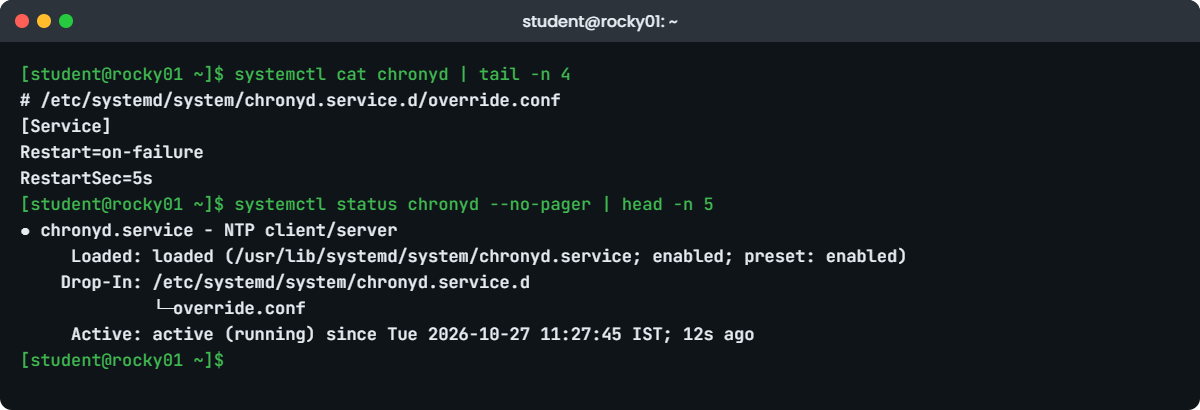
systemctl commands lab: chronyd drop-in shown with systemctl cat on rocky01
Example output from rocky01: chronyd with a drop-in, shown by systemctl cat and status.

6Change a setting with a drop-in

Run this (it opens your editor, nano or vi):

sudo systemctl edit chronyd

Type these three lines in the empty space between the two comment lines at the top, then save and quit:

[Service]
Restart=on-failure
RestartSec=5s

Then check what systemd now uses:

systemctl cat chronyd | tail -n 4
systemctl show -p Restart chronyd
systemctl show -p RestartUSec chronyd

You should see this:

# /etc/systemd/system/chronyd.service.d/override.conf
[Service]
Restart=on-failure
RestartSec=5s
Restart=on-failure
RestartUSec=5s

systemctl edit created the folder and override.conf for you and ran daemon-reload by itself when you saved. The vendor file is untouched. Now prove the setting works: kill chronyd hard and watch systemd bring it back.

sudo kill -9 $(systemctl show -p MainPID --value chronyd)
sleep 7
sudo journalctl -u chronyd -n 5 --no-pager

You should see something like this:

Oct 27 11:27:40 rocky01 systemd[1]: chronyd.service: Main process exited, code=killed, status=9/KILL
Oct 27 11:27:40 rocky01 systemd[1]: chronyd.service: Failed with result 'signal'.
Oct 27 11:27:45 rocky01 systemd[1]: chronyd.service: Scheduled restart job, restart counter is at 1.
Oct 27 11:27:45 rocky01 systemd[1]: Starting chronyd.service - NTP client/server...
Oct 27 11:27:45 rocky01 systemd[1]: Started chronyd.service - NTP client/server.

SIGKILL counts as a failure, so on-failure restarted it after the 5 seconds you set. Plain systemctl stop never triggers a restart, because that’s you asking for it.

In a script, or when you can’t open an editor, pipe the content in instead: printf '[Service]\nRestart=on-failure\nRestartSec=5s\n' | sudo systemctl edit --stdin chronyd. The --stdin option needs systemd 256 or newer, which Rocky 10 and Ubuntu 26.04 both have.

✅ Checkpoint: The journal shows “Scheduled restart job” and chronyd is active again with a new PID.

7Mask a service so nothing can start it

Run this:

sudo systemctl stop chronyd
sudo systemctl mask chronyd
sudo systemctl start chronyd
systemctl is-enabled chronyd

You should see this:

Created symlink '/etc/systemd/system/chronyd.service' → '/dev/null'.
Failed to start chronyd.service: Unit chronyd.service is masked.
masked

mask puts a link to /dev/null in /etc/systemd/system, the folder that wins, so systemd sees an empty unit and refuses every start, whether it comes from you, a dependency or a reboot. disable only stops the automatic start at boot; another unit can still pull a disabled service in. Use mask when two services fight over the same job, for example chronyd and another time daemon, or a service that must stay down during an investigation.

Undo it:

sudo systemctl unmask chronyd
sudo systemctl start chronyd
systemctl is-active chronyd; systemctl is-enabled chronyd
Removed '/etc/systemd/system/chronyd.service'.
active
enabled

✅ Checkpoint: Start was refused while masked, and after unmask chronyd is active and still enabled.

8Look at the targets

Run this:

systemctl get-default
systemctl list-units --type=target --state=active --no-legend | head -n 6
systemctl list-dependencies multi-user.target | grep -E 'chronyd|crond|sshd'

You should see something like this:

multi-user.target
  basic.target               loaded active active Basic System
  cryptsetup.target          loaded active active Local Encrypted Volumes
  getty.target               loaded active active Login Prompts
  local-fs-pre.target        loaded active active Preparation for Local File Systems
  local-fs.target            loaded active active Local File Systems
  multi-user.target          loaded active active Multi-User System
● ├─chronyd.service
● ├─crond.service
● ├─sshd.service

rocky01 boots to multi-user.target, the normal server target with networking and logins but no desktop. chronyd, crond and sshd are in its list because they were enabled with WantedBy=multi-user.target. On Ubuntu Server get-default often prints graphical.target, because that’s the link the systemd package ships; with no desktop installed it behaves like multi-user.target.

✅ Checkpoint: get-default says multi-user.target and chronyd appears in its dependency list.

Break It, Then Fix It

Snapshot first (VBoxManage snapshot rocky01 take before-l26-break on the laptop). These three mistakes are the systemd problems you’ll see most often in tickets, and each one has a clear message once you know where to look.

1Edit a drop-in by hand and forget daemon-reload

Change the restart delay to 30 seconds by writing the file directly, then restart:

printf '[Service]\nRestart=on-failure\nRestartSec=30s\n' | sudo tee /etc/systemd/system/chronyd.service.d/override.conf
sudo systemctl restart chronyd
systemctl show -p RestartUSec chronyd

You’ll get this:

[Service]
Restart=on-failure
RestartSec=30s
Warning: The unit file, source configuration file or drop-ins of chronyd.service changed on disk. Run 'systemctl daemon-reload' to reload units.
RestartUSec=5s

The file says 30s, but systemd still uses 5s from the copy in memory. The restart went ahead with the old settings and only printed a warning, which is easy to miss when it scrolls past in a long session. systemctl status shows the same warning at the bottom.

Fix: reload, then check again.

sudo systemctl daemon-reload
systemctl show -p RestartUSec chronyd
RestartUSec=30s

✅ Checkpoint: RestartUSec shows 30s and the warning no longer appears in status.

2Override ExecStart without clearing it first

Someone wants chronyd to start with an extra option and writes this drop-in:

printf '[Service]\nExecStart=/usr/sbin/chronyd $OPTIONS -r\n' | sudo systemctl edit --stdin chronyd
sudo systemctl restart chronyd

You’ll get this error:

Failed to restart chronyd.service: Unit chronyd.service has a bad unit file setting.

Find the reason:

systemctl status chronyd --no-pager | head -n 3
sudo journalctl -u chronyd -n 2 --no-pager

You should see something like this:

● chronyd.service - NTP client/server
     Loaded: bad-setting (Reason: Unit chronyd.service has a bad unit file setting.)
    Drop-In: /etc/systemd/system/chronyd.service.d
Oct 27 11:41:03 rocky01 systemd[1]: chronyd.service: Service has more than one ExecStart= setting, which is only allowed for Type=oneshot services. Refusing.

ExecStart= is a list. The drop-in added a second command to the one in the vendor file instead of replacing it, and a forking service may have only one. The old chronyd process may still be running, which hides the problem until the next reboot, when the service doesn’t come up.

Fix: clear the list with an empty ExecStart= line, then set the new one.

printf '[Service]\nExecStart=\nExecStart=/usr/sbin/chronyd $OPTIONS -r\n' | sudo systemctl edit --stdin chronyd
sudo systemctl restart chronyd
systemctl is-active chronyd
active

✅ Checkpoint: Loaded no longer says bad-setting and chronyd is active.

3Use the other distribution’s service name

Copy a command from an Ubuntu runbook onto rocky01:

sudo systemctl restart chrony

You’ll get this error:

Failed to restart chrony.service: Unit chrony.service not found.

The same software has different unit names on the two families: chrony and chronyd, ssh and sshd, cron and crond, apache2 and httpd. A runbook that works on one fails on the other with this message.

Fix: search by pattern before you guess.

systemctl list-unit-files '*chrony*' --no-legend
chrony-wait.service        disabled disabled
chronyd-restricted.service disabled disabled
chronyd.service            enabled  enabled

Clean up: put chronyd back the way the package installed it.

sudo systemctl revert chronyd
sudo systemctl restart chronyd
systemctl cat chronyd | grep -c override
Removed '/etc/systemd/system/chronyd.service.d/override.conf'.
Removed '/etc/systemd/system/chronyd.service.d'.
0

✅ Checkpoint: systemctl revert removed your drop-ins and reloaded, chronyd is active and no override is left.

This happened at work

The kiln dashboard that went flat after patching

My team lead told me this one from her time supporting a cement plant outside Dubai. The plant ran a small Linux server that collected kiln temperatures and fan speeds from the control system every second and fed the dashboard in the control room. One Thursday, after the monthly patch run, the dashboard went flat at about 3 a.m. and the night shift ran the kiln on manual readings for two hours.

The on-call engineer’s first move was to restart the collector service, and it came up, ran for about forty minutes and died again with “Too many open files” in its log. He rebooted the whole server, which bought another forty minutes. Nobody had touched the collector, so everyone suspected the new kernel from the patch run.

My team lead ran systemctl cat on the collector and saw only the vendor file in /usr/lib/systemd/system, with no LimitNOFILE= and no drop-in. A year earlier the vendor’s engineer had raised the open-file limit by editing that file directly. The patch run had installed a new version of the vendor’s RPM, which replaced the file and quietly took the limit back to the default.

She put LimitNOFILE= back with systemctl edit as a drop-in in /etc, restarted once, and the collector has run since. The team then ran systemd-delta on every server to find other units changed in place, moved each change into a drop-in, and added a step to the patch checklist: after updates, compare systemctl cat output for the plant’s critical services with the copy saved in the runbook.

Common mistakes and troubleshooting

MistakeWhat happensWhat to do instead
Editing the unit file in /usr/lib/systemd/systemThe next package update overwrites it and your change is goneUse systemctl edit NAME (a drop-in in /etc)
Editing a unit or drop-in by hand and not reloadingsystemd keeps using the old settings and only prints a warningRun systemctl daemon-reload, or use systemctl edit, which reloads for you
Thinking enable starts the service (or disable stops it)The service stays stopped until the next boot, or keeps running after you disabled itUse enable --now / disable --now, then check is-active
Overriding ExecStart= in a drop-in without an empty ExecStart= first“has a bad unit file setting”; the service fails at the next startWrite ExecStart= on its own line, then the new command
Using disable when you mean “never start”Another unit or a person can still start itUse mask, and unmask when you’re done
Running systemctl isolate rescue.target over SSHsshd and the network go down, and you lose the server until someone reaches the consoleOnly isolate from the console; use systemctl reboot or a planned maintenance slot otherwise
Copying a runbook between Rocky and Ubuntu as it is“Unit chrony.service not found” (or sshd, crond, httpd)Check names with systemctl list-unit-files '*name*'

Interview questions

Click a question to open it. Each one is written the way an interviewer would ask it. Under it you will see why they ask it and one way you could answer, in your own words.

Fresher level

1. What is the difference between systemctl start and systemctl enable?

Why they ask this: This is the basic systemd question. They want to hear that “now” and “at boot” are two separate things, and whether you know --now.

How you might answer: start runs the service right now and does nothing for the next boot. enable creates a symlink in the target’s .wants folder, for example multi-user.target.wants, so the service starts at every boot, but it doesn’t start it now.

When I want both, I use systemctl enable --now chronyd, and then I check with systemctl is-active and is-enabled.

2. A service is not running after a reboot. How do you check what happened?

Why they ask this: They want a calm order of checks rather than a restart reflex.

How you might answer: First systemctl status NAME: the Loaded line tells me if it’s enabled at all, and the Active line tells me if it failed and when. If it failed, journalctl -u NAME -b shows the logs from this boot.

If it’s disabled, I enable it with --now. If it failed, I fix the cause from the log first, because restarting a service that crashes on start only adds noise to the journal.

2–5 years experience

3. How do you change one setting in a vendor’s unit file so it survives updates?

Why they ask this: They are checking that you know about drop-ins and why /usr/lib is off limits.

How you might answer: I use systemctl edit NAME, which creates /etc/systemd/system/NAME.service.d/override.conf and runs daemon-reload when I save. I only put the lines I’m changing there, for example Restart=on-failure or LimitNOFILE=.

Then I confirm with systemctl cat NAME and systemctl show -p Restart NAME. If I need to replace ExecStart=, I write an empty ExecStart= line first, because it’s a list.

4. What’s the difference between disable and mask, and when would you use mask?

Why they ask this: They want to see that you understand how dependencies can still start a disabled unit.

How you might answer: disable removes the boot symlink, but another unit that Wants= or Requires= it, or a person, can still start it. mask links the unit name in /etc/systemd/system to /dev/null, so every start is refused with “Unit is masked”.

I mask when two services must never run together, such as two time daemons, or to keep a service down during an investigation so nothing restarts it behind my back.

Senior level

5. After a monthly patch run, a business service lost a custom limit and crashed. How do you find and stop this kind of problem across 200 servers?

Why they ask this: Seniors should connect package ownership of unit files with change control and automation.

How you might answer: I’d suspect a vendor unit file edited in place and replaced by the update. On each server systemd-delta --type=overridden,extended lists units that /etc changes, and comparing systemctl cat with what we expect shows what was lost. rpm -V or dpkg --verify shows changed vendor files before the update.

For the long term I’d move every custom setting into drop-ins managed by Ansible, so they’re reapplied and reviewed, and add a post-patch check that compares the effective settings with systemctl show -p.

6. A server boots to emergency mode or hangs at boot. How do targets help you work out where it stopped?

Why they ask this: They want to see that you understand boot as a chain of targets, not a black box.

How you might answer: The server works up from sysinit.target and local-fs.target to basic.target and then multi-user.target. If a mount in fstab fails, local-fs.target can’t be reached and systemd drops to emergency.target, so I’d look at journalctl -b and systemctl --failed from the emergency shell.

On a booted system, systemd-analyze critical-chain shows which unit held up each target. Lesson 70 covers the emergency-mode case, including Ubuntu’s locked root account.

Quick quiz

Q1. Which command starts chronyd now AND makes it start at every boot?

  1. systemctl start chronyd
  2. systemctl enable chronyd
  3. systemctl enable --now chronyd
  4. systemctl reload chronyd
Show answer

C — enable creates the boot symlink, and --now also starts it straight away.

Q2. You edited /etc/systemd/system/chronyd.service.d/override.conf with vim. What must you run before the change takes effect?

  1. systemctl daemon-reload
  2. systemctl reload chronyd
  3. systemctl enable chronyd
  4. Nothing, systemd watches the file
Show answer

A — systemd works from its copy in memory until daemon-reload. Then restart the service so it uses the new settings.

Q3. What does systemctl mask nginx do?

  1. Stops nginx and removes its package
  2. Links nginx.service in /etc/systemd/system to /dev/null so nothing can start it
  3. Hides nginx from systemctl status
  4. Disables nginx only until the next reboot
Show answer

B — A masked unit points to /dev/null; every start is refused until you unmask it.

Q4. A drop-in sets a new ExecStart= and the service shows “bad-setting”. Why?

  1. Drop-ins can’t change ExecStart
  2. ExecStart is a list, so the old command must be cleared with an empty ExecStart= first
  3. The drop-in must be in /usr/lib
  4. The file must be named service.conf
Show answer

B — Without the empty line the unit has two ExecStart commands, which only Type=oneshot allows.

Q5. Where should your own changes to a vendor unit go?

  1. /usr/lib/systemd/system/
  2. /run/systemd/system/
  3. /etc/systemd/system/NAME.service.d/
  4. /var/lib/systemd/
Show answer

C — Drop-ins in /etc survive package updates and are merged on top of the vendor file.

Quick recap

  • start, stop and restart act now; enable and disable act at boot; --now does both.
  • Read status by two lines: Loaded (file, enabled, preset) and Active (running, failed, since when).
  • Unit files: packages in /usr/lib/systemd/system, yours in /etc/systemd/system, and /etc wins.
  • Change vendor units with systemctl edit drop-ins; after any hand edit run systemctl daemon-reload. To replace ExecStart, clear it with an empty line first.
  • mask makes a unit impossible to start; disable only removes the boot link.
  • Servers boot to multi-user.target; never isolate a rescue target over SSH.

Next lesson

Lesson 27: Write your own service and timer → You’ll write disk-report.sh, wrap it in disk-report.service, schedule it with disk-report.timer on rocky01, and check it all with systemd-analyze.

Further reading: systemctl commands

Want to go deeper into systemctl commands? Read the man pages for systemctl(1), systemd.unit(5) (drop-ins and the unit search path) and systemd.special(7) (the targets), and Red Hat’s guide to systemd unit files for RHEL 10. You can also see the full plan for this course on the Linux Administration course page.

Scroll to Top

This website uses cookies

We use a few cookies to keep this site working. If you allow it, we also use Google Analytics to count visits so we can improve our lessons. You can accept all, deny the optional ones, or choose what to allow.