Linux commands cheat sheet, grouped by job
-
Phase 0: Before you start
-
Phase 1: The origins and OS architecture
-
Phase 2: Day-to-day administration and the command builder
-
Phase 3: Enterprise infrastructure and storage
-
Phase 4: Troubleshooting step by step
-
Phase 5: Final project and career
This Linux commands cheat sheet puts the commands from the whole course on one page, grouped by the job you’re doing when you need them: looking around a new server, finding a busy process, checking a port, reading logs, freeing disk space, and so on up to kernel settings. Every line has a plain-English meaning and a label that tells you whether it only reads, changes something, or can lose data or cut access.
You’ve met almost all of these commands in Lessons 1 to 79, each with its full story. This page is the short version you keep open in a second tab during real work, with a link from every group to the matching task in the Command Builder, which fills in your own names and paths. In the lab you’ll build your own small cheat sheet file on rocky01 and ubu01 and test its lines, because a cheat sheet nobody tested is only a list of guesses.
Where this lesson fits
Lesson 80 of 82 in Linux Administration · Phase 5: Final project and career · Before this: Lesson 79, kernel panic and kdump · Next: Lesson 81, the final project
| Time | You need | By the end you can |
|---|---|---|
| About 45 minutes, then keep the page open | rocky01 and ubu01 as earlier lessons left them | Find the right command for a common job quickly, know before you press Enter whether it reads, changes or can destroy, and keep a tested cheat sheet of your own |
What it is, in one line
A Linux commands cheat sheet is a short list of tested commands, grouped by the job you’re doing, with a clear note on which ones only read and which ones change the server.
In Simple Words
The masala dabba next to the stove
Most Indian kitchens have a round steel masala dabba with seven small bowls: turmeric, chilli, jeera, mustard seeds, coriander powder, garam masala, salt. The cook doesn’t walk to the store room for each spice while the oil is hot. The everyday ones sit in one box, always in the same place, and everybody in the house knows the red one is chilli and you go easy with it.
A cheat sheet is that dabba for the terminal, and the read, change and danger labels are the “go easy with the red one” warning.
Engineer's View
How to read this page
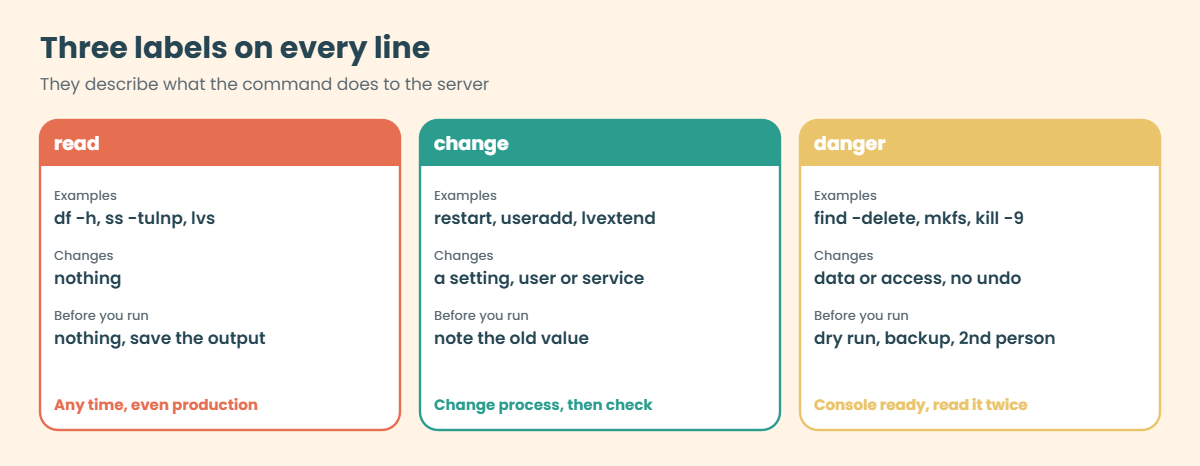
Each command has one of three labels. They describe what the command does to the server, not how hard it is to type.
| Label | Meaning | Before you run it |
|---|---|---|
| read | Only looks. Nothing on the server changes, so it’s safe on production at any time (it may need sudo to see everything). | Nothing. Paste the output into the ticket. |
| change | Changes a setting, a file, a user or a service. Usually easy to undo. | Follow your change process, note the old value, and check the result afterwards. |
| danger | Can delete data, wipe a disk, stop a service hard or cut your own SSH session. | Dry run or list first, a backup or snapshot, the console ready, and a second person to read the command. |
Where Rocky Linux 10 and Ubuntu 26.04 differ, the line shows both. The differences that catch people most often are these:
| Job | Rocky Linux 10 / RHEL | Ubuntu 26.04 |
|---|---|---|
| Packages | dnf, rpm | apt, dpkg |
| Firewall | firewall-cmd (firewalld, on by default) | ufw (off until you enable it) |
| System log file | /var/log/messages, logins in /var/log/secure | /var/log/syslog, logins in /var/log/auth.log |
| Network config | nmcli (NetworkManager keyfiles) | netplan YAML in /etc/netplan |
| Admin group, SSH unit | wheel, sshd | sudo (sudo-rs), ssh |
| Mandatory access control | SELinux (getenforce, ls -Z) | AppArmor (aa-status) |
How it works, step by step
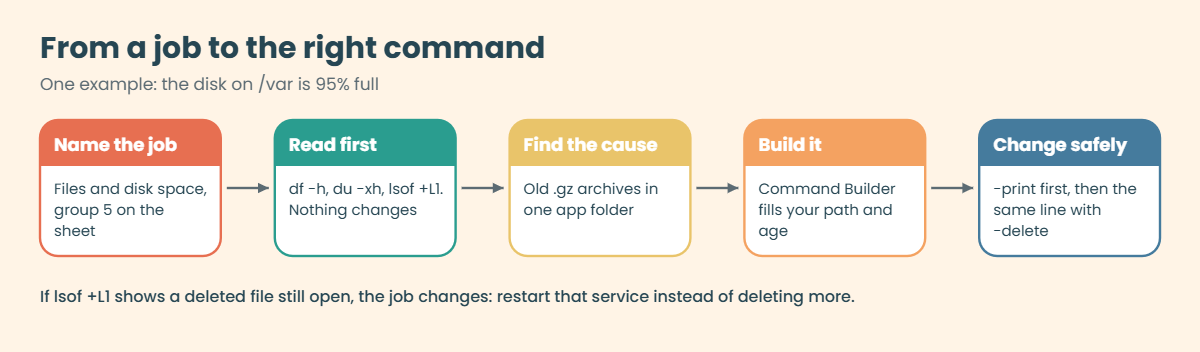
A cheat sheet saves time only if you reach for it in the right order. This is the order that works on a real ticket, and the diagram below follows one example from start to finish.
1Name the job, not the command
Turn the ticket into a job: “the disk on /var is 95% full” is a files and disk space job, “the site is slow” starts as a processes job. The twelve groups on this page follow the same order as the twelve groups in the Command Builder’s Linux tab, so the job name takes you to the same place in both.
2Run the read commands first
Inside each group the read lines come first. Run them, save the output, and only then decide what to change. Half the time the read commands show the job is a different one (the disk is full because a deleted log is still open, which is a process job).
3Build the exact command
The lines here use placeholders such as UNIT, USER and PID. Replace them by hand, or open the Command Builder task linked under each group, type your own names and copy a finished command with the warnings that belong to it.
4Change with a way back
Before a change line, write down how you’ll undo it: the old value, a backup copy of the file, a snapshot, or the matching remove command. Before a danger line, add the dry run (a -print instead of -delete, a --dry-run for rsync) and read its output. The picture below shows the three labels side by side.
5Use the sheet
Here is the sheet itself. Commands that need root are written without sudo to keep the lines short; add sudo as you would for any admin command.
1. Look around (any new server)
hostnamectl | Name, OS, kernel and whether it’s a VM | read |
cat /etc/os-release | Distribution and version | read |
uptime | Load average for 1, 5 and 15 minutes | read |
nproc; free -h | CPU count and memory (read “available”) | read |
df -hT -x tmpfs -x devtmpfs | Space used per real file system | read |
lsblk -f | Disks, partitions, file systems, mounts | read |
ip -br address | Every address on one line | read |
systemctl --failed | Units that failed | read |
journalctl -p err -b | Errors and worse since the last boot | read |
Try it yourself: build the first-five-minutes health check.
2. Processes
ps aux --sort=-%mem | head -n 11 | Top 10 by memory (the header takes a line) | read |
top -b -n 1 -o %CPU | head -n 17 | One CPU snapshot you can paste | read |
pgrep -a nginx | PIDs and full command lines by name | read |
ps -o pid,user,etime,cmd -p PID | Who owns a process and how long it has run | read |
renice -n 10 -p PID | Lower a process’s CPU priority | change |
kill -TERM PID | Ask a process to stop cleanly | change |
kill -KILL PID | Stop it at once, no clean-up (use systemctl stop for services) | danger |
Try it yourself: top processes by memory.
Try it yourself: top processes by CPU.
Try it yourself: find a process by name.
Try it yourself: stop a process safely.
3. Network
ss -tulnp | Which process listens on which port | read |
ss -tlnp 'sport = :3306' | One port exactly (grep :3306 also matches :33060) | read |
nc -zv -w 3 HOST PORT | Can this server reach that port? | read |
ip route | Routes and the default gateway | read |
getent hosts NAME | Resolve a name the way programs do (/etc/hosts first) | read |
dig +short NAME | Ask DNS only | read |
nmcli connection modify CON ipv4.addresses ... | Rocky: static IP (from the console, it can cut SSH) | danger |
nmcli connection modify CON +ipv4.routes "NET GW" | Rocky: a route that survives reboot | change |
netplan try | Ubuntu: apply YAML with automatic rollback | change |
Try it yourself: who is listening on a port.
Try it yourself: test a port on another server.
Try it yourself: set a static IP with nmcli.
Try it yourself: add a persistent route with nmcli.
Try it yourself: static IP and route with netplan.
Try it yourself: check name resolution.
4. Logs
journalctl -u UNIT --since "1 hour ago" | One service, a time window | read |
journalctl -xeu UNIT | The last lines of a failed start, explained | read |
journalctl -fu UNIT | Follow new lines live | read |
tail -n 50 /var/log/messages | Rocky system log (Ubuntu: /var/log/syslog) | read |
grep "Failed password" /var/log/secure | Rocky failed SSH logins (Ubuntu: auth.log) | read |
last -n 10 | Recent logins and reboots | read |
logger -t test "hello" | Write a test line to the log | change |
Try it yourself: search the system log for errors.
Try it yourself: read one service’s logs.
Try it yourself: list failed SSH logins.
5. Files and disk space
du -xh --max-depth=1 /var | sort -rh | head | Biggest folders, one level down | read |
find /var -xdev -type f -size +100M | Files bigger than 100 MB | read |
lsof +L1 | Deleted files still held open (df and du disagree) | read |
df -i | Inodes used, for “no space” with free space | read |
find DIR -name '*.gz' -mtime +30 -print | Dry run: what would be deleted | read |
find DIR -name '*.gz' -mtime +30 -delete | Delete them (-delete always last) | danger |
truncate -s 0 FILE | Empty a log a service still writes to | danger |
Try it yourself: find and delete old files, dry run first.
Try it yourself: biggest folders.
Try it yourself: biggest files.
Try it yourself: deleted files still using space.
6. Services (systemd)
systemctl status UNIT --no-pager | State, main PID and the last log lines | read |
systemctl is-active UNIT; systemctl is-enabled UNIT | One word each, good for scripts | read |
systemctl enable --now UNIT | Start now and at every boot | change |
nginx -t && systemctl restart nginx | Test the config, then restart | change |
systemctl edit UNIT | Drop-in override that survives updates | change |
systemctl daemon-reload | Reload unit files after editing them | change |
systemctl mask UNIT | Make a unit impossible to start | change |
Try it yourself: start a service and enable it.
Try it yourself: restart a service and check it.
Try it yourself: mask or unmask a service.
Try it yourself: create a systemd service file.
Try it yourself: raise a service’s open-files limit.
7. Users and permissions
id USER | UID, groups | read |
useradd -m -s /bin/bash -G GROUP USER | New user in a group | change |
usermod -aG GROUP USER | Add a group (without -a the other groups go) | change |
chage -l USER; chage -M 90 -W 7 USER | Read and set password ageing | change |
usermod -L USER; chage -E 0 USER | Lock a leaver, keys included | change |
chown root:webteam DIR; chmod 2770 DIR | Owner, group and mode with setgid | change |
chmod -R 777 DIR | Opens everything to everyone. Never the fix | danger |
setfacl -m u:arjun:rX DIR; getfacl DIR | One extra user without changing the group | change |
sudo -l -U USER; visudo -c | What a user may run; check sudoers | read |
Try it yourself: create a user.
Try it yourself: lock a leaver’s account.
Try it yourself: set password ageing.
Try it yourself: set owner, group and permissions.
Try it yourself: give one user access with an ACL.
8. Storage and LVM
lsblk -o NAME,SIZE,TYPE,FSTYPE,MOUNTPOINTS,SERIAL | Which disk is which, before any write | read |
pvs; vgs; lvs | Physical volumes, groups, logical volumes | read |
findmnt --verify | Check /etc/fstab before a reboot | read |
pvcreate /dev/sdX | Make a disk an LVM PV (wipes what was there) | danger |
lvextend -r -L +2G VG/LV | Grow a volume and its file system online | change |
lvcreate -s -n SNAP -L 500M VG/LV | Snapshot before a risky change | change |
mkfs.xfs /dev/VG/LV | New file system (destroys the old one) | danger |
mount -a | Mount everything in fstab, a test after editing | change |
Try it yourself: new disk to a mounted LVM volume.
Try it yourself: grow a logical volume online.
Try it yourself: rescan SCSI for new or bigger disks.
Try it yourself: create, mount and remove an LVM snapshot.
9. Packages
dnf info PKG / apt show PKG | What a package is, which version | read |
rpm -q PKG / dpkg -l PKG | Is it installed? | read |
dnf provides */CMD | Rocky: which package has this command | read |
dnf install -y PKG / apt install PKG | Install | change |
dnf updateinfo list --security | Rocky: security updates waiting | read |
dnf history list / apt history-list | What changed and when | read |
dnf history undo ID / apt history-undo ID | Roll back one transaction (not for kernels) | change |
dnf needs-restarting -r | Rocky: is a reboot needed? | read |
Try it yourself: install a package.
Try it yourself: apply security updates.
Try it yourself: package history and undo.
10. Firewall
firewall-cmd --list-all / ufw status verbose | Rules in force now | read |
firewall-cmd --permanent --add-service=http | Rocky: allow a service (reload after) | change |
firewall-cmd --permanent --add-port=8080/tcp | Rocky: allow a port (reload after) | change |
ufw allow from 10.10.10.0/24 to any port 2049 proto tcp | Ubuntu: allow one port from one network | change |
firewall-cmd --permanent --remove-service=ssh | Locks out every SSH session after reload | danger |
nft list ruleset | What the kernel filter really holds | read |
Try it yourself: open a port in the firewall.
11. Schedules and backups
crontab -l; crontab -e | Read or edit your cron jobs | change |
systemctl list-timers | Timers, last and next run | read |
systemd-analyze calendar "*-*-* 02:30" | Check an OnCalendar line | read |
tar -czpf /root/etc-$(date +%F).tar.gz -C / etc | Dated archive of /etc | change |
tar -tzf ARCHIVE | head | List what’s inside | read |
rsync -aHAX --dry-run SRC/ DST/ | What a copy would do | read |
rsync -aHAX --delete SRC/ DST/ | Mirror (swap the two paths and you lose the good copy) | danger |
Try it yourself: build a cron job line.
Try it yourself: create a systemd timer.
Try it yourself: archive a folder with tar.
Try it yourself: copy or mirror a folder with rsync.
12. Kernel settings
uname -r; grubby --default-kernel | Running kernel and the one that boots next (Rocky) | read |
sysctl vm.swappiness | Read one kernel setting | read |
echo "vm.swappiness = 10" > /etc/sysctl.d/90-tuning.conf | A setting that survives reboot | change |
sysctl --system | Load every sysctl.d file again | change |
journalctl -k -b; dmesg -T | tail | Kernel messages | read |
tuned-adm active | Rocky: which tuning profile is on | read |
echo c > /proc/sysrq-trigger | Crashes the kernel on purpose (Lesson 79 only) | danger |
Try it yourself: a kernel parameter that survives reboot.
Hands-on lab: build your own cheat sheet and test it on both servers
Before you run any command, double-check it
Read every command twice before you press Enter. Check the target: the server name, the user, the disk or device name, the path and the sizes. These commands are for learning and were tested in our lab, not on your system. At work, run the read-only commands first, follow your change process, make sure a backup exists, and ask a second person to check anything that changes or deletes data. You run them at your own risk.
You’ll write a 28-line cheat sheet as a plain text file, add a tiny search command to your shell, and then test fourteen of its lines on rocky01 and three Ubuntu lines on ubu01. Everything here only reads, apart from the file in your home folder. Log in to rocky01 as student.
1Write your own cheat sheet file
Paste this whole block:
mkdir -p ~/cheat
cat > ~/cheat/linux.txt <<'EOF'
look [read] hostnamectl # name, OS, kernel, VM or not
look [read] uptime # load average for 1, 5, 15 minutes
look [read] free -h # memory: read the available column
look [read] df -hT -x tmpfs -x devtmpfs # disk use per file system
process [read] ps aux --sort=-%mem | head -n 11 # top 10 by memory (11 = header + 10)
process [read] top -b -n 1 -o %CPU | head -n 17 # CPU snapshot for a ticket
process [change] kill -TERM PID # ask a process to stop cleanly
process [danger] kill -KILL PID # stop at once, no clean-up
network [read] ip -br address # addresses, one line each
network [read] ss -tulnp # who listens on which port
network [read] getent hosts NAME # resolve a name the way apps do
logs [read] journalctl -u UNIT --since "1 hour ago" # one service, recent lines
logs [read] journalctl -p err -b # errors since the last boot
disk [read] du -xh --max-depth=1 /var | sort -rh | head # biggest folders under /var
disk [read] lsof +L1 # deleted files still held open
disk [danger] find DIR -name '*.gz' -mtime +30 -delete # delete old files, dry run first
service [read] systemctl --failed # failed units
service [change] systemctl restart UNIT # restart, then check is-active
user [read] chage -l USER # password and account expiry
storage [read] lvs # logical volumes and sizes
storage [change] lvextend -r -L +1G VG/LV # grow a volume and its file system
package [read] dnf history list | head # rocky: what changed and when
package [read] apt history-list # ubuntu: what changed and when
firewall [read] firewall-cmd --list-all # rocky: zone, services, ports
firewall [read] ufw status verbose # ubuntu: rules and defaults
schedule [read] systemctl list-timers # timers and their next run
kernel [read] sysctl vm.swappiness # read one kernel setting
kernel [change] sysctl --system # load every sysctl.d file again
EOF
wc -l ~/cheat/linux.txt
grep -c '\[read\]' ~/cheat/linux.txtYou should see this:
28 /home/student/cheat/linux.txt
22Each line is a job word, a label in brackets, the command and a short note after the #. Plain text is on purpose: it works over SSH on any server, grep can search it, and you can keep it in Git with your other notes. 22 of the 28 lines only read.
✅ Checkpoint: wc reports 28 lines and grep counts 22 read lines.

2Add a search command and try it
Add a small shell function to your .bashrc, load it, and search:
cat >> ~/.bashrc <<'EOF'
# cheat WORD: search my tested commands (Lesson 80)
cheat() { grep -i -- "$*" ~/cheat/linux.txt; }
EOF
source ~/.bashrc
cheat disk
cheat dangerYou should see this:
look [read] df -hT -x tmpfs -x devtmpfs # disk use per file system
disk [read] du -xh --max-depth=1 /var | sort -rh | head # biggest folders under /var
disk [read] lsof +L1 # deleted files still held open
disk [danger] find DIR -name '*.gz' -mtime +30 -delete # delete old files, dry run first
process [danger] kill -KILL PID # stop at once, no clean-up
disk [danger] find DIR -name '*.gz' -mtime +30 -delete # delete old files, dry run firstgrep -i ignores case and the -- stops grep from reading a search word that starts with a dash as an option. “disk” also found the df line from the look group, because its note says “disk use”, which is the reason the notes are worth writing. cheat danger is the line to run before you hand the file to a junior: these two need a second pair of eyes every time.
✅ Checkpoint: cheat disk prints four lines and cheat danger prints two.
3Test the look and process lines
Run this:
uptime
free -h
ps -eo pid,user,%mem,rss,cmd --sort=-rss --no-headers | head -n 4You should see something like this:
10:14:52 up 1:12, 1 user, load average: 0.08, 0.05, 0.01
total used free shared buff/cache available
Mem: 1.7Gi 1.0Gi 189Mi 17Mi 672Mi 724Mi
Swap: 2.0Gi 12Mi 2.0Gi
1175 mysql 5.6 101376 /usr/libexec/mariadbd --basedir=/usr
812 root 2.6 46848 /usr/bin/python3 -sP /usr/sbin/firewalld --nofork --nopid
1348 zabbix 2.0 36864 /usr/sbin/zabbix_proxy -c /etc/zabbix/zabbix_proxy.conf
1046 root 1.8 32768 /usr/bin/python3 -sP /usr/sbin/tuned -l -Procky01 now runs MariaDB, Nginx, PHP-FPM, the Zabbix proxy and agent, and the Podman status page, so available memory is lower than in Lesson 22, but still healthy. MariaDB holds the most real memory. The ps line is the scriptable version of the cheat sheet’s ps aux --sort=-%mem | head -n 11.
✅ Checkpoint: You can name the biggest process on rocky01 and say how much memory is available.
4Test the network and log lines
Run this:
ip -br address show enp0s3
sudo ss -tlnp | grep -E ':(22|80|3306) '
sudo journalctl -p err -b --no-pager | tail -n 3You should see something like this:
enp0s3 UP 10.10.10.11/24 fe80::a00:27ff:fe4c:110b/64
LISTEN 0 128 0.0.0.0:22 0.0.0.0:* users:(("sshd",pid=1012,fd=7))
LISTEN 0 80 127.0.0.1:3306 0.0.0.0:* users:(("mariadbd",pid=1175,fd=19))
LISTEN 0 511 0.0.0.0:80 0.0.0.0:* users:(("nginx",pid=1290,fd=6),("nginx",pid=1289,fd=6),("nginx",pid=1288,fd=6))
LISTEN 0 128 [::]:22 [::]:* users:(("sshd",pid=1012,fd=8))
LISTEN 0 511 [::]:80 [::]:* users:(("nginx",pid=1290,fd=7),("nginx",pid=1289,fd=7),("nginx",pid=1288,fd=7))
-- No entries --SSH and Nginx listen on every address, MariaDB only on 127.0.0.1, which is what Lesson 56 set up. The spaces in the grep pattern matter: without the space after the port, :80 would also match 8080, where the Podman status page from Lesson 57 listens. “No entries” from journalctl means no errors since the last boot; if you see a few, read them, they’re usually old news from start-up.
Try it yourself: check one port exactly in the Command Builder.
✅ Checkpoint: ss shows sshd on 22, nginx on 80 and mariadbd on 127.0.0.1:3306.
5Test the disk, service and storage lines
Run this:
sudo du -xh --max-depth=1 /var 2>/dev/null | sort -rh | head -n 4
systemctl --failed --no-pager
sudo lvs vg_dataYou should see something like this:
1.1G /var
612M /var/cache
298M /var/lib
164M /var/log
UNIT LOAD ACTIVE SUB DESCRIPTION
0 loaded units listed.
LV VG Attr LSize Pool Origin Data% Meta% Move Log Cpy%Sync Convert
lv_app vg_data -wi-ao---- 4.25g
lv_db vg_data -wi-ao---- 2.00g
lv_logs vg_data -wi-ao---- 1.50g-x keeps du on the root file system, so /var/lib/mysql (on lv_db) isn’t counted under /var/lib. The dnf cache is the biggest folder, which is normal after a few months of updates. No failed units, and vg_data still has the three volumes from Lessons 44, 45 and 56.
✅ Checkpoint: du lists /var first, systemctl --failed lists 0 units and lvs shows lv_app, lv_db and lv_logs.
6Test the user, package, firewall, schedule and kernel lines
Run this:
sudo chage -l priya | head -n 4
sudo dnf history list | head -n 3
sudo firewall-cmd --list-services
systemctl list-timers --no-pager | grep -c '\.timer'
sysctl vm.swappinessYou should see something like this:
Last password change : Oct 27, 2026
Password expires : never
Password inactive : never
Account expires : never
ID | Command line | Date and time | Action(s) | Altered
------------------------------------------------------------------------------------------------------------
41 | install -y zabbix-proxy-sqlite3 zabbix-selinux-polic | 2026-10-24 15:02 | Install | 12
dhcpv6-client http ntp ssh
9
vm.swappiness = 30priya’s password never expires, because Lesson 15 set ageing rules only for arjun. The newest dnf transaction is the Zabbix install from Lesson 61; your IDs and dates will differ. The firewall allows SSH, HTTP for SaatShop, NTP for ubu01’s chrony and the DHCPv6 client, and the ports from Lessons 57 and 61 appear under ports in --list-all. swappiness is 30 because tuned’s virtual-guest profile sets it.
✅ Checkpoint: All five commands ran, and you can say which of them would change anything (none).
7Copy the sheet to ubu01 and test the Ubuntu lines
On ubu01, as student, copy the file with your Lesson 33 key and run three Ubuntu lines:
mkdir -p ~/cheat
scp rocky01:cheat/linux.txt ~/cheat/
grep -i ubuntu ~/cheat/linux.txt
sudo ufw status | head -n 1
systemctl is-active ssh
ls /var/log/syslog /var/log/auth.logYou should see something like this:
linux.txt 100% 1622 1.1MB/s 00:00
package [read] apt history-list # ubuntu: what changed and when
firewall [read] ufw status verbose # ubuntu: rules and defaults
Status: active
active
/var/log/auth.log /var/log/syslogThe Ubuntu lines say so in their note, and the same file now serves both servers. ufw has been active since Lesson 34, the SSH unit is called ssh here (sshd on Rocky), and the classic log files have their Ubuntu names. Add the cheat function to ubu01’s .bashrc the same way as in step 2.
✅ Checkpoint: ubu01 has ~/cheat/linux.txt and the three Ubuntu commands worked.
8Record where and when you tested it
On each VM, put a “tested on” line at the top of the file:
sed -i "1i # tested $(date +%F) on $(hostname -s), kernel $(uname -r)" ~/cheat/linux.txt
head -n 2 ~/cheat/linux.txtYou should see something like this on rocky01:
# tested 2026-10-27 on rocky01, kernel 6.12.0-211.16.1.el10_2.0.1.x86_64
look [read] hostnamectl # name, OS, kernel, VM or notOn ubu01 the line ends with kernel 7.0.0-15-generic. When a colleague asks “does this still work?”, the first line answers it. Re-test and update the line after every major upgrade (Lesson 52), because that’s when commands, options and log formats move.
✅ Checkpoint: The first line of the file on both VMs names the host, the date and the kernel.
Break It, Then Fix It
A cheat sheet fails in quiet ways: the command runs, but on the wrong system, matches the wrong thing or does the steps in the wrong order. These three are the ones I’ve seen most. Only the third one deletes anything, and only practice files.
1A Rocky line on an Ubuntu server
On ubu01, run the Rocky package line from your sheet:
dnf history list | headYou’ll get something like this:
Command 'dnf' not found, but can be installed with:
sudo apt install dnfUbuntu’s command-not-found helper offers to install a dnf package, and some people do it. That dnf knows nothing about the packages apt installed, so its history is empty and anything it installs fights with apt. The job was “what changed on this server”, and on Ubuntu that’s an apt job.
Fix: use the line for the system you’re on.
cat /etc/os-release | grep ^ID=
apt history-list | tail -n 3✅ Checkpoint: You checked the distribution first and read the package history with apt.
2A grep that matches too much
On rocky01, check port 80 the way many old runbooks do:
sudo ss -tlnp | grep :80You should see something like this:
LISTEN 0 511 0.0.0.0:80 0.0.0.0:* users:(("nginx",pid=1290,fd=6),("nginx",pid=1289,fd=6),("nginx",pid=1288,fd=6))
LISTEN 0 128 0.0.0.0:8080 0.0.0.0:* users:(("pasta.avx2",pid=1466,fd=5))
LISTEN 0 511 [::]:80 [::]:* users:(("nginx",pid=1290,fd=7),("nginx",pid=1289,fd=7),("nginx",pid=1288,fd=7))No error, but the 8080 line is Podman’s pasta process from Lesson 57, not Nginx. During an incident (“is anything on port 80?”) that extra line can send you after the wrong process, and if Nginx were stopped you’d still get output and think port 80 is fine.
Fix: let ss filter on the port number itself.
sudo ss -tlnp 'sport = :80'✅ Checkpoint: Only the two Nginx lines (IPv4 and IPv6) appear.
3A danger line with its options in the wrong order
Make practice files: three old archives, one new archive and a live log:
mkdir -p ~/lab80/logs && cd ~/lab80
for d in 01 02 03; do touch -d "2026-08-$d 10:00" logs/app-2026-08-$d.log.gz; done
touch logs/app.log logs/app-2026-10-26.log.gz
find logs -name '*.gz' -mtime +30 -printYou should see something like this:
logs/app-2026-08-03.log.gz
logs/app-2026-08-02.log.gz
logs/app-2026-08-01.log.gzThe dry run is right. Now someone types the delete with -delete first:
find logs -delete -name '*.gz' -mtime +30
ls logsYou’ll get this:
find: 'logs/app-2026-08-03.log.gz': No such file or directory
find: 'logs/app-2026-08-02.log.gz': No such file or directory
find: 'logs/app-2026-08-01.log.gz': No such file or directory
find: 'logs/app-2026-10-26.log.gz': No such file or directory
ls: cannot access 'logs': No such file or directoryfind reads its expression left to right for every file. -delete came first, so every file was deleted before the name and age tests ran, and those tests then complained the files were gone. Even the live app.log and the logs folder itself are gone. The errors look like a small problem; the damage is total.
Fix: recreate the files, then always put -delete last, after a dry run that printed the same list.
mkdir -p logs
for d in 01 02 03; do touch -d "2026-08-$d 10:00" logs/app-2026-08-$d.log.gz; done
touch logs/app.log logs/app-2026-10-26.log.gz
find logs -name '*.gz' -mtime +30 -print
find logs -name '*.gz' -mtime +30 -delete
ls logsThe last command shows:
app-2026-10-26.log.gz app.logTry it yourself: build the dry run and the delete as a pair in the Command Builder.
✅ Checkpoint: Only the new archive and app.log remain. Remove the practice folder with rm -r ~/lab80.
This happened at work
The cleanup line that took the as-run logs
My team lead tells this one from his time at a radio broadcaster in Bhubaneswar. It was the last week of October, cyclone season, and the station was running extra weather bulletins every hour. Around 11 p.m. the playout server’s /var hit 96% and the night operator, a sharp fresher two months into the job, opened the team wiki’s “Linux cheat sheet” page.
The line under “disk full” said sudo find /var -name '*.log' -mtime +7 -delete, with no note and no label. It freed 9 GB and the alert cleared. It also deleted three months of as-run logs, the files that record which advert and which bulletin went on air at what second, because the playout software stored them under /var/lib/playout with a .log extension.
The sales team needed them for advertiser invoices, and the broadcast regulator can ask for them.
Nothing showed until the billing run on the 1st. They got most of it back from the nightly backup on the archive server, but two days had never been backed up because the backup job itself had been failing on a full disk. Those two days of invoices were raised from the presenters’ paper logs.
The cheat sheet page was rewritten that week. Every line got a read, change or danger label, every danger line got its dry run on the line above it and a fixed path instead of /var, and the page now says which server it was tested on. The fresher, as it happens, wrote most of the new version.
Common mistakes and troubleshooting
| Mistake | What happens | What to do instead |
|---|---|---|
| Copying a line without checking which distribution it’s for | dnf on Ubuntu, /var/log/messages on Ubuntu, sshd vs ssh: errors or silent wrong answers | Check /etc/os-release and keep both columns in your sheet |
| Running a danger line without its dry run | find -delete, an rsync mirror or mkfs destroy data with no undo | Dry run first, read the list, then run the real command |
| grep for a port number | Matches 8080 for 80 and 33060 for 3306 | ss -tlnp 'sport = :80' |
| Keeping the sheet in your head or a chat thread | Nobody can review it, and nobody knows if it was tested | A plain text file or wiki page in Git, with a “tested on” line |
| Wide paths in cleanup lines like /var | Matches files that belong to applications | Name the exact folder and file pattern |
| Never re-testing after an upgrade | Options, log formats and package names change | Re-test the sheet after every major OS upgrade |
Interview questions
Click a question to open it. Each one is written the way an interviewer would ask it. Under it you will see why they ask it and one way you could answer, in your own words.
Fresher level
1. You log in to a server you’ve never seen before. What do you run in the first five minutes, and why in that order?
Why they ask this: They want to see a calm routine of read-only checks before any change, and that you know what each command tells you.
How you might answer: I start with hostnamectl and cat /etc/os-release so I know the OS and whether it’s a VM, then uptime and free -h for load and available memory. Then df -hT for space, ss -tulnp to see what it serves, and systemctl --failed plus journalctl -p err -b for anything broken.
None of these change anything, so I can run them on production and paste the output into the ticket before I touch the server.
2. How do you find which process is listening on port 80, and why not just grep for 80?
Why they ask this: A practical check of ss, plus whether you’ve been bitten by a loose grep.
How you might answer: I run sudo ss -tlnp 'sport = :80', which filters on the port number and shows the process name and PID. sudo matters, because without it ss can’t show processes owned by other users.
A plain grep :80 also matches 8080 and 8081, so on a box with a container on 8080 it can point me at the wrong process, or tell me something is on 80 when nothing is.
2–5 years experience
3. Your team’s runbook was written for RHEL 7. What would you check before using it on RHEL 10 and Ubuntu 26.04?
Why they ask this: They want to know if you’re aware of what changed across versions and distributions, and if you test rather than trust.
How you might answer: I’d look for the known moves: network-scripts and ifcfg files are gone on RHEL 10, so routes and IPs go through nmcli; netstat and ifconfig may not be installed; yum is now dnf; and Ubuntu uses netplan, ufw, apt and /var/log/syslog with RFC 3339 timestamps.
Then I’d run every read line on a test VM of each OS, fix what fails, and add a “tested on” line with the date and kernel so the next person knows how fresh it is.
4. A junior wants to free space with a find command from the wiki. How do you review it?
Why they ask this: This is about change discipline: dry run, scope, order of options and who owns the files.
How you might answer: First I ask for the dry run with -print and a count, and I read the list. I check the path is the exact folder, not /var, that the pattern can’t match application files, and that -delete is the last thing on the line.
I also check whether a process still has those files open with lsof +L1 afterwards, and that the files aren’t needed for audit or billing. If anything is unclear we archive them first instead of deleting.
Senior level
5. How would you keep a shared command library correct for a team of twenty admins?
Why they ask this: Seniors are expected to think about ownership, review and testing, not only content.
How you might answer: I’d keep it in Git as plain text or Markdown, with every change through a pull request and one reviewer, and labels on each command for read, change and danger. Each page says which OS versions it was tested on.
For the commands people use most I’d go further and turn them into scripts or Ansible tasks with tests, so the cheat sheet points to a tool instead of a line people retype at 3 a.m.
6. How do you decide which commands juniors may run on production without asking?
Why they ask this: They’re checking judgement about risk and how you make that safe through access and process, not only trust.
How you might answer: Read-only commands are always fine and I encourage them: health checks, logs, ss, df, lvs. Change commands with an easy undo, like restarting a web service in a known way, are fine through a runbook and sudo rules that allow only those exact commands.
Anything that deletes data, touches disks, firewalls or networking goes through a change record and a second person. Labelling commands as read, change and danger makes that rule easy to follow.
Quick quiz
Q1. Which label fits find /var/log/app -name '*.gz' -mtime +30 -print?
- read
- change
- danger
- none, it fails
Show answer
A — It only prints matching names. The same command with -delete would be a danger line.
Q2. Why does the cheat sheet use head -n 11 for the top 10 processes?
- ps prints 11 processes by default
- The first line is the header
- head counts from zero
- It shows one spare line
Show answer
B — The header takes one of the lines, so 11 gives the header plus ten processes.
Q3. Which command shows only port 80 listeners, not 8080?
ss -tlnp | grep :80ss -tlnp 'sport = :80'ss -tlnp | grep 80netstat | grep 80
Show answer
B — ss filters on the port number itself; grep matches the text :80 inside :8080 too.
Q4. What happens with find logs -delete -name '*.gz'?
- Only .gz files are deleted
- Nothing, find refuses
- Every file is deleted, because -delete runs before the name test
- find asks for confirmation
Show answer
C — find evaluates left to right, so -delete acts on every file it reaches.
Q5. On Ubuntu 26.04, which line shows what packages changed recently?
dnf history listrpm -qa --lastapt history-listyum history
Show answer
C — apt 3 on Ubuntu 26.04 has history-list, history-info and history-undo.
Quick recap
- A Linux commands cheat sheet groups commands by job, in the same twelve groups as the Command Builder’s Linux tab.
- Every line is labelled read, change or danger; run the read lines first and save their output.
- Danger lines get a dry run on the line above them, a fixed path and a second pair of eyes.
- Where Rocky and Ubuntu differ (dnf/apt, firewall-cmd/ufw, messages/syslog, nmcli/netplan, sshd/ssh), keep both.
- Keep your own sheet as a plain text file with a “tested on” line, and re-test it after upgrades.
Next lesson
Lesson 81: Final project: build it, break it, fix it → You’ll rebuild SaatShop across rocky01 and ubu01, prove every layer with a check script, then fix ten faults that break-saatshop.sh puts in one at a time.
Further reading: Linux commands cheat sheet
Want to go deeper into Linux commands cheat sheet? Every command here has its manual page on man7.org (and on the server with man). For the distribution-specific lines, use Red Hat’s RHEL 10 documentation and the Ubuntu Server documentation.
The Command Builder Linux tab has all 41 tasks linked above. You can also see the full plan for this course on the Linux Administration course page.
