Extend LVM online: hot-add a disk and grow volumes live

To extend LVM online means giving a running server more disk space without stopping the application or unmounting anything: the hypervisor or SAN adds or grows a disk, the kernel rescans and sees it, LVM adds it to the volume group, and the file system grows into the new space. Done in the right order, users never notice.

In Lesson 44 you built vg_data on sdb with lv_app (2 GiB XFS on /srv/app) and lv_logs (1 GiB ext4 on /srv/logs). Now you’ll hot-add a third 5 GB disk to rocky01 while it runs, rescan the SCSI bus, extend vg_data and grow both volumes while a small script keeps writing to /srv/app every second. Then you’ll prove from the script’s own log that it never stopped.

Where this lesson fits

Lesson 45 of 82 in Linux Administration · Phase 3: Enterprise infrastructure and storage · Before this: Lesson 44, LVM part 1 · Next: Lesson 46, LVM snapshots and thin pools

TimeYou needBy the end you can
About 60 minutesrocky01 from Lesson 44 (vg_data, lv_app, lv_logs), VirtualBox on your laptop with a terminal for VBoxManage, and a snapshot before the Break-It partHot-add a disk, find it with a SCSI rescan, grow a VG with vgextend or pvresize, and grow XFS and ext4 online with lvextend -r, xfs_growfs and resize2fs

What it is, in one line

Growing storage online is a chain of four layers (the disk, the kernel’s view of it, LVM, and the file system), and each one has to be told about the new space, in that order, while the application keeps running.

In Simple Words

The dhaba that takes over the shop next door

A busy dhaba on the highway is full every evening, so the owner rents the empty shop next door. On a quiet afternoon the landlord opens the shutter between the two shops, and the owner tells his manager the floor is bigger now. Lunch service never stops while this happens.

Even so, customers still queue outside that evening, because nobody has put tables and chairs in the new half yet. The space exists and it’s on the floor plan, but until the waiters set it up, no one can sit there. Once they do, the extra seats fill in minutes.

The landlord is VirtualBox or the SAN, the manager is LVM, and the tables are the file system, which is the step people forget.

Engineer's View

Four layers, and the command for each

LayerNew disk addedExisting disk made biggerCheck with
Hypervisor or arrayVBoxManage storageattach on a running VM (SATA only), a new VMware disk, a new SAN LUNDisk or LUN grown in VMware, Hyper-V, the cloud console or on the arrayThe tool itself
Kernel SCSI layerecho "- - -" > /sys/class/scsi_host/hostN/scan (scan for new devices)echo 1 > /sys/class/block/sdX/device/rescan (re-read the size of one disk)lsblk, dmesg
Multipath (SAN only)multipathd builds a new map by itselfmultipathd resize map mpathX after every path is rescannedmultipath -ll
LVMpvcreate, then vgextend vg_data /dev/sdXpvresize /dev/sdXpvs, vgs
LV and file systemlvextend -r (grows the LV and the file system together)Samelvs, df -h

The two rescan files are different on purpose. scan lives on a host adapter (host0, host1 and so on) and the three dashes mean “any channel, any target, any LUN”, so it finds devices that weren’t there before. rescan lives under one existing device and makes the kernel read its capacity again. The per-device file can be reached as /sys/class/block/sdb/device/rescan or as /sys/class/scsi_device/3:0:0:0/device/rescan (the same file, by its H:C:T:L address); a path like /sys/class/scsi_device/device/rescan without the address doesn’t exist. rescan-scsi-bus.sh from the sg3_utils package wraps all of this in one script.

File systemGrow while mountedShrink
XFS (Rocky default)Yes: xfs_growfs /mount/point. It must be mounted to growNever. Back up, recreate smaller, restore
ext4 (Ubuntu default)Yes: resize2fs /dev/vg/lv (online)Only unmounted: e2fsck, then resize2fs, then lvreduce, or lvreduce -r which does the steps

VirtualBox has its own rules. Only the SATA (AHCI) and USB controllers can hot-plug disks, and the SATA port count can’t be raised while the VM runs; Lesson 2 gave rocky01 four ports (0 to 3), and port 3 is still free. A disk you attach while the VM is running is marked hot-pluggable automatically, while the --hotpluggable on flag can only be changed when the VM is off.

VirtualBox also won’t resize a disk image that a running VM is using, which is why this lab adds a new disk instead of growing one.

How it works, step by step

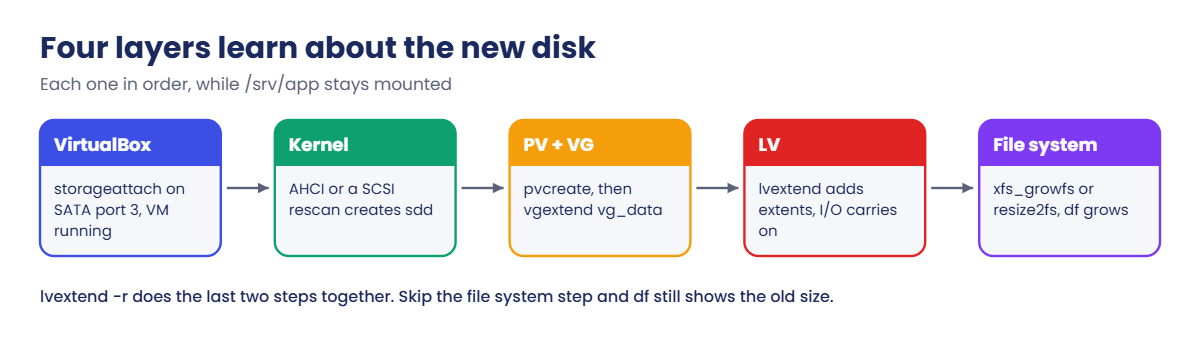
Here is what happens, layer by layer, when you add a disk to a server that is busy serving users. The diagram below shows the same chain you’ll run in the lab.

1The hypervisor connects a new disk

VBoxManage storageattach plugs a new virtual disk into SATA port 3 of the running VM, the same way you’d push a drive into a hot-swap bay. The guest’s AHCI driver gets a “connection status changed” interrupt, resets the link and sees a new drive.

2The kernel creates a block device

On VirtualBox SATA the kernel usually finds the disk by itself and names it sdd. On VMware, Hyper-V and SAN LUNs it often doesn’t, so you ask every host adapter to scan with "- - -". A rescan is safe to run when nothing is new: it finds nothing and changes nothing.

Extend LVM online: the chain from a hot-added VirtualBox disk to a bigger file system

3LVM takes the disk into the pool

pvcreate /dev/sdd labels it and vgextend vg_data /dev/sdd adds its 1279 extents to vg_data. On Rocky 10 vgextend also adds the disk to the LVM devices file. No LV has changed yet; the VG only has more free extents.

4The LV grows, then the file system

lvextend -L +2G adds extents to the LV and reloads its device-mapper table, which takes a fraction of a second and doesn’t interrupt I/O. The file system still thinks it is the old size until you grow it, and lvextend -r (short for --resizefs) runs xfs_growfs or resize2fs for you straight after.

5Growing an existing disk takes a different first step

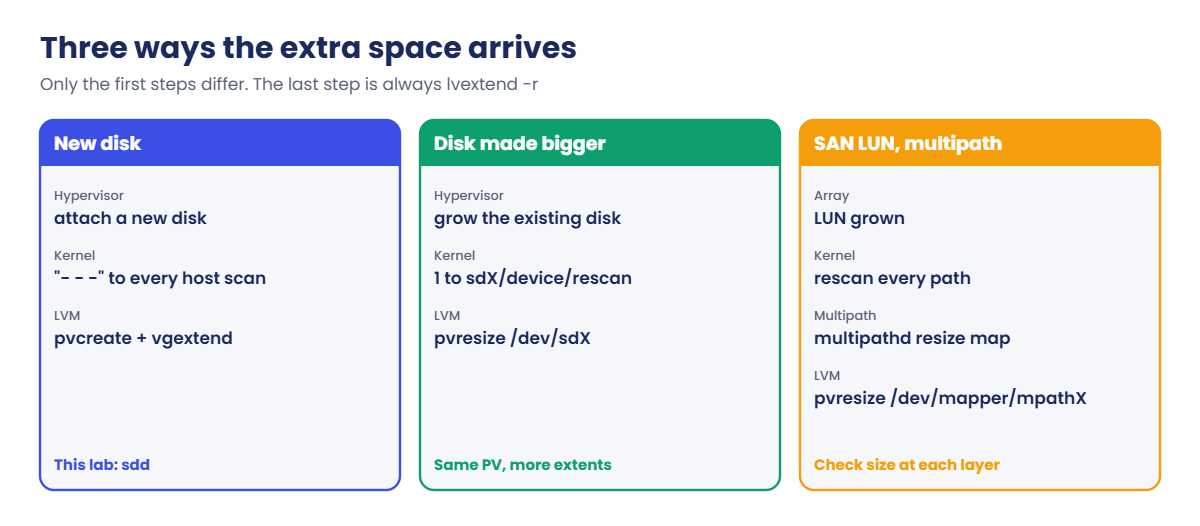
When the disk under a PV gets bigger (a VMware disk resized, a SAN LUN grown), there is no new device to find. You tell the kernel to re-read the size of that one disk with its device/rescan file, then pvresize tells LVM the PV is bigger. On a multipath SAN host you must rescan every path and then resize the multipath map before pvresize can see anything.

The picture below puts the three cases side by side.

Extend LVM online: new disk, grown disk and grown SAN LUN compared

6Why the app never notices

XFS and ext4 both grow by adding new allocation groups or block groups at the end of the volume, and they never move existing data to do it. Applications keep their open files, and the only visible change is that df shows more space. The risk at work is never the grow itself; it’s growing the wrong LV, adding the wrong disk, or forgetting the file system step and closing the ticket while df still says 95 percent.

One more design point: once lv_app has extents on both sdb and sdd, it needs both disks to work. On a VM whose disks all sit on one datastore that’s normal, but don’t spread one VG over disks from different arrays unless the storage team agrees.

Hands-on lab: hot-add sdd and grow lv_app while it is being written

Before you run any command, double-check it

Read every command twice before you press Enter. Check the target: the server name, the user, the disk or device name, the path and the sizes. These commands are for learning and were tested in our lab, not on your system. At work, run the read-only commands first, follow your change process, make sure a backup exists, and ask a second person to check anything that changes or deletes data. You run them at your own risk.

You’ll switch between two terminals: one on your laptop for VBoxManage, and an SSH session to rocky01 as student. Keep rocky01 running the whole time; the point of the lab is that nothing on it stops. Commands for the laptop are shown for Windows; on macOS or Linux use ~/Lab/Linux/rocky01/rocky01-data3.vdi as the path and grep instead of findstr.

1See where you are starting from

On rocky01, run this:

df -h /srv/app /srv/logs
sudo vgs vg_data
sudo lvs vg_data

You should see something like this:

Filesystem                   Size  Used Avail Use% Mounted on
/dev/mapper/vg_data-lv_app   2.0G   71M  1.9G   4% /srv/app
/dev/mapper/vg_data-lv_logs  974M   24K  907M   1% /srv/logs
  VG      #PV #LV #SN Attr   VSize  VFree
  vg_data   1   2   0 wz--n- <5.00g <2.00g
  LV      VG      Attr       LSize Pool Origin Data%  Meta%  Move Log Cpy%Sync Convert
  lv_app  vg_data -wi-ao---- 2.00g
  lv_logs vg_data -wi-ao---- 1.00g

This is the state Lesson 44 left: lv_app is 2 GiB, lv_logs is 1 GiB, and vg_data has a little under 2 GiB free. You could grow lv_app by 2 GiB from that free space alone, but here you’ll add a disk first, which is the usual situation at work when a VG has run out.

✅ Checkpoint: df shows /srv/app at 2.0G and vgs shows VFree <2.00g.

2Start a writer that keeps the app busy

Create the script (paste this whole block):

mkdir -p ~/lab45
cat > ~/lab45/writer.sh <<'EOF'
#!/bin/bash
# writer.sh: appends a timestamp to /srv/app/heartbeat.log every second, like a busy app
while true; do
  date +%s.%N >> /srv/app/heartbeat.log
  sleep 1
done
EOF
bash -n ~/lab45/writer.sh && echo syntax ok

Start it in the background as root, then look at the log:

sudo -v
sudo bash ~/lab45/writer.sh &
sleep 3; tail -n 3 /srv/app/heartbeat.log

You should see something like this:

[1] 2318
1793081525.402118734
1793081526.406731902
1793081527.411022157

Each line is a Unix timestamp with nanoseconds, written once a second to a file on lv_app. sudo -v asks for your password first, so the background sudo doesn’t sit waiting for it. Leave this running until step 8.

✅ Checkpoint: wc -l /srv/app/heartbeat.log gives a bigger number every time you run it.

3Hot-add a 5 GB disk to the running VM

On the laptop, run this:

VBoxManage createmedium disk --filename="C:\Lab\Linux\rocky01\rocky01-data3.vdi" --size=5120 --format=VDI
VBoxManage storageattach rocky01 --storagectl=SATA --port=3 --device=0 --type=hdd --medium="C:\Lab\Linux\rocky01\rocky01-data3.vdi"
VBoxManage showvminfo rocky01 --machinereadable | findstr SATA-3-0

You should see something like this:

0%...10%...20%...30%...40%...50%...60%...70%...80%...90%...100%
Medium created. UUID: 9e4b7c1d-2f6a-4d83-b5e0-7a1c3f8d6e42
"SATA-3-0"="C:\Lab\Linux\rocky01\rocky01-data3.vdi"

createmedium made a 5120 MB dynamically allocated VDI, and storageattach plugged it into SATA port 3 while rocky01 kept running, with no output when it works. Don’t add --hotpluggable on here: VirtualBox marks a disk attached at run time as hot-pluggable by itself, and asking to change that flag on a running VM fails with “The machine is not mutable (state is Running)”, after the disk is already attached, which is confusing.

If storageattach says the controller doesn’t support hot-plugging, your disks are on an IDE or SCSI controller instead of SATA. Lesson 2 created a SATA controller with four ports; check the name with VBoxManage showvminfo rocky01.

✅ Checkpoint: showvminfo lists the new VDI on SATA-3-0 and rocky01 is still running.

4Find the new disk on rocky01

Back on rocky01, rescan every SCSI host and list the disks:

ls /sys/class/scsi_host/
for h in /sys/class/scsi_host/host*; do echo "- - -" | sudo tee "$h/scan" >/dev/null; done
lsblk -S -o NAME,HCTL,TYPE,MODEL,SIZE,TRAN

You should see something like this:

host0  host1  host2  host3  host4  host5
NAME HCTL    TYPE MODEL          SIZE TRAN
sda  2:0:0:0 disk VBOX HARDDISK   20G sata
sdb  3:0:0:0 disk VBOX HARDDISK    5G sata
sdc  4:0:0:0 disk VBOX HARDDISK    5G sata
sdd  5:0:0:0 disk VBOX HARDDISK    5G sata
sr0  1:0:0:0 rom  VBOX CD-ROM   1024M ata

Six host adapters: two for the IDE controller that holds the DVD drive and four for the SATA ports. sdd is the new disk at H:C:T:L 5:0:0:0, which means host 5, channel 0, target 0, LUN 0. Your host numbers can differ, which is why the loop scans all of them instead of guessing. Now see what the kernel logged:

sudo dmesg | tail -n 8

You should see something like this:

[ 3712.418236] ata6: irq_stat 0x00400040, connection status changed
[ 3712.418245] ata6: hard resetting link
[ 3713.150612] ata6: SATA link up 3.0 Gbps (SStatus 123 SControl 300)
[ 3713.151048] ata6.00: ATA-6: VBOX HARDDISK, 1.0, max UDMA/133
[ 3713.151052] ata6.00: 10485760 sectors, multi 128: LBA48 NCQ (depth 32)
[ 3713.151790] scsi 5:0:0:0: Direct-Access     ATA      VBOX HARDDISK    1.0  PQ: 0 ANSI: 5
[ 3713.152279] sd 5:0:0:0: [sdd] 10485760 512-byte logical blocks: (5.37 GB/5.00 GiB)
[ 3713.153190] sd 5:0:0:0: [sdd] Attached SCSI disk

The AHCI driver noticed the new drive on its own (“connection status changed”) before you even ran the rescan, which is normal for VirtualBox SATA. On VMware, Hyper-V or a SAN you often get no such message until you rescan, so the rescan stays in your routine.

✅ Checkpoint: lsblk shows sdd, 5G, with no partitions and no file system.

5Add sdd to vg_data

Run this:

sudo pvcreate /dev/sdd
sudo vgextend vg_data /dev/sdd
sudo pvs
sudo vgs vg_data

You should see something like this:

  Physical volume "/dev/sdd" successfully created.
  Volume group "vg_data" successfully extended
  PV         VG      Fmt  Attr PSize  PFree
  /dev/sda3  rl      lvm2 a--  18.41g     0
  /dev/sdb   vg_data lvm2 a--  <5.00g <2.00g
  /dev/sdd   vg_data lvm2 a--  <5.00g <5.00g
  VG      #PV #LV #SN Attr   VSize VFree
  vg_data   2   2   0 wz--n- 9.99g 6.99g

vg_data now has two PVs and its size doubled to 9.99g, with 6.99g free: the 2 GiB that was left on sdb plus the whole of sdd. Nothing about lv_app or lv_logs has changed yet, and df still shows the old sizes.

✅ Checkpoint: vgs shows vg_data with #PV 2, VSize 9.99g and VFree 6.99g.
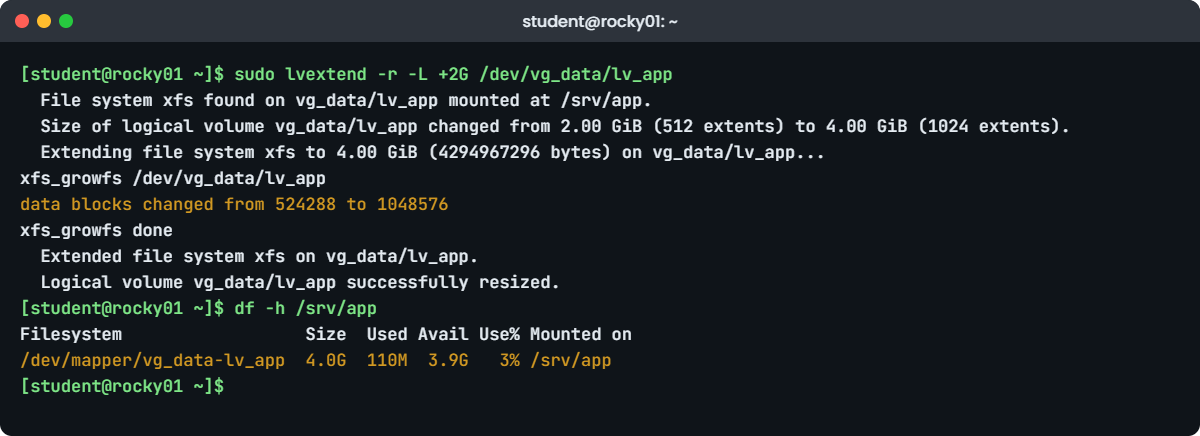
Extend LVM online lab: lvextend -r and df on rocky01
Example output: lvextend -r growing lv_app and XFS on rocky01 while the writer runs.

6Grow lv_app and its XFS in one command

Run this:

sudo lvextend -r -L +2G /dev/vg_data/lv_app
df -h /srv/app

You should see something like this (xfs_growfs output shortened):

  File system xfs found on vg_data/lv_app mounted at /srv/app.
  Size of logical volume vg_data/lv_app changed from 2.00 GiB (512 extents) to 4.00 GiB (1024 extents).
  Extending file system xfs to 4.00 GiB (4294967296 bytes) on vg_data/lv_app...
xfs_growfs /dev/vg_data/lv_app
meta-data=/dev/mapper/vg_data-lv_app isize=512    agcount=4, agsize=131072 blks
         =                       sectsz=512   attr=2, projid32bit=1
...
data blocks changed from 524288 to 1048576
xfs_growfs done
  Extended file system xfs on vg_data/lv_app.
  Logical volume vg_data/lv_app successfully resized.
Filesystem                  Size  Used Avail Use% Mounted on
/dev/mapper/vg_data-lv_app  4.0G  110M  3.9G   3% /srv/app

Read it top to bottom: LVM found XFS mounted on /srv/app, added 512 extents, then ran xfs_growfs, which reported the data section going from 524288 to 1048576 blocks of 4 KiB. df shows 4.0G straight away, and the writer kept going the whole time. -L +2G means “2 GiB more”; -L 4G would mean “make it 4 GiB in total”, and -l +100%FREE would take everything left.

✅ Checkpoint: df -h /srv/app shows 4.0G and tail -n 1 /srv/app/heartbeat.log shows a timestamp from the last second or two.

7Grow lv_logs and ext4 in two steps

First grow only the LV:

sudo lvextend -L +512M /dev/vg_data/lv_logs
df -h /srv/logs

You should see something like this:

  Size of logical volume vg_data/lv_logs changed from 1.00 GiB (256 extents) to 1.50 GiB (384 extents).
  Logical volume vg_data/lv_logs successfully resized.
Filesystem                   Size  Used Avail Use% Mounted on
/dev/mapper/vg_data-lv_logs  974M   24K  907M   1% /srv/logs

The LV is now 1.5 GiB, but without -r LVM didn’t touch the file system, so df still shows 974M. Grow the file system yourself:

sudo resize2fs /dev/vg_data/lv_logs
df -h /srv/logs

You should see something like this:

resize2fs 1.47.1 (20-May-2024)
Filesystem at /dev/vg_data/lv_logs is mounted on /srv/logs; on-line resizing required
old_desc_blocks = 1, new_desc_blocks = 1
The filesystem on /dev/vg_data/lv_logs is now 393216 (4k) blocks long.

Filesystem                   Size  Used Avail Use% Mounted on
/dev/mapper/vg_data-lv_logs  1.5G   24K  1.4G   1% /srv/logs

resize2fs grew ext4 while it was mounted (“on-line resizing”) to 393216 blocks of 4 KiB, which is 1.5 GiB. For XFS the second command would be sudo xfs_growfs /srv/app. Note the difference: resize2fs wants the device, while xfs_growfs is documented with the mount point.

Look at the result in LVM:

sudo lvs vg_data
sudo vgs vg_data
sudo lvs -o lv_name,lv_size,seg_le_ranges vg_data

You should see something like this:

  LV      VG      Attr       LSize Pool Origin Data%  Meta%  Move Log Cpy%Sync Convert
  lv_app  vg_data -wi-ao---- 4.00g
  lv_logs vg_data -wi-ao---- 1.50g
  VG      #PV #LV #SN Attr   VSize VFree
  vg_data   2   2   0 wz--n- 9.99g 4.49g
  LV      LSize LE Ranges
  lv_app  4.00g /dev/sdb:0-511
  lv_app  4.00g /dev/sdb:768-1278
  lv_app  4.00g /dev/sdd:0-0
  lv_logs 1.50g /dev/sdb:512-767
  lv_logs 1.50g /dev/sdd:1-128   

lv_app used the rest of sdb and its first extent on sdd, and lv_logs grew onto sdd. Both LVs now span two disks, which is how LVM is meant to work, and 4.49g is still free.

✅ Checkpoint: df shows /srv/logs at 1.5G and vgs shows VFree 4.49g.

8Prove the app never stopped

Stop the writer and check the biggest gap between two lines:

sudo pkill -f 'lab45/[w]riter.sh'
awk '{if (NR > 1 && $1 - p > g) g = $1 - p; p = $1} END {printf "%d lines, biggest gap %.2f s\n", NR, g}' /srv/app/heartbeat.log

You should see something like this:

[1]+  Terminated              sudo bash ~/lab45/writer.sh
362 lines, biggest gap 1.01 s

The square brackets in 'lab45/[w]riter.sh' are a small trick: the pattern still matches the writer, but not pkill’s own command line. The awk program compares each timestamp with the one before it and keeps the largest difference. About 1.0 seconds is the loop itself; if the grow had frozen I/O you would see a gap of several seconds, and there isn’t one.

✅ Checkpoint: awk reports a biggest gap close to 1 second, over a few hundred lines.

9Practise the grown-disk path on sdb

At work the disk under a PV is often made bigger instead. sdb hasn’t changed, so this is a harmless rehearsal:

readlink -f /sys/class/block/sdb/device
echo 1 | sudo tee /sys/class/block/sdb/device/rescan
sudo pvresize /dev/sdb
sudo pvs /dev/sdb

You should see something like this:

/sys/devices/pci0000:00/0000:00:0d.0/ata4/host3/target3:0:0/3:0:0:0
1
  Physical volume "/dev/sdb" changed
  1 physical volume(s) resized or updated / 0 physical volume(s) not resized
  PV         VG      Fmt  Attr PSize  PFree
  /dev/sdb   vg_data lvm2 a--  <5.00g    0 

The readlink shows the H:C:T:L address (3:0:0:0) behind sdb, so you know which SCSI device you’re poking. The rescan made the kernel read sdb’s size again (tee echoes the 1), and pvresize re-read the PV and found nothing new, so PFree stays 0. If the disk had grown, pvs would now show the extra space as PFree and you’d finish with lvextend -r as in step 6.

✅ Checkpoint: pvresize reports 1 physical volume resized or updated, and nothing else about vg_data changed.

Break It, Then Fix It

Take a snapshot of rocky01 first (on the laptop: VBoxManage snapshot rocky01 take before-l45-break). The first break is the most common storage ticket mistake there is, the second shows a limit you can’t work around, and the third is a wrong path that circulates in old notes.

1Grow the LV and forget the file system

Run this:

sudo lvextend -L +256M /dev/vg_data/lv_app
sudo lvs vg_data/lv_app
df -h /srv/app

You should see something like this:

  Size of logical volume vg_data/lv_app changed from 4.00 GiB (1024 extents) to 4.25 GiB (1088 extents).
  Logical volume vg_data/lv_app successfully resized.
  LV     VG      Attr       LSize Pool Origin Data%  Meta%  Move Log Cpy%Sync Convert
  lv_app vg_data -wi-ao---- 4.25g
Filesystem                  Size  Used Avail Use% Mounted on
/dev/mapper/vg_data-lv_app  4.0G  110M  3.9G   3% /srv/app

lvs says 4.25g and df still says 4.0G. “Successfully resized” is about the LV only. The application team looks at df, sees no change, and the ticket comes back, or worse, someone decides the rescan failed and reboots the server.

Fix: grow the file system into the space the LV already has.

sudo xfs_growfs /srv/app
df -h /srv/app

You should see something like this:

meta-data=/dev/mapper/vg_data-lv_app isize=512    agcount=8, agsize=131072 blks
...
data blocks changed from 1048576 to 1114112
Filesystem                  Size  Used Avail Use% Mounted on
/dev/mapper/vg_data-lv_app  4.2G  115M  4.1G   3% /srv/app

Use lvextend -r every time and this can’t happen. When you inherit a server where someone forgot, compare lvs with df; if the LV is bigger than the file system, xfs_growfs or resize2fs alone fixes it, with no LVM command at all.

✅ Checkpoint: df and lvs now agree: about 4.2G and 4.25g.

2Try to shrink XFS

Someone over-sized lv_app and wants 1.25 GiB back. Try it:

sudo lvreduce -r -L 3G /dev/vg_data/lv_app

You’ll get this error:

  File system xfs found on vg_data/lv_app mounted at /srv/app.
  File system size (4.25 GiB) is larger than the requested size (3.00 GiB).
  File system reduce is required and not supported (xfs).

XFS has no shrink, so current LVM refuses before it touches a single extent. Older LVM versions (and anyone using lvreduce with force options) could cut the LV underneath the file system, and an XFS file system that has lost its end is a restore-from-backup job. ext4 is different: lvreduce -r can shrink it, but only unmounted, after an e2fsck.

Fix: for XFS the only way down is a new, smaller volume. The outline, for a real ticket:

# 1. back up /srv/app (tar, rsync or xfsdump) and stop the app
# 2. umount /srv/app, lvremove the old LV, lvcreate -L 3G, mkfs.xfs
# 3. mount it, restore the data, update the UUID in /etc/fstab, start the app

Don’t do this in the lab; lv_app stays at 4.25 GiB. The real lesson is to grow in small steps: add what’s needed now, because growing later is easy and shrinking XFS is not.

✅ Checkpoint: sudo lvs vg_data/lv_app still shows 4.25g and /srv/app is still mounted.

3Use the rescan path from an old wiki page

This path is in many old notes. Run it:

echo 1 | sudo tee /sys/class/scsi_device/device/rescan

You’ll get this error:

tee: /sys/class/scsi_device/device/rescan: No such file or directory
1

/sys/class/scsi_device holds one folder per SCSI device, named by its H:C:T:L address. There is no folder called “device” at that level, so the path was always missing a piece; someone dropped the address while copying it.

Fix: use the address, or go through the block device name, which is easier to get right.

ls /sys/class/scsi_device/
echo 1 | sudo tee /sys/class/scsi_device/3:0:0:0/device/rescan
echo 1 | sudo tee /sys/class/block/sdb/device/rescan

You should see something like this:

1:0:0:0  2:0:0:0  3:0:0:0  4:0:0:0  5:0:0:0
1
1

✅ Checkpoint: Both corrected commands print 1 with no error, and they point at the same disk.

This happened at work

The LUN that grew everywhere except where it mattered

I was on call for a shipping line in Kochi when the container tracking database started filling up, at about 1:30 a.m. on a night when two vessels were working at the terminal. The data volume, an XFS file system on a 500 GB SAN LUN with two paths, was at 94 percent and climbing with every container scan. The storage team grew the LUN to 700 GB on the array in ten minutes and told me it was done.

I rescanned the disk with echo 1 > /sys/class/block/sdc/device/rescan, saw lsblk report sdc as 700G and ran pvresize /dev/mapper/mpatha. It said one physical volume resized, but pvs still showed PFree 0, and lvextend refused for lack of space. For a few minutes I was convinced the array change hadn’t gone through and was ready to call the storage team back.

The real cause was one layer up. LVM sat on the multipath device, mpatha, and that map still had the old size because I’d rescanned only one of its two paths, and multipathd won’t resize a map until it’s told to. I rescanned the second path (sdf), ran multipathd resize map mpatha, and lsblk showed mpatha at 700G. pvresize then found 200 GB free and lvextend -r -l +100%FREE grew the file system with the database running.

The next morning we rewrote the runbook so it checks the size at every layer before moving on (each path in multipath -ll, the map, the PV, the LV, then df), and the rescan step loops over every path of the map instead of naming one disk.

Common mistakes and troubleshooting

MistakeWhat happensWhat to do instead
Running lvextend without -rThe LV grows, df doesn’t, and the ticket comes backUse lvextend -r, or follow with xfs_growfs or resize2fs
Giving resize2fs the mount point“open: Is a directory while opening /srv/logs”resize2fs takes the device; xfs_growfs takes the mount point (current versions also accept the device)
Rescanning only one path of a multipath LUNThe map and the PV keep the old sizeRescan every path, then multipathd resize map mpathX, then pvresize
Writing /sys/class/scsi_device/device/rescan“No such file or directory”Use /sys/class/block/sdX/device/rescan or the H:C:T:L folder
Planning to shrink XFS laterThere is no XFS shrink, so the only way back is a restoreGrow in small steps and keep free extents in the VG
Adding --hotpluggable on while the VM runsVirtualBox attaches the disk, then prints an error about the machine stateAttach without it; set the flag only when the VM is off
Guessing the SCSI host numberThe scan goes to the wrong adapter and nothing appearsLoop over every /sys/class/scsi_host/host*, or use rescan-scsi-bus.sh

Interview questions

Click a question to open it. Each one is written the way an interviewer would ask it. Under it you will see why they ask it and one way you could answer, in your own words.

Fresher level

1. The VMware team added a 50 GB disk to a Linux VM, but lsblk doesn’t show it. What do you do?

Why they ask this: A first-week task on any Linux team. They want to see that you know the kernel has to be told to look, and that you don’t reboot.

How you might answer: I’d rescan the SCSI hosts instead of rebooting: for h in /sys/class/scsi_host/host*; do echo "- - -" | sudo tee $h/scan; done, then check lsblk and the end of dmesg for the new sdX. rescan-scsi-bus.sh from sg3_utils does the same if it’s installed.

If it still doesn’t appear, I’d check with the VMware team which controller the disk is on and that it’s connected, because a rescan can only find what the hypervisor presents.

2. What’s the difference between lvextend and lvextend -r?

Why they ask this: They want to know whether you understand that the LV and the file system are two separate layers.

How you might answer: lvextend only grows the logical volume, so the block device is bigger but the file system on it still has its old size and df doesn’t change. With -r (resizefs), LVM also runs xfs_growfs or resize2fs straight after.

I use -r every time. If I find an LV that was grown without it, xfs_growfs /mountpoint or resize2fs /dev/vg/lv alone fixes it.

2–5 years experience

3. A 500 GB SAN LUN with two paths was grown to 700 GB on the array. Walk me through making the space usable with no downtime.

Why they ask this: This checks multipath awareness, which separates people who have done SAN work from people who have read about it.

How you might answer: First I’d find the map and its paths with multipath -ll, then rescan each path with echo 1 > /sys/class/block/sdX/device/rescan and confirm each one shows 700 GB. Then multipathd resize map mpatha, and lsblk should show the map at 700 GB.

After that, pvresize /dev/mapper/mpatha, check PFree in pvs, and lvextend -r on the LV. I check the size at every layer before moving to the next, because each step can report success while the next layer still sees the old size.

4. A developer asks you to shrink an XFS file system from 100 GB to 60 GB. What do you tell them?

Why they ask this: They want a clear, correct “no” with a practical plan, not a risky attempt.

How you might answer: XFS can’t be shrunk, and lvreduce refuses because it detects XFS. The only way is to back up the data, create a smaller LV with a new XFS file system, restore and switch the mount, which needs the app stopped for the copy.

I’d ask why first, because often the real need is space for another LV, and adding a disk to the VG is quicker and safer. If they still want it, I plan it like a migration with a tested backup.

Senior level

5. How would you set up storage on a fleet of servers so that disk-full alerts rarely wake anyone at night?

Why they ask this: Seniors are expected to think about standards, monitoring thresholds and automation, not only commands.

How you might answer: I’d standardise the layout: data on its own VG with whole-disk PVs, file systems sized for 6 to 12 months, and 15 to 20 percent of every VG left free. Monitoring alerts on growth rate as well as percent used, with a warning at 80 percent during working hours and a page only when the time-to-full is under a few hours.

The grow itself would be an Ansible playbook that rescans, pvresizes or vgextends and runs lvextend -r with checks at each layer, so a junior can run it at 3 a.m. safely, or it runs automatically below a size limit.

6. When would you grow an existing disk and when would you add a new PV, and what are the risks of a VG with many PVs?

Why they ask this: They’re checking that you understand failure domains and operational trade-offs in LVM.

How you might answer: On VMs I prefer growing the existing disk while it stays a reasonable size: fewer devices, one rescan and pvresize, and a simple layout. I add a new PV when the disk is at the hypervisor’s practical limit, when the space comes from a different tier, or when I want to move data later with pvmove.

The risk of many PVs is that a linear LV spanning them fails if any one disappears, so the failure domain grows with every disk. I keep a VG’s PVs on the same array or datastore, document which LVs live where with lvs -o +devices, and use pvmove and vgreduce to retire disks cleanly.

Quick quiz

Q1. Which file makes the kernel look for new devices on a SCSI host adapter?

  1. /sys/class/block/sdb/device/rescan
  2. /sys/class/scsi_host/host0/scan
  3. /sys/class/scsi_device/device/rescan
  4. /proc/scsi/rescan
Show answer

B — You write “- – -” (any channel, target, LUN) to each host’s scan file. The per-device rescan file only re-reads the size of an existing disk.

Q2. You ran lvextend -L +2G /dev/vg_data/lv_app and df still shows the old size. Why?

  1. The rescan failed
  2. The file system wasn’t grown, because -r was missing
  3. XFS needs a reboot
  4. vgextend was not run
Show answer

B — Without -r, only the LV grows. Run xfs_growfs /srv/app (or resize2fs for ext4).

Q3. Which command tells LVM that the disk under an existing PV got bigger?

  1. vgextend
  2. pvcreate
  3. pvresize
  4. lvresize
Show answer

C — pvresize re-reads the device size and adds the new extents to the VG as free space.

Q4. What happens if you try lvreduce -r -L 3G on a mounted 4.25 GiB XFS volume?

  1. XFS shrinks online
  2. LVM refuses: XFS reduce is not supported
  3. It unmounts and shrinks
  4. It shrinks the LV and leaves XFS as it is
Show answer

B — XFS can grow but never shrink, and current LVM checks the file system before it reduces anything.

Q5. On a multipath host, what must happen after every path of a grown LUN is rescanned and before pvresize?

  1. vgcfgbackup
  2. multipathd resize map mpathX
  3. partprobe
  4. A reboot
Show answer

B — The multipath map keeps the old size until multipathd is told to resize it.

Quick recap

  • To extend LVM online, tell each layer in order: hypervisor or array, kernel (rescan), LVM (pvcreate and vgextend, or pvresize), then the LV and file system.
  • New devices: write “- – -” to every /sys/class/scsi_host/hostN/scan. A grown disk: write 1 to /sys/class/block/sdX/device/rescan.
  • lvextend -r grows the LV and the file system together; without it, use xfs_growfs /mountpoint or resize2fs /dev/vg/lv.
  • XFS can grow but never shrink. ext4 can shrink, but only unmounted.
  • On SAN with multipath: rescan every path, multipathd resize map, then pvresize.
  • vg_data is now sdb + sdd (9.99g), with lv_app at 4.25 GiB, lv_logs at 1.5 GiB and 4.24g still unallocated.

Next lesson

Lesson 46: LVM snapshots and thin pools → You’ll snapshot lv_app before a pretend upgrade, mount the snapshot read-only, roll back with a merge, and build a thin pool to see overprovisioning and how to watch it.

Further reading: extend LVM online

Want to go deeper into extend LVM online? Read Red Hat’s RHEL 10 guide on resizing logical volumes, the man pages for lvextend(8), pvresize(8), xfs_growfs(8) and resize2fs(8), and the VirtualBox manual’s VBoxManage storageattach chapter. You can also see the full plan for this course on the Linux Administration course page.

Scroll to Top

This website uses cookies

We use a few cookies to keep this site working. If you allow it, we also use Google Analytics to count visits so we can improve our lessons. You can accept all, deny the optional ones, or choose what to allow.