High load and a slow server: load vs CPU, iowait, D-state
-
Phase 0: Before you start
-
Phase 1: The origins and OS architecture
-
Phase 2: Day-to-day administration and the command builder
-
Phase 3: Enterprise infrastructure and storage
-
Phase 4: Troubleshooting step by step
-
Phase 5: Final project and career
A server feels slow and the first number everyone looks at is the load average. The trap is reading it on its own: a Linux high load average can mean the CPUs are flat out, or it can mean they are almost idle while tasks sit waiting for a disk or a stuck NFS mount. Treat every high load as “needs more CPU” and you will order hardware that changes nothing.
Here you’ll learn what load average actually counts, why uninterruptible (D state) tasks push it up without using any CPU, and how to tell a CPU-bound server from a disk-bound one with vmstat, top, iostat and pidstat. You’ll create both kinds of load with stress-ng, find the D-state processes behind a stall, see how an NFS hang drives load up, and spot steal time on a busy hypervisor.
Where this lesson fits
Lesson 73 of 82 in Linux Administration · Phase 4: Troubleshooting step by step · Before this: Lesson 72, can’t SSH into the server · Next: Lesson 74, out of memory and the OOM killer
| Time | You need | By the end you can |
|---|---|---|
| About 75 minutes | rocky01 (2 vCPU, 2 GB RAM) with an SSH session as student; ubu01 works the same, and the NFS mount from Lesson 47 for the hang example | Read load against the CPU count, tell CPU-bound from I/O-bound in two minutes, find D-state processes and the device behind them, and recognise an NFS hang and steal time |
What it is, in one line
Load average is the number of tasks running or waiting to run plus tasks stuck in uninterruptible sleep, so high load means “something is queued”, and the next step is to find out whether that something wants a CPU or is waiting for a disk.
In Simple Words
The clinic with two doctors
A small clinic has two doctors. One morning fifteen people are inside: four are being seen (two doctors, two more in side rooms), some are in the queue, and a few are just sitting because their blood test hasn’t come back from the lab yet and the doctor can’t do anything until it does.
If you only count heads at the door, you panic and say “hire more doctors”. But the doctors might be sitting idle, waiting on the slow lab. A third doctor wouldn’t help the people stuck waiting for test results.
Load average is the head count, the doctors are CPUs, and the people waiting on the lab are tasks stuck waiting for the disk.
Engineer's View
What load average counts, and what it hides
Load average, from /proc/loadavg, is the average number of tasks in state R (running or queued for a CPU) plus state D (uninterruptible sleep, nearly always waiting on disk or NFS). The three figures are weighted averages over 1, 5 and 15 minutes. Because D-state tasks count, a server with a stuck mount can show a load of 20 while its CPUs are almost idle, which is the single most misread number in Linux.
Load means nothing until you divide it by the CPU count from nproc. On rocky01 with 2 vCPUs, a load of 2 means both are fully used with nobody waiting; 4 means tasks queue for half their time. On a 64-core box, 20 is a quiet afternoon.
So the real question is never “is load high” but “is this CPU work or waiting”, and these columns answer it:
| Tool and column | Points at CPU | Points at I/O (disk/NFS) |
|---|---|---|
vmstat 1 | r (run queue) above the CPU count, high us + sy | b (blocked) above 0, high wa |
top | high %Cpu us, tasks in R state | high %Cpu wa, tasks in D state |
iostat -xz 1 | disks quiet, low %util | high r_await / w_await, aqu-sz, %util |
pidstat 1 / -d 1 | %CPU per process | kB_wr/s, iodelay per process |
ps -eo stat | R processes | D processes (can’t be killed) |
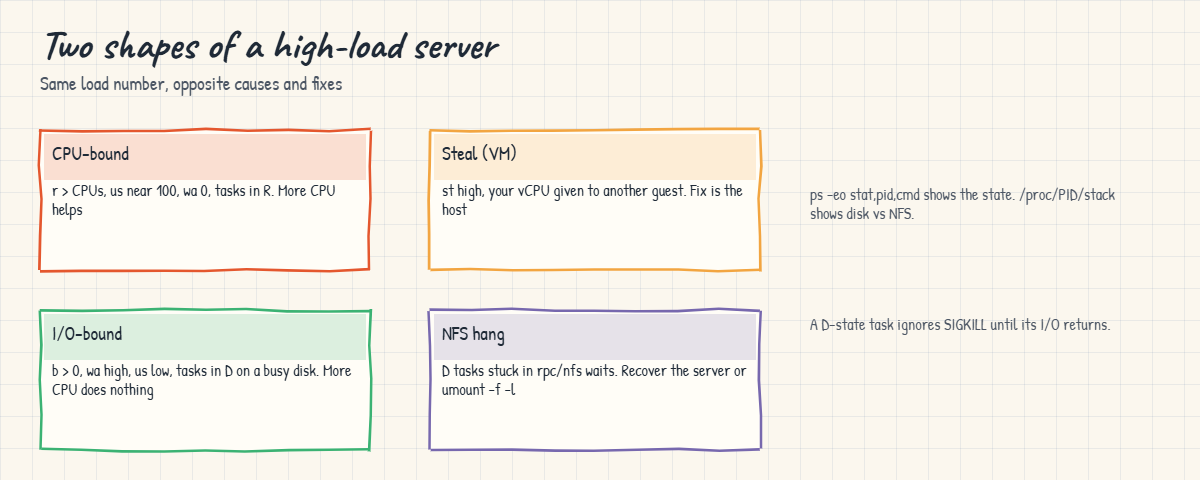
Two more culprits hide here. On a VM, steal time (st in vmstat, %steal in sar) is time your vCPU was ready but the hypervisor gave the physical core to another guest, so load climbs and the fix is on the host, not in your VM. And a D-state task waiting on an NFS server that stopped answering cannot be killed (not even with kill -9) until the server returns or the mount is forced down, so one dead NFS export can hang every process that touches it and drive load through the roof.
How it works, step by step
A slow-server ticket runs down a short checklist: how high is load against the CPUs, is it CPU or I/O, which device, which process. The diagram below shows it. First, read load the right way.
1Load counts R and D tasks
Every few seconds the kernel counts tasks in state R and state D and folds that into the three averages. A 1-minute value of 4.00 on a 2-CPU box means that, on average over the last minute, four tasks wanted a CPU or were stuck waiting on storage. The 1-minute number reacts fast; the 15-minute one tells you if it’s a spike or a long problem.
2Split CPU work from waiting
vmstat 1 prints one line a second. r is tasks wanting a CPU, b is tasks blocked in D state, and the cpu columns are us, sy, id, wa, st. If us + sy is near 100 and r is bigger than your CPU count, the CPUs are the limit. If id + wa is high and b is above zero, the CPUs are waiting for storage and more CPU would do nothing.
3Find the slow device with iostat
iostat -xz 1 shows each busy disk once a second. The numbers that matter are r_await and w_await (milliseconds per request including queue time) and aqu-sz (average requests waiting). %util is the share of time the device was busy, honest for one spinning disk but misleading on SSD, NVMe or a SAN LUN that serves many requests at once, so trust await and aqu-sz first.
4Catch the D-state processes
While the stall is happening, ps -eo stat,pid,user,cmd | awk '$1 ~ /^D/' lists the tasks in uninterruptible sleep, and cat /proc/PID/stack or /proc/PID/wchan shows what kernel function they are blocked in (a disk wait, an NFS call). pidstat -d 1 then tells you which process is doing the I/O. The picture below maps the two shapes of a high-load incident.
5Rule out the hypervisor and NFS
If the CPUs look busy but your own processes don’t add up, check st in vmstat: steal time above a few percent means a noisy neighbour on the VM host. And if D-state tasks are blocked in NFS calls (wchan shows something like rpc_wait_bit_killable) and the mount won’t respond, the server that exports it is the problem; those tasks won’t die until it comes back. The diagram below shows where each one sits.
6Decide the fix from the evidence
CPU-bound with a real busy process: find it with pidstat or top and deal with that workload (a runaway job, too few CPUs for real demand). I/O-bound: find what’s writing or reading and slow or move it, or fix the storage. Steal: talk to the virtualisation team.
NFS hang: recover or hard-unmount the export.
Load average is a doorbell, not a diagnosis. It tells you to look; vmstat, iostat and pidstat tell you what to fix. Lesson 53 built these tools up as everyday performance monitoring; here they are the toolkit for the “why is it slow right now” page.
Hands-on lab: CPU-bound vs I/O-bound load on rocky01
Before you run any command, double-check it
Read every command twice before you press Enter. Check the target: the server name, the user, the disk or device name, the path and the sizes. These commands are for learning and were tested in our lab, not on your system. At work, run the read-only commands first, follow your change process, make sure a backup exists, and ask a second person to check anything that changes or deletes data. You run them at your own risk.
Everything runs on rocky01 as student, in ~/lab73. stress-ng stops by itself after its timeout, so nothing keeps running if you walk away. You met these tools in Lesson 53; here you use them to decide CPU versus I/O on the spot. Take a snapshot first (VBoxManage snapshot rocky01 take before-l73) and start with mkdir -p ~/lab73 && cd ~/lab73.
1Make sure the tools are there
Run this (they were installed in Lesson 53; this adds them if not):
sudo dnf install -y sysstat stress-ng
nproc
uptime
cat /proc/loadavgYou should see something like this:
11:02:14 up 1:48, 2 users, load average: 0.04, 0.08, 0.03
0.04 0.08 0.03 1/164 2740
2On Rocky Linux 10 both packages come from the normal AppStream repository, so no EPEL is needed; on ubu01 it’s sudo apt install sysstat stress-ng from universe. rocky01 has 2 vCPUs, so a load near 2 means “fully busy” and anything well above 2 means tasks are queued. Right now load is near zero. In /proc/loadavg the fourth field (1/164) is running tasks over total tasks.
✅ Checkpoint: You know rocky01 has 2 CPUs, so you know 2.00 is the “fully busy” load for this box.
2Read a resting baseline with vmstat
Run this (one line a second, three lines):
vmstat 1 3You should see something like this:
procs -----------memory---------- ---swap-- -----io---- -system-- -------cpu-------
r b swpd free buff cache si so bi bo in cs us sy id wa st gu
0 0 0 1051220 4908 380240 0 0 21 14 118 160 1 0 99 0 0 0
0 0 0 1051220 4908 380240 0 0 0 0 96 141 0 0 100 0 0 0
0 0 0 1051216 4908 380240 0 0 0 12 101 150 0 1 99 0 0 0Ignore the first line, which is the average since boot. On a quiet box r is 0 or 1, b is 0, id is 99 to 100, and wa and st are 0. Remember this shape: everything that follows is a change from it.
✅ Checkpoint: Your live vmstat lines show r 0-1, b 0, id near 100 and wa 0.
3Make it CPU-bound and read the shape
Start four CPU workers (twice the CPU count) for two minutes, wait a minute, then look:
stress-ng --cpu 4 --timeout 120s &
sleep 60
uptime
vmstat 1 3You should see something like this:
[1] 2803
stress-ng: info: [2803] setting to a 2 mins run per stressor
stress-ng: info: [2803] dispatching hogs: 4 cpu
11:08:44 up 1:54, 2 users, load average: 2.78, 0.96, 0.41
procs -----------memory---------- ---swap-- -----io---- -system-- -------cpu-------
r b swpd free buff cache si so bi bo in cs us sy id wa st gu
4 0 0 1022140 4908 380360 0 0 0 0 1052 534 99 1 0 0 0 0
5 0 0 1022140 4908 380360 0 0 0 12 1061 540 99 1 0 0 0 0
4 0 0 1022140 4908 380360 0 0 0 0 1044 523 100 0 0 0 0 0Load climbed past 2 towards 4, and the shape is clear: r is 4 or 5 (tasks wanting a CPU), us is 99 to 100, and b and wa are 0. This is CPU-bound. More vCPUs would genuinely help here, because tasks are queued for the CPU, not waiting on anything.
Confirm with top and pidstat:
top -b -n 1 | head -n 12
pidstat -u 1 1 | head -n 8You should see something like this:
top - 11:08:52 up 1:54, 2 users, load average: 3.41, 1.28, 0.54
Tasks: 139 total, 5 running, 134 sleeping, 0 stopped, 0 zombie
%Cpu(s): 98.7 us, 1.3 sy, 0.0 ni, 0.0 id, 0.0 wa, 0.0 hi, 0.0 si, 0.0 st
MiB Mem : 1742.2 total, 999.1 free, 328.0 used, 415.1 buff/cache
MiB Swap: 2048.0 total, 2048.0 free, 0.0 used. 1414.2 avail Mem
PID USER PR NI VIRT RES SHR S %CPU %MEM TIME+ COMMAND
2805 student 20 0 78424 5632 3456 R 99.0 0.3 0:42.11 stress-ng-cpu
2806 student 20 0 78424 5632 3456 R 98.7 0.3 0:42.08 stress-ng-cpu
2807 student 20 0 78424 5632 3456 R 49.3 0.3 0:21.02 stress-ng-cpu
2808 student 20 0 78424 5632 3456 R 49.0 0.3 0:20.98 stress-ng-cpu
Linux 6.12.0-211.16.1.el10_2.0.1.x86_64 (rocky01) 10/27/2026 _x86_64_ (2 CPU)
11:09:10 AM UID PID %usr %system %guest %wait %CPU CPU Command
11:09:11 AM 1000 2805 99.00 1.00 0.00 0.00 100.00 0 stress-ng-cpu
11:09:11 AM 1000 2806 99.00 0.00 0.00 1.00 99.00 1 stress-ng-cpu
11:09:11 AM 1000 2807 49.00 0.00 0.00 50.00 49.00 0 stress-ng-cpu
11:09:11 AM 1000 2808 50.00 0.00 0.00 49.00 50.00 1 stress-ng-cputop shows tasks in the R state and %Cpu wa at 0, and pidstat names the four stress-ng workers. With four workers on two CPUs, two run at about 99% and two at about 50% with 50% %wait, because they take turns. Stop it early with kill %1 if you don’t want to wait for the timeout.
Try it yourself: build the top-CPU command in the Command Builder.
✅ Checkpoint: vmstat showed r 4-5, us near 100 and wa 0, and pidstat named the stress-ng-cpu workers.
4Make it I/O-bound and see the difference
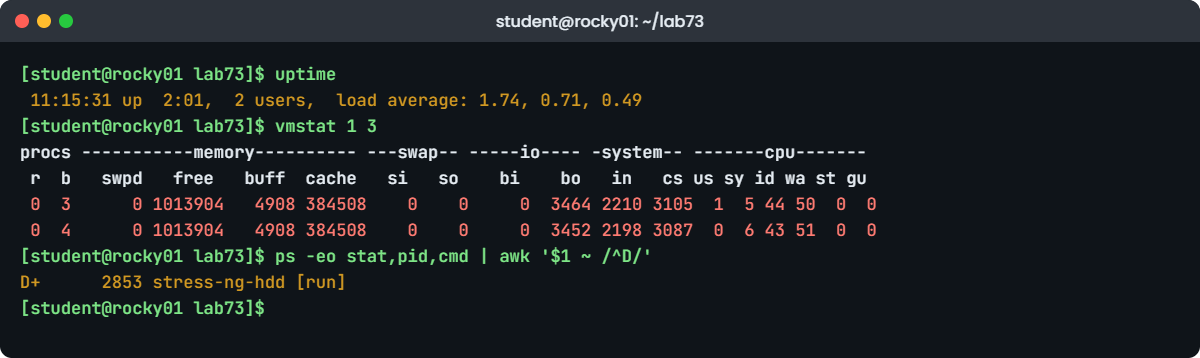
Wait until the CPU test has ended, then start two disk writers that sync every write:
stress-ng --hdd 2 --hdd-opts dsync --hdd-bytes 256M --temp-path ~/lab73 --timeout 180s &
sleep 45
uptime
vmstat 1 3You should see something like this:
[1] 2851
11:15:31 up 2:01, 2 users, load average: 1.74, 0.71, 0.49
procs -----------memory---------- ---swap-- -----io---- -system-- -------cpu-------
r b swpd free buff cache si so bi bo in cs us sy id wa st gu
0 3 0 1013904 4908 384508 0 0 0 3464 2210 3105 1 5 44 50 0 0
0 4 0 1013904 4908 384508 0 0 0 3452 2198 3087 0 6 43 51 0 0
1 3 0 1013904 4908 384508 0 0 0 3480 2231 3122 1 5 44 50 0 0Load is climbing again, but the shape is the opposite: r is 0, b is 3 or 4 (tasks blocked on I/O), us is about 1, and wa is 50. The CPUs are half idle and half waiting for the disk, yet the load average looks just as alarming as the CPU test. This is the case where adding CPUs changes nothing.
Look at the disk and the CPU split:
top -b -n 1 | grep '%Cpu'
iostat -xz 1 2Read the second iostat report. You should see something like this:
%Cpu(s): 0.8 us, 5.6 sy, 0.0 ni, 43.2 id, 50.4 wa, 0.0 hi, 0.0 si, 0.0 st
avg-cpu: %user %nice %system %iowait %steal %idle
0.50 0.00 5.53 50.25 0.00 43.72
Device r/s rkB/s rrqm/s %rrqm r_await rareq-sz w/s wkB/s wrqm/s %wrqm w_await wareq-sz f/s f_await aqu-sz %util
dm-0 0.00 0.00 0.00 0.00 0.00 0.00 866.00 3464.00 0.00 0.00 9.21 4.00 0.00 0.00 7.98 99.60
sda 0.00 0.00 0.00 0.00 0.00 0.00 866.00 3464.00 0.00 0.00 4.83 4.00 842.00 2.14 5.99 99.60top confirms wa near 50 with us tiny. iostat shows sda and the dm-0 volume above it busy: each write is 4 KiB (wareq-sz), about 866 a second, with w_await 4.8 ms on sda and 9.2 ms through LVM, and aqu-sz of 6 to 8 requests queued. On this single VirtualBox disk %util 99.6 does mean full, but on SSD or SAN trust await and aqu-sz first.
✅ Checkpoint: vmstat showed b above 0 and wa near 50 while us stayed low, and iostat showed w_await and aqu-sz above zero for sda.
5Catch the D-state processes behind the stall
While the disk test is still running, find the uninterruptible tasks and what they wait on:
ps -eo stat,pid,user,wchan:20,cmd | awk '$1 ~ /^D/'
pidstat -d 1 1 | head -n 6
P=$(pgrep -f stress-ng-hdd | head -n1); sudo cat /proc/$P/stackYou should see something like this:
D+ 2853 student submit_bio_wait stress-ng-hdd [run]
D+ 2854 student folio_wait_bit stress-ng-hdd [run]
D+ 2856 student submit_bio_wait stress-ng-hdd [run]
Linux 6.12.0-211.16.1.el10_2.0.1.x86_64 (rocky01) 10/27/2026 _x86_64_ (2 CPU)
11:15:44 AM UID PID kB_rd/s kB_wr/s kB_ccwr/s iodelay Command
11:15:45 AM 1000 2853 0.00 1736.00 0.00 18 stress-ng-hdd
11:15:45 AM 1000 2854 0.00 1728.00 0.00 17 stress-ng-hdd
[<0>] folio_wait_bit_common+0x124/0x340
[<0>] folio_wait_writeback+0x2b/0x80
[<0>] __filemap_fdatawait_range+0x8a/0x100
[<0>] file_write_and_wait_range+0x8e/0xd0
[<0>] xfs_file_fsync+0x5c/0x240 [xfs]
[<0>] do_fsync+0x3d/0x80The D in the first column is uninterruptible sleep: these tasks are stuck in a kernel call and even kill -9 won’t touch them until the I/O finishes. wchan and /proc/PID/stack show where: here it’s a file write and fsync waiting on the disk. pidstat -d names the writers and their kB/s. This is the evidence that turns “load is high” into “these two processes are hammering the disk”.
If /proc/PID/stack says Permission denied, you ran it without sudo: only root can read a kernel stack. Stop the test with kill %1 when done.
✅ Checkpoint: You listed D-state stress-ng-hdd tasks, saw a disk-wait function in wchan or the stack, and pidstat -d named the writers.
6See an NFS hang drive load up
This uses the NFS mount from Lesson 47 (ubu01 exports /srv/nfs/share, rocky01 mounts it on /mnt/share). Nothing is deleted; you stop and start the NFS service only.
On ubu01, stop the NFS server, then on rocky01 touch the mount:
# on ubu01:
sudo systemctl stop nfs-server
# on rocky01:
ls /mnt/share &
sleep 20
uptime
ps -eo stat,pid,user,wchan:24,cmd | awk '$1 ~ /^D/'You should see something like this:
11:30:18 up 2:16, 2 users, load average: 2.90, 1.12, 0.63
D 3402 student rpc_wait_bit_killable ls --color=auto /mnt/shareThe ls hangs, because the mount is a hard NFS mount (the default), so the kernel waits for the server forever instead of returning an error. The task sits in D state blocked in an RPC call, and the load average climbs even though rocky01’s own CPU and local disk are idle. Look at where it’s stuck:
P=$(pgrep -f '/mnt/share'); sudo cat /proc/$P/stackYou should see something like this:
[<0>] rpc_wait_bit_killable+0x18/0x90 [sunrpc]
[<0>] __rpc_execute+0x114/0x3d0 [sunrpc]
[<0>] rpc_run_task+0x136/0x180 [sunrpc]
[<0>] nfs4_call_sync_sequence+0x60/0xb0 [nfsv4]The rpc_wait_bit_killable and nfsv4 frames say plainly: this is waiting on NFS, not local disk. At work this is why one dead NFS server can make a whole fleet of clients look “slow” with high load. Bring it back:
# on ubu01:
sudo systemctl start nfs-serverThe ls completes on its own within a few seconds and the load falls. If the server were gone for good, you’d force the mount down with sudo umount -f -l /mnt/share; the lazy -l detaches it so new access stops hanging, and the hard -f tries to kill the pending calls.
✅ Checkpoint: The ls hung in D state with an NFS stack while the server was down, and completed once you restarted nfs-server, leaving /mnt/share working.
7Recognise steal time on a VM
You can’t force steal in a lab, but you must recognise it. On a busy hypervisor, vmstat looks like this:
procs -----------memory---------- ---swap-- -----io---- -system-- -------cpu-------
r b swpd free buff cache si so bi bo in cs us sy id wa st gu
3 0 0 998220 4908 381020 0 0 0 0 1120 980 41 3 20 0 36 0
3 0 0 998220 4908 381020 0 0 0 0 1098 965 39 4 18 0 39 0Here r is 3 on 2 CPUs and us is only about 40, yet id is 0, because st is 36 to 39: more than a third of the time the VM wanted a CPU and the host gave the physical core to another guest. The fix isn’t in your VM at all, it’s the overloaded host, so this is a conversation with the virtualisation or cloud team. On your own rocky01, st stays 0 because the laptop isn’t overcommitted.
✅ Checkpoint: You can point at the st column and explain that high steal means the hypervisor, not your VM, is the limit.
8Write the one-line verdict
Put it together. For any slow-server ticket, these four commands give you the answer:
echo "CPUs: $(nproc), load: $(cut -d' ' -f1-3 /proc/loadavg)"
vmstat 1 3 | tail -n 2
ps -eo stat,pid,cmd | awk '$1 ~ /^D/' | head
iostat -xz 1 2 | tail -n 4Read them in order and you can say, in one sentence, which it is: “load 4 on 2 CPUs, us 99, no D tasks, disks idle: CPU-bound, process X”, or “load 4, us 1, wa 50, three D tasks on sda with 9 ms await: disk-bound, process Y”. That sentence, backed by the numbers, is what stops a team ordering CPUs for a disk problem.
✅ Checkpoint: You produced a one-line CPU-versus-I/O verdict for rocky01 from nproc, vmstat, the D-state list and iostat.
Break It, Then Fix It
Take a snapshot of rocky01 first (VBoxManage snapshot rocky01 take before-l73-break). The first trap is the whole point of the lesson: high load that is not a CPU shortage. The second is a tempting “fix” that makes things worse.
1Mistake high load for a CPU shortage
Create the kind of load a stuck disk or a heavy backup gives you, then look only at the load number:
cd ~/lab73
stress-ng --hdd 4 --hdd-opts dsync --hdd-bytes 256M --temp-path ~/lab73 --timeout 240s &
sleep 90
uptime
top -b -n 1 | head -n 3You should see something like this:
[1] 3120
12:03:12 up 2:49, 2 users, load average: 3.92, 1.86, 0.79
top - 12:03:12 up 2:49, 2 users, load average: 3.92, 1.86, 0.79
Tasks: 146 total, 0 running, 146 sleeping, 0 stopped, 0 zombie
%Cpu(s): 1.2 us, 6.9 sy, 0.0 ni, 21.5 id, 70.4 wa, 0.0 hi, 0.0 si, 0.0 stA load of 3.92 on 2 CPUs reads like “we need more CPUs”, and that is the request that lands on the virtualisation team on a bad day. But look closer: 0 tasks running, us 1.2, and 70% iowait. Doubling the vCPUs would change nothing, because not one of these tasks is waiting for a CPU.
Fix: confirm it is I/O, find the D-state tasks and the device, then deal with the source, not the CPU count.
vmstat 1 3 | tail -n 2
ps -eo stat,pid,user,cmd | awk '$1 ~ /^D/'
iostat -xz 1 2 | tail -n 3You should see something like this:
procs -----------memory---------- ---swap-- -----io---- -system-- -------cpu-------
r b swpd free buff cache si so bi bo in cs us sy id wa st gu
0 4 0 1009120 4908 388612 0 0 0 3620 2390 3402 1 7 21 71 0 0
D+ 3122 student stress-ng-hdd [run]
D+ 3123 student stress-ng-hdd [run]
D+ 3125 student stress-ng-hdd [run]
sda 0.00 0.00 0.00 0.00 0.00 0.00 905.00 3620.00 0.00 0.00 8.77 4.00 880.00 3.95 11.42 99.80b is 4, the writers are in D state, and sda has 11 requests queued with w_await near 9 ms. The load is made of tasks waiting for storage. At work the real fix is finding what writes (a backup that ran into business hours, a log compressor, a bad SAN path) and slowing or moving it.
Stop the test with kill %1 or wait for the timeout.
✅ Checkpoint: You showed the load was iowait, not CPU, with vmstat b/wa, the D-state list and iostat await.
2Try to “fix” a D-state process by killing it
Start the disk load again, find a stuck writer, and try to kill it:
stress-ng --hdd 2 --hdd-opts dsync --hdd-bytes 256M --temp-path ~/lab73 --timeout 120s &
sleep 10
P=$(ps -eo stat,pid,cmd | awk '$1 ~ /^D/ {print $2; exit}')
echo "trying to kill $P"
sudo kill -9 "$P"
sleep 2
ps -o stat,pid,cmd -p "$P"You should see something like this:
trying to kill 3205
STAT PID CMD
D 3205 stress-ng-hdd [run]kill -9 did nothing: the process is still there, still in D state. A task in uninterruptible sleep can’t take a signal until the kernel call it’s stuck in returns, so you cannot kill your way out of an I/O stall or an NFS hang. People retry kill -9 again and again and conclude the server is “broken”.
Fix: deal with the cause, not the process. For disk load, let the I/O drain or stop the source; the task leaves D on its own. Here, stop the whole test:
kill %1
sleep 3
ps -eo stat,pid,cmd | awk '$1 ~ /^D/' | wc -lYou should see:
0Once the writes finish, the workers return to normal and exit. For a real NFS hang the equivalent is recovering the server or umount -f -l; for a bad disk it’s the storage fix. The lesson is that D state is a symptom of what the task waits on, not a process you can force away.
✅ Checkpoint: kill -9 left the D-state task in place, and it only cleared once the I/O source was stopped.
This happened at work
The load alert that wasn’t a CPU problem
At a semiconductor design house in Singapore, the overnight chip-simulation jobs ran on a shared Linux server, and one week the monitoring kept paging with “load average 40” around 3 a.m. The on-call engineer’s first instinct, and the design team’s loud request, was to add CPUs: the box had 16 cores and a load of 40 surely meant it was starved.
Before filing for more hardware, the engineer caught it live one night. vmstat 1 told a different story: r was 2, us and sy together were under 10, but b was often above 30 and wa sat near 90. The CPUs were almost idle. ps -eo stat,pid,cmd filtered on D showed dozens of simulation processes all stuck, and /proc/PID/stack on a few of them pointed at NFS calls.
The jobs read and wrote their scratch data on an NFS share from a filer that was itself overloaded between 2 and 4 a.m., when backups and another team’s jobs hit it. Every simulation that touched the share went into D state waiting for the filer, and all those waiting tasks drove the load average to 40 while the 16 cores did nothing.
Adding CPUs would have wasted money and fixed nothing. The team moved the scratch I/O to local NVMe, staggered the jobs away from the backup window, and raised the filer’s limits with the storage team. The runbook gained one rule the whole team now follows: on a high-load page, run vmstat first and look at wa and b before anyone says the word CPU.
Common mistakes and troubleshooting
| Mistake | What happens | What to do instead |
|---|---|---|
| Reading load average without the CPU count | A load of 8 scares people on a 32-core box, 2 is ignored on a 2-vCPU VM | Divide by nproc and compare with the server’s normal |
| Assuming high load means a CPU shortage | You order CPUs for a disk or NFS problem | Check wa and the b column in vmstat 1, and list D-state tasks |
| Trusting the first line of vmstat or iostat | It’s the average since boot, so a live problem looks small | Use an interval and read from the second report on |
Trying to kill -9 a D-state process | Nothing happens; it can’t take a signal while blocked | Fix what it waits on: the disk, or recover/force-unmount NFS |
| Treating %util 100 as “disk full” on SSD, NVMe or SAN | You chase a device that still has headroom | Read r_await, w_await and aqu-sz before %util |
| Ignoring st (steal) on a VM | You tune an app that the hypervisor is starving | Watch st in vmstat or %steal in sar; escalate to the host team |
| Blaming the client when NFS makes load spike | You reboot healthy servers | Check /proc/PID/stack for NFS/rpc frames; fix the server or umount -f -l |
Interview questions
Click a question to open it. Each one is written the way an interviewer would ask it. Under it you will see why they ask it and one way you could answer, in your own words.
Fresher level
1. A server shows a load average of 8. Is that bad?
Why they ask this: They want to hear that load means nothing without the CPU count and the server’s normal.
How you might answer: It depends on the CPU count. I’d run nproc: 8 on a 2-vCPU VM means tasks are waiting a lot, but on a 16-core server 8 is comfortable.
Then I’d check whether it’s CPU or I/O, because load also counts tasks waiting on disk. vmstat 1 tells me: high r and us is CPU, high b and wa is storage, and I compare against what’s normal for that box.
2. What is a D-state process, and why does it matter for load?
Why they ask this: A basic but revealing question; they want to know you understand uninterruptible sleep.
How you might answer: D state is uninterruptible sleep: the task is blocked in a kernel call, almost always waiting for disk or NFS, and it can’t take a signal until that call returns, so kill -9 won’t touch it.
It matters because Linux counts D-state tasks in the load average alongside running ones. So a stuck disk or a dead NFS mount can push load very high while the CPUs are idle, which is why I always check wa and the b column, not just the load number.
2–5 years experience
3. Load is 12 on 4 CPUs, but top shows the CPUs 70% idle. Walk me through it.
Why they ask this: They’re testing whether you move from symptom to device to process instead of guessing.
How you might answer: Idle CPUs with high load means tasks blocked on I/O. I’d confirm with vmstat 1 (b column and wa), list D-state tasks with ps -eo stat,pid,cmd | awk '$1 ~ /D/', and run iostat -xz 1 to find which device has high await and a long queue.
Then pidstat -d 1 or iotop names who is doing the I/O. If no local process is busy but await is still high, I’d look at /proc/PID/stack for NFS or SAN frames, and check dmesg and multipath. The fix follows the evidence, not the load number.
4. An NFS server went down and now every client has a load of 30 and feels frozen. What’s happening and what do you do?
Why they ask this: They want to see you connect NFS hangs, D state, and the recovery options.
How you might answer: The clients mount it hard by default, so any process that touches the share goes into D state waiting for the server forever, and all those waiting tasks drive the load average up even though the clients’ own CPUs are idle. The processes can’t be killed while they wait.
First I’d recover the NFS server, which lets the hung calls complete and the load fall on its own. If it’s gone for good, I’d umount -f -l the mount on the clients so new access stops hanging, and longer term consider soft mounts with sensible timeo and retrans values, or a health check, weighing the data-safety trade-off of soft mounts.
Senior level
5. On a VM, load is high and users complain, but your app and disk look fine. What do you suspect and how do you confirm?
Why they ask this: Seniors should reach for steal time and know it’s a host problem.
How you might answer: I’d suspect CPU steal: the hypervisor giving our vCPUs to other guests. I’d confirm with the st column in vmstat 1 or %steal in mpstat and sar. Steal above a few percent, sustained, means we’re being starved by the host.
If sar has history (Lesson 53), I’d pull %steal over the slow window to show a pattern, for example every morning at 9. That evidence goes to the virtualisation or cloud team, because the fix is on the host, moving the VM or reducing overcommit, not anything I can tune inside the guest.
6. How would you design alerting so a high-load page is actually actionable across a large fleet?
Why they ask this: They want layered metrics and avoiding the “load alone” trap, not just a threshold.
How you might answer: I wouldn’t alert on raw load. I’d alert on load per CPU combined with what’s behind it: sustained high us with a run queue over the CPU count for CPU pressure, sustained high wa with a non-zero b and disk await for I/O pressure, and %steal over a threshold as its own alert.
Each alert would link to a runbook that starts with vmstat, iostat and the D-state list, so whoever is on call collects the same evidence and reaches the same CPU-versus-I/O verdict. I’d keep PSI (/proc/pressure) in mind too, since it measures stall time directly and is cleaner than load for this.
Quick quiz
Q1. rocky01 has 2 vCPUs and a 1-minute load of 2.00 with us at 100 and wa at 0. What is it?
- Idle
- Disk-bound
- CPU fully used, nobody waiting on average
- Out of memory
Show answer
C — Load equal to the CPU count with high us and no iowait means the CPUs are fully used with no queue on average.
Q2. Which task state, counted in load average, can make load high while CPUs stay idle?
- Zombie (Z)
- Stopped (T)
- Uninterruptible sleep (D), waiting on I/O
- Sleeping (S)
Show answer
C — Linux counts R and D tasks in load; D tasks blocked on disk or NFS raise load without using CPU.
Q3. In vmstat 1, which pair points to a disk bottleneck?
- r and us
- si and so
- b and wa
- in and cs
Show answer
C — b is tasks blocked on I/O and wa is CPU time spent idle waiting for I/O.
Q4. Why does kill -9 fail to end a process stuck in D state?
- It needs sudo
- The process ignores SIGKILL
- It can’t take a signal until the kernel call it’s blocked in returns
- It’s a zombie
Show answer
C — Uninterruptible sleep means no signals are delivered until the blocking I/O (disk or NFS) completes.
Q5. On a VM, vmstat shows r 3, us 40, id 0 and st 38. What does that tell you?
- The disk is full
- The hypervisor is giving your vCPUs to other guests
- Memory is leaking
- The app needs tuning
Show answer
B — High steal (st) means your vCPU was ready but the host ran another guest; the fix is on the host.
Quick recap
- Load average counts running, queued and D-state (I/O-waiting) tasks; always divide by
nprocand compare with normal. vmstat 1splits it: r and us high is CPU-bound, b and wa high is I/O-bound, st high is the hypervisor.iostat -xz 1finds the slow device: read r_await, w_await and aqu-sz before %util.- List D-state tasks with
ps -eo stat,pid,cmd | awk '$1 ~ /D/'and read/proc/PID/stackto see disk vs NFS. - A D-state task can’t be killed, not even with
kill -9; fix what it waits on, orumount -f -la dead NFS mount. - High load is a doorbell:
vmstat,iostatandpidstattell you whether to touch the CPU, the disk or the host.
Next lesson
Lesson 74: Out of memory and the OOM killer → You’ll see how the kernel picks a process to kill when memory runs out, read the OOM messages in dmesg and journalctl -k, and tune oom_score_adj and swap.
Further reading: Linux high load average
Want to go deeper into Linux high load average? Read the man7.org pages for proc_loadavg(5), vmstat(8) and iostat(1), the kernel’s Pressure Stall Information page, and the stress-ng project. You can also see the full plan for this course on the Linux Administration course page.
