Can’t SSH into the server: refused, timeout, permission denied

“I can’t SSH into the server” is one of the most common pages you’ll get, and it covers a dozen very different faults. The skill is to read the exact error, because a SSH connection refused message, a connection that hangs, and a “Permission denied (publickey)” each point at a different layer: the service, the network path, and authentication. Guess wrong and you spend an hour on the firewall when the real problem was a file permission.

Here you’ll learn to tell those errors apart in seconds, then work down the layers: is sshd (or ssh.socket on Ubuntu) running and listening, does the firewall allow the port, did someone move SSH to a port SELinux doesn’t know, are the key and home-folder permissions right, and is AllowUsers quietly blocking you. You’ll read ssh -vvv like a log, and remember that the VirtualBox console is always your way back.

Where this lesson fits

Lesson 72 of 82 in Linux Administration · Phase 4: Troubleshooting step by step · Before this: Lesson 71, reset a forgotten root password · Next: Lesson 73, high load and a slow server

TimeYou needBy the end you can
About 70 minutesrocky01 and ubu01 running, SSH from ubu01 to rocky01 with your key (Lesson 33), and both console windows open as a fallbackTell connection refused from timeout from permission denied, check the service, firewall, SELinux port and key permissions in order, read ssh -vvv, and recover from the console

What it is, in one line

An SSH problem is one of three things: the server isn’t listening, something on the path blocks the port, or the server refuses your login; the error message tells you which, and you check that layer first.

In Simple Words

Phoning an office that won’t answer

You call an office and get three kinds of trouble. Sometimes a recorded voice says “this number is not in service”, so there is no phone at the other end at all. Sometimes it just rings and rings with nobody picking up.

And sometimes a receptionist answers but says “sorry, you’re not on the list, I can’t put you through”.

Each one needs a different fix. A dead number means the phone isn’t set up; endless ringing usually means a wall between you and them; “not on the list” means the phone works fine and the problem is who you are.

Connection refused is the dead number, a timeout is the endless ringing, and “Permission denied” is the receptionist turning you away.

Engineer's View

Read the error, then check that one layer

SSH fails at one of three layers, and the client message names the layer for you. Match the message first, and you skip straight to the right check instead of poking at everything.

What the client saysWhich layerMost likely causeCheck first
Connection refusedThe serverNothing is listening on that port: sshd stopped, or it moved portOn the server: ss -tlnp and systemctl status sshd
Connection timed outThe pathA firewall is dropping packets, or wrong IP, or the host is downFirewall rules; ping and nc -zv host 22
No route to hostThe pathFirewall rejecting with ICMP, or no route at allFirewall (a reject rule), routing, the VM is up
Permission denied (publickey)AuthenticationKey not accepted: permissions, wrong key, AllowUsersServer log and ssh -vvv
Host key has changedThe clientThe server was rebuilt, or you reached a different hostConfirm the fingerprint, then ssh-keygen -R host

Two Linux-specific traps live under “connection refused”. On Ubuntu 26.04, sshd is started on demand by ssh.socket, so the socket, not the service, owns port 22; changing the port means editing the socket, not just sshd_config. On Rocky, SELinux only lets sshd bind the ports it knows as ssh_port_t (22 by default), so moving SSH to another port needs semanage port as well as the firewall.

One old habit to drop: /etc/hosts.deny and hosts.allow (TCP Wrappers) no longer apply, because modern OpenSSH isn’t built against libwrap. Access control is AllowUsers/DenyUsers in sshd_config, plus the firewall. And whatever breaks SSH, the VirtualBox console (or iLO/iDRAC/cloud serial console on real servers) still logs you in, because it never used SSH at all.

How it works, step by step

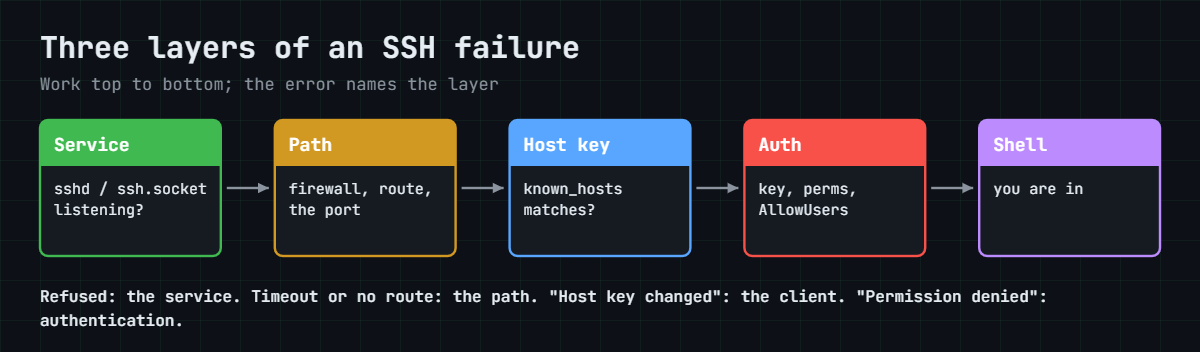
A good SSH ticket is worked top to bottom: service, path, auth. The diagram below shows the same three layers and the one command that proves each. First, prove something is listening.

1Is the server listening?

On the server’s console, ss -tlnp shows every TCP port in LISTEN state with the process. If you see sshd on 0.0.0.0:22 and [::]:22, the service is fine and the problem is further out. If nothing is on 22, sshd is stopped or bound to another port, and a client gets “connection refused”.

2Is sshd actually healthy?

systemctl status sshd (or ssh on Ubuntu) tells you if it’s running or failed. A failed restart after a config change is common, and sshd -t names the file and line of a bad keyword in one line. On Ubuntu the socket matters: systemctl status ssh.socket must be active for on-demand start to work.

SSH connection refused: the three layers of an SSH failure, service, path and authentication

3Can packets reach the port?

From the client, nc -zv server 22 or ssh -v tells you refused (reached the host, nothing listening) from timed out (something ate the packets) from no route to host (a reject rule or no route). On the server, check the firewall: firewall-cmd --list-all on Rocky, ufw status on Ubuntu. A dropped packet gives a timeout; a rejected one gives “No route to host”.

4Does SELinux allow the port? (Rocky)

If SSH was moved to, say, 2222, firewalld can allow it and sshd can be configured for it, yet sshd still fails to start with “bind: Permission denied” because SELinux only permits ssh_port_t ports. semanage port -a -t ssh_port_t -p tcp 2222 teaches SELinux the new port. This is the single most confusing SSH failure on RHEL-family servers.

5Will the server accept your login?

Once packets arrive and sshd answers, “Permission denied (publickey)” is about authentication. The usual causes are file permissions (home, ~/.ssh, authorized_keys too open, or wrong owner), the wrong key offered, a missing key on the server, a wrong SELinux label on ~/.ssh (Rocky), or AllowUsers/DenyUsers blocking the account. The server log says which; the client only says “denied”.

The picture below maps each error to its layer.

SSH connection refused: which error maps to which cause and command

6Read ssh -vvv and the server log together

ssh -vvv from the client shows the connection being made, the host key checked, each key offered, and the server’s answer, so you can see exactly where it stops. At the same time journalctl -u sshd on the server names refusals like “bad ownership or modes for directory” or “not allowed because not listed in AllowUsers”, which the client never sees.

Keep one rule in mind through all of this: before you touch sshd, the firewall or SELinux on a server you care about, make sure you have the console, because any of those changes can cut your SSH session. In the lab that is the VirtualBox window; at work it is iLO, iDRAC or the cloud serial console.

Hands-on lab: diagnose and fix SSH on rocky01 and ubu01

Before you run any command, double-check it

Read every command twice before you press Enter. Check the target: the server name, the user, the disk or device name, the path and the sizes. These commands are for learning and were tested in our lab, not on your system. At work, run the read-only commands first, follow your change process, make sure a backup exists, and ask a second person to check anything that changes or deletes data. You run them at your own risk.

You’ll play client from ubu01 (and its ~/.ssh/config from Lesson 33, where rocky01 means student at 10.10.10.11 with your key) and server work on rocky01’s console. Snapshot both first (VBoxManage snapshot rocky01 take before-l72 and the same for ubu01). Every change here is undone by the end, so both VMs finish exactly as Lesson 33 left them: key-only SSH on port 22, firewalld on rocky01, ufw on ubu01.

SSH connection refused lab: ss, nc and ssh output on rocky01 and ubu01
Example output on ubu01: a working login, a refused closed port, and the nc port checks.

1Tell the three failures apart

On ubu01, run these three. The first works; the other two are the errors you must recognise:

ssh rocky01 hostname
nc -zv 10.10.10.11 22
ssh -p 2222 rocky01 hostname
nc -zv 10.10.10.11 2222

You should see something like this:

rocky01
Connection to 10.10.10.11 22 port [tcp/ssh] succeeded!
ssh: connect to host 10.10.10.11 port 2222: Connection refused
nc: connect to 10.10.10.11 port 2222 (tcp) failed: Connection refused

Port 22 answers, so SSH is healthy. Port 2222 has nothing listening, so both ssh and nc say “Connection refused” straight away. That instant refusal means the host is reachable and the port is simply closed, which is a very different problem from a hang. nc -zv is the quick “is the port open” test before you even start ssh.

✅ Checkpoint: You can see “Connection refused” for the closed port and a success for port 22.

2Prove the server is listening

On rocky01’s console (or over SSH while it still works), run this:

sudo ss -tlnp '( sport = :22 )'
systemctl is-active sshd

You should see something like this:

State   Recv-Q  Send-Q   Local Address:Port   Peer Address:Port  Process
LISTEN  0       128            0.0.0.0:22          0.0.0.0:*      users:(("sshd",pid=905,fd=3))
LISTEN  0       128               [::]:22             [::]:*      users:(("sshd",pid=905,fd=4))
active

sshd is listening on 0.0.0.0:22 (all IPv4) and [::]:22 (all IPv6), and the service is active. If ss showed nothing on 22, a client would get “connection refused”, and you’d look at systemctl status sshd next. On Ubuntu the equivalent check is systemctl status ssh.socket, because the socket holds the port until a connection arrives.

✅ Checkpoint: ss shows sshd on port 22 and systemctl says active.

3Check the firewall on rocky01

Run this:

sudo firewall-cmd --list-all

You should see something like this:

public (active)
  target: default
  icmp-block-inversion: no
  interfaces: enp0s3
  sources:
  services: dhcpv6-client http ntp ssh
  ports: 8080/tcp 10050/tcp 10051/tcp
  forward: yes
  masquerade: no

The ssh service is in the active zone, which is why port 22 is allowed. If someone removed it, a client would see a timeout (if firewalld drops) or “No route to host” (if it rejects), not a refusal. On Ubuntu this is sudo ufw status, which should list OpenSSH as ALLOW.

✅ Checkpoint: firewalld’s public zone lists the ssh service.

4Move SSH to port 2222 the right way (Rocky)

Keep this rocky01 session open and the console window ready: a mistake here can close SSH. You’ll put it back in the next step.

On rocky01, teach SELinux the port, open the firewall, add a drop-in, test and restart:

sudo semanage port -a -t ssh_port_t -p tcp 2222
sudo firewall-cmd --permanent --add-port=2222/tcp
sudo firewall-cmd --reload
echo 'Port 22' | sudo tee /etc/ssh/sshd_config.d/50-port.conf
echo 'Port 2222' | sudo tee -a /etc/ssh/sshd_config.d/50-port.conf
sudo sshd -t && sudo systemctl restart sshd
sudo ss -tlnp '( sport = :2222 )' | tail -n 1

You should see something like this (last line):

LISTEN  0  128  0.0.0.0:2222  0.0.0.0:*  users:(("sshd",pid=3140,fd=3))

Keeping both Port 22 and Port 2222 means your current session survives while you test the new one. From ubu01, check the new port works:

ssh -p 2222 rocky01 hostname

You should see:

rocky01

The order matters: semanage port first, or sshd fails to bind with “Permission denied” even though the firewall and config are right. Confirm SELinux learned it with sudo semanage port -l | grep ssh_port_t, which now shows 2222, 22.

✅ Checkpoint: ssh -p 2222 to rocky01 prints rocky01, and semanage lists 2222 under ssh_port_t.

5Put rocky01 back to port 22 only

Undo the change so later lessons work:

sudo rm /etc/ssh/sshd_config.d/50-port.conf
sudo sshd -t && sudo systemctl restart sshd
sudo firewall-cmd --permanent --remove-port=2222/tcp
sudo firewall-cmd --reload
sudo semanage port -d -p tcp 2222
sudo ss -tlnp '( sport = :22 )' | tail -n 1

You should see sshd back on 22 only:

LISTEN  0  128  [::]:22  [::]:*  users:(("sshd",pid=3190,fd=4))

Removing the drop-in and restarting takes sshd back to the default 22 from Rocky’s own 50-redhat.conf. You also removed the firewall port and the SELinux port, so nothing is left behind. ssh -p 2222 rocky01 should now say “Connection refused” again.

✅ Checkpoint: rocky01 listens only on 22 again, and the 2222 firewall and SELinux entries are gone.

6Change the port on Ubuntu, where the socket owns it

On ubu01, look at the socket, then override its port:

systemctl cat ssh.socket | head -n 12
sudo systemctl edit ssh.socket

In the editor, add these lines in the blank area at the top, then save:

[Socket]
ListenStream=
ListenStream=2222

The empty ListenStream= clears the inherited port 22, and the next line sets 2222. Apply it and check:

sudo systemctl daemon-reload
sudo systemctl restart ssh.socket
sudo ss -tlnp '( sport = :2222 )'
nc -zv localhost 2222

You should see something like this:

State  Recv-Q Send-Q Local Address:Port Peer Address:Port Process
LISTEN 0      4096         0.0.0.0:2222      0.0.0.0:*     users:(("systemd",pid=1,fd=3))
LISTEN 0      4096            [::]:2222         [::]:*     users:(("systemd",pid=1,fd=4))
Connection to localhost 2222 port [tcp/*] succeeded!

Notice the process is systemd, not sshd: with socket activation systemd holds the port and starts sshd only when a connection arrives. That is why editing sshd_config alone and restarting ssh.service would not change the listening port. Because ufw allows only OpenSSH (port 22), reaching 2222 from another machine would also need sudo ufw allow 2222/tcp; the loopback check above skips ufw, so it just proves the socket binds.

Editing Port 2222 in a sshd_config.d drop-in and running daemon-reload works too, because a systemd generator reads sshd_config and rebuilds the socket. Editing the socket directly is the clearer way to see what owns the port.

Put ubu01 back:

sudo rm /etc/systemd/system/ssh.socket.d/override.conf
sudo systemctl daemon-reload
sudo systemctl restart ssh.socket
sudo ss -tlnp '( sport = :22 )' | tail -n 1
LISTEN 0  4096  [::]:22  [::]:*  users:(("systemd",pid=1,fd=4))

✅ Checkpoint: ubu01 listened on 2222 through ssh.socket, then returned to 22 after you removed the override.

7Read ssh -vvv like a log

From ubu01, watch a healthy login in full detail (the output is long; these are the lines that matter):

ssh -vvv rocky01 true 2>&1 | grep -E 'Connecting|Connection established|host key|Offering|Server accepts|Authenticated|Authentications that can'

You should see something like this:

debug1: Connecting to 10.10.10.11 [10.10.10.11] port 22.
debug1: Connection established.
debug1: Authenticating to 10.10.10.11:22 as 'student'
debug1: Server host key: ssh-ed25519 SHA256:Q8m2kTnV0yJcR5aP1sXw4LhE9uDfG7bZ3oNqY6iKtUc
debug1: Host '10.10.10.11' is known and matches the ED25519 host key.
debug1: SSH2_MSG_SERVICE_ACCEPT received
debug1: Authentications that can continue: publickey,gssapi-keyex,gssapi-with-mic
debug1: Next authentication method: publickey
debug1: Offering public key: /home/student/.ssh/id_ed25519 ED25519 SHA256:wRxHH/xEhT5QGNr7W2TW2Ljua2Qgpg31kVxviDxCfsE
debug1: Server accepts key: /home/student/.ssh/id_ed25519 ED25519 SHA256:wRxHH/xEhT5QGNr7W2TW2Ljua2Qgpg31kVxviDxCfsE
debug1: Authenticated to 10.10.10.11 ([10.10.10.11]:22) using "publickey".

Read it top down: the connection is made (so not refused or timed out), the host key matches known_hosts (so no “changed” warning), the key is offered and the server accepts it. When SSH fails, the last line before it stops tells you the layer: no “Connection established” means the path, no “Server accepts key” means authentication. Pair it with sudo journalctl -u sshd -n 20 on the server, which names the real reason.

✅ Checkpoint: You can point at the line where authentication succeeds in the -vvv output.

8Block yourself with AllowUsers, then fix it

Keep the console window ready; this step refuses SSH logins on purpose.

On rocky01, allow only a user that isn’t you, and restart:

echo 'AllowUsers arjun' | sudo tee /etc/ssh/sshd_config.d/60-allow.conf
sudo sshd -t && sudo systemctl restart sshd

From ubu01, a login now fails even though your key is correct:

ssh rocky01 hostname
student@10.10.10.11: Permission denied (publickey,gssapi-keyex,gssapi-with-mic).

The client just says “Permission denied (publickey)”, the same message a bad key gives, which is why this one wastes so much time. The server log is clear:

sudo journalctl -u sshd -n 2 --no-pager
Oct 27 12:41:03 rocky01 sshd-session[3301]: User student from 10.10.10.21 not allowed because not listed in AllowUsers
Oct 27 12:41:03 rocky01 sshd-session[3301]: Connection closed by invalid user student 10.10.10.21 port 51822 [preauth]

Fix: remove the drop-in and restart. Note that /etc/hosts.deny plays no part, OpenSSH ignores it.

sudo rm /etc/ssh/sshd_config.d/60-allow.conf
sudo sshd -t && sudo systemctl restart sshd
ssh rocky01 hostname
rocky01

While you’re in sshd settings, UseDNS is worth knowing: it defaults to off (commented out as #UseDNS no), but if someone sets it yes and the server’s DNS is slow, every login pauses for several seconds while sshd looks up the client’s name. A sudden “SSH is slow to log in” with no other change is often UseDNS yes plus a broken resolver.

✅ Checkpoint: Key login works again, and you can explain why “Permission denied” needed the server log to diagnose.

Break It, Then Fix It

Snapshot rocky01 first (VBoxManage snapshot rocky01 take before-l72-break) and keep the console window open, because both of these cut SSH on purpose. They are the two faults that look identical to the client and need the server side to tell apart.

1Move the port but forget SELinux

On rocky01, open the firewall and change the port, but skip semanage port:

echo 'Port 2222' | sudo tee /etc/ssh/sshd_config.d/50-port.conf
sudo firewall-cmd --permanent --add-port=2222/tcp && sudo firewall-cmd --reload
sudo sshd -t && sudo systemctl restart sshd

The restart fails:

Job for sshd.service failed because the control process exited with error code.
See "systemctl status sshd.service" and "journalctl -xeu sshd.service" for details.

sshd -t passed, because the config is valid; sshd only fails when it tries to bind the port. The log says why:

sudo journalctl -u sshd -n 3 --no-pager
Oct 27 12:50:11 rocky01 sshd[3360]: error: Bind to port 2222 on 0.0.0.0 failed: Permission denied.
Oct 27 12:50:11 rocky01 sshd[3360]: error: Bind to port 2222 on :: failed: Permission denied.
Oct 27 12:50:11 rocky01 sshd[3360]: fatal: Cannot bind any address.

“Permission denied” on a bind, as root, is almost always SELinux: the policy only lets sshd open ports typed ssh_port_t, and 2222 isn’t one yet. Now sshd is down and every client gets “connection refused”.

Fix: teach SELinux the port, then start sshd, and clean up:

sudo semanage port -a -t ssh_port_t -p tcp 2222
sudo systemctl start sshd
sudo rm /etc/ssh/sshd_config.d/50-port.conf
sudo systemctl restart sshd
sudo firewall-cmd --permanent --remove-port=2222/tcp && sudo firewall-cmd --reload
sudo semanage port -d -p tcp 2222

✅ Checkpoint: After semanage, sshd binds 2222, and after cleanup rocky01 is back on 22 only.

2Break key login with a wide-open home folder

On rocky01’s console, make student’s home writable by its group and others:

chmod 777 /home/student

From ubu01, your key is suddenly refused:

ssh rocky01 hostname
student@10.10.10.11: Permission denied (publickey,gssapi-keyex,gssapi-with-mic).

Same “Permission denied (publickey)” as the AllowUsers trap, but a completely different cause. sshd refuses to trust keys when the home folder, ~/.ssh or authorized_keys can be changed by anyone but the owner, because someone else could have edited your authorized_keys. The log is specific:

sudo journalctl -u sshd -n 2 --no-pager
Oct 27 12:58:20 rocky01 sshd-session[3402]: Authentication refused: bad ownership or modes for directory /home/student
Oct 27 12:58:20 rocky01 sshd-session[3402]: Connection closed by authenticating user student 10.10.10.21 port 52120 [preauth]

The same message appears for ~/.ssh or authorized_keys being too open, or owned by the wrong user after someone copied files as root. On Rocky a wrong SELinux label on ~/.ssh causes a similar refusal, fixed with restorecon -Rv ~/.ssh.

Fix: set the home folder back to the normal mode:

chmod 755 /home/student
ssh rocky01 hostname
rocky01

✅ Checkpoint: Key login works again, and you can name both reasons a client sees “Permission denied (publickey)”.

This happened at work

The port change that locked out a whole rack

At a smart-meter vendor in Noida, a security review asked the team to move SSH off port 22 on about sixty Rocky servers. A junior engineer wrote a quick change: edit sshd_config to Port 2022, open 2022 in firewalld, restart sshd, and rolled it out across one rack on a Friday evening.

Within minutes monitoring went red for the whole rack. sshd had failed to restart on every server and nothing was listening on either port, so the automation couldn’t reach them to roll back, and neither could anyone else over SSH. The first guess in the group chat was a firewall mistake, and someone started rewriting firewalld rules that were already correct.

The engineer who took the console (through the out-of-band management network) ran journalctl -u sshd and saw “Bind to port 2022 failed: Permission denied” on each one. It was SELinux: the servers were Enforcing, and nobody had run semanage port -a -t ssh_port_t -p tcp 2022. The config and firewall were fine; the policy simply wouldn’t let sshd open 2022.

They fixed it from the console with one semanage port and a start, then rebuilt the rollout: semanage port first, sshd -t, keep Port 22 alongside the new one until every server was confirmed, and never change SSH on more than one host without a verified console path. The runbook now opens with a line in bold: on RHEL, a new SSH port needs SELinux, not just the firewall.

Common mistakes and troubleshooting

MistakeWhat happensWhat to do instead
Treating every SSH failure the sameYou check the firewall when the key was the problemRead the error: refused, timeout, or permission denied, then check that layer
Moving the SSH port without semanage port on RHELsshd won’t start: “Bind to port … Permission denied”semanage port -a -t ssh_port_t -p tcp PORT before restarting
Changing the port in sshd_config only on UbuntuThe port doesn’t change; ssh.socket still holds 22Edit ssh.socket (or sshd_config) then daemon-reload and restart ssh.socket
Restarting sshd without sshd -tOne typo and the service won’t come backAlways sudo sshd -t && sudo systemctl restart sshd
Blaming the key for “Permission denied (publickey)”You regenerate keys when a file mode or AllowUsers was the causeRead journalctl -u sshd on the server; it names the real reason
Editing /etc/hosts.deny to control SSHNothing changes; OpenSSH ignores TCP WrappersUse AllowUsers/DenyUsers and the firewall
Changing sshd or the firewall with no consoleOne mistake and you’re locked out for goodKeep the VirtualBox / iLO / serial console ready before you touch anything

Interview questions

Click a question to open it. Each one is written the way an interviewer would ask it. Under it you will see why they ask it and one way you could answer, in your own words.

Fresher level

1. A user says they can’t SSH to a server. What’s the first thing you ask or check?

Why they ask this: They want to see that you start from the exact error, not from a random guess.

How you might answer: I’d ask for the exact message, because it tells me the layer. “Connection refused” means the host is reachable but nothing is listening, so I check sshd and the port on the server. “Connection timed out” means something on the path, usually a firewall, is dropping packets.

“Permission denied (publickey)” means sshd answered and the problem is authentication, so I look at key and file permissions and the server log. Matching the error first saves me from checking the firewall when the real issue was a file mode.

2. On Ubuntu 26.04 you change Port in sshd_config and restart ssh, but it still listens on 22. Why?

Why they ask this: A current-knowledge check: do you know Ubuntu uses socket activation?

How you might answer: On Ubuntu 22.10 and later, sshd is socket-activated: ssh.socket holds the port and starts the service on demand, so editing sshd_config and restarting ssh.service doesn’t move the listening port.

I change the port on the socket, usually with systemctl edit ssh.socket and an empty ListenStream= followed by the new port, then systemctl daemon-reload and systemctl restart ssh.socket. Editing sshd_config and running daemon-reload also works because a generator rebuilds the socket from it.

2–5 years experience

3. You moved SSH to port 2222 on a RHEL server. Firewall is open, config is right, but sshd won’t start. What’s wrong?

Why they ask this: The SELinux port trap; they want to see you reach for semanage port.

How you might answer: Almost certainly SELinux. The log shows “Bind to port 2222 failed: Permission denied”, and as root that points at policy, not the firewall. SELinux only lets sshd bind ports typed ssh_port_t, and 2222 isn’t one by default.

I’d run semanage port -a -t ssh_port_t -p tcp 2222, then start sshd. I check the list with semanage port -l | grep ssh_port_t. Doing the port change in that order, SELinux then firewall then sshd, avoids the problem entirely.

4. Two users hit “Permission denied (publickey)” on the same server. How do you find which of the many causes it is?

Why they ask this: They want a method that uses both sides, client and server, not trial and error.

How you might answer: I run ssh -vvv from the client to confirm the right key is being offered and see exactly where it stops. Then on the server I read journalctl -u sshd, which usually names it: “bad ownership or modes for directory” for permissions, “not listed in AllowUsers” for access rules, or nothing offered if the key isn’t installed.

Common causes are home, ~/.ssh or authorized_keys too open or wrong-owned, a wrong SELinux label on Rocky (fixed with restorecon -Rv ~/.ssh), or AllowUsers/DenyUsers. The client message is the same for all of them, so the server log is what decides it.

Senior level

5. You need to harden SSH (new port, restrict users, key-only) on 200 servers without ever locking yourself out. How?

Why they ask this: Seniors should talk about safe rollout, a way back, and verifying before moving on.

How you might answer: Every change keeps a way back: I add the new port alongside 22 until the new one is confirmed, run sshd -t before every restart, and roll out to one host, verify, then a canary group, then the rest. On RHEL the new port gets semanage port as part of the step, not an afterthought.

I make sure out-of-band console access (iLO, iDRAC, cloud serial) works on every host before I start, because that is the only recovery when SSH itself is the thing I’m changing. Changes go through automation with a check that the new port actually accepts a key login before the old rule is removed.

6. A junior wants to put SSH behind /etc/hosts.deny to block an attacker. What do you tell them?

Why they ask this: They want to hear that you know TCP Wrappers is gone and what replaces it.

How you might answer: I’d explain that modern OpenSSH isn’t built against libwrap, so hosts.deny and hosts.allow do nothing for sshd now. Editing them gives a false sense of safety while the server stays open.

The real controls are the firewall (allow SSH only from the management network or a bastion), AllowUsers/AllowGroups in sshd_config, key-only auth, and fail2ban for brute-force. For a single bad IP I’d add a firewall rule, which actually drops the traffic.

Quick quiz

Q1. A client gets “Connection refused” immediately. What does that tell you?

  1. A firewall is dropping packets
  2. The host is reachable but nothing is listening on that port
  3. The key was rejected
  4. DNS is slow
Show answer

B — An instant refusal means the host answered and the port is closed: check sshd and the port on the server, not the firewall.

Q2. On Rocky you move SSH to port 2222 and sshd fails with “Bind to port 2222 … Permission denied”. What fixes it?

  1. chmod 777 /etc/ssh
  2. setenforce 0
  3. semanage port -a -t ssh_port_t -p tcp 2222
  4. Reboot
Show answer

C — SELinux only allows sshd to bind ssh_port_t ports; you must add 2222 to that type.

Q3. On Ubuntu 26.04, which unit actually holds port 22 and starts sshd on demand?

  1. sshd.service
  2. ssh.socket
  3. inetd
  4. xinetd
Show answer

B — Ubuntu uses socket activation: ssh.socket listens and starts the service when a connection arrives.

Q4. A client sees “Permission denied (publickey)” but the key is correct. Where do you look for the real reason?

  1. The client’s known_hosts
  2. The server log, journalctl -u sshd
  3. The DNS server
  4. /etc/hosts.deny
Show answer

B — The client message is generic; the server log names it, e.g. “bad ownership or modes” or “not listed in AllowUsers”.

Q5. SSH logins suddenly take several seconds before the password or shell. Likely cause?

  1. The CPU is busy
  2. UseDNS is on and the resolver is slow
  3. The disk is full
  4. The key is too large
Show answer

B — UseDNS yes makes sshd do a reverse lookup of the client; a slow or broken resolver adds the delay.

Quick recap

  • Read the error first: refused = service/port, timeout or no route = path/firewall, permission denied = authentication.
  • Prove the server listens with ss -tlnp; on Ubuntu check ssh.socket, which owns port 22.
  • A new SSH port on RHEL needs semanage port -a -t ssh_port_t -p tcp PORT, not just the firewall.
  • On Ubuntu change the port on ssh.socket (or sshd_config) then daemon-reload and restart the socket.
  • “Permission denied (publickey)” is usually file modes, wrong owner, a bad SELinux label, or AllowUsers; the server log says which.
  • /etc/hosts.deny no longer affects sshd; always keep the console ready before changing sshd, the firewall or SELinux.

Next lesson

Lesson 73: High load and a slow server → You’ll learn what load average really counts, tell a CPU-bound server from one waiting on disk, hunt D-state processes, and see how an NFS hang drives load up.

Further reading: SSH connection refused

Want to go deeper into SSH connection refused? Read the OpenSSH sshd_config and ssh man pages, Red Hat’s RHEL 10 networking and firewalld documentation, the Ubuntu OpenSSH server guide, and the Ubuntu note on socket-based SSH activation. You can also see the full plan for this course on the Linux Administration course page.

Scroll to Top

This website uses cookies

We use a few cookies to keep this site working. If you allow it, we also use Google Analytics to count visits so we can improve our lessons. You can accept all, deny the optional ones, or choose what to allow.