Linux performance monitoring: load, vmstat, iostat and sar
-
Phase 0: Before you start
-
Phase 1: The origins and OS architecture
-
Phase 2: Day-to-day administration and the command builder
-
Phase 3: Enterprise infrastructure and storage
-
Phase 4: Troubleshooting step by step
-
Phase 5: Final project and career
Linux performance monitoring is how you answer “why is the server slow?” with numbers instead of guesses. A handful of tools that ship with every distribution, uptime, vmstat, iostat, mpstat, pidstat, sar and ss, tell you within five minutes whether the box is short of CPU, waiting on its disk, starved by the hypervisor or perfectly fine.
Lesson 22 taught you to find the processes eating memory and CPU. Here you look at the whole server: what load average counts, how to compare it with the CPU count, what each slice of CPU time means (us, sy, wa, st), how to read disk latency in iostat, and how to turn on sar so you can see what happened at 3 a.m. You’ll create real load with stress-ng on rocky01, watch every tool react, and save a baseline you can compare against on a bad day.
Where this lesson fits
Lesson 53 of 82 in Linux Administration · Phase 3: Enterprise infrastructure and storage · Before this: Lesson 52, major OS upgrades · Next: Lesson 54, join Linux to Active Directory
| Time | You need | By the end you can |
|---|---|---|
| About 75 minutes | rocky01 (2 vCPU, 2 GB RAM) with an SSH session as student; ubu01 works the same, differences are noted | Read load against CPU count, tell a CPU-bound server from a disk-bound one, find the process behind each, and pull last night’s numbers from sar |
What it is, in one line
Performance monitoring means measuring how busy each resource is (CPU, memory, disk, network), how long work waits for it, and keeping a history so you can compare today with a normal day.
In Simple Words
The railway booking office
Picture a small railway booking office with two counters. At 10 a.m. there are two people being served and three waiting in the queue. A few more are standing aside with their forms half filled, waiting for the clerk’s printer to finish a long job before anyone can move.
If the station master only counts heads, he sees seven people and says “we need more counters”. But the two clerks may be sitting idle, staring at the slow printer, and a third counter would change nothing. You have to look at what the clerks are doing, not only at the crowd.
Load average is the head count, the counters are CPUs, and the printer is the disk.
Engineer's View
What the kernel counts and which tool shows it
Load average, from /proc/loadavg, is the average number of tasks that are either running or ready to run (state R) plus tasks in uninterruptible sleep (state D, nearly always waiting for disk or NFS). The three numbers are exponentially weighted averages over 1, 5 and 15 minutes. Because D-state tasks count, a server with a stuck disk can show a load of 20 with its CPUs almost idle.
CPU time is split into slices, and every tool (top, vmstat, mpstat, sar) shows the same ones under slightly different names:
| Slice | top / vmstat | What it means | When it is high |
|---|---|---|---|
| user | us | Running program code | Your app is busy; find it with pidstat or top |
| system | sy | Kernel work for programs: system calls, network, file system | Lots of small I/O, packets or context switches |
| nice | ni | User code at a lowered priority | Batch jobs you reniced (Lesson 20) |
| idle | id | Nothing to do | Fine, unless the server is still slow |
| iowait | wa | Idle, but some task is waiting for I/O | Disk or NFS is the bottleneck, not the CPU |
| irq / softirq | hi / si | Interrupt handling | Very high packet rates or a noisy device |
| steal | st | The hypervisor ran someone else on your CPU | The VM host is overloaded (noisy neighbour) |
The tools in this lesson come from three packages. procps-ng gives you uptime, top, vmstat and free. sysstat gives iostat, mpstat, pidstat and sar. iproute2 gives ss and ip -s link.
| Question | First tool | Look at |
|---|---|---|
| Is the CPU the limit? | uptime, vmstat 1 | Load against nproc, the r column, us + sy, id near 0 |
| Is the disk the limit? | vmstat 1, iostat -xz 1 | b column, wa, r_await / w_await, aqu-sz |
| Is memory the limit? | free -h, vmstat 1 | available, si and so (Lesson 22) |
| Is the hypervisor the limit? | vmstat 1, mpstat 1 | st / %steal above a few percent |
| Which process? | pidstat 1, pidstat -d 1 | %CPU, %wait, kB_wr/s per PID |
| What happened last night? | sar | The same numbers, every 10 minutes, kept for weeks |
How it works, step by step
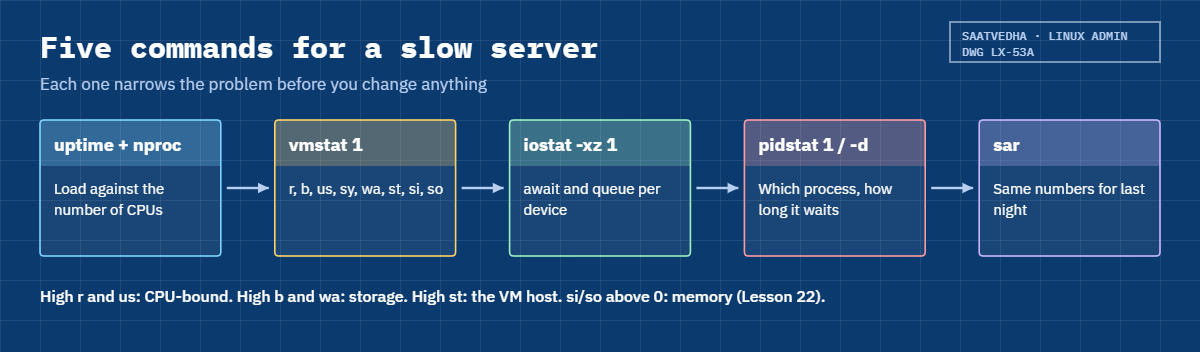
A slow-server ticket always goes through the same short path, and the diagram below shows it as five commands.
1Load average counts runnable and waiting tasks
Every few seconds the kernel counts tasks in state R (running or queued for a CPU) and state D (blocked on I/O), and folds that count into three moving averages. A 1-minute value of 2.00 means that, on average over the last minute, two tasks wanted a CPU or were stuck waiting on the disk.
2Compare it with the number of CPUs
Load means nothing until you divide it by the CPU count from nproc. On rocky01 with 2 vCPUs, a load of 2 means both are fully used; 4 means tasks queue for half their time. On a 64-core database server, a load of 20 is a quiet afternoon.
Then look at how the CPU time is spent, because high load with a high wa column is a disk problem, not a CPU problem.
3Split the CPU time
vmstat 1 prints one line a second. The r column is tasks wanting a CPU, b is tasks blocked in D state, and the last columns are us, sy, id, wa, st (and gu, guest time, on new procps).
If us + sy is near 100 and r is bigger than your CPU count, you’re CPU-bound. If id + wa is high and b is above zero, the CPUs are waiting for storage.
4Read disk latency, not only “busy”
iostat -xz 1 shows each disk once a second (-x for extended columns, -z to hide idle devices). The numbers that matter are r_await and w_await (milliseconds per read or write, including queue time) and aqu-sz (average requests waiting). %util is the share of time the device had at least one request, which is honest for a single spinning disk but can read 100% on an SSD, NVMe or SAN LUN that is still far from its limit, because those serve many requests in parallel.
5Keep a history with sar
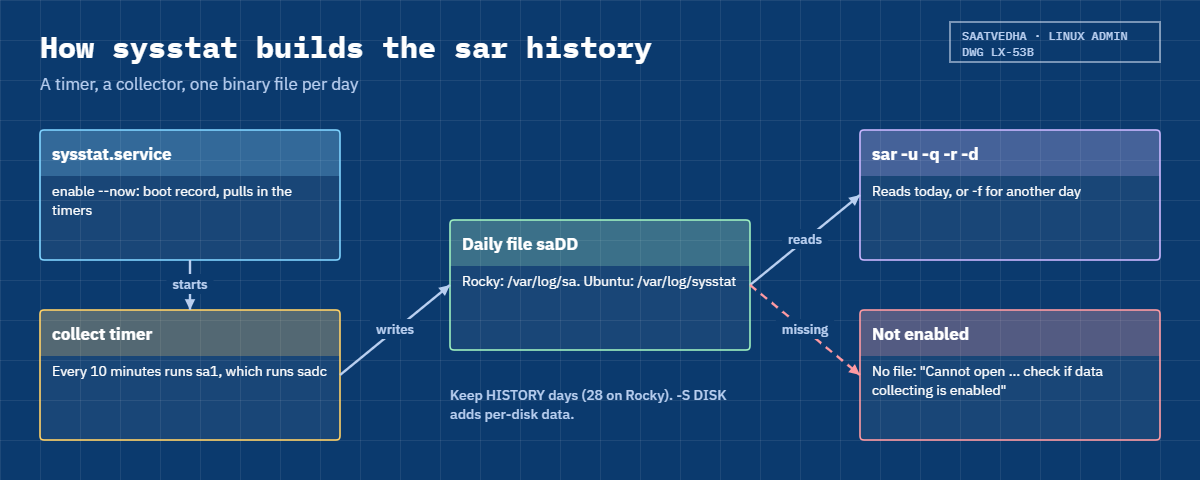
Live tools only show now. sysstat’s collector runs every 10 minutes from a systemd timer, writes a binary file per day, and sar reads it back later: CPU, load, memory, disks, network, all for the same moments. The picture below shows how those pieces fit, and why sar is empty on a server where nobody switched collection on.
6Write down what normal looks like
“Load 6” is only scary if this server normally runs at 1. Save a baseline on a quiet day and on a busy day: CPU count, a minute of vmstat, iostat for the main disks, the sar averages and the socket count from ss -s. When the ticket comes in, you compare against your own numbers instead of rules of thumb from the internet.
Lesson 73 goes deeper into the high-load ticket (D-state hunting, NFS hangs). Lesson 61 puts the same metrics into Zabbix, so you get an alert before users notice.
Hands-on lab: load rocky01 and read every tool
Before you run any command, double-check it
Read every command twice before you press Enter. Check the target: the server name, the user, the disk or device name, the path and the sizes. These commands are for learning and were tested in our lab, not on your system. At work, run the read-only commands first, follow your change process, make sure a backup exists, and ask a second person to check anything that changes or deletes data. You run them at your own risk.
Everything runs on rocky01 as student, in ~/lab53. stress-ng creates the load and stops by itself after two or three minutes, so nothing keeps running if you walk away. Take a snapshot first (VBoxManage snapshot rocky01 take before-l53 on the laptop) and start with mkdir -p ~/lab53 && cd ~/lab53.
1Count the CPUs and read the load
Run this:
nproc
lscpu | grep -E '^(CPU\(s\)|Model name|Thread|Hypervisor vendor|Virtualization type)'
uptime
cat /proc/loadavgYou should see something like this:
2
CPU(s): 2
Model name: Intel(R) Core(TM) i5-10210U CPU @ 1.60GHz
Thread(s) per core: 1
Hypervisor vendor: KVM
Virtualization type: full
11:02:14 up 1:48, 2 users, load average: 0.03, 0.06, 0.02
0.03 0.06 0.02 1/164 2741rocky01 has 2 vCPUs, one thread each, and lscpu confirms it’s a VM (VirtualBox presents the KVM paravirtual interface to Linux guests, so the vendor line says KVM). The load is close to zero. In /proc/loadavg the fourth field, 1/164, is running tasks over all tasks, and the last number is the most recent PID handed out.
✅ Checkpoint: You know rocky01’s CPU count, so you know what load number means “fully busy” (2).
2Install sysstat and stress-ng, and switch on collection
Run this:
sudo dnf install -y sysstat stress-ng iotop
sudo systemctl enable --now sysstat
systemctl list-timers 'sysstat*'You should see something like this (the dnf part is cut):
Complete!
Created symlink '/etc/systemd/system/multi-user.target.wants/sysstat.service' → '/usr/lib/systemd/system/sysstat.service'.
Created symlink '/etc/systemd/system/sysstat.service.wants/sysstat-collect.timer' → '/usr/lib/systemd/system/sysstat-collect.timer'.
Created symlink '/etc/systemd/system/sysstat.service.wants/sysstat-summary.timer' → '/usr/lib/systemd/system/sysstat-summary.timer'.
NEXT LEFT LAST PASSED UNIT ACTIVATES
Tue 2026-10-27 11:00:00 IST 1min - - sysstat-collect.timer sysstat-collect.service
Wed 2026-10-28 00:07:00 IST 13h - - sysstat-summary.timer sysstat-summary.service
2 timers listed.On Rocky Linux 10 all three packages come from the normal BaseOS and AppStream repositories; the iotop you get is iotop-c, the C rewrite, under the old name. Installing sysstat is not enough on the RHEL family: nothing is recorded until you enable sysstat.service, which pulls in the 10-minute collect timer and the nightly summary timer. Daily files go to /var/log/sa/saDD (DD is the day of the month).
On ubu01: sudo apt install sysstat stress-ng iotop-c. Ubuntu 26.04 turns collection on when the package is installed (ENABLED="true" in /etc/default/sysstat) and keeps the files in /var/log/sysstat/. The iotop command there is iotop-c.
✅ Checkpoint: systemctl is-enabled sysstat prints enabled and the collect timer shows a NEXT time within 10 minutes.
3Take a resting baseline with vmstat
Run this (one line per second, five lines):
vmstat 1 5You should see something like this:
procs -----------memory---------- ---swap-- -----io---- -system-- -------cpu-------
r b swpd free buff cache si so bi bo in cs us sy id wa st gu
1 0 0 1052340 4908 380112 0 0 21 14 118 160 1 0 99 0 0 0
0 0 0 1052340 4908 380112 0 0 0 0 96 141 0 0 100 0 0 0
0 0 0 1052340 4908 380112 0 0 0 0 101 150 0 1 99 0 0 0
0 0 0 1052336 4908 380112 0 0 0 12 110 163 0 0 100 0 0 0
0 0 0 1052336 4908 380112 0 0 0 0 94 138 0 0 100 0 0 0Ignore the first line: it’s the average since boot. The rest are live. r is 0 or 1 (nobody waiting for a CPU), b is 0 (nobody stuck on I/O), id is 99 to 100 and st is 0. swpd, si and so are memory and swap, which you read in Lesson 22; bi and bo are blocks read from and written to disk per second; in and cs are interrupts and context switches.
Remember these numbers. A quiet rocky01 does about 100 interrupts and 150 context switches a second, and that is your “normal” for this box.
✅ Checkpoint: Your live vmstat lines show r 0 or 1, b 0, id near 100 and st 0.
4Load the CPUs and watch the run queue
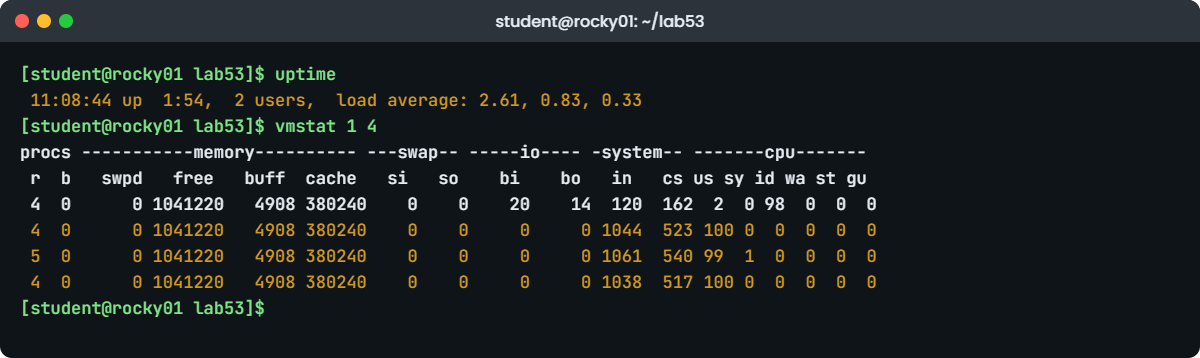
Start four CPU workers (twice the CPU count) for two minutes, wait a minute, then look:
stress-ng --cpu 4 --timeout 120s &
sleep 60
uptime
vmstat 1 4You should see something like this:
[1] 2803
stress-ng: info: [2803] setting to a 2 mins run per stressor
stress-ng: info: [2803] dispatching hogs: 4 cpu
11:08:44 up 1:54, 2 users, load average: 2.61, 0.83, 0.33
procs -----------memory---------- ---swap-- -----io---- -system-- -------cpu-------
r b swpd free buff cache si so bi bo in cs us sy id wa st gu
4 0 0 1041220 4908 380240 0 0 20 14 120 162 2 0 98 0 0 0
4 0 0 1041220 4908 380240 0 0 0 0 1044 523 100 0 0 0 0 0
5 0 0 1041220 4908 380240 0 0 0 0 1061 540 99 1 0 0 0 0
4 0 0 1041220 4908 380240 0 0 0 0 1038 517 100 0 0 0 0 0The 1-minute load climbed to 2.61 and is still rising towards 4, while the 5 and 15-minute values move slowly, which is how you tell a fresh spike from a long problem. vmstat shows r at 4 (four tasks want a CPU), us at 100 and id at 0: the CPUs are the limit. Now look per CPU and per process:
mpstat -P ALL 1 1 | head -n 6
pidstat -u 1 1 | head -n 8You should see something like this:
Linux 6.12.0-211.16.1.el10_2.0.1.x86_64 (rocky01) 10/27/2026 _x86_64_ (2 CPU)
11:08:52 AM CPU %usr %nice %sys %iowait %irq %soft %steal %guest %gnice %idle
11:08:53 AM all 99.50 0.00 0.50 0.00 0.00 0.00 0.00 0.00 0.00 0.00
11:08:53 AM 0 99.00 0.00 1.00 0.00 0.00 0.00 0.00 0.00 0.00 0.00
11:08:53 AM 1 100.00 0.00 0.00 0.00 0.00 0.00 0.00 0.00 0.00 0.00
Linux 6.12.0-211.16.1.el10_2.0.1.x86_64 (rocky01) 10/27/2026 _x86_64_ (2 CPU)
11:08:58 AM UID PID %usr %system %guest %wait %CPU CPU Command
11:08:59 AM 1000 2805 50.00 0.00 0.00 49.00 50.00 0 stress-ng-cpu
11:08:59 AM 1000 2806 49.00 0.00 0.00 51.00 49.00 1 stress-ng-cpu
11:08:59 AM 1000 2807 50.00 0.00 0.00 50.00 50.00 1 stress-ng-cpu
11:08:59 AM 1000 2808 50.00 1.00 0.00 49.00 51.00 0 stress-ng-cpumpstat shows both CPUs at 100% user time, so the load is spread evenly. pidstat is the interesting one: each worker gets about 50% of a CPU, and the %wait column says each spent the other half of its time waiting in the run queue. Four tasks on two CPUs means everything runs at half speed, which on a real server is the moment response times double.
The times say AM and PM because rocky01 uses the en_US.UTF-8 locale. For 24-hour times in sysstat output, run the tool with LC_TIME=C.UTF-8 in front, or export S_TIME_FORMAT=ISO.
✅ Checkpoint: vmstat showed r 4 and id 0, and pidstat showed four stress-ng-cpu workers with about 50 %CPU and 50 %wait each.
5Load the disk and watch iowait
Wait until the CPU test has ended (about two minutes), then start two disk writers that sync every write:
stress-ng --hdd 2 --hdd-opts dsync --hdd-bytes 256M --temp-path ~/lab53 --timeout 180s &
sleep 45
uptime
vmstat 1 4You should see something like this:
[1] 2851
11:15:31 up 2:01, 2 users, load average: 1.62, 0.71, 0.49
procs -----------memory---------- ---swap-- -----io---- -system-- -------cpu-------
r b swpd free buff cache si so bi bo in cs us sy id wa st gu
0 2 0 1032904 4908 384508 0 0 20 160 121 165 2 0 98 0 0 0
0 2 0 1032904 4908 384508 0 0 0 3464 2210 3105 1 5 44 50 0 0
1 2 0 1032904 4908 384508 0 0 0 3452 2198 3087 0 6 43 51 0 0
0 2 0 1032904 4908 384508 0 0 0 3480 2231 3122 1 5 44 50 0 0A different picture: r is 0, b is 2, us is about 1 and wa is 50. The CPUs are half idle and half “waiting for I/O”, and the two blocked writers are pushing the load average up anyway. bo shows about 3.4 MB/s of writes, small in size, but every write waits for the disk to confirm it. Now ask the disk:
iostat -xz 1 2Read the second report. You should see something like this:
avg-cpu: %user %nice %system %iowait %steal %idle
0.50 0.00 5.53 50.25 0.00 43.72
Device r/s rkB/s rrqm/s %rrqm r_await rareq-sz w/s wkB/s wrqm/s %wrqm w_await wareq-sz d/s dkB/s drqm/s %drqm d_await dareq-sz f/s f_await aqu-sz %util
dm-0 0.00 0.00 0.00 0.00 0.00 0.00 866.00 3464.00 0.00 0.00 9.21 4.00 0.00 0.00 0.00 0.00 0.00 0.00 0.00 0.00 7.98 99.60
sda 0.00 0.00 0.00 0.00 0.00 0.00 866.00 3464.00 0.00 0.00 4.83 4.00 0.00 0.00 0.00 0.00 0.00 0.00 842.00 2.14 5.99 99.60dm-0 is the rl-root logical volume and sda is the virtual disk under it. Each write is 4 KiB (wareq-sz), about 866 a second, and each waits 4.8 ms on sda and 9.2 ms through the LVM layer (w_await), with 6 to 8 requests queued (aqu-sz). The f/s column is flushes, the dsync option forcing the disk to commit. %util is 99.6: on a single VirtualBox disk that does mean “full”, but on SSD, NVMe or SAN storage trust await and aqu-sz before %util.
Find who is writing:
pidstat -d 1 1 | head -n 6
sudo iotop -b -o -n 2 -d 1 | tail -n 4You should see something like this:
Linux 6.12.0-211.16.1.el10_2.0.1.x86_64 (rocky01) 10/27/2026 _x86_64_ (2 CPU)
11:15:44 AM UID PID kB_rd/s kB_wr/s kB_ccwr/s iodelay Command
11:15:45 AM 1000 2853 0.00 1736.00 0.00 0 stress-ng-hdd
11:15:45 AM 1000 2854 0.00 1728.00 0.00 0 stress-ng-hdd
Warning: task_delayacct is 0, enable by: echo 1 > /proc/sys/kernel/task_delayacct
Total DISK READ: 0.00 B/s | Total DISK WRITE: 3.38 M/s
Current DISK READ: 0.00 B/s | Current DISK WRITE: 3.40 M/s
TID PRIO USER DISK READ DISK WRITE SWAPIN IO COMMAND
2853 be/4 student 0.00 B/s 1.70 M/s 0.00 % 0.00 % stress-ng-hdd [run]
2854 be/4 student 0.00 B/s 1.69 M/s 0.00 % 0.00 % stress-ng-hdd [run]pidstat -d shows kB written per second per process, and iotop shows the same per thread with a total line. Both point at the two stress-ng-hdd workers. iodelay (pidstat) and the SWAPIN and IO columns (iotop) stay at 0 because the kernel’s delay accounting is off by default; sudo sysctl kernel.task_delayacct=1 turns it on until the next reboot if you need those columns.
✅ Checkpoint: vmstat showed b 2 and wa near 50 while us stayed low, iostat showed w_await and aqu-sz above zero for sda and dm-0, and pidstat -d named the stress-ng-hdd workers.
6Check the network and the sockets
After the disk test ends, run this:
ss -s
sar -n DEV 1 1 | head -n 5
ip -s link show enp0s3 | sed -n '3,6p'You should see something like this (the ip lines are left out here):
Total: 168
TCP: 7 (estab 2, closed 0, orphaned 0, timewait 0)
Transport Total IP IPv6
RAW 1 0 1
UDP 3 2 1
TCP 7 4 3
INET 11 6 5
FRAG 0 0 0
Linux 6.12.0-211.16.1.el10_2.0.1.x86_64 (rocky01) 10/27/2026 _x86_64_ (2 CPU)
11:22:07 AM IFACE rxpck/s txpck/s rxkB/s txkB/s rxcmp/s txcmp/s rxmcst/s %ifutil
11:22:08 AM lo 0.00 0.00 0.00 0.00 0.00 0.00 0.00 0.00
11:22:08 AM enp0s3 3.00 2.00 0.18 0.31 0.00 0.00 0.00 0.00ss -s is a quick count of sockets by state. On a web server, thousands of timewait sockets are normal, but a growing number of established connections with flat traffic often means a client or a database pool that never lets go. sar in live mode (an interval and a count) works even without collection, and shows packets and kB per second per interface; %ifutil needs a link speed, which virtual cards often don’t report. In ip -s link, look at the errors and dropped counters: they should be 0 and stay 0.
✅ Checkpoint: ss -s and sar -n DEV ran, and ip -s link shows 0 errors on enp0s3.
7Read the history with sar
Wait until at least 30 minutes have passed since step 2, then run:
sar -u
sar -q | tail -n 5
sar -d -p | grep -E 'DEV|sda'You should see something like this:
Linux 6.12.0-211.16.1.el10_2.0.1.x86_64 (rocky01) 10/27/2026 _x86_64_ (2 CPU)
10:58:31 AM LINUX RESTART (2 CPU)
11:00:01 AM CPU %user %nice %system %iowait %steal %idle
11:10:01 AM all 21.84 0.00 0.62 0.04 0.00 77.50
11:20:01 AM all 0.71 0.00 2.95 15.36 0.00 80.98
11:30:01 AM all 0.55 0.00 0.38 0.03 0.00 99.04
11:40:01 AM all 0.42 0.00 0.31 0.02 0.00 99.25
Average: all 5.88 0.00 1.07 3.86 0.00 89.19
11:00:01 AM runq-sz plist-sz ldavg-1 ldavg-5 ldavg-15 blocked
11:10:01 AM 0 166 2.48 1.24 0.49 0
11:20:01 AM 0 165 0.11 0.66 0.55 0
11:30:01 AM 0 163 0.02 0.09 0.28 0
11:40:01 AM 0 163 0.00 0.01 0.14 0
11:00:01 AM tps rkB/s wkB/s dkB/s areq-sz aqu-sz await %util DEV
11:10:01 AM 1.84 0.31 11.20 0.00 6.25 0.00 0.62 0.07 sda
11:20:01 AM 260.12 0.05 1041.38 0.00 4.00 1.80 6.91 29.88 sda
11:30:01 AM 1.52 0.00 9.75 0.00 6.41 0.00 0.58 0.05 sdaWithout -f, sar reads today’s file. “LINUX RESTART” marks the moment sysstat.service started. The 11:10 line holds your CPU test (21.84% user averaged over ten minutes, though it was 100% for two of them), and the 11:20 line holds the disk test (15.36% iowait, 29.88% util for sda). sar -q gives the load history and the runq and blocked counts at each sample time.
Notice what ten-minute averages do: a two-minute 100% spike becomes 21%. sar tells you when and what kind of trouble, then you use the live tools next time. For another day, sar -u -f /var/log/sa/sa26 reads the 26th; to zoom in, add -s 11:05:00 -e 11:20:00.
✅ Checkpoint: sar -u shows a row with high %user and a later row with high %iowait, matching your two tests.
8Save a baseline for the next bad day
Create the script (paste this whole block):
cat > ~/lab53/baseline.sh <<'EOF'
#!/usr/bin/env bash
# baseline.sh: save a performance snapshot of this server to a text file
set -euo pipefail
out="$HOME/lab53/baseline-$(hostname -s)-$(date +%F-%H%M).txt"
{
echo "== $(hostname -f) $(date '+%F %T %Z') CPUs: $(nproc)"
echo "== uptime"; uptime
echo "== vmstat 1 5"; vmstat 1 5
echo "== mpstat -P ALL 1 1"; mpstat -P ALL 1 1
echo "== iostat -xz 1 2"; iostat -xz 1 2
echo "== free -h"; free -h
echo "== ss -s"; ss -s
echo "== sar -q (today)"; sar -q || echo "no sar data yet"
} > "$out"
echo "saved $out ($(wc -l < "$out") lines)"
EOF
chmod +x ~/lab53/baseline.sh
bash -n ~/lab53/baseline.sh && ~/lab53/baseline.shYou should see something like this:
saved /home/student/lab53/baseline-rocky01-2026-10-27-1146.txt (71 lines)The script saves everything you used today into one dated file with the host name in it. Run it on a quiet day and during a busy hour, and keep both; when someone reports “slow”, you run it again and compare side by side. At work this is the same idea as a Zabbix baseline (Lesson 61), only with no server needed.
✅ Checkpoint: A file named like baseline-rocky01-2026-10-27-1146.txt exists in ~/lab53 and contains the vmstat, iostat and sar sections.
Break It, Then Fix It
Take a snapshot of rocky01 first (VBoxManage snapshot rocky01 take before-l53-break). The first trap gives no error message at all, only numbers that lead people to the wrong fix, and the second gives an error that people stop reading after the first line.
1High load, idle CPUs
Create the kind of load a stuck disk or a busy backup gives you:
cd ~/lab53
stress-ng --hdd 4 --hdd-opts dsync --hdd-bytes 256M --temp-path ~/lab53 --timeout 240s &
sleep 90
uptime
top -b -n 1 | head -n 3You should see something like this:
[1] 3120
12:03:12 up 2:49, 2 users, load average: 3.92, 1.86, 0.79
top - 12:03:12 up 2:49, 2 users, load average: 3.92, 1.86, 0.79
Tasks: 145 total, 0 running, 145 sleeping, 0 stopped, 0 zombie
%Cpu(s): 1.2 us, 6.9 sy, 0.0 ni, 21.5 id, 70.4 wa, 0.0 hi, 0.0 si, 0.0 stA load of 3.92 on 2 CPUs looks like “the server needs more CPUs”, and that’s the request that reaches the virtualisation team on a bad day. But us is 1.2, there are 0 running tasks, and 70% of the time is iowait. Doubling the vCPUs would change nothing, because none of these tasks is waiting for a CPU.
Fix: confirm it’s I/O, find the D-state tasks and the device, then deal with the source.
vmstat 1 3 | tail -n 2
ps -eo stat,pid,user,cmd | awk '$1 ~ /^D/'
iostat -xz 1 2 | tail -n 3You should see something like this:
procs -----------memory---------- ---swap-- -----io---- -system-- -------cpu-------
r b swpd free buff cache si so bi bo in cs us sy id wa st gu
0 4 0 1029120 4908 388612 0 0 0 3620 2390 3402 1 7 21 71 0 0
D+ 3122 student stress-ng-hdd [run]
D+ 3123 student stress-ng-hdd [run]
D+ 3125 student stress-ng-hdd [run]
sda 0.00 0.00 0.00 0.00 0.00 0.00 905.00 3620.00 0.00 0.00 8.77 4.00 0.00 0.00 0.00 0.00 0.00 0.00 880.00 3.95 11.42 99.80b is 4, three of the writers are in D state at the moment ps looked (the fourth was between writes), and sda has 11 requests queued with w_await near 9 ms.
The load is made of tasks waiting for storage. At work the “fix” is to find what is writing (pidstat -d, iotop) and move or slow it: a backup that overran into business hours, a log rotation compressing huge files, or a SAN path problem, which Lesson 73 covers in depth. Here, stop the test with kill %1 or wait for the timeout.
✅ Checkpoint: After the writers stop, vmstat 1 3 shows b 0 and wa 0, and the 1-minute load falls within a few minutes.
2Ask sar about a night it never recorded
A manager asks what rocky01 was doing at 3 a.m. yesterday. Run this:
sar -u -f /var/log/sa/sa$(date -d yesterday +%d) -s 02:50:00 -e 03:20:00You’ll get this error:
Cannot open /var/log/sa/sa26: No such file or directory
Please check if data collecting is enabledThe second line is the useful one. On the RHEL family, installing sysstat doesn’t start collection; on rocky01 you only enabled it in step 2 of today’s lab, so there is no file for yesterday and no way to create one after the fact.
The same message appears on any server where someone ran dnf install sysstat and stopped there. On Ubuntu servers upgraded from older releases, check /etc/default/sysstat: with ENABLED="false" the timers still fire, but every collect run is skipped by the service’s condition, so sar stays empty.
Fix: make collection part of every build, and check it.
sudo systemctl enable --now sysstat
systemctl is-active sysstat-collect.timer
ls -l /var/log/sa/
grep -E '^(HISTORY|SADC_OPTIONS)' /etc/sysconfig/sysstatYou should see something like this:
active
total 112
-rw-r--r--. 1 root root 108416 Oct 27 12:10 sa27
HISTORY=28
SADC_OPTIONS="-S DISK"Today’s file exists and grows every 10 minutes. HISTORY is how many days are kept (28 here), and -S DISK adds per-disk statistics, which you used with sar -d.
On ubu01 the same settings live in /etc/sysstat/sysstat and the switch in /etc/default/sysstat; sudo dpkg-reconfigure sysstat flips it the supported way. Put the enable command in your build checklist or Ansible role (Lesson 64), because the night you need sar is always before you thought to turn it on.
✅ Checkpoint: sar -u (today) returns rows, and systemctl is-active sysstat-collect.timer prints active.
This happened at work
The exam portal that needed less CPU, not more
My team lead tells this one from his time looking after IT for a chain of schools in Bengaluru. The schools ran their online unit tests on a Moodle server, a 4 vCPU VM at a small hosting provider, and for two weeks in a row the portal crawled every weekday between about 9:30 and 11:30, right when thousands of students were writing tests. Teachers were extending exam times by hand and parents were calling the head office.
The first fix was the obvious one: the load average was 9 on 4 CPUs, so the team doubled the PHP-FPM workers. It got worse. He then ran vmstat 1 during the slow window and saw us around 40, id near 0, and an st column of 35 to 40.
More than a third of the CPU time the VM was promised was being given to someone else on the same physical host, and the extra PHP workers only made the run queue longer.
sysstat had been enabled on that server from day one, so sar -u for the previous ten weekdays showed %steal climbing every morning at 9:20 and falling after noon, while weekends were clean. That graph, more than any complaint, got the hosting provider to admit the host was overcommitted and move the VM to a quieter one the same evening.
Afterwards the team set the PHP workers back to the old count, added an alert for steal above 10% for 10 minutes, and kept a monthly baseline file per server. The next time someone said “the portal is slow, add CPUs”, the first question was “what does st say?”
Common mistakes and troubleshooting
| Mistake | What happens | What to do instead |
|---|---|---|
| Reading load average without the CPU count | A load of 8 scares people on a 32-core box and is ignored on a 2-vCPU VM | Divide by nproc and compare with your baseline |
| Assuming high load means high CPU | More vCPUs are ordered for a disk or NFS problem | Check wa and the b column in vmstat 1, and look for D-state tasks |
| Trusting the first line of vmstat or iostat | It’s the average since boot, so a problem right now looks small | Use an interval and read from the second report on |
| Treating %util 100 as “disk full” on SSD, NVMe or SAN | You chase a disk that still has plenty of capacity | Read r_await, w_await and aqu-sz, and compare with the storage team’s numbers |
| Installing sysstat and not enabling it on RHEL | sar says “Cannot open /var/log/sa/saDD” on the one night you need it | Run systemctl enable --now sysstat in every build |
| Ignoring st on virtual machines | You tune an app that is being starved by the hypervisor | Watch st in vmstat or %steal in sar and alert on it |
| Judging a spike from 10-minute sar averages | A 2-minute 100% CPU burst shows as 20% and gets dismissed | Use sar for “when”, then live tools or a shorter interval to measure |
Interview questions
Click a question to open it. Each one is written the way an interviewer would ask it. Under it you will see why they ask it and one way you could answer, in your own words.
Fresher level
1. A server shows a load average of 4.00. Is that a problem?
Why they ask this: They want to hear that load only means something compared with the CPU count and with what is normal for that server.
How you might answer: It depends on how many CPUs it has. I’d run nproc: on a 2-vCPU VM, 4 means tasks are waiting about half the time, while on a 16-core server 4 is quiet.
I’d also check whether it’s CPU or I/O, because load counts tasks waiting for the disk as well. vmstat 1 tells me: high us and r above the CPU count is CPU, high wa and b above zero is storage.
2. In top, what do us, sy, wa and st mean?
Why they ask this: A basic check that you can read the most common screen on any Linux server.
How you might answer: us is time running program code, sy is kernel time for those programs, wa is idle time while something waits for I/O, and st is time the hypervisor gave our virtual CPU to another VM.
If us is high I look for the busy process; if wa is high I look at the disks with iostat; if st is high on a VM, the problem is the host and I talk to the virtualisation team.
2–5 years experience
3. Users say the server is slow. Load is 12 on 4 CPUs, but top shows the CPUs 70% idle. Walk me through it.
Why they ask this: They’re testing whether you know load includes D-state tasks and can move from symptom to device to process.
How you might answer: Idle CPUs with high load usually means tasks blocked on I/O. I’d confirm with vmstat 1 (b column and wa), list D-state processes with ps -eo stat,pid,cmd filtered on D, and run iostat -xz 1 to see which device has high await and a long queue.
Then pidstat -d 1 or iotop tells me who is doing the I/O. If nobody local is busy and await is still high, I’d suspect the storage path, an NFS mount or a SAN LUN, and check dmesg and multipath next.
4. A manager asks what the server was doing at 3 a.m. last night. How do you find out?
Why they ask this: They want to see that you know sar and that you know it only works if collection was set up beforehand.
How you might answer: I’d use sar with yesterday’s file and a time window, for example sar -u -f /var/log/sa/sa26 -s 02:30:00 -e 03:30:00, then the same with -q for load, -r for memory, -d for disks and -n DEV for network. On Ubuntu the files are in /var/log/sysstat.
If sar says “Cannot open” and asks whether collection is enabled, there is no data for that night. I’d look at the journal and the app logs for that window, and enable sysstat on that server and in the build so it doesn’t happen again.
Senior level
5. How would you set up performance baselines and alerts for 200 Linux VMs?
Why they ask this: Seniors should talk about normal per server, the right metrics and avoiding noise, not only tools.
How you might answer: Every VM gets sysstat enabled from the build, plus monitoring like Zabbix collecting CPU split including steal, load per CPU, disk await and queue per device, memory available and swap-in, and network errors. I’d keep two to four weeks of history and compute a baseline per server and per hour of the week, because a batch server at 2 a.m. and a web server at 2 p.m. have different normals.
Alerts would be on sustained deviations, for example steal above 10% for 10 minutes or await three times the baseline for 15 minutes, not on single spikes. Each alert links to a runbook that starts with vmstat, iostat and pidstat, so whoever is on call collects the same evidence.
6. iostat shows %util at 100 on a SAN LUN, but await is 0.4 ms. Is the LUN saturated?
Why they ask this: They’re checking whether you understand what %util measures and why it misleads on parallel devices.
How you might answer: Probably not. %util only says the device had at least one request in flight all the time; it doesn’t know the array behind the LUN can serve dozens at once. With 0.4 ms await, requests aren’t waiting.
I’d look at await and aqu-sz over time and at the throughput and IOPS against what the storage team says the LUN and its paths can do. If await starts climbing while IOPS stay flat, that’s real saturation, and then I’d check the queue depth settings and the multipath paths too.
Quick quiz
Q1. rocky01 has 2 vCPUs and a 1-minute load of 2.00 with us at 100. What does that tell you?
- The CPUs are idle
- Both CPUs are fully used, with no queue on average
- The disk is the bottleneck
- The server is swapping
Show answer
B — Load equal to the CPU count with high us means fully used CPUs and, on average, nobody waiting.
Q2. Which kind of task makes load average high while CPUs stay mostly idle?
- Zombie processes
- Tasks in uninterruptible sleep (D state), usually waiting for I/O
- Stopped jobs
- Processes with a high nice value
Show answer
B — Linux counts R and D tasks in load, so blocked I/O raises load without using CPU.
Q3. In vmstat 1, which columns point to a disk bottleneck?
- si and so
- r and us
- b and wa
- in and cs
Show answer
C — b counts tasks blocked on I/O and wa is CPU time spent idle waiting for I/O.
Q4. On rocky01, sar -u -f /var/log/sa/sa26 says “Cannot open … Please check if data collecting is enabled”. Why?
- sar needs root
- sysstat.service was never enabled, so no file was written for that day
- The file is compressed
- The disk is full
Show answer
B — On the RHEL family you must run systemctl enable --now sysstat; past days can’t be recovered.
Q5. What does a high st (steal) value on a VM mean?
- The kernel is stealing memory
- The hypervisor ran other work on your virtual CPU
- A process is stuck
- Swap is in use
Show answer
B — Steal is time your vCPU was ready but the host gave the physical CPU to someone else.
Quick recap
- Load average counts running, queued and D-state tasks; always divide it by
nprocand compare with your baseline. vmstat 1gives the quick split: r and us for CPU, b and wa for disk, si and so for memory, st for the hypervisor.iostat -xz 1shows latency per device; read r_await, w_await and aqu-sz before %util.mpstatsplits by CPU, andpidstat(with -d for disk) names the process and shows how long it waited.- Enable sysstat on every RHEL-family server (
systemctl enable --now sysstat); Ubuntu 26.04 enables it on install. sar then answers “what happened at 3 a.m.” - Save a baseline file on quiet and busy days, so “slow” can be compared with numbers.
Next lesson
Lesson 54: Join Linux to Active Directory → You’ll build a small Samba AD domain controller, ad01, join rocky01 and ubu01 to it with realmd and SSSD, limit who can log in and give an AD group sudo rights.
Further reading: Linux performance monitoring
Want to go deeper into Linux performance monitoring? Read the man7.org pages for vmstat(8) and proc_loadavg(5), the sysstat project site for iostat, mpstat, pidstat and sar, the RHEL 10 documentation on monitoring system performance, and the stress-ng project for its many stressors. You can also see the full plan for this course on the Linux Administration course page.
