File permissions and ownership: rwx, chmod, chown and umask

Linux file permissions decide who can read a file, who can change it and who can run it. Every file and folder carries three small sets of rights, one for its owner, one for its group and one for everyone else, and the kernel checks them every time anyone touches the file.

Most “Permission denied” tickets you’ll get as an admin come down to these few letters. In this lesson you’ll learn to read them at a glance, change them with chmod, chown and chgrp, understand where new-file permissions come from (umask), and build the shared /srv/projects folder that priya and arjun will use for the rest of this phase.

Where this lesson fits

Lesson 17 of 82 in Linux Administration · Phase 1: The origins and OS architecture · Before this: Lesson 16, sudo and root access · Next: Lesson 18, special permissions (SUID, SGID, sticky bit)

TimeYou needBy the end you can
About 60 minutesrocky01 from Lesson 2 with the users priya and arjun and the group webteam from Lesson 15. ubu01 works the same way.Read any permission string, set permissions with numbers or letters, change owners and groups, and explain your umask

What it is, in one line

Linux file permissions are three sets of read, write and execute rights (for the owner, the group and everyone else) that the kernel checks before it lets anyone touch a file.

In Simple Words

The almirah in the office

Picture the steel almirah in a small office. The manager who bought it has a key and can open it, take files out and put new ones in. The people in her department have a second key that only opens the top shelf, so they can read the files but not move them around.

Visitors don’t get a key at all.

Now think about the room the almirah stands in. If the door is locked, a key to the almirah is useless because you can’t walk up to it. Folders in Linux work like that room: you need the right to enter the folder before your rights on the file inside it matter.

In Linux the manager is the owner, the department is the group and the visitors are “others”, and every file has its own almirah keys.

Engineer's View

What the kernel stores and checks

Each file’s inode stores an owner (a UID), a group (a GID) and a 12-bit mode. The lower nine bits are the three rwx sets you see in ls -l; the upper three are the special bits for Lesson 18. The letters mean something slightly different on files and on directories, and that difference causes most of the confusion.

BitNumberOn a fileOn a directory
r (read)4Read the contents (cat, cp from it)List the names inside (ls)
w (write)2Change the contents (edit, append, truncate)Create, delete and rename entries inside (needs x as well)
x (execute)1Run it as a program or scriptEnter it (cd) and reach the files inside by name

The number for each set is the sum of its bits, so rwx is 7, r-x is 5, rw- is 6 and r-- is 4. That’s why chmod 755 means owner rwx, group r-x, others r-x, and chmod 640 means owner rw-, group r--, others nothing.

When a process opens a file, the kernel picks one class and uses only that class’s bits. If your UID is the owner, the owner bits decide, even if the group bits are more generous. Otherwise, if any of your groups matches the file’s group, the group bits decide, and if neither matches you get the “other” bits.

Root skips these checks, except that it still needs at least one x bit set before it can run a file.

CommandWho may run itExample
chmodThe file’s owner, or rootchmod 664 plan.txt, chmod g+w plan.txt
chownOnly root (through sudo)sudo chown priya:webteam plan.txt
chgrpThe owner, to a group she is a member of; or rootchgrp webteam plan.txt
umaskEvery user, for their own shell and the programs it startsumask 027

Deleting a file is a change to the folder, not to the file. If you have w and x on a directory you can delete any file in it, even one you can’t read. Lesson 18’s sticky bit exists to stop that in shared folders.

How it works, step by step

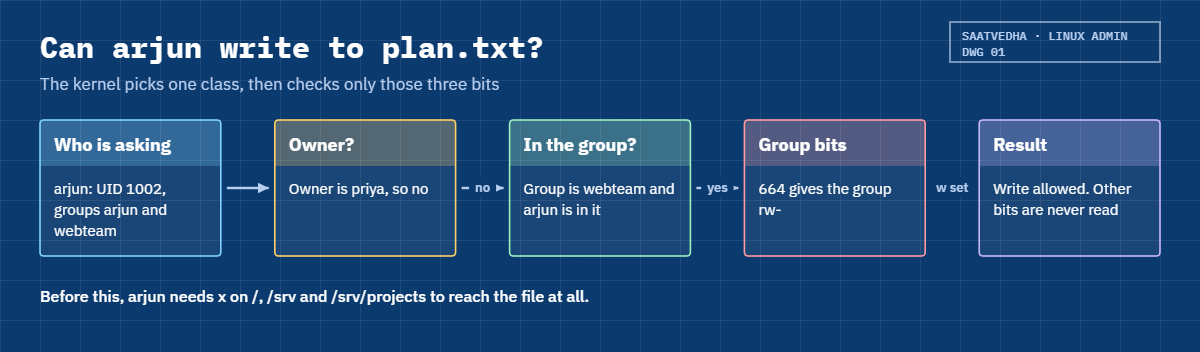
Here is what happens when arjun types echo "done" >> /srv/projects/plan.txt. The diagram below follows the same decision the kernel makes.

1The kernel looks at who is asking

Every process carries the UID and the list of groups of the user who started it. For arjun that’s UID 1002 and the groups arjun and webteam. You can see your own with id.

Groups are read at login, so a user you add to a group with usermod -aG only gets the new group in a fresh login.

2It picks one class: owner, group or other

plan.txt is owned by priya, so arjun isn’t the owner. Its group is webteam and arjun is a member, so the group bits decide. The “other” bits are never looked at for him, even if they would allow more.

Linux file permissions: how the kernel picks owner, group or other

3It checks the bits for that class

For writing, the group bits need a w. If the mode is -rw-rw-r-- (664) the write goes ahead; if it is -rw-r--r-- (644) arjun gets “Permission denied”. Reading needs r, and running a script needs x (and r too, because bash has to read the script).

4Every folder on the way is checked too

Before the kernel even reaches plan.txt it walks the path: /, then /srv, then /srv/projects. arjun needs x on each of those folders to pass through. That’s why a file with mode 666 is still safe inside a folder with mode 700: nobody but the owner can get to it.

5New files start from the umask

Programs normally create files asking for mode 666 and folders asking for 777. The umask is a list of bits to take away from that request. With umask 022 you remove w from group and others, so new files come out as 644 and new folders as 755.

The picture below shows the calculation for the two umask values you’ll meet most often. It isn’t subtraction: the umask switches bits off, so a umask of 027 turns 666 into 640, not 639.

Linux file permissions: how umask 022 and 027 shape new files and folders

Once you can read the bits, changing them is the easy part. chmod takes either numbers or letters, and both have their place.

FormExampleWhat it doesPick it when
Numbers (octal)chmod 755 deploy.shSets all nine bits at once to rwxr-xr-xYou know the exact final mode, for example from a runbook
Letters (symbolic)chmod g+w plan.txtAdds w for the group, leaves every other bit aloneYou want to change one thing without touching the rest
Letters, exactchmod u=rw,g=r,o= report.txtSets each class to a fixed value (o= means nothing for others)You want exact rights but find letters easier to read
Recursive with Xchmod -R u=rwX,go=rX site/Capital X adds x only to folders (and files that already have an x)Fixing a whole tree without making every file executable

The owner’s outline mentions chmod 755. It’s the right mode for scripts and program folders that everyone may run but only the owner may change. For data files, 644 (or 664 in a team folder) is the usual answer, and for anything holding passwords, 600 or 640.

To change who owns a file, use sudo chown priya file for the owner, sudo chown priya:webteam file for both, or chgrp webteam file for the group only. Ownership changes need root because otherwise anyone could hand their files to someone else and dodge disk quotas or blame.

Hands-on lab: build a shared folder for webteam

Before you run any command, double-check it

Read every command twice before you press Enter. Check the target: the server name, the user, the disk or device name, the path and the sizes. These commands are for learning and were tested in our lab, not on your system. At work, run the read-only commands first, follow your change process, make sure a backup exists, and ask a second person to check anything that changes or deletes data. You run them at your own risk.

You’ll work on rocky01 as student, and switch to priya and arjun to see the rules from their side. At the end you’ll have /srv/projects, a folder only the webteam group can use, which Lessons 18 and 19 build on. Take a snapshot of rocky01 first if you haven’t since Lesson 16.

To act as another user, run sudo -iu priya (or arjun). The prompt changes to [priya@rocky01 ~]$. Type exit to come back to student. On ubu01 the same commands work, ls doesn’t print the trailing dot after the mode, and some error lines end with “(os error 13)” because Ubuntu 26.04 uses the Rust coreutils. The meaning is the same.

1Read permissions you already have

Run this:

ls -ld /etc/passwd /etc/shadow /tmp /home/priya
sudo stat -c '%a %A %U %G %n' /etc/passwd /etc/shadow /tmp /home/priya

You should see something like this:

-rw-r--r--. 1 root root 1342 Oct 27 09:12 /etc/passwd
----------. 1 root root 1061 Oct 27 09:12 /etc/shadow
drwxrwxrwt. 9 root root  200 Oct 27 10:02 /tmp
drwx------. 2 priya priya  83 Oct 27 09:12 /home/priya
644 -rw-r--r-- root root /etc/passwd
0 ---------- root root /etc/shadow
1777 drwxrwxrwt root root /tmp
700 drwx------ priya priya /home/priya

The first character is the type (- file, d directory, l link), then come owner, group and other. The dot after the mode on Rocky means the file has an SELinux label (Lesson 41), and a + in that place means it has an ACL (Lesson 19). Notice /etc/shadow: mode 0 on Rocky, so only root can touch it.

On Ubuntu it’s -rw-r----- with group shadow.

✅ Checkpoint: You can say who may read /etc/passwd and why only root can read /etc/shadow.

2Find your umask and test it

Run this as student:

umask
umask -S

You should see something like this:

0022
u=rwx,g=rx,o=rx

The leading 0 is for the special bits. -S shows what new folders will get. Now change it for this shell only and watch new files follow it:

umask 027
touch ~/test-file
mkdir ~/test-dir
ls -ld ~/test-*
rm -r ~/test-file ~/test-dir
umask 022

You should see something like this:

drwxr-x---. 2 student student 6 Oct 27 10:14 test-dir
-rw-r-----. 1 student student 0 Oct 27 10:14 test-file

666 with 027 taken away is 640, and 777 becomes 750. On ubu01 a normal user usually sees 0002 instead of 0022, because Ubuntu gives users with their own private group a group-writable default (USERGROUPS_ENAB in /etc/login.defs). Both are normal; what matters is that you know which one you have.

✅ Checkpoint: You can predict the mode of a new file for umask 022, 002 and 027.

3Build the shared folder

Run this as student:

sudo mkdir /srv/projects
sudo chown root:webteam /srv/projects
sudo chmod 770 /srv/projects
ls -ld /srv/projects

You should see something like this:

drwxrwx---. 2 root webteam 6 Oct 27 10:20 /srv/projects

root owns the folder so nobody in the team can delete or rename it, the group webteam gets full rights, and everyone else gets nothing. In Lesson 18 you’ll add one more bit to make it 2770.

✅ Checkpoint: ls -ld /srv/projects shows owner root, group webteam and drwxrwx---.

4priya creates a file

Run this:

sudo -iu priya
echo "Q3 plan: launch the new site" > /srv/projects/plan.txt
ls -l /srv/projects
exit

You should see something like this:

total 4
-rw-r--r--. 1 priya priya 29 Oct 27 10:22 plan.txt

The file belongs to priya and to her private group priya, not to webteam. New files take the creator’s primary group, wherever they are created. With umask 022 the mode is 644; with 002 it would be 664, but the group would still be the wrong one.

✅ Checkpoint: plan.txt exists and its group is priya.

5arjun tries to read and write it

Run this:

sudo -iu arjun
cat /srv/projects/plan.txt
echo "arjun: homepage done" >> /srv/projects/plan.txt
exit

You’ll get this error:

Q3 plan: launch the new site
-bash: /srv/projects/plan.txt: Permission denied

arjun isn’t the owner and isn’t in group priya, so the “other” bits apply: r-- lets him read but not write. He could reach the file at all only because webteam gives him x on /srv/projects.

✅ Checkpoint: arjun can read plan.txt but gets “Permission denied” when he writes.

Linux file permissions lab: arjun writes to plan.txt after chgrp and chmod g+w on rocky01
Example output from rocky01: arjun is refused, then priya gives the group write access

6Let the group write

priya owns the file, so she can fix it herself. Run this:

sudo -iu priya
chgrp webteam /srv/projects/plan.txt
chmod g+w /srv/projects/plan.txt
ls -l /srv/projects/plan.txt
exit

You should see something like this:

-rw-rw-r--. 1 priya webteam 29 Oct 27 10:22 /srv/projects/plan.txt

Now try arjun again:

sudo -iu arjun
echo "arjun: homepage done" >> /srv/projects/plan.txt
cat /srv/projects/plan.txt
exit

You should see this:

Q3 plan: launch the new site
arjun: homepage done

priya could use chgrp because she owns the file and is a member of webteam. She couldn’t give the file to arjun with chown; only root can do that.

✅ Checkpoint: plan.txt shows -rw-rw-r-- priya webteam and arjun’s line is in it.

7Make a script runnable with chmod 755

Run this:

sudo -iu priya
cd /srv/projects
printf '#!/bin/bash\necho "Deploying from $(hostname -s) as $(whoami)"\n' > deploy.sh
ls -l deploy.sh
./deploy.sh

You’ll get this error:

-rw-r--r--. 1 priya priya 62 Oct 27 10:26 deploy.sh
-bash: ./deploy.sh: Permission denied

Fix it and run it again:

chmod 755 deploy.sh
ls -l deploy.sh
./deploy.sh
exit

You should see something like this:

-rwxr-xr-x. 1 priya priya 62 Oct 27 10:26 deploy.sh
Deploying from rocky01 as priya

arjun can run it too, because the “other” bits are r-x:

sudo -iu arjun /srv/projects/deploy.sh
Deploying from rocky01 as arjun

A new file never gets x from the umask, because programs ask for 666. You always add x yourself, and 755 is the usual choice for a script others may run but not edit.

✅ Checkpoint: deploy.sh shows -rwxr-xr-x and runs for both priya and arjun.

8Check it from outside the team

student isn’t in webteam. Run this as student, without sudo:

ls /srv/projects
cat /srv/projects/plan.txt

You’ll get this error:

ls: cannot open directory '/srv/projects': Permission denied
cat: /srv/projects/plan.txt: Permission denied

The file itself is world-readable (the last r in 664), but student can’t get through the folder’s “other” bits (---). This is how you protect a whole tree with one mode on the top folder. Finish with a summary of what you built:

sudo stat -c '%a %A %U %G %n' /srv/projects /srv/projects/*
770 drwxrwx--- root webteam /srv/projects
755 -rwxr-xr-x priya priya /srv/projects/deploy.sh
664 -rw-rw-r-- priya webteam /srv/projects/plan.txt

✅ Checkpoint: student gets “Permission denied” on /srv/projects, and the summary matches the three lines above.

Break It, Then Fix It

Three mistakes that people make on real servers, usually in a hurry. Take a snapshot of rocky01 first, and do these as priya inside /srv/projects so nothing outside your lab is touched.

1Give a folder the mode of a file

Run this as priya:

cd /srv/projects
mkdir docs
echo "meeting at 4" > docs/notes.txt
chmod 666 docs
ls docs
ls -l docs
cat docs/notes.txt

You’ll get this:

ls: cannot access 'docs/notes.txt': Permission denied
notes.txt
ls: cannot access 'docs/notes.txt': Permission denied
total 0
-????????? ? ? ? ?            ? notes.txt
cat: docs/notes.txt: Permission denied

666 is a sensible mode for a file but it takes x away from the folder. With r you can still read the list of names, so ls prints notes.txt, but without x you can’t reach anything inside. ls complains as it tries to look up the file for its colours, ls -l shows question marks and cat fails. priya is the owner and still locked out, which surprises people.

Fix: give folders x back.

chmod 755 docs
ls -l docs
total 4
-rw-r--r--. 1 priya priya 13 Oct 27 10:41 notes.txt

✅ Checkpoint: ls -l docs shows real details again.

2Run chmod -R 644 on a whole tree

Run this as priya:

mkdir -p site/css
echo "<h1>hi</h1>" > site/index.html
echo "body{}" > site/css/main.css
chmod -R 644 site

You’ll get this error:

chmod: cannot access 'site/css': Permission denied
chmod: cannot access 'site/index.html': Permission denied

chmod changed site first, which removed x from it, and then couldn’t get inside to change the rest. The tree is now half done: the top folder is 644 and everything under it is unreachable, even for the owner. Admins do this when someone asks for “read-only files” under a web root.

Fix: put x back on the top folder, then use capital X so only folders get it.

chmod 755 site
chmod -R u=rwX,go=rX site
ls -ld site site/css
ls -l site/index.html site/css/main.css

You should see something like this:

drwxr-xr-x. 3 priya priya 35 Oct 27 10:44 site
drwxr-xr-x. 2 priya priya 22 Oct 27 10:44 site/css
-rw-r--r--. 1 priya priya  7 Oct 27 10:44 site/css/main.css
-rw-r--r--. 1 priya priya 12 Oct 27 10:44 site/index.html

The other way, which you’ll see in many runbooks, is two find commands: find site -type d -exec chmod 755 {} + and find site -type f -exec chmod 644 {} +.

✅ Checkpoint: Folders are 755, files are 644 and none of the files has x.

3Try to give a file away without root

Run this as priya:

chown arjun /srv/projects/plan.txt
chgrp root /srv/projects/plan.txt

You’ll get this error:

chown: changing ownership of '/srv/projects/plan.txt': Operation not permitted
chgrp: changing group of '/srv/projects/plan.txt': Operation not permitted

Only root may change an owner, and an owner may only move a file into a group she belongs to (priya isn’t in group root). The error is “Operation not permitted” (EPERM), not “Permission denied” (EACCES), which is a hint that it’s a rule about who you are and not about the rwx bits.

Fix: ask for it through sudo, if the change is approved. Then clean up the practice folders.

exit
sudo chown arjun /srv/projects/plan.txt
sudo chown priya /srv/projects/plan.txt
sudo rm -r /srv/projects/docs /srv/projects/site
ls /srv/projects
deploy.sh  plan.txt

✅ Checkpoint: plan.txt is back to priya:webteam and only deploy.sh and plan.txt are left in /srv/projects.

This happened at work

The 777 that failed the audit

My team lead tells this one from his time at a pharma manufacturer in Surat. On a Tuesday night shift the QC lab couldn’t print batch reports: the instruments sent their result files over SFTP to a Linux server, and the reporting job, running as a service account, kept failing with “Permission denied” on the new files.

The engineer on call ran chmod -R 777 on the whole results folder, the reports printed and everyone went home. Ten days later the QA team’s data-integrity review found world-writable result files on a regulated system, and that turned a small fix into a formal deviation with a root-cause report.

The real cause took my lead twenty minutes with ls -l and id. The SFTP account had a umask of 077, so every result file arrived as 600, readable only by the SFTP user. The reporting account wasn’t in any shared group either, so even 640 wouldn’t have helped.

They created a group for the results, made it the group of the folder, added the reporting account to it and set the SFTP umask to 027 (the -u 0027 option of internal-sftp in sshd_config). Then they put the modes back to 750 and 640, and a weekly find /data -xdev -perm -0002 -type f now reports any world-writable file before an auditor does.

Common mistakes and troubleshooting

MistakeWhat happensWhat to do instead
Using chmod 777 to make an error go awayAnyone on the server can change or replace the files, and audits flag itFind which user and group need access with ls -l and id, then grant only that
Giving a folder a file mode like 644 or 666Nobody can enter it, not even the ownerFolders need x: 755, 750 or 770
chmod -R 644 on a treeThe top folder loses x and the rest is unreachableUse chmod -R u=rwX,go=rX or separate find commands for files and folders
Adding a user to a group and testing in the same sessionStill “Permission denied”, because groups load at loginLog out and back in (or sudo -iu user) and check with id
Fixing the file but not the folderThe file is 664 but the user can’t reach itCheck every folder on the path with namei -l /path/to/file
Expecting the owner to get group rightsOwner bits r-- mean the owner can’t write, even if the group bits say rw-Remember the kernel uses one class only: owner first, then group, then other

Interview questions

Click a question to open it. Each one is written the way an interviewer would ask it. Under it you will see why they ask it and one way you could answer, in your own words.

Fresher level

1. If I run chmod 755 on a script, who can do what with it afterwards?

Why they ask this: They want to see that you can turn numbers into rights without a cheat sheet, and that you know why scripts need x.

How you might answer: 755 is rwx for the owner, r-x for the group and r-x for everyone else. So the owner can edit and run it, and everyone else can read and run it but not change it.

For a script that’s the normal choice. If it held a password I’d use 750 or 700 instead, so others can’t read it.

2. A folder shows drwxr-x---. Can a user who isn’t the owner and isn’t in the group see the files inside?

Why they ask this: This checks whether you understand that folder rights protect everything below them.

How you might answer: No. They fall into “other”, which has no bits at all, so they can’t list the folder or enter it. Even a file inside with mode 644 is out of their reach, because they need x on the folder to get to it.

2–5 years experience

3. A developer gets “Permission denied” writing to a file that shows mode 664. Walk me through how you’d find the cause.

Why they ask this: They want a method, not a guess. Good candidates check the user’s identity, the owning group, the folder path and stale group membership.

How you might answer: I’d ask them to run id and I’d run ls -l on the file and namei -l on the full path. With 664, they need to be the owner or in the file’s group, so I’d compare the file’s group with the groups in their id output.

If the group is right but missing from id, they were probably added recently and need to log in again. If the file is fine, I check w and x on the folder, because creating or replacing a file needs those.

4. What’s the difference between umask and chmod, and when would you change the umask of a service?

Why they ask this: They want to know you understand defaults versus changes, and that services have their own umask.

How you might answer: chmod changes the mode of files that already exist. umask decides which bits are switched off when a file is created, so it only affects new files from that process and its children.

For a service that writes shared files, like an SFTP drop folder or an app writing reports, I’d set the umask on the service itself, for example UMask=0027 in the systemd unit, instead of fixing modes afterwards with a cron job.

Senior level

5. During an audit you find hundreds of world-writable files under /data. How do you fix it safely and stop it coming back?

Why they ask this: This is about doing a bulk change carefully and fixing the cause. They’re listening for a dry run, a record of the old state and a process change.

How you might answer: First I’d list them with find /data -xdev -type f -perm -0002 and save that list with stat output, so I can roll back. Then I’d find out which accounts need access, usually a group, and fix the group ownership before removing the o+w bit in a planned change.

To stop it coming back I’d find what creates them, often a service with umask 000 or someone’s chmod 777 habit, fix that umask, and add the same find as a scheduled check that alerts the team.

6. Someone on your team suggests chmod -R 777 to unblock a deployment. How do you respond and what do you offer instead?

Why they ask this: They want to see you can say no politely and offer a quick, safe alternative under pressure.

How you might answer: I’d say it may work but it lets any account, including a compromised web process, change the code, and it’s hard to undo cleanly. Then I’d spend five minutes on the real cause: which user runs the deployment, which user runs the app, and what group they share.

Usually the fix is a shared group, chgrp -R to that group, 2775 or 2770 on folders and 664 or 644 on files. That unblocks them as fast and passes the next review.

Quick quiz

Q1. What is the octal value of rw-r-----?

  1. 644
  2. 640
  3. 604
  4. 760
Show answer

B — rw- is 4+2=6, r-- is 4 and --- is 0, so 640.

Q2. On a directory, which bit lets you enter it and reach the files inside by name?

  1. r
  2. w
  3. x
  4. t
Show answer

C — x on a directory means search/enter. r only lets you list the names.

Q3. With umask 027, what mode does a new file get?

  1. 640
  2. 750
  3. 644
  4. 600
Show answer

A — Files start from 666; removing 027 leaves 640. New folders would get 750.

Q4. Who can change the owner of a file with chown?

  1. The owner
  2. Any member of the group
  3. Only root
  4. Anyone with w on the folder
Show answer

C — Only root can give a file to another user, which is why you use sudo chown.

Q5. plan.txt is owned by priya with mode r--rw-r-- and group webteam. priya is in webteam. Can she write to it?

  1. Yes, through the group bits
  2. No, the owner bits decide for her
  3. Yes, because owners can always write
  4. Only if the folder is 777
Show answer

B — The kernel uses one class only. priya is the owner, so only r-- applies to her (she can chmod it, though).

Quick recap

  • Every file has an owner, a group and nine rwx bits: three for the owner, three for the group, three for everyone else.
  • r, w and x mean read, change and run on files, but list, create/delete and enter on folders. Folders need x.
  • The kernel picks one class (owner, then group, then other) and uses only those bits.
  • chmod 755 and chmod g+w are two ways to set bits; chown needs root, chgrp works for owners within their own groups.
  • The umask switches bits off on new files: 022 gives 644 and 755, 027 gives 640 and 750.
  • /srv/projects now exists as root:webteam with mode 770, with plan.txt and deploy.sh inside.

Next lesson

Lesson 18: Special permissions: SUID, SGID, sticky bit and chattr → You’ll see why passwd runs as root, make /srv/projects hand its group to every new file with SGID, and lock files even against root with chattr.

Further reading: Linux file permissions

Want to go deeper into Linux file permissions? Read the man pages for chmod, chown and umask(2), and path_resolution(7) for the full detail of how the kernel walks a path. The RHEL 10 documentation covers permissions and umask for Rocky as well.

You can also see the full plan for this course on the Linux Administration course page.

Scroll to Top

This website uses cookies

We use a few cookies to keep this site working. If you allow it, we also use Google Analytics to count visits so we can improve our lessons. You can accept all, deny the optional ones, or choose what to allow.