How to build a Linux command: tools, options, pipes and redirection

The Linux commands for administrators that look scary on a runbook, like ps aux --sort=-%mem | head -n 11, are made of a few small parts joined together. Once you can see the parts (a tool, its options, its arguments, a pipe and a redirection), you can read any one-liner a senior colleague pastes in a chat and build your own instead of copying blindly.

This lesson is the start of Phase 2. You’ll take four commands from a real admin’s notebook apart, find the small mistakes hiding in each of them, and put them back together the right way: process hunting, a socket check, a log search, and find-then-delete. Lessons 22 to 25 then go deep into each one.

Where this lesson fits

Lesson 21 of 82 in Linux Administration · Phase 2: Day-to-day administration and the command builder · Before this: Lesson 20, processes and signals · Next: Lesson 22, top memory and CPU users

TimeYou needBy the end you can
About 60 minutesrocky01 and ubu01 (the log part shows both), an SSH session as studentRead any admin one-liner part by part, build it up one pipe at a time, and spot four common traps before they bite

What it is, in one line

A Linux command is a tool plus options that change how it works plus arguments that say what to work on, and pipes and redirection join small commands into one that answers your exact question.

In Simple Words

Ordering at a tea stall

At a tea stall you don’t say “drink”. You say “one tea, less sugar, no ginger, in a glass, and a samosa packed”. The tea is the thing you want, “less sugar” and “no ginger” change how it is made, and “in a glass” says where it goes.

The tea boy also passes things along. The tea goes from the stove to the strainer to the glass, and each step does one job. Nobody builds one machine that boils, strains and pours.

A Linux command works the same way: the tool is the tea, the options are “less sugar”, the argument is “in a glass”, and the pipe is the strainer between the stove and the glass.

Engineer's View

The five parts of a command

PartWhat it isExample from sudo ss -tulnp | grep :3306 > ports.txt
ToolThe program (or shell builtin) that does the work. The shell finds it in your PATH.ss (and sudo, which runs the next tool as root)
OptionsSwitches that change how the tool behaves. Short ones start with one dash and can be grouped; long ones start with two dashes.-tulnp = -t -u -l -n -p
ArgumentsWhat the tool works on: a file, a folder, a PID, a pattern.:3306 is the argument to grep
Pipe |Sends the output of the left command into the input of the right command.ss output goes into grep
RedirectionSends output to a file instead of the screen, or reads input from a file.> ports.txt

Every process starts with three open streams: stdin (0, the keyboard by default), stdout (1, normal output) and stderr (2, error messages). A pipe connects only stdout to the next command’s stdin, which is why error messages still appear on your screen even when you pipe a command into grep.

You writeWhat happens
cmd > filestdout goes into file (the file is emptied first)
cmd >> filestdout is added to the end of file
cmd 2> fileonly error messages go into file
cmd > file 2>&1both go into file (order matters, see Break It)
cmd 2>/dev/nullerror messages are thrown away
cmd | tee fileoutput goes to the screen and into file at the same time

Option styles differ between tools because the tools come from different histories. ps accepts UNIX options with a dash (-ef), BSD options without one (aux) and GNU long options (--sort). find uses single-dash words like -name and -mtime that look like options but are tests. When in doubt, man tool or tool --help tells you which style it expects.

How it works, step by step

Experienced admins don’t type a long one-liner in one go. They grow it from the left, one piece at a time, and look at the output after each piece.

1Start with the tool and read its raw output

Run the bare tool first, for example ps aux. Look at the header line and count the columns, because every later step depends on knowing which column holds what.

2Add options until the tool does most of the work

Tools usually filter and sort faster and more correctly than a pipe can. ps --sort=-%mem sorts inside ps, and ss -l shows only listening sockets, so you need fewer pipes later. The diagram below breaks a real command into its parts.

Linux commands for administrators: anatomy of sudo ss -tlnp with a filter, a pipe and a redirection

3Add one pipe, check, then add the next

Each pipe adds one job: grep keeps matching lines, sort orders them, head keeps the first few, awk picks columns, wc -l counts. After each pipe, run the command and check the output still makes sense. If the result is wrong at the end, you take pipes off from the right until it looks right again.

4Decide where the output goes

On the screen is fine while you explore. For a ticket, send it to a file with > or tee, and decide what happens to error messages: keep them in the same file, a separate file, or throw them away on purpose with 2>/dev/null.

5Dry run anything that changes or deletes

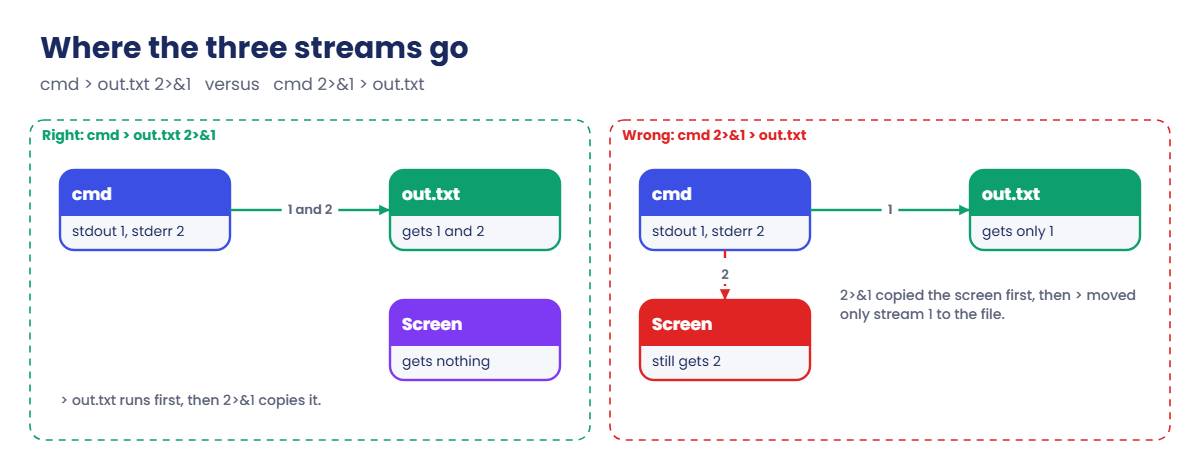
If the last part of the command deletes, kills or changes something, first run the same command with a harmless action instead: -print in place of -delete, pgrep in place of pkill, echo in front of rm. Read the list, then swap the real action back in. The picture below shows how the three streams travel through a pipe and a redirection.

Linux commands for administrators: where stdout and stderr go with > file 2>&1 and the wrong order

6Make it repeatable

A command you’ll need again goes into your notes, a script or the team runbook with a one-line comment saying what it answers. That’s also where the Command Builder helps: it builds the checked version of common commands with the parts table and the distro differences, so nobody on the team retypes them from memory at 2 a.m.

The four builders below come from a real admin’s list. Three of them hide a small mistake that gives a wrong answer without any error message, which is the most dangerous kind.

BuilderOriginal versionWhat’s wrongCorrected version
Process huntingps aux --sort=-%mem | head -n 10The header uses one of the 10 lines, so you see 9 processesps aux --sort=-%mem | head -n 11
Socket checkss -tulnp | grep :3306Also matches port 33060 (MySQL X protocol), and without sudo the Process column is emptysudo ss -tlnp 'sport = :3306'
Log searchgrep -i "error" /var/log/syslog | awk '{print $1, $2, $3, $5, $9}'Written for the old “Oct 27 09:15:44” format. Ubuntu now writes one RFC 3339 timestamp, and Rocky uses /var/log/messagesUbuntu: awk '{print $1, $3}', Rocky: awk '{print $1, $2, $3, $5}' on /var/log/messages, or journalctl -p err --since today on both
Find and executefind /var/log -type f -name "*.gz" -mtime +30 -exec rm -f {} \;No dry run, and one rm process per fileRun with -print first, then -delete (or -exec rm -f {} +)

Hands-on lab: build four admin one-liners the right way

Before you run any command, double-check it

Read every command twice before you press Enter. Check the target: the server name, the user, the disk or device name, the path and the sizes. These commands are for learning and were tested in our lab, not on your system. At work, run the read-only commands first, follow your change process, make sure a backup exists, and ask a second person to check anything that changes or deletes data. You run them at your own risk.

Everything here is read-only on the system, except step 7, which deletes test files you create in your own home folder. Start on rocky01 with mkdir -p ~/lab21 && cd ~/lab21.

1Find out what kind of tool you are calling

Run this:

type ls cd ps ss

You should see something like this:

ls is aliased to 'ls --color=auto'
cd is a shell builtin
ps is /usr/bin/ps
ss is /usr/sbin/ss

type tells you what the shell will run for each name. ls is an alias (it adds colours), cd is built into bash itself, and ps and ss are programs on disk. This matters when something behaves differently in a script, because aliases are not used there, and when you look for help: builtins are documented with help cd, programs with man ps.

✅ Checkpoint: You can say which of the four names is a builtin and which are files on disk.

2Options and arguments

Run these three. They do the same thing:

ls -l -h /etc/hostname
ls -lh /etc/hostname
ls -l --human-readable /etc/hostname

Each one prints:

-rw-r--r--. 1 root root 8 Oct 27 09:01 /etc/hostname

Short options can be written separately or grouped behind one dash, and many have a long form that is easier to read in scripts. /etc/hostname is the argument. Options normally go before arguments; GNU tools accept them in any order, but older tools and other Unix systems don’t, so keep the habit.

✅ Checkpoint: All three commands gave you the same single line.

3Build the process hunting command one piece at a time

Start with the bare tool and look only at the top:

ps aux | head -n 4

You should see something like this:

USER         PID %CPU %MEM    VSZ   RSS TTY      STAT START   TIME COMMAND
root           1  0.0  2.3  49288 40192 ?        Ss   09:01   0:02 /usr/lib/systemd/systemd --switched-root --system --deserialize=46 rhgb
root           2  0.0  0.0      0     0 ?        S    09:01   0:00 [kthreadd]
root           3  0.0  0.0      0     0 ?        S    09:01   0:00 [pool_workqueue_release]

Line 1 is a header: USER, PID, %CPU, %MEM, VSZ, RSS and so on. The rest is in PID order, which isn’t useful for “who is using the memory”. Now let ps sort, biggest %MEM first (the minus means descending), and keep the header plus ten lines:

ps aux --sort=-%mem | head -n 11

You should see something like this:

USER         PID %CPU %MEM    VSZ   RSS TTY      STAT START   TIME COMMAND
root         812  0.1  2.6 412396 46080 ?        Ssl  09:01   0:01 /usr/bin/python3 -sP /usr/sbin/firewalld --nofork --nopid
root           1  0.0  2.3  49288 40192 ?        Ss   09:01   0:02 /usr/lib/systemd/systemd --switched-root --system --deserialize=46 rhgb
root        1046  0.0  1.8 421768 32768 ?        Ssl  09:01   0:00 /usr/bin/python3 -sP /usr/sbin/tuned -l -P
root         868  0.0  1.2 331008 21504 ?        Ssl  09:01   0:00 /usr/sbin/NetworkManager --no-daemon
polkitd      790  0.0  1.1 385412 19968 ?        Ssl  09:01   0:00 /usr/lib/polkit-1/polkitd --no-debug --log-level=notice
root         612  0.0  1.0  48864 17408 ?        Ss   09:01   0:00 /usr/lib/systemd/systemd-journald
student     1838  0.0  0.8  22688 14592 ?        Ss   10:15   0:00 /usr/lib/systemd/systemd --user
root         655  0.0  0.7  35720 13312 ?        Ss   09:01   0:00 /usr/lib/systemd/systemd-udevd
root         805  0.0  0.6  19980 11520 ?        Ss   09:01   0:00 /usr/lib/systemd/systemd-logind
root        1050  0.0  0.6 160604 11264 ?        Ssl  09:01   0:00 /usr/sbin/rsyslogd -n

Count the process lines: ten, because head -n 11 kept one line for the header. Check it with a count:

ps aux --sort=-%mem | head -n 11 | tail -n +2 | wc -l
10

tail -n +2 means “from line 2 to the end”, so it drops the header, and wc -l counts lines. Lesson 22 adds custom columns, CPU sorting and top in batch mode.

✅ Checkpoint: Your count prints 10.

4Socket check: is anything listening on 3306?

MariaDB arrives in Lesson 56, so for now two tiny Python web servers stand in for it, one on 3306 (the classic MySQL port) and one on 33060 (the port MySQL uses for its X protocol). Python 3 comes with a standard Rocky and Ubuntu install; check with python3 --version.

Run this:

python3 -m http.server 3306 > /dev/null 2>&1 &
python3 -m http.server 33060 > /dev/null 2>&1 &
sudo ss -tulnp | grep :3306

You should see something like this:

tcp   LISTEN 0      5            0.0.0.0:33060      0.0.0.0:*    users:(("python3",pid=2412,fd=3))
tcp   LISTEN 0      5            0.0.0.0:3306       0.0.0.0:*    users:(("python3",pid=2411,fd=3))

You asked about port 3306 and got two lines, because the text “:3306” is also the start of “:33060”. In an incident that difference sends you chasing the wrong process. Let ss do the filtering instead; its filter compares the port as a number:

sudo ss -tlnp 'sport = :3306'

You should see something like this:

State  Recv-Q Send-Q Local Address:Port Peer Address:PortProcess
LISTEN 0      5            0.0.0.0:3306      0.0.0.0:*    users:(("python3",pid=2411,fd=3))

-t TCP, -l listening only, -n numbers instead of names, -p show the process, which needs sudo. The single quotes stop the shell from touching the filter. Stop the stand-ins with kill %1 %2.

Lesson 23 covers ss in full.

✅ Checkpoint: The filtered command shows one line, pid 2411 (or yours), and nothing for 33060.

5Log search on both families

Your real logs will be different every day, so make two small sample files that copy the exact format of each distro. Paste this whole block:

cat > ~/lab21/sample-syslog <<'EOF'
2026-10-27T09:14:02.118344+05:30 ubu01 systemd[1]: Started cron.service - Regular background program processing daemon.
2026-10-27T09:15:44.902113+05:30 ubu01 kernel: EXT4-fs (dm-0): error count since last fsck: 2
2026-10-27T09:16:10.420877+05:30 ubu01 sshd-session[2201]: error: kex_exchange_identification: Connection closed by remote host
2026-10-27T09:20:31.004512+05:30 ubu01 saatapp[1440]: ERROR payment timeout after 30s order=10422
2026-10-27T09:22:05.771230+05:30 ubu01 CRON[2290]: (root) CMD (command -v debian-sa1 > /dev/null && debian-sa1 1 1)
EOF
cat > ~/lab21/sample-messages <<'EOF'
Oct 27 09:14:02 rocky01 systemd[1]: Started crond.service - Command Scheduler.
Oct 27 09:15:44 rocky01 kernel: XFS (dm-0): error count since last mount: 2
Oct 27 09:16:10 rocky01 sshd-session[2201]: error: kex_exchange_identification: Connection closed by remote host
Oct 27 09:20:31 rocky01 saatapp[1440]: ERROR payment timeout after 30s order=10422
Oct 27 09:22:05 rocky01 CROND[2290]: (root) CMD (run-parts /etc/cron.hourly)
EOF

The first file is how Ubuntu 26.04 writes /var/log/syslog (one RFC 3339 timestamp with the year, microseconds and time zone). The second is how Rocky writes /var/log/messages (month, day, time as three fields, no year). Now run the original log builder against both:

cd ~/lab21
grep -i "error" sample-messages | awk '{print $1, $2, $3, $5, $9}'
grep -i "error" sample-syslog | awk '{print $1, $2, $3, $5, $9}'

You should see this:

Oct 27 09:15:44 kernel: count
Oct 27 09:16:10 sshd-session[2201]: closed
Oct 27 09:20:31 saatapp[1440]: after
2026-10-27T09:15:44.902113+05:30 ubu01 kernel: (dm-0): last
2026-10-27T09:16:10.420877+05:30 ubu01 sshd-session[2201]: kex_exchange_identification: remote
2026-10-27T09:20:31.004512+05:30 ubu01 saatapp[1440]: payment order=10422

On the Rocky format, fields 1 to 3 are the date and time and field 5 is the program, as the author meant. Field 9 is a random word from the message. On the Ubuntu format, field 1 already holds the whole timestamp, so field 2 is the hostname, field 3 is the program, and 5 and 9 are random words.

Nothing errors out; you get the wrong columns.

Corrected, one for each format:

grep -i "error" sample-syslog | cut -d' ' -f1,3-
grep -i "error" sample-messages | awk '{print $1, $2, $3, $5}'

You should see this:

2026-10-27T09:15:44.902113+05:30 kernel: EXT4-fs (dm-0): error count since last fsck: 2
2026-10-27T09:16:10.420877+05:30 sshd-session[2201]: error: kex_exchange_identification: Connection closed by remote host
2026-10-27T09:20:31.004512+05:30 saatapp[1440]: ERROR payment timeout after 30s order=10422
Oct 27 09:15:44 kernel:
Oct 27 09:16:10 sshd-session[2201]:
Oct 27 09:20:31 saatapp[1440]:

cut -d' ' -f1,3- keeps field 1 (the timestamp) and everything from field 3 on, so you see the time, the program and the whole message without the hostname. On the real servers the files are /var/log/syslog on Ubuntu (use sudo unless your user is in the adm group) and /var/log/messages on Rocky (root only). Easier still is the journal, which works the same on both:

sudo journalctl -p err --since today --no-pager

You should see something like this on rocky01:

Oct 27 09:01:14 rocky01 kernel: [drm:vmw_host_printf [vmwgfx]] *ERROR* Failed to send host log message.

✅ Checkpoint: You can explain why $2 is the hostname on Ubuntu but the day of the month on Rocky.

6Redirect output for the ticket

Run this:

ps aux --sort=-%mem | head -n 11 > top-mem.txt
sudo journalctl -p err --since today --no-pager | tee errors-today.txt | wc -l
ls -l top-mem.txt errors-today.txt

You should see something like this:

2
-rw-r--r--. 1 student student  208 Oct 27 10:52 errors-today.txt
-rw-r--r--. 1 student student 1162 Oct 27 10:52 top-mem.txt

The first line sends the top-memory list into a file and shows nothing on screen. The second shows a count on screen while tee keeps the full error list in a file you can attach to a ticket. Note that sudo only applies to journalctl; tee writes as you, which is why the file is yours.

✅ Checkpoint: Both files exist in ~/lab21 and belong to student.

Linux commands for administrators lab: find dry run with -print, then -delete on rocky01
Example output: the find dry run with -print, then -delete, on rocky01.

7Find, dry run, then delete

Make some old and new test files (paste this whole block):

mkdir -p ~/lab21/oldlogs && cd ~/lab21
for i in 1 2 3; do touch -d "40 days ago" oldlogs/app.log.$i.gz; done
touch oldlogs/app.log.4.gz oldlogs/app.log
find oldlogs -type f -name "*.gz" -mtime +30 -print

You should see this (the order can differ):

oldlogs/app.log.1.gz
oldlogs/app.log.2.gz
oldlogs/app.log.3.gz

That’s the dry run: the same tests, with -print as the action. -mtime +30 means “last changed more than 30 full days ago”, so the new app.log.4.gz and the uncompressed app.log are left out. Only when the list is right do you swap the action:

find oldlogs -type f -name "*.gz" -mtime +30 -delete
ls oldlogs

You should see this:

app.log
app.log.4.gz

-delete is built into find and removes each file as it finds it. If you need another command per file (gzip, mv, chown), use -exec cmd {} +, which passes many files to one command, instead of -exec cmd {} \;, which starts one process per file. On a folder with 50,000 old logs that’s the difference between seconds and minutes.

✅ Checkpoint: Only app.log and app.log.4.gz are left in ~/lab21/oldlogs.

Break It, Then Fix It

These traps are all in your own lab folder, so they can’t hurt the system, but take a snapshot of rocky01 anyway (VBoxManage snapshot rocky01 take before-l21 on the laptop). Each one is a mistake people make on production servers.

1Put 2>&1 in the wrong place

Run this:

cd ~/lab21
ls -d /var/log /nosuch 2>&1 > out.txt
cat out.txt

You’ll see the error on screen, and only half the output in the file:

ls: cannot access '/nosuch': No such file or directory
/var/log

The shell reads redirections from left to right. 2>&1 means “send stderr to wherever stdout points right now”, and at that moment stdout still pointed at the screen. Only after that did > out.txt move stdout to the file, so the error stayed on the screen and never reached your ticket.

Fix: point stdout at the file first, then send stderr after it.

ls -d /var/log /nosuch > out.txt 2>&1
cat out.txt
ls: cannot access '/nosuch': No such file or directory
/var/log

✅ Checkpoint: Nothing printed on the screen for the first command and out.txt has both lines.

2Forget the quotes around *.gz

Create two .gz files in the current folder and search without quotes:

cd ~/lab21
touch a.gz b.gz
find . -name *.gz -print

You’ll get this error:

find: paths must precede expression: `b.gz'
find: possible unquoted pattern after predicate `-name'?

The shell expands *.gz before find even starts, so find receives -name a.gz b.gz and doesn’t know what to do with b.gz. It’s worse with one match: if only a.gz were there, find would search only for “a.gz” and quietly skip every other .gz file in the tree, with no error at all.

Fix: quote the pattern so find gets it untouched.

find . -name "*.gz" -print
rm -f a.gz b.gz

✅ Checkpoint: find lists ./a.gz, ./b.gz and ./oldlogs/app.log.4.gz, with no error.

3Put -delete first

This is the one that has emptied real log folders. Make a fresh test folder first:

mkdir -p ~/lab21/trap && cd ~/lab21/trap
for i in 1 2 3; do touch -d "40 days ago" app.log.$i.gz; done
touch app.log.4.gz keep-me.txt
cd ~/lab21
find trap -delete -type f -name "*.gz" -mtime +30

You’ll get errors like this, and then:

find: 'trap/app.log.1.gz': No such file or directory
find: 'trap/app.log.2.gz': No such file or directory
find: 'trap/app.log.4.gz': No such file or directory
find: 'trap/app.log.3.gz': No such file or directory
ls trap
ls: cannot access 'trap': No such file or directory

find works through its expression from left to right for every file. -delete came first, so it ran on everything before the tests had a chance to say no: every file, the new one, keep-me.txt and finally the folder itself.

The error lines appear because the later tests look at .gz files that are already gone. keep-me.txt raised no error, since -delete removed it before any test looked at its name.

Fix: tests first, action last, and a -print dry run before every -delete.

mkdir -p ~/lab21/trap && cd ~/lab21/trap
for i in 1 2 3; do touch -d "40 days ago" app.log.$i.gz; done
touch app.log.4.gz keep-me.txt
cd ~/lab21
find trap -type f -name "*.gz" -mtime +30 -print
find trap -type f -name "*.gz" -mtime +30 -delete
ls trap
trap/app.log.1.gz
trap/app.log.2.gz
trap/app.log.3.gz
app.log.4.gz
keep-me.txt

✅ Checkpoint: app.log.4.gz and keep-me.txt are still in ~/lab21/trap.

This happened at work

The cleanup job that ate the game assets

The on-call engineer at a mobile gaming studio in Thiruvananthapuram told me about the Friday their build server filled up. Around 8 p.m., a week before a big update, the disk on the asset build box hit 100 percent and every build started failing.

A developer who had root on the box wanted to help, found a cleanup command on a forum and adapted it to remove old temporary build files: find /srv/builds -delete -name "*.tmp" -mtime +7. He ran it and went home. Within a minute the disk was almost empty, and so was /srv/builds, including two months of packaged game assets that the release team needed on Monday.

The on-call engineer first suspected a disk failure, because the folder had vanished. The shell history showed the find command, with -delete placed before the tests. They restored /srv/builds from the previous night’s backup, which took most of Saturday, and rebuilt the one day of assets that the backup didn’t have.

Afterwards the team made two rules. Any find with -delete or -exec rm is written in a script that runs the same expression with -print first and logs the list, and the temp cleanup became a reviewed systemd timer instead of something people type by hand.

Common mistakes and troubleshooting

MistakeWhat happensWhat to do instead
Using head -n 10 for a top 10 from psYou get nine processes because the header takes a lineUse head -n 11, or --no-headers with head -n 10
grep :3306 on ss outputPorts 33060 and 33061 match tooUse the ss filter 'sport = :3306', or grep for ':3306 ' with the space
Copying awk field numbers from an old blogWrong columns on Ubuntu, where the timestamp is one fieldLook at one raw line first and count the fields, or use journalctl
cmd 2>&1 > fileErrors still go to the screen, not to the fileWrite cmd > file 2>&1
Unquoted patterns like *.gzThe shell expands them before the tool sees themQuote patterns: -name "*.gz"
find with -delete or -exec rm and no dry runYou delete files you didn’t mean to, sometimes the whole folderRun with -print first, keep tests before the action
sudo cmd > /root/filePermission denied, because the redirection runs as you, not as rootUse cmd | sudo tee /root/file

Interview questions

Click a question to open it. Each one is written the way an interviewer would ask it. Under it you will see why they ask it and one way you could answer, in your own words.

Fresher level

1. Walk me through what each part of ps aux --sort=-%mem | head -n 11 does.

Why they ask this: They want to see that you understand commands as parts, not as magic strings, and they listen for the header detail.

How you might answer: ps is the tool, aux are BSD-style options for all processes with user and memory columns, and --sort=-%mem sorts by memory, biggest first. The pipe sends that into head, which keeps the first 11 lines.

It’s 11 and not 10 because the first line is the header, so 11 gives me ten processes. If I need ten rows for a script, I use ps -eo with --no-headers and head -n 10.

2. What’s the difference between >, >> and 2>, and how do you send everything to one file?

Why they ask this: This checks the basics of streams. Many freshers know > but get stuck on stderr and the order of 2>&1.

How you might answer: > writes stdout to a file and empties it first, >> adds to the end, and 2> sends only error messages. To get both in one file I write cmd > file 2>&1, in that order.

If I put 2>&1 before the > file, the errors still go to the screen, because the shell handles redirections from left to right.

2–5 years experience

3. A colleague wrote grep -i error /var/log/syslog | awk '{print $1,$2,$3}' on Ubuntu 24.04 and the dates look wrong. Why?

Why they ask this: They want to know if you’ve worked with current Ubuntu and if you check data before trusting a script.

How you might answer: Ubuntu 24.04 and later follow Debian in writing RFC 3339 timestamps, like 2026-10-27T09:15:44.902113+05:30, which is a single field. So $1 is already the full date and time, $2 is the hostname and $3 is the program.

I’d print $1 and $3 onwards, or better, use journalctl -p err --since today, which gives the same answer on Ubuntu and RHEL without depending on the file format. On RHEL the file is /var/log/messages and the old three-field date still applies.

4. You need to delete compressed logs older than 30 days on 40 servers. How do you build and check that command?

Why they ask this: They’re testing safe habits with destructive commands and whether you think about scale.

How you might answer: I’d write find /var/log -type f -name "*.gz" -mtime +30 -print first and check the list on one server, including the count. Then I’d change -print to -delete, keeping the tests before the action.

For 40 servers I’d put it in an Ansible task or a script that logs the list before deleting, run it on one non-critical server first, and keep logrotate in mind, because often the right fix is a rotate rule rather than a cleanup job.

Senior level

5. How do you make sure the one-liners your team pastes into runbooks are safe and correct?

Why they ask this: Seniors are expected to think about the team: review, testing, versions and the cost of a silent wrong answer.

How you might answer: I treat runbook commands like code: they live in Git, get reviewed, and each one has a comment saying what question it answers and what output to expect. Anything that deletes or kills has a dry-run line right above it.

We test them on both distro families we run, because things like log formats and paths differ, and we prefer tool-native filters like ss filters and journalctl over grep and awk on formatted text, since those break less when output formats change.

6. When would you stop using a pipeline of grep, awk and sort and write a proper script instead?

Why they ask this: They want judgement about maintainability, error handling and when a one-liner becomes a liability.

How you might answer: When the command needs error handling, runs unattended, or someone else has to maintain it. A pipeline hides failures, because by default only the last command’s exit code counts, so a failing grep in the middle goes unnoticed.

At that point I write a bash script with set -euo pipefail, clear variables and logging, or move to Python if it parses structured data. For JSON output I’d use jq rather than awk.

Quick quiz

Q1. In ls -lh /etc/hostname, what is /etc/hostname?

  1. An option
  2. An argument
  3. A pipe
  4. A redirection
Show answer

B — It’s the argument, the thing the tool works on. -lh are the options.

Q2. Which command sends both normal output and errors into out.txt?

  1. cmd 2>&1 > out.txt
  2. cmd > out.txt 2>&1
  3. cmd | out.txt
  4. cmd 2> out.txt
Show answer

B — Redirections are read left to right: first stdout goes to the file, then stderr follows it.

Q3. Why can ss -tulnp | grep :3306 give a wrong answer?

  1. ss can’t show TCP ports
  2. grep also matches :33060
  3. grep ignores numbers
  4. ss needs -a to show 3306
Show answer

B — “:3306” is the start of “:33060” too. Use the ss filter 'sport = :3306' to compare the port as a number.

Q4. On Ubuntu 26.04 with RFC 3339 timestamps in /var/log/syslog, what is $2 in awk?

  1. The month
  2. The time
  3. The hostname
  4. The program name
Show answer

C — The whole timestamp is $1, so $2 is the hostname and $3 the program.

Q5. What happens with find trap -delete -name "*.gz"?

  1. Only .gz files are deleted
  2. Nothing, find refuses
  3. Everything under trap is deleted, including the folder
  4. find prints the list first
Show answer

C — find evaluates left to right, so -delete runs before the -name test can filter anything.

Quick recap

  • A command is a tool, options, arguments, and then pipes and redirection to join and direct the output.
  • Grow one-liners from the left, one pipe at a time, and check the output after each step.
  • Process hunting needs head -n 11 because of the header line.
  • Let tools filter for you: sudo ss -tlnp 'sport = :3306' instead of grep :3306.
  • Log formats differ: RFC 3339 in /var/log/syslog on Ubuntu, three-field dates in /var/log/messages on Rocky, and journalctl -p err --since today on both.
  • Before any -delete: quote the pattern, keep tests before the action, and run it with -print first.

Next lesson

Lesson 22: Find the top memory and CPU users → You’ll read free -h and /proc/meminfo properly, sort processes by memory and CPU with custom columns, take top snapshots in batch mode and learn the difference between RSS and VSZ.

Further reading: Linux commands for administrators

Want to go deeper into Linux commands for administrators? The GNU Bash manual on redirections, the man7.org pages for find and ss, and the Command Builder Linux tab, which builds checked versions of these commands for Rocky and Ubuntu. You can also see the full plan for this course on the Linux Administration course page.

Scroll to Top

This website uses cookies

We use a few cookies to keep this site working. If you allow it, we also use Google Analytics to count visits so we can improve our lessons. You can accept all, deny the optional ones, or choose what to allow.