Windows Update troubleshooting: logs, DISM, sfc and resets

In Lesson 24 you installed updates. Now you’ll fix the ones that refuse to install. Windows Update troubleshooting comes down to three things: reading the right log, repairing the component store, and resetting the update client when its cache is damaged.

In this lesson you’ll read WindowsUpdate.log and CBS.log, check and repair the component store with DISM and sfc, reset Windows Update components safely, and fix the classic “source files could not be found” error.

TimeYou needBy the end you can
About 75 minutesSRV01 and the Windows Server 2025 ISORead update errors, repair the component store and get a stuck server updating again

What it is, in one line

Windows Update troubleshooting is finding why an update fails (download, component store, space or a blocked service) from its logs and error code, then repairing that part.

In Simple Words

In Simple Words

Imagine a big toy kit that comes with a spare-parts box. Every time you get a new part in the post, you swap it into the toy and keep the old one in the box.

If the spare-parts box has broken or missing pieces, new parts won’t fit, and the post office keeps sending the same parcel back.

In Windows, the spare-parts box is the component store (WinSxS). Most stubborn update failures are fixed by checking and repairing that box, not by downloading the update again and again.

Engineer's View

Engineer’s View

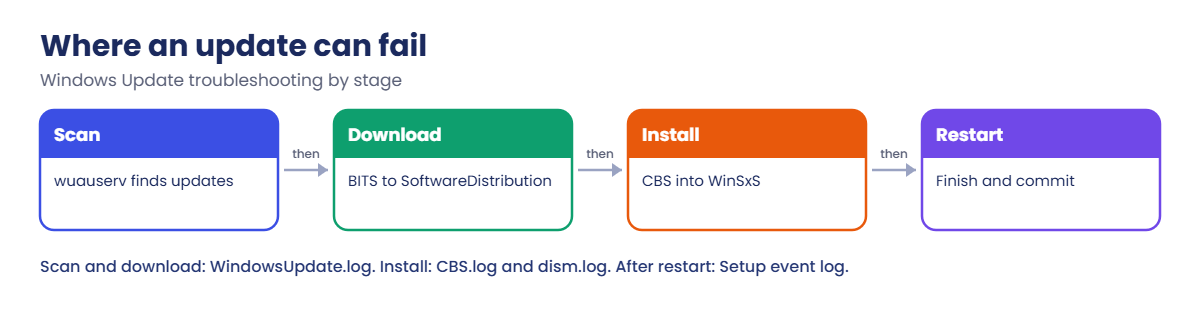
The pipeline: the Windows Update client (wuauserv, with BITS) scans and downloads into C:\Windows\SoftwareDistribution. The servicing stack (TrustedInstaller and CBS) then installs packages into the component store, C:\Windows\WinSxS, and a restart finishes the job.

Logs: Get-WindowsUpdateLog turns the client’s ETL traces into WindowsUpdate.log (scan and download). C:\Windows\Logs\CBS\CBS.log covers installation and sfc repairs, and C:\Windows\Logs\DISM\dism.log covers DISM. The Setup event log shows package states, and WindowsUpdateClient/Operational shows install results.

Repair tools: DISM /Online /Cleanup-Image /CheckHealth, /ScanHealth and /RestoreHealth repair the component store, optionally from a /Source with /LimitAccess. sfc /scannow then repairs protected system files from the store.

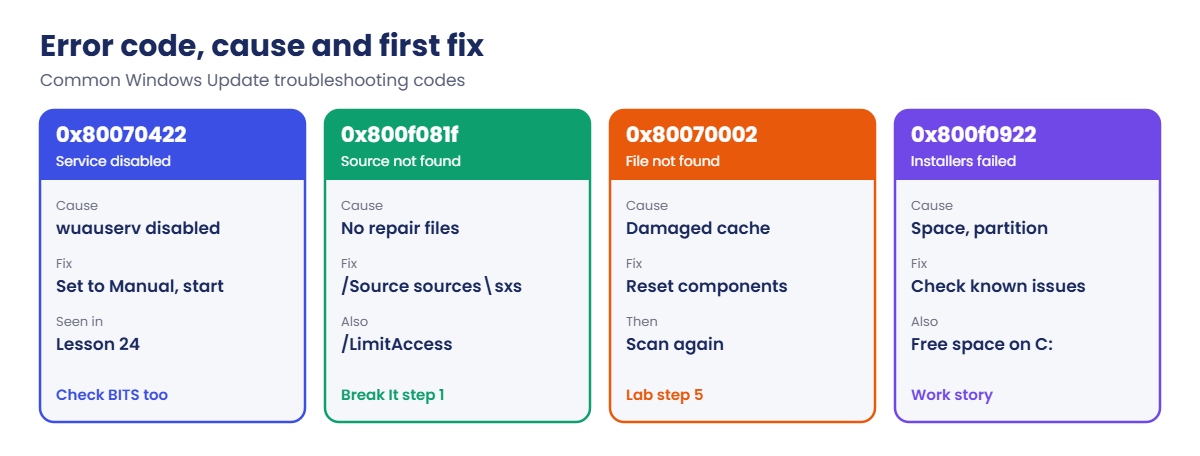
Common codes: 0x80070422 (a needed service is disabled), 0x800f081f (source files not found), 0x800f0906 (couldn’t download files), 0x800f0922 (advanced installers failed, often space or the recovery partition), 0x80070002 (file not found, often a damaged download cache), 0x8024402c (proxy or connection problem).

Reset: stopping wuauserv, bits and cryptsvc and renaming SoftwareDistribution and catroot2 clears the download cache and signature catalog, which fixes many scan and download errors.

How it works, step by step

Where an update can fail, and which log tells you:

Windows Update troubleshooting stages: scan, download, install and restart

Always start with the error code and where it happened. A failure during scan or download is a client or network problem. A failure during install is usually the component store, disk space or a prerequisite.

Repair in this order: DISM first (it fixes the store), then sfc (it uses the store to fix files). Running sfc on a broken store just reports problems it can’t fix.

Resetting the update cache is safe, but it isn’t magic. If the store is damaged, the same update fails again after the reset.

Error code, likely cause and first fix:

Windows Update troubleshooting error codes and first fixes

In the lab you’ll work on SRV01:

  • Build WindowsUpdate.log and search it for errors.
  • Check component store health with DISM.
  • Verify system files with sfc.
  • Analyse and clean up the component store.
  • Reset Windows Update components and run a fresh scan.

Hands-on lab: read, repair and reset

Start DC01 and SRV01, and take a snapshot of SRV01 (“Before update lab”). Work as SAATLAB\adm.rahul in PowerShell as administrator on SRV01.

1Build WindowsUpdate.log and search it

On SRV01:

Get-WindowsUpdateLog -LogPath C:\Lab\WindowsUpdate.log
Select-String -Path C:\Lab\WindowsUpdate.log -Pattern 'FATAL|Exit code = 0x8' | Select-Object -Last 3 Line

You’ll see something like this:

Line
----
2026/10/20 09:14:22.1180123 1288  3410  Agent           * END * Finding updates CallerId = UpdateOrchestrator  Exit code = 0x00000000
2026/10/20 09:14:25.4421907 1288  3410  DownloadManager BITS job {7c1e...} completed successfully
2026/10/20 09:16:02.0094415 1288  3410  Handler         Exit code = 0x00000000

Exit code 0x00000000 means success. When a scan or download fails, this is where you’ll see the real code (for example 0x8024402c for a proxy problem) next to the component that failed.

✅ Checkpoint: C:\Lab\WindowsUpdate.log exists and you can search it for exit codes.

2Check component store health

On SRV01:

DISM /Online /Cleanup-Image /CheckHealth
DISM /Online /Cleanup-Image /ScanHealth

You’ll see something like this:

Deployment Image Servicing and Management tool
Version: 10.0.26100.1

Image Version: 10.0.26100.NNNN

No component store corruption detected.
The operation completed successfully.

[==========================100.0%==========================]
No component store corruption detected.
The operation completed successfully.

CheckHealth only reads a flag from earlier scans, so it takes seconds. ScanHealth checks every package and takes several minutes. If either reports corruption, the next command is /RestoreHealth.

✅ Checkpoint: Both DISM checks report no component store corruption.

3Verify system files with sfc

On SRV01:

sfc /scannow

You’ll see something like this:

Beginning system scan.  This process will take some time.

Beginning verification phase of system scan.
Verification 100% complete.

Windows Resource Protection did not find any integrity violations.

sfc checks protected system files against the copies in the component store and replaces bad ones. Its details go into CBS.log, tagged [SR].

✅ Checkpoint: sfc reports no integrity violations.

4Analyse and clean up the component store

On SRV01:

DISM /Online /Cleanup-Image /AnalyzeComponentStore

You’ll see something like this:

Component Store (WinSxS) information:

Windows Explorer Reported Size of Component Store : 8.12 GB
Actual Size of Component Store : 7.86 GB
    Shared with Windows : 5.71 GB
    Backups and Disabled Features : 2.02 GB
    Cache and Temporary Data :  134.55 MB

Date of Last Cleanup : 2026-10-12 03:10:41
Number of Reclaimable Packages : 3
Component Store Cleanup Recommended : Yes

The operation completed successfully.

Clean up superseded components:

DISM /Online /Cleanup-Image /StartComponentCleanup

WinSxS looks huge in Explorer because most of it is shared with Windows through hard links. “Actual Size” is the real number. Cleanup removes old versions of updated components, which frees space for the next update.

Never delete files from WinSxS by hand.

✅ Checkpoint: AnalyzeComponentStore shows the real store size, and StartComponentCleanup completes.
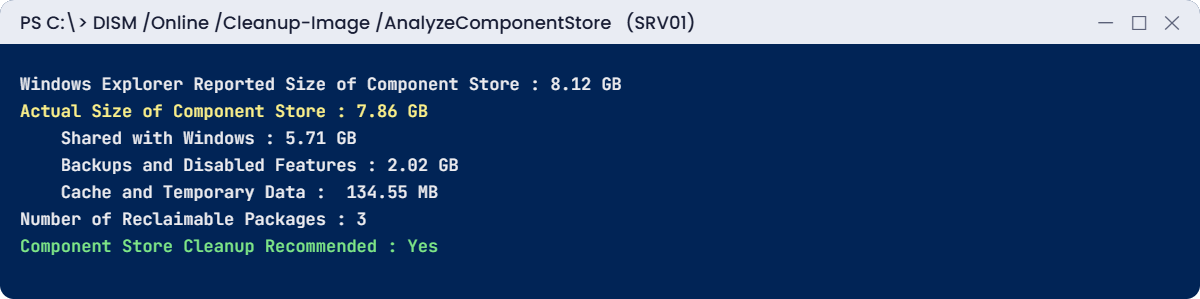
Windows Update troubleshooting lab: analysing the component store with DISM
Windows Update troubleshooting: the real size of the component store, and whether cleanup helps

5Reset Windows Update components

Stop the services, rename the caches, start again and run a fresh scan:

$svc = 'wuauserv', 'bits', 'cryptsvc'
Stop-Service $svc -Force
Rename-Item C:\Windows\SoftwareDistribution SoftwareDistribution.old
Rename-Item C:\Windows\System32\catroot2 catroot2.old
Start-Service $svc
$searcher = (New-Object -ComObject Microsoft.Update.Session).CreateUpdateSearcher()
$result = $searcher.Search("IsInstalled=0 and Type='Software'")
"Updates found: $($result.Updates.Count)"

You’ll see something like this:

Updates found: 0

Windows recreates both folders on the next scan. Update history in Settings may look empty after this, because that list lives in SoftwareDistribution; the installed updates themselves are untouched (check with Get-HotFix). Delete the .old folders after a week of good updates.

✅ Checkpoint: The services restart, the caches are recreated and a fresh scan completes.

Break It, Then Fix It

Two failures you’ll see at work: a feature that can’t find its files, and a damaged system file that sfc has to repair.

1Break it: install a feature with no source

On your laptop, disconnect SRV01’s network cable, then on SRV01 try to add .NET Framework 3.5:

VBoxManage controlvm SRV01 setlinkstate1 off
Install-WindowsFeature NET-Framework-Core

You’ll see something like this:

Install-WindowsFeature : The request to add or remove features on the specified server failed.
Installation of one or more roles, role services, or features failed.
The source files could not be found.
Use the "Source" option to specify the location of the files that are required to restore the feature.
Error: 0x800f081f
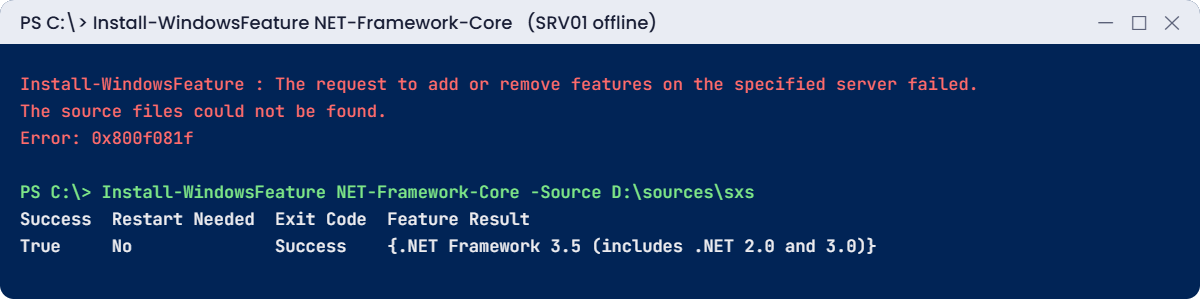
Windows Update troubleshooting break lab: 0x800f081f fixed with a local source
0x800f081f means the files weren’t found; a local source fixes it

.NET 3.5 isn’t stored on the server; it’s a “feature on demand”. Without Windows Update and without a source, there’s nowhere to get the files. The same code appears when DISM /RestoreHealth can’t find good copies to repair the store.

Fix it: attach the Windows Server 2025 ISO to SRV01 (it shows as D: here) and point to its sxs folder:

Install-WindowsFeature NET-Framework-Core -Source D:\sources\sxs

You’ll see something like this:

Success Restart Needed Exit Code Feature Result
------- -------------- --------- --------------
True    No             Success   {.NET Framework 3.5 (includes .NET 2.0 and 3.0)}

Reconnect the network with VBoxManage controlvm SRV01 setlinkstate1 on. In a company, you’d set the “Specify settings for optional component installation and component repair” policy to a file share with the sxs files.

✅ Checkpoint: The install failed with 0x800f081f offline and succeeded with -Source pointing to the ISO.

2Break it: damage a protected system file

On SRV01, take ownership of Notepad and change its contents:

takeown /f C:\Windows\System32\notepad.exe
icacls C:\Windows\System32\notepad.exe /grant Administrators:F
Add-Content C:\Windows\System32\notepad.exe -Value 'broken'
sfc /verifyfile=C:\Windows\System32\notepad.exe

You’ll see something like this:

Windows Resource Protection found integrity violations.
For online repairs, details are included in the CBS log file located at
windir\Logs\CBS\CBS.log.

The file no longer matches the copy in the component store. On a real server this happens after disk errors, bad tools or malware, and it can make updates fail when they try to replace the file.

Fix it: repair the file and check the log:

sfc /scanfile=C:\Windows\System32\notepad.exe
Select-String -Path C:\Windows\Logs\CBS\CBS.log -Pattern '\[SR\].*notepad' | Select-Object -Last 2 Line

You’ll see something like this:

Windows Resource Protection found corrupt files and successfully repaired them.

Line
----
2026-10-20 11:20:14, Info  CSI  00000012 [SR] Cannot verify component files for Microsoft-Windows-Notepad..., file notepad.exe
2026-10-20 11:20:14, Info  CSI  00000014 [SR] Repairing corrupted file \??\C:\Windows\System32\notepad.exe from store

sfc copied a good version back from WinSxS. If the store copy had been bad too, you’d run DISM /RestoreHealth first, then sfc again.

✅ Checkpoint: sfc found the damaged notepad.exe, repaired it from the store, and CBS.log shows the [SR] repair.

This happened at work

The update that failed every month

A security update for the recovery environment kept failing on a group of servers with 0x80070643. The team retried it, reset Windows Update, and ran DISM and sfc on every server. Nothing changed, and the failure showed up in every monthly report.

Someone finally read the update’s Microsoft support article. Its known issues said the update fails when the recovery partition is too small for the new WinRE image, and the article gave steps to grow that partition.

The servers had been built from an old template with a tiny recovery partition. After the team followed Microsoft’s resize steps on a test server, then on the rest, the update installed everywhere.

The fix: the build template now has a larger recovery partition, and the patch process includes reading the known issues of each update.

The lesson: when the same update fails the same way everywhere, read its support article before you repair anything.

Common mistakes and troubleshooting

MistakeWhat happensWhat to do instead
Retrying the same update again and againSame failure every timeFind the error code and the failing stage first
Running sfc before DISMsfc can’t fix files when the store is damagedDISM /RestoreHealth first, then sfc
Deleting files from WinSxSUpdates and features breakUse DISM /StartComponentCleanup
Deleting SoftwareDistribution with services runningFiles in use, partial resetStop wuauserv, bits and cryptsvc first; rename, don’t delete
No repair source in isolated networks0x800f081f and 0x800f0906Point the component repair policy at a share or the ISO
Ignoring disk spaceInstall fails or rolls backCheck free space on C: and clean up the store
Not reading the update’s support articleKnown issues missedCheck known issues and prerequisites for each update
Forgetting the pending restartNext update failsRestart, then check again (Lesson 24)

Interview questions

Click a question to open it. Under each one you’ll find what the interviewer is really looking for, and one good way to answer.

Fresher level

1. Which log shows Windows Update scan and download errors?

What they’re really checking: Do you know the logs?

How you could answer: WindowsUpdate.log, created with Get-WindowsUpdateLog from the client’s ETL traces.

2. What does sfc /scannow do?

What they’re really checking: Do you know the tools?

How you could answer: It checks protected system files and replaces damaged ones with good copies from the component store.

3. What does 0x80070422 mean?

What they’re really checking: Do you know common codes?

How you could answer: A service Windows Update needs, usually wuauserv, is disabled.

2–5 years experience

4. In what order do you run DISM and sfc, and why?

What they’re really checking: Do you understand the store?

How you could answer: DISM first, because it repairs the component store; then sfc, which uses the store to repair system files.

5. How do you reset Windows Update components?

What they’re really checking: Can you fix the client?

How you could answer: Stop wuauserv, bits and cryptsvc, rename SoftwareDistribution and catroot2, start the services and scan again.

6. How do you fix 0x800f081f?

What they’re really checking: Do you know sources?

How you could answer: Give a valid source (install media sources\sxs or a mounted install.wim) with /Source and /LimitAccess, or allow Windows Update through the component repair policy.

Senior level

7. An update fails on many servers with the same code. How do you approach it?

What they’re really checking: Do you think at scale?

How you could answer: Read the update’s known issues, compare a failing and a working server, check prerequisites and the servicing stack, test the fix on one server, then roll it out.

8. How would you keep isolated servers patchable?

What they’re really checking: Do you plan for offline networks?

How you could answer: A local update source (Configuration Manager, a WSUS-like process or offline packages), a repair source share for features and DISM, and regular compliance reports.

9. When do you rebuild a server instead of repairing updates?

What they’re really checking: Do you know when to stop?

How you could answer: When the store is non-repairable, repairs keep failing, or the time to fix exceeds a tested rebuild from automation and backups.

Quick quiz

Q1. Which folder is the component store?

  1. C:\Windows\SoftwareDistribution
  2. C:\Windows\WinSxS
  3. C:\Windows\Temp
Show answer

B — Updates are installed into it.

Q2. What should you run before sfc on a server with update failures?

  1. chkdsk
  2. DISM /RestoreHealth
  3. gpupdate
Show answer

B — sfc depends on a healthy store.

Q3. What does 0x800f081f mean?

  1. A disabled service
  2. Source files could not be found
  3. A proxy error
Show answer

B — Point to sources\sxs.

Q4. Which tag marks sfc entries in CBS.log?

  1. [SR]
  2. [WU]
  3. [SFC]
Show answer

A — Search for it with Select-String.

Q5. What solved the work story problem?

  1. Resetting Windows Update
  2. Growing the recovery partition
  3. Reinstalling Windows
Show answer

B — The known issues explained it.

Quick recap

  • Windows Update troubleshooting starts with the error code and the stage that failed.
  • WindowsUpdate.log covers scan and download; CBS.log and dism.log cover installation and repair.
  • Run DISM /RestoreHealth before sfc /scannow.
  • Reset the update cache by stopping services and renaming SoftwareDistribution and catroot2.
  • Fix 0x800f081f with a valid /Source; read each update’s known issues.

Next lesson

Lesson 50: Common service problems → You’ll fix services that won’t start: wrong accounts and passwords, missing dependencies, permissions, timeouts, and activation errors such as 0xC004F074.

Further reading: Windows Update troubleshooting

Want to go deeper into Windows Update troubleshooting? Microsoft’s guide to repairing a Windows image explains each DISM option, and the .NET 3.5 installation errors article explains 0x800f081f and related codes. You can also see the full plan for this course on the Windows Server Administration course page.

Scroll to Top