Editions, licensing and activation
-
Phase 0: Before you start
-
Phase 1: The foundation
-
Phase 2: Core administration and security
-
Phase 3: Enterprise infrastructure
-
Phase 4: Troubleshooting step by step
-
Phase 5: Final project and career
Ask five admins how Windows Server licensing works and you’ll get five different answers. Get it wrong one way and the company pays for licences it doesn’t need. Get it wrong the other way and an audit finds a gap that costs far more than the licences would have.
In this lesson you’ll learn the editions, how core-based licensing and access licences fit together, and how Windows proves it’s licensed through activation. You’ll read your own laptop’s licence, check which editions it can switch to, and build a small calculator that works out how many core licences a server needs.
| Time | You need | By the end you can |
|---|---|---|
| About 50 minutes | Your Windows laptop and PowerShell; nothing to install | Choose between Standard and Datacenter, count the core licences a server needs, explain CALs, compare KMS, MAK, ADBA and AVMA activation, and convert an evaluation server to a full edition |
What it is, in one line
Windows Server licensing is the set of rules for how many licences a server needs (counted by processor cores, plus a licence for each user or device that connects) and how Windows proves it is properly licensed through activation.
In Simple Words
A canteen with two kinds of passes
Imagine an office canteen. You can buy a meal pass that covers two meals, and if you want more meals, you buy more passes. Or you can buy an all-you-can-eat pass that costs more, but covers every meal you can fit.
Everyone who walks into the canteen also needs an entry badge, even if someone else paid for the food. And at the door, a guard checks your receipt to make sure the pass is real.
Windows Server works the same way. Standard is the meal pass: each set of licences covers two virtual machines.
Datacenter is all-you-can-eat: unlimited virtual machines on that server. The entry badges are Client Access Licences (CALs). Checking the receipt is activation.
Engineer's View
Editions, cores, CALs and activation
The editions:
| Edition | Who it is for | Virtual machines |
|---|---|---|
| Standard | Physical servers or lightly virtualized hosts | 2 Windows Server VMs per full set of core licences; add more sets for more VMs |
| Datacenter | Hosts running many VMs | Unlimited Windows Server VMs on the licensed host. Also adds Storage Spaces Direct, software-defined networking and Shielded VMs |
| Datacenter: Azure Edition | Azure and Azure Stack only | Hotpatching on by default |
| Essentials | Small businesses (sold with the server hardware) | Up to 25 users and 50 devices, one VM, no CALs needed |
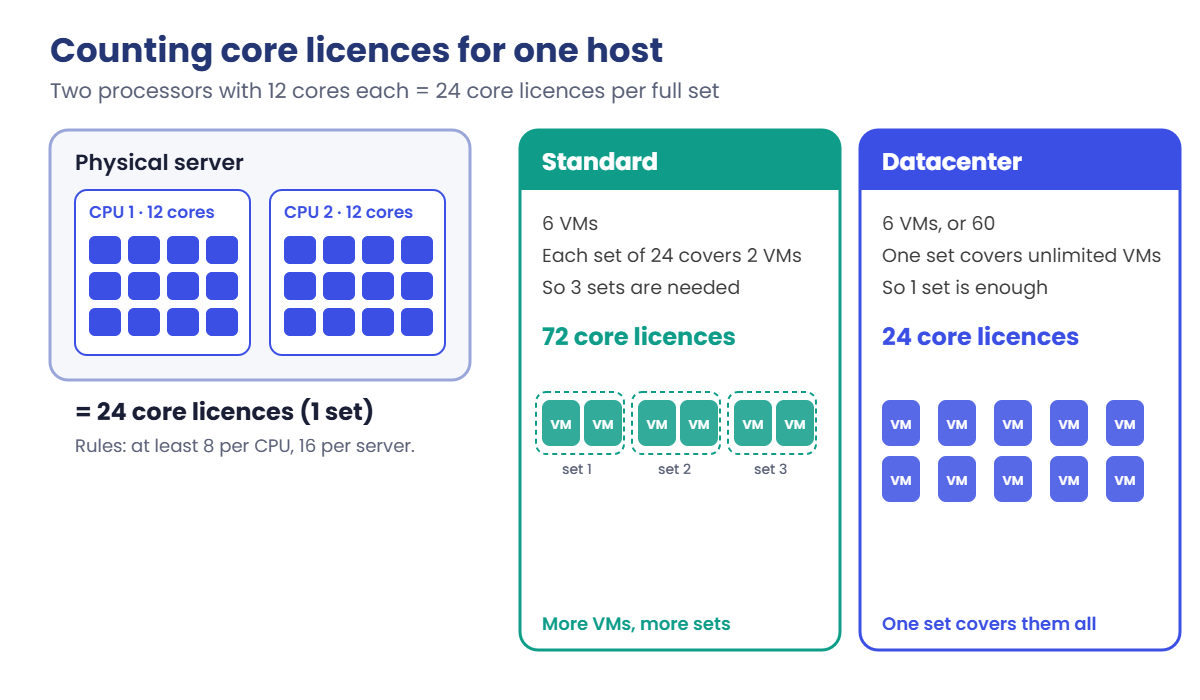
Core-based licensing. You license every physical core in the server, with a minimum of 8 cores per processor and 16 cores per server.
Licences are sold in packs of 2 cores (and 16-core packs). A small server with one 4-core processor still needs 16 core licences.
Client Access Licences (CALs). On top of the core licences, every user or device that uses the server needs a Windows Server CAL, bought per user or per device.
Remote Desktop Services needs its own RDS CALs as well. A CAL must be the same version as the server or newer.
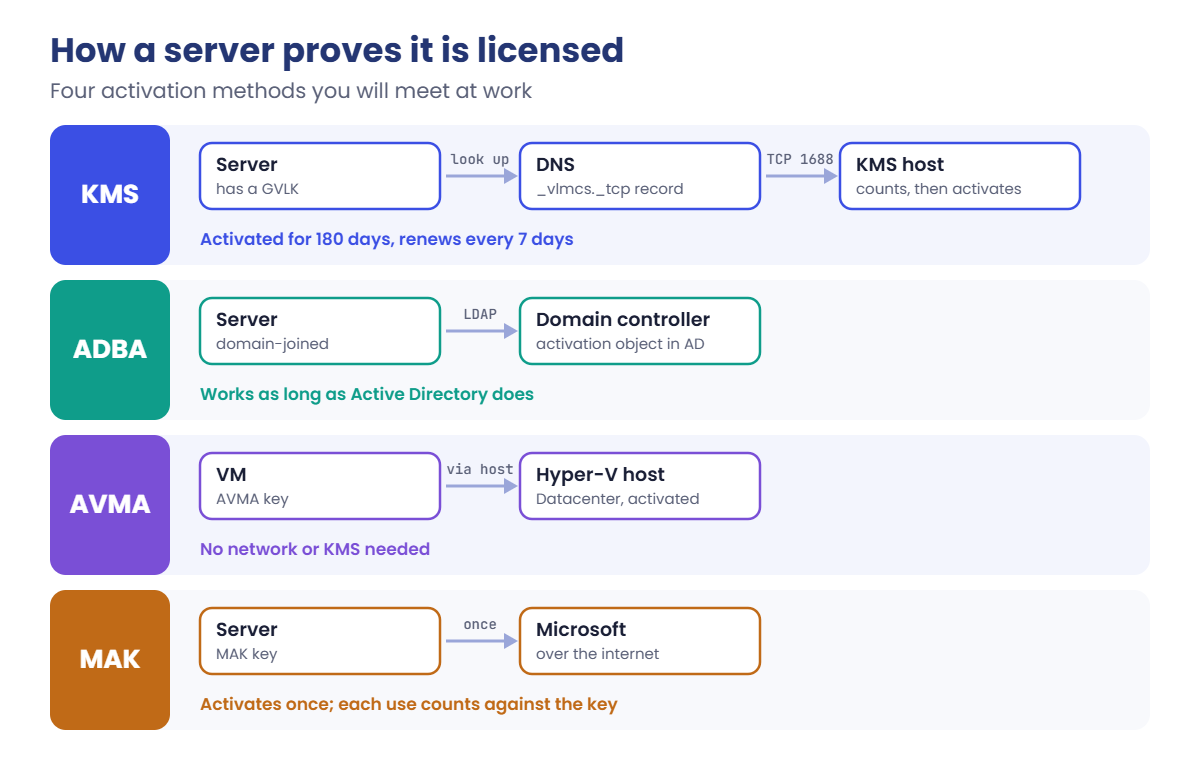
Activation is how Windows checks the licence. The common ways in a company:
- Retail or OEM: a key for one machine, often from the hardware vendor.
- MAK (Multiple Activation Key): one key used many times, each machine activates once with Microsoft over the internet.
- KMS (Key Management Service): an in-house activation server. Machines find it through DNS, activate for 180 days and renew automatically.
- ADBA (Active Directory-Based Activation): the activation object lives in Active Directory, so any domain-joined machine activates when it joins.
- AVMA (Automatic Virtual Machine Activation): VMs on a Datacenter Hyper-V host activate against the host itself, with no network needed.
- Pay-as-you-go through Azure Arc: Windows Server 2025 can be billed per core through an Azure subscription instead of buying licences up front.
Evaluation to full edition. An evaluation server can be converted with DISM /online /Set-Edition and a real product key, so you don’t have to reinstall.
A Datacenter evaluation can only become Datacenter. A domain controller can’t be converted at all: you build a new licensed DC, move the roles over and remove the old one.
Licensing terms change. This lesson teaches the model; always check the current Microsoft product terms or your licensing partner before you buy.
How it works, step by step
Start with the counting. Here’s how you work out the core licences for a typical Hyper-V host with two 12-core processors:
- Count the cores per processor and round up to at least 8. Here: 12.
- Add them up for the server and round up to at least 16. Here: 2 × 12 = 24 core licences. That’s one full set.
- For Datacenter, stop. 24 core licences cover the host and every Windows Server VM on it.
- For Standard, count VMs. Each full set of 24 covers 2 VMs. Six VMs need 3 sets, which is 72 core licences.
- Add CALs for every user or device that connects, whichever edition you chose.
The more VMs a host runs, the sooner Datacenter becomes the cheaper choice. Where exactly that happens depends on your price list, but it’s often somewhere around 10 to 14 VMs per host.
Then activation. In companies, most servers use KMS or Active Directory-based activation. This is how a KMS client finds its activation server and stays activated:
- The server has a KMS client key (GVLK). Volume-licensed media installs it by default; Microsoft publishes these keys openly.
- It asks DNS for the KMS host using the SRV record
_vlmcs._tcp.<your domain>. - It connects to the KMS host on TCP port 1688.
- The KMS host counts requests. It only starts activating once it has heard from at least 5 servers (or 25 Windows clients), so a single test machine never activates.
- The server is activated for 180 days and tries to renew every 7 days, so it stays activated as long as the KMS host is reachable now and then.
With ADBA, steps 2 to 4 are replaced by a look-up in Active Directory, so there’s no separate server to keep alive. That difference is the whole point of the work story below.
Hands-on Lab: Windows Server licensing checks and a core calculator
Everything here only reads information; nothing changes your laptop’s licence. Use a normal PowerShell window unless a step says administrator. The same commands work on Windows Server, and you’ll use them on your lab servers right after installing them in Lesson 5.
1Read your licence with slmgr
slmgr is the Software Licensing Manager script that ships with Windows. Normally it shows its answers in pop-up boxes; running it through cscript prints them in the console instead, which is easier to read and copy.
Run these one at a time:
cscript //nologo C:\Windows\System32\slmgr.vbs /dli
cscript //nologo C:\Windows\System32\slmgr.vbs /xprYou should see something like this:
Name: Windows(R), Professional edition
Description: Windows(R) Operating System, OEM_DM channel
Partial Product Key: 3V66T
License Status: Licensed
Windows(R), Professional edition:
The machine is permanently activated./dli shows the edition, the channel (how the licence was sold) and the last five characters of the key. /xpr shows when activation expires. On an evaluation server you’ll see the channel include “EVAL” and an expiry date instead of “permanently activated”.
✅ Checkpoint: You can see your edition, licence channel and licence status.
2Read the same thing with PowerShell
Run this:
Get-CimInstance SoftwareLicensingProduct -Filter "Name LIKE 'Windows%' AND PartialProductKey IS NOT NULL" |
Select-Object Name, ProductKeyChannel, LicenseStatus, GracePeriodRemainingYou should see something like this:
Name ProductKeyChannel LicenseStatus GracePeriodRemaining
---- ----------------- ------------- --------------------
Windows(R), Professional edition OEM:DM 1 0LicenseStatus 1 means licensed.
GracePeriodRemaining is in minutes; it’s 0 when activation never expires. On an evaluation or KMS-activated server it counts down, and dividing by 1440 gives days. That’s the line you’ll put in a monitoring script, because it works the same on every server.
✅ Checkpoint: LicenseStatus is 1 on your laptop, and you know how to turn GracePeriodRemaining into days.
3See which editions this Windows can become
In an administrator PowerShell window, run these one at a time:
DISM /Online /Get-CurrentEdition
DISM /Online /Get-TargetEditionsYou should see something like this (your list may be different):
Deployment Image Servicing and Management tool
Version: 10.0.26100.5074
Image Version: 10.0.26100.6899
Current edition is:
Current Edition : Professional
The operation completed successfully.
Deployment Image Servicing and Management tool
Version: 10.0.26100.5074
Image Version: 10.0.26100.6899
Editions that can be upgraded to:
Target Edition : Education
Target Edition : Enterprise
Target Edition : ProfessionalEducation
Target Edition : ProfessionalWorkstation
The operation completed successfully.These two commands only read.
On an evaluation server, the current edition is something like ServerDatacenterEval and the target list shows ServerDatacenter. You’d then convert with DISM /online /Set-Edition:ServerDatacenter /ProductKey:<your key> /AcceptEula. Don’t run Set-Edition on your laptop.
✅ Checkpoint: You can see your current edition and the editions it could be converted to.
4Build a core licence calculator
Paste this whole block into a normal PowerShell window:
function Get-CoreLicense {
param(
[int]$Processors,
[int]$CoresPerProcessor,
[int]$VMs,
[ValidateSet('Standard', 'Datacenter')][string]$Edition
)
$perProcessor = [math]::Max(8, $CoresPerProcessor) # at least 8 per processor
$perServer = [math]::Max(16, $Processors * $perProcessor) # at least 16 per server
if ($Edition -eq 'Datacenter') { $stacks = 1 } # unlimited VMs
else { $stacks = [math]::Max(1, [math]::Ceiling($VMs / 2)) } # 2 VMs per full set
[pscustomobject]@{
Edition = $Edition
VMs = $VMs
CoresPerStack = $perServer
Stacks = $stacks
CoreLicenses = $perServer * $stacks
TwoCorePacks = $perServer * $stacks / 2
}
}Now compare both editions for a host with two 12-core processors:
2, 6, 14 | ForEach-Object {
Get-CoreLicense -Processors 2 -CoresPerProcessor 12 -VMs $_ -Edition Standard
Get-CoreLicense -Processors 2 -CoresPerProcessor 12 -VMs $_ -Edition Datacenter
} | Format-TableYou should see this:
Edition VMs CoresPerStack Stacks CoreLicenses TwoCorePacks
------- --- ------------- ------ ------------ ------------
Standard 2 24 1 24 12
Datacenter 2 24 1 24 12
Standard 6 24 3 72 36
Datacenter 6 24 1 24 12
Standard 14 24 7 168 84
Datacenter 14 24 1 24 12
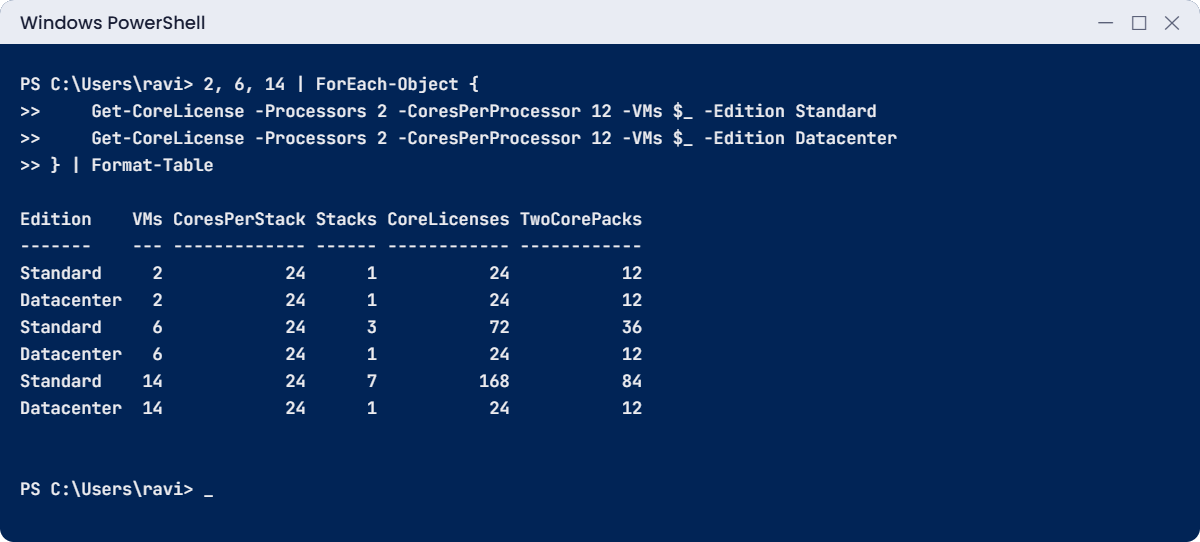
With 2 VMs both editions need the same 24 core licences, and Standard is much cheaper per licence, so Standard wins. With 14 VMs, Standard needs seven sets (168 core licences) while Datacenter still needs 24, so Datacenter wins. Put your company’s prices next to these numbers and the choice is easy.
✅ Checkpoint: Your table matches the one above, and you can explain why Standard needs 7 sets for 14 VMs.
Break It, Then Fix It
Licensing problems rarely throw red errors. They show up as a gap nobody noticed, or as servers that quietly stop activating. You’ll cause one of each.
1Break it: a server that is three VMs short
A small office bought a server with one 4-core processor and Windows Server Standard. The admin reasoned “4 cores, so 4 core licences”, and put three VMs on it. Check that with your calculator (still in the same window):
Run this:
Get-CoreLicense -Processors 1 -CoresPerProcessor 4 -VMs 3 -Edition Standard | Format-TableYou should see this:
Edition VMs CoresPerStack Stacks CoreLicenses TwoCorePacks
------- --- ------------- ------ ------------ ------------
Standard 3 16 2 32 16Two mistakes at once.
The 16-core minimum per server means one set is 16 core licences, not 4. And three VMs need two sets on Standard, because each set covers only two. The office needed 32 core licences and bought 4.
Fix it: either cut to two VMs, or license for three. Check both:
Get-CoreLicense -Processors 1 -CoresPerProcessor 4 -VMs 2 -Edition Standard | Format-TableYou should see this:
Edition VMs CoresPerStack Stacks CoreLicenses TwoCorePacks
------- --- ------------- ------ ------------ ------------
Standard 2 16 1 16 8With two VMs, 16 core licences cover it. If the third VM is needed, buy the second set of 16. Either way, write the calculation down; it’s the first thing an auditor asks for.
✅ Checkpoint: You can see why 3 VMs on Standard need 32 core licences, and 2 VMs need 16.
2Break it: look for a KMS server that is not there
Company laptops and servers activated by KMS find their activation server through DNS. Run the same lookup a KMS client does, for a domain with no KMS host:
Run this:
Resolve-DnsName -Type SRV _vlmcs._tcp.corp.example.comYou’ll get an error like this:
Resolve-DnsName : _vlmcs._tcp.corp.example.com : DNS name does not exist
At line:1 char:1
+ Resolve-DnsName -Type SRV _vlmcs._tcp.corp.example.com
+ ~~~~~~~~~~~~~~~~~~~~~~~~~~~~~~~~~~~~~~~~~~~~~~~~~~~~~~
+ CategoryInfo : ResourceUnavailable: (_vlmcs._tcp.corp.example.com:String) [Resolve-DnsName], Win32Exception
+ FullyQualifiedErrorId : DNS_ERROR_RCODE_NAME_ERROR,Microsoft.DnsClient.Commands.ResolveDnsName
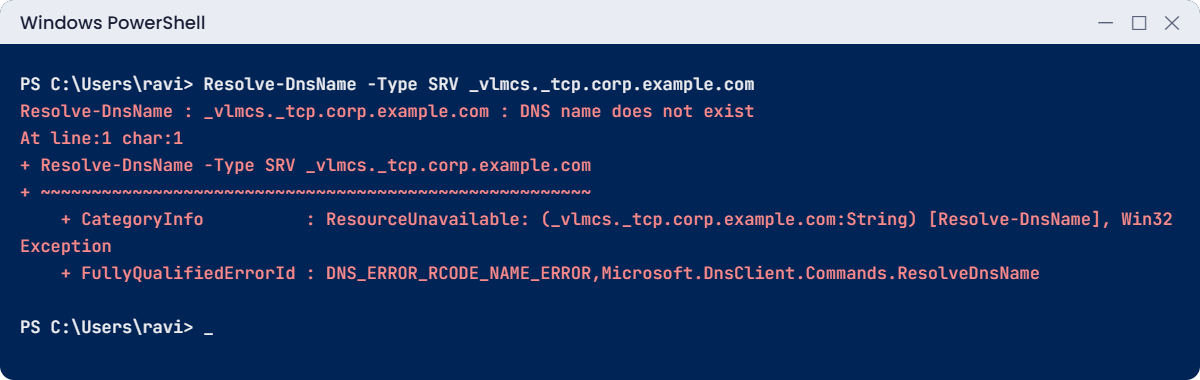
“DNS name does not exist” is exactly what a KMS client sees when the SRV record is missing: on a home network, on a network where someone deleted the record, or after the KMS host was retired. Activation fails with error 0xC004F074 (“No Key Management Service could be contacted”).
Fix it: on a company network, an admin runs this same lookup with the real domain name.
If the record is missing, they recreate it or point clients at the host directly with slmgr /skms kms01.corp.example.com:1688. If the record exists, they test the port with Test-NetConnection kms01.corp.example.com -Port 1688. For machines that are rarely on the company network, they use ADBA (activates when the machine talks to a domain controller) or a MAK.
✅ Checkpoint: You got “DNS name does not exist”, and you know the three things to check when KMS activation fails: the SRV record, port 1688, and whether the machine can reach the company network at all.
This happened at work
The server nobody knew was important
A manufacturing company ran a cleanup project to retire old servers. One of them, UTIL02, had no owner listed and showed almost no traffic, so it was switched off and deleted. Nobody remembered that it was the company’s KMS host.
Nothing happened for weeks, because KMS activation lasts 180 days. Then servers and Remote Desktop hosts began dropping out of activation one by one. About 300 users on the Remote Desktop farm saw an “Activate Windows” watermark on their screens, and the helpdesk was flooded with calls asking if the company was using pirated software.
The admins found it with slmgr /dlv on an affected server: the KMS host name it had last used no longer resolved in DNS. The _vlmcs._tcp record had been cleaned up together with the server.
The fix: they moved activation to Active Directory-based activation, so it lives in AD itself and can’t be retired with one server. A weekly script now checks LicenseStatus on every server and alerts on anything that isn’t 1. Every server in the inventory has an owner and a “what breaks if this goes away” note.
The lesson: the quietest servers are often the ones everything depends on. Before you retire a server, find out what uses it.
Common mistakes and troubleshooting
| Mistake or symptom | What happens | What to do instead |
|---|---|---|
| Licensing only the cores in use, or fewer than 16 | Audit finds a shortfall | License every physical core, at least 8 per processor and 16 per server |
| Running a third VM on a Standard host with one set of licences | Out of compliance | Buy another full set for every 2 extra VMs, or move to Datacenter |
| Forgetting CALs | Users connect without licences | Count users or devices and buy Windows Server CALs, plus RDS CALs for Remote Desktop |
| Converting an evaluation domain controller | Not supported | Build a new licensed DC, move roles, then demote the evaluation one |
| Typing a GVLK and expecting it to activate on its own | Nothing activates without a KMS host or ADBA | A GVLK only says “find my company’s activation”; you still need KMS or ADBA |
| Error 0xC004F074 | No KMS host could be contacted | Check the _vlmcs._tcp SRV record, port 1688, and network access to the KMS host |
| A single test VM never activates through a new KMS host | The KMS host hasn’t reached its minimum count yet | KMS needs 5 servers (or 25 clients) before it activates anything |
| Evaluation server shuts down every hour | The 180-day evaluation has expired | Check days left in advance with slmgr /xpr; convert with DISM /Set-Edition or rebuild |
| DISM says “Error: 740” | Elevated permissions are required | Run DISM in an administrator window |
Interview questions
Click a question to open it. Under each one you’ll find what the interviewer is really looking for, and one good way to answer.
Fresher level
1. What is the difference between Windows Server Standard and Datacenter?
What they’re really checking: Do you know the basic choice?
How you could answer: Both have the same core features for most roles. Standard covers 2 Windows Server VMs per full set of core licences; Datacenter covers unlimited VMs on the licensed host and adds features like Storage Spaces Direct and Shielded VMs. Datacenter is for heavily virtualized hosts.
2. What is a CAL?
What they’re really checking: Do you know licensing isn’t only about the server?
How you could answer: A Client Access Licence. Each user or device that uses a Windows Server needs one, bought per user or per device. Remote Desktop Services needs separate RDS CALs.
3. How do you check if Windows is activated?
What they’re really checking: Have you used the tools?
How you could answer: slmgr /xpr or slmgr /dli, or in PowerShell the SoftwareLicensingProduct class, where LicenseStatus 1 means licensed. In Settings, the Activation page shows it too.
2–5 years experience
4. How many core licences does a server with two 6-core processors need?
What they’re really checking: Do you know the minimums?
How you could answer: 16. Each processor counts as at least 8 cores, so 2 × 8 = 16, which also meets the 16-per-server minimum.
5. Explain KMS activation and what can make it fail.
What they’re really checking: Do you understand the moving parts?
How you could answer: Clients with a GVLK find the KMS host through the _vlmcs._tcp SRV record, connect on TCP 1688, and activate for 180 days, renewing every 7 days. It fails if the record is missing, the port is blocked, the host is gone, or the host hasn’t reached its activation count of 5 servers or 25 clients.
6. How do you convert an evaluation server to a licensed one?
What they’re really checking: Have you done it, and do you know the limits?
How you could answer: Check DISM /online /Get-CurrentEdition and /Get-TargetEditions, then run DISM /online /Set-Edition with the product key and /AcceptEula, and restart. A domain controller can’t be converted; replace it with a licensed DC instead.
Senior level
7. A host will run 10 to 20 Windows Server VMs. How do you choose the edition?
What they’re really checking: Can you make a cost decision with evidence?
How you could answer: Count the licensed cores, calculate Standard sets needed for the peak VM count versus one Datacenter licence, and compare using the real price list. Factor in growth, live migration between hosts (each host must be licensed for the VMs it can run), and Datacenter-only features you might need.
8. KMS, ADBA or AVMA: which would you use and when?
What they’re really checking: Do you match the method to the environment?
How you could answer: ADBA for domain-joined machines, because it needs no separate server and survives server cleanup.
KMS for older or non-domain systems that are still on the network. AVMA for VMs on Datacenter Hyper-V hosts, especially in isolated networks. MAK for machines that are rarely or never on the company network.
9. How would you prepare for a Microsoft licensing audit?
What they’re really checking: Do you think about compliance before it’s a problem?
How you could answer: Keep an inventory of hosts, cores, editions and VM placement over time, plus CAL counts and proof of purchase. Run the core calculation for every host, fix gaps before the audit, and record the method so the numbers can be explained.
Quick quiz
Q1. A server has one 4-core processor. How many core licences does it need?
- 4
- 8
- 16
Show answer
C — The minimum is 8 per processor and 16 per server.
Q2. A Standard host runs 6 Windows Server VMs on a 16-core server. How many core licences?
- 16
- 48
- 96
Show answer
B — Each full set of 16 covers 2 VMs, so 6 VMs need 3 sets: 48.
Q3. What DNS record does a KMS client look for?
- _ldap._tcp
- _vlmcs._tcp
- _kerberos._udp
Show answer
B — KMS clients look up the _vlmcs._tcp SRV record, then connect on port 1688.
Q4. Which activation method keeps working even if one server is retired?
- KMS
- Active Directory-based activation
- Retail key typed by hand
Show answer
B — ADBA stores the activation object in Active Directory itself.
Q5. Can you convert an evaluation domain controller to a licensed edition with DISM?
- Yes, with Set-Edition
- No, build a new licensed DC and move the roles
- Only on Server Core
Show answer
B — Microsoft does not allow converting an evaluation domain controller.
Quick recap
- Windows Server licensing counts physical cores: at least 8 per processor and 16 per server.
- Standard covers 2 VMs per full set of core licences; Datacenter covers unlimited VMs on the host.
- Users and devices also need CALs, plus RDS CALs for Remote Desktop.
- Activation methods: retail/OEM, MAK, KMS, ADBA, AVMA, and pay-as-you-go through Azure Arc for 2025.
- KMS clients find their host through the _vlmcs._tcp SRV record and TCP 1688, and stay activated for 180 days.
- Convert evaluation servers with DISM /Set-Edition, but never an evaluation domain controller.
Next lesson
Lesson 5: Install Windows Server 2025 → You’ll install Windows Server 2025 on DC01 and SRV01, choose the right image, set up the disks, check the evaluation days left, and take your first snapshot.
Further reading: Windows Server licensing
Want to go deeper into Windows Server licensing and activation? Microsoft lists the official KMS client keys on KMS client activation and product keys and explains evaluation conversion on Upgrade and conversion options. You can also see the full plan for this course on the Windows Server Administration course page.
