Windows boot troubleshooting: WinRE, BCD repair and crash dumps
-
Phase 0: Before you start
-
Phase 1: The foundation
-
Phase 2: Core administration and security
-
Phase 3: Enterprise infrastructure
-
Phase 4: Troubleshooting step by step
-
Phase 5: Final project and career
A server that won’t start, or one that shows a blue screen and restarts, is the most stressful ticket you’ll get. Windows boot troubleshooting is calmer when you know the boot chain and have a crash dump to read.
In this lesson you’ll read the boot configuration, set up crash dumps, cause a safe test crash on SRV01 and read the dump with WinDbg. Then you’ll break the boot configuration on purpose and repair it from the Windows Recovery Environment.
| Time | You need | By the end you can |
|---|---|---|
| About 90 minutes | SRV01 (take a snapshot first), the Windows Server 2025 ISO, and a Windows laptop or VM for WinDbg | Repair a broken boot configuration and find the driver behind a blue screen |
What it is, in one line
Windows boot troubleshooting is finding which link in the start-up chain (firmware, boot manager, loader, kernel, drivers, services) fails, and using the recovery tools and crash dumps to fix it.
In Simple Words
In Simple Words
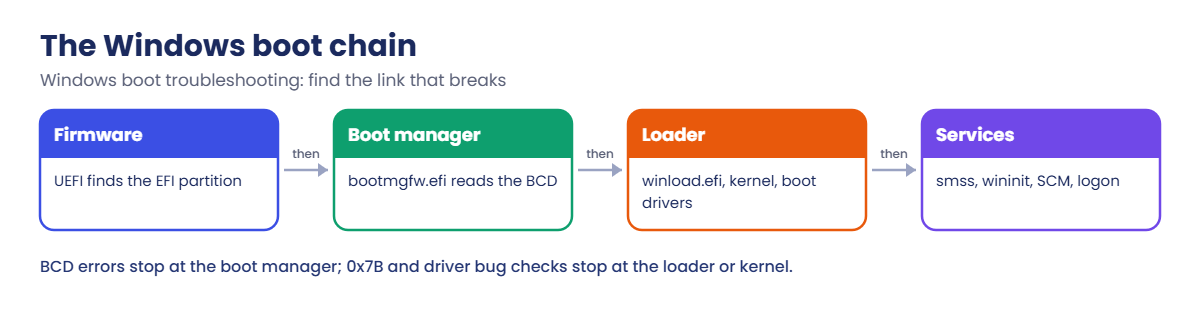
Starting a server is like a relay race. The firmware hands the baton to the boot manager, which hands it to the Windows loader, which hands it to the kernel and drivers, and finally to the services.
If the race stops, you ask: who was holding the baton when it fell? A message right after power-on points to an early runner. A blue screen with a code points to a later one.
A crash dump is like a photo taken at the moment the baton fell. It shows exactly who dropped it.
Engineer's View
Engineer’s View
Boot chain (UEFI): firmware loads bootmgfw.efi from the EFI System Partition. The boot manager reads the BCD store and runs winload.efi, which loads the kernel, HAL, the SYSTEM registry hive and boot-start drivers. Then smss, wininit and the Service Control Manager start everything else.
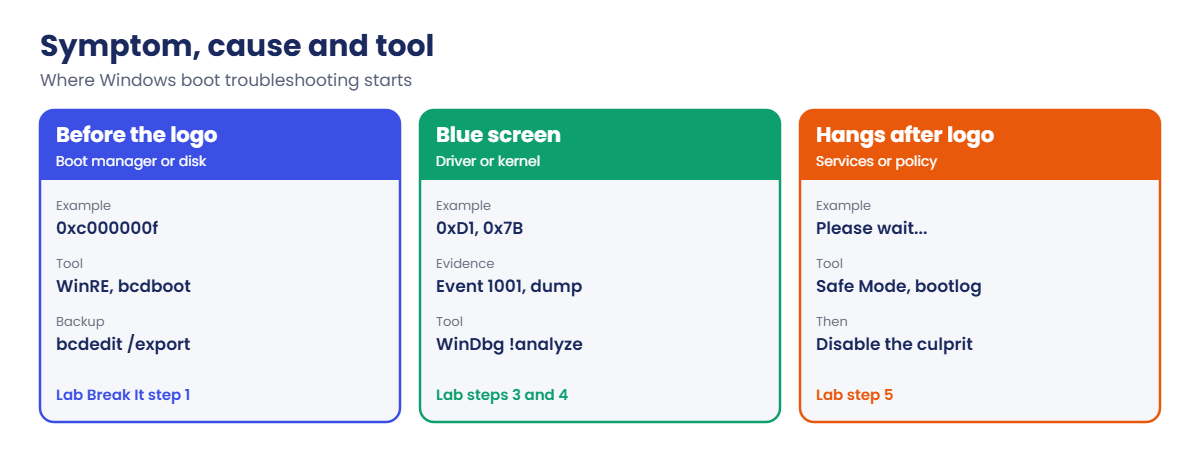
Typical failures: “no boot device” (firmware or disk), BCD errors such as 0xc000000f (boot manager), INACCESSIBLE_BOOT_DEVICE 0x7B (storage driver or disk), a bug check from a faulty driver, or a hang at “Please wait” (a service).
Tools: the Windows Recovery Environment (WinRE) from the ISO or Advanced startup, bcdedit to read and change the BCD, bcdboot to rebuild boot files, Safe Mode (bcdedit /set {current} safeboot minimal), boot logging to ntbtlog.txt, and offline dism /image: and reg load for a system that won’t start.
Crash dumps: set under HKLM\SYSTEM\CurrentControlSet\Control\CrashControl. CrashDumpEnabled is 1 (complete), 2 (kernel), 3 (small) or 7 (automatic, the default). The dump is written through the page file to %SystemRoot%\MEMORY.DMP, so the page file must be big enough.
Event 1001 records the bug check code after the restart.
WinDbg: open the dump, load symbols and run !analyze -v to get the bug check, the faulting module and the stack.
How it works, step by step
The boot chain, and what fails at each stage:
The first question is always: how far did it get? Note the last thing you saw on the console. With a VM that’s easy, because the console is always there.
Early failures (before the Windows logo) are firmware, disk or BCD problems, fixed from WinRE. Blue screens during boot are usually drivers. Hangs after the logo are often services or Group Policy.
For crashes on a running server, the dump is the evidence. Set dumps up before you need them, because you can’t collect one after the fact.
Symptom, likely cause and the tool to use:
In the lab you’ll work on SRV01:
- Read the firmware type and the BCD entry.
- Set up kernel crash dumps and check the page file.
- Cause a test crash with Microsoft’s NotMyFault tool.
- Read the dump with WinDbg.
- Turn on boot logging and read ntbtlog.txt.
Hands-on lab: crash dumps and the boot chain
Take a VirtualBox snapshot of SRV01 named “Before boot lab”. Then work as SAATLAB\adm.rahul in PowerShell as administrator on SRV01.
1Read the firmware type and boot entry
On SRV01:
$env:firmware_type
bcdedit /enum '{current}'You’ll see something like this:
UEFI
Windows Boot Loader
-------------------
identifier {current}
device partition=C:
path \Windows\system32\winload.efi
description Windows Server
locale en-US
recoverysequence {6b3a2f41-91c4-11ef-9a2e-080027a1b2c3}
displaymessageoverride Recovery
recoveryenabled Yes
osdevice partition=C:
systemroot \Windows
resumeobject {6b3a2f40-91c4-11ef-9a2e-080027a1b2c3}
nx OptOutUEFI with winload.efi means the boot files live on the EFI System Partition. If your VM shows Legacy and winload.exe, it uses BIOS boot; the steps still work, only the partition differs. Save a copy of the BCD before you change anything:
New-Item C:\Lab -ItemType Directory -Force | Out-Null
bcdedit /export C:\Lab\bcd-backupYou should see this:
The operation completed successfully.✅ Checkpoint: You know the firmware type and the boot loader path, and C:\Lab\bcd-backup exists.
2Set up kernel crash dumps
Check the current settings and the page file:
Get-ItemProperty HKLM:\SYSTEM\CurrentControlSet\Control\CrashControl |
Select-Object CrashDumpEnabled, DumpFile, MinidumpDir, AutoReboot
(Get-CimInstance Win32_ComputerSystem).AutomaticManagedPagefileYou’ll see something like this:
CrashDumpEnabled DumpFile MinidumpDir AutoReboot
---------------- -------- ----------- ----------
7 %SystemRoot%\MEMORY.DMP %SystemRoot%\Minidump 1
True7 is “automatic memory dump”, a kernel dump with a page file Windows sizes for you. Set it to a plain kernel dump (2) so you know exactly what you’ll get:
Set-ItemProperty HKLM:\SYSTEM\CurrentControlSet\Control\CrashControl -Name CrashDumpEnabled -Value 2✅ Checkpoint: CrashDumpEnabled is 2, the dump goes to MEMORY.DMP, and the page file is system managed.
3Cause a test crash with NotMyFault
Download Microsoft’s NotMyFault tool and use its built-in test driver to crash SRV01:
Invoke-WebRequest https://download.sysinternals.com/files/NotMyFault.zip -OutFile C:\Lab\NotMyFault.zip
Expand-Archive C:\Lab\NotMyFault.zip -DestinationPath C:\Lab\NotMyFault -Force
C:\Lab\NotMyFault\notmyfaultc64.exe crash 0x01SRV01 shows a blue screen, writes the dump and restarts. Crash type 0x01 is a “high IRQL fault” inside NotMyFault’s own test driver, myfault.sys. [Add your screenshot here]
After the restart, read the bug check event:
Get-WinEvent -FilterHashtable @{ LogName = 'System'; Id = 1001; ProviderName = 'Microsoft-Windows-WER-SystemErrorReporting' } -MaxEvents 1 |
Format-List TimeCreated, Message
Get-Item C:\Windows\MEMORY.DMP | Select-Object Name, @{ n = 'MB'; e = { [math]::Round($_.Length / 1MB) } }You’ll see something like this:
TimeCreated : 20/10/2026 10:42:10
Message : The computer has rebooted from a bugcheck. The bugcheck was: 0x000000d1 (0xffffd70c4e3a1010,
0x0000000000000002, 0x0000000000000000, 0xfffff8064a2112d0). A dump was saved in:
C:\Windows\MEMORY.DMP. Report Id: 3f6c2a10-9a1b-4c8e-b7d2-5e0f1a2b3c4d.
Name MB
---- --
MEMORY.DMP 612✅ Checkpoint: Event 1001 shows bug check 0xD1 and C:\Windows\MEMORY.DMP exists.
4Read the dump with WinDbg
Copy MEMORY.DMP to a Windows machine, install WinDbg and open the dump:
winget install Microsoft.WinDbg
# In WinDbg: File > Open dump file > MEMORY.DMP, then type:
.symfix
.reload
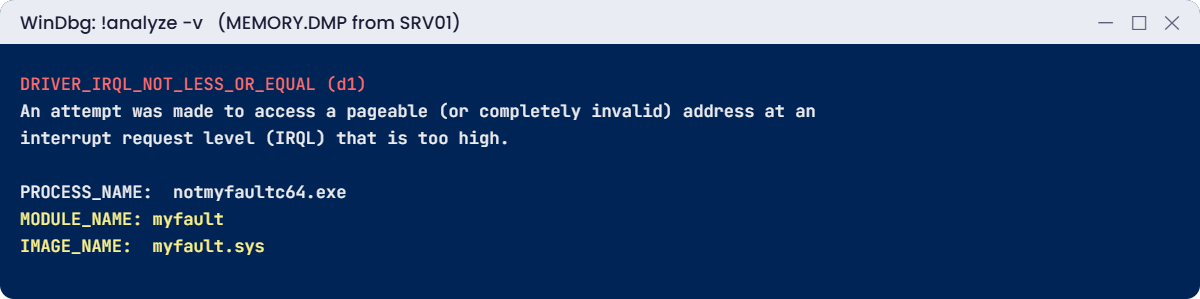
!analyze -vYou’ll see something like this (cut down):
DRIVER_IRQL_NOT_LESS_OR_EQUAL (d1)
An attempt was made to access a pageable (or completely invalid) address at an
interrupt request level (IRQL) that is too high.
PROCESS_NAME: notmyfaultc64.exe
SYMBOL_NAME: myfault+12d0
MODULE_NAME: myfault
IMAGE_NAME: myfault.sysThe two lines that matter at work are IMAGE_NAME (the driver) and the bug check name. Then you check that driver’s version, vendor updates and recent changes. Symbols come from Microsoft’s public symbol server, so the first load takes a minute.
✅ Checkpoint: !analyze -v names DRIVER_IRQL_NOT_LESS_OR_EQUAL and myfault.sys.
5Turn on boot logging
On SRV01, enable boot logging, restart and read the log:
bcdedit /set '{current}' bootlog yes
Restart-Computer
# after the restart:
Get-Content C:\Windows\ntbtlog.txt -Encoding Unicode | Select-Object -First 4
bcdedit /deletevalue '{current}' bootlogYou’ll see something like this:
Microsoft (R) Windows (R) Version 10.0 (Build 26100.NNNN)
10 20 2026 10:55:03.500
BOOTLOG_LOADED \SystemRoot\system32\ntoskrnl.exe
BOOTLOG_LOADED \SystemRoot\system32\hal.dllntbtlog.txt lists every driver loaded (or not loaded) during boot. When a server stops at the same point every time, the last driver in the list is a strong lead. Turn logging off when you’re done.
✅ Checkpoint: ntbtlog.txt lists loaded drivers, and boot logging is off again.
Break It, Then Fix It
Make sure your “Before boot lab” snapshot exists. If anything goes wrong, you can always restore it.
1Break it: remove the boot entry
On SRV01, delete the Windows boot entry (you saved a backup in lab step 1) and restart:
bcdedit /delete '{current}'
Restart-Computer -ForceThe VM won’t start Windows. You’ll see something like this on the console:
Windows Boot Manager
Windows failed to start. A recent hardware or software change might be the cause.
File: \EFI\Microsoft\Boot\BCD
Status: 0xc000000f
Info: The Boot Configuration Data for your PC is missing or contains errors.
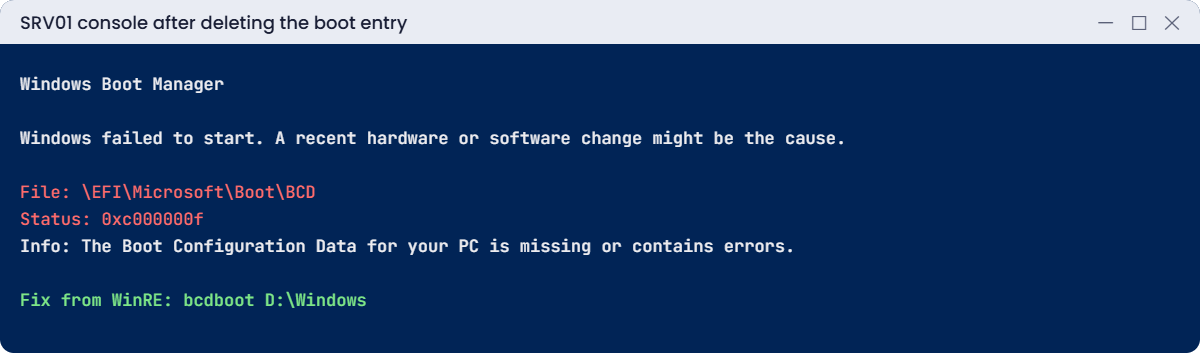
The boot manager runs, but it has no Windows entry to load. The exact screen depends on your firmware; [Add your screenshot here].
Fix it: boot from the Windows Server 2025 ISO, choose Repair your computer, Troubleshoot, Command Prompt. Find the Windows drive (letters change in WinRE), then rebuild the boot files:
diskpart
list volume
exit
dir D:\Windows
bcdboot D:\Windows
wpeutil rebootYou’ll see something like this:
Boot files successfully created.bcdboot copies fresh boot files to the system partition it finds for the current firmware type and creates a new BCD with a Windows entry. Eject the ISO, and SRV01 starts normally. If you’d rather restore the exact old store, bcdedit /import D:\Lab\bcd-backup does that.
✅ Checkpoint: SRV01 failed with 0xc000000f, then booted normally after bcdboot from WinRE.
2Break it: crash with no room for a dump
On SRV01, turn off the page file, restart, then cause the test crash again:
$cs = Get-CimInstance Win32_ComputerSystem
$cs | Set-CimInstance -Property @{ AutomaticManagedPagefile = $false }
Get-CimInstance Win32_PageFileSetting | Remove-CimInstance
Remove-Item C:\Windows\MEMORY.DMP -ErrorAction SilentlyContinue
Restart-Computer
# after the restart:
C:\Lab\NotMyFault\notmyfaultc64.exe crash 0x01After it restarts, look for the dump and the dump events:
Test-Path C:\Windows\MEMORY.DMP
Get-WinEvent -FilterHashtable @{ LogName = 'System'; Id = 161, 1001 } -MaxEvents 2 |
Select-Object Id, @{ n = 'Message'; e = { ($_.Message -split "\r?\n")[0] } } | Format-Table -WrapYou’ll see something like this:
False
Id Message
-- -------
1001 The computer has rebooted from a bugcheck. The bugcheck was: 0x000000d1 (...). A dump was not saved.
161 Dump file creation failed due to error during dump creation.The crash happened, but there’s no evidence to analyse. Windows writes the dump through the page file on the system drive, so without one there’s nowhere to put it. On a real server, this means the next crash teaches you nothing.
Fix it: turn system-managed paging back on and restart:
Get-CimInstance Win32_ComputerSystem | Set-CimInstance -Property @{ AutomaticManagedPagefile = $true }
Restart-ComputerRun the crash again if you like: MEMORY.DMP is back.
✅ Checkpoint: With no page file the dump was not saved; after enabling system-managed paging, dumps work again.
This happened at work
The reboot loop nobody could read
After a storage driver update, a database server went into a restart loop. It showed a blue screen for a split second, then restarted, over and over. Automatic restart was on, so nobody could read the stop code.
The on-call engineer opened the VM console, went into Advanced startup, then Startup Settings, and chose Disable automatic restart after failure, and finally saw INACCESSIBLE_BOOT_DEVICE (0x7B). The new driver couldn’t talk to the disk controller.
From WinRE she listed third-party drivers with dism /image:D:\ /get-drivers, removed the new storage driver with dism /image:D:\ /remove-driver, and the server started on the old one.
The fix: driver updates now go to one server first, with a snapshot or backup, and the team keeps a WinRE-ready ISO attached in the hypervisor library.
The lesson: if you can’t read the stop code, turn off automatic restart. The code tells you which link in the chain broke.
Common mistakes and troubleshooting
| Mistake | What happens | What to do instead |
|---|---|---|
| No crash dump set up | The next crash leaves no evidence | Kernel or automatic dump, with a big enough page file |
| Page file moved off C: or removed | Dumps fail (event 161) | Keep a page file on the system drive, or use a dedicated dump file |
| Editing the BCD without a backup | Hard to undo mistakes | bcdedit /export first |
| Reinstalling Windows too quickly | Hours lost and settings gone | Try WinRE: bcdboot, Safe Mode, offline DISM |
| Ignoring the stop code | Guessing at the cause | Disable automatic restart and read the code |
| Reading only the bug check name | Missing the driver | Use !analyze -v and check IMAGE_NAME |
| Leaving boot logging or Safe Mode on | Slow or limited boots later | Remove bootlog and safeboot values when done |
| Updating drivers on all servers at once | Many servers down together | Pilot one server with a snapshot or backup |
Interview questions
Click a question to open it. Under each one you’ll find what the interviewer is really looking for, and one good way to answer.
Fresher level
1. A server shows a blue screen. What do you note first?
What they’re really checking: Do you collect evidence?
How you could answer: The stop code and any driver name on screen, the time, and what changed recently. Then check event 1001 and the dump.
2. What is WinRE?
What they’re really checking: Do you know recovery tools?
How you could answer: The Windows Recovery Environment. You reach it from the install ISO or Advanced startup to run Startup Repair, a command prompt, System Restore or offline tools.
3. Where is the crash dump saved by default?
What they’re really checking: Do you know the basics?
How you could answer: %SystemRoot%\MEMORY.DMP for kernel or complete dumps, and %SystemRoot%\Minidump for small dumps.
2–5 years experience
4. A server says the BCD is missing. How do you fix it?
What they’re really checking: Can you repair boot?
How you could answer: Boot WinRE, find the Windows volume, run bcdboot X:\Windows (add /s and /f when you need a specific partition or firmware type), or import a BCD backup,, then restart.
5. How do you find which driver caused a crash?
What they’re really checking: Can you read dumps?
How you could answer: Open the dump in WinDbg, load symbols, run !analyze -v and read IMAGE_NAME, MODULE_NAME and the stack. Then check that driver’s version and updates.
6. Why might a crash leave no dump?
What they’re really checking: Do you know dump requirements?
How you could answer: No page file on the system drive or one too small, dumps disabled, not enough free disk space, or a crash during early boot.
Senior level
7. A server fails with 0x7B after a driver update. What do you do?
What they’re really checking: Do you know offline repair?
How you could answer: Boot WinRE, use dism /image to list and remove the new storage driver, or set the old driver’s start value with reg load on the offline SYSTEM hive, then boot.
8. How do you prepare for crash analysis across many servers?
What they’re really checking: Do you think ahead?
How you could answer: Standard dump settings by GPO, page files sized for dumps, a central place to collect dumps, symbol access, and alerts on event 1001.
9. When would you use a complete memory dump?
What they’re really checking: Do you know the trade-offs?
How you could answer: When user-mode memory matters, for example a hang involving an application. It needs a page file at least as big as RAM and much more disk space.
Quick quiz
Q1. What does status 0xc000000f with a BCD message mean?
- A bad driver
- The boot configuration is missing or damaged
- The disk is full
Show answer
B — Rebuild with bcdboot from WinRE.
Q2. Which tool rebuilds boot files from WinRE?
- bcdboot
- gpupdate
- sfc /scannow
Show answer
A — For example bcdboot D:\Windows.
Q3. Which event records the bug check code after a restart?
- 1001
- 4625
- 7036
Show answer
A — From WER-SystemErrorReporting.
Q4. Why did the dump fail in Break It step 2?
- WinDbg was missing
- There was no page file
- The CPU was busy
Show answer
B — Dumps go through the page file.
Q5. What helped the engineer in the work story read the stop code?
- Safe Mode
- Disabling automatic restart
- A new disk
Show answer
B — Then she saw 0x7B.
Quick recap
- Windows boot troubleshooting follows the chain: firmware, boot manager, loader, kernel and drivers, services.
- Back up the BCD with
bcdedit /export; rebuild it withbcdbootfrom WinRE. - Set up kernel dumps and keep a page file on the system drive.
- Event 1001 gives the bug check; WinDbg
!analyze -vgives the driver. - Boot logging, Safe Mode and offline DISM help when a driver blocks start-up.
Next lesson
Lesson 49: Windows Update failures → You’ll fix updates that fail to install by reading the Windows Update and CBS logs, repairing the component store with DISM and sfc, and resetting update components.
Further reading: Windows boot troubleshooting
Want to go deeper into Windows boot troubleshooting? Microsoft’s bcdboot command reference explains every option, and the NotMyFault page describes each test crash type. You can also see the full plan for this course on the Windows Server Administration course page.
