Windows Server versions and lifecycle
-
Phase 0: Before you start
-
Phase 1: The foundation
-
Phase 2: Core administration and security
-
Phase 3: Enterprise infrastructure
-
Phase 4: Troubleshooting step by step
-
Phase 5: Final project and career
Walk into any company’s server room and you’ll find a mix: a few new servers, plenty of middle-aged ones, and one old box that “nobody dares to touch”. Knowing the Windows Server versions, and how long each one gets security updates, tells you which of those servers is a risk today.
In this lesson you’ll learn the versions from 2012 R2 to 2025, what changed in each, and how Microsoft’s support clock works. You’ll also choose between the two ways to install Windows Server: with a desktop, or without one.
| Time | You need | By the end you can |
|---|---|---|
| About 50 minutes | Your laptop and the server2025.iso file from Lesson 2 | Name the Windows Server versions and their build numbers, explain LTSC and the support dates, read the editions inside an ISO, and choose between Desktop Experience and Server Core |
What it is, in one line
Windows Server versions are the major releases of Microsoft’s server operating system, such as 2016, 2019, 2022 and 2025. Each one gets about five years of new fixes and five more years of security updates.
In Simple Words
Phones, models and repair shops
Think about your phone. Every year or two a new model comes out with better features. Your old phone still works, but one day the maker says, “We won’t send security updates for this model any more.”
After that, the phone still turns on and still makes calls. It’s just that when someone finds a new way to break into it, nobody fixes it.
Windows Server works the same way.
Each version has a date when it stops getting fixes. A server past that date still runs, but every new security hole stays open forever. Part of your job is knowing which servers are close to that date and planning the move before it arrives.
Engineer's View
Versions, support and the two install types
The versions you’ll meet at work:
| Version | Released | Build | Security updates until | Big additions |
|---|---|---|---|---|
| 2012 R2 | Nov 2013 | 9600 | Ended (paid ESU ended 13 Oct 2026) | Work Folders, storage tiering; often found running old apps |
| 2016 | Oct 2016 | 14393 | 12 Jan 2027 | Storage Spaces Direct, Shielded VMs, Defender built in, containers |
| 2019 | Nov 2018 | 17763 | 9 Jan 2029 | Windows Admin Center, Storage Migration Service, System Insights |
| 2022 | Aug 2021 | 20348 | 14 Oct 2031 | Secured-core server, TLS 1.3 on by default, SMB AES-256 encryption |
| 2025 | Nov 2024 | 26100 | 14 Nov 2034 | Hotpatching through Azure Arc, dMSA, 32k AD database pages, faster NVMe, SMB over QUIC in every edition |
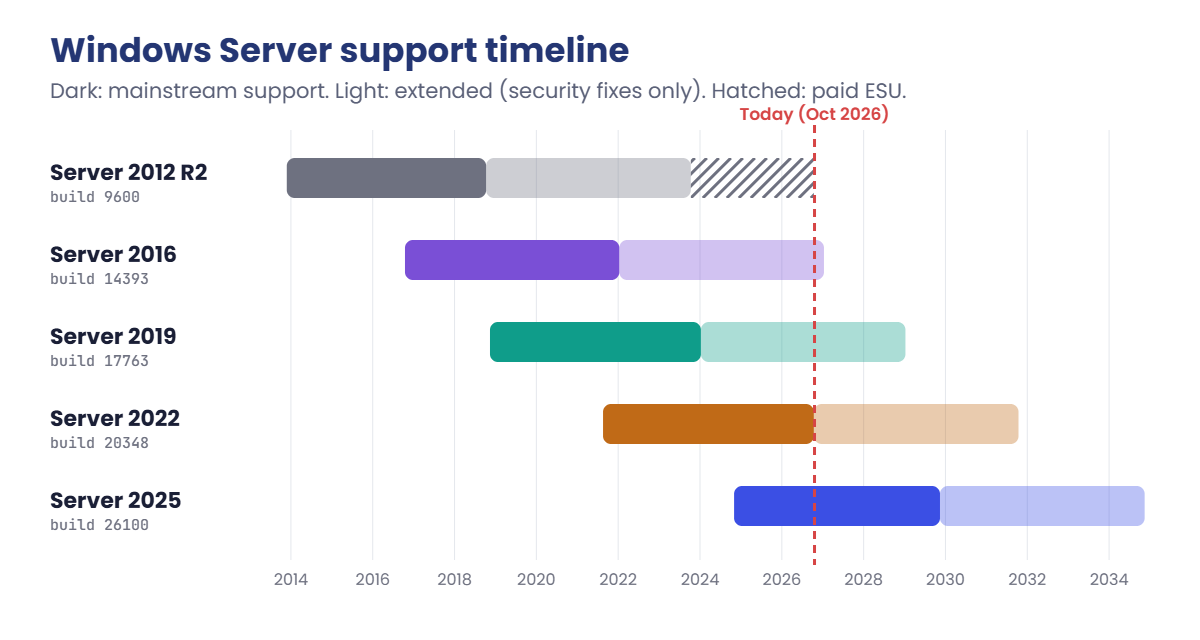
The support clock. Each version follows Microsoft’s Fixed Lifecycle Policy: about five years of mainstream support (new features and all fixes), then five years of extended support (security fixes only).
After that, companies can sometimes buy Extended Security Updates (ESU) for a few more years. Windows Server 2022 left mainstream support on 13 October 2026, so it now gets security fixes only.
LTSC and Annual Channel. The versions above are Long-Term Servicing Channel (LTSC) releases, roughly every two to three years, and they’re what you install on most servers.
Microsoft also ships an Annual Channel (the latest is version 23H2) aimed at container hosts. It has a much shorter support life, so you’ll rarely see it on general-purpose servers.
Build numbers. Every version has a build number, and the number after the dot (the update revision) climbs with each monthly update.
Build 26100 is Windows Server 2025, and it’s the same core as Windows 11 version 24H2. When two people argue about “which version is that server”, the build number settles it.
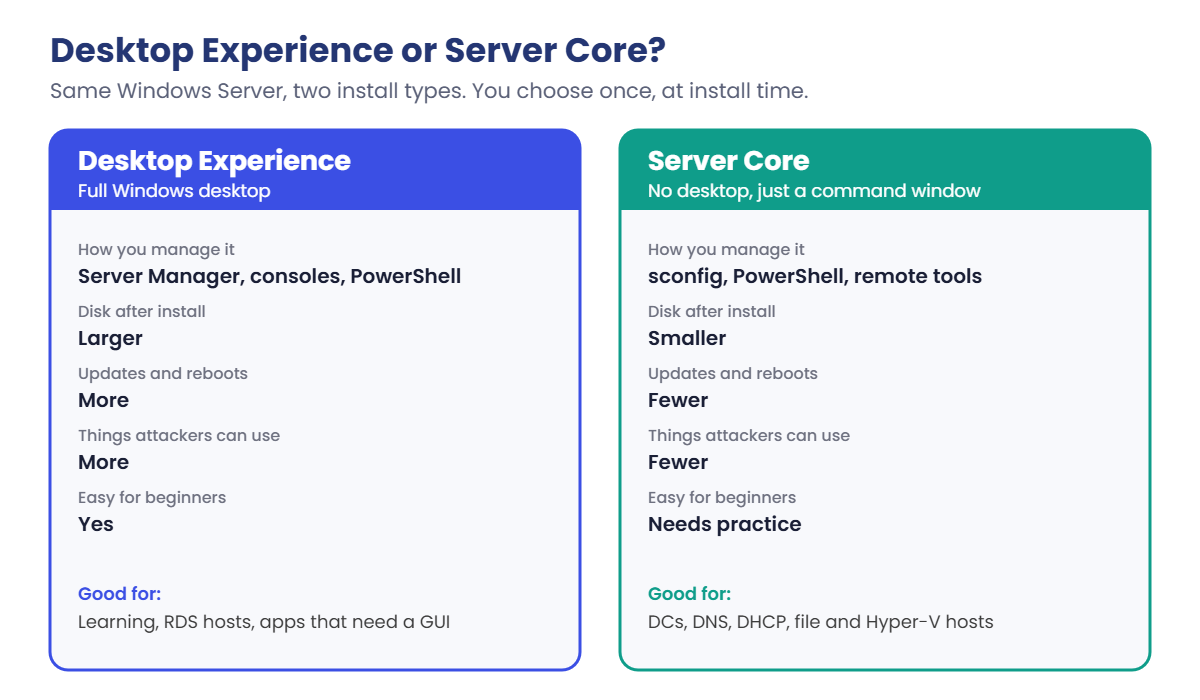
Desktop Experience or Server Core. Desktop Experience gives you the normal Windows desktop, Server Manager and every graphical tool. Server Core has no desktop: you get a command window, sconfig, PowerShell and remote tools.
Core uses less disk and memory and needs fewer updates and reboots, and it gives attackers less to work with.
You choose between them at install time. Since Windows Server 2016 you can’t switch afterwards; changing your mind means reinstalling.
How it works, step by step
Here’s how the support clock looks for each version. The darker part of each bar is mainstream support, the lighter part is extended (security fixes only), and the line marks today:
When a new server is needed, admins pick the version and install type in this order:
- Check what the application supports. The software vendor’s support list decides more than anything else. A 2025 server is no use if the app is only certified on 2019.
- Pick the newest LTSC version the app supports. For new builds today that’s usually Windows Server 2025, which has security updates until November 2034.
- Pick Server Core unless something needs a desktop. Domain controllers, DNS, DHCP, file servers and Hyper-V hosts run fine on Core. Remote Desktop session hosts and some third-party tools need Desktop Experience.
- Pick the edition. Standard or Datacenter, which mostly comes down to how many virtual machines you’ll run. That’s Lesson 4.
- Write the end date down. Put the version, build and support end date in your inventory, and start planning the replacement about two years before the date.
And here’s what you trade when you choose Server Core:
In this course, DC01, DC02 and SRV01 start with Desktop Experience so you can see every tool while you learn. In Lesson 13 you’ll add a Server Core machine and manage it remotely, the way many companies run domain controllers.
Hands-on Lab: check Windows Server versions like an admin
You’ll check versions the way admins do on real servers: from the operating system itself, and from the install media before anything is installed. Steps 2 to 4 need an administrator PowerShell window: right-click Windows PowerShell and choose Run as administrator.
1Check your own Windows version two ways
In a normal PowerShell window, run these one at a time:
Get-CimInstance Win32_OperatingSystem | Select-Object Caption, BuildNumber
Get-ItemProperty 'HKLM:\SOFTWARE\Microsoft\Windows NT\CurrentVersion' | Select-Object ProductName, DisplayVersion, CurrentBuild, UBROn Windows 11 you should see something like this:
Caption BuildNumber
------- -----------
Microsoft Windows 11 Pro 26100
ProductName : Windows 10 Pro
DisplayVersion : 24H2
CurrentBuild : 26100
UBR : 6899Look closely: the registry says Windows 10 Pro on a Windows 11 laptop. The ProductName value was never updated when Windows 11 came out.
The build number, 26100, is the reliable part. UBR (update build revision) is the number after the dot, and it goes up every Patch Tuesday, so build 26100.6899 tells you exactly which monthly update is installed.
✅ Checkpoint: You have your build number and UBR, and you’ve seen why the build is more trustworthy than a product name.
2Open the Server 2025 ISO without installing it
In an administrator PowerShell window, run this:
$iso = Mount-DiskImage -ImagePath C:\Lab\ISO\server2025.iso -PassThru
$drive = ($iso | Get-Volume).DriveLetter
"ISO mounted as drive $($drive):"You should see something like this:
ISO mounted as drive E:Mount-DiskImage attaches the ISO as a virtual DVD drive, exactly like double-clicking it in File Explorer. Your letter may be D:, E: or F:.
✅ Checkpoint: PowerShell printed a drive letter, and that drive shows up in File Explorer.
3List the editions inside the ISO
Run this:
Get-WindowsImage -ImagePath "$($drive):\sources\install.wim" | Select-Object ImageIndex, ImageNameYou should see something like this:
ImageIndex ImageName
---------- ---------
1 Windows Server 2025 Standard Evaluation
2 Windows Server 2025 Standard Evaluation (Desktop Experience)
3 Windows Server 2025 Datacenter Evaluation
4 Windows Server 2025 Datacenter Evaluation (Desktop Experience)
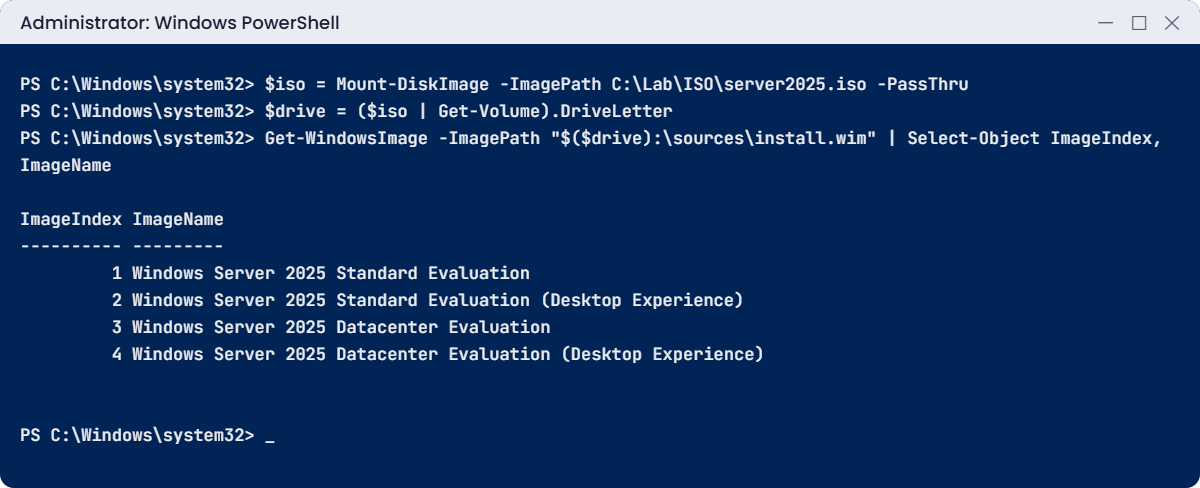
One ISO, four choices. The names without “(Desktop Experience)” are Server Core.
install.wim is the file Windows Setup copies onto the disk, and each image inside it is one edition and install type. In Lesson 5 you’ll choose index 4 for DC01.
✅ Checkpoint: You can see four images: Standard and Datacenter, each as Server Core and as Desktop Experience.
4Look inside one image, then close the ISO
Run this:
Get-WindowsImage -ImagePath "$($drive):\sources\install.wim" -Index 4 | Select-Object ImageName, Version, Languages, @{n='SizeGB';e={[math]::Round($_.ImageSize/1GB,1)}}
Dismount-DiskImage -ImagePath C:\Lab\ISO\server2025.iso | Out-NullYou should see something like this:
ImageName : Windows Server 2025 Datacenter Evaluation (Desktop Experience)
Version : 10.0.26100.1742
Languages : {en-US}
SizeGB : 9.6Version shows the build and the update level the ISO was made with. A fresh install starts at that level, and Windows Update brings it up to date afterwards. Out-Null hides the dismount output you don’t need.
✅ Checkpoint: You can see the build number of your ISO, and the drive letter has disappeared from File Explorer.
5Count the days each version has left
Paste this whole block into a normal PowerShell window:
$versions = @(
[pscustomobject]@{ Version = 'Windows Server 2012 R2'; Build = 9600; UpdatesUntil = [datetime]'2026-10-13' }
[pscustomobject]@{ Version = 'Windows Server 2016'; Build = 14393; UpdatesUntil = [datetime]'2027-01-12' }
[pscustomobject]@{ Version = 'Windows Server 2019'; Build = 17763; UpdatesUntil = [datetime]'2029-01-09' }
[pscustomobject]@{ Version = 'Windows Server 2022'; Build = 20348; UpdatesUntil = [datetime]'2031-10-14' }
[pscustomobject]@{ Version = 'Windows Server 2025'; Build = 26100; UpdatesUntil = [datetime]'2034-11-14' }
)
$versions | Select-Object Version, Build, @{n='DaysLeft';e={($_.UpdatesUntil - (Get-Date)).Days}}On 19 October 2026 you would see this (your numbers depend on today’s date):
Version Build DaysLeft
------- ----- --------
Windows Server 2012 R2 9600 -6
Windows Server 2016 14393 84
Windows Server 2019 17763 812
Windows Server 2022 20348 1820
Windows Server 2025 26100 2947A negative number means the date has passed: a 2012 R2 server gets no more security fixes at all. Subtracting two dates gives a time span, and .Days takes the whole days from it. This is the start of a real lifecycle report; in Phase 2 you’ll feed it a list of servers instead of typing the versions in.
✅ Checkpoint: Your table shows a negative number for 2012 R2 and the most days for 2025.
Break It, Then Fix It
Two mistakes come up all the time when people check versions: running a tool without the rights it needs, and trusting a name instead of a number.
1Break it: reading the ISO without admin rights
Double-click server2025.iso in File Explorer so Windows mounts it, and note its drive letter. Then, in a normal PowerShell window (not administrator), run this, changing E: to your letter:
Run this:
Get-WindowsImage -ImagePath E:\sources\install.wimYou’ll get an error like this:
Get-WindowsImage : The requested operation requires elevation.
At line:1 char:1
+ Get-WindowsImage -ImagePath E:\sources\install.wim
+ ~~~~~~~~~~~~~~~~~~~~~~~~~~~~~~~~~~~~~~~~~~~~~~~~~~
+ CategoryInfo : NotSpecified: (:) [Get-WindowsImage], COMException
+ FullyQualifiedErrorId : Microsoft.Dism.Commands.GetWindowsImageCommand“Requires elevation” means the command needs an administrator window. Get-WindowsImage is part of DISM, the tool that services Windows images, and all DISM commands need admin rights, even when they only read.
Fix it: open PowerShell with Run as administrator and run the same command:
Get-WindowsImage -ImagePath E:\sources\install.wim | Select-Object ImageIndex, ImageNameYou get the four editions from step 3. Right-click the drive in File Explorer and choose Eject when you’re done.
✅ Checkpoint: The command fails in a normal window and works in an administrator window.
2Break it: a version check that trusts the name
Imagine a colleague wrote this check to find old Windows 10 machines that need upgrading. Run it on your Windows 11 laptop:
Paste this into a normal PowerShell window:
$name = (Get-ItemProperty 'HKLM:\SOFTWARE\Microsoft\Windows NT\CurrentVersion').ProductName
if ($name -like '*Windows 10*') { "Upgrade needed: $name" } else { "OK: $name" }On Windows 11 you’ll get this wrong answer:
Upgrade needed: Windows 10 ProThe script did exactly what it was told. The problem is the data: as you saw in step 1 of the lab, ProductName still says Windows 10 on Windows 11. Run this across a company and hundreds of up-to-date laptops land on the “upgrade” list.
Fix it: decide by build number, which is always right:
$build = [int](Get-CimInstance Win32_OperatingSystem).BuildNumber
if ($build -lt 22000) { "Upgrade needed: build $build is Windows 10" } else { "OK: build $build is Windows 11" }You should see this (with your own build number):
OK: build 26100 is Windows 11
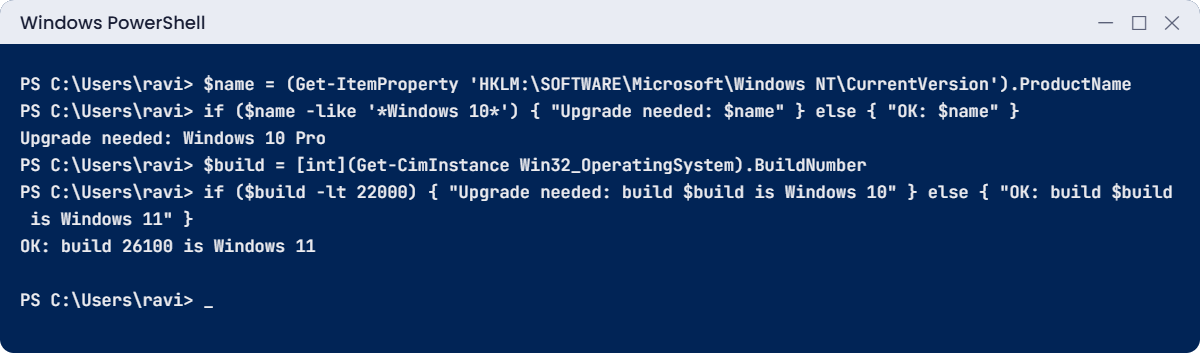
Windows 11 builds start at 22000. The same habit applies to servers: compare build numbers (14393, 17763, 20348, 26100), not names typed into spreadsheets. If you’re on Windows 10, the first check gives the right answer by luck; the second one is still the one to keep.
✅ Checkpoint: The name-based check gives the wrong answer on Windows 11, and the build-based check gives the right one.
This happened at work
The servers that were not on the list
A hospital IT team prepared for the end of Windows Server 2012 R2 support. They built their upgrade list from the server inventory spreadsheet, where each row had the server name and the “OS” someone had typed in years earlier. They upgraded every 2012 R2 server on the list, ahead of the deadline.
A year later, a security scan found 14 servers still running 2012 R2 with no patches since the deadline. Several had names like SQL2019-03, so everyone assumed they were 2019. Others had been rebuilt on the old version during an urgent repair, and nobody updated the spreadsheet.
Two of those servers ran the lab results system, so they couldn’t simply be switched off. The team had to rush an upgrade with an outside vendor at short notice and pay for extended support for the months in between.
The fix: the inventory now comes from the servers themselves. A scheduled script reads the caption and build number from every server each week and compares the build with a table of support end dates. Anything within 18 months of its date is flagged in the monthly report.
The lesson: a server’s name and a spreadsheet are opinions. The build number the server reports is a fact.
Common mistakes and troubleshooting
| Mistake or symptom | What happens | What to do instead |
|---|---|---|
| Trusting server names or spreadsheets for the OS version | Old servers are missed in upgrade and patch plans | Read the caption and build number from the server itself |
| Using the registry ProductName to tell Windows 10 from 11 | Windows 11 machines are reported as Windows 10 | Use the build number (22000 and above is Windows 11) |
| Installing Desktop Experience when you meant Server Core, or the other way round | You can’t switch afterwards, so you reinstall | Check the image name in Setup carefully; names without “(Desktop Experience)” are Core |
| Waiting until the support end date to plan | Rushed migrations and paid extended support | Start planning about two years before the date |
| Picking the newest version without checking the app | The vendor won’t support the app on that version | Check the vendor’s support list first |
| Using Annual Channel for general servers | Support ends after a short time | Use LTSC releases for normal servers |
| “The requested operation requires elevation” | DISM commands like Get-WindowsImage fail | Run PowerShell as administrator |
| Mount-DiskImage fails with “Access is denied” | The ISO doesn’t mount from PowerShell | Use an administrator window, or double-click the ISO in File Explorer |
| “No such file” for install.wim | Some ISOs ship install.esd instead | Run Get-ChildItem on the sources folder and use the file that exists |
Interview questions
Click a question to open it. Under each one you’ll find what the interviewer is really looking for, and one good way to answer.
Fresher level
1. Which Windows Server versions are in use today, and which is the newest?
What they’re really checking: Do you know the current landscape?
How you could answer: Windows Server 2016, 2019, 2022 and 2025 are all common. 2025 is the newest Long-Term Servicing Channel release, built on the same core as Windows 11 24H2. Some companies still run 2012 R2, which no longer gets security updates.
2. What is the difference between Server Core and Desktop Experience?
What they’re really checking: Do you know the two install types and why Core exists?
How you could answer: Desktop Experience has the full graphical desktop. Server Core has no desktop and is managed with PowerShell, sconfig and remote tools. Core is smaller, needs fewer updates and reboots, and has less for attackers to use.
3. How do you find a server’s exact Windows version?
What they’re really checking: Have you checked it yourself?
How you could answer: winver or System Settings on a desktop, or in PowerShell: Get-CimInstance Win32_OperatingSystem for the caption and build, plus the UBR registry value for the monthly update level.
2–5 years experience
4. Explain mainstream and extended support.
What they’re really checking: Do you understand what end of support really means?
How you could answer: Mainstream support, about five years, includes new fixes and changes. Extended support, about five more years, includes security updates only. After that there are no fixes unless the company buys Extended Security Updates, where available.
5. Can you convert Server Core to Desktop Experience?
What they’re really checking: Do you know this limit before it bites?
How you could answer: Not since Windows Server 2016; the choice is made at install time. To change, you reinstall and move the roles over, so it’s worth choosing carefully up front.
6. How would you build a report of servers nearing end of support?
What they’re really checking: Can you turn knowledge into a repeatable check?
How you could answer: Collect caption and build from every server with PowerShell remoting or an inventory tool, map builds to support end dates, and calculate days left. Flag anything under 18 to 24 months and review the report monthly.
Senior level
7. Your company has 60 servers on Windows Server 2016. Plan the next 12 months.
What they’re really checking: Can you plan a migration under a deadline?
How you could answer: Inventory apps and owners, check vendor support for 2022 or 2025, and group servers by risk. Do in-place upgrades where supported and tested, and rebuild-and-migrate where cleaner, especially domain controllers. Track progress weekly, and budget for extended updates only for anything that truly can’t move in time.
8. When would you choose in-place upgrade over a fresh build?
What they’re really checking: Do you know the trade-offs?
How you could answer: In-place keeps names, IPs and settings and is quicker, and 2025 can upgrade from 2012 R2 and later. A fresh build gives a clean system without years of leftovers. Domain controllers are almost always replaced with new ones, not upgraded.
9. Why would you standardise on Server Core, and what could go wrong?
What they’re really checking: Do you balance security against operations?
How you could answer: Smaller attack surface, fewer patches and reboots, lower resources. The risks are team skills and tools: admins must be comfortable with PowerShell and remote management, and some vendor agents or apps need a desktop. Pilot first, train the team, and keep exceptions documented.
Quick quiz
Q1. Which build number belongs to Windows Server 2025?
- 17763
- 20348
- 26100
Show answer
C — 17763 is 2019, 20348 is 2022 and 26100 is 2025.
Q2. Windows Server 2022 left mainstream support on 13 October 2026. What does it get now?
- Nothing at all
- Security updates only, until 14 October 2031
- New features and all fixes
Show answer
B — Extended support means security fixes only.
Q3. Why did the registry say “Windows 10 Pro” on a Windows 11 laptop?
- The laptop is really Windows 10
- The ProductName value was never updated for Windows 11
- The registry is corrupt
Show answer
B — Use the build number instead; Windows 11 builds start at 22000.
Q4. In install.wim, an image named without “(Desktop Experience)” is:
- Server Core
- A broken image
- Windows 11
Show answer
A — Names without “(Desktop Experience)” install Server Core.
Q5. In the work story, why were 14 servers missed?
- The scanner was broken
- The upgrade list came from names and a spreadsheet, not from the servers
- Microsoft extended the deadline
Show answer
B — The fix was an inventory read from each server’s own caption and build number.
Quick recap
- The Windows Server versions you’ll meet: 2012 R2, 2016, 2019, 2022 and 2025, with builds 9600, 14393, 17763, 20348 and 26100.
- Each LTSC version gets about 5 years of mainstream and 5 years of extended support. 2025 has security updates until 14 November 2034.
- The build number and UBR tell you exactly what’s installed; names can be wrong.
- Server Core is smaller and safer; Desktop Experience has the full GUI. You can’t switch after install.
- One ISO holds several images;
Get-WindowsImagelists them (as administrator). - Plan replacements about two years before the support end date.
Next lesson
Lesson 4: Editions, licensing and activation → You’ll learn the difference between Standard and Datacenter, how core-based licensing and CALs work, how activation works in a company, and how to check and extend the evaluation time on your lab servers.
Further reading: Windows Server versions
Want to go deeper into Windows Server versions? Microsoft keeps the current builds and support dates on its Windows Server release information page. You can also see the full plan for this course on the Windows Server Administration course page.
