Disks, shares and NTFS permissions on Windows Server
-
Phase 0: Before you start
-
Phase 1: The foundation
-
Phase 2: Core administration and security
-
Phase 3: Enterprise infrastructure
-
Phase 4: Troubleshooting step by step
-
Phase 5: Final project and career
“Can you give Priya access to the Finance folder?” is probably the most common ticket a Windows admin gets. Getting NTFS permissions and share permissions right is what makes that a two-minute group change instead of a security hole.
In this lesson you’ll add a data disk to SRV01, build a Departments share with Finance and IT folders, set permissions using the AGDLP groups from Lesson 12, check effective access, hide folders people can’t open, and give Priya a home folder.
| Time | You need | By the end you can |
|---|---|---|
| About 75 minutes | DC01, SRV01 and CL01 from Lesson 15, and the users and groups from Lesson 12 | Add and format a disk, create shares, set NTFS permissions with icacls, explain share plus NTFS, check effective access and turn on access-based enumeration |
What it is, in one line
NTFS permissions are the rules stored on every file and folder that decide who can read, change or delete it, whether they’re sitting at the server or coming in over the network.
In Simple Words
The building gate and the room locks
To reach a room in an office, you pass two checks. The guard at the building gate decides who can come in at all. Then each room has its own lock, and your key card opens some rooms and not others.
The gate is the share permission: it only matters for people coming in over the network. The room locks are the NTFS permissions: they apply to everyone, even someone already inside.
If the gate says “visitors may only look” and your card opens the room fully, you can still only look. You always get the stricter of the two.
Engineer's View
ACLs, inheritance, share plus NTFS
ACLs: every NTFS file and folder has a security descriptor with an owner and a DACL, a list of access control entries (ACEs). Each ACE allows or denies a right to a user or group: Full control, Modify, Read & execute, List folder contents, Read, Write, or finer special permissions.
Inheritance: ACEs flow down from parent folders. Flags decide where they apply: (OI) object inherit for files, (CI) container inherit for subfolders. Explicit ACEs beat inherited ones, and a Deny beats an Allow at the same level.
Break inheritance only at the top of each department folder, not deep inside.
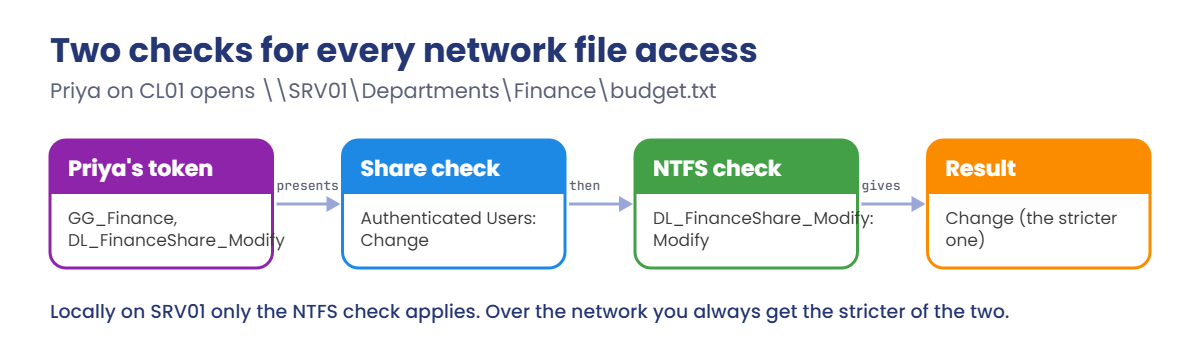
Share plus NTFS: over the network, Windows calculates the share permission and the NTFS permission separately, and the user gets the more restrictive result. A common design is a share permission of Change (or Full) for Authenticated Users, with all real control in NTFS. Locally, only NTFS applies.
Access tokens: group membership is read at sign-in and stored in the user’s token. Add someone to a group and they get the access at their next sign-in, not before. Access-based enumeration (ABE) hides files and folders a user can’t read when they browse a share.
How it works, step by step
When Priya opens a file on SRV01 from CL01, two checks happen in a row:
Both checks use the groups in Priya’s access token. That’s why AGDLP from Lesson 12 pays off here: the folder only lists domain local groups, and you manage people by changing global group membership.
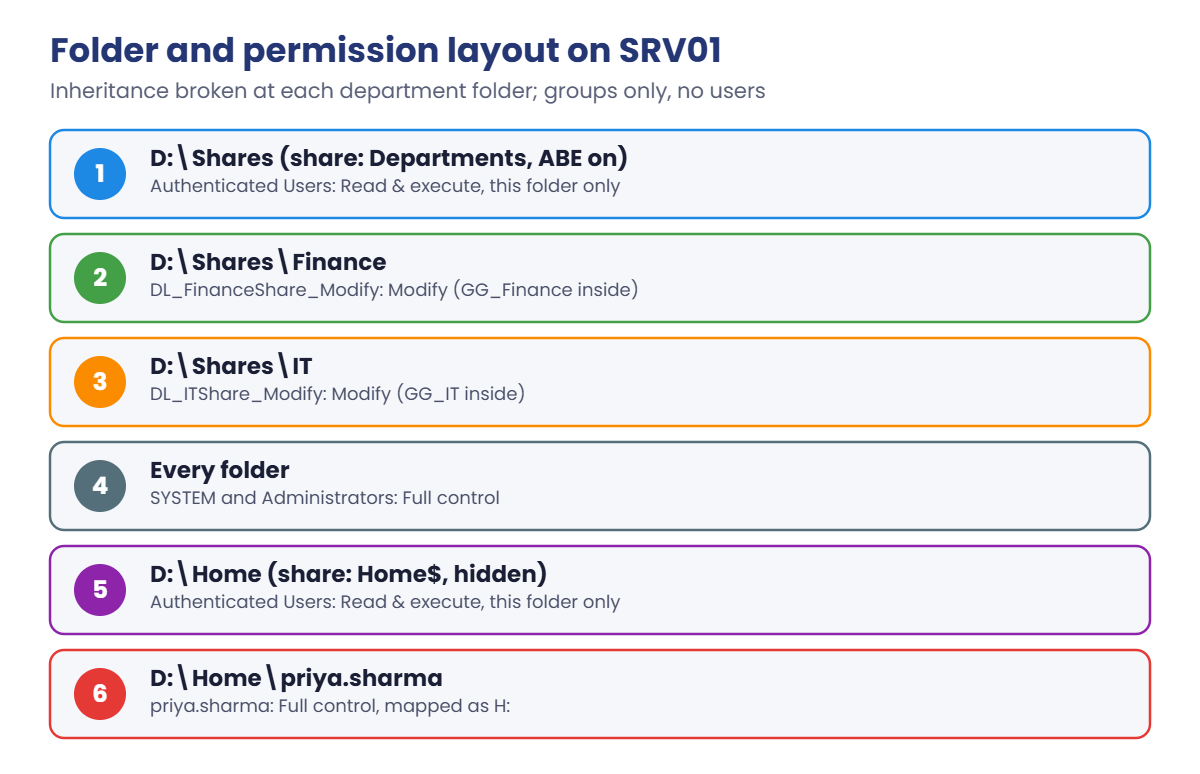
This is the folder and permission layout you’ll build on SRV01:
- Disk: add a 20 GB disk, initialise it as GPT and format it NTFS as drive D.
- Groups: create GG_IT and DL_ITShare_Modify to match the Finance pair.
- Folders: D:\Shares with Finance and IT inside, inheritance broken on each department folder.
- Share: one share, Departments, with ABE on.
- Test as Priya from CL01, and check effective access.
- Home folder: a hidden Home$ share with a private folder for Priya.
Hands-on Lab: NTFS permissions and shares on SRV01
Shut down SRV01 for step 1. You’ll add the disk from your laptop, then do everything else on SRV01 as SAATLAB\Administrator in PowerShell as administrator.
1Add a 20 GB data disk to SRV01
On your laptop, with SRV01 powered off:
VBoxManage storagectl SRV01 --name SATA --portcount 4
VBoxManage createmedium disk --filename C:\Lab\VMs\SRV01\SRV01-data.vdi --size 20480
VBoxManage storageattach SRV01 --storagectl SATA --port 2 --device 0 --type hdd --medium C:\Lab\VMs\SRV01\SRV01-data.vdi
VBoxManage startvm SRV01On SRV01, bring the new disk online as drive D:
Get-Disk | Where-Object PartitionStyle -eq 'RAW' |
Initialize-Disk -PartitionStyle GPT -PassThru |
New-Partition -DriveLetter D -UseMaximumSize |
Format-Volume -FileSystem NTFS -NewFileSystemLabel Data -Confirm:$falseYou should see something like this:
DriveLetter FriendlyName FileSystemType DriveType HealthStatus OperationalStatus SizeRemaining Size
----------- ------------ -------------- --------- ------------ ----------------- ------------- ----
D Data NTFS Fixed Healthy OK 19.92 GB 19.98 GBGPT is the modern partition style: it supports disks over 2 TB and many partitions, where the old MBR style doesn’t. ReFS is the other file system you’ll see on servers; it’s built for large volumes and Hyper-V, but file shares still mostly use NTFS.
✅ Checkpoint: Drive D: labelled Data exists on SRV01 with about 20 GB.
2Create the IT groups the AGDLP way
On SRV01 (the AD module is there from Lesson 13):
$g = 'OU=Groups,OU=SAATLAB,DC=saatlab,DC=internal'
New-ADGroup -Name GG_IT -GroupScope Global -GroupCategory Security -Path $g
New-ADGroup -Name DL_ITShare_Modify -GroupScope DomainLocal -GroupCategory Security -Path $g
Add-ADGroupMember GG_IT -Members rahul.verma, sneha.reddy
Add-ADGroupMember DL_ITShare_Modify -Members GG_IT
Get-ADGroupMember DL_FinanceShare_Modify -Recursive | Select-Object -ExpandProperty SamAccountNameYou should see something like this:
arjun.rao
meena.iyer
priya.sharma✅ Checkpoint: GG_IT and DL_ITShare_Modify exist, and the Finance resource group still resolves to the three Finance users.
3Create the folders and set NTFS permissions
On SRV01, run this:
New-Item -ItemType Directory D:\Shares\Finance, D:\Shares\IT | Out-Null
icacls D:\Shares /inheritance:r /grant:r "SYSTEM:(OI)(CI)F" "BUILTIN\Administrators:(OI)(CI)F" "Authenticated Users:RX"
icacls D:\Shares\Finance /inheritance:r /grant:r "SYSTEM:(OI)(CI)F" "BUILTIN\Administrators:(OI)(CI)F" "SAATLAB\DL_FinanceShare_Modify:(OI)(CI)M"
icacls D:\Shares\IT /inheritance:r /grant:r "SYSTEM:(OI)(CI)F" "BUILTIN\Administrators:(OI)(CI)F" "SAATLAB\DL_ITShare_Modify:(OI)(CI)M"
icacls D:\Shares\FinanceYou should see something like this:
D:\Shares\Finance NT AUTHORITY\SYSTEM:(OI)(CI)(F)
BUILTIN\Administrators:(OI)(CI)(F)
SAATLAB\DL_FinanceShare_Modify:(OI)(CI)(M)
Successfully processed 1 files; Failed processing 0 filesRead the codes: F is Full control, M is Modify, RX is Read & execute. (OI)(CI) means the entry flows down to files and subfolders. Authenticated Users:RX on D:\Shares has no flags, so it applies to that folder only: people can open the top level and see what’s in it, nothing more.
/inheritance:r removes inherited entries, so the drive’s default permissions (which let every user create folders) don’t leak in. Each department folder now has exactly three entries.
✅ Checkpoint: icacls shows SYSTEM, Administrators and the department’s DL group on each folder, and nothing inherited.
4Share it, with access-based enumeration
On SRV01, run this:
New-SmbShare -Name Departments -Path D:\Shares -FullAccess 'SAATLAB\Domain Admins' -ChangeAccess 'NT AUTHORITY\Authenticated Users' -FolderEnumerationMode AccessBased
Get-SmbShareAccess -Name Departments | Select-Object AccountName, AccessControlType, AccessRightYou should see something like this:
AccountName AccessControlType AccessRight
----------- ----------------- -----------
SAATLAB\Domain Admins Allow Full
NT AUTHORITY\Authenticated Users Allow ChangeThe share lets every signed-in user through the gate with Change; NTFS decides the rest. -FolderEnumerationMode AccessBased turns on ABE, so people only see the folders they can open.
✅ Checkpoint: The Departments share exists with Domain Admins Full and Authenticated Users Change.
5Test as Priya from CL01
Start CL01 and sign in as SAATLAB\priya.sharma. Open a normal PowerShell window.
Run this:
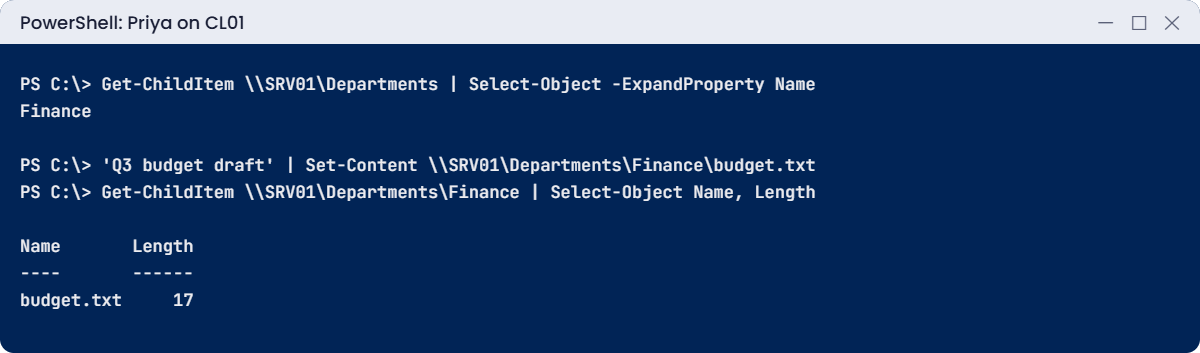
Get-ChildItem \\SRV01\Departments | Select-Object -ExpandProperty Name
'Q3 budget draft' | Set-Content \\SRV01\Departments\Finance\budget.txt
Get-ChildItem \\SRV01\Departments\Finance | Select-Object Name, Length
whoami /groups | Select-String 'Finance'You should see something like this:
Finance
Name Length
---- ------
budget.txt 17
SAATLAB\GG_Finance Group S-1-5-21-...-1112 Mandatory group, Enabled by default, Enabled group
SAATLAB\DL_FinanceShare_Modify Alias S-1-5-21-...-1113 Mandatory group, Enabled by default, Enabled groupPriya sees only Finance; IT is hidden by ABE because she has no access to it. She can write in Finance because her token contains both groups. Domain local groups show as “Alias” in whoami.
✅ Checkpoint: Priya lists only Finance, creates budget.txt, and whoami shows both Finance groups.
6Check effective access on the server
On SRV01, open File Explorer, right-click D:\Shares\IT, choose Properties, Security, Advanced, then the Effective Access tab. Click Select a user, enter priya.sharma, and click View effective access.
Every row shows a red cross: Priya has no access to IT. Do the same for sneha.reddy and you’ll see Modify rights, through GG_IT. This tab answers “why can or can’t this person open it?” without signing in as them.
✅ Checkpoint: Effective Access shows no rights for Priya on IT and Modify for Sneha.
7Give Priya a home folder
On SRV01, create a hidden share for home folders and Priya’s folder:
New-Item -ItemType Directory D:\Home\priya.sharma -Force | Out-Null
icacls D:\Home /inheritance:r /grant:r "SYSTEM:(OI)(CI)F" "BUILTIN\Administrators:(OI)(CI)F" "Authenticated Users:RX"
icacls D:\Home\priya.sharma /inheritance:r /grant:r "SYSTEM:(OI)(CI)F" "BUILTIN\Administrators:(OI)(CI)F" "SAATLAB\priya.sharma:(OI)(CI)F"
New-SmbShare -Name 'Home$' -Path D:\Home -FullAccess 'NT AUTHORITY\Authenticated Users' -FolderEnumerationMode AccessBased
Set-ADUser priya.sharma -HomeDrive 'H:' -HomeDirectory '\\SRV01\Home$\priya.sharma'The $ at the end of the share name hides it from browsing lists. Sign Priya out of CL01 and back in, open File Explorer, and you’ll see drive H: pointing at her own folder.
When you set the home folder in Active Directory Users and Computers instead, it creates the folder and sets these permissions for you. Roaming profiles, which copy the whole user profile to a share, are an older feature; most companies now use Folder Redirection or OneDrive, covered with Group Policy in Lesson 20.
✅ Checkpoint: Priya has an H: drive after signing in again, and only she (plus admins) can open her folder.
Take snapshots of SRV01 and CL01 called “Shares ready” when you’re done.
'SRV01','CL01' | ForEach-Object { VBoxManage snapshot $_ take "Shares ready" } Break It, Then Fix It
Two permission puzzles that fill helpdesk queues. Keep Priya signed in to CL01 and SRV01 open.
1Break it: the gate is stricter than the lock
On SRV01, make the share read-only for everyone:
Grant-SmbShareAccess -Name Departments -AccountName 'NT AUTHORITY\Authenticated Users' -AccessRight Read -ForceOn CL01, as Priya, try to save a new file in Finance:
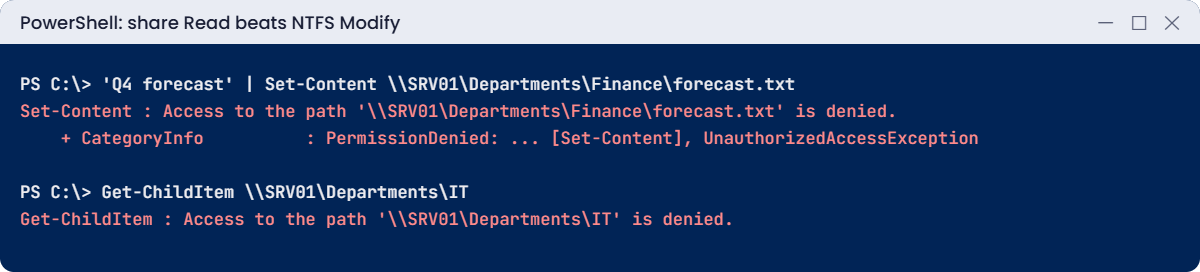
'Q4 forecast' | Set-Content \\SRV01\Departments\Finance\forecast.txtYou’ll get an error like this:
Set-Content : Access to the path '\\SRV01\Departments\Finance\forecast.txt' is denied.
At line:1 char:17
+ 'Q4 forecast' | Set-Content \\SRV01\Departments\Finance\forecast.txt
+ ~~~~~~~~~~~~~~~~~~~~~~~~~~~~~~~~~~~~~~~~~~~~~~~~~~~~~
+ CategoryInfo : PermissionDenied: (\\SRV01\Departm...e\forecast.txt:String) [Set-Content], UnauthorizedAccessException
+ FullyQualifiedErrorId : GetContentWriterUnauthorizedAccessError,Microsoft.PowerShell.Commands.SetContentCommandNTFS still gives Priya Modify, and Effective Access on the folder would say so, because that tab looks at NTFS. Over the network, though, the share now allows only Read, and the stricter result wins. When NTFS looks right but access fails, always check the share too.
Fix it: put the share permission back to Change:
Grant-SmbShareAccess -Name Departments -AccountName 'NT AUTHORITY\Authenticated Users' -AccessRight Change -Force✅ Checkpoint: Saving failed with share Read and works again with share Change.
2Break it: added to the group, still denied
On SRV01, add Priya to the IT group:
Add-ADGroupMember GG_IT -Members priya.sharmaOn CL01, still in the same session as Priya:
Get-ChildItem \\SRV01\Departments\ITYou’ll get an error like this:
Get-ChildItem : Access to the path '\\SRV01\Departments\IT' is denied.
At line:1 char:1
+ Get-ChildItem \\SRV01\Departments\IT
+ ~~~~~~~~~~~~~~~~~~~~~~~~~~~~~~~~~~~~
+ CategoryInfo : PermissionDenied: (\\SRV01\Departments\IT:String) [Get-ChildItem], UnauthorizedAccessException
+ FullyQualifiedErrorId : DirUnauthorizedAccessError,Microsoft.PowerShell.Commands.GetChildItemCommandAD is updated, but Priya’s access token was built when she signed in, before the change. Run whoami /groups and GG_IT isn’t there. The server checks the token, not AD.
Fix it: sign Priya out of CL01 and back in, then try again:
whoami /groups | Select-String 'GG_IT'
Get-ChildItem \\SRV01\Departments | Select-Object -ExpandProperty NameYou should see something like this:
SAATLAB\GG_IT Group S-1-5-21-...-1114 Mandatory group, Enabled by default, Enabled group
Finance
ITThe new token has GG_IT, so IT opens and also appears in the list. klist purge followed by a new connection often works for network shares without signing out, but signing out is the reliable answer to give users. Remove Priya from GG_IT afterwards with Remove-ADGroupMember GG_IT -Members priya.sharma -Confirm:$false.
✅ Checkpoint: IT was denied until Priya signed in again, then appeared and opened.
This happened at work
The salary folder everyone could read
An HR assistant needed a place for salary review spreadsheets. A helpdesk technician created a “Salaries” folder at the top of the company’s departments share, right next to HR, and gave the HR group Modify on it.
He didn’t break inheritance. The top of the share had “Authenticated Users: Read” flowing down to everything, so every employee could open the salary files. Access-based enumeration made it worse: the folder appeared for everyone, because everyone could read it.
A curious intern found it a month later. The investigation used the folder’s auditing logs to see who had opened the files, which turned into a very long week for HR.
The fix: top-level permissions were changed to “this folder only”, as you did with D:\Shares. New department folders are now created only by a script that sets explicit permissions, and a monthly report lists every folder where Authenticated Users or Everyone have more than list access.
The lesson: check what a new folder inherits, not just what you added. Effective Access for a normal user would have shown the problem in ten seconds.
Common mistakes and troubleshooting
| Mistake or symptom | What happens | What to do instead |
|---|---|---|
| NTFS gives Modify but users can only read over the network | The share permission is stricter | Check Get-SmbShareAccess; share Change for Authenticated Users, control in NTFS |
| Added to a group, still “Access is denied” | The old token has no new group | Sign out and in (or reboot for computer groups) |
| Granting permissions to individual users | Hard to audit and clean up | Domain local groups on folders, AGDLP |
| Not breaking inheritance at department folders | Broad access from the root flows down | Remove inheritance at the top of each department folder |
| Using Deny to fix a mistake | Hard to understand; can block admins and groups unexpectedly | Remove the wrong Allow instead; Deny only for rare cases |
| Everyone: Full control on NTFS | Anyone can delete or encrypt everything | Least privilege; Modify only where needed |
| Moving data with Explorer and losing permissions | Copies inherit the destination’s ACL | Use robocopy /copyall or /sec when permissions must move |
| Users see folders they can’t open | Confusion and tickets | Turn on access-based enumeration |
| Home folders shared without restricted NTFS | Users can browse each other’s folders | One folder per user, inheritance off, only that user plus admins |
Interview questions
Click a question to open it. Under each one you’ll find what the interviewer is really looking for, and one good way to answer.
Fresher level
1. What is the difference between share and NTFS permissions?
What they’re really checking: Do you know the basics?
How you could answer: Share permissions apply only over the network. NTFS permissions apply locally and over the network. Over the network, the more restrictive of the two wins.
2. What does inheritance mean in NTFS?
What they’re really checking: Do you know how permissions flow?
How you could answer: Permissions set on a folder flow down to its files and subfolders unless inheritance is turned off. Explicit permissions on an item add to or override what’s inherited.
3. A user was added to a group but still can’t open the folder. Why?
What they’re really checking: Do you understand tokens?
How you could answer: Group membership is read at sign-in into the access token. The user needs to sign out and in again.
2–5 years experience
4. How do you find out what access a user really has to a folder?
What they’re really checking: Do you know the tools?
How you could answer: Effective Access in Advanced Security Settings, Get-Acl or icacls for the ACL, the user’s groups with Get-ADPrincipalGroupMembership, and the share permissions with Get-SmbShareAccess.
5. How would you design permissions for department shares?
What they’re really checking: Do you plan structure?
How you could answer: One share with ABE, Authenticated Users Change on the share, inheritance broken at each department folder, domain local groups for Read and Modify, global role groups nested inside, no user ACEs.
6. How do you move a folder to a new server and keep its permissions?
What they’re really checking: Have you migrated data?
How you could answer: robocopy with /copyall (or /sec) and /mir as needed, with the same groups available, then compare with icacls. Or use Storage Migration Service for whole servers.
Senior level
7. A department complains that file access is slow and inconsistent. What could cause it, and how do you check?
What they’re really checking: Do you think beyond permissions?
How you could answer: Token bloat from too many groups, DFS referrals to a distant server, SMB signing or encryption overhead, antivirus scanning, or the disk. Check token size, SMB client and server logs, performance counters and DFS referrals.
8. How would you audit who opened or deleted sensitive files?
What they’re really checking: Do you know file auditing?
How you could answer: Enable Audit File System via Group Policy, add SACL entries on the sensitive folders, collect event 4663 (and 4660 for deletes) centrally, and alert on unusual activity.
9. When would you use ReFS instead of NTFS?
What they’re really checking: Do you know storage choices?
How you could answer: For large Hyper-V or backup volumes and Storage Spaces Direct, where ReFS integrity streams and fast cloning help. NTFS remains the usual choice for general file shares and boot volumes.
Quick quiz
Q1. Over the network, share says Read and NTFS says Modify. What does the user get?
- Modify
- Read
- Full control
Show answer
B — The more restrictive result wins.
Q2. What does (OI)(CI) mean in icacls output?
- Owner Inherit, Child Inherit
- The entry flows to files and subfolders
- The entry is denied
Show answer
B — Object inherit and container inherit.
Q3. Why couldn’t Priya open IT right after joining GG_IT?
- Replication was slow
- Her token was built before the change
- ABE hid it
Show answer
B — Sign out and in to get a new token.
Q4. What does access-based enumeration do?
- Encrypts files
- Hides items a user can’t read
- Speeds up the share
Show answer
B — Users only see what they can open.
Q5. In the work story, what caused the leak?
- A virus
- The new folder inherited Authenticated Users Read
- The share was hidden
Show answer
B — Nobody checked what the folder inherited.
Quick recap
- NTFS permissions are ACLs on files and folders; share permissions only apply over the network, and the stricter one wins.
- Use
icaclswith/inheritance:rat the top of each department folder and grant domain local groups. - One share, Authenticated Users Change, all real control in NTFS, ABE on.
- Group changes need a new token: sign out and in.
- Effective Access answers “what can this person do here?”
- Home folders: a hidden
Home$share and one private folder per user.
Next lesson
Lesson 17: File services: DFS, FSRM and shadow copies → You’ll create a DFS namespace so users reach shares by one path, replicate a folder between two servers, set quotas and file screens with FSRM, and restore a deleted file with shadow copies.
Further reading: NTFS permissions
Want to go deeper into NTFS permissions? Microsoft’s icacls command reference explains every permission code, and the New-SmbShare reference covers share options. You can also see the full plan for this course on the Windows Server Administration course page.
