Active Directory users, groups and OUs
-
Phase 0: Before you start
-
Phase 1: The foundation
-
Phase 2: Core administration and security
-
Phase 3: Enterprise infrastructure
-
Phase 4: Troubleshooting step by step
-
Phase 5: Final project and career
Day-to-day AD work is mostly people: new joiners, leavers, moves between teams and “can you give Priya access to the Finance folder?”. Managing Active Directory users and groups well, in a tidy OU structure, is what keeps those requests quick and safe instead of a tangle nobody understands.
In this lesson you’ll build an OU structure for the lab, create users by hand and from a CSV file, set up groups the way experienced admins do (AGDLP), and turn on the AD Recycle Bin so a deleted account can come back in seconds.
| Time | You need | By the end you can |
|---|---|---|
| About 60 minutes | DC01 promoted to saatlab.internal (Lesson 11) | Design OUs, create users and groups with PowerShell, bulk-create users from CSV, explain group scopes and AGDLP, enable the Recycle Bin and restore a deleted user |
What it is, in one line
Active Directory users and groups are the accounts people sign in with and the groups you put them in to give access, organised into OUs so they can be managed and delegated.
In Simple Words
Students, clubs and classrooms
A school has students (users), and it groups them in two different ways. Classrooms (OUs) decide where a student sits and which teacher looks after them. Clubs (groups) decide what a student can use: the chess club gets the chess room, the football club gets the field.
A smart school never gives a room key to one student by name. It gives the key to the club, and adds students to the club. When a student leaves the club, they lose the room automatically, and nobody has to remember every door.
That’s exactly how good admins use AD: users go in OUs for management, into groups for access, and permissions are always given to groups.
Engineer's View
Accounts, OUs, groups and the Recycle Bin
User accounts have a few names you’ll meet: the display name (Priya Sharma), the sAMAccountName used in SAATLAB\priya.sharma (20 characters max), and the userPrincipalName (UPN) priya.sharma@saatlab.internal, which looks like an email address. Every account also has a unique SID that permissions really point to.
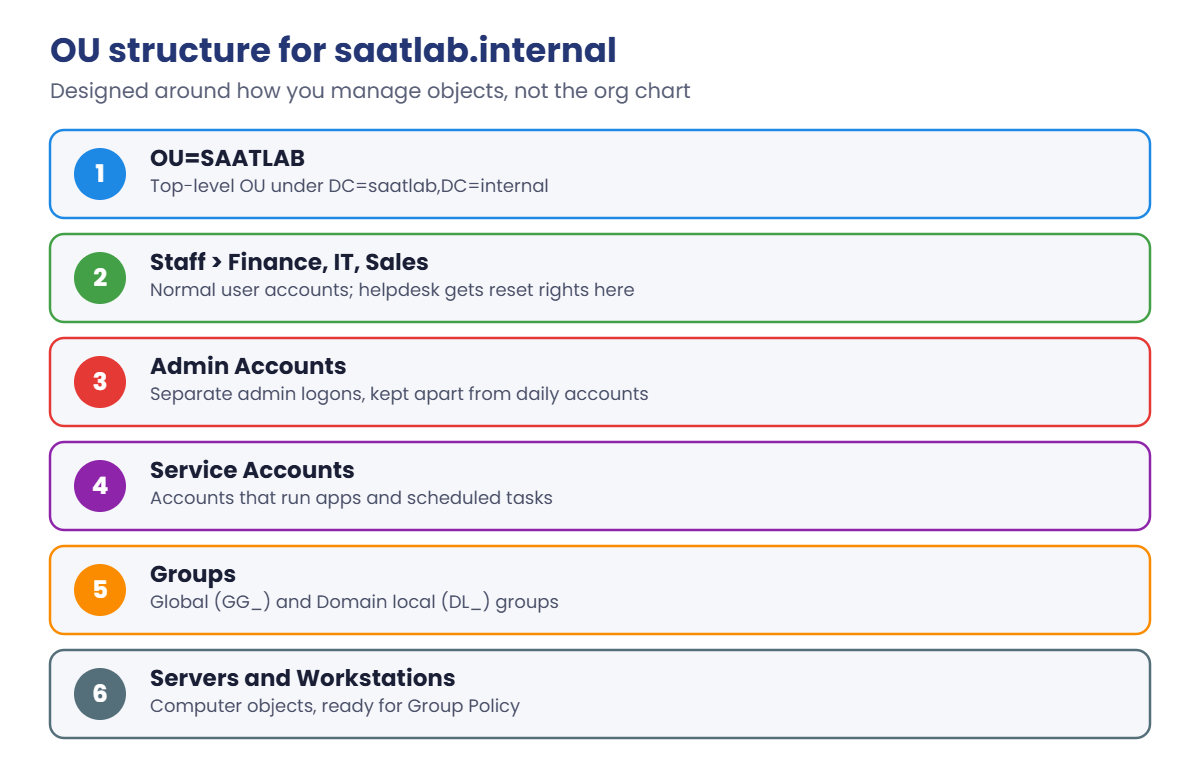
OU design: Build OUs around how you manage things, not the org chart: separate OUs for staff, admin accounts, service accounts, servers and workstations, so Group Policy and delegation can target each. Keep it shallow; more than three or four levels is hard to work with. New OUs are protected from accidental deletion by default.
Group types and scopes. Security groups grant permissions; distribution groups are only for email. Scopes decide membership and use: Global (members from its own domain, usable anywhere in the forest), Domain local (members from anywhere, usable only in its own domain), Universal (members from anywhere, usable anywhere, stored in the global catalog).
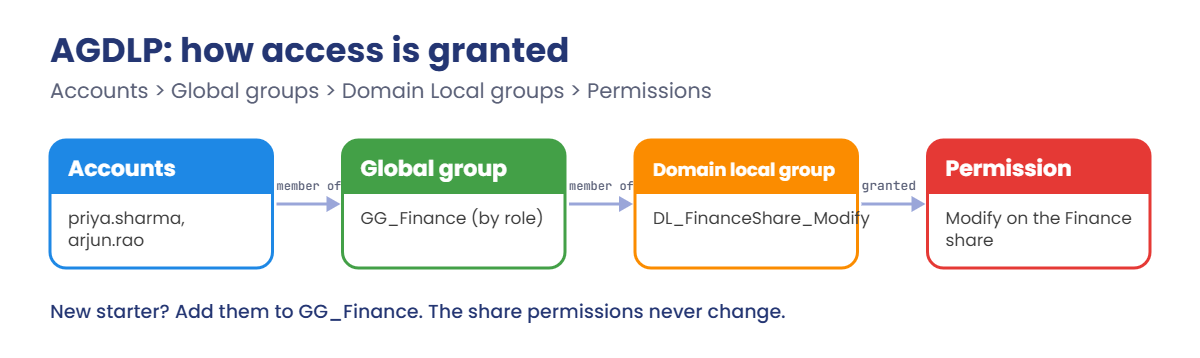
AGDLP. Put Accounts into Global groups by role (GG_Finance), put global groups into Domain Local groups by resource and access (DL_FinanceShare_Modify), and grant Permissions only to domain local groups. Access reviews then become simple: who is in GG_Finance, and what is DL_FinanceShare_Modify allowed to do.
Delegation. You can let the helpdesk reset passwords in the Staff OU only, without making them Domain Admins, using the Delegation of Control wizard in Active Directory Users and Computers.
AD Recycle Bin. Once enabled for the forest (it can’t be turned off again), deleted objects keep all their attributes and group memberships for 180 days by default, and come back with Restore-ADObject. Without it, a deleted user means an authoritative restore from backup (Lesson 32).
How it works, step by step
Here’s the OU structure you’ll build. It separates people, admin and service accounts, servers and workstations, so each can get its own policies and delegation later:
Notice the default Users and Computers folders aren’t used: they’re containers, not OUs, so you can’t link Group Policy to them. In Lesson 19 you’ll redirect new computers into the Workstations OU automatically.
And here’s AGDLP in action, for giving the Finance team change access to their shared folder:
- Accounts: Priya, Arjun and Meena are Finance staff.
- Global group: GG_Finance holds all Finance staff. It describes who they are.
- Domain local group: DL_FinanceShare_Modify describes what access it gives; GG_Finance is a member.
- Permission: only DL_FinanceShare_Modify appears on the folder’s permissions (Lesson 16).
When Meena moves to Sales, you change one group membership and every Finance permission disappears with it. When an auditor asks who can change the Finance share, you show one group.
Hands-on Lab: Active Directory users and groups for saatlab.internal
Start DC01 and sign in as SAATLAB\Administrator. Use PowerShell as administrator; the ActiveDirectory module loads by itself the first time you use one of its commands.
1Build the OU structure
Paste this whole block:
$base = 'DC=saatlab,DC=internal'
New-ADOrganizationalUnit -Name SAATLAB -Path $base
'Staff','Admin Accounts','Service Accounts','Groups','Servers','Workstations' |
ForEach-Object { New-ADOrganizationalUnit -Name $_ -Path "OU=SAATLAB,$base" }
'Finance','IT','Sales' |
ForEach-Object { New-ADOrganizationalUnit -Name $_ -Path "OU=Staff,OU=SAATLAB,$base" }
Get-ADOrganizationalUnit -Filter * -SearchBase "OU=SAATLAB,$base" | Sort-Object DistinguishedName | Select-Object -ExpandProperty DistinguishedNameYou should see this:
OU=Admin Accounts,OU=SAATLAB,DC=saatlab,DC=internal
OU=Finance,OU=Staff,OU=SAATLAB,DC=saatlab,DC=internal
OU=Groups,OU=SAATLAB,DC=saatlab,DC=internal
OU=IT,OU=Staff,OU=SAATLAB,DC=saatlab,DC=internal
OU=SAATLAB,DC=saatlab,DC=internal
OU=Sales,OU=Staff,OU=SAATLAB,DC=saatlab,DC=internal
OU=Servers,OU=SAATLAB,DC=saatlab,DC=internal
OU=Service Accounts,OU=SAATLAB,DC=saatlab,DC=internal
OU=Staff,OU=SAATLAB,DC=saatlab,DC=internal
OU=Workstations,OU=SAATLAB,DC=saatlab,DC=internalEach line is a distinguished name (DN): the object’s full path in AD, read right to left. OU=Finance,OU=Staff,OU=SAATLAB,DC=saatlab,DC=internal means “Finance, inside Staff, inside SAATLAB, in saatlab.internal”. You’ll use DNs constantly with -Path and -SearchBase.
✅ Checkpoint: Ten OUs are listed: SAATLAB itself and the nine inside it. Open Active Directory Users and Computers (dsa.msc) to see them as folders too.
2Create one user by hand
Run this. It asks for an initial password; use one that meets complexity rules:
$pw = Read-Host -AsSecureString 'Initial password'
New-ADUser -Name 'Priya Sharma' -GivenName Priya -Surname Sharma -SamAccountName priya.sharma `
-UserPrincipalName priya.sharma@saatlab.internal -Department Finance -Title Accountant `
-Path 'OU=Finance,OU=Staff,OU=SAATLAB,DC=saatlab,DC=internal' `
-AccountPassword $pw -ChangePasswordAtLogon $true -Enabled $true
Get-ADUser priya.sharma | Select-Object Name, UserPrincipalName, EnabledYou should see this:
Name UserPrincipalName Enabled
---- ----------------- -------
Priya Sharma priya.sharma@saatlab.internal TrueThe backtick (`) at the end of a line continues the command on the next line. -ChangePasswordAtLogon forces Priya to choose her own password at first sign-in, so you never know it.
✅ Checkpoint: priya.sharma exists, is enabled, and lives in the Finance OU.
3Create five more users from a CSV file
Create the CSV:
@'
FirstName,LastName,Department,Title
Arjun,Rao,Finance,Finance Manager
Meena,Iyer,Finance,Payroll Officer
Rahul,Verma,IT,System Administrator
Sneha,Reddy,IT,Helpdesk Engineer
Kiran,Das,Sales,Sales Executive
'@ | Set-Content C:\Lab\users.csvImport it (same $pw from step 2):
Import-Csv C:\Lab\users.csv | ForEach-Object {
$sam = ('{0}.{1}' -f $_.FirstName, $_.LastName).ToLower()
New-ADUser -Name "$($_.FirstName) $($_.LastName)" -GivenName $_.FirstName -Surname $_.LastName `
-SamAccountName $sam -UserPrincipalName "$sam@saatlab.internal" `
-Department $_.Department -Title $_.Title `
-Path "OU=$($_.Department),OU=Staff,OU=SAATLAB,DC=saatlab,DC=internal" `
-AccountPassword $pw -ChangePasswordAtLogon $true -Enabled $true
"Created $sam"
}You should see this:
Created arjun.rao
Created meena.iyer
Created rahul.verma
Created sneha.reddy
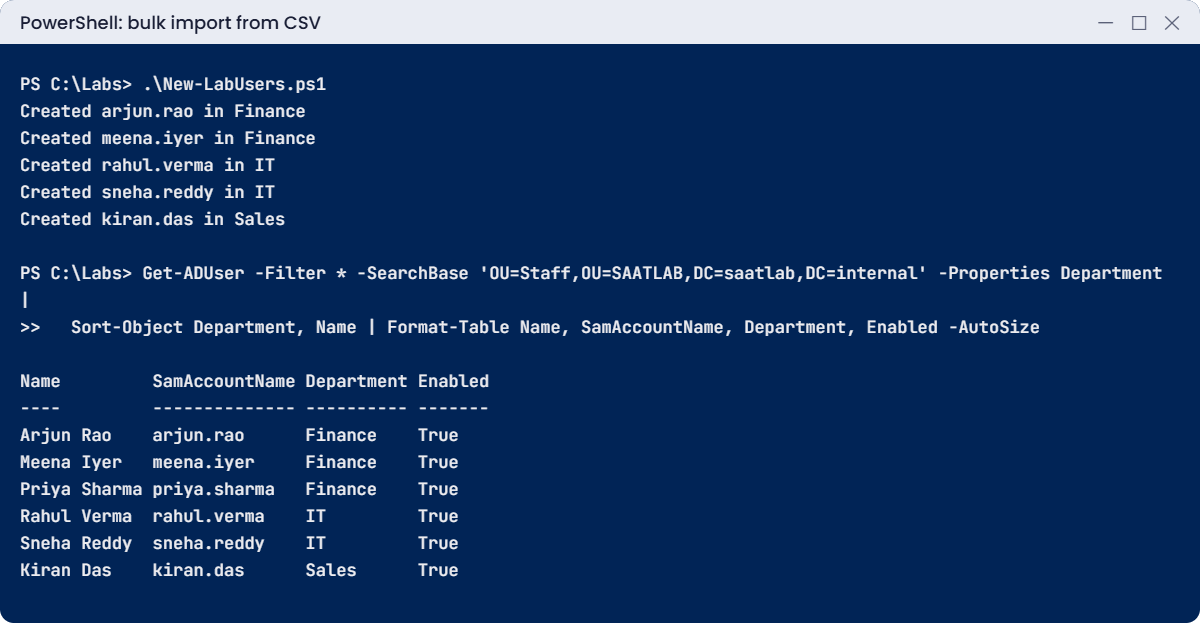
Created kiran.dasCheck all staff:
Get-ADUser -Filter * -SearchBase 'OU=Staff,OU=SAATLAB,DC=saatlab,DC=internal' -Properties Department |
Sort-Object Department, Name | Format-Table Name, SamAccountName, Department, Enabled -AutoSizeYou should see this:
Name SamAccountName Department Enabled
---- -------------- ---------- -------
Arjun Rao arjun.rao Finance True
Meena Iyer meena.iyer Finance True
Priya Sharma priya.sharma Finance True
Rahul Verma rahul.verma IT True
Sneha Reddy sneha.reddy IT True
Kiran Das kiran.das Sales TrueNotice -Properties Department: Get-ADUser only returns a handful of properties unless you ask, exactly the trap from Lesson 7’s work story. This CSV pattern is how admins onboard a whole team in one go.
✅ Checkpoint: Six users appear, each in the OU for their department.
4Create groups the AGDLP way
Paste this whole block:
$groups = 'OU=Groups,OU=SAATLAB,DC=saatlab,DC=internal'
New-ADGroup -Name GG_Finance -GroupScope Global -GroupCategory Security -Path $groups
New-ADGroup -Name DL_FinanceShare_Modify -GroupScope DomainLocal -GroupCategory Security -Path $groups
Add-ADGroupMember -Identity GG_Finance -Members priya.sharma, arjun.rao, meena.iyer
Add-ADGroupMember -Identity DL_FinanceShare_Modify -Members GG_Finance
Get-ADGroupMember -Identity DL_FinanceShare_Modify -Recursive | Sort-Object Name | Select-Object Name, SamAccountNameYou should see this:
Name SamAccountName
---- --------------
Arjun Rao arjun.rao
Meena Iyer meena.iyer
Priya Sharma priya.sharma-Recursive looks through nested groups, so you see the people who really get access through DL_FinanceShare_Modify. In Lesson 16 you’ll give this group Modify permission on the Finance share.
✅ Checkpoint: DL_FinanceShare_Modify contains GG_Finance, and the recursive list shows the three Finance users.
5Turn on the AD Recycle Bin
Run this:
Enable-ADOptionalFeature -Identity 'Recycle Bin Feature' -Scope ForestOrConfigurationSet -Target saatlab.internal -Confirm:$false
Get-ADOptionalFeature -Filter "Name -eq 'Recycle Bin Feature'" | Select-Object Name, EnabledScopesYou should see something like this:
Name EnabledScopes
---- -------------
Recycle Bin Feature {CN=Partitions,CN=Configuration,DC=saatlab,DC=internal, CN=NTDS Settings,CN=DC01,CN=Servers,CN=Default-First-Site-Name,CN=Sites,CN=Configuration,DC=saatlab,DC=internal}This is a one-way switch for the whole forest. Every production forest should have it on.
✅ Checkpoint: EnabledScopes is no longer empty.
6Delete a user and bring them back
Delete Kiran, then restore:
Remove-ADUser -Identity kiran.das -Confirm:$false
Get-ADObject -Filter "SamAccountName -eq 'kiran.das'" -IncludeDeletedObjects | Restore-ADObject
Get-ADUser kiran.das -Properties Department | Select-Object Name, Department, Enabled, DistinguishedNameYou should see this:
Name Department Enabled DistinguishedName
---- ---------- ------- -----------------
Kiran Das Sales True CN=Kiran Das,OU=Sales,OU=Staff,OU=SAATLAB,DC=saatlab,DC=internalKiran is back in the same OU with the same department, password and group memberships. Without the Recycle Bin, you’d be restoring from a system state backup instead.
✅ Checkpoint: kiran.das is restored, enabled and back in the Sales OU.
7Delegate password resets to the helpdesk
Open Active Directory Users and Computers (dsa.msc). Create a global group GG_Helpdesk in the Groups OU and add Sneha Reddy.
Then right-click the Staff OU, choose Delegate Control, add GG_Helpdesk, and tick Reset user passwords and force password change at next logon. Finish the wizard.
Sneha can now reset passwords for staff, and only for staff, without being a Domain Admin. That’s the least-privilege idea you’ll use everywhere from Lesson 22 on.
✅ Checkpoint: GG_Helpdesk exists with Sneha in it, and the Staff OU’s Security tab (Advanced Features on) shows the delegated permission.
Break It, Then Fix It
Two mistakes that catch everyone: a password that isn’t strong enough, and an OU that refuses to be deleted.
1Break it: create a user with a weak password
Run this:
$weak = ConvertTo-SecureString 'pass123' -AsPlainText -Force
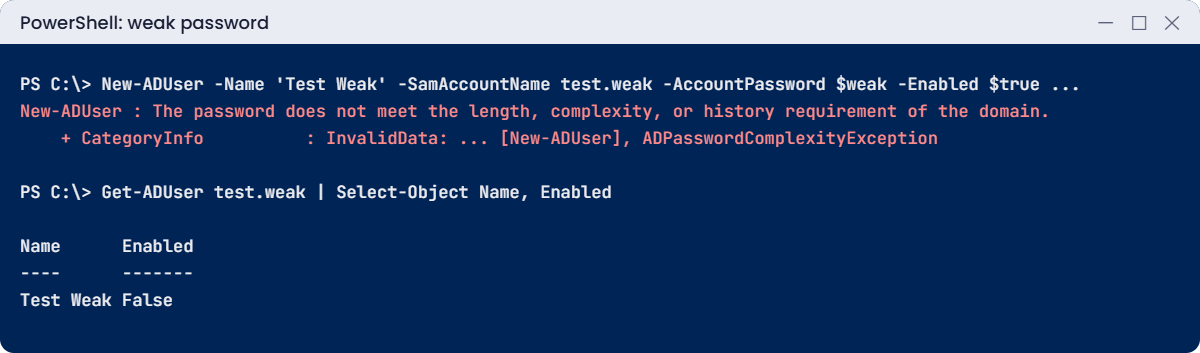
New-ADUser -Name 'Test Weak' -SamAccountName test.weak -Path 'OU=Sales,OU=Staff,OU=SAATLAB,DC=saatlab,DC=internal' -AccountPassword $weak -Enabled $trueYou’ll get an error like this:
New-ADUser : The password does not meet the length, complexity, or history requirement of the domain.
At line:2 char:1
+ New-ADUser -Name 'Test Weak' -SamAccountName test.weak -Path 'OU=Sales,O ...
+ ~~~~~~~~~~~~~~~~~~~~~~~~~~~~~~~~~~~~~~~~~~~~~~~~~~~~~~~~~~~~~~~~~~~~~~~~~
+ CategoryInfo : InvalidData: (CN=Test Weak,OU=...=saatlab,DC=internal:String) [New-ADUser], ADPasswordComplexityException
+ FullyQualifiedErrorId : ActiveDirectoryServer:1325,Microsoft.ActiveDirectory.Management.Commands.NewADUserThe error is clear. What isn’t clear is what happened before it. Check:
Run this:
Get-ADUser test.weak | Select-Object Name, EnabledYou should see this:
Name Enabled
---- -------
Test Weak FalseThe account was created, just disabled, because New-ADUser creates the object first and sets the password second. Bulk scripts that hit this leave a trail of half-made, disabled accounts that confuse everyone later.
Fix it: set a proper password and enable it, or remove it:
Set-ADAccountPassword -Identity test.weak -Reset -NewPassword (Read-Host -AsSecureString 'New password')
Enable-ADAccount -Identity test.weak
Remove-ADUser -Identity test.weak -Confirm:$false # it was only a test✅ Checkpoint: You saw the account appear disabled after the password error, and cleaned it up.
2Break it: delete an OU
Create a test OU and try to delete it:
New-ADOrganizationalUnit -Name TempOU -Path 'OU=SAATLAB,DC=saatlab,DC=internal'
Remove-ADOrganizationalUnit -Identity 'OU=TempOU,OU=SAATLAB,DC=saatlab,DC=internal' -Confirm:$falseYou’ll get an error like this:
Remove-ADOrganizationalUnit : Access is denied
At line:2 char:1
+ Remove-ADOrganizationalUnit -Identity 'OU=TempOU,OU=SAATLAB,DC=saatla ...
+ ~~~~~~~~~~~~~~~~~~~~~~~~~~~~~~~~~~~~~~~~~~~~~~~~~~~~~~~~~~~~~~~~~~~~~~~~~
+ CategoryInfo : PermissionDenied: (OU=TempOU,OU=SAATLAB,DC=saatlab,DC=internal:ADOrganizationalUnit) [Remove-ADOrganizationalUnit], UnauthorizedAccessException
+ FullyQualifiedErrorId : ActiveDirectoryCmdlet:System.UnauthorizedAccessException,Microsoft.ActiveDirectory.Management.Commands.RemoveADOrganizationalUnitYou’re a Domain Admin, yet “Access is denied”. New OUs are protected from accidental deletion: a Deny permission for Everyone on deleting the OU. It exists because deleting an OU deletes everything inside it.
Fix it: remove the protection on purpose, then delete:
Set-ADOrganizationalUnit -Identity 'OU=TempOU,OU=SAATLAB,DC=saatlab,DC=internal' -ProtectedFromAccidentalDeletion $false
Remove-ADOrganizationalUnit -Identity 'OU=TempOU,OU=SAATLAB,DC=saatlab,DC=internal' -Confirm:$falseOn a real OU full of users, don’t do this unless you’re certain, and never without the Recycle Bin on. The work story shows why.
✅ Checkpoint: TempOU refused to delete while protected and was deleted after you removed the protection.
This happened at work
The OU that took 300 accounts with it
An admin was tidying up old OUs in a company’s domain. One called “Contractors_Old” looked empty in the console, because the view was filtered. He turned off accidental-deletion protection and deleted it, and it took its sub-OUs with it: about 300 current contractor accounts.
Within minutes, contractors across three projects couldn’t sign in. The forest didn’t have the Recycle Bin enabled, so the deleted accounts were only “tombstones” with most of their attributes and all group memberships stripped.
Recovery meant booting a DC into Directory Services Restore Mode, restoring the system state from the previous night’s backup, and running an authoritative restore of the OU with ntdsutil. Then group memberships had to be checked one by one. It took most of a day.
The fix: the Recycle Bin was enabled that evening. OU deletion now needs a second person, protection is never turned off without a change ticket, and a weekly script exports every OU with its object count, so “looks empty” can be checked against real numbers.
The lesson: the AD Recycle Bin costs nothing to enable and saves you on your worst day. Turn it on before you need it.
Common mistakes and troubleshooting
| Mistake or symptom | What happens | What to do instead |
|---|---|---|
| Giving permissions to individual users | Nobody can tell who has access or clean it up | AGDLP: users in global groups, global groups in domain local groups, permissions to domain local groups |
| Leaving users in the default Users container | Group Policy can’t target them | Create OUs and move objects into them |
| “The password does not meet the length, complexity…” | The user is still created, but disabled | Use a strong initial password; check for disabled leftovers |
| “Access is denied” deleting an OU as Domain Admin | Protection from accidental deletion | Remove the protection only on purpose, with the Recycle Bin on |
| Recycle Bin not enabled | Deleted objects lose attributes and memberships | Enable it once for the forest |
| Deep OU trees that copy the org chart | Hard to manage; reorganisations break it | Design around management: staff, admins, service accounts, servers, workstations |
| Get-ADUser shows empty Department or LastLogonDate | Those properties weren’t requested | Add -Properties |
| Everyone in Domain Admins | Huge risk if any account is compromised | Delegate specific rights to groups on specific OUs |
| sAMAccountName longer than 20 characters | Account creation fails or names are cut | Keep logon names short and consistent (first.last) |
Interview questions
Click a question to open it. Under each one you’ll find what the interviewer is really looking for, and one good way to answer.
Fresher level
1. What is the difference between an OU and a group?
What they’re really checking: Do you know the basics?
How you could answer: An OU is a container for managing objects: Group Policy and delegation apply to it. A group is a list of members used to grant permissions or send email.
2. What are the group scopes in AD?
What they’re really checking: Do you know Global, Domain local and Universal?
How you could answer: Global: members from its own domain, used anywhere. Domain local: members from anywhere, used in its own domain. Universal: members and use anywhere in the forest, stored in the global catalog.
3. How do you create a user with PowerShell?
What they’re really checking: Have you done it?
How you could answer: New-ADUser with Name, SamAccountName, UserPrincipalName, Path (the OU), AccountPassword as a secure string, and -Enabled $true, usually with -ChangePasswordAtLogon $true.
2–5 years experience
4. Explain AGDLP.
What they’re really checking: Do you manage access in a scalable way?
How you could answer: Accounts go into Global groups by role, Global groups into Domain Local groups by resource and access, and Permissions are given to Domain Local groups. Changes and audits then happen in groups, not on folders.
5. How would you onboard 50 new users quickly and safely?
What they’re really checking: Do you automate carefully?
How you could answer: A CSV from HR with the agreed fields, a PowerShell script using New-ADUser with -WhatIf first, a strong initial password with change at next logon, the right OU and groups, then a report of what was created and any errors.
6. A user was deleted by mistake an hour ago. What do you do?
What they’re really checking: Do you know the Recycle Bin?
How you could answer: If the Recycle Bin is enabled, find it with Get-ADObject -IncludeDeletedObjects and Restore-ADObject. If not, an authoritative restore from a system state backup in DSRM.
Senior level
7. How would you design OUs for a 5,000-user company?
What they’re really checking: Do you think about delegation and policy?
How you could answer: By management needs: tiers of admin accounts separated from user accounts, service accounts, servers by role, workstations by type or location, staff by region if helpdesk teams are regional. Shallow, documented, with delegation per OU and Group Policy linked deliberately.
8. How do you keep group sprawl under control?
What they’re really checking: Do you think about lifecycle?
How you could answer: Naming standards, an owner and description on every group, regular access reviews, removing empty or unused groups, and creating groups through a request process. Avoid giving permissions to users directly.
9. What is protected from accidental deletion, and is it enough?
What they’re really checking: Do you know its limits?
How you could answer: A Deny ACE for Everyone on delete and delete subtree for the object. It stops slips, but any admin can remove it. It must be combined with the Recycle Bin, backups, change control and least privilege.
Quick quiz
Q1. Where should permissions be granted in AGDLP?
- To users
- To global groups
- To domain local groups
Show answer
C — Users go in global groups, global groups in domain local groups, and permissions go to domain local groups.
Q2. Why can’t you link Group Policy to the default Users folder?
- It is hidden
- It is a container, not an OU
- It is read-only
Show answer
B — Group Policy links to sites, domains and OUs only.
Q3. What happened when New-ADUser failed on the weak password?
- Nothing was created
- The user was created but disabled
- The OU was deleted
Show answer
B — The object is created before the password is set.
Q4. Why did Remove-ADOrganizationalUnit say “Access is denied”?
- You weren’t an admin
- The OU was protected from accidental deletion
- The OU didn’t exist
Show answer
B — A Deny ACE protects new OUs from deletion.
Q5. In the work story, why did recovery take a day?
- The backup was missing
- The Recycle Bin wasn’t enabled, so an authoritative restore was needed
- The DC was offline
Show answer
B — With the Recycle Bin, it would have been one command.
Quick recap
- Active Directory users and groups live in OUs designed around how you manage them.
- User names: display name, sAMAccountName (SAATLAB\priya.sharma) and UPN (priya.sharma@saatlab.internal).
- Group scopes: Global, Domain local, Universal; use AGDLP for permissions.
- Bulk-create users from CSV with
Import-CsvandNew-ADUser; always request extra properties with-Properties. - New OUs are protected from accidental deletion; the Recycle Bin brings deleted objects back with
Restore-ADObject. - Delegate specific rights (like password resets) to groups on specific OUs.
Next lesson
Lesson 13: Join computers and add a second DC → You’ll install Windows 11 on CL01 and join it and SRV01 to the domain, then build DC02 on Server Core, promote it remotely and check replication between the two domain controllers.
Further reading: Active Directory users and groups
Want to go deeper into Active Directory users and groups? Microsoft’s Active Directory security groups page explains scopes and built-in groups, and the AD Recycle Bin guide covers recovery. You can also see the full plan for this course on the Windows Server Administration course page.
