Windows internals for admins

When a server misbehaves, the admin who understands what’s running underneath finds the cause in minutes. The one who doesn’t restarts things and hopes. This lesson covers just enough Windows internals to make you the first kind.

You’ll look at processes and services and the accounts they run as, find where service settings live in the registry, follow how Windows boots, and see where the event logs are kept. Every troubleshooting lesson in Phase 4 builds on this.

TimeYou needBy the end you can
About 50 minutesDC01 from Lesson 7, PowerShell as administratorTell processes and services apart, read a service’s account, path and dependencies, find its registry key, explain the boot sequence, and locate the event log files

What it is, in one line

Windows internals are the moving parts underneath the desktop: the kernel, processes, services, the registry and the boot sequence that starts them all.

In Simple Words

A hotel, behind the front desk

Guests only see the front desk and their room. Behind the scenes, a hotel runs on staff who work whether anyone is watching or not: housekeeping, the kitchen, security, the laundry. Each has a job, a uniform that says what they’re allowed to touch, and some can’t start work until others have (the kitchen needs the gas turned on first).

There’s also a big binder in the manager’s office with every rule: who starts when, who reports to whom. And every morning the hotel opens in the same order: lights, then security, then the front desk.

In Windows, the staff are services, the uniforms are service accounts, the binder is the registry, and the morning routine is the boot sequence.

Engineer's View

Processes, services, accounts, registry and boot

Processes are running programs, each with its own memory and an ID (PID). Some run in your session; system processes run in session 0, which no user signs in to. Key ones: lsass.exe (sign-in and security), services.exe (starts and stops services), wininit.exe and winlogon.exe (startup and sign-in screens), and many svchost.exe processes that host services.

Services are programs that run in the background without anyone signed in, started by the Service Control Manager. Each has a start type (Automatic, Automatic (Delayed Start), Manual, Disabled), dependencies on other services, recovery actions if it crashes, and an account it runs as.

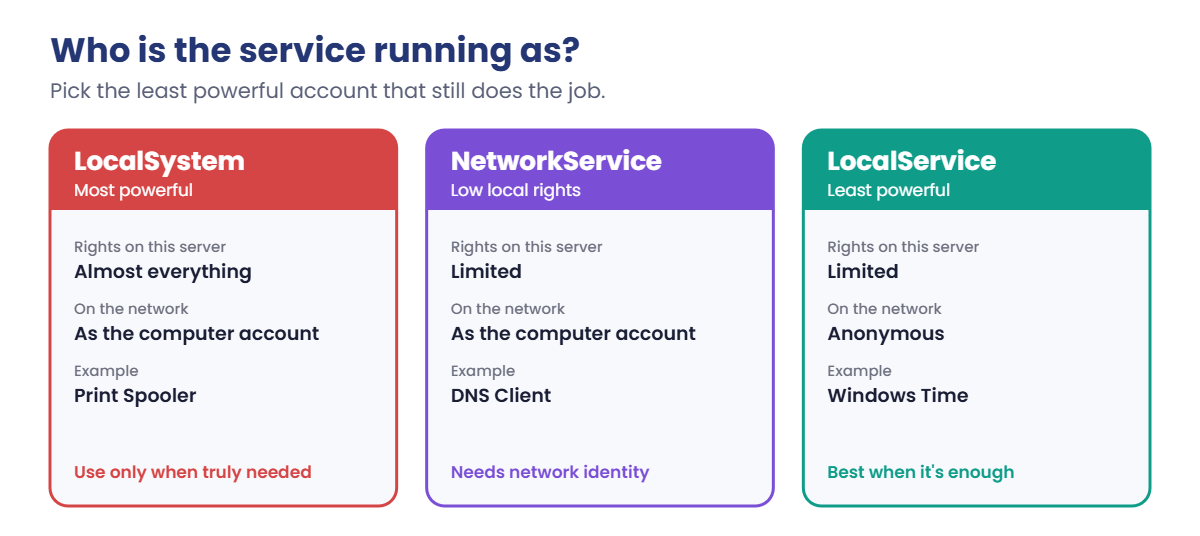
Service accounts: LocalSystem can do almost anything on the machine; LocalService has few rights and is anonymous on the network; NetworkService has few rights locally but uses the computer’s identity on the network; and domain or managed service accounts run apps that need their own identity (Lesson 22).

svchost.exe is a host process for services written as DLLs.

On servers with plenty of memory most services get their own svchost, but some still share one. On servers with less than about 3.5 GB of memory, like your 2 GB lab VMs, Windows groups many services together to save memory. Either way, killing a svchost can stop several services at once.

The registry is Windows’ settings database. HKEY_LOCAL_MACHINE (HKLM) holds machine settings; HKEY_CURRENT_USER holds the signed-in user’s. Every service has a key under HKLM\SYSTEM\CurrentControlSet\Services, where Start is the start type (2 Automatic, 3 Manual, 4 Disabled), ImagePath the program and ObjectName the account.

Event logs are files in C:\Windows\System32\winevt\Logs: System, Application, Security, Setup and hundreds of role-specific logs. Event Viewer and Get-WinEvent read them.

How it works, step by step

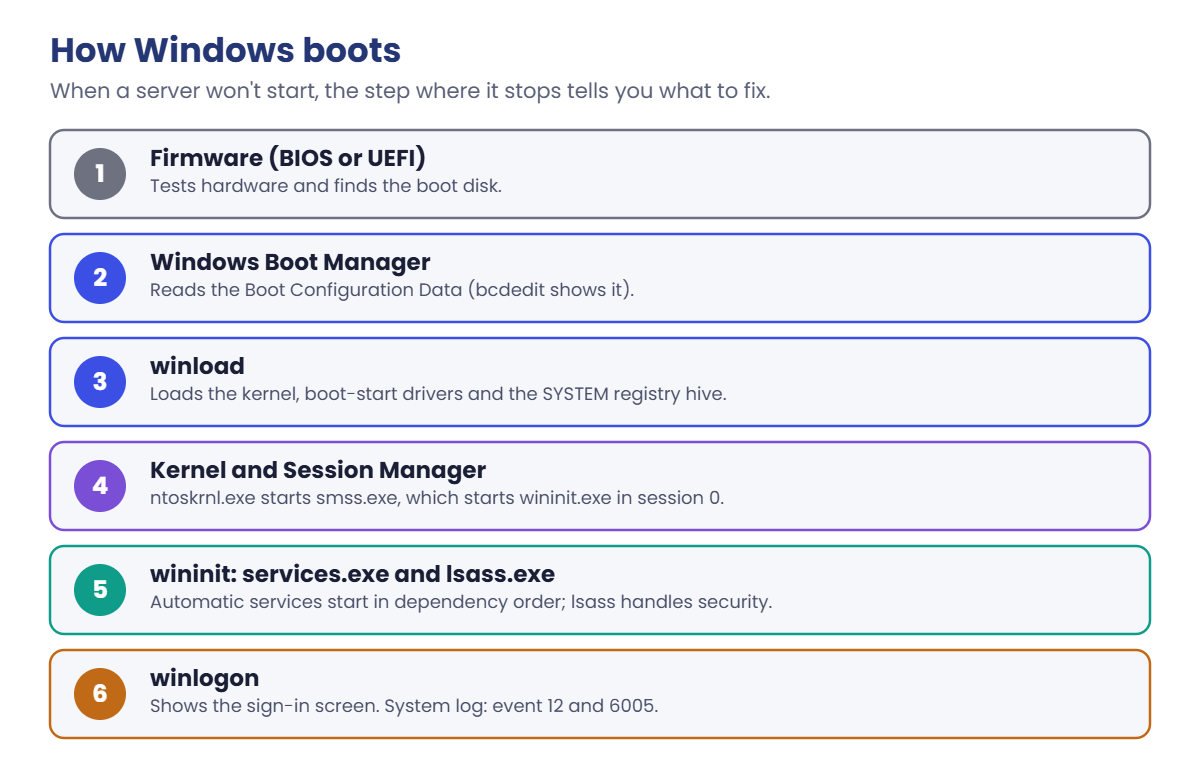
Here’s what happens between pressing the power button and seeing the sign-in screen. When a server won’t boot, the step where it stops tells you what’s broken:

Windows internals boot process: firmware, Boot Manager, winload, kernel, wininit, winlogon
  1. Firmware (BIOS or UEFI) tests the hardware and finds the boot disk.
  2. Windows Boot Manager reads the Boot Configuration Data (BCD), which lists the Windows installations and their settings. You’ll see it with bcdedit in the lab.
  3. winload loads the kernel (ntoskrnl.exe), the boot-start drivers and the SYSTEM registry hive.
  4. The kernel starts the Session Manager (smss.exe), which starts wininit.exe for session 0.
  5. wininit starts services.exe, which starts every Automatic service in dependency order, and lsass.exe, which handles security.
  6. winlogon shows the sign-in screen. The System log records the start with event 12 (Kernel-General) and 6005 (EventLog service started).

And here are the accounts services run as, from most to least powerful:

Windows internals service accounts compared: LocalSystem, NetworkService and LocalService

A service should run with the least powerful account that still lets it do its job. If a service running as LocalSystem is compromised, the attacker owns the whole server; the same service as LocalService could do far less damage.

Hands-on Lab: explore Windows internals on DC01

Start DC01, sign in and open PowerShell as administrator. Everything here only reads, until the Break It section.

1See which processes run in session 0

Run this:

Get-Process -Name lsass, services, wininit, explorer | Select-Object Name, Id, SessionId

You should see something like this:

Name       Id SessionId
----       -- ---------
explorer 4812         1
lsass     712         0
services  696         0
wininit   584         0

explorer is your desktop, so it runs in your session (1). The system processes run in session 0, which nobody signs in to. That’s why a service can never pop up a window on your desktop.

✅ Checkpoint: lsass, services and wininit show SessionId 0; explorer shows your session number.

2Read a service’s account, path and start mode

Run this:

Get-CimInstance Win32_Service -Filter "Name='Spooler' OR Name='Dnscache' OR Name='W32Time'" |
    Select-Object Name, StartMode, State, StartName, ProcessId

You should see something like this:

Name     StartMode State   StartName                    ProcessId
----     --------- -----   ---------                    ---------
Dnscache Auto      Running NT AUTHORITY\NetworkService       1544
Spooler  Auto      Running LocalSystem                       2716
W32Time  Auto      Running NT AUTHORITY\LocalService         1208
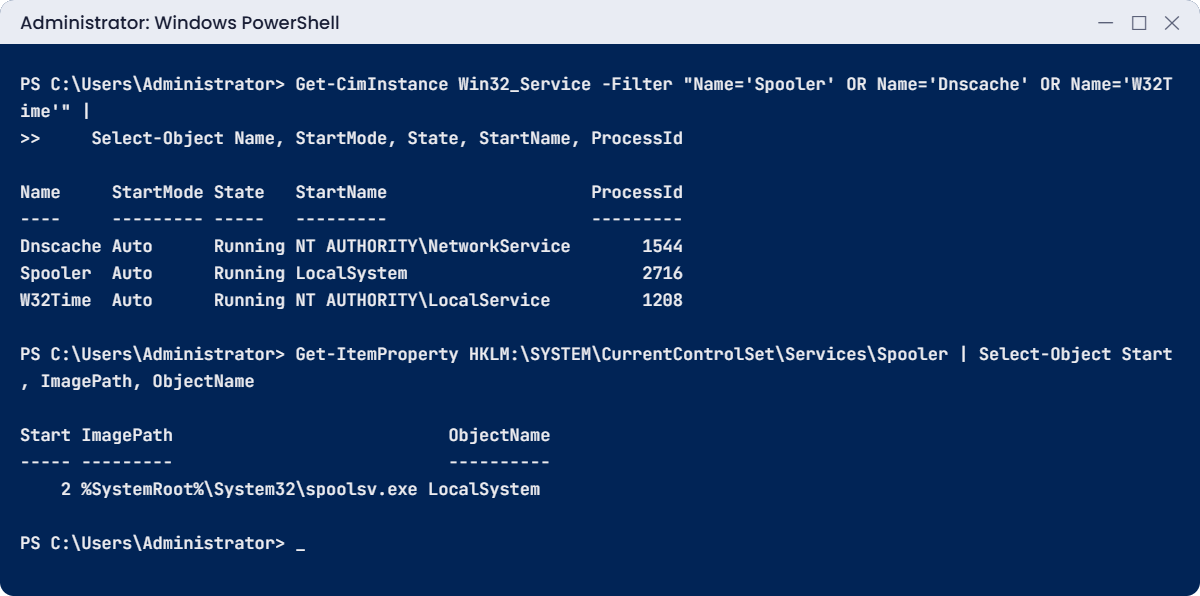
Windows internals lab: service accounts from Win32_Service and the Spooler registry key
Example output. Your process IDs will be different.

Get-Service doesn’t show the account; Win32_Service does, in StartName. Three services, three different accounts. The print spooler runs as LocalSystem, which is why print spooler bugs have been some of the most serious Windows security holes.

✅ Checkpoint: You can see the account each service runs as.

3Find which services share a svchost

Run this:

Get-CimInstance Win32_Service -Filter "State='Running'" |
    Where-Object PathName -like '*svchost*' |
    Group-Object ProcessId |
    Where-Object Count -gt 1 |
    Select-Object Name, Count, @{n='Services';e={$_.Group.Name -join ', '}} -First 3

You should see something like this:

Name Count Services
---- ----- --------
1052     3 BFE, mpssvc, PolicyAgent
1404     3 Dnscache, LanmanWorkstation, NlaSvc
2208     2 CryptSvc, WinRM

Each line is one svchost process (by PID) hosting several services. Kill that process, and every service in the list stops with it. Remember this the next time someone says “just end the svchost that’s using CPU”.

✅ Checkpoint: You found at least one svchost hosting more than one service.

4Check service dependencies

Run these one at a time:

Get-Service -Name LanmanWorkstation -DependentServices | Select-Object Name, Status
Get-Service -Name Netlogon -RequiredServices | Select-Object Name, Status

You should see something like this:

Name           Status
----           ------
SessionEnv Running
Netlogon   Stopped

Name              Status
----              ------
LanmanWorkstation Running

DependentServices are the services that need this one; stopping it stops them too.

RequiredServices are the ones it needs. Netlogon, the service that keeps a computer’s trust with the domain, depends on the Workstation service. It’s stopped for now because DC01 isn’t in a domain yet; that changes in Lesson 11.

✅ Checkpoint: You can name a service that depends on LanmanWorkstation.

5Find the same settings in the registry

Run this:

Get-ItemProperty HKLM:\SYSTEM\CurrentControlSet\Services\Spooler | Select-Object Start, ImagePath, ObjectName, DependOnService

You should see something like this:

Start ImagePath                           ObjectName  DependOnService
----- ---------                           ----------  ---------------
    2 %SystemRoot%\System32\spoolsv.exe LocalSystem {RPCSS, http}

HKLM: is a PowerShell drive for the registry, so you browse it like a folder. Start 2 means Automatic (3 Manual, 4 Disabled). Everything services.msc shows comes from this key, which is how you can check or fix a service on a server where the console won’t open.

✅ Checkpoint: The registry shows Start 2 and ImagePath spoolsv.exe for the Spooler.

6Read the boot configuration and boot events

Run these one at a time:

bcdedit /enum '{current}'
Get-WinEvent -FilterHashtable @{LogName='System'; Id=12,13,6005,6006} -MaxEvents 4 | Select-Object TimeCreated, Id, ProviderName

You should see something like this:

Windows Boot Loader
-------------------
identifier              {current}
device                  partition=C:
path                    \Windows\system32\winload.exe
description             Windows Server
locale                  en-US
recoverysequence        {8a1f3e52-6c0b-11f0-9a4e-c2e4a1b7d3f0}
displaymessageoverride  Recovery
recoveryenabled         Yes
osdevice                partition=C:
systemroot              \Windows
nx                      OptOut

TimeCreated            Id ProviderName
-----------            -- ------------
19-10-2026 19:05:12  6005 EventLog
19-10-2026 19:05:04    12 Microsoft-Windows-Kernel-General
19-10-2026 19:04:40  6006 EventLog
19-10-2026 19:04:39    13 Microsoft-Windows-Kernel-General

The BCD entry tells Boot Manager which loader to run (winload.exe here, winload.efi on UEFI) and where Windows lives. In the events, 13 and 6006 are the last shutdown, 12 and 6005 the next start. The gap between them is how long the server was down: a quick way to confirm “it restarted at 19:04”.

✅ Checkpoint: You can see the winload path in the BCD and a 13/12 pair for the last restart.

7Find the event log files

Run this:

Get-ChildItem C:\Windows\System32\winevt\Logs -Filter *.evtx |
    Sort-Object Length -Descending |
    Select-Object -First 5 Name, @{n='MB';e={[math]::Round($_.Length/1MB,1)}}

You should see something like this:

Name                                                MB
----                                                --
Security.evtx                                     20.1
System.evtx                                        4.1
Application.evtx                                   2.1
Microsoft-Windows-PowerShell%4Operational.evtx    15.1
Windows PowerShell.evtx                            1.1

Every log is a .evtx file here, with a maximum size. When it’s full, the oldest events are overwritten, so on busy servers the Security log may only cover a few days. Lesson 43 shows how to keep logs longer.

✅ Checkpoint: You can see the Security, System and Application log files and their sizes.

Break It, Then Fix It

Services are where most “it stopped working” tickets start. You’ll break two in safe ways on DC01 and fix them.

1Break it: stop a service that others depend on

Run this:

Stop-Service -Name LanmanWorkstation

You’ll get an error like this:

Stop-Service : Cannot stop service 'Workstation (LanmanWorkstation)' because it has dependent services. It can only be
stopped if the Force flag is set.
At line:1 char:1
+ Stop-Service -Name LanmanWorkstation
+ ~~~~~~~~~~~~~~~~~~~~~~~~~~~~~~~~~~~~
    + CategoryInfo          : InvalidOperation: (System.ServiceProcess.ServiceController:ServiceController) [Stop-Service],
   ServiceCommandException
    + FullyQualifiedErrorId : ServiceHasDependentServices,Microsoft.PowerShell.Commands.StopServiceCommand
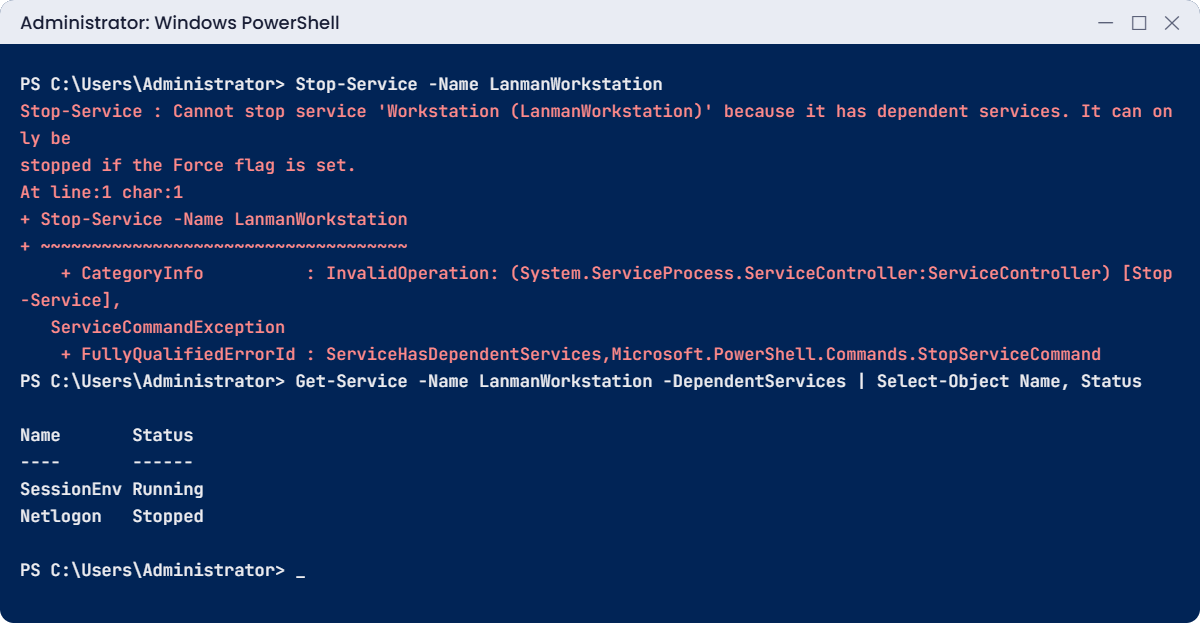
Windows internals lab: Stop-Service fails because of dependent services
Example output.

PowerShell is protecting you. -Force would stop Workstation and every service that depends on it, which on a domain controller includes Netlogon, the service that lets computers authenticate.

Fix it: don’t reach for -Force. Check what would stop first with Get-Service LanmanWorkstation -DependentServices, and decide whether you really need to stop the parent at all. Usually the right move is to restart only the service that’s actually misbehaving.

✅ Checkpoint: You saw the dependent-services error, and Workstation is still running.

2Break it: a disabled service that won’t start

Disable the print spooler, then try to start it:

Stop-Service -Name Spooler
Set-Service -Name Spooler -StartupType Disabled
Start-Service -Name Spooler

You’ll get an error like this:

Start-Service : Service 'Print Spooler (Spooler)' cannot be started due to the following error: Cannot start service
Spooler on computer '.'.
At line:1 char:1
+ Start-Service -Name Spooler
+ ~~~~~~~~~~~~~~~~~~~~~~~~~~~
    + CategoryInfo          : OpenError: (System.ServiceProcess.ServiceController:ServiceController) [Start-Service],
   ServiceCommandException
    + FullyQualifiedErrorId : CouldNotStartService,Microsoft.PowerShell.Commands.StartServiceCommand

The message doesn’t say “disabled”, which is why this catches people out. Check the start type, in PowerShell or straight from the registry:

Run these:

Get-Service -Name Spooler | Select-Object Name, Status, StartType
(Get-ItemProperty HKLM:\SYSTEM\CurrentControlSet\Services\Spooler).Start

You should see this:

Name     Status StartType
----     ------ ---------
Spooler Stopped  Disabled

4

Fix it: set it back to Automatic and start it:

Set-Service -Name Spooler -StartupType Automatic
Start-Service -Name Spooler
Get-Service -Name Spooler | Select-Object Name, Status, StartType

You should see this:

Name     Status StartType
----     ------ ---------
Spooler Running Automatic

The System log also recorded the attempt: event 7000 from Service Control Manager, “The service cannot be started, either because it is disabled or because it has no enabled devices associated with it.” When a service won’t start, the System log usually says why more clearly than the command does.

✅ Checkpoint: The Spooler is Running and Automatic again, and you found event 7000 in the System log.

This happened at work

The svchost that took the file shares with it

On a busy file server, users complained it was slow.

The admin opened Task Manager, saw one svchost.exe using 40% CPU, and ended the process. CPU dropped. So did every file share on the server: 300 people lost their mapped drives in the middle of the afternoon.

That svchost was hosting several services at once, including the Server service (LanmanServer) that provides file sharing. The CPU was actually being used by Windows Update scanning, which lived in the same process.

Windows restarted some services by itself, but the shares took ten minutes to come back and several users lost open documents.

The fix: the team’s runbook now says: before ending any svchost, find the services inside it (Get-CimInstance Win32_Service -Filter "ProcessId=1234" or the Details and Services tabs in Task Manager), then restart only the guilty service. The file servers got more memory too, so most services run in their own svchost.

The lesson: a process name tells you very little on Windows. Find out what’s inside before you kill it.

Common mistakes and troubleshooting

Mistake or symptomWhat happensWhat to do instead
Ending a svchost.exe that uses CPUEvery service inside it stopsFind the services in that PID first; restart only the one at fault
Using Stop-Service -Force without checkingDependent services stop tooCheck -DependentServices first
“Cannot start service … on computer ‘.'”The message hides the real reasonCheck StartType and the System log (event 7000 and 7001)
Running services as LocalSystem by habitA compromised service owns the whole serverUse the least powerful account; managed service accounts for apps
Editing the registry without a backupA typo can stop a service or Windows from startingExport the key first (reg export), or change it with Set-Service
Assuming the GUI is the only source of truthYou get stuck when consoles won’t openRead Win32_Service and the Services registry key directly
Ignoring Session 0Expecting a service to show a windowServices never interact with the desktop; check their logs instead
Security log covers only a few daysOld evidence is overwrittenRaise the log size or forward events (Lesson 39)
“The service did not respond to the start or control request in a timely fashion” (7009)The service hangs at startCheck dependencies, disk and network it needs; look at its own log

Interview questions

Click a question to open it. Under each one you’ll find what the interviewer is really looking for, and one good way to answer.

Fresher level

1. What is the difference between a process and a service?

What they’re really checking: Do you know the basics?

How you could answer: A process is any running program. A service is a program started by the Service Control Manager that runs in the background without a signed-in user, with a start type, an account and recovery settings.

2. Name three accounts a service can run as.

What they’re really checking: Do you know the built-in identities?

How you could answer: LocalSystem (full local power), LocalService (minimal rights, anonymous on the network), NetworkService (minimal local rights, uses the computer account on the network). Plus domain and managed service accounts.

3. Where are service settings stored?

What they’re really checking: Do you know where to look when the GUI fails?

How you could answer: In the registry under HKLM\SYSTEM\CurrentControlSet\Services\<name>: Start, ImagePath, ObjectName, DependOnService and more.

2–5 years experience

4. A service won’t start. How do you troubleshoot it?

What they’re really checking: Do you have a method?

How you could answer: Check StartType (disabled?), the System log for 7000, 7001, 7009 or 7038, dependencies with -RequiredServices, the account and its password, and the service’s own log. Then fix the cause, not just retry.

5. What is svchost.exe and why can killing it be dangerous?

What they’re really checking: Do you understand shared processes?

How you could answer: It hosts services written as DLLs. Several services can share one svchost, especially on servers with less memory. Ending it stops all of them, so identify the services by PID first.

6. Describe the Windows boot process.

What they’re really checking: Can you reason about where boot fails?

How you could answer: Firmware, Boot Manager reading the BCD, winload loading the kernel and boot drivers, the kernel starting smss, then wininit starting services and lsass, and winlogon showing sign-in. Where it stops tells you which part to fix.

Senior level

7. How do you decide which account a new service should run as?

What they’re really checking: Do you apply least privilege?

How you could answer: Start from what it needs: local only, network access as the machine, or its own identity. Prefer virtual or group managed service accounts over named user accounts, grant only the rights required, and document them.

8. A service runs fine for days, then stops. How would you make it self-healing, and when is that a bad idea?

What they’re really checking: Do you know recovery options and their risk?

How you could answer: Set recovery actions (restart after 1 minute, reset count after a day) with sc.exe failure or the Recovery tab, and alert on restarts. It’s a bad idea when restarts hide a real fault or cause data damage; then fail loudly and page someone.

9. Why did Windows split services into separate svchost processes?

What they’re really checking: Do you know the design trade-offs?

How you could answer: Isolation and reliability: one crashing service no longer takes others down, and per-service CPU and memory are easier to see. The cost is more memory, so on low-memory systems Windows still groups them.

Quick quiz

Q1. Which session do system services run in?

  1. Session 0
  2. Session 1
  3. The admin’s session
Show answer

A — System processes and services run in session 0, which nobody signs in to.

Q2. What does Start = 4 mean in a service’s registry key?

  1. Automatic
  2. Manual
  3. Disabled
Show answer

C — 2 Automatic, 3 Manual, 4 Disabled.

Q3. Why did Stop-Service LanmanWorkstation fail?

  1. Wrong name
  2. It has dependent services
  3. Access denied
Show answer

B — Without -Force, PowerShell won’t stop a service others depend on.

Q4. Which event IDs mark a shutdown and a start in the System log?

  1. 13 and 12
  2. 4624 and 4625
  3. 7000 and 7009
Show answer

A — 13 is shutdown, 12 is start (Kernel-General); 6006 and 6005 come from EventLog.

Q5. In the work story, what went wrong?

  1. A disk failed
  2. Ending a shared svchost stopped the file sharing service too
  3. The server ran out of licences
Show answer

B — Find the services inside a svchost before ending it.

Quick recap

  • Windows internals for admins: processes, services, accounts, the registry, boot and logs.
  • System processes run in session 0; services are started by services.exe.
  • Read a service’s account with Win32_Service (StartName); its settings live under HKLM\SYSTEM\CurrentControlSet\Services.
  • svchost can host several services; find them by PID before ending one.
  • Boot: firmware, Boot Manager and BCD, winload, kernel, smss, wininit, services and lsass, winlogon.
  • Event logs are .evtx files in winevt\Logs; the System log explains failed services (7000, 7009).

Next lesson

Lesson 9: Windows Server networking basics → You’ll cover IP addressing and subnets, how Windows decides which DNS server to ask and in what order, firewall profiles and rules, and NIC teaming with Switch Embedded Teaming.

Further reading: Windows internals

Want to go deeper into Windows internals? Microsoft’s Windows Internals book page on Microsoft Learn is the classic deep dive, and the free Sysinternals tools (Lesson 52) let you see it all live. You can also see the full plan for this course on the Windows Server Administration course page.

Scroll to Top