Windows Server migration: upgrades and Storage Migration Service

Every server you build will one day be replaced. A good Windows Server migration moves roles, data and settings to a newer version with a short, planned outage, and with a way back if it goes wrong.

In this lesson you’ll learn when to upgrade in place and when to migrate, write a readiness check for in-place upgrades, move a file share with Storage Migration Service while keeping its permissions, and confirm SYSVOL already uses DFS Replication.

TimeYou needBy the end you can
About 90 minutesDC01, SRV01 (with Windows Admin Center from Lesson 40) and NODE1 from Lesson 36Choose between in-place upgrade and migration, check upgrade readiness, migrate shares with Storage Migration Service, verify SYSVOL replication, and plan cutover and rollback

What it is, in one line

A Windows Server migration is moving a server’s roles, data and identity to a new or upgraded server, either by upgrading the operating system in place or by building a new server and moving everything to it.

In Simple Words

Renovating or moving house

When your house gets old, you can renovate it while living there, or build a new house and move. Renovating is quicker if the house is sound. Moving lets you fix the foundations, change the layout and throw away years of clutter.

An in-place upgrade is renovating: same server, newer Windows. A migration is moving: new server, then you carry over the shares, settings and even the old house’s address so the post still arrives.

Either way, you take photos of everything first, in case you need to put it back. That’s your backup and rollback plan.

Engineer's View

Upgrade rules, migration tools, cutover

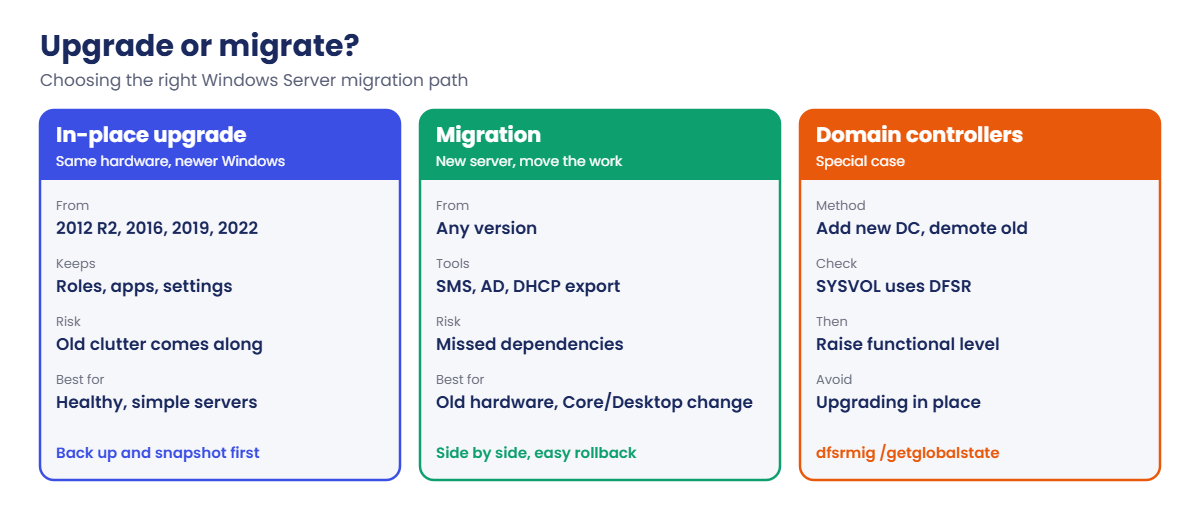
In-place upgrade to Server 2025: non-clustered servers can upgrade up to four versions at once, directly from 2012 R2, 2016, 2019 or 2022. The edition is kept (Standard to Datacenter is allowed, never down), Core and Desktop Experience can’t be switched, language and architecture must match, NIC teaming must be disabled first, and you can’t upgrade to an evaluation copy. Clusters use a rolling upgrade, one version at a time.

Migration tools: Storage Migration Service (SMS) inventories file servers, transfers shares, data, permissions and settings to a new server, and can cut over by moving the old server’s name and IP addresses to the new one. For DCs, add new DCs and demote old ones (Lesson 35). For other roles, use the role’s own export/import (DHCP Export-DhcpServer, print migration, IIS deployment) or rebuild.

SYSVOL: very old domains replicated SYSVOL with FRS, which isn’t supported since Server 2019. dfsrmig moves it to DFS Replication; domains created on 2008 or later already use DFSR.

Plan: inventory, compatibility (apps, agents, drivers), backups and snapshots, a test run, a cutover window, success checks, and a rollback decision point.

How it works, step by step

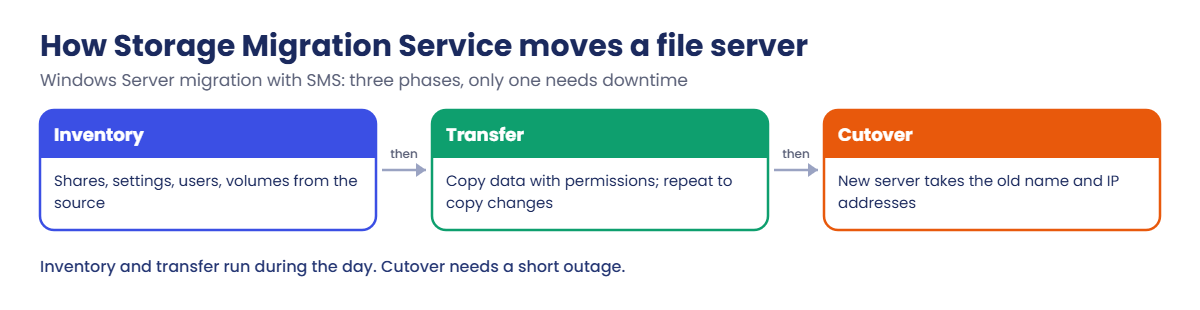
How Storage Migration Service moves a file server:

Windows Server migration: Storage Migration Service inventory, transfer and cutover

Inventory and transfer can run during the day while users keep working, and you can repeat the transfer to copy only what changed. Only the cutover needs a short outage, because the old server’s identity moves to the new one.

Upgrade or migrate? A quick guide:

Windows Server migration choices: in-place upgrade, migration and domain controllers
  1. Readiness check for in-place upgrades with a small PowerShell function.
  2. SMS on NODE1 as orchestrator and destination.
  3. Inventory SRV01 and transfer the Partner share to NODE1, keeping permissions.
  4. Verify data and ACLs on NODE1 (no cutover in the lab).
  5. SYSVOL state with dfsrmig.

Hands-on lab: check readiness and migrate a share

Start DC01, SRV01, NODE1 and CL01. Take a snapshot of NODE1 (“Before SMS”). Work as SAATLAB\adm.rahul in PowerShell as administrator.

1Write an in-place upgrade readiness check

On SRV01, create and run this function (it works on any server you plan to upgrade):

function Test-UpgradeReady {
    $os   = Get-CimInstance Win32_OperatingSystem
    $cv   = Get-ItemProperty 'HKLM:\SOFTWARE\Microsoft\Windows NT\CurrentVersion'
    $c    = Get-CimInstance Win32_LogicalDisk -Filter "DeviceID='C:'"
    $team = @(Get-NetLbfoTeam -ErrorAction SilentlyContinue).Count
    $build = [int]$cv.CurrentBuild
    [pscustomobject]@{
        Computer      = $env:COMPUTERNAME
        Caption       = $os.Caption
        Build         = $build
        DirectTo2025  = ($build -ge 9600)
        InstallType   = $cv.InstallationType
        Evaluation    = ($os.Caption -like '*Evaluation*')
        CFreeGB       = [math]::Round($c.FreeSpace / 1GB, 1)
        EnoughSpace   = ($c.FreeSpace -gt 32GB)
        NicTeams      = $team
        IsDC          = ((Get-CimInstance Win32_ComputerSystem).DomainRole -ge 4)
    }
}
Test-UpgradeReady

You should see something like this on SRV01:

Computer     : SRV01
Caption      : Microsoft Windows Server 2025 Datacenter Evaluation
Build        : 26100
DirectTo2025 : True
InstallType  : Server
Evaluation   : True
CFreeGB      : 37.4
EnoughSpace  : True
NicTeams     : 0
IsDC         : False

Build 9600 is Server 2012 R2, the oldest version that upgrades directly to 2025. The other fields map to the rules: keep the same InstallType (Core stays Core), disable NIC teams, have space for setup, and treat DCs differently (add a new DC rather than upgrading, as most teams do). Run it with Invoke-Command across all servers to build your upgrade list.

✅ Checkpoint: Test-UpgradeReady returns a readiness object for SRV01.
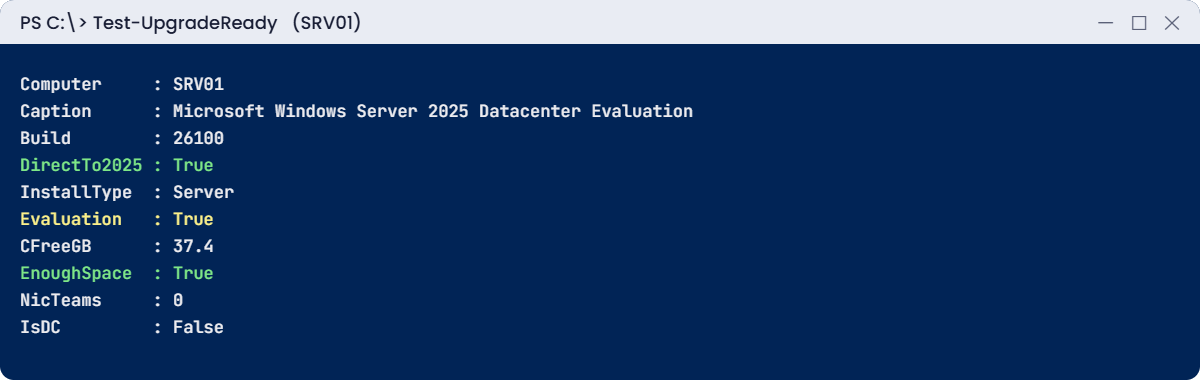
Windows Server migration lab: Test-UpgradeReady readiness output for SRV01
Windows Server migration readiness: Test-UpgradeReady on SRV01

2Install Storage Migration Service on NODE1

From DC01:

Invoke-Command -ComputerName NODE1 -ScriptBlock {
    Install-WindowsFeature SMS, SMS-Proxy | Select-Object Success, RestartNeeded
}

You should see something like this:

Success RestartNeeded
------- -------------
True    No

SMS is the orchestrator that runs jobs; SMS-Proxy speeds up transfers on the destination. NODE1 plays both parts here. In real projects the orchestrator is often a separate management server.

✅ Checkpoint: SMS and SMS-Proxy are installed on NODE1.

3Inventory SRV01 in Windows Admin Center

On CL01, open Windows Admin Center (https://srv01.saatlab.internal:6516), connect to NODE1 and open the Storage Migration Service tool. Choose New job, name it SRV01-Partner, source type Windows servers and clusters.

Enter SAATLAB\adm.rahul credentials, add SRV01 as the source device, and start the scan. When it finishes, SRV01’s shares appear with their sizes and paths, including Departments, Home$ and Partner.

[Add your screenshot here: SMS inventory of SRV01 shares]

✅ Checkpoint: The inventory lists SRV01’s shares with their paths and sizes.

4Transfer the Partner share to NODE1

In the job, click Next to Transfer data. Enter credentials, choose destination NODE1, and map volume D: on SRV01 to volume C: on NODE1 (SMS maps whole volumes and keeps folder paths, so the share lands in C:\Shares\Partner). Include only the Partner share, keep Retain the existing permissions on, and run Validate, then Start transfer.

When it finishes, check from DC01:

Invoke-Command -ComputerName NODE1 -ScriptBlock {
    Get-SmbShare -Name Partner | Select-Object Name, Path
    Get-ChildItem C:\Shares\Partner | Select-Object Name
    icacls C:\Shares\Partner
}

You should see something like this:

Name    Path
----    ----
Partner C:\Shares\Partner

Name
----
schedule.txt

C:\Shares\Partner NT AUTHORITY\SYSTEM:(OI)(CI)(F)
                  BUILTIN\Administrators:(OI)(CI)(F)
                  PARTNER\GG_Partners:(OI)(CI)(M)

Successfully processed 1 files; Failed processing 0 files

The share, the file Anil wrote in Lesson 33 and its permissions, including the partner forest’s group, all arrived. In a real project you’d now run the transfer again just before the window to copy recent changes, then run the Cut over step, which renames SRV01, gives NODE1 its name and IP, and updates AD and DNS. Skip cut over in the lab, because SRV01 must keep its identity.

✅ Checkpoint: NODE1 has a Partner share with schedule.txt and the same permissions as on SRV01.

5Confirm SYSVOL uses DFS Replication

On DC01:

dfsrmig /getglobalstate
Get-SmbShare -Name SYSVOL | Select-Object Name, Path

You should see something like this:

Current DFSR global state: 'Eliminated'
Succeeded.

Name   Path
----   ----
SYSVOL C:\Windows\SYSVOL\sysvol

“Eliminated” means FRS is fully gone and SYSVOL uses DFS Replication, as expected for a domain created on Server 2025. In an old domain you’d see “Start” or no state, and you’d move through the dfsrmig states Prepared, Redirected and Eliminated before adding new DCs.

✅ Checkpoint: dfsrmig reports the global state Eliminated.

Break It, Then Fix It

Migrations rarely fail on the big steps. They fail on the small blockers you didn’t check. Here are two.

1Break it: the destination blocks the file sharing ports

From DC01, disable the File and Printer Sharing rules on NODE1:

Invoke-Command -ComputerName NODE1 -ScriptBlock { Disable-NetFirewallRule -DisplayGroup 'File and Printer Sharing' }

In Windows Admin Center, create a second SMS job for the Departments share and run Validate in the transfer step.

You’ll see a validation result like this:

Destination proxy registration       Pass
Destination SMB connectivity          Fail   Couldn't connect to the destination device over SMB.
                                             Make sure File and Printer Sharing (SMB-In) is allowed.
Source credentials have administrator Pass

Storage Migration Service copies data over SMB and talks to the machines over WMI and Netlogon, so it needs those firewall rules open on source, destination and orchestrator. Validation catches it before any data moves, which is exactly why you always run it.

Fix it: re-enable the rules and validate again:

Invoke-Command -ComputerName NODE1 -ScriptBlock { Enable-NetFirewallRule -DisplayGroup 'File and Printer Sharing' }

✅ Checkpoint: Validation failed on SMB connectivity while the rules were off and passes after re-enabling them.
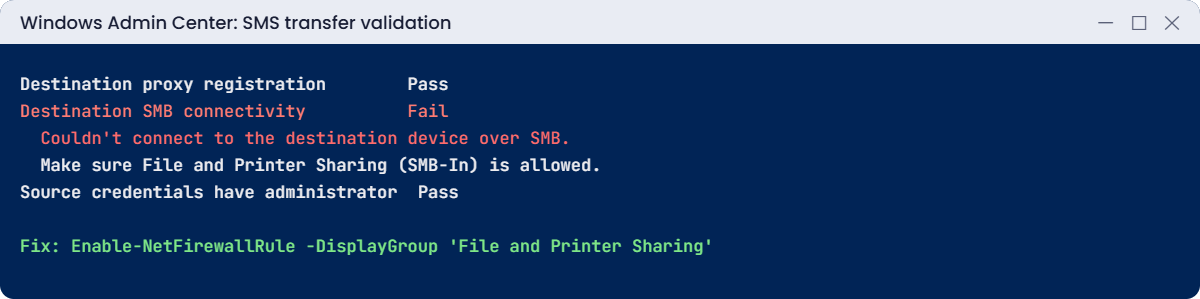
Windows Server migration break lab: SMS validation fails when SMB is blocked on NODE1
SMS validation catches the blocked SMB port before any data moves

2Break it: not enough space to upgrade

On SRV01, use up space on C: with a large file, then run the readiness check:

fsutil file createnew C:\Temp\filler.bin 10737418240
Test-UpgradeReady | Select-Object Computer, CFreeGB, EnoughSpace

You’ll see something like this:

Computer CFreeGB EnoughSpace
-------- ------- -----------
SRV01       27.4 False

Setup needs room for the new Windows image, the old one (Windows.old) and temporary files. An upgrade started on a nearly full disk can fail halfway and roll back, wasting the maintenance window.

Fix it: remove the clutter and clean up old component versions:

Remove-Item C:\Temp\filler.bin
Dism.exe /Online /Cleanup-Image /StartComponentCleanup
Test-UpgradeReady | Select-Object Computer, CFreeGB, EnoughSpace

You should see something like this:

Computer CFreeGB EnoughSpace
-------- ------- -----------
SRV01       38.1 True

✅ Checkpoint: EnoughSpace was False with the filler file and True after removing it and cleaning up components.

This happened at work

The new file server that kept the name but not the address

A team migrated an old file server with Storage Migration Service. Inventory and transfer went perfectly, and during cutover they kept the new server’s own IP address, “to keep things clean”, while it took over the old server’s name.

Users mapping drives by name were fine. But a payroll application, three scanners and a nightly ETL job used the old server’s IP address directly. On Monday they all failed, and the old server, now renamed and still on the network, was quietly receiving the scanned invoices.

The team moved the old IP to the new server as a second address that day, and spent the week finding and fixing every hard-coded IP.

The fix: cutovers now move the old IP addresses too, and the inventory includes a week of SMB connection logs (who connects, from where, by name or IP) before the migration.

The lesson: a server’s identity is its name and its addresses. Find everything that uses either before you switch.

Common mistakes and troubleshooting

Mistake or symptomWhat happensWhat to do instead
Upgrading more versions than supportedSetup blocks or failsCheck the upgrade path (2012 R2 and later for 2025)
Trying to switch Core to Desktop during upgradeNot supportedKeep the installation type or migrate instead
NIC teaming left onUpgrade problems with networkingDisable NIC teaming before upgrading
Not enough disk spaceUpgrade fails and rolls backCheck free space; clean components first
Skipping SMS validationTransfers fail halfwayValidate and fix firewall and credentials first
Cutover without moving IP addressesApps and devices using IPs breakMove old IPs or fix every hard-coded IP first
No backup or snapshot before upgradeNo way backBack up and plan a rollback decision point
Upgrading DCs in place without careRisky for ADAdd new DCs and demote old ones
Unknown dependenciesSurprises after cutoverInventory connections, scheduled tasks, services and apps

Interview questions

Click a question to open it. Under each one you’ll find what the interviewer is really looking for, and one good way to answer.

Fresher level

1. What is the difference between an in-place upgrade and a migration?

What they’re really checking: Do you know the options?

How you could answer: An in-place upgrade installs a newer Windows over the existing server. A migration builds a new server and moves roles and data to it.

2. Which versions can upgrade directly to Windows Server 2025?

What they’re really checking: Are you current?

How you could answer: Non-clustered servers from 2012 R2, 2016, 2019 and 2022, up to four versions at once.

3. What should you always do before upgrading a server?

What they’re really checking: Do you plan for failure?

How you could answer: Take a backup (and a snapshot if virtual), check compatibility, and agree a rollback plan and window.

2–5 years experience

4. What does Storage Migration Service do?

What they’re really checking: Do you know the tool?

How you could answer: It inventories file servers, transfers shares, data, permissions and local users to a new server, and can cut over by moving the old server’s name and IP addresses.

5. When would you choose migration over an in-place upgrade?

What they’re really checking: Do you weigh options?

How you could answer: When the hardware is old, the OS is too old to upgrade directly, you want to switch Core/Desktop, clean up years of changes, or reduce risk with a side-by-side approach.

6. How do you check whether SYSVOL still uses FRS?

What they’re really checking: Do you know legacy issues?

How you could answer: dfsrmig /getglobalstate. Eliminated means DFSR is in use; otherwise migrate through Prepared, Redirected and Eliminated before adding newer DCs.

Senior level

7. Plan a migration of 30 file servers to Server 2025.

What they’re really checking: Do you think at scale?

How you could answer: Inventory with SMS and connection logs, group servers by business owner, pilot one, staged transfers with delta syncs, cutovers in windows with name and IP moves, DFS namespaces where possible, monitoring and a rollback plan for each wave.

8. How do you upgrade a Hyper-V cluster to Server 2025?

What they’re really checking: Do you know rolling upgrades?

How you could answer: Cluster OS rolling upgrade one version at a time: drain and evict a node, clean install the new version, add it back, repeat, then update the cluster functional level and VM configuration versions.

9. What do you check for application compatibility?

What they’re really checking: Do you think beyond Windows?

How you could answer: Vendor support statements, agents (backup, antivirus, monitoring), drivers, .NET and runtime versions, removed features, authentication changes such as LDAP signing and RC4, and a test run in a lab.

Quick quiz

Q1. What is the oldest version that upgrades directly to Server 2025?

  1. Server 2012
  2. Server 2012 R2
  3. Server 2016
Show answer

B — Up to four versions at once.

Q2. Can you switch from Server Core to Desktop Experience during an upgrade?

  1. Yes
  2. No
  3. Only on Datacenter
Show answer

B — Keep the installation type or migrate.

Q3. Why did SMS validation fail in Break It step 1?

  1. Wrong share
  2. File and Printer Sharing was blocked on NODE1
  3. Not enough RAM
Show answer

B — SMS copies over SMB.

Q4. What does dfsrmig state “Eliminated” mean?

  1. SYSVOL is broken
  2. FRS is gone and SYSVOL uses DFSR
  3. DFS is disabled
Show answer

B — Expected for modern domains.

Q5. In the work story, what broke after cutover?

  1. User drive mappings
  2. Apps and scanners using the old IP address
  3. Group Policy
Show answer

B — Move the IP addresses too.

Quick recap

  • A Windows Server migration is either an in-place upgrade or a move to a new server.
  • Server 2025 upgrades directly from 2012 R2 and later; keep the edition family and installation type.
  • Check readiness: build, space, NIC teaming, DC role; back up first.
  • Storage Migration Service inventories, transfers (with permissions) and cuts over file servers.
  • Move names and IP addresses at cutover.
  • Confirm SYSVOL uses DFSR with dfsrmig /getglobalstate.

Next lesson

Lesson 42: The diagnostic workflow → You’ll learn a step-by-step troubleshooting method (define, scope, what changed, test, fix, verify), practise it on three broken lab scenarios, and write up a short incident report.

Further reading: Windows Server migration

Want to go deeper into Windows Server migration? Microsoft’s upgrade overview lists every supported path, and the Storage Migration Service overview explains inventory, transfer and cutover. You can also see the full plan for this course on the Windows Server Administration course page.

Scroll to Top