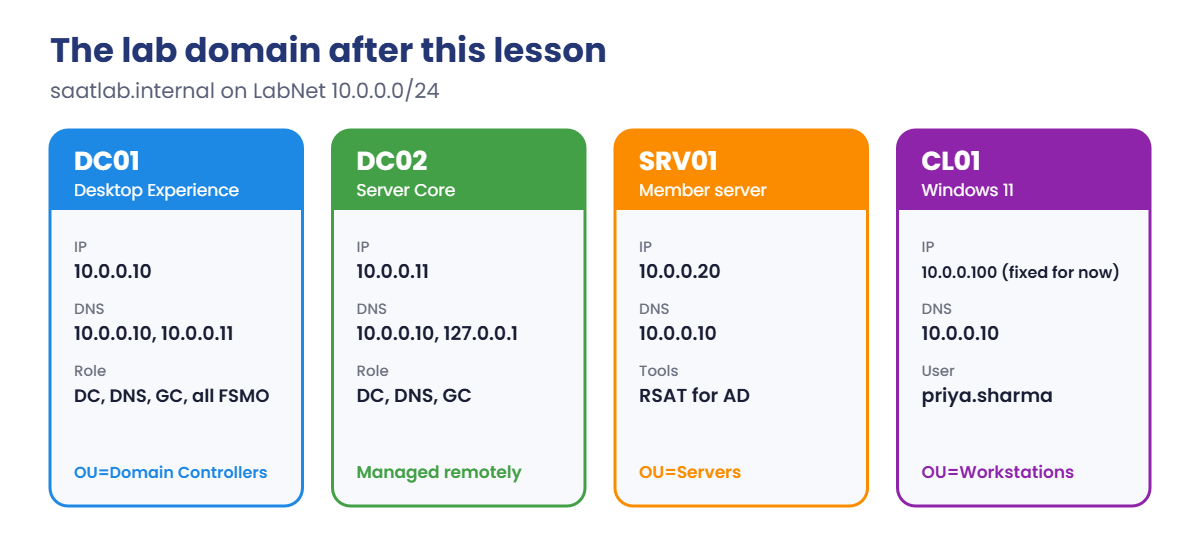
Start DC01 and SRV01. On SRV01, sign in as the local Administrator (it isn’t in the domain yet). Use PowerShell as administrator everywhere in this lab.
1Point SRV01 at DC01 for DNS
In Lesson 6, SRV01 used 1.1.1.1 so it could get updates. A domain member must use only your DCs for DNS, so change it now and test that it can find a DC:
On SRV01, run this:
Set-DnsClientServerAddress -InterfaceAlias Ethernet -ServerAddresses 10.0.0.10
Resolve-DnsName -Type SRV _ldap._tcp.dc._msdcs.saatlab.internal | Select-Object Name, NameTarget, Port
You should see something like this:
Name                                    NameTarget             Port
----                                    ----------             ----
_ldap._tcp.dc._msdcs.saatlab.internal   DC01.saatlab.internal   389
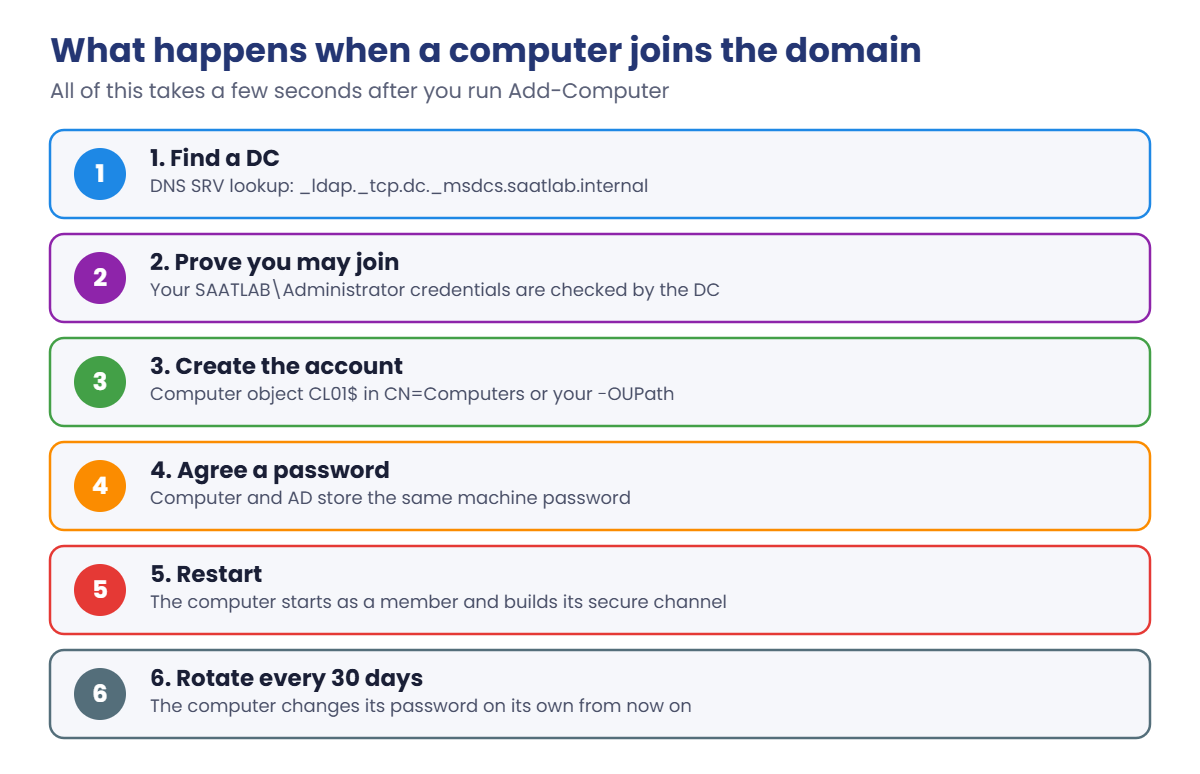
This is the same lookup the join does first. If it fails here, the join will fail too, so always test DNS before you join.
✅ Checkpoint: Resolve-DnsName returns DC01.saatlab.internal on port 389.
2Join SRV01 straight into the Servers OU
On SRV01, run this. Type the SAATLAB\Administrator password when asked:
Add-Computer -DomainName saatlab.internal -OUPath 'OU=Servers,OU=SAATLAB,DC=saatlab,DC=internal' -Credential SAATLAB\Administrator -RestartSRV01 restarts. On the sign-in screen, choose Other user and sign in as SAATLAB\Administrator. The domain prefix tells Windows to check the password with a DC instead of the local account list.
Then check the membership:
Get-CimInstance Win32_ComputerSystem | Select-Object Name, Domain, PartOfDomain
Test-ComputerSecureChannel
You should see something like this:
Name  Domain           PartOfDomain
----  ------           ------------
SRV01 saatlab.internal True

True
Test-ComputerSecureChannel returning True means SRV01’s password matches its account in AD. You’ll make it return False on purpose in Break It.
✅ Checkpoint: SRV01 shows PartOfDomain True and the secure channel test returns True.
3Install the AD tools on SRV01, not the role
In Lesson 10 you saw that AD cmdlets don’t exist on SRV01. Install only the management tools, then look at the computer objects from SRV01:
On SRV01, run this:
Install-WindowsFeature RSAT-AD-PowerShell, RSAT-ADDS
Get-ADComputer -Filter * | Select-Object Name, DistinguishedName
You should see something like this:
Success Restart Needed Exit Code      Feature Result
------- -------------- ---------      --------------
True    No             Success        {Active Directory module for Windows Power...

Name  DistinguishedName
----  -----------------
DC01  CN=DC01,OU=Domain Controllers,DC=saatlab,DC=internal
SRV01 CN=SRV01,OU=Servers,OU=SAATLAB,DC=saatlab,DC=internal
SRV01 landed in the Servers OU because you gave -OUPath. Admins usually manage AD from a member server or their own PC like this, not by signing in to a DC.
✅ Checkpoint: Get-ADComputer works on SRV01 and shows SRV01 inside OU=Servers.
4Install Windows 11 on CL01
Shut down SRV01 to make room in memory. On your laptop, run VBoxManage startvm CL01. CL01 was created in Lesson 2 with the Windows 11 type, so it already has UEFI, Secure Boot and TPM 2.0, which Windows 11 needs.
Choose Windows 11 Enterprise Evaluation and install to the 80 GB disk. During setup, when it asks you to sign in with a Microsoft account, choose Sign-in options, then Domain join instead, and create a local account called labadmin.
When the desktop appears, install Guest Additions (Devices menu) as you did on the servers, and restart. CL01 has no network address yet because LabNet has no DHCP; you’ll add a DHCP server in Lesson 15.
Until then, give it a fixed address. In PowerShell as administrator on CL01:
New-NetIPAddress -InterfaceAlias Ethernet -IPAddress 10.0.0.100 -PrefixLength 24 -DefaultGateway 10.0.0.1 | Out-Null
Set-DnsClientServerAddress -InterfaceAlias Ethernet -ServerAddresses 10.0.0.10
Rename-Computer -NewName CL01 -Restart
✅ Checkpoint: CL01 restarts with the name CL01, address 10.0.0.100 and DNS 10.0.0.10.
5Join CL01 the helpdesk way, then move it
On CL01, open Settings, System, About and click Domain or workgroup. In the System Properties window, click Change, choose Domain, type saatlab.internal and click OK.
Enter SAATLAB\Administrator and its password. You’ll see “Welcome to the saatlab.internal domain.” Click OK and restart.
The Settings app has no box for the OU, so CL01 landed in the default Computers container. Move it from DC01:
On DC01, run this:
Get-ADComputer CL01 | Move-ADObject -TargetPath 'OU=Workstations,OU=SAATLAB,DC=saatlab,DC=internal'
Get-ADComputer CL01 | Select-Object Name, DistinguishedName
You should see something like this:
Name DistinguishedName
---- -----------------
CL01 CN=CL01,OU=Workstations,OU=SAATLAB,DC=saatlab,DC=internal
Now sign in to CL01 as a normal user: choose Other user and type SAATLAB\priya.sharma with the password from Lesson 12. If that account has “change password at next logon” set, Windows asks for a new one.
In a normal PowerShell window on CL01, run this:
whoami
$env:LOGONSERVER
You should see something like this:
saatlab\priya.sharma
\\DC01
✅ Checkpoint: Priya signed in to CL01, and LOGONSERVER shows \\DC01.
6Install DC02 on Server Core and join it
Shut down CL01. Start DC02 from your laptop with VBoxManage startvm DC02. In Setup, choose Windows Server 2025 Datacenter Evaluation, the image without “(Desktop Experience)”.
After the install, set the Administrator password and sign in.
There’s no desktop: just a text window with sconfig. Choose 15 to exit to PowerShell. This is the only time you’ll use DC02’s console in this lesson.
On DC02, run this. It sets the address and DNS, then joins and renames in one go:
New-NetIPAddress -InterfaceAlias Ethernet -IPAddress 10.0.0.11 -PrefixLength 24 -DefaultGateway 10.0.0.1 | Out-Null
Set-DnsClientServerAddress -InterfaceAlias Ethernet -ServerAddresses 10.0.0.10
Add-Computer -DomainName saatlab.internal -NewName DC02 -Credential SAATLAB\Administrator -Restart
-NewName renames and joins with a single restart. DC02 goes into the Computers container for now; promotion will move it to Domain Controllers.
✅ Checkpoint: DC02 restarts and its console shows the name DC02 and the domain SAATLAB.
7Promote DC02 remotely from DC01
Everything from here happens on DC01. PowerShell remoting (WinRM) is on by default on Windows Server, so you can run commands on DC02 over the network.
On DC01, run this. Enter the SAATLAB\Administrator password, then a DSRM password for DC02:
Install-WindowsFeature AD-Domain-Services -ComputerName DC02 -IncludeManagementTools
$cred = Get-Credential SAATLAB\Administrator
$dsrm = Read-Host -AsSecureString 'DSRM password for DC02'
Invoke-Command -ComputerName DC02 -ScriptBlock {
    Install-ADDSDomainController -DomainName saatlab.internal -InstallDns -Credential $using:cred -SafeModeAdministratorPassword $using:dsrm -Force
}
You should see something like this:
Success Restart Needed Exit Code      Feature Result
------- -------------- ---------      --------------
True    No             Success        {Active Directory Domain Services, Group P...

WARNING: Windows Server 2025 domain controllers have a default for the security setting named "Allow cryptography
algorithms compatible with Windows NT 4.0" that prevents weaker cryptography algorithms when establishing security
channel sessions.
...
Processing data. This may take a few minutes...
Warnings like these are normal; you saw similar ones in Lesson 11. DC02 copies the directory from DC01, then restarts by itself, so the remote session ends, sometimes with an error saying the connection was closed. Wait two or three minutes.
Then give DC02 its DNS settings (partner first, itself second) and add DC02 as DC01's second DNS server:
Invoke-Command -ComputerName DC02 -ScriptBlock { Set-DnsClientServerAddress -InterfaceAlias Ethernet -ServerAddresses 10.0.0.10, 127.0.0.1 }
Set-DnsClientServerAddress -InterfaceAlias Ethernet -ServerAddresses 10.0.0.10, 10.0.0.11
✅ Checkpoint: DC02 restarted after promotion and both DNS commands ran without errors.
8Prove the two DCs replicate
On DC01, list the domain controllers:
Get-ADDomainController -Filter * | Select-Object Name, IPv4Address, IsGlobalCatalog, OperatingSystemYou should see something like this:
Name IPv4Address IsGlobalCatalog OperatingSystem
---- ----------- --------------- ---------------
DC01 10.0.0.10   True            Windows Server 2025 Datacenter Evaluation
DC02 10.0.0.11   True            Windows Server 2025 Datacenter Evaluation
Now write on DC02 and read on DC01:
New-ADUser -Name 'Repl Test' -SamAccountName repl.test -Path 'OU=Sales,OU=Staff,OU=SAATLAB,DC=saatlab,DC=internal' -Server DC02
Start-Sleep -Seconds 30
Get-ADUser repl.test -Server DC01 | Select-Object Name, DistinguishedName
repadmin /replsummary
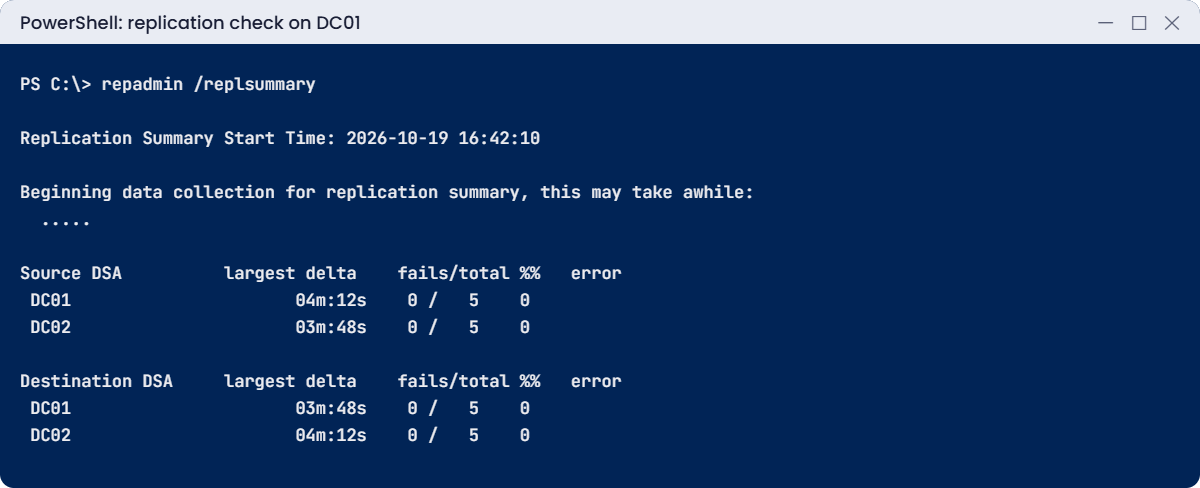
The user was created on DC02 and read from DC01 30 seconds later, so replication works in both directions you care about. repadmin /replsummary gives the overview admins check every day:
You should see something like this:
Name      DistinguishedName
----      -----------------
Repl Test CN=Repl Test,OU=Sales,OU=Staff,OU=SAATLAB,DC=saatlab,DC=internal

Replication Summary Start Time: 2026-10-19 16:42:10

Beginning data collection for replication summary, this may take awhile:
  .....

Source DSA          largest delta    fails/total %%   error
 DC01                      04m:12s    0 /   5    0
 DC02                      03m:48s    0 /   5    0

Destination DSA     largest delta    fails/total %%   error
 DC01                      03m:48s    0 /   5    0
 DC02                      04m:12s    0 /   5    0
Read the fails/total column: 0 failures out of 5 partitions (schema, configuration, the domain, and the two DNS zones partitions). “Largest delta” is the time since the last successful replication. A few minutes is fine; hours or an error number is your cue for Lesson 45.
Clean up and take snapshots. Remove the test user, shut down every VM, then on your laptop:
Remove-ADUser repl.test -Confirm:$false     # on DC01
'DC01','DC02','SRV01','CL01' | ForEach-Object { VBoxManage snapshot $_ take "Domain joined" }     # on your laptop
✅ Checkpoint: Both DCs show IsGlobalCatalog True, replsummary shows 0 failures, and all four VMs have a “Domain joined” snapshot.
You’ll break CL01 twice and fix it twice. These two faults cover a big share of real “can’t join” and “can’t sign in” tickets. Start DC01 and CL01, and sign in to CL01 as labadmin, the local account.
1Break it: a client using public DNS
On CL01, in PowerShell as administrator:
Set-DnsClientServerAddress -InterfaceAlias Ethernet -ServerAddresses 1.1.1.1
Clear-DnsClientCache
nltest /dsgetdc:saatlab.internal
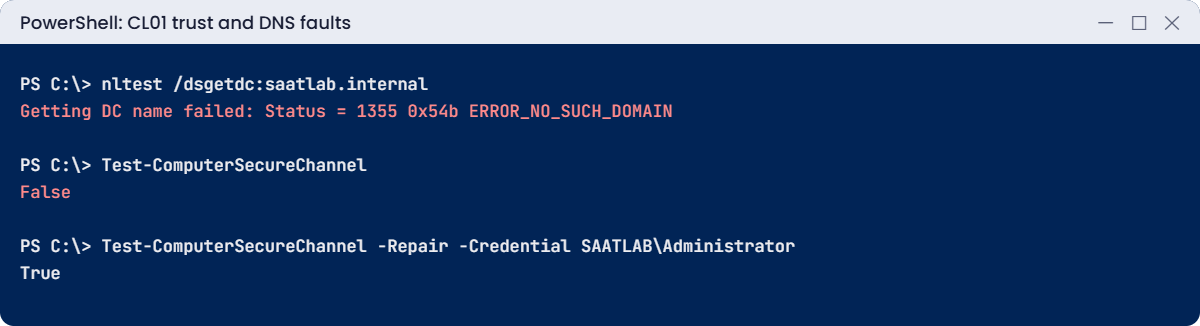
You’ll get an error like this:
Getting DC name failed: Status = 1355 0x54b ERROR_NO_SUCH_DOMAINnltest /dsgetdc runs the same DC locator a join uses. The public resolver has never heard of saatlab.internal, so no DC can be found. A join in this state fails with “The specified domain either does not exist or could not be contacted”, and people waste hours checking passwords that were never even sent.
Fix it: point back at your DCs and test again:
Set-DnsClientServerAddress -InterfaceAlias Ethernet -ServerAddresses 10.0.0.10, 10.0.0.11
nltest /dsgetdc:saatlab.internal
You should see something like this:
           DC: \\DC01.saatlab.internal
      Address: \\10.0.0.10
     Dom Guid: 7c3f1a2e-5b8d-4e61-9a0f-2d4c6b8e1f37
     Dom Name: saatlab.internal
  Forest Name: saatlab.internal
 Dc Site Name: Default-First-Site-Name
Our Site Name: Default-First-Site-Name
        Flags: PDC GC DS LDAP KDC TIMESERV GTIMESERV WRITABLE DNS_DC DNS_DOMAIN DNS_FOREST CLOSE_SITE FULL_SECRET WS ...
The command completed successfully
✅ Checkpoint: nltest fails with 1355 on 1.1.1.1 and finds a DC again on 10.0.0.10.
2Break it: the trust relationship
On DC01, reset CL01's computer account. This changes the password in AD only:
dsmod computer "CN=CL01,OU=Workstations,OU=SAATLAB,DC=saatlab,DC=internal" -resetYou should see this:
dsmod succeeded:CN=CL01,OU=Workstations,OU=SAATLAB,DC=saatlab,DC=internalRestart CL01 and try to sign in as SAATLAB\priya.sharma.
You’ll get an error like this:
The trust relationship between this workstation and the primary domain failed.AD now holds a password CL01 doesn’t know, so CL01 can’t build its secure channel and the DC won’t accept sign-ins through it. In real life this follows restoring an old VM snapshot or backup, or two machines sharing a name.
Fix it: sign in as labadmin, confirm, and repair:
Test-ComputerSecureChannel
Test-ComputerSecureChannel -Repair -Credential SAATLAB\Administrator
You should see something like this:
False
True
-Repair sets a new password on both sides, with no rejoin and no restart. Rejoining also works, but it creates a new SID for the computer account and loses its group memberships, so repair first.
✅ Checkpoint: After the repair, priya.sharma can sign in to CL01 again.