Install Windows Server 2025

Everything so far has been preparation. Now you install Windows Server 2025 for real: on DC01 first, then on SRV01, the two servers you’ll use in almost every lesson from here on.

You’ll walk through every Setup screen and see why each choice matters. Then you’ll check what you installed from inside the server, and take a snapshot so you can always get back to a clean start.

TimeYou needBy the end you can
About 60 minutes, half of it waiting for SetupThe four VMs from Lesson 2 and the server2025.iso fileInstall Windows Server 2025 with Desktop Experience, sign in to a VM, install Guest Additions, check the edition and evaluation time from inside the server, and take and restore snapshots

What it is, in one line

To install Windows Server 2025 you boot a machine from the installation media, choose an edition and install type, pick a disk, and set the Administrator password; Setup does the rest.

In Simple Words

Moving into an empty flat

A new flat comes with walls, wiring and plumbing, but nothing inside. Before you can live there, you choose which furniture set to bring, decide which room gets what, and change the lock so only you have the key.

Installing Windows is the same. The VM from Lesson 2 is the empty flat. Setup asks which “furniture set” you want (the edition and install type), which room to use (the disk), and what the key is (the Administrator password).

And before you start decorating, you take a photo of the clean flat. That photo is a snapshot: if things go badly wrong later, you can put the flat back exactly as it was.

Engineer's View

What Setup really does, and what it needs

Minimum hardware. Windows Server 2025 needs a 1.4 GHz 64-bit processor with features such as SSE4.2 and second-level address translation, which every modern laptop has.

Your 2 GB VMs with 60 GB disks are fine for a lab. UEFI, Secure Boot and TPM 2.0 are only needed for certain features such as BitLocker, not for installation.

What happens during Setup. Setup boots a small Windows PE system from the ISO, creates the partitions on the disk, copies the image you chose from install.wim onto it, and installs drivers.

It then restarts a couple of times, finishing hardware detection and settings. You only answer questions at the start and set a password at the end.

Partitions. On a BIOS VM like DC01, Setup creates a small System Reserved partition and the Windows partition (C:).

On UEFI machines it creates an EFI system partition, a Microsoft Reserved partition and C:. You’ll see both layouts in Lesson 16.

The Administrator account. Setup asks for a password for the built-in local Administrator.

It must meet complexity rules: at least 8 characters with three of uppercase, lowercase, numbers and symbols. Write it down for the lab; on real servers it goes into a password vault.

Guest Additions. VirtualBox’s driver pack for the guest.

It gives you a screen that resizes with the window, smoother mouse movement, a shared clipboard and better graphics. Hyper-V and VMware have their own versions of the same idea.

Snapshots are not backups. A snapshot saves the VM’s disk (and optionally memory) at one moment so you can roll back.

It lives next to the VM on the same disk, so if that disk dies, the snapshot dies with it. In real data centres, snapshots are kept for hours or days around a change, never as the backup plan.

Where’s CL01? You’ll install Windows 11 on CL01 in Lesson 13, right before you join it to the domain.

How it works, step by step

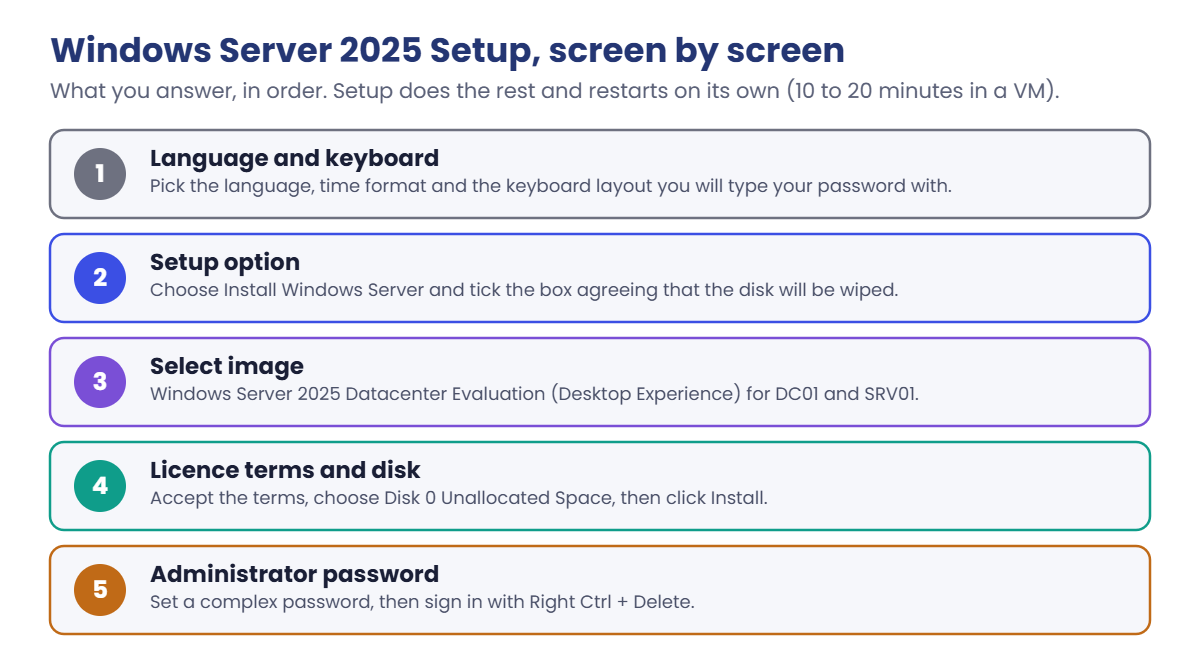
Windows Server 2025 uses the same Setup screens as Windows 11. Here they are in order, so nothing surprises you:

Install Windows Server 2025 setup screens in order: language, setup option, image, disk, password
  1. Language and keyboard. Pick the language, time format and keyboard you’ll type with. A wrong keyboard layout is the most common reason a password “doesn’t work” later.
  2. Setup option. Choose Install Windows Server and tick the box that agrees everything on the disk will be deleted. Repair is for fixing an existing installation (Lesson 48).
  3. Select image. The same four images you listed in Lesson 3. For DC01 and SRV01, choose Windows Server 2025 Datacenter Evaluation (Desktop Experience).
  4. Licence terms, then the disk. Accept the terms and pick Disk 0 Unallocated Space. Setup creates the partitions for you.
  5. Install, restart, password. Setup copies files and restarts on its own. At the end it asks for the Administrator password, then shows the sign-in screen.

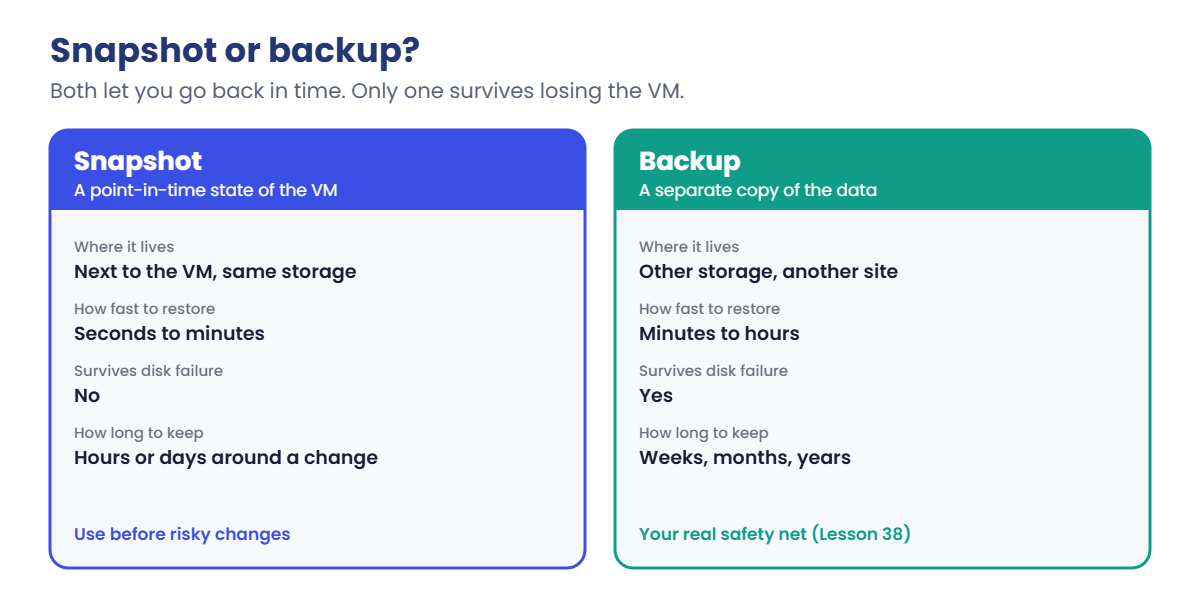
Once the server is installed, the snapshot is your safety net for the rest of the course. Here’s how it compares with a real backup:

Install Windows Server 2025 lab: snapshot compared with backup

In the lab, you’ll take a snapshot before every risky change. At work, you’ll do the same before a change, and delete it a day or two later once the change is proven, because old snapshots slow VMs down and fill up storage.

Hands-on Lab: install Windows Server 2025 on DC01 and SRV01

Steps 1 to 6 happen inside the DC01 window. Steps 7 and 8 use PowerShell on your laptop. You’ll repeat the short version for SRV01 at the end.

1Start DC01 and begin Setup

In PowerShell on your laptop, run this:

VBoxManage startvm DC01

The VM window opens and boots from the Server 2025 ISO. When Setup shows Select language settings, choose your language and time format, click Next, then choose your keyboard layout and click Next again.

✅ Checkpoint: The DC01 window shows Windows Server Setup.

2Choose Install and the right image

On Select setup option, choose Install Windows Server, tick I agree everything will be deleted including files, apps, and settings, and click Next. On Select image, choose Windows Server 2025 Datacenter Evaluation (Desktop Experience) and click Next. Accept the licence terms.

✅ Checkpoint: You picked the image that ends in “(Desktop Experience)”. The ones without it install Server Core.

3Pick the disk and install

On Select location to install you’ll see Disk 0 Unallocated Space of 60 GB.

Select it, click Next, then Install. Setup copies files and restarts by itself, usually in 10 to 20 minutes. If you see “Press any key to boot from CD or DVD” after a restart, don’t press anything; let it boot from the disk.

✅ Checkpoint: Setup finished copying files and the VM restarted at least once.

4Set the Administrator password and sign in

On Customize settings, type a password for Administrator twice and click Finish. Use something like Lab-Admin-2026! that meets the complexity rules, and write it down.

To sign in, press Right Ctrl + Delete (VirtualBox’s “host key” plus Delete) instead of Ctrl+Alt+Delete, then type the password. Server Manager opens on its own; leave it open.

✅ Checkpoint: You are signed in to DC01 as Administrator and Server Manager is open.

5Install Guest Additions

In the DC01 window’s menu, choose Devices, Insert Guest Additions CD image. In DC01, open File Explorer, open the CD drive and run VBoxWindowsAdditions.exe. Click through with the defaults, allow the driver installs, and choose Reboot now at the end.

✅ Checkpoint: After the restart, the DC01 screen resizes when you resize its window.

6Check what you installed, from inside the server

Sign in again, open PowerShell inside DC01 and run these one at a time:

Get-CimInstance Win32_OperatingSystem | Select-Object Caption, Version, CSName
(Get-ItemProperty 'HKLM:\SOFTWARE\Microsoft\Windows NT\CurrentVersion').InstallationType
Get-CimInstance SoftwareLicensingProduct -Filter "Name LIKE 'Windows%' AND PartialProductKey IS NOT NULL" |
    Select-Object Name, LicenseStatus, @{n='DaysLeft';e={[math]::Round($_.GracePeriodRemaining/1440)}}

You should see something like this:

Caption                                         Version    CSName
-------                                         -------    ------
Microsoft Windows Server 2025 Datacenter Evaluation 10.0.26100 WIN-4JH2T8QK1VD

Server

Name                                         LicenseStatus DaysLeft
----                                         ------------- --------
Windows(R), ServerDatacenterEval edition                 1      180
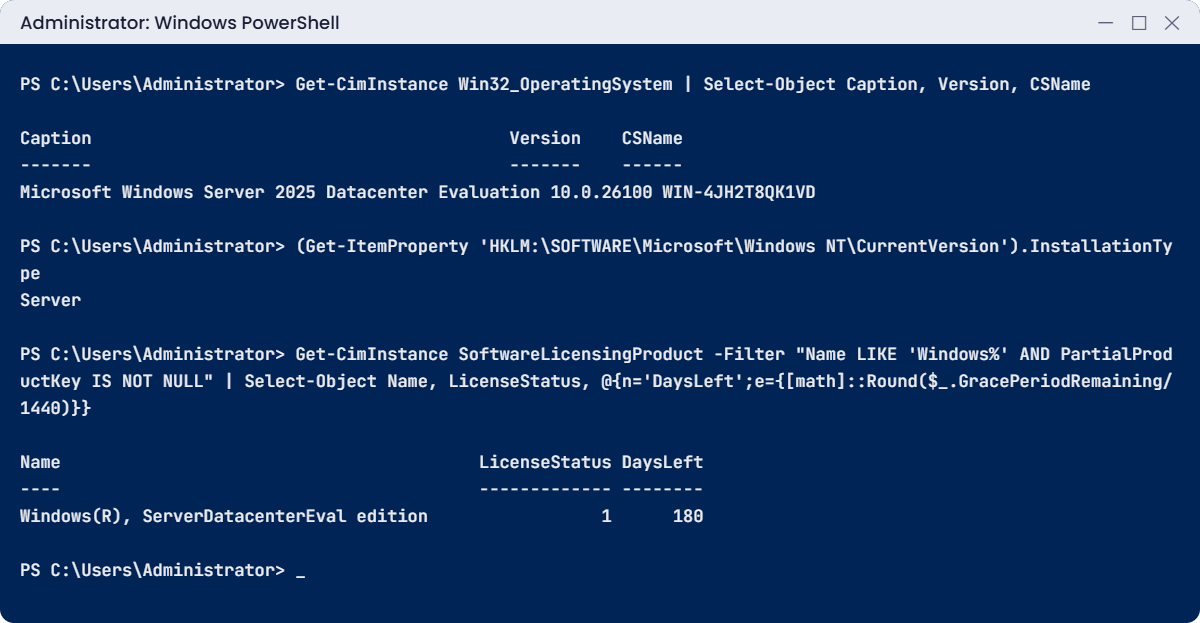
Install Windows Server 2025 checks in PowerShell: caption, installation type and evaluation days
Example output. Your computer name will be different.

Three useful facts in three commands. CSName is the random name Setup picked; you’ll change it in Lesson 6. InstallationType says Server for Desktop Experience and Server Core for Core, which is the quickest way to tell them apart from a script.

DaysLeft is the evaluation time. DC01 has no network address yet, because LabNet has no DHCP on purpose, so the evaluation can’t activate online until Lesson 6. If you see a small number like 10 instead of about 180 now, that’s why; check again after Lesson 6.

✅ Checkpoint: Caption says Windows Server 2025 Datacenter Evaluation and InstallationType says Server.

7Shut down, eject the ISO and take a snapshot

In DC01’s PowerShell, shut it down:

Stop-Computer

When the window closes, run these in PowerShell on your laptop:

VBoxManage storageattach DC01 --storagectl SATA --port 1 --device 0 --type dvddrive --medium emptydrive
VBoxManage snapshot DC01 take "Fresh install" --description "Server 2025 installed, Guest Additions, no config"
VBoxManage snapshot DC01 list

You should see something like this:

0%...10%...20%...30%...40%...50%...60%...70%...80%...90%...100%
Snapshot taken. UUID: 6b1e0f3a-2c7d-4e85-9a14-d3f52c8e7b10
   Name: Fresh install (UUID: 6b1e0f3a-2c7d-4e85-9a14-d3f52c8e7b10) *
   Description: Server 2025 installed, Guest Additions, no config

Ejecting the ISO stops the “Press any key to boot from CD” prompt from appearing every time DC01 starts. The * marks the snapshot the VM is currently based on.

✅ Checkpoint: DC01 has a snapshot called “Fresh install”.

8Do the same for SRV01

Repeat steps 1 to 7 for SRV01: same image, same disk choice, a password you’ll remember, Guest Additions, then shut down, eject and snapshot. Use these commands for the start and the end:

Run these on your laptop:

VBoxManage startvm SRV01
# ... install, set password, Guest Additions, Stop-Computer inside SRV01 ...
VBoxManage storageattach SRV01 --storagectl SATA --port 1 --device 0 --type dvddrive --medium emptydrive
VBoxManage snapshot SRV01 take "Fresh install"

✅ Checkpoint: Both DC01 and SRV01 run Windows Server 2025 with Desktop Experience and have a “Fresh install” snapshot.

Break It, Then Fix It

Two things trip up almost everyone in their first week with VMs: snapshots that won’t restore, and a keyboard shortcut that goes to the wrong computer.

1Break it: restore a snapshot while the VM is running

Start DC01, sign in, and create a test file inside it (PowerShell in DC01):

New-Item C:\after-snapshot.txt -ItemType File -Value "made after the snapshot"

Now, while DC01 is still running, run this on your laptop:

VBoxManage snapshot DC01 restore "Fresh install"

You’ll get an error like this:

Restoring snapshot 'Fresh install' (6b1e0f3a-2c7d-4e85-9a14-d3f52c8e7b10)
VBoxManage.exe: error: Cannot delete the current state of the running machine (machine state: Running)
VBoxManage.exe: error: Details: code VBOX_E_INVALID_VM_STATE (0x80bb0002), component SessionMachine, interface IMachine, callee IUnknown
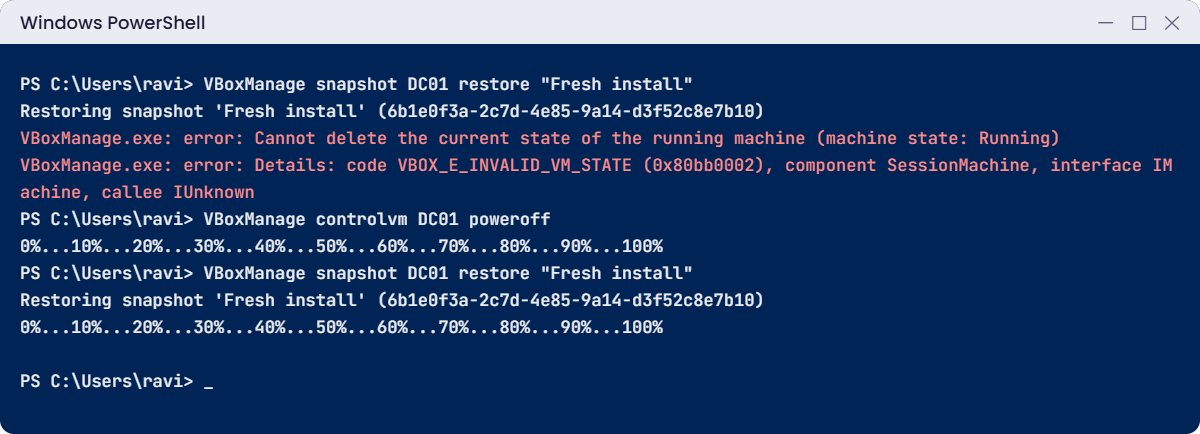
Install Windows Server 2025 lab: snapshot restore fails while the VM is running
Example output. Your UUID will be different.

Restoring a snapshot throws away the VM’s current state, and VirtualBox won’t throw away a state that’s running. The same rule applies in Hyper-V and VMware: you revert a stopped VM, or the tool stops it for you.

Fix it: power off, then restore:

VBoxManage controlvm DC01 poweroff
VBoxManage snapshot DC01 restore "Fresh install"
VBoxManage startvm DC01

You should see something like this:

0%...10%...20%...30%...40%...50%...60%...70%...80%...90%...100%
Restoring snapshot 'Fresh install' (6b1e0f3a-2c7d-4e85-9a14-d3f52c8e7b10)
0%...10%...20%...30%...40%...50%...60%...70%...80%...90%...100%
Waiting for VM "DC01" to power on...
VM "DC01" has been successfully started.

Sign in and look for C:\after-snapshot.txt: it’s gone. A restore takes you back to the exact moment of the snapshot and loses everything after it. That’s why you never “just restore” a production server without asking what changed since.

✅ Checkpoint: The restore failed while DC01 was running, worked after poweroff, and the test file disappeared.

2Break it: Ctrl+Alt+Delete goes to your laptop

At the DC01 sign-in screen, press Ctrl+Alt+Delete on your keyboard. Instead of DC01’s sign-in box, your laptop’s own security screen appears (Lock, Switch user, Task Manager). Windows always catches this key combination for itself, before any app sees it.

Fix it: press Esc to get back, click the DC01 window, and press Right Ctrl + Delete. Right Ctrl is VirtualBox’s host key; host key + Delete sends Ctrl+Alt+Delete to the VM. You can also use the VM window’s menu: Input, Keyboard, Insert Ctrl-Alt-Del.

✅ Checkpoint: You can open the DC01 sign-in box with Right Ctrl + Delete.

This happened at work

The temporary file server that kept switching off

A finance team needed a file server quickly for a project. The engineer on duty built it from the evaluation ISO he already had on his laptop, telling himself he’d put a proper key in “next week”. The server went live, the project grew, and nobody touched it again.

Six months later, in the middle of quarter-end close, the server started shutting itself down every hour. Twenty people lost unsaved spreadsheets, twice, before anyone looked at the event log. Event entries from the licensing service made it clear: the evaluation period had ended.

Because it was a member server and not a domain controller, the team could fix it the same evening. They ran DISM /online /Set-Edition with a real Standard key and restarted after hours.

The fix for the future: a build checklist that every new server must pass before handover, including slmgr /dli showing a non-evaluation channel, the right name and IP, current updates and a backup job. Install media now comes only from the company’s volume licensing download, never from someone’s laptop.

The lesson: “temporary” servers become permanent. Build every server as if it will run for five years.

Common mistakes and troubleshooting

Mistake or symptomWhat happensWhat to do instead
Picking an image without “(Desktop Experience)”You get Server Core, with no desktop to follow the lessonsReinstall and choose the Desktop Experience image; you can’t switch afterwards
Pressing a key at “Press any key to boot from CD or DVD” after installSetup starts againLet it time out, and eject the ISO once Windows is installed
Password rejected at the end of SetupIt doesn’t meet complexity rulesUse 8+ characters with three of: upper, lower, number, symbol
Password “wrong” at sign-inUsually a different keyboard layout or Caps LockCheck the keyboard layout chosen in Setup and the language icon on the sign-in screen
Screen stays small and the mouse is jumpyGuest Additions aren’t installedDevices, Insert Guest Additions CD image, run VBoxWindowsAdditions.exe, reboot
“Cannot delete the current state of the running machine”Snapshot restore refusedPower off the VM first, then restore
Lots of old snapshotsVM disk gets slow and fills the laptop’s driveKeep one or two named snapshots; delete the rest with VBoxManage snapshot … delete
DaysLeft shows about 10, not 180The evaluation hasn’t activated online yetGive the server network access in Lesson 6, then check again
VM says “No bootable medium found”No ISO attached and the disk is emptyAttach server2025.iso to SATA port 1 as in Lesson 2

Interview questions

Click a question to open it. Under each one you’ll find what the interviewer is really looking for, and one good way to answer.

Fresher level

1. What do you need to install Windows Server 2025?

What they’re really checking: Do you know the basic requirements?

How you could answer: A 64-bit 1.4 GHz processor with modern instruction support, at least 2 GB of RAM for Desktop Experience, around 32 GB of disk at the very minimum (more in practice), and the installation media. TPM 2.0, UEFI and Secure Boot are needed for features like BitLocker and Secured-core, not for installation.

2. What is the difference between a snapshot and a backup?

What they’re really checking: Do you know why snapshots aren’t enough?

How you could answer: A snapshot captures a VM’s state at a point in time and lives with the VM, so it’s great for quick rollback before a change. A backup is a separate copy stored elsewhere, so it survives the loss of the VM or its storage. You need backups; snapshots are short-term.

3. How do you tell Server Core from Desktop Experience on a running server?

What they’re really checking: Can you check rather than guess?

How you could answer: Look for a desktop and Server Manager, or check the InstallationType value under HKLM\SOFTWARE\Microsoft\Windows NT\CurrentVersion: “Server” for Desktop Experience and “Server Core” for Core.

2–5 years experience

4. How would you install 50 servers the same way?

What they’re really checking: Do you think beyond clicking Next?

How you could answer: Use unattended installs with an answer file (autounattend.xml), or deploy from a prepared image with sysprep through tools like WDS, MDT or Configuration Manager. In virtual environments, use templates. Then apply the same configuration with scripts or DSC.

5. What do you check before handing over a newly built server?

What they’re really checking: Do you follow a build standard?

How you could answer: Correct edition and activation channel (not evaluation), name and IP, domain join, latest updates, antivirus and monitoring agents, backup job working, time sync, and the server recorded in the inventory with an owner.

6. A server keeps shutting down every hour. What do you look at first?

What they’re really checking: Do you know the evaluation expiry symptom?

How you could answer: The System event log for who or what initiated the shutdown, and slmgr /dli or /xpr for licence state. An expired evaluation shuts Windows down every hour. Convert it with DISM if it’s not a domain controller, or rebuild.

Senior level

7. What is your policy for VM snapshots in production?

What they’re really checking: Do you know snapshots carry real risk?

How you could answer: Take them before a change, name them with the change ID, and delete them within a set time, often 24 to 72 hours. Never treat them as backups, never leave them on domain controllers long term, and monitor for old snapshots because they slow I/O and grow without limit.

8. Why is restoring an old snapshot of a domain controller dangerous?

What they’re really checking: Do you understand AD replication state?

How you could answer: Rolling a DC back in time can cause USN rollback: the DC reuses update numbers its partners have already seen, so changes stop replicating. Modern Hyper-V and VMware support VM-GenerationID, which makes Windows detect the restore and protect itself, but the safe approach is still to restore AD from a proper backup.

9. How do you standardise server builds across teams?

What they’re really checking: Do you think about consistency and control?

How you could answer: One approved image or build script per OS version, kept in version control, with media from the volume licensing portal only. A checklist or automated tests verify every build, and exceptions are documented. Images are refreshed regularly with the latest updates.

Quick quiz

Q1. Which image gives you the full desktop and Server Manager?

  1. Windows Server 2025 Datacenter Evaluation
  2. Windows Server 2025 Datacenter Evaluation (Desktop Experience)
  3. Windows PE
Show answer

B — Images ending in “(Desktop Experience)” include the desktop.

Q2. How do you send Ctrl+Alt+Delete to a VirtualBox VM?

  1. Ctrl+Alt+Delete
  2. Right Ctrl + Delete
  3. Alt+F4
Show answer

B — Right Ctrl is the default host key; host key + Delete sends Ctrl+Alt+Delete.

Q3. Why did the snapshot restore fail in the Break It lab?

  1. The snapshot was corrupt
  2. The VM was running
  3. The disk was full
Show answer

B — VirtualBox won’t discard the state of a running VM.

Q4. What does InstallationType “Server” mean?

  1. Server Core
  2. Desktop Experience
  3. Nano Server
Show answer

B — “Server” is Desktop Experience; Core shows “Server Core”.

Q5. In the work story, why did the file server shut down every hour?

  1. A virus
  2. Its evaluation period had ended
  3. A power fault
Show answer

B — Expired evaluations shut down hourly. It was fixed with DISM /Set-Edition.

Quick recap

  • To install Windows Server 2025: boot the ISO, choose Install, pick the image, the disk and an Administrator password.
  • Images ending in (Desktop Experience) have the desktop; you can’t switch later.
  • Use Right Ctrl + Delete to sign in to a VirtualBox VM, and install Guest Additions.
  • Check from inside: Win32_OperatingSystem for the caption, InstallationType for Core vs Desktop, and GracePeriodRemaining for evaluation days.
  • Snapshots are quick rollbacks, not backups. Restore only when the VM is off, and anything after the snapshot is lost.

Next lesson

Lesson 6: Initial configuration → You’ll rename DC01 and SRV01, give them their fixed IP addresses on LabNet, set DNS and the time zone, install updates, turn on Remote Desktop, and learn sconfig and Server Manager.

Further reading: how to install Windows Server 2025

Want to go deeper into how to install Windows Server 2025? Read Microsoft’s Install Windows Server from installation media on Microsoft Learn. You can also see the full plan for this course on the Windows Server Administration course page.

Scroll to Top