PowerShell automation for Windows Server admins
-
Phase 0: Before you start
-
Phase 1: The foundation
-
Phase 2: Core administration and security
-
Phase 3: Enterprise infrastructure
-
Phase 4: Troubleshooting step by step
-
Phase 5: Final project and career
Doing a check on one server is admin work. Doing it on 200 servers every morning is a job for PowerShell automation: run commands remotely, wrap them in a script that handles errors, and schedule it so the report is waiting when you arrive.
In this lesson you’ll run commands on all your servers at once, write a reusable server report script with parameters and error handling, schedule the GPO backup from Lesson 20, keep a folder in place with DSC, and fix the two problems that trip up every new script writer.
| Time | You need | By the end you can |
|---|---|---|
| About 90 minutes | DC01, DC02 and SRV01; PowerShell basics from Lesson 7 | Use Invoke-Command and sessions, write advanced scripts with parameters and try/catch, schedule tasks, use DSC, and solve the double-hop and silent-error problems |
What it is, in one line
PowerShell automation means using scripts, remoting and scheduling so PowerShell does repeated admin work across many servers without you typing each command.
In Simple Words
The teacher with a megaphone
A teacher who wants every class to line up can walk to each room and say it 20 times, or use the school’s speaker system and say it once. Every room hears the same instruction at the same moment.
Invoke-Command is the speaker system: one command, every server. A script is the written announcement, so anyone can read it out the same way. A scheduled task is the bell that rings at 9:00 every day without anyone pressing it.
And a good announcement says what to do if a room is empty, just like a good script handles a server that doesn’t answer.
Engineer's View
Remoting, scripts, errors, scheduling, DSC
Remoting: PowerShell remoting uses WinRM (HTTP 5985, HTTPS 5986) and is on by default on Windows Server. Invoke-Command -ComputerName a,b,c runs a script block on many computers in parallel (32 at a time by default) and returns objects tagged with PSComputerName. New-PSSession keeps connections open for repeated use.
Remoting authenticates with Kerberos in a domain.
Scripts: [CmdletBinding()] and a param() block turn a script into something that behaves like a cmdlet: typed parameters, -Verbose, -WhatIf with SupportsShouldProcess. Output objects, not text, so results can be sorted, filtered and exported.
Errors: most cmdlet errors are non-terminating: they print red text and carry on, and try/catch won’t see them. Add -ErrorAction Stop (or set $ErrorActionPreference) to make them catchable.
Scheduling and DSC: scheduled tasks run scripts as SYSTEM, a gMSA or a service account, never a person’s account. Desired State Configuration describes how a server should look and can check or correct drift. The double hop: a remote session can’t use your credentials to reach a third computer unless delegation is set up.
How it works, step by step
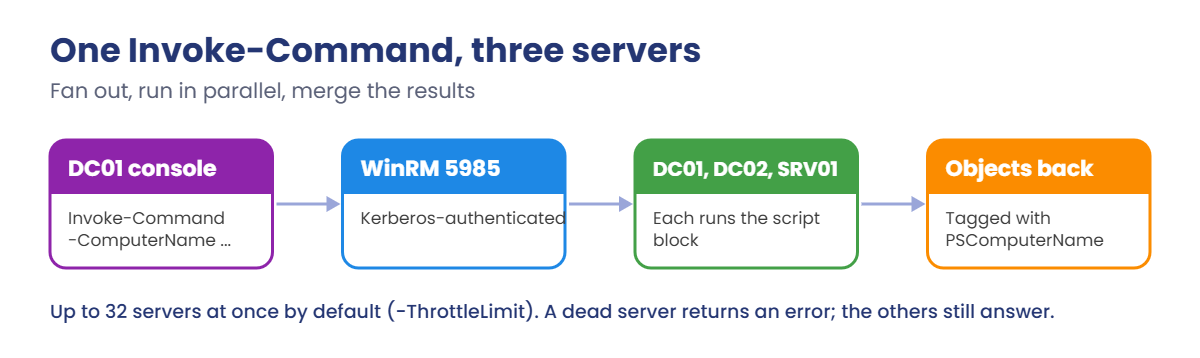
How one Invoke-Command reaches three servers and comes back as one table:
Each server runs the script block itself and sends back objects. Your console merges them, adding PSComputerName so you know which result came from where. A server that’s down produces an error for that one name, and the others still return.
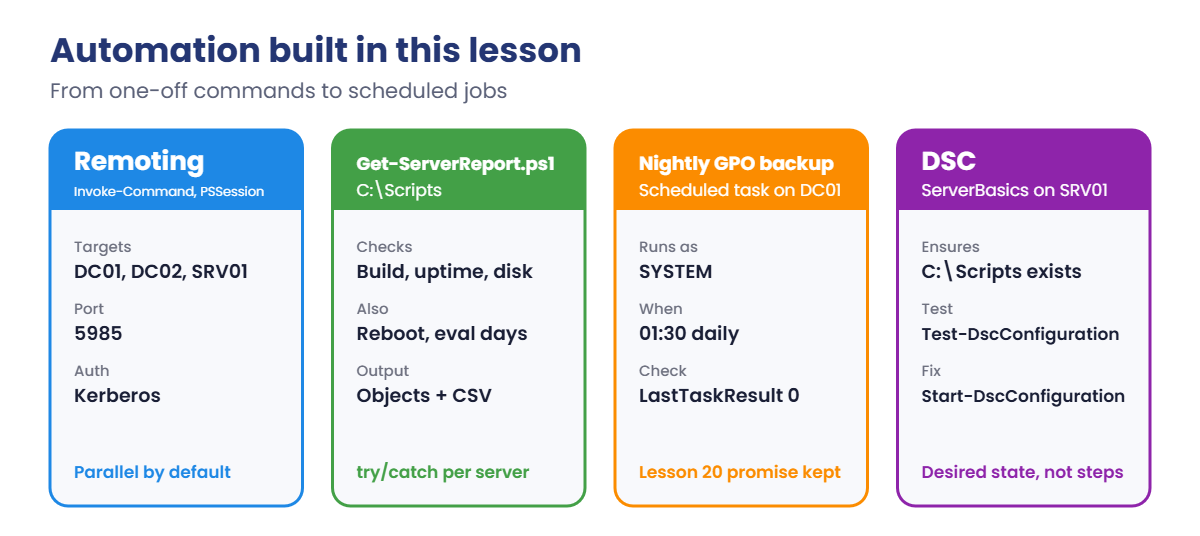
What you’ll automate in this lab:
- Remote commands on DC01, DC02 and SRV01 at once.
- Get-ServerReport.ps1: build, uptime, disk, pending reboot and evaluation days, with error handling.
- Scheduled GPO backup on DC01 every night.
- DSC: make sure C:\Scripts exists on SRV01.
Hands-on Lab: PowerShell automation across the lab servers
Start DC01, DC02 and SRV01. Work on DC01 as SAATLAB\adm.rahul (or Administrator) in PowerShell as administrator.
1Run one command on every server
On DC01, run this:
$servers = 'DC01','DC02','SRV01'
Test-WSMan SRV01 | Select-Object ProductVersion
Invoke-Command -ComputerName $servers -ScriptBlock {
Get-CimInstance Win32_OperatingSystem | Select-Object Caption, LastBootUpTime
} | Select-Object PSComputerName, Caption, LastBootUpTimeYou should see something like this:
ProductVersion
--------------
OS: 0.0.0 SP: 0.0 Stack: 3.0
PSComputerName Caption LastBootUpTime
-------------- ------- --------------
DC01 Microsoft Windows Server 2025 Datacenter Evaluation 19/10/2026 14:02:11
SRV01 Microsoft Windows Server 2025 Datacenter Evaluation 19/10/2026 16:41:37
DC02 Microsoft Windows Server 2025 Datacenter Evaluation 19/10/2026 14:05:52Results come back in whatever order servers answer, because they run in parallel. Test-WSMan answering proves WinRM is listening on SRV01.
✅ Checkpoint: All three servers return their OS and last boot time in one table.
2Reuse connections with sessions
On DC01:
$s = New-PSSession -ComputerName $servers
Invoke-Command -Session $s -ScriptBlock { Get-Service W32Time, Netlogon -ErrorAction SilentlyContinue | Select-Object Name, Status } |
Sort-Object PSComputerName | Format-Table PSComputerName, Name, Status -AutoSize
Remove-PSSession $sYou should see something like this:
PSComputerName Name Status
-------------- ---- ------
DC01 Netlogon Running
DC01 W32Time Running
DC02 Netlogon Running
DC02 W32Time Running
SRV01 Netlogon Running
SRV01 W32Time RunningSessions save the connection setup time when you send many commands, and they keep variables between calls. Always remove them when you’re done.
✅ Checkpoint: Netlogon and W32Time are Running on all three servers.
3Write Get-ServerReport.ps1
On DC01, create C:\Scripts\Get-ServerReport.ps1 with this content (in Notepad or VS Code):
[CmdletBinding()]
param(
[Parameter(Mandatory)][string[]]$ComputerName,
[string]$OutFile = "C:\Scripts\ServerReport-$(Get-Date -Format yyyyMMdd).csv"
)
$results = foreach ($c in $ComputerName) {
try {
Invoke-Command -ComputerName $c -ErrorAction Stop -ScriptBlock {
$os = Get-CimInstance Win32_OperatingSystem
$cv = Get-ItemProperty 'HKLM:\SOFTWARE\Microsoft\Windows NT\CurrentVersion'
$disk = Get-CimInstance Win32_LogicalDisk -Filter "DeviceID='C:'"
$lic = Get-CimInstance SoftwareLicensingProduct -Filter "Name LIKE 'Windows%' AND PartialProductKey IS NOT NULL"
[pscustomobject]@{
Build = "$($cv.CurrentBuild).$($cv.UBR)"
UptimeDays = [math]::Round(((Get-Date) - $os.LastBootUpTime).TotalDays, 1)
CFreePct = [math]::Round($disk.FreeSpace / $disk.Size * 100)
Reboot = Test-Path 'HKLM:\SOFTWARE\Microsoft\Windows\CurrentVersion\Component Based Servicing\RebootPending'
EvalDays = [math]::Round($lic.GracePeriodRemaining / 1440)
Status = 'OK'
}
} | Select-Object @{n='Computer';e={$_.PSComputerName}}, Build, UptimeDays, CFreePct, Reboot, EvalDays, Status
}
catch {
Write-Warning "$c : $($_.Exception.Message)"
[pscustomobject]@{ Computer = $c; Build = $null; UptimeDays = $null; CFreePct = $null; Reboot = $null; EvalDays = $null; Status = 'Unreachable' }
}
}
$results | Export-Csv $OutFile -NoTypeInformation
$resultsEach server is wrapped in try/catch with -ErrorAction Stop, so a dead server becomes a row saying “Unreachable” instead of stopping the whole report. It brings together checks from earlier lessons: the build from Lesson 24, the evaluation days from Lesson 4, pending reboot from Lesson 24.
Run it, including a server that doesn’t exist:
New-Item -ItemType Directory C:\Scripts -Force | Out-Null
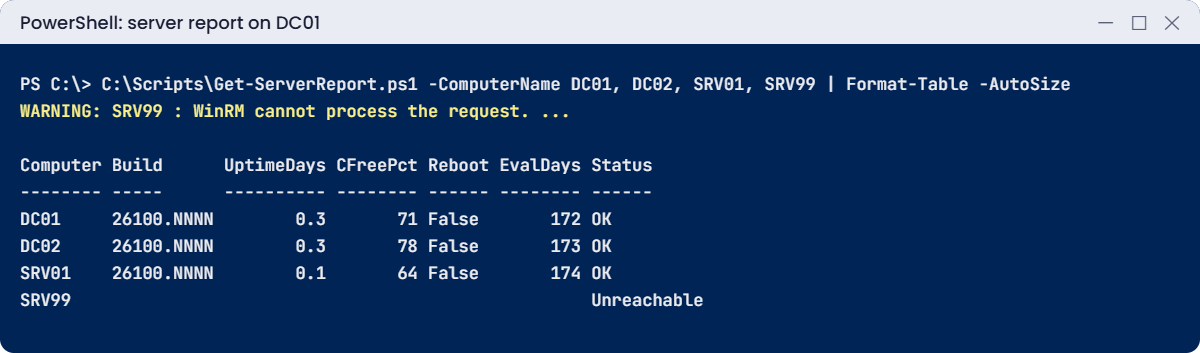
C:\Scripts\Get-ServerReport.ps1 -ComputerName DC01, DC02, SRV01, SRV99 | Format-Table -AutoSizeYou should see something like this:
WARNING: SRV99 : WinRM cannot process the request. ... The specified computer name is not valid or ...
Computer Build UptimeDays CFreePct Reboot EvalDays Status
-------- ----- ---------- -------- ------ -------- ------
DC01 26100.NNNN 0.3 71 False 172 OK
DC02 26100.NNNN 0.3 78 False 173 OK
SRV01 26100.NNNN 0.1 64 False 174 OK
SRV99 Unreachable✅ Checkpoint: The report lists the three real servers with Status OK, SRV99 as Unreachable, and a CSV in C:\Scripts.
4Schedule the nightly GPO backup
On DC01, register a task that runs as SYSTEM every night at 01:30:
$action = New-ScheduledTaskAction -Execute 'powershell.exe' -Argument '-NoProfile -Command "Backup-GPO -All -Path C:\GPOBackups | Out-Null"'
$trigger = New-ScheduledTaskTrigger -Daily -At 01:30
Register-ScheduledTask -TaskName 'Nightly GPO backup' -Action $action -Trigger $trigger -User 'SYSTEM' -RunLevel Highest | Out-Null
Start-ScheduledTask -TaskName 'Nightly GPO backup'
Start-Sleep -Seconds 20
Get-ScheduledTaskInfo -TaskName 'Nightly GPO backup' | Select-Object LastRunTime, LastTaskResult, NextRunTimeYou should see something like this:
LastRunTime LastTaskResult NextRunTime
----------- -------------- -----------
19/10/2026 21:04:10 0 20/10/2026 01:30:00LastTaskResult 0 means success. On a DC, SYSTEM acts as the DC’s computer account, which can read every GPO. For tasks that reach other servers, use a gMSA allowed on the task’s server, with only the rights the task needs, never a person’s account.
✅ Checkpoint: The task ran once with result 0 and is scheduled for 01:30.
5Keep a folder in place with DSC
On SRV01, define and apply a tiny configuration:
Configuration ServerBasics {
Node 'localhost' {
File ScriptsFolder {
DestinationPath = 'C:\Scripts'
Type = 'Directory'
Ensure = 'Present'
}
}
}
ServerBasics -OutputPath C:\DSC\ServerBasics | Out-Null
Start-DscConfiguration -Path C:\DSC\ServerBasics -Wait -Force
Test-DscConfigurationYou should see this:
TrueDelete C:\Scripts on SRV01 and run Test-DscConfiguration again: it says False. Start-DscConfiguration -UseExisting -Wait puts it back. Real configurations describe features, services, registry values and files, and are applied the same way.
✅ Checkpoint: Test-DscConfiguration returns True, then False after deleting the folder, then True after re-applying.
Break It, Then Fix It
Two problems every script writer hits in their first month: errors that try/catch can’t see, and the “double hop”.
1Break it: a catch block that never runs
On DC01, run this:
try {
Get-CimInstance Win32_OperatingSystem -ComputerName SRV99
'Got here, so I think it worked'
}
catch {
'Caught the error'
}You’ll see something like this:
Get-CimInstance : WinRM cannot process the request. The following error with errorcode 0x80090311 occurred while
using Kerberos authentication: ...
+ CategoryInfo : AuthenticationError: (root\cimv2:Win32_OperatingSystem:String) [Get-CimInstance], CimException
+ FullyQualifiedErrorId : HRESULT 0x8033810c,Microsoft.Management.Infrastructure.CimCmdlets.GetCimInstanceCommand
+ PSComputerName : SRV99
Got here, so I think it workedThe error was printed, but it was non-terminating, so the script carried on and said it worked. In a scheduled task nobody sees the red text, only the false “success”. This is how reports end up silently missing servers.
Fix it: make the error terminating so catch can handle it:
try {
Get-CimInstance Win32_OperatingSystem -ComputerName SRV99 -ErrorAction Stop
'Got here, so I think it worked'
}
catch {
"Caught: $($_.Exception.Message.Split('.')[0])"
}You should see something like this:
Caught: WinRM cannot process the request✅ Checkpoint: Without -ErrorAction Stop the script claimed success; with it, the catch block ran.
2Break it: the double hop
On DC01, ask SRV01 to read a share on DC01:
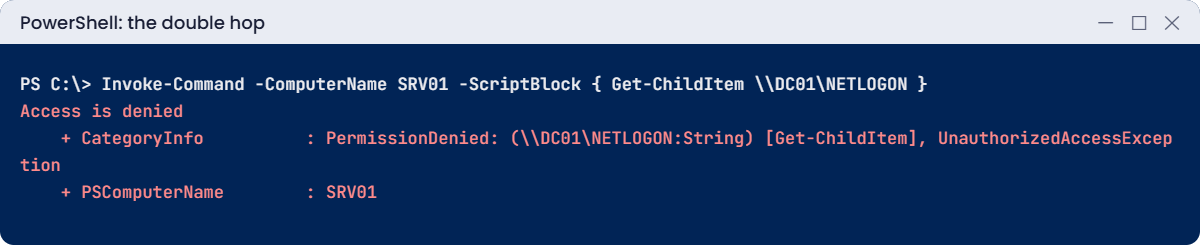
Invoke-Command -ComputerName SRV01 -ScriptBlock { Get-ChildItem \\DC01\NETLOGON }You’ll get an error like this:
Access is denied
+ CategoryInfo : PermissionDenied: (\\DC01\NETLOGON:String) [Get-ChildItem], UnauthorizedAccessException
+ FullyQualifiedErrorId : ItemExistingCheckError,Microsoft.PowerShell.Commands.GetChildItemCommand
+ PSComputerName : SRV01You’re an admin and the share is readable by everyone, yet it’s denied. Your Kerberos ticket got you from DC01 to SRV01 (hop one), but SRV01 has no credentials of yours to present to DC01 (hop two). Windows does this on purpose, so a compromised server can’t reuse your identity.
Fix it: pass a credential explicitly for the second hop:
$cred = Get-Credential SAATLAB\adm.rahul
Invoke-Command -ComputerName SRV01 -ScriptBlock {
New-PSDrive -Name N -PSProvider FileSystem -Root \\DC01\NETLOGON -Credential $using:cred | Out-Null
Get-ChildItem N:\ | Select-Object Name
Remove-PSDrive N
}The credential travels encrypted inside the session and is used only for that drive. For permanent solutions, use resource-based constrained delegation on the target, or run the work directly on the computer that has the data. Never turn on CredSSP broadly to “fix” this.
✅ Checkpoint: The direct second hop was denied, and the explicit credential worked.
This happened at work
The scheduled task that belonged to Ravi
Ravi, a senior admin, had written a good set of scripts: nightly log cleanup on the web servers, a morning disk report and a weekly certificate check. He scheduled them all under his own account, because that was quickest.
Ravi moved to another company. On his last day his account was disabled, as it should be. Every one of his tasks started failing that night, with LastTaskResult 0x8007052F (logon failure), and nobody was watching task results.
Five weeks later, the web servers’ log drives filled up and IIS stopped writing logs, then stopped serving pages. During the investigation, the team also found the certificate check hadn’t run, which explained an expired certificate they’d been chasing.
The fix: every task was moved to a gMSA with the minimum rights it needed, the scripts went into source control, and a daily check now reports any task whose LastTaskResult isn’t 0.
The lesson: automation must never depend on one person’s account. Use managed accounts, and monitor the results of the automation itself.
Common mistakes and troubleshooting
| Mistake or symptom | What happens | What to do instead |
|---|---|---|
| try/catch without -ErrorAction Stop | Errors are printed and ignored; false success | -ErrorAction Stop on commands that must succeed |
| Scheduled tasks under a person’s account | Tasks fail when the person leaves or changes password | SYSTEM or a gMSA with minimal rights |
| “Access is denied” on a second computer from a remote session | Double hop: no credentials for hop two | Explicit -Credential, RBCD, or run the work locally |
| Turning on CredSSP everywhere | Credentials exposed on remote servers | Use RBCD or explicit credentials only where needed |
| Scripts that output formatted text | Results can’t be sorted or exported | Output objects; format only at the end |
| No -WhatIf on scripts that change things | Mistakes happen at full scale | SupportsShouldProcess and test with -WhatIf |
| Not watching task results | Silent failures for weeks | Report on LastTaskResult and script logs daily |
| Hard-coded server lists | New servers are missed | Read targets from AD (Get-ADComputer) or a CMDB |
| Scripts only on someone’s desktop | Lost work and no history | Source control and a shared, protected scripts location |
Interview questions
Click a question to open it. Under each one you’ll find what the interviewer is really looking for, and one good way to answer.
Fresher level
1. How do you run a command on several remote servers?
What they’re really checking: Do you know remoting basics?
How you could answer: Invoke-Command -ComputerName with a list of names and a script block; results come back tagged with PSComputerName.
2. What port does PowerShell remoting use?
What they’re really checking: Do you know WinRM?
How you could answer: WinRM on TCP 5985 for HTTP and 5986 for HTTPS. Traffic is encrypted by Kerberos in a domain even over 5985.
3. How do you schedule a PowerShell script?
What they’re really checking: Have you done it?
How you could answer: Task Scheduler or Register-ScheduledTask with an action running powershell.exe -File, a trigger and a principal such as SYSTEM or a gMSA.
2–5 years experience
4. Why doesn’t try/catch catch some errors?
What they’re really checking: Do you understand error types?
How you could answer: Most cmdlet errors are non-terminating. try/catch only sees terminating errors, so add -ErrorAction Stop or set $ErrorActionPreference = ‘Stop’.
5. What is the double-hop problem and how do you solve it?
What they’re really checking: Do you understand delegation?
How you could answer: From a remote session, your credentials can’t be used to reach a third computer. Solve it with explicit credentials, resource-based constrained delegation, JEA run-as accounts, or by running the task on the target.
6. How do you make a script behave like a cmdlet?
What they’re really checking: Do you write advanced functions?
How you could answer: [CmdletBinding()], a param block with types and validation, SupportsShouldProcess for -WhatIf/-Confirm, Write-Verbose for details, and object output.
Senior level
7. How would you build a daily health report for 300 servers?
What they’re really checking: Do you think about scale and reliability?
How you could answer: Targets from AD, parallel remoting with throttling, per-server try/catch, output to CSV/HTML and a database, run as a gMSA from a management server, alert on failures, keep the script in source control with tests.
8. When would you use DSC instead of scripts?
What they’re really checking: Do you know configuration management?
How you could answer: When you want to declare and keep a desired state across many servers, detect and correct drift, and review configuration as code. Scripts suit one-off or procedural tasks.
9. How do you let helpdesk staff run specific admin commands safely?
What they’re really checking: Do you know JEA?
How you could answer: Just Enough Administration: a constrained endpoint with role capabilities that expose only chosen cmdlets and parameters, running as a virtual or gMSA account, with transcripts.
Quick quiz
Q1. What does Invoke-Command add to each result?
- A timestamp
- PSComputerName
- An error code
Show answer
B — So you know which server answered.
Q2. Why didn’t the first catch block run?
- Wrong syntax
- The error was non-terminating
- SRV99 was up
Show answer
B — Add -ErrorAction Stop.
Q3. What causes the double-hop problem?
- A firewall
- The remote session has no credentials for a third computer
- Slow DNS
Show answer
B — Use explicit credentials or RBCD.
Q4. What does LastTaskResult 0 mean?
- Never run
- Success
- Access denied
Show answer
B — Anything else needs checking.
Q5. In the work story, why did the tasks fail?
- A bad patch
- They ran under an account that was disabled
- The disk was full
Show answer
B — Use gMSAs for automation.
Quick recap
- PowerShell automation runs work across many servers with remoting, scripts and schedules.
Invoke-Commandruns in parallel; sessions reuse connections.- Advanced scripts use
[CmdletBinding()], typed parameters and object output. - try/catch needs
-ErrorAction Stopto see most errors. - Schedule tasks as SYSTEM or a gMSA, never a person, and watch LastTaskResult.
- The double hop needs explicit credentials or delegation.
Next lesson
Lesson 28: Hyper-V basics → You’ll turn on nested virtualization in VirtualBox, install Hyper-V on a lab server, create virtual switches and a VM, use checkpoints, and see why a Hyper-V host needs its own planning.
Further reading: PowerShell automation
Want to go deeper into PowerShell automation? Microsoft’s second hop guide compares every double-hop solution, and the about_Try_Catch_Finally help explains error handling. You can also see the full plan for this course on the Windows Server Administration course page.
