Windows Server networking basics
-
Phase 0: Before you start
-
Phase 1: The foundation
-
Phase 2: Core administration and security
-
Phase 3: Enterprise infrastructure
-
Phase 4: Troubleshooting step by step
-
Phase 5: Final project and career
More Windows Server problems turn out to be network problems than anything else.
“AD is broken” is usually DNS. “The app is down” is often a firewall rule. Solid Windows Server networking basics let you prove where the problem is in a few commands instead of guessing.
In this lesson you’ll do quick subnet maths, see how Windows finds the hardware address of a neighbour, follow the exact order Windows uses to turn a name into an address, and work with firewall profiles and rules. You’ll also learn how servers combine network cards for speed and safety.
| Time | You need | By the end you can |
|---|---|---|
| About 50 minutes | DC01 and SRV01 from Lesson 6, both running | Work out a subnet’s range, explain the name resolution order, read and change firewall profiles and rules, test TCP ports, and explain NIC teaming and SET |
What it is, in one line
Windows Server networking is how a server gets an address, finds other machines by name, decides what traffic to let in through its firewall, and uses one or more network cards to reach them.
In Simple Words
Houses, streets and a gatekeeper
Think of a town.
Every house has an address (the IP address). Houses on the same street (the same subnet) can walk to each other directly. To reach another street, you go through the main road junction (the gateway).
You usually know people by name, not address. So you first check your own notebook (the hosts file), then what you remember from earlier (the DNS cache), and only then ask the town’s information desk (the DNS server).
Each house also has a gatekeeper (the firewall) with a list of who may come in. At home the rules are relaxed; in a coffee shop they’re strict. Windows changes its rules depending on where it thinks it is.
Engineer's View
Addresses, names, firewall and teaming
IPv4 and subnets. An address like 10.0.0.10/24 has a network part (the first 24 bits: 10.0.0) and a host part (.10).
A /24 holds 256 addresses: the first is the network address, the last is the broadcast, so 254 are usable. The private ranges are 10.0.0.0/8, 172.16.0.0/12 and 192.168.0.0/16. Leave IPv6 enabled on Windows Server; Microsoft tests Windows with it on, and turning it off causes odd problems.
ARP. To send to a machine on the same subnet, Windows needs its hardware (MAC) address.
It asks with ARP and caches the answer; Get-NetNeighbor shows the cache. To reach another subnet, it sends to the gateway’s MAC instead.
Name resolution order. For a name like dc01, Windows checks: the DNS client cache (which also holds the entries from the hosts file at C:\Windows\System32\drivers\etc\hosts), then the configured DNS servers, adding the connection’s DNS suffix to short names.
Only if DNS fails does it fall back to local broadcast methods (LLMNR, NetBIOS and mDNS). Those fallbacks are slow and attackers abuse them, so many companies turn them off.
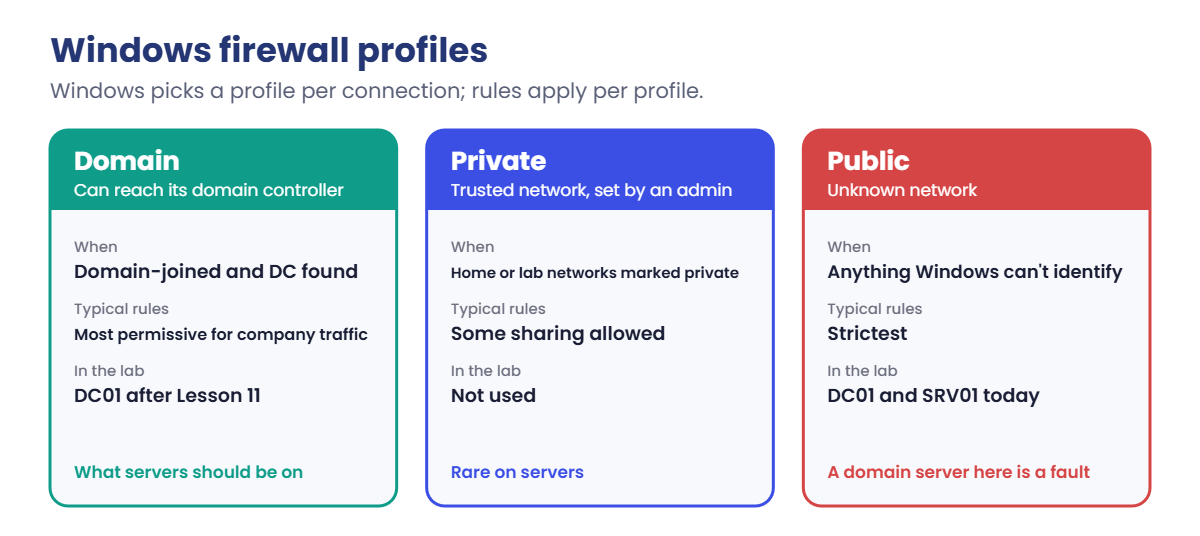
Firewall profiles. Windows Defender Firewall has three profiles: Domain (it can reach its domain controller), Private and Public.
Network Location Awareness (NLA) picks the profile for each connection. Rules apply to one or more profiles, and inbound traffic not allowed by a rule is blocked.
NIC teaming. Servers combine network cards for bandwidth and survival if one fails.
The older LBFO teaming still exists, but on Hyper-V hosts Microsoft recommends Switch Embedded Teaming (SET), built into the Hyper-V virtual switch (Lesson 28). In a VM like your lab, the host handles redundancy and the VM sees one card.
How it works, step by step
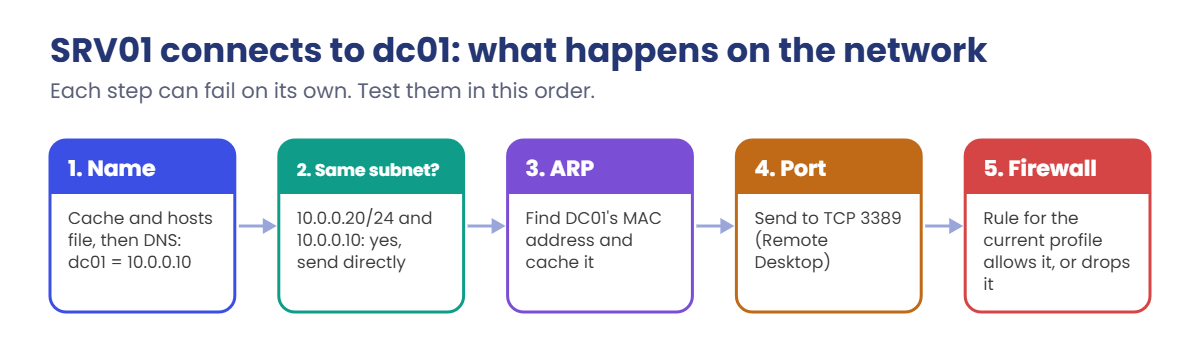
Here’s what happens when SRV01 connects to dc01 by name. Each step can fail on its own, and the lab tests each one:
- Resolve the name. Cache and hosts file first, then the DNS server. Result: 10.0.0.10.
- Same subnet? SRV01 compares 10.0.0.10 with its own address and prefix. 10.0.0.20/24 and 10.0.0.10 share 10.0.0, so yes: send directly. If not, send to the gateway.
- Find the MAC address with ARP and cache it.
- Send the packet to the port, for example TCP 3389 for Remote Desktop.
- DC01’s firewall decides. If a rule for the current profile allows TCP 3389, the connection is accepted. If not, it’s dropped silently.
And here are the three firewall profiles and when Windows uses each:
A server that suddenly lands in the Public profile is a classic outage: the rules you wrote for the Domain profile stop applying. The work story below is exactly that.
Hands-on Lab: Windows Server networking checks between DC01 and SRV01
Start DC01 and SRV01. Use PowerShell as administrator on each. The step title tells you which server to use.
1Work out a subnet’s range (any machine)
Paste this whole block:
function Get-Subnet {
param([string]$Address, [int]$Prefix)
$ip = ([ipaddress]$Address).GetAddressBytes()
$mask = 0..3 | ForEach-Object { $b = [math]::Max(0, [math]::Min(8, $Prefix - 8 * $_)); [byte](256 - [math]::Pow(2, 8 - $b)) }
$net = 0..3 | ForEach-Object { $ip[$_] -band $mask[$_] }
$bc = 0..3 | ForEach-Object { $net[$_] + (255 - $mask[$_]) }
[pscustomobject]@{
Address = $Address
Prefix = $Prefix
Mask = $mask -join '.'
Network = $net -join '.'
Broadcast = $bc -join '.'
UsableHosts = [math]::Pow(2, 32 - $Prefix) - 2
}
}Run this to see all three in a table:
'10.0.0.10/24','192.168.10.77/26','172.16.5.200/20' | ForEach-Object { $a, $p = $_ -split '/'; Get-Subnet $a ([int]$p) } | Format-Table -AutoSizeYou should see this:
Address Prefix Mask Network Broadcast UsableHosts
------- ------ ---- ------- --------- -----------
10.0.0.10 24 255.255.255.0 10.0.0.0 10.0.0.255 254
192.168.10.77 26 255.255.255.192 192.168.10.64 192.168.10.127 62
172.16.5.200 20 255.255.240.0 172.16.0.0 172.16.15.255 4094
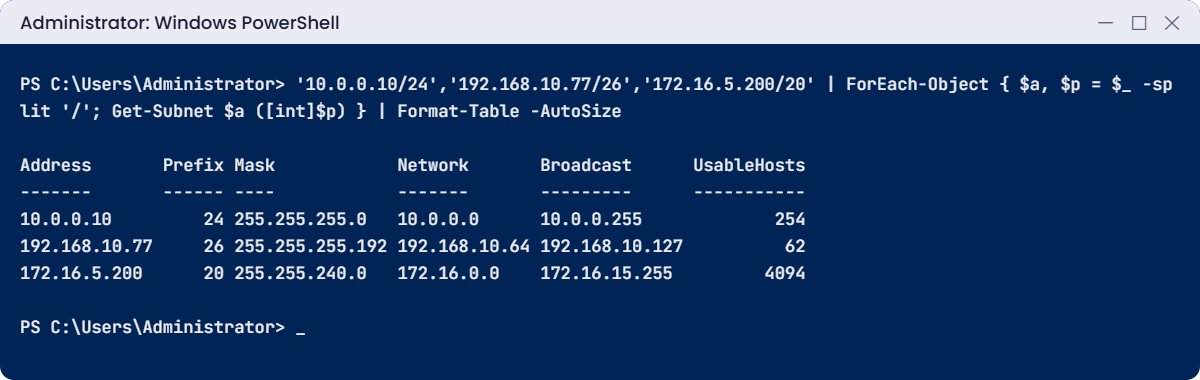
Every extra bit of prefix halves the subnet. A /26 has 62 usable hosts, a /20 has 4,094. When someone asks “is 10.0.0.200 on the same network as DC01?”, you now have an exact answer: yes, it’s inside 10.0.0.0 to 10.0.0.255.
✅ Checkpoint: Your table matches the one above.
2Ping DC01 from SRV01
On SRV01, run this:
Test-NetConnection 10.0.0.10You’ll probably see PingSucceeded : False, even though both servers are fine. Hold that thought; it’s the first Break It below. For now, test a TCP port instead, which is what real applications use:
Still on SRV01, run this:
Test-NetConnection 10.0.0.10 -Port 3389 | Select-Object RemoteAddress, RemotePort, TcpTestSucceededYou should see this:
RemoteAddress RemotePort TcpTestSucceeded
------------- ---------- ----------------
10.0.0.10 3389 True✅ Checkpoint: Ping fails, but TCP 3389 (Remote Desktop, enabled in Lesson 6) succeeds.
3See ARP at work
On SRV01, run this:
Get-NetNeighbor -IPAddress 10.0.0.10, 10.0.0.1 | Select-Object IPAddress, LinkLayerAddress, StateYou should see something like this:
IPAddress LinkLayerAddress State
--------- ---------------- -----
10.0.0.1 52-54-00-12-35-00 Reachable
10.0.0.10 08-00-27-6E-4C-1A ReachableSRV01 learned both MAC addresses with ARP while you tested. 08-00-27 at the start is VirtualBox’s vendor code for virtual network cards. When two machines claim the same IP, this table is where the confusion shows up.
✅ Checkpoint: Both DC01 and the gateway appear with a MAC address.
4Follow the name resolution order
On SRV01, try to resolve DC01 by name:
Resolve-DnsName dc01It fails: there’s no domain DNS yet, and the public resolver has never heard of your DC01. Now add a line to SRV01’s hosts file, the very first place Windows looks:
Run these:
Add-Content C:\Windows\System32\drivers\etc\hosts "10.0.0.10 dc01"
Resolve-DnsName dc01 | Select-Object Name, Type, IPAddress
Get-DnsClientCache -Entry dc01 | Select-Object Entry, Data, TimeToLiveYou should see something like this:
Name Type IPAddress
---- ---- ---------
dc01 A 10.0.0.10
Entry Data TimeToLive
----- ---- ----------
dc01 10.0.0.10 86400The hosts file wins over DNS, and its entries sit in the DNS client cache.
That’s why a forgotten hosts entry can send a server to the wrong place for years. Remove the line now: open the hosts file in Notepad as administrator and delete it, then run Clear-DnsClientCache. From Lesson 11 on, DNS does this job properly.
✅ Checkpoint: dc01 resolved to 10.0.0.10 from the hosts file, and you removed the line again.
5Check firewall profiles
On DC01, run these:
Get-NetConnectionProfile | Select-Object InterfaceAlias, Name, NetworkCategory
Get-NetFirewallProfile | Select-Object Name, Enabled, DefaultInboundActionYou should see something like this:
InterfaceAlias Name NetworkCategory
-------------- ---- ---------------
Ethernet Network Public
Name Enabled DefaultInboundAction
---- ------- --------------------
Domain True NotConfigured
Private True NotConfigured
Public True NotConfiguredThe LabNet connection is in the Public profile, because DC01 isn’t in a domain and Windows doesn’t trust the network.
All three profiles are on. NotConfigured looks scary but just means “the built-in default”, which for inbound traffic is Block. After Lesson 11, DC01’s connection switches to DomainAuthenticated.
✅ Checkpoint: DC01 shows NetworkCategory Public and all three firewall profiles enabled.
6Find the rule that allows Remote Desktop
On DC01, run this:
Get-NetFirewallRule -DisplayGroup 'Remote Desktop' | Where-Object Enabled -eq True | Select-Object DisplayName, Profile, Direction, ActionYou should see something like this:
DisplayName Profile Direction Action
----------- ------- --------- ------
Remote Desktop - User Mode (TCP-In) Any Inbound Allow
Remote Desktop - User Mode (UDP-In) Any Inbound Allow
Remote Desktop - Shadow (TCP-In) Any Inbound AllowThese are the rules you turned on in Lesson 6, and Profile: Any is why step 2’s port test worked even on the Public profile. When a port test fails, this is the command that shows whether a rule exists, whether it’s enabled and which profiles it covers.
✅ Checkpoint: You can see enabled Remote Desktop rules with Profile Any.
7Check the routing table
On SRV01, run this:
Get-NetRoute -AddressFamily IPv4 | Where-Object DestinationPrefix -in '0.0.0.0/0','10.0.0.0/24' | Select-Object DestinationPrefix, NextHop, RouteMetricYou should see this:
DestinationPrefix NextHop RouteMetric
----------------- ------- -----------
10.0.0.0/24 0.0.0.0 256
0.0.0.0/0 10.0.0.1 256Two routes explain everything SRV01 does: anything in 10.0.0.0/24 goes straight out (next hop 0.0.0.0 means “on this link”), and everything else (0.0.0.0/0, the default route) goes to the gateway 10.0.0.1. Remember this table for Break It 2.
✅ Checkpoint: SRV01 has a local route for 10.0.0.0/24 and a default route through 10.0.0.1.
Break It, Then Fix It
Two network faults that look like “the server is down” when it isn’t.
1Break it: ping says the server is dead
On SRV01, run this:
Test-NetConnection 10.0.0.10You’ll get something like this:
WARNING: Ping to 10.0.0.10 failed with status: TimedOut
ComputerName : 10.0.0.10
RemoteAddress : 10.0.0.10
InterfaceAlias : Ethernet
SourceAddress : 10.0.0.20
PingSucceeded : False
PingReplyDetails (RTT) : 0 ms
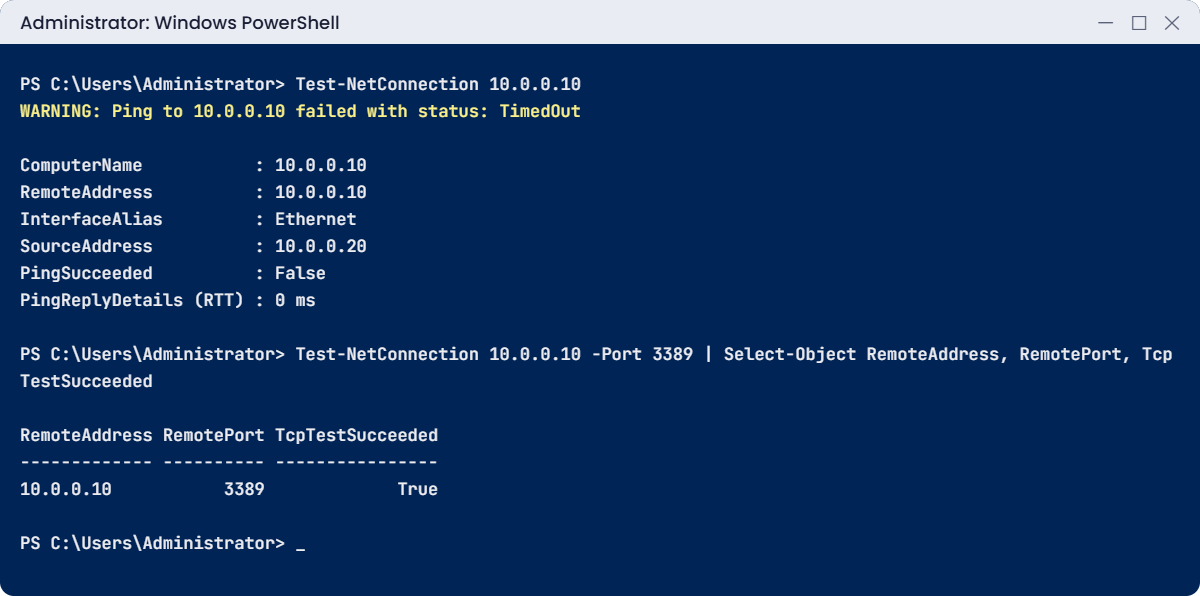
DC01 is up; you connected to its port 3389 a minute ago. Windows Server’s firewall simply doesn’t answer ping (ICMP echo) by default. Many outage calls start with “I can’t ping it”, and many times the server was fine all along.
Fix it: on DC01, enable the built-in rule that allows ping:
Enable-NetFirewallRule -DisplayName 'File and Printer Sharing (Echo Request - ICMPv4-In)'
Get-NetFirewallRule -DisplayName 'File and Printer Sharing (Echo Request - ICMPv4-In)' | Select-Object Name, Enabled, ProfileYou should see something like this:
Name Enabled Profile
---- ------- -------
FPS-ICMP4-ERQ-In True Private, Public
FPS-ICMP4-ERQ-In-NoScope True DomainRun Test-NetConnection 10.0.0.10 on SRV01 again and PingSucceeded is True. Windows ships the rule in more than one copy for different profiles, so enabling it by display name turns on all of them. Lesson 23 decides which servers should answer ping at all.
✅ Checkpoint: Ping from SRV01 to DC01 works after enabling the rule. Lesson learned: test the port the app uses, not just ping.
2Break it: the wrong gateway
On SRV01, replace the default gateway with an address that doesn’t exist:
Remove-NetRoute -DestinationPrefix 0.0.0.0/0 -Confirm:$false
New-NetRoute -DestinationPrefix 0.0.0.0/0 -InterfaceAlias Ethernet -NextHop 10.0.0.254 | Out-Null
Test-NetConnection 10.0.0.10 -Port 3389 | Select-Object TcpTestSucceeded
Test-NetConnection 1.1.1.1 -Port 53 | Select-Object TcpTestSucceededYou’ll get something like this:
TcpTestSucceeded
----------------
True
WARNING: TCP connect to (1.1.1.1 : 53) failed
TcpTestSucceeded
----------------
FalseDC01, on the same subnet, still works. Anything outside the subnet fails, because packets go to a gateway that isn’t there. “Local works, everything else doesn’t” almost always means the gateway (or a route) is wrong.
Fix it: check the route table, then put the right gateway back:
Get-NetRoute -DestinationPrefix 0.0.0.0/0 | Select-Object DestinationPrefix, NextHop
Remove-NetRoute -DestinationPrefix 0.0.0.0/0 -Confirm:$false
New-NetRoute -DestinationPrefix 0.0.0.0/0 -InterfaceAlias Ethernet -NextHop 10.0.0.1 | Out-Null
Test-NetConnection 1.1.1.1 -Port 53 | Select-Object TcpTestSucceededYou should see something like this:
DestinationPrefix NextHop
----------------- -------
0.0.0.0/0 10.0.0.254
TcpTestSucceeded
----------------
True✅ Checkpoint: SRV01 reaches 1.1.1.1 again through 10.0.0.1.
This happened at work
The server that thought it was in a coffee shop
A company ran its main application server with a firewall rule that allowed the app’s port only on the Domain profile.
It worked for a year. Then, after a power cut, the application server came back up before the domain controllers. When its network card connected, Windows couldn’t reach a DC, so it filed the network under Public.
Once the DCs came up, the server stayed on Public. The app’s port was now blocked, and 400 users got connection errors. The server itself looked perfectly healthy, and ping worked, because a separate rule allowed ping on all profiles.
The admin found it with Get-NetConnectionProfile: NetworkCategory Public on a domain-joined server. Restarting the Network Location Awareness service (or disabling and re-enabling the network card) brought it back to DomainAuthenticated within seconds.
The fix: the app’s firewall rule now covers the profiles it needs, the monitoring checks the network category on key servers, and the team documented “check the firewall profile” in the outage runbook.
The lesson: a firewall rule is only as good as the profile it’s attached to. When a port suddenly stops answering, check the profile before you check the app.
Common mistakes and troubleshooting
| Mistake or symptom | What happens | What to do instead |
|---|---|---|
| Using ping to decide a server is down | Windows Server blocks ping by default | Test the real port with Test-NetConnection -Port |
| Local subnet works, nothing else does | Wrong or missing default gateway | Check Get-NetRoute 0.0.0.0/0 and the gateway address |
| Wrong prefix length | Some nearby hosts look remote, or remote ones look local | Compare with the subnet plan; calculate the range |
| Old entries in the hosts file | The server goes to the wrong IP for years | Keep hosts files empty on servers; use DNS |
| Turning off IPv6 | Odd failures in Windows features | Leave IPv6 enabled; filter it at the network if needed |
| Firewall rule only on the Domain profile | Breaks when the network is detected as Public | Check Get-NetConnectionProfile; scope rules to the right profiles |
| Turning the firewall off “to test” and leaving it off | Server is wide open | Add a specific rule instead, and remove test changes |
| Duplicate MAC or IP after cloning VMs | Flapping connectivity | Generate new MACs and run sysprep on clones |
| Using LBFO teaming under a Hyper-V switch | Not recommended in current versions | Use Switch Embedded Teaming (SET) on Hyper-V hosts |
Interview questions
Click a question to open it. Under each one you’ll find what the interviewer is really looking for, and one good way to answer.
Fresher level
1. What is a subnet mask?
What they’re really checking: Do you know addressing basics?
How you could answer: It splits an IP address into the network part and the host part. 255.255.255.0 (/24) means the first three numbers are the network and the last one is the host.
2. How do you test if a service port is open on a server?
What they’re really checking: Do you test the right thing?
How you could answer: Test-NetConnection server -Port 443 in PowerShell. It shows TcpTestSucceeded True or False, which is better than ping because ping is often blocked.
3. What are the three Windows firewall profiles?
What they’re really checking: Do you know how rules are applied?
How you could answer: Domain, Private and Public. Network Location Awareness picks one per connection, and each rule applies to one or more profiles.
2–5 years experience
4. Explain the order Windows uses to resolve a name.
What they’re really checking: Do you know where wrong answers come from?
How you could answer: DNS client cache including hosts file entries, then the configured DNS servers with the DNS suffix, then fallbacks like LLMNR, NetBIOS and mDNS. Ipconfig /displaydns and Get-DnsClientCache show the cache.
5. A server can reach machines on its subnet but not the internet. What do you check?
What they’re really checking: Do you reason from the route table?
How you could answer: The default gateway in Get-NetRoute 0.0.0.0/0, whether the gateway answers, then DNS, then firewalls or a proxy on the path.
6. A domain-joined server shows NetworkCategory Public. Why does it matter and how do you fix it?
What they’re really checking: Do you know NLA?
How you could answer: Rules for the Domain profile stop applying, so services break. NLA couldn’t reach a DC when the network connected. Fix DNS and DC reachability, then restart the NLA service or the adapter.
Senior level
7. Why might you disable LLMNR and NetBIOS over TCP/IP?
What they’re really checking: Do you know name-resolution attacks?
How you could answer: Attackers on the same network can answer those broadcast queries and capture credentials (tools like Responder). With working DNS, they aren’t needed, so disable them by Group Policy and DHCP options.
8. How would you design NIC redundancy for a Hyper-V host?
What they’re really checking: Do you know current recommendations?
How you could answer: Two or more physical NICs on separate switches, teamed with Switch Embedded Teaming in the Hyper-V switch, with management and storage traffic on vNICs or separate RDMA NICs, plus QoS. LBFO is no longer recommended under Hyper-V.
9. How do you manage firewall rules for hundreds of servers?
What they’re really checking: Do you think in policy, not clicks?
How you could answer: Group Policy (or another config tool) with rules grouped by server role, scoped to specific remote addresses, logging enabled for blocked traffic, and regular reviews. Local rule changes are avoided or overwritten.
Quick quiz
Q1. How many usable hosts are in a /26 subnet?
- 30
- 62
- 126
Show answer
B — 64 addresses minus the network and broadcast addresses = 62.
Q2. Where does Windows look first when resolving a name?
- The DNS server
- The DNS client cache, which includes the hosts file
- NetBIOS
Show answer
B — The cache (with hosts entries) comes before asking a DNS server.
Q3. Ping to DC01 fails but TCP 3389 works. Most likely cause?
- DC01 is down
- The firewall blocks ICMP echo
- Wrong IP address
Show answer
B — Windows Server doesn’t answer ping by default.
Q4. SRV01 reaches DC01 but not the internet. What do you check first?
- The hosts file
- The default gateway route
- The DNS cache
Show answer
B — Local works, remote doesn’t: check 0.0.0.0/0.
Q5. In the work story, why did the app port stop answering?
- The app crashed
- The server’s network was classified as Public, so the Domain-only rule stopped applying
- The cable failed
Show answer
B — Check Get-NetConnectionProfile when ports suddenly close.
Quick recap
- Windows Server networking starts with address, prefix and gateway; work out ranges with the subnet maths.
- ARP finds MAC addresses on the same subnet;
Get-NetNeighborshows them. - Name resolution order: cache and hosts file, then DNS servers, then LLMNR and NetBIOS.
- Firewall profiles: Domain, Private, Public; rules apply per profile, inbound is blocked unless allowed.
- Test the real port with
Test-NetConnection -Port; ping is often blocked. - On Hyper-V hosts, team NICs with SET.
Next lesson
Lesson 10: Active Directory concepts → You’ll learn what Active Directory is, how forests, domains, OUs and sites fit together, what the global catalog and FSMO roles do, and you’ll choose the domain name for your lab.
Further reading: Windows Server networking
Want to go deeper into Windows Server networking? Microsoft’s Windows Firewall overview explains profiles and rules, and the NetTCPIP PowerShell reference covers every networking cmdlet used here. You can also see the full plan for this course on the Windows Server Administration course page.
