Windows Server Backup and disaster recovery

Replication, clusters and RAID protect you from hardware failing. Only a backup protects you from people, ransomware and corruption. Windows Server Backup is the built-in tool that does it, and knowing it well also teaches you how every other backup product thinks.

In this lesson you’ll add a backup disk to SRV01, run a one-time and a scheduled backup, restore a single file and compare versions, rehearse a bare-metal recovery onto a new VM, and plan a 3-2-1 strategy.

TimeYou needBy the end you can
About 90 minutes, plus backup timeSRV01 with the shares from Lesson 16 and about 40 GB of laptop disk spaceConfigure one-time and scheduled backups with wbadmin, restore files and volumes safely, plan bare-metal recovery and design a 3-2-1 backup strategy

What it is, in one line

Windows Server Backup is the backup feature built into Windows Server: it uses VSS snapshots to back up files, volumes, system state and whole servers, and restores them, including onto bare hardware.

In Simple Words

Photo albums of your house

Imagine taking a photo of every room in your house each night and keeping the albums. If someone breaks a vase, you can look up exactly how the room looked last Tuesday and put it back.

If the whole house burns down, the albums let you rebuild it, as long as they weren’t kept inside the house. That’s why you keep one album at a friend’s place.

Backups are those albums. Restores are rebuilding from them. And an album you’ve never opened might be blank.

Engineer's View

VSS, backup types, recovery and 3-2-1

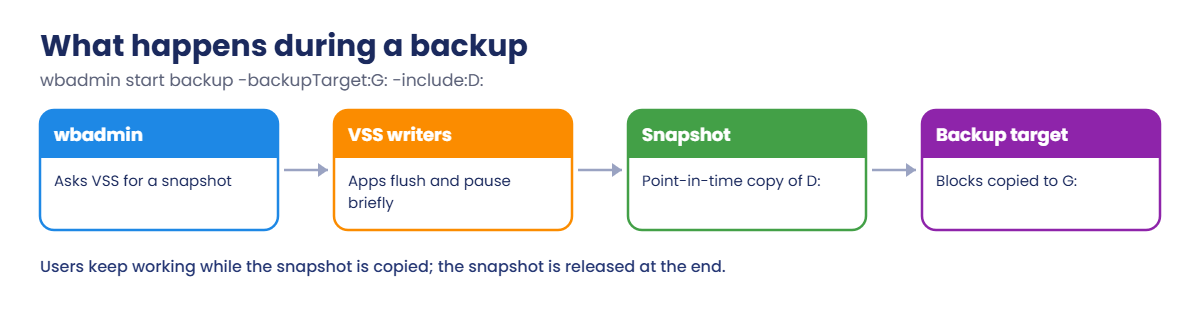
VSS: Windows Server Backup asks the Volume Shadow Copy Service for a point-in-time snapshot, so files in use (databases, AD) are captured consistently. Applications register VSS writers to flush their data first.

What you can back up: files and folders, whole volumes, system state, and bare metal recovery (BMR), which includes all critical volumes needed to rebuild the server on new hardware or a new VM. Backups to a dedicated disk are block-level and incremental after the first full, and keep many versions until the disk fills.

Restores: files and folders (to the original or another location), volumes, applications, system state, and full system image recovery from Windows RE. Always prefer restoring to an alternate location first, so you don’t overwrite newer data.

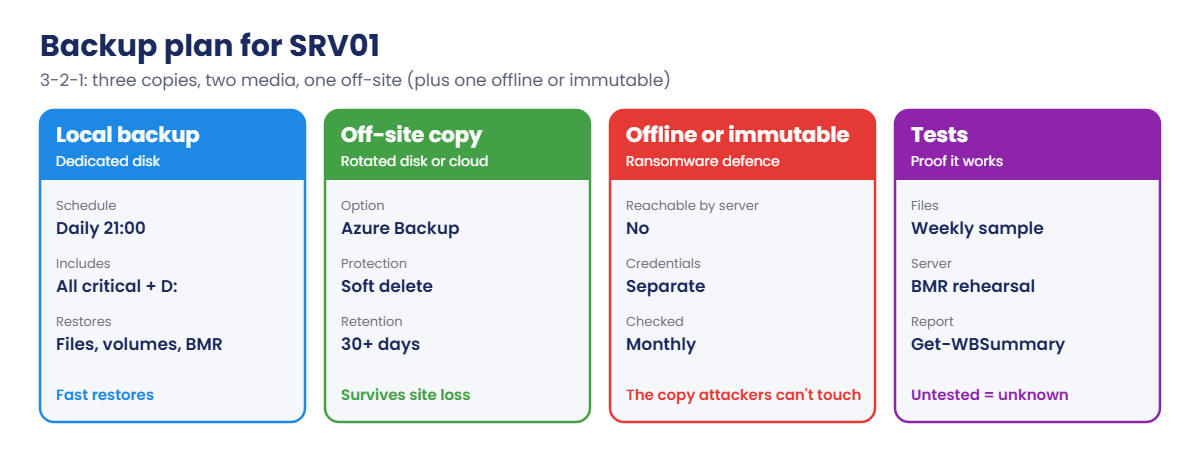
Strategy: the 3-2-1 rule means three copies of your data, on two different media, with one off-site; add one copy that’s offline or immutable against ransomware. Define RPO (how much data you can lose) and RTO (how long recovery may take) per system. Windows Server Backup is single-server; companies use Azure Backup, Veeam or similar for central management.

How it works, step by step

What happens during a backup:

Windows Server Backup: wbadmin, VSS writers, snapshot and backup target

The snapshot makes the backup consistent even while users keep saving files. Once the copy is done, the snapshot is released.

Your backup plan for SRV01:

Windows Server Backup plan: local, off-site, offline copies and restore tests
  1. Backup disk G: on SRV01 for one-time backups, then a dedicated disk for the schedule.
  2. One-time backup of D: (the shares).
  3. Scheduled backup every night at 21:00 including bare-metal recovery.
  4. File restore to an alternate folder.
  5. Bare-metal recovery rehearsal on an isolated new VM.

Hands-on Lab: Windows Server Backup on SRV01

Shut down SRV01 for step 1. Then work on SRV01 as SAATLAB\adm.rahul in PowerShell as administrator.

1Add backup disks and install the feature

On your laptop:

VBoxManage createmedium disk --filename C:\Lab\VMs\SRV01\SRV01-backup.vdi --size 40960
VBoxManage storageattach SRV01 --storagectl SATA --port 7 --device 0 --type hdd --medium C:\Lab\VMs\SRV01\SRV01-backup.vdi
VBoxManage startvm SRV01

On SRV01:

Install-WindowsFeature Windows-Server-Backup | Out-Null
Get-Disk | Where-Object PartitionStyle -eq 'RAW' | Initialize-Disk -PartitionStyle GPT -PassThru |
    New-Partition -DriveLetter G -UseMaximumSize | Format-Volume -FileSystem NTFS -NewFileSystemLabel Backup -Confirm:$false | Out-Null
Get-Volume -DriveLetter G | Select-Object DriveLetter, FileSystemLabel, @{n='SizeGB';e={[math]::Round($_.Size/1GB)}}

You should see something like this:

DriveLetter FileSystemLabel SizeGB
----------- --------------- ------
G           Backup              40

✅ Checkpoint: Windows Server Backup is installed and G: (40 GB) is ready.

2Run a one-time backup of D:

On SRV01:

wbadmin start backup -backupTarget:G: -include:D: -quiet
wbadmin get versions -backupTarget:G:

You should see something like this:

wbadmin 1.0 - Backup command-line tool
(C) Copyright Microsoft Corporation. All rights reserved.

Retrieving volume information...
This will back up (D:) to G:.
The backup operation to G: is starting.
Creating a shadow copy of the volumes specified for backup...
Creating a backup of volume Data(D:), copied (100%).
The backup operation successfully completed.
Summary of the backup operation:
------------------
The backup of volume Data(D:) completed successfully.

Backup time: 20/10/2026 01:12
Backup target: Fixed Disk labeled Backup(G:)
Version identifier: 10/19/2026-19:42
Can recover: Volume(s), File(s)

The version identifier is in UTC and month/day/year format, exactly as in Lesson 32. Note it down.

✅ Checkpoint: wbadmin get versions lists a backup of D: on G: with its version identifier.

3Restore a single file to another folder

On SRV01, delete a file as if a user did it by mistake, then restore it:

Remove-Item D:\Shares\Finance\budget.txt
wbadmin start recovery -version:10/19/2026-19:42 -itemType:File -items:D:\Shares\Finance\budget.txt -recoveryTarget:D:\Restore -quiet
Get-ChildItem D:\Restore -Recurse | Select-Object FullName

You should see something like this:

Running a recovery operation for D:\Shares\Finance\budget.txt, copied (100%).
Successfully recovered D:\Shares\Finance\budget.txt to D:\Restore\.
The recovery operation completed.

FullName
--------
D:\Restore\budget.txt

Check it, then put it back:

Get-Content D:\Restore\budget.txt
Copy-Item D:\Restore\budget.txt D:\Shares\Finance\ ; Remove-Item D:\Restore -Recurse

Restoring to D:\Restore first lets you check you got the right version before anything is overwritten. For folders, add -recursive; to restore permissions too, use -recoverACL.

✅ Checkpoint: budget.txt came back from the backup and is in the Finance folder again.
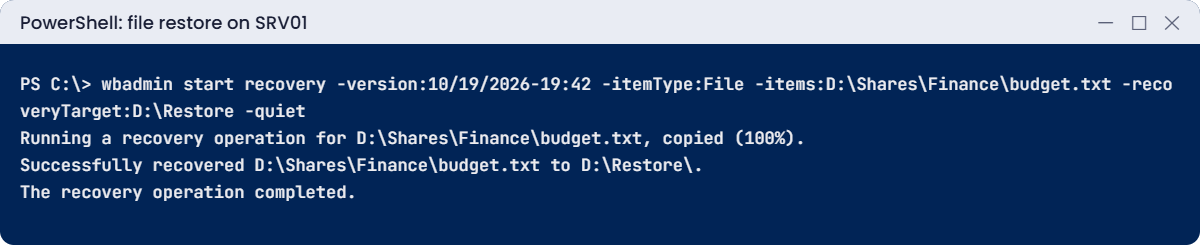
Windows Server Backup lab: restoring a single file to an alternate folder
The file comes back into D:\Restore first, so you can check it before replacing anything.

4Schedule nightly backups with bare-metal recovery

On SRV01, find a disk to dedicate to scheduled backups (in the lab, use the same backup disk):

wbadmin get disks | Select-String 'Disk name|Disk identifier|Volumes'

You should see something like this (shortened):

Disk name: ATA VBOX HARDDISK
Disk identifier: {c3a6e2b1-4f0d-4c7e-9b8a-2d1e5f6a7b90}
Volumes: Backup[G:]

Enable the schedule (this reformats the disk, removing the one-time backup):

wbadmin enable backup -addtarget:{c3a6e2b1-4f0d-4c7e-9b8a-2d1e5f6a7b90} -schedule:21:00 -allCritical -include:D: -quiet
wbadmin get status

-allCritical includes every volume needed for bare-metal recovery (C:, the boot and recovery partitions). After you enable it, the disk is hidden from File Explorer and used only for backups. Run the first backup now from Server Manager or with wbadmin start backup using the same options, and check wbadmin get versions the next morning.

✅ Checkpoint: A daily 21:00 schedule exists with bare-metal recovery and D: included.

5Rehearse a bare-metal recovery (isolated)

This is the restore you hope never to need, so practise it once. On your laptop, create a new VM SRV01-BMR with the same OS type, 2 GB RAM and an empty 60 GB disk, and attach the Server 2025 ISO. Shut down SRV01 and move its backup disk to SRV01-BMR (a disk can only be attached to one VM at a time).

On your laptop:

VBoxManage storageattach SRV01 --storagectl SATA --port 7 --device 0 --medium none
VBoxManage storageattach SRV01-BMR --storagectl SATA --port 2 --device 0 --type hdd --medium C:\Lab\VMs\SRV01\SRV01-backup.vdi

Disconnect the new VM from the network so the restored copy can’t clash with the real SRV01:

VBoxManage modifyvm SRV01-BMR --cableconnected1 off
VBoxManage startvm SRV01-BMR

Boot from the ISO, choose Repair your computer, Troubleshoot, System Image Recovery. Windows finds the latest backup on the attached disk; accept it and let it format the empty disk and restore. When it restarts, you have SRV01 as it was at the backup time.

Check that C: and D: are back, then shut SRV01-BMR down and delete it. Detach the backup disk and reattach it to SRV01 on port 7 with the same storageattach command you used in step 1. Never connect a restored copy to the network while the original is running: two machines with the same name and identity confuse AD and DNS.

✅ Checkpoint: SRV01-BMR booted with SRV01’s data restored from bare metal, and was deleted without ever touching the network.

Break It, Then Fix It

Two backup mistakes that hurt during a real incident: a backup that silently can’t run, and a restore that overwrites today’s work.

1Break it: the backup target goes missing

Shut down SRV01, detach the backup disk on your laptop, start SRV01, then run the scheduled backup by hand:

VBoxManage storageattach SRV01 --storagectl SATA --port 7 --device 0 --medium none     # on your laptop
wbadmin start backup -quiet                                                                # on SRV01: runs the scheduled settings
Get-WinEvent -LogName 'Microsoft-Windows-Backup' -MaxEvents 3 | Select-Object Id, LevelDisplayName, Message | Format-List

You’ll see something like this:

ERROR - The backup storage location is not available or is not supported.

Id               : 5
LevelDisplayName : Error
Message          : The backup operation that started at '2026-10-19T19:50:12' has failed with following error code
                   '0x807800C5' (There was a failure in preparing the backup image of one of the volumes in the backup
                   set.). Please rerun backup once issue is resolved.

A missing or full target is one of the most common reasons backups stop. The scheduled job fails quietly every night unless someone reads the Backup log or gets an alert. In real life this is a USB disk someone unplugged, or a NAS share whose password changed.

Fix it: reattach the disk, rerun, and set up monitoring:

VBoxManage storageattach SRV01 --storagectl SATA --port 7 --device 0 --type hdd --medium C:\Lab\VMs\SRV01\SRV01-backup.vdi   # laptop (SRV01 off)
wbadmin start backup -quiet                                                                                                 # on SRV01
(Get-WBSummary).LastSuccessfulBackupTime

Get-WBSummary gives the last successful backup time; add it to the daily report script from Lesson 27 and alert if it’s older than 26 hours.

✅ Checkpoint: The backup failed without its disk, succeeded after reattaching it, and LastSuccessfulBackupTime is today.
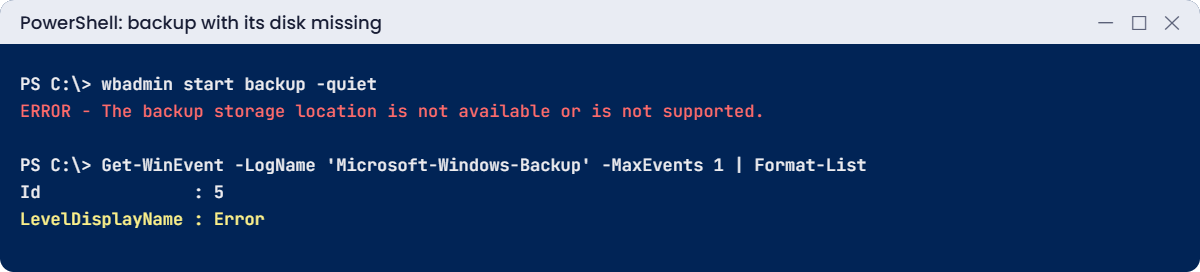
Windows Server Backup lab: backup fails when the target disk is missing
Without its disk, the scheduled backup fails, and only the Backup log says so.

2Break it: a restore that overwrites newer work

On SRV01, change a file after the latest backup, then restore it over the original:

'Budget v2: updated after the backup' | Set-Content D:\Shares\Finance\budget.txt
$v = ((wbadmin get versions | Select-String 'Version identifier') | Select-Object -Last 1).ToString().Split(':',2)[1].Trim()
wbadmin start recovery -version:$v -itemType:File -items:D:\Shares\Finance\budget.txt -overwrite:Overwrite -quiet
Get-Content D:\Shares\Finance\budget.txt

You’ll see something like this:

Q3 budget draft

The restore put back the backed-up version and quietly destroyed “v2”, which existed only on the server. When a user says “restore my file”, they often mean “give me yesterday’s copy too”, not “replace today’s”.

Fix it: restore to an alternate location and let the user choose:

wbadmin start recovery -version:$v -itemType:File -items:D:\Shares\Finance\budget.txt -recoveryTarget:D:\Restore -quiet
Get-ChildItem D:\Restore | Select-Object Name, LastWriteTime

Shadow copies (Lesson 17) would also have kept the v2 version if one had been taken after it. Layers of protection help, but the habit that saves data is restoring side by side.

✅ Checkpoint: Restoring with -overwrite:Overwrite lost the newer content, and restoring to D:\Restore kept both versions available.

This happened at work

The backup disk the ransomware found

A small company backed up its file server every night with Windows Server Backup to a USB disk that stayed plugged in. They checked the reports every week and every backup succeeded.

Then ransomware arrived through a phished account and ran with administrator rights. It encrypted the file shares, deleted the shadow copies, and found the backup disk too: it was just another drive letter. Every backup version was encrypted along with the data.

The only other copy was a cloud sync of a few departments’ folders, which also synced the encrypted files. The company paid an incident response firm and still lost three weeks of work.

The fix: backups now go to a dedicated disk plus Azure Backup with soft delete and immutable vaults, a second disk is rotated off-site weekly, and backup credentials are separate from domain admin accounts.

The lesson: a backup that the server can reach and delete can be destroyed with it. Keep at least one copy offline or immutable.

Common mistakes and troubleshooting

Mistake or symptomWhat happensWhat to do instead
Backup target permanently attached and writableRansomware encrypts backups tooOne offline or immutable copy (3-2-1-1)
Nobody checks backup resultsSilent failures for weeksAlert on Get-WBSummary or backup events
Restoring over the original locationNewer data is overwrittenRestore to an alternate location first
Never testing a restoreBackups that can’t be restoredRegular file, volume and bare-metal restore tests
No bare-metal or system state backupCan’t rebuild a server quicklyInclude -allCritical or system state
Restored copy connected to the networkDuplicate names and identitiesRestore in isolation, then decide
Backing up to the same disk as the dataDisk failure loses bothSeparate media
No RPO/RTO agreedBackups too rare or restores too slowAgree RPO and RTO per system and design for them
Excluding application-aware backupsInconsistent databasesUse VSS-aware, application-consistent backups

Interview questions

Click a question to open it. Under each one you’ll find what the interviewer is really looking for, and one good way to answer.

Fresher level

1. What is the 3-2-1 backup rule?

What they’re really checking: Do you know the basics?

How you could answer: Three copies of data, on two different types of media, with one copy off-site. Many add one offline or immutable copy.

2. What does VSS do for backups?

What they’re really checking: Do you know consistency?

How you could answer: It creates a point-in-time snapshot so open files and applications are backed up in a consistent state.

3. How do you restore one deleted file with Windows Server Backup?

What they’re really checking: Have you done it?

How you could answer: wbadmin get versions, then wbadmin start recovery with -itemType:File, the item path and preferably -recoveryTarget to another folder; or the Recover wizard.

2–5 years experience

4. What are RPO and RTO?

What they’re really checking: Do you plan recovery?

How you could answer: RPO is how much data you can afford to lose (time since the last good backup); RTO is how long you can take to restore service.

5. What is bare-metal recovery?

What they’re really checking: Do you know full restores?

How you could answer: Restoring an entire server, including OS and critical volumes, onto new hardware or an empty VM from Windows RE using a system image backup.

6. How do you protect backups from ransomware?

What they’re really checking: Do you think about attackers?

How you could answer: Offline or immutable copies, separate credentials, MFA on backup consoles, soft delete in cloud vaults, monitoring for deletions, and tested restores.

Senior level

7. Design a backup strategy for 50 servers in two sites.

What they’re really checking: Do you design end to end?

How you could answer: Classify by RPO/RTO, central backup software with application-aware agents, local fast copies, off-site or cloud copies with immutability, retention policies, encryption, monitoring, documented and tested restores, and DR runbooks.

8. How would you prove backups work to an auditor?

What they’re really checking: Do you show evidence?

How you could answer: Scheduled restore tests with records, success reports and alerts, retention evidence, restore time measurements against RTO, and periodic full DR exercises.

9. When is Windows Server Backup not enough?

What they’re really checking: Do you know its limits?

How you could answer: It’s single-server, has basic scheduling and retention, no central console, limited application integration and no immutability. Larger estates need Azure Backup, DPM or third-party products.

Quick quiz

Q1. What does VSS provide during a backup?

  1. Compression
  2. A consistent point-in-time snapshot
  3. Encryption
Show answer

B — Open files are captured consistently.

Q2. Which option includes everything needed for bare-metal recovery?

  1. -include:D:
  2. -allCritical
  3. -quiet
Show answer

B — It adds all critical volumes.

Q3. Why did the backup fail in Break It step 1?

  1. Wrong password
  2. The backup disk was missing
  3. VSS was off
Show answer

B — Monitor backups every day.

Q4. What went wrong with -overwrite:Overwrite?

  1. Nothing
  2. It replaced a newer version of the file
  3. It restored the wrong folder
Show answer

B — Restore to an alternate location first.

Q5. In the work story, why were backups lost?

  1. Disk failure
  2. Ransomware encrypted the attached backup disk
  3. Expired licence
Show answer

B — Keep one copy offline or immutable.

Quick recap

  • Windows Server Backup uses VSS to back up files, volumes, system state and whole servers.
  • wbadmin start backup, get versions and start recovery cover most daily work.
  • Restore to an alternate location first.
  • Scheduled backups with -allCritical make bare-metal recovery possible; rehearse it in isolation.
  • Follow 3-2-1 and keep one copy offline or immutable.
  • Monitor backup results and test restores regularly.

Next lesson

Lesson 39: Monitoring → You’ll build a Performance Monitor baseline with a data collector set, forward events from all servers to one collector, use Reliability Monitor and set simple alerts.

Further reading: Windows Server Backup

Want to go deeper into Windows Server Backup? Microsoft’s wbadmin command reference lists every option used here, and the Azure Backup overview shows how to add an immutable cloud copy. You can also see the full plan for this course on the Windows Server Administration course page.

Scroll to Top